

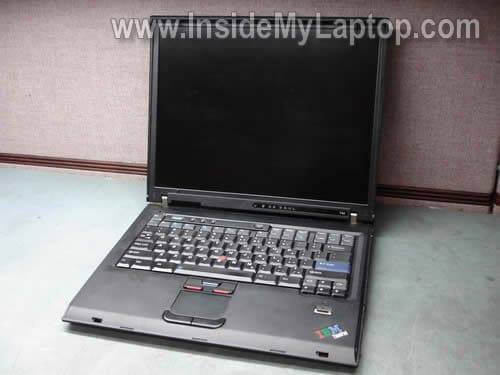
In this guide I explain how to replace the cooling fan assembly in an IBMÂ ThinkPad T43 laptop.
Also you can use this guide for removing and replacing the keyboard and hidden memory module.
I’s fixing the laptop because it started showing  “Fan Error” message on startup.
Turn off the computer, unplug the AC adapter and remove the battery.
STEP 1.
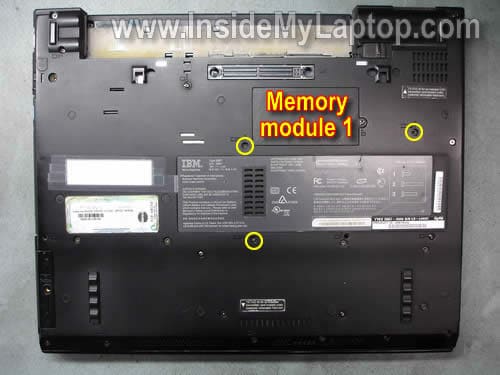
Remove three screws securing the keyboard on the bottom of the laptop.
It’ not necessary to remove the memory cover.
STEP 2.
Insert a sharp object between the bottom of the keyboard and palm rest and carefully lift it up.
Place the keyboard upside down on the palm rest.

STEP 3.
Disconnect the keyboard cable from the motherboard.

STEP 4.
Remove the keyboard.

STEP 5.
The cooling fan assembly is hidden under the palm rest and cannot be removed until the palm rest is removed.
The second memory module can be accessed here.

STEP 6.
Now we are going to remove the palm rest.
Remove all marked screws from the bottom.

STEP 7.
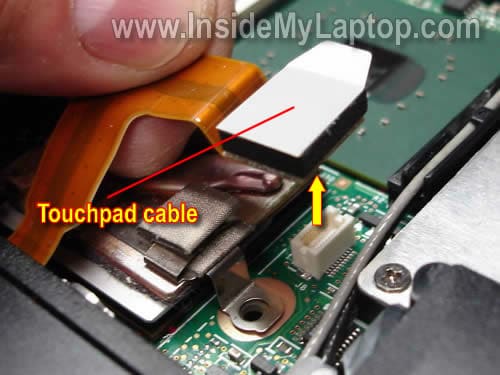
Disconnect the touchpad cable from the motherboard.
STEP 8.
Start separating the palm rest assembly from the bottom case.

STEP 9.
Remove the palm rest assembly.

STEP 10.
Remove three screws securing the heat sink.
Disconnect the fan cable from the motherboard.

STEP 11.
Lift up the right side of the heat sink.

STEP 12.
Remove the fan assembly.
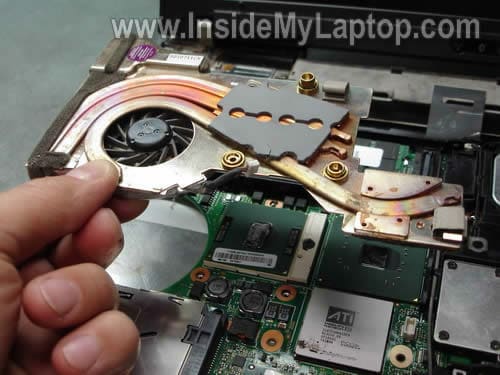
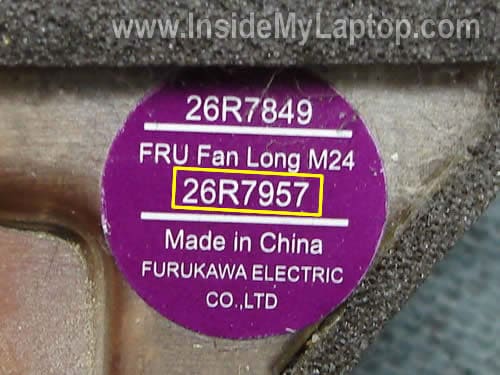
I would suggest searching for a new fan assembly using the IBM FRU part number. In my case the part number is 26R7950.
STEP 13.
Clean up the CPU and GPU chips with an alcohol swab.
Do not forget to apply new grease on the CPU if you installing a used heat sink.
You don’t have to apply thermal grease on the GPU because it uses thermal pad located on the heat sink.
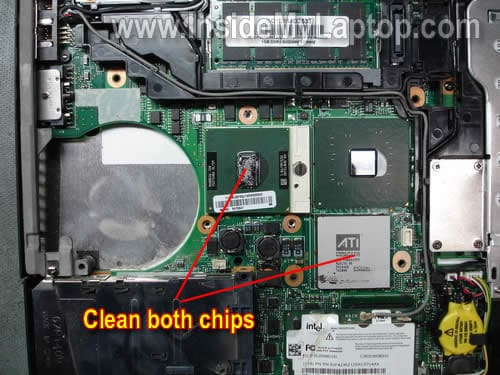
A new fan assembly should come with thermal grease pre-applied on the heat sink. Also, it comes with thermal pad for the GPU.

hayden
Hi my ibm laptop was saying fan error when booting up.
So my dad and i tore it apart to replace the fan. idk where to put everything.
i was wondering how to put everything back together
Mistyck
Hi there, got a question…
I think my Gateway NX570’s AC outlet part got fried when the adapter jack got wet and I inserted it into the laptop without realizing it was wet. I smelt a burnt plastic smell and the jack got hot as did the input on the laptop. Is it possible that I can fix this without having to fix the power jack? The laptop does work fine on battery, but right now I don’t have a way to recharge the battery so am not powering up the laptop.
IML Tech
Mistyck,
I don’t know. It is possible but you’ll have to buy a new AC adapter and try it. There is a chance that your DC jack/motherboard still fine. The laptop still runs on battery power and this is a good sign.
thijs
Hello,
Thanks for this useful guide to replace the fan.
I replacing the fan at the moment. But i’m having the problem that the thermal pad is more or less glued to the GPU. Do you have any suggestion to release the thermal pad from the GPU??
Kind regards,
Thijs
IML Tech
thijs,
Does your new fan have thermal pad for GPU? If it does, just remove the old thermal pad with a knife. After that clean the GPU surface with paper tower soaked in 99% alcohol.
Name
“the thermal pad is more or less glued to the GPU”
Same here (2668-G4G). There is some really hard material between the two parts, were you can see the arrow in step 11. I wanted to clean the laptop and replace the heat-pads etc., but couldn’t move the copper. This isn’t mentioned in the hardware maintenance manual.
Anon
i’m really glad i found this guide on how to replace the fan in a T43 i follwed all instructions since my T43 doesn’t have the fingerprint reader i had to removed an extra screw where the PCMCIA card slot is to remove the palm rest assembly in 2 parts and succesfully repaired the fan but now the laptop only responds when right front side is elevated and pressure applied to left front side it’s a bit impracticle to do this all the time might i have accidently damaged something
IML Tech
Anon,
Make sure memory modules seated correctly. Try reconnecting them.
Also, make sure you installed right screws into right holes.
Sounds like this is something simple. I would remove the cover again and check if everything looks normal and all cables routed correctly.
TheOx
I just replaced the fan in a 15″ T43p (2668-H2U). I had the same problem with the fan being glued to the GPU. After some hard wiggling of the fan, I was finally able to break it free but it took the metal ATI plate off with it. I was able to separate the ATI plate from the fan with a chisel which deformed the plate a little. I removed the goop from the back of the ATI plate and the top of the graphic chips with alcohol and cleaned the adhesive from the top of the plate with a razor blade. Then, I made the ATI plate as flat as I could, applied artic silver to the bottom of the plate in the four corners and the center and placed it on top of the graphic chips. The rest of the fan reassembly went normally. After replacing wristpad, keyboard and screws, it powered up beautifully. The fan noise was gone. Now I just have to see if the graphics chipset will withstand the major surgery over the coming months/years. Hope this helps those with the the thermal pad glued to the ATI plate dilemma.
Dawn Stratton
This was a great guide. I followed it to the letter. My computer was a little different, but the basics were great. One question, while trying to replace the keyboard, I can not get the bottom right corner to seat. What am I doing wrong? Thanks again for the guide.
Bill
The process was easy to follow. I also encountered the sticking problem on the ATI chip. I’ve reconnected everythinh. It boots, no fan noise, But… No display. Do you have any ideas?
Marius
Why change the whole assembly fan when you can insert some oil with a needle between the rotating plastic part and the static part of the fan? Then you have to clean the excess oil, but works perfect. No noise. No more fan error messages, at least for a long while.
@Dawn Stratton
Same problem. Simple solution. Just pre-bend before install the other way the flexible keyboard and the gap disappears like magic (also the annoying noise when pressing the keys).
Thanks for these tutorials.
IML Tech
@ Marius,
I’m not sure if this is a permanent fix. I think it might fail again soon.
IBM lover
First of all, I just want to say Wow! Your instructions were clear and 100% accurate! Originally I was experiencing my IBM T43 laptop go through turmoil; as I would go to turn it on, the Fan Error message would pop up and then shut down my computer. Luckily there was another computer in the house to browse the web for resolutions on this problem, and I found this helpful website! After reading the instructions, I ordered a fan assembly for my T43 IBM laptop on Amazon.com for $35. I just replaced it for the old one in my T43 IBM laptop and everything is back to normal, YAY! Thank you so much for writing these instructions; I wouldn’t have had the confidence to take apart my beloved IBM without them. Such a lifesaver! Now I can take back the little $400 laptop I bought for the meantime which means I just saved $365! Thank you again.
Tom
Thanks for posting this detailed guide. I’m trying to decide what to purchase. Some parts I look at are just the fan and some are the fan and heatsink. I’m not getting any fan errors. I just need to get rid of the noise!
K. Roberts
Your instructions were very good, everything went smoothly once I realized I needed the whole fan assembly, not just the fan itself. I would stress to anyone trying this to keep very careful track of which screws came from which holes, also it might not be completely obvious to a neophyte laptop repairer (like me) that the screws for the palm rest along the front of the laptop are under little plastic-y stick on covers that you just have to gently pry off.
IML Tech
@ K. Roberts,
It’s possible to replace just the fan but it requires extra work. It’s way easier to buy the entire cooling assembly.
By the way, thank you for your generous donation.
Tom
Thanks for posting this. I found a used replacement fan and with your instructions I don’t think it took me more than an hour to replace it. NO MORE FAN NOISE! Thanks again!
Manel
Thanks por posting this thourough explanation. I did not change the fan, but I did remove it, cleaned it and used a lubricant to get my T43 back to life.
Roy
I was hesitant to take this on but everything went perfectly. The only comment I’d add is that the three screws which hold the fan in place are spring loaded and should be removed very carefully or they may strip. I’ve read several recommendation from other sources as to how to go about removing them but I just very carefully backed them out; all in all …. great instructions, and no more noise!
Assasincz
Thanks for a great guide, It took some effort (the thermal pad was stuck to the graphics chip), but I have managed to remove the heatsing and regrease the cooling fan bearings with silicon oil. Additionally, I have applied new thermal grease on both CPU (the original dried out) and GPU (despite the thermal pad). The result? Under 100% load, the CPU’s temperature is now 13°C lower than originally. It is as quiet as new. I’m absolutely chuffed to bits.
CT
This seems really complicated. Can someone please rate the difficulty 1-10, 10 being the highest before I start to unscrew everything to get access to the fan and fan# so I can order parts? Thanks.
foxtrot-mike_fm
Thank you for these clear instructions & helpful diagrammes. I had just finished replacing my fan using some videos from YouTube when I found this site. However, the person demonstrating the procedure used a power-tool screwdriver which obscured the details (re. which screws to remove) & worked at a pace too rapid to follow. I found myself replaying sections of the video on VLC over & over again. Your instructions have clarity! I would recommend the following tip, something that I worked out in my endeavours: The screws on the T43 are numbered according to length which greatly facilitates replacing them in their correct positions. To doubly ensure that I got this right I made a map of the underside of my IBM on a piece of A3 paper marking the positions of the screws. I then stuck a blob of blutac next to each of these mapped screw positions & pressed each screw into the appropriate blutac blob as it was removed. This procedure has the double benefit of ensuring that no screws are lost in the procedure & that it is clear where they are to be returned. I am intending to ‘go back in’ & upgrade my machine’s RAM soon & these fan replacement instructions clearly map out where I need to go for that process. A further bonus! Finally, some of the screws from my ThinkPad are showing a little corrosion & I am thinking of putting a little spot of silicon grease on each screw as I return it after the RAM upgrade. Would that product be appropriate or would you suggest something else? Also, could you suggest a source for the heat sink grease for the CPU that you mentioned in this tutorial? Thanks again, fm.
Andreas
Hi,
I am trying to replace my fan, however, I am not stuck at step 11 (i.e. lifting the heat sink). It simply does not come off, as if it was stuck to the GPU. I was wondering if I maybe forgot one of the screws, but no, they’re all off.
I then thought that maybe the dried thermal paste was to blame, so I used a hairdryer to heat up the whole unit a little bit (this is how I normally remove coolers from CPUs if they’re stuck together) and then tried to lift it up – no luck, it’s stuck as if there was still something holding it together.
Can anyone give me some advice here please?
Andreas
I just read that some other people apparently had the same problem that the heat sink wouldn’t come off. The proposed solution was to use a knife to get it off, but I’m afraid to damage the GPU by applying force to get it off. Also, my fan is probably not broken, I just want to clean it, so I also don’t want to damage the thermal pad using a knife.
Is there another, more elegant way to do this?
IML Tech
@ Andreas,
Do not remove the heatsink! Find an air compressor or canned air. Blow off the fan and heatsink. It should be enough.
If you removed all screws, probably it’s only the thermal grease holding the heatsink. Some time ago I was waring on a laptop wit similar problem. I couldn’t remove the heatsink at all. Then I applied some force and…. separated the chip from the motherboard.
Do not apply much force if you decide to remove the heatsink.
Don Thompson
awesome instructions. I used these to pull the fan and these to disassemble and re-lubricate the fan. worked perfectly. i am not a techie and it worked!
michael egerton
I bought a small can of WD40, sprayed into each vent outlet very briefly for a fraction of a second with the long red WD40 extention adapter – problem solved with no more fan sound, and no more laptop shutting down after a few minutes due to the fan not working. I can now feel the hot air coming out the vents and the laptop is on continuously as bafore.