

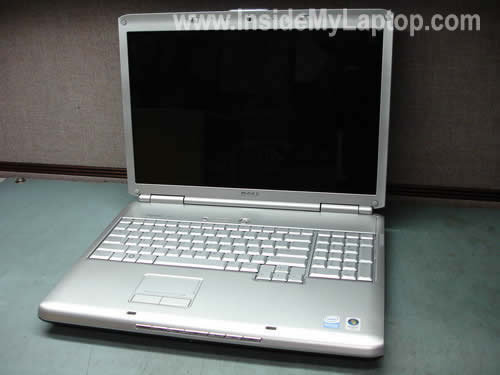
Here are instructions for taking apart a Dell Inspiron 1720/1721 or Dell Vostro 1700 laptop.
You can use these guide for removing and replacing:
1. Â Memory modules, hard drive, wireless card, modem.
2. CD/DVD optical drive.
3. Keyboard.
4. LCD panel.
5. Heat sink, CPU, motherboard and other internal components.
First of all, turn off the computer, unplug AC power adapter and remove the battery.
Remove Wi-Fi, memory and hard drive covers from the bottom.
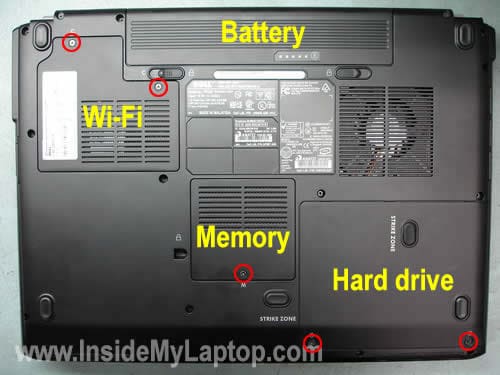
Disconnect (unsnap) two antenna cables from the wireless card. Remove the wireless card.

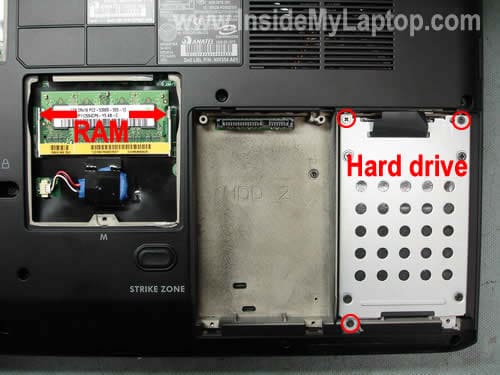
Spread latches on both sides of the memory slot and carefully pull the memory module from the slot.
You can access only one memory slot from the bottom. The second slot is located under the keyboard.
Remove three screws securing the hard drive. In order to disconnect the hard drive from the motherboard, lift it up by the black tab attached to the caddy. Remove the hard drive.
As you see, Dell Inspiron 1720 can handle two hard drives. You can increase the storage space by installing a second hard drive.
The BIOS (CRT) battery is located close to the RAM slot. By the way, disconnecting the battery will not clear the BIOS password, don’t even try.
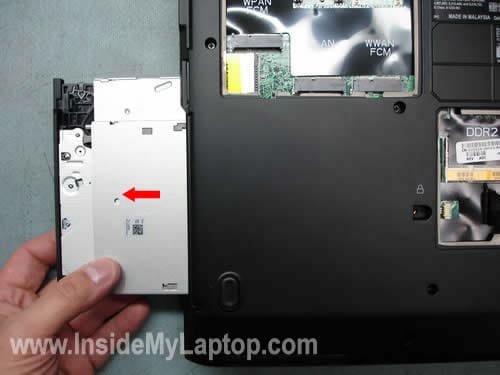
Now I’m going to remove the CD/DVD optical drive. Remove one screw securing the CD/DVD drive to the bottom case.
Carefully pull the CD/DVD drive out and remove it.
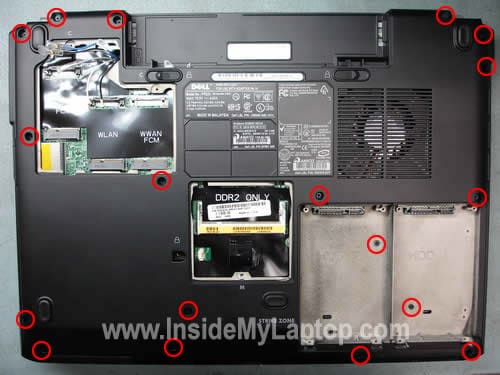
Remove all screws from the bottom.
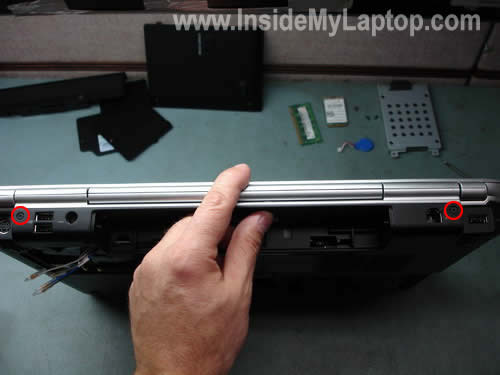
Remove two screws securing display hinges.
In the following four steps I explain how to remove the laptop keyboard.
If you are replacing the keyboard, you can skip all previous steps.
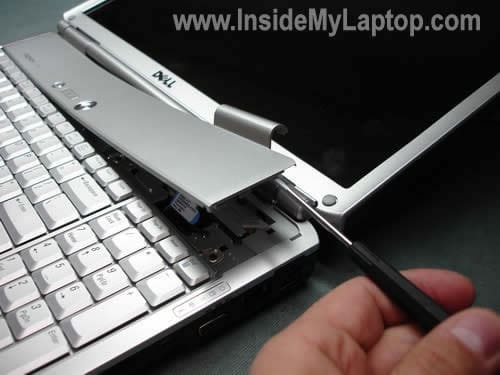
Lift up the hinge cover with a flathead screwdriver. Remove the cover.
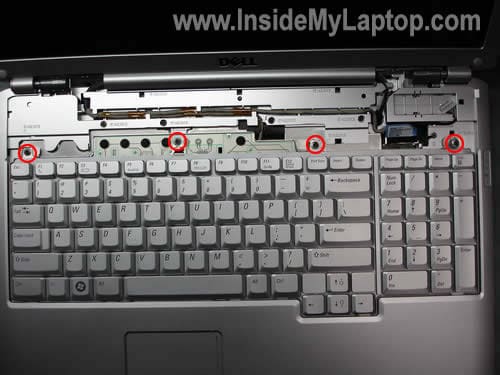
Remove four screws securing the keyboard.
Slide the keyboard to the direction shown by the red arrow.
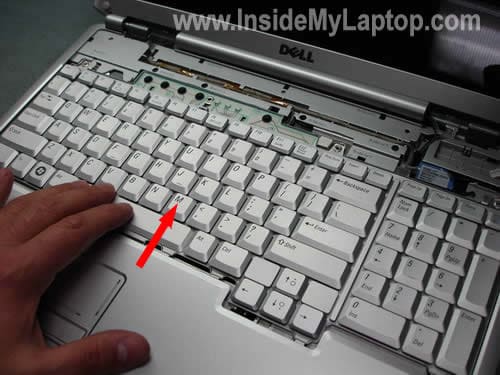
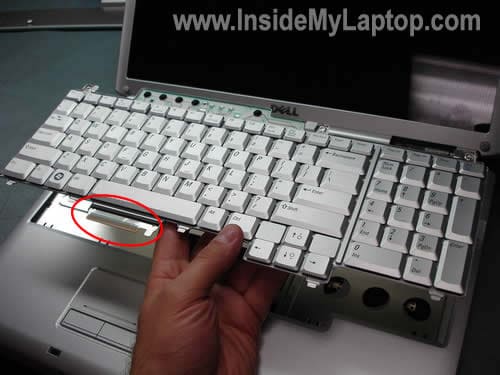
Lift up and remove the keyboard. Now you can replace it with a new one if necessary.
As you see on the picture below, it doesn’t have a flat ribbon cable. The connector is a part of the keyboard frame.
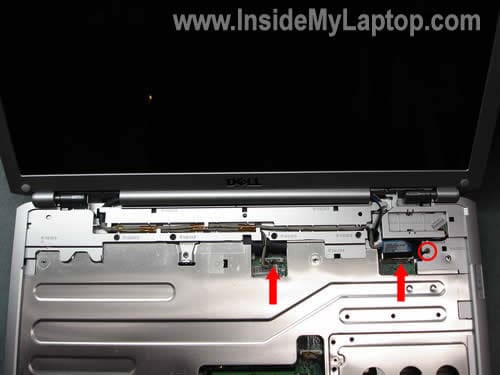
Unplug two LCD cables from the motherboard and remove one screw securing the grounding cable.
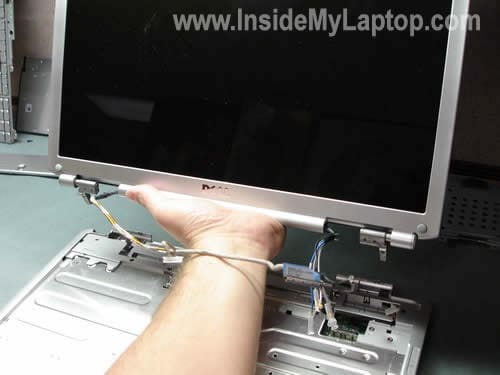
Remove the LCD panel.
Remove six screws securing the top cover assembly and unplug one cable pointed with the red arrow.
As I mentioned before, the second RAM slot can be accessed when you remove the keyboard.
The internal Bluetooth module can be mounted in the top right corner. My Inspiron 1720 came without internal Bluetooth module but it had the Bluetooth cable installed.
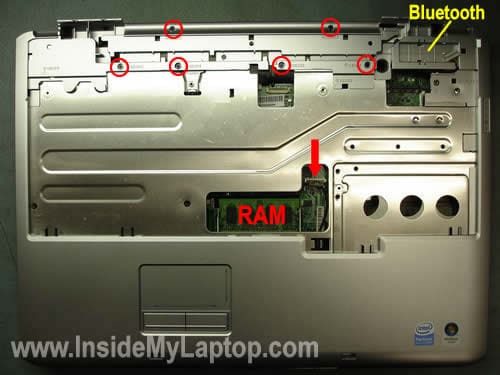
Lift up and remove the top cover assembly.
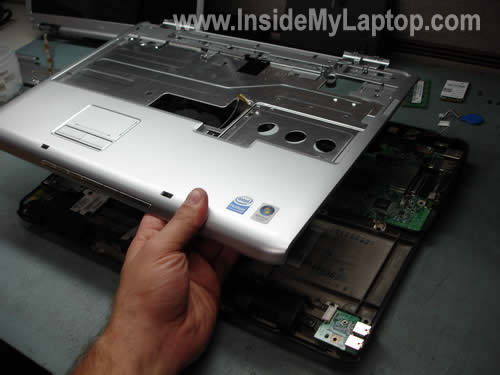
The top cover has been removed.
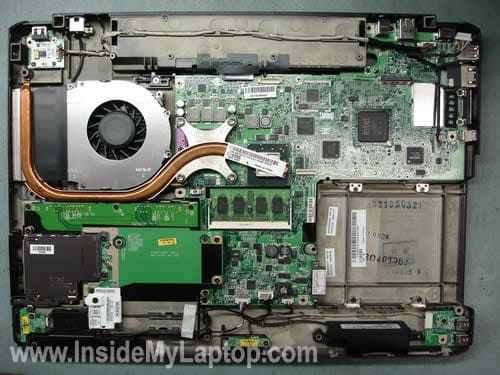
Loosen four screws securing the CPU heat sink.
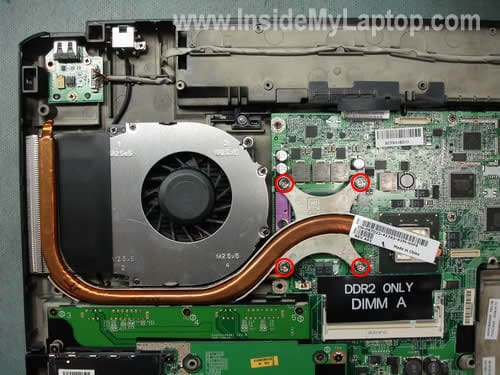
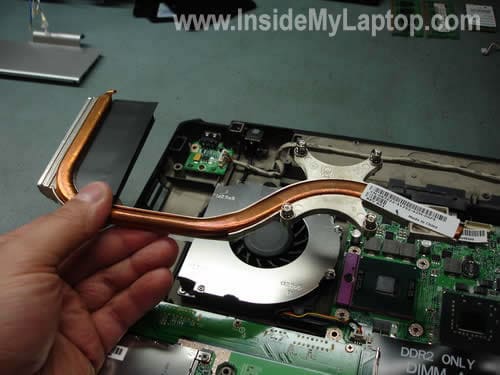
Remove the heat sink. Do not forget to apply new thermal grease when you install the heat sink back.
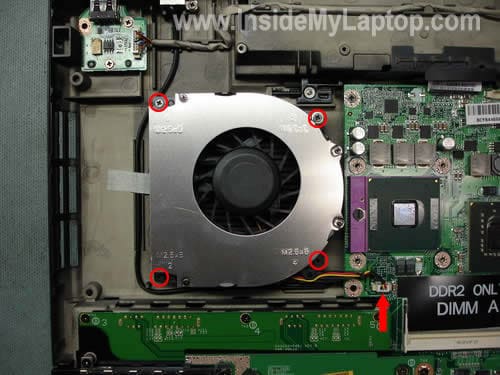
Remove four screws securing the cooling fan. Unplug the fan cable from the system board. Remove the fan.
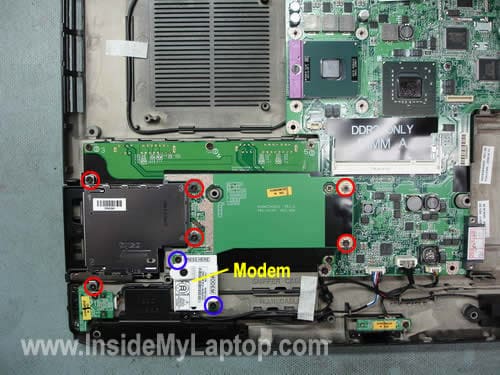
Remove two screws (blue circles) securing the dial up modem. Remove the modem.
Remove six screws (red circles) securing the PCMCIA slot board.
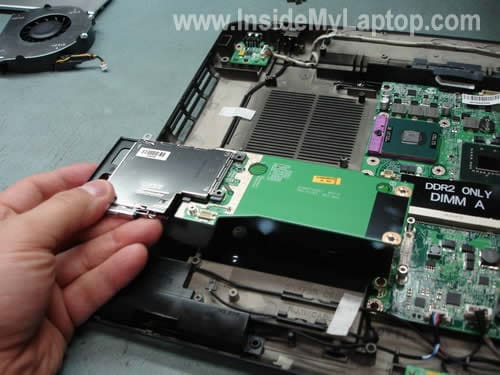
Remove the PCMCIA slot board.
Remove all screws securing the system board. Unplug three cables on the bottom (three red arrows). Unplug and remove the Bluetooth cable (yellow arrow).

Start removing the system board from the left side.
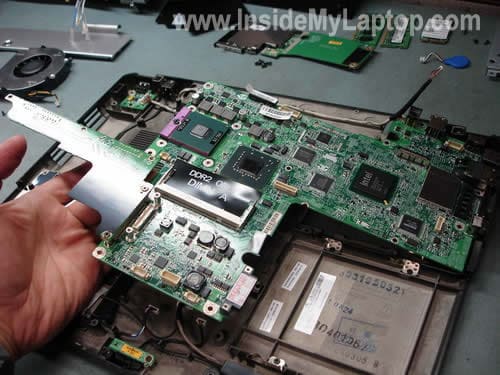
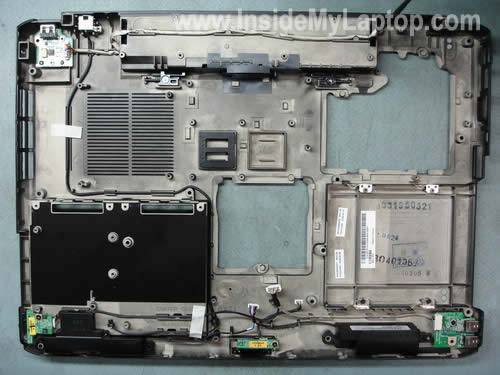
The system board has been removed.
In order to remove the CPU, you’ll have to unlock the CPU socket first. Turn the screw into the “Unlocked” position. Carefully lift up the CPU from the socket.

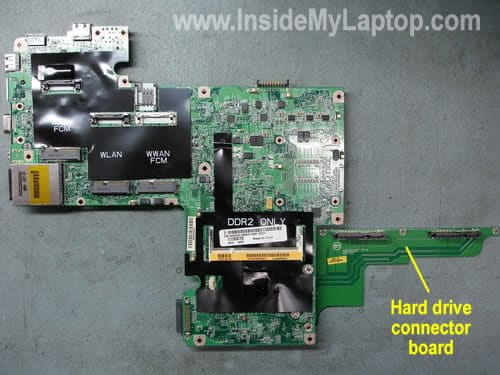
If you are replacing the system board, you’ll have to transfer the hard drive connector board to the new system board.
akbar
Very very useful information , thanks and thanks of lots.
Erwin
Really appreciate the info that is posted. It helped with us with removing defective parts of the Inspiron.
Jonathan
What i wanted to do is get the XPS 1730 keyboard and put that into my 1720. The only problem is that ribbon on the 1730 is what lights up the keyboard. I was trying to find a keyboard that would go in my 1720 that is backlit. But thanks for letting me see inside without having to take mine completely apart.
Augustin
Spectacular tutorial!!! excelent work, keep it up & THANKS
bob
WOW! just what I need
David
Great work – very useful, thanks a million!!!
Shane Barker
I want to replace my blue lid on my Dell Inspiron 1720 , is this just a snap on or is this screwed into the main lcd ?
IML Tech
Shane Barker,
It’s not just a snap on. The LCD screen is screws into the display cover.
Alex
Thanks a lot. It helped me to reach the second RAM card!!
Great job.
joe
Im thinking about replacing my CPU on my dell inspiron 1720. Its intel pentium dual core 1.86ghz T2390 at the moment, so what i need to know is will a intel core 2 duo be compatible with my laptop? im not sure at all when it comes to computer stuff so any help much appreciated. Thanks.
Fenix
I have the 8600m Gt in my 1720 can i put in a 8800m gtx??
Joe
Great Information, never took a laptop apart before. Just finished the keyboard swap no problems, Thanks
Kieron
To fenix:
I did some research on this and although it looks like its possible to replace the graphics module in an inspiron 1720 (see here: http://support.dell.com/support/edocs/systems/ins1720/en/sm/graphics.htm#wp1179839
I don’t think it’s possible to upgrade to a faster model, as the 8600gt was the most powerful card that model was supplied with. This website: http://www.mxm-upgrade.com/
doesn’t give conclusive proof that you cant do it – but from reading the information on mxm, I’m convinced its not possible.
Nicholas Barry
Where can I find out info on taking apart my Dell power cord? It’s fraying, and I’d rather not spend the $80 necessary for a new one. I want to reconnect the wires manually, but want to be reassured by a dissection like the one shown above.
And I wish I’d found this before taking my computer apart myself. Everything ended up okay, but I would have figured things out faster if I’d seen this site.
Anon Dude
Great stuff. Ugh… Certainly a little daunting.
saif
thanks dear ur really done well for us.
Denise H.
This is great. I need to clean my laptop.I was trying to figure out how do it. This will help me.
Bob S.
Thanks. You saved me hours of frustration. I appreciate all the pictures and the obvious care with which you set up these shots.
matt k
awesome thanx alot for the info n pics!!!!
nate hale
it looks like i can access the ram under the keyboard with out removal of the LCD screen and the chassie …… is this true, can i just remove the keyboard and access that ram. wanted to make shure before i started taking it apart.
IML Tech
nate hale,
Yes, you can. Simply remove the keyboard and you will be able to access and remove the hidden RAM module.
rich
any instructions on how to clear the bios manually or by using jumpers and how to do it
Diego
I want to take this opportunity to let you know how valuable is the information that you provide in this website. We need this kind of support on the internet to educate the users and people that work very close with hardware. Manufacturer should pay you guys because you are doing their job. Thanks a lot for your help and support
hawkeye
wow thanks ill probably use this later on
lphylosoph
hi.i got a inspiron 1721 whiout the bluetooth the bios tell me that dam it..and i got another laptop qhit a motherbord problem…then my question is if it is possible to connect the bluetooth of the other computer in my inspiron and if yes please tell how…it really s..k they say the bluetooth come whit but not
tks a lot jonathn
ps powerfull tutorial u good u good
IML Tech
lphylosoph,
I think you can do that if your laptop with a bad motherboard is Dell and the Bluetooth card is compatible with your Inspiron 1721.
The Insprion 1721 in my example also came without the Bluetooth card but it had the Bluetooth cable attached to the motherboard. So it was Bluetooth ready. All I had to do is find a new Bluetooth card, plug in the cable and secure the card under the keyboard bezel (picture 15).
BenBB
Much appreciated! I need to replace a hinge and the pictures and Dell link are awesome =)
TC00
Thank you so much!
My laptop was overheating and I wasn’t sure why though I had my suspicions it had something to do with my cat who constantly sits on my laptop because it’s warm. I found your site and printed off the directions and preceded to take apart my laptop. For someone who’s never replaced anything on a computer it seemed like a daunting task and I was worried the my computer wouldn’t work after I put it back together. I got down to the fan and found a big clump of cat hair stuck to the side of the fan. I cleaned it out and put the computer back together and now it works wonderfully! No more overheating and thanks to your wonderful directions and pictures I didn’t have to pay someone a fortune to do it for me.
The red circles showing you where the screws were was the best help of all, especially when it came time to putting it back together.
ronelite
Does the 1721 model have 2 batteries on it for clearing the cmos. I guess i didn’t see any battery locations as my friend had told me. TIA
Shawn Graves
I have to go inside my laptop and fix the audio/headphone jack – it has broken loose – either fix the plastic casing and/or resolder the jack on the board – will I need to break the laptop all the way down?
IML Tech
Shawn Graves,
Yes, you’ll have to disassemble the laptop and remove the motherboard.
Dislexic Guy
Hi everyone,
thanks for the nice post. I have a Dell Vostro 1700 and want to replace the optical drive with a blue-ray drive. Does a standard slim optical SATA notebook drive fit? From the pictures posted here I cannot clearly identify the shape of the removed drive. The reason why i ask is the shape of the blind of the drive, which does not look standard. Can it be mounted on the new drive?
Shenandoah
I have a Verizon Wireless broadband card in my Inspiron 1720. Can anyone tell me where it is and how it may be removed?
Stan
Where inside is the bluetooth? I need to replace mine…
Thanks.
IML Tech
Stan,
The Bluetooth module mounts under the keyboard cover close to the right hinge. You can see the Bluetooth card location on this picture.
brad
I took aport my computer now the lcd doesnt work. I have some cables by the wlan i dont know where they go can you help?
Samuel Brooks
Hey,
Thanks for this wonderful toturial webpage. It has come such a very useful source for a side needed done for a laptop I’m working on. Big props.
smail
please can you just tell me where is the location of the 24C02 chip. and thanks for
your appreciated help
Tom
Hi there, To remove the wireless card, dod you actually need to snap the two wires? Can the be fixed back on without soldering or anything? And what tools do you need?
Thanks.
IML Tech
Tom,
You don’t have to solder or unsolder anything while removing antennas from the card. Simply grab the small connector with your fingernails and pull up. It’s a small connector which you can unclip from the card.
smail
once again please how can i unlock bios for my dell vostro 1700 manually . anyone can help us please i heard about paperclip but i dont know what chip i shd short
Jake
I currently have a 1720 with a 1440×900 matte screen. Would a 1920×1200 WUXGA glossy screen directly swap with that if I wanted to upgrade?
Jennifer
I can’t remove the palm rest from my Dell Inspiron 1720. I have removed all of the screws, but something seems to be holding it down around the touchpad, it seems if I try to force it it will break the touch pad
deadbeds
My second hard drive just died in my 1720, is there a secret to getting it running again, of course, it wasn’t backed up.
Farmer_ron_99
Where is the battery charger located? Where can I find a replacement? The laptop stopped charging the battery, and I have already tried to replace the battery at Dell’s suggestion.
IML Tech
Farmer_ron_99,
I assume the AC adapter works fine and the laptop gets power from the wall outlet.
If the laptop stopped charging the battery and an new battery didn’t fix the problem, you have a problem with the motherboard. The whole motherboard has to be replaced.
Nik
hey,
so i tried taking my top part apart, but it isn’t working.
I have two questions…
do I have to take apart the bottom of my laptop, before I can take apart the top of it?
my real problem, with taking apart the top, is that I can’t remove my lcd panel… I did everything you said, but it wouldn’t work, and I have a screw, that doesn’t show up in your pictures. It is underneath and a bit to the left of the screw of the grounding cable. I can’t remove it, since it isn’t cross shaped or anything but star shaped… you think that is the problem?
IML Tech
Nik,
I thought my guide is pretty mush straight forward. 🙂
Yes, you have to take apart the bottom part before you can remove the top cover. Just follow the instructions step by step.
IML Tech
Nik,
For your convenience, here’s a link to the official service manual for Dell Vostro 1720.
You can use Dell instructions instead of my guide.
Let me known if I missed something in my guide.
Bobby
Hi, great site!
On a side issue: my vostro 1700 power adapter has gone caput! Do you know of any alternative power adapters I could buy ? Or does it have to be a specific voltage only Dell knows how to supply!
IML Tech
Bobby,
I don’t really trust third party adapters. I would suggest buying a replacement adapter from Dell.
Beatrice
You guys are awesome! This is so well done – thank you so much!!!
Silas
My audio jack is loose, and I can open the notebook easily (I have already done it earlier using your guide, thanks), my question is, is it easy to resolder the jack? What do I need for that, and do you know any good guides for that?
Just the jack in which I put my earphone plug is lose, do I have to take the entire audio thing out, or just resolder the little jack on it’s mothership?
IML Tech
Silas,
You have to have some soldering skills. It’s not difficult, but only if you have some experience.
I don’t know. It depends on the damage. If the audio jack is broken, you can replace it with the microphone jack (if you don’t use it). Just an idea.
Silas
Hi, thank you for your reply!
The audio jack is come loose, it still works, but I have to put the earphones plug in and move it around to get the sound in both sides (left and right). It’s just come off the main thing, where it was glued before, and where the microphone jack is glued right now. I just want to glue it back. Do I just have to solder?
/Silas
Ken
I dropped my Vostro 1700 laptop with a headphone jack in the jack. It landed on the floor on the jack and jammed it into the laptop. My sound does not work anymore with either a headphone jack or through laptop speakers. Any idea on a fix for this? Thank You.
JesusLuvsU
Hey im loving the tutorial, just wondering if you can help me.
My origional charger got eaten by a rabbit and so i bought a new one.
The new charger only worked if the battery was in and had charge.
The new charger wont charge the battery, and now the battery is dead the new charger wont work as the laptop needed the battery to start up the laptop before the charger would work.
Basically as the battery is now dead it wont turn on the laptop and give chance for the new charger to start working.
Any idea whats wrong? or what needs to be replaced..
IML Tech
JesusLuvsU,
Did you buy the original Dell replacement adapter or a generic one? Maybe that’s the problem.
JesusLuvsU
Dell stopped making my charger but they reccomended “Kensington chargers” to me, first charger i got off ebay wasnt an origional, and the kensington one i got works on 2 other laptops we have but not mine.. so im getting some parts and things off ebay to sort it out 😀 thanks for the reply anyway
kevin
Hello is there away to unlock my memory bios in my dell 1720? the specs say it can use pc-6400 but when i install them they still read pc-5400 and when i go into the bios there no option to change the settings
IML Tech
Kevin,
I checked specification Dell Inspiron 1720 and it says:
Memory type: 667 MHz SoDIMM DDR2 (PC2-5300).
PC2-6400 will work but slow down to PC2-5300 speed. You cannot make it run faster.
Robbie
This is really helpful. I was always told that upgrading or changing laptop components was impossible. I have a question though.
I have a Dell Inspiron 1720 with an nVidia 8600m graphics card. Do you know how or if it’s possible, to upgrade it?
IML Tech
Robbie,
It depends. I don’t know if your video card is integrated into the motherboard or it’s a discrete module.
Some Dell Inspiron 1720 laptops come with a discrete video card. Not sure if Dell makes better cards for this model.
Le Chat Noir
You can replace the graphics card only if your laptop doesn’t have integrated graphics like the “Mobile Intel(R) Graphics Media Accelerator X4500MHD”
esteban
Hello,
I found very useful your article. I want to add an extra hard disk to my 1721, what do I need besides the new HDD?
Thanks in advanced,
Esteban
IML Tech
esteban,
You’ll need a hard drive caddy connector kit for Inspiron 1720.
This kit included the hard drive caddy, SATA connector and screws.
Omar
Thanks for very nice walk through. Had to replace the motherboard in my laptop and this guide was perfect in helping me.
adrian
any shop to buy 1720 parts, dell’s shops are too expensive. i’m interested in display’s back cover(mine is green), and bluetooth device. thanks
Clara
How do replace the audio ports were you plug in the headsets place plug on the inside broke?
Casey
Where did you purchase your replacement motherboard? THX
JesusLuvsU
i have 2 bios’s, same bios but differenet updated version on one of them, A07 and A09, im swapping them around as i cant update the A07 one. If i do it carefully im not going to kill anything am i? :O
Lavonn
i have a insipron 1720. can u please tell me where is the eeprom chip located? Thanks
Jason
“How do replace the audio ports were you plug in the headsets place plug on the inside broke?”
I have a broken audio port as well and need to replace it. Has anyone found out how to do this or what part is needed? I found this on the dell site.
But I don’t know if its compatible with the 1720. I might just have to fork over the 60bucks for the experiment…
mmc
is it possible to install two wireless cards for dual boot purposes …. since their is 3 mini pcie slots ??
nbarraille
Very nice tutorial. Thanks.
Does any of you know if it is possible to replace the fan with some “standard” desktop fan?
I also broke the headphone jack (it is SO stupid to put it where you use the mouse…), do you know a good online shop where I can find parts for this laptop?
Thanks!
IML Tech
nbarraille,
Nope, you’ll have find a replacement fan designed for your laptop.
Kirsty
Hi,
I have a dell inspiron 1720 and suddenly when I was playing The Sims 3 is just shut down and will not turn on again at all.
When I plug the power supply into just the motherboard (I have removed everything I can off it) the light on the power supply goes off.
I took my computer somewhere a few days ago and one of the guys tested my power supply with a voltameter thingo and he said it was fine.
Does this point to motherboard failure. I am so scared to buy one in case this will not fix my problem. I am also worried about the CPU and my dedicated Nvidia graphics card if they are damaged.
If I took the components in to the same shop would they be able to test them for me ?(I will pay them).
What is the best thing to put a motherboard in so I don’t damage it in my car.
Kirsty
I forgot to ask;
If I put the motherboard in myself do I need to format my hardrives or reinstall windows? (I plan on getting exactely the same motherboard from ebay).
I don’t even have a vista disk because it was on there when I got the computer.
Also I am not sure what type of thermal grease is best for the CPU, any suggestions?
Thanks if you can help me, I really appreciate it.
LHUPA
I have to service a Dell Inspiron 1720 who seems to have no Wi-Fi system nor graphic card installed (despite any drivers installed)… I get these messages on the System’s details. But in the overall, the mother board seems to be correct. I have completely re-installed all Dell’s original softwares (on 4 CD-Roms or DVD’s) including the Windows Vista Home Edition also included, bundled to genuine Dell’s discs after reformatted the hard disk with DBAN. How to find if the Wi-Fi and the graphic card have been taken off from the computer? I have never seen in one of these machines!… It’s the first one! I service!!! Thinking that the mother board seems to be in perfect shape, Did some areas in particular of the mother board can be broken enough to get off the Wi-Fi and graphic card? The graphic card is presumably an NVIDIA. I have also noticed that two module parts seem to be missing: WPAN-FCM and WWAN-FCM each side of the WLAN (present). The “WLAN” is the wireless module for the Wi-Fi? – Despite I have seen your very sharp tutorial, I want to be sure prior to do anything!
Thanks a lot!
LHUPA
IML Tech
LHUPA,
I think the laptop wouldn’t start at all with the graphics card removed. Apparently the graphics card is installed and works properly.
Can you see the Wi-Fi card in the device manager? Also, you can remove the cover on the bottom of the laptop and find out if the Wi-Fi card is installed.
That doesn’t make sense. You asked how to find if the Wi-Fi card is installed even though you said it’s present. WLAN=Wi-Fi
Kolby
Hi, i have a 1720 and i cannot get any power through the power adaptor i have tryed 3 different power adaptors with 2 different computers and all the power adapters work. the computer will still run on battery just fine and will still boot into windows. this happend when i replaced my power adapter with the exact same dell branded model. please help
thanks
kolby
ps: i have already tryed removing everything from the computer hdd ram wifi etc.
IML Tech
Kolby,
Sounds like the problem is not related to the power adapter.
I guess it’s either bad DC jack (the socket where you plug the adapter) or there is a problem with the motherboard.
I cannot tell which one is causing the problem.
It’s necessary to remove the top cover assemble and test voltage with a voltmeter on terminals where the power jack is connected to the motherboard. This will tell you if the motherboard gets power through the DC jack. If the motherboard gets power but will not work when connected to the AC adapter, there is a problem with the motherboard.
Keith
I just took my laptop apart a little, I didn’t go as far as you have here. I chickened out and put it back together. But when I did the screen did not come on. I can here that windows has started up. Log in etc. but I can’t see anything – it seems there is no connection to the LCD. Any idea how this happened? I have tried starting up holding function and f8 but that didn’t help.
Kirsty
Hi again,
I got my new motherboard and put it in but when I start up the fan doesn’t seem to be working. Does this take a minute to start or should it start like it usually does?
Trying to figure out if I need to buy a new fan and be in for a wait again.
Thanks,
Kirsty.
Dorothy
Hi, Thanks so much for the info and pics of how to remove my keyboard. I’ve had a problem with the words when I type where the cursor keeps zipping back to the start of the sentence. I’ve now taken it apart and cleaned it so fingers crossed this problem will cease. Many thanks.
Lobby13
I knew that changing a laptop keyboard was supposed to be simple, but hadn’t ever done it myself. After my “n” key blew, I remapped the tilde (only key I never used) to type “n” on a temporary basis, then went looking for instructions on swapping keyboards. With your help, I just completed the task! Thanks a bunch. 🙂 I’m bookmarking you and will be recommending you to my friends.
Seb
I Took my 1721 apart to clean the dust out of the fan (I have done this manytimes). Now I cannot turn the laptop on. The on symbol lights up, and I can hear the hard disk working but the laptop just turns back off after a few seconds.
The_Snowman
Great tutorial, thanks for posting, and glad to see questions are being answered. So here is mine, Replacing the CPU seems easy enough, I have the T7500 @ 2.2 GHz, would I achieve enough performance increase by changing to T9500 @ 2.6 GHz to make it worthwhile?
Thanks, John
IML Tech
The_Snowman,
I don’t think that you will achieve noticeable performance increase by upgrading the CPU.
Will it work? I’m not sure 100% but probably yes. I believe both CPUs have same socket and FSB but T9500 is faster and has more cash memory. But T9500 is still expensive.
Instead of upgrading the CPU, I would consider maximizing RAM and installing faster hard drive.
The hard drive is the slowest part in the computer. If you can upgrade from a 5400RPM hard drive to 7200RPM hard drive you’ll see enough performance increase.
shello
Can somebody tell where can i find the atmel chip on the dell vostro 1700 motherboard. P.S. A picture of it will be great
Shannon
What stage do I need to do to replace the AC power plug and modem/ ethernet plug on my Vostro 1710? How difficult is it?
Awesome walk through!!
The_Snowman
IML Tech,
Hey, I’m back, thanks for answering my question, in fact I have 4GB RAM now and just changed over to a Solid State Drive – now that is some fast computer right there!
However, there is a new problem, the cooling fan stopped working so looks like I will be back here for instructions for the next week or so,
Regards, John
Marek
hi…
i want to remove the heatsink and the fan to clean it and applying the thermal grease…do i have to remove all those other parts?…cd-rom, display,hdd and so on…
thanx
IML Tech
Marek,
Yes. Without removing all these parts you will not be able to remove the top cover.
The cooling fan and heatsink are located under the top cover.
elparisien
where is CMOS (BIOS reset) ?
The_Snowman
All righty then, got the new fan in, it works when I run a program called I8K Fan, but nothing when I shut it down; will the DELL thermostat control the fan for on/off and regulate the speed?
Also, I had 2 heat sinks in there, not shown in your pictures, I guessing it is for the graphics board?
Thanks, John
IML Tech
The_Snowman,
I think so. Will it start at all when the laptop is getting hot?
Most likely yes.
The_Snowman
Thanks IML Tech,
Great to see there is still support on this site; yes, the new fan did start running as everything heated up, guess I was just too early with my comments. And every so often it jumps into hyper-drive and I can really hear it working, which make me wonder how long it had been out?
It was only that I installed a SSD and Windows 7 that I focused on how it was running. It was good to clean out the inside of the laptop anyway, I work overseas and the environment can be very dusty – I found 2 hairballs in there!!!
Now to find me a used T9500 processor cheap and take it apart again 🙂 thanks again, John
IML Tech
The_Snowman,
Yep. If you can stat the fan using some fan-controlling-utility, most likely the motherboard and fan work properly. I guess you weren’t patient enough.
Su Baqueiro
On my Dell vostro 1500, the plug in part for my charger adapter, inside my laptop broke off and is floating inside my laptop. Is this part replaceable?
IML Tech
Su Baqueiro,
The power plug is soldered to the motherboard. You’ll have to remove the motherboard and take a closer look at the broken jack. If the motherboard is not damaged, you can solder a new jack.
This manual for Dell Vostro 1500 will help you to disassemble the laptop.
Montagar
I was fondering about the two FCM slots at the back of Inspiron 1700.
To me it look like a MiniPCI-E slot. As Intel Turbo Memory uses this one?
Does that mean i could install any MiniPCI-E card there? like a ssd?
Would be nice if someone can confirm this?
Thanks and a nice day
By the way great guide 🙂
Rex Spencer
First I want to thankyou for a great tutorial.
I am not sure if this was addresed before but I have a question regarding part of this tutorial.
In the section, “(Disconnect (unsnap) two antenna cables from the wireless card. Remove the wireless card)”
There are four wires in the picture above the wireless card. (not the ones indacated to unsnap).
Blue, white, drk grey & lt grey. I did not pay attention to those wires and followed the tutorial all the way till the removal of the LCD. When I lifted the LCD away from the base those four wires came flailing out along with the LCD. They have little brass ends on them with what looks like pin hole conections.
What are they suposed to connect to and how do they connct? all I know is they were tucked under that black sleave just above WPAN FCM.
thanks
Rex
Paul Maged
hi there ,,, it’s great effort what u done wiz the pics … i just have very bad problem … :
i have Dell vostro 1700
after installing windows, iwas installing drivers ,, and i clicked on the BIOS update driver by mistake and it started, i forced shut down from the power button .. and it didn’t want to start up again, when i press the power button it takes 2 or 3 seconds and shuts off … nthing appears, no noise, nthing on the screen, nthing :S:S …
can u fim me please ,, thnx
Alec
I have an Inspiron 1720, I have recently dismantled it to clean out the fan as it was overheating. Very well, same procedure as last time. (I actually have a second heat sink, that goes over to right, near the Bluetooth cable.
But now when I reassemble my machine, it is not powering up. I am just having the caps lock light flash at me repeatedly. I have tried taking the 2Gb RAM module from the secondary slot and placing it in the primary, but still the same.
Any ideas what could be causing this?
Ketchup
Can anybody tell me if there is a difference between the vostro 1700 and the 1720 with the connectors for the screen.
Because i would like to put a LED screen on a vostro 1700 instead of a tft screen.
Then my battery can last way longer.
I hope more people have thougt about this.
Greeting Ketchup
Cindy
Thanks for this info — it allowed me to replace a laptop keyboard without a hitch!
Mark den Uil
@ Ron Spencer:
Those cables connect to the antenna, which is located in the monitor. Wifi and stuff uses this antenna.
For me there were little plastic “socks” around the ends of the 4 unused cables, so when I put the laptop back together I could easily identify the two that were in usage before.
On a sidenote: I occasionaly used to hear a bit of static when using a headphone or speakers on my Inspiron 1720. For example: when I checked my timetable for school. But also while doing other unrelated stuff.
Today I found out this is due to a small insulation problem and can easily be fixed! Apparantly two metal plates attached under the hand palm rest on the right side of the laptop, come into contact with the topside of the audio jacks (which have a metal casing as well) and cause the static.
So wonderful it’s gone now!
John
A year ago, I followed these instructions and cleaned my fan.
However this time when I tried to do the same thing, during where it says “Remove six screws securing the top cover assembly and unplug one cable pointed with the red arrow,” I may have broken the cable thing. It just wouldn’t unplug. I realized that thing connects the keyboard and touchpad to the mainboard. The power button is on the keyboard, so I can’t turn the computer on.
Is the only solution to buy a new mainboard, or is the damage reparable?
bettina
I like seeing such a thourogh tutorial; it calms a beginners nerves. But truly do you have to remove everything under the compter, or just following the steps as prescribed for the type pad to get to the fan to clean it (just to make sure before I begin my endeavor)
best to you and thank you so much
IML Tech
bettina,
There is no easy access to the cooling fan. If you would like to access and remove the fan, you’ll have to go through all steps in the guide.
You can try cleaning the fan with compressed air. Find an air compressor and blow air into the grill on the bottom.
OCA
very helpful thank you!
Butcher52
I have a Dell Inspiron 1720 and I want to put a backlit keyboard in it. How much of a job is it to put one in it?
Thank You
shasta
I have a Dell Vostro 1700 and the keyboard is malfunctioning,so I need to replace it and i want to know where I an get it to buy
IML Tech
shasta,
Have you tried eBay? There are many brand new keyboard out there.
Ray Janson
This was very useful, not sure if you can help but I have now replaced my CPU and mother board in my Inspiron 1720 and it’s still not working. When I power it up I hear the HDD and DVD/R spin and the lights come on for a second and than all I am left with is the power light on and nothing happening.
IML Tech
Ray Janson,
Did you check memory modules? Do you have two memory modules installed? Try removing them one by one. Test the laptop with each module separately, try installing them in different slots.
Knud
Great info.
But how do I open the lcd and replace the backlight ?
IML Tech
Knud,
I would suggest replacing the whole LCD screen.
Waynec
Does the inspron 1721 have a two speed fan? Fan runs but only one speed…When computer is working hard, it overheats.
IML Tech
Waynec,
Most likely it has more than one speed.
Did you try cleaning the cooling fan and heat sink? You can do it without laptop disassembly.
Find an air compressor or you can use shop-vac in blowing mode and blow air into the fan grill on the bottom until all dust is gone. After that blow air into the fan grill on the side. Switch direction a few times until it’s completely clean. This should fix the overheating problem.
Eoin Hamdam
Great source of information. Thanks very much sir !
The button for wireless on my 1720 seems to be broken. Is there anyway I can fix this myself ?
IML Tech
Eoin Hamdam,
Sorry, I don’t remember how the wireless switch is designed on this model.
Lisa
I’ve been hatting this Dell computer since after 1 yr of owning it. The CD Rom started becoming intermitent almost immediately after buying but I failed to return it because I had way too much personal info on the HD to mail off to who knows who. Thanks to this site, I can safely remove the CD /DVD, use it for target practice and get one that always works. Now I need to find out what is compatible with it. Anyone have any ideas????
IML Tech
Lisa,
What is your laptop model?
Can you find and google Dell part number from the old drive?
Frank
It appears my 2-yr old 1720 is also suffering motherboard problems described here and elsewhere as ‘no power regardless of battery or AC adapter’ and ‘AC adapter light goes off when I plug in the cord from adapter to laptop’.
My main question is…
Is it worth the $200 for a replacement motherboard… If this is an inherent problem with these motherboards(as it appears it is) am I gonna continue replacing the mainboard every couple yrs?
IML Tech
Frank,
Yes, if you know for sure that your new motherboard is 100% good (probably refurbished one) and you can replace it correctly (hard if you’ve never done it before).
If in doubt, just save your money for a new laptop.
Kelly
I have a question. my laptop fell on it’s side where the headphone jack is and at the time my headphones were plugged into it and it broke the little rectangle shape little box that the headphone jack plugs into and now my pc has no sound. I don’t know if that’s the sound card that the head phone jack is connected to or what. I’m not very laptop literate but I need to know what that part is and how to replace it and possibly where I can find it. I’m a student and I need it done asap without having to pay for someone else to do it. I have the dell inspiron 1721. I hope I’m making sense in how I explained this
IML Tech
Kelly,
This is the audio connector board. This board located in the lower right corner of the laptop base.
I’m not sure if replacing this board will fix your problem.
Frank
I appreciate your answering the first part of my question regarding replacing the motherboard of a Dell 1720…
however, do you have advice on the inherent problem of this motherboard to short out… is it a problem of overheating?
What’s your ‘hands-on’ with this problem?
Is it a particular chip that seems to short… or is it random?
Frank
Also would appreciate a detailed description regarding location and replacement of video cards from one mboard to the new mainboard…and any other transfers that need to be made when replacing mainboards…
Kelly
Thank you so much! Your site enabled me to replace my audio connector board and now my sound is working. The headphone jack on the audio connector board completely broke off and replacing the board fixed the problem. Thank You so much!
Rob
I have a Dell 1720 Pentium Dual Core that I’ve dropped and cracked the casing on.
Will all the parts fit the casing for a 1721 Amd version?
Lingo_Denmark
Hi.
Thanks for this forum, RESPECT to the people trying to help others, its what make a ” human.” !!!
My doughters dell insp. 1721 has been ( clokket a little ) by her man, because he used it to play.
She told me that when she turned it on, it wrote that it has been overheaded and would shut down.
Since it just shows black screen when being startet… So what is yuor adwise for me, can anybody tell from its behavior and treatment WHAT the problem can be, I was thinking CPU – Intel dual – 2,2 GHZ – i mean, maybe 2,1…. Intel ( Have testet RAM.) geforce Nvida….
Kind Thanks from Lingo. Denmark.
IML Tech
Lingo_Denmark,
First of all, unplug the AC adapter, remove the battery and wait for a few minutes. Now plug the AC adapter and try turning it on again. This might help.
You said the laptop turns on with a black screen. Is it completely black? Take a closer look at the screen. Can you see any faint image on it?
Also, test your laptop with an external monitor. Can you get any image on the external screen?
Khan
Hi
I need the help of all laptop gurus here. My Dell Inspirion 1720 laptop (3 YO) screen goes black after 5 mins of reboot. If i connect to another monitor it works fine but laptops screen remains black. Also if you look closely you still can see faintly files opened in the black dark screen.
I have tried the following:
1- Disabled the screen saver.
2- Turned power saving to high performance.
3- have spent $30 and bought the Regcure licence to fix the registry errors. but it didnot do any good.
Problem is still there.
I am not sure what else to do. Could you please tell m eif you know a fix to this problem.
Thanks in advance for your help.
Cheers
Khan
Sued
Hello forum, I have a Dell inspiron 1721 when I turn it on the LCD stays still dark, however if you look careful the LCD is working although there is no light. what can I do to fix the problem?.
IML Tech
Sued,
Most likely it’s either failed inverter board or failed backlight lamp inside the LCD screen.
You cannot tell which one is causing the problem without testing the laptop with a known good inverter or backlight lamp.
If you have to guess, try replacing the inverter board first. If it doesn’t help, replace the LCD screen.
Take a look at this guide: https://www.insidemylaptop.com/remove-lcd-screen-inverter-in-dell-inspiron-9400/
The guide explains how to disassemble the display panel and access the inverter board.
Salta's
I have the HP pavillion dv6000 which when you turn it on all leds indicator (all the indicator leads) gets on, and the machine doesn’t work at all. what could be the possible fault?.
steve t
hi
some of the keys on my keyboard have suddenly stopped working (t,y,bksp,+, etc)
will a new keyboard fix this? Looks an easy job, and happy to have a go.
better than using the on screen keyboard1
Steve t
He there – took keyboard out, cleaned the connectors at the base, put it back in and “hey-presto” it’s all working again!
Thanks for the piccies on this website – they helped me sort this out.
outofproportion
Have a problem with my Dell Vostro 1700. You might be typing along, and all of a sudden the cursor moves to the top of the page, and starts typing letters by itself. Or the current window will minimize on its own. Or, you will be typing, and the keys won’t type at all. Doesn’t do it all of the time. Sometimes I think it has to do with the wrist rest at the bottom, but it will minimize the screens at any time. Anyone have any thoughts?
dan
one of my ram slots went bad. I want to replace the motherboard will any 1720 motherboard except all my compenonts, cpu, video card, ram, etc. my board seems to be different from the comin borads out there. mine was bought new refurbished. i think it might of been replaced. any suggestion on the best board for it. thanks so much dan
tore
How can i increase the signal strength for wi-fi? Can I just attach wires to each antenna cable?
Monica Krise
I followed your instructions on taking apart my Dell Vostro 1700 to install a new motherboard. The instructions were great & I got the laptop apart quick & easy. After getting it all back together I turned it on to see if it worked. It worked, but now it has no sound at all. Yes, I turned the volume up all the way, made sure it wasn’t muted, but to no avail. Could you please tell me what I could have done wrong to make it not have any sound? When I first turned it on a message came on saying that I shuld reseat the memory. Could this be the problem?
IML Tech
Monica Krise,
Maybe you forgot to connect laptop speakers?
Test your laptop with headphones plugged into the audio jack. Can you hear sound in headphones?
David
Great article and pics. Only one problem, I followed the steps in order and got down where it said “if you are replacing the keyboard, to skip all of the previous steps”. Well all I was doing was replacing the keyboard, so I had to replace everthing and reinstall all of those tiny screws.
You need to make a note at the beginning of the article to address this. A 2 minute job ended up taking 20 minutes, because this was not correctly placed in the article. Otherwise excellent job.
Sarah
Hi I took out the Cmos battery trying to reset bios password (b4 I read this) and now my raid settings have changed and my hd won’t load can some one pleeeeease help me reset bios password on this (dell inspiron 1721)!!!
Mona
I have
Dell inspiron 1720 / win7, 64 bit
I do not know how I can explain this, but my computer will not read CD / DVD anymore.
Opens the CD / DVD tray, put in the CD, close. (CD with pictures)
Then I hear it starts as before, goes around , but just stops again.
It is nothing wrong with the CD I use, for they work on other computers, and I have tried other CDs too but all the stops / will not read.
——-
I tryed this:
http://support.microsoft.com/mats/cd_dvd_drive_problems/en-us
Result:
Windows did not detect an optical disc drive. It Might Be disconnected and unplugged.
Check the drive connection, or plug in the drive.
I think it’s dead?
I need help to replace my CD / DVD (buy a new one)
I found this one, will it work on my computer?
Sony Optiarc DVD±RW burner AD-7703S Slim
http://www.komplett.no/k/ki.aspx?sku=606011
(hope you understand my “norwegian/english”
Mona
Forget my question. It works again. it was disconnected.
Joseph
Hi,
Got a problem with my Dell Inspiron 1720. Have always had connected to electricity and I think this has killed the battery as each time the electricity is disconnected the laptop stops working. I thought it was a battery problem and bought a new battery from ebay. Now if I pull the electric off the screen goes blank but the system will still be on.
Do you know what might be responsible for this, and how can I have it fixed.
Many thanks
josh
Great guide! I hope it will still be here next time I have to clean my laptop!
Cesar
I need help with this laptop.. inspiron 1521…. I bought a keyboard to replace my “non working one”
Apparently the keyboard was not the problem, some keys worked some did not… made sure it was propertly attached to the ribbon cable… now everything points to that cable… I opened up the laptop and I do see that is not 100% neat and straight, I want to change it.. how do I do that? it seems like it is sold it to the mouse part on the top cover.. help!!
E ARES
i have a dell inspiron 1720. battery is fully charged, charger works, dell media button works. For some reason the power button will not work. I know it is not a battery or charger issue, cause the laptop turns on only for the media. I have replaced the keyboard thinking it was that problem. apparently it is not. All the other buttons work on the laptop. PLEASE HELP……….
IML Tech
E ARES,
Try starting the laptop without hard drive installed. Maybe the hard drive is bad and it’s halting the whole system.
Also, try removing memory modules one by one. Test laptop with each module individually.
vince
hello, I have a dell inspiron 1720 no power dead, the ac adapter is new also when I plug it in the laptop the ac adapter light goes out, I figure this means a short, I am guessing regulator, but any help you could give me I would appreciate. thanks for your time
IML Tech
vince,
There is a chance the DC jack is damaged. It’s necessary to disassemble the laptop and take a closer look at the jack.
If the jack looks loose or connectors burned, try replacing the jack.
If it doesn’t help, there is a problem with the motherboard.
James
Thanks for the guide! The display on the 1720 is refusing to turn on. It sounds like it is starting up correctly (i.e. lights come on, fan comes on, HDD starts) but the screen remains completely black. I have tried attaching an external monitor but this is blank too, so I think the problem is not the display itself. Have also tried removing power cable/battery and holding power button for 30 seconds without success. Any ideas of what may be wrong? It is way out of warranty so only minor repairs/replacements are viable, Thanks!
Mary
Hello IML Tech,
Thanks for this website! My problem is similar to Kelly’s in as my laptop fell on its side where the headphone jack is and at the time my headphones were plugged into it. Now i don’t know if it broke the little rectangle shape box that the headphone jack plugs into as i haven’t opened up the laptop to see what the problem is but since then my sound has gone all weird, such that i cant hear low notes of sound e.g. alto, tenor; so when i’m listening to say a male-female duet, i can hear what the female is singing but not what the male is singing.
I asked a friend to have a look at it and he said it was something to do with the print being damaged. Now could it be print on the audio connector board you mention on your reply to Kelly’s problem and if so would replacing it possibly remedy the problem? And if yes where can i buy this audio connector board for a Philips freevents laptop Model No. 15NB8611/05
I’m not computer savvy so i hope all this makes sense. Thank you in advance
Rev
I knocked my Dell 1720 off of a coffee table, but it still worked. The next day it was in power shortage mode (the orange power light was on). I was able to power on for barely a couple of minutes and then it would not restart at all. The power supply LED was on but would not work with or without the fully charged battery.
I followed your instructions to removing the keyboard and then put it all back to together. It works great now!!! I must have knocked something loose but with your help I was able to save it!
Thanks.
William
I’ve got a 1721 that shuts down about 5 minutes after it boots. It used to boot into Window and run ok, but it would not allow me to linger in BIOS or run the diagnostics without the fan ramping up to full speed and then turning off. I’ve never gotten any errors regarding overheating and tests I’ve run with the diagnostics CD only show the CPU getting up to 33 C, yet the laptop still shuts down. I’ve replaced the thermal paste already, but the problem still exists. I’ve also replaced the CPU with a slower version, but still have the problem. One thing that I’ve noticed is that the CPU doesn’t seem to make contact with the graphics chip. There was no grease on the chip or that part of the heatsink the first time I removed it. Any chance the heatsink is the problem and not the motherboard?
IML Tech
William,
???????
Did you mean the heatsink doesn’t make contact with the graphics chip???
William
That is correct, sorry. The heatsink doesn’t seem to make contact with the graphics chip. I don’t know if this is normal for this laptop. I don’t have another to use as a reference.
I was able to get it running today and it has been for the past four hours, but had to do the system restore on another PC using a trick I found on the internet. Still, it will shut down within a few minutes if I am not running in Vista. That includes BIOS, the Vista installer, a Linux live CD or the Dell diagnostics. Very weird, haven’t seen anything like it before.
IML Tech
William,
No, it’s not normal. It sounds like you are missing thermal pad between the heat sink and GPU chip.
Thermal pad looks like a square piece of blue rubber. Take a look on the following picture as an example.
I guess the laptop shuts down because the GPU chip overheats.
Jalil
Hey
I’ve been reading up on these instructions to relate to my inspirion 1521 the 2 problem I have is
The hinges for my laptop are they the same style i.e. connect the base of the laptop to the screen or do my hinges run round from the base of the laptop to the top of the screen?
(I’m not sure if this is true or just a lie found this bit of information from a guy on yahoo who too needs to fix his 1521 however thinks it hinges go round the laptop??)
The second question is the screwdriver what sort do I need and were can I get it from?
kind regards
jalil
Cory
You saved me a good deal of effort here. I have an Inspiron 1720 who’s bottom fan is extremely loud once the PC heats up. I did my best to spray in the side of it with canned air. The next logical step is to take it apart.
Think I’ll need a new fan, or perhaps greasing this one up could solve the problem?
randy
Hello
I have a dell inspiron 1721 and wanted to know if i can put any old cooling fan in or does it have to be a dell fan.
Thanks
WaveyDavey
I cannot thank you enough for putting this up on the net.
My Vostro 1700 would not power up with battery, and when the AC adaptor was plugged in the green light immediately went out – the net said a motherboard short circuit – but I have never changed anything more complex than a lighbulb before.
Got a replacement motherbaord from Ebay for £140 and thermal grease for £3 – all fixed at 1/4 of the cost being quoted elsewhere – and it means our favourite laptop is still running.
Donation sent!
Cheers
Dave
Jean
Hi, Thanks for this info.
I used the directions to replace my keyboard but, of course, not reading the whole article I took out the memory module and now when booting up I get:
The amount of system memory has changed.
If you did not change your memory….
try to reseat the memory.
I have done this, reseated the module and still getting the same start up msg and can’t continue from there.
Any suggestions?
Thanks again,
Jean
Jean
Got it all up and running. Thank you, connections were a little trickier than I thought.
Thanks again for the great info.
Jean
Melissa
I have a Dell Vostro 1700 that won’t display on the laptop LCD but will display externally on my TV. Do I need to replace the LCD? or the video controller or is it best to just buy a new laptop for slightly more than the parts?
Will
Hi, thanks for the great guide. The only Problem I have is that after Putting the laPtoP back together several of the keys no loner work! Is this common ? Could I have damaged the keyboard? thanks!
KZero
I was wondering, is it possible to transfer data from a hard drive in the second slot to a hard drive in the first slot? If so, is it possible to do so when the second slot drive has been damaged/stopped working properly (which is why I’m getting the other drive)?
KR
I appreciate the images & instructions. I have a Dell Inspiron 1720 laptop (same as what you depicted). It’s 4 yrs old, running Vista. Apparently I got a virus 2 days ago, because it won’t recognize my passwords (2 password protected accounts). Somone told me to look at my BIOS, and ignorant me, set up a BIOS password. I KNOW the password, but my PC won’t recognize it. So, I’m told to find the J1, J2, J3, J4 pins on the motherboard and move them around to unlock the BIOS password. Disconnecting the CMOS battery didn’t help. My questions is: Must I remove everything you’ve just shown me, to get to these J pins? Thank you, I really miss my PC.
Relativityboy
Thanks! T9300 installed!
Taco Boy
I have an Inspiron 1720 that had a noisy cooling fan. I purchased a new fan, and following the pictures and captions on this site, it was REALLY EASY to take things apart properly, and to backtrack and put things back together. You saved me the cost of paying someone to install the new fan, and I really appreciate that. Thanks a ton!
Stuart
Superb guide and very easy too follow..i would add a note about the wwan wlan wires..spent ages thinking id forgotten too hook something up on motherboard..then thought..”ohh wwan and lan..duh”.
But great guide and extremely helpfull.
Mr.G
I upgraded the memory module under the keyboard (go into BIOS on restart to confirm the upgrade).
On restarting the laptop the 2,w,s,x keys would not work so I removed the keyboard, holding the keyboard on its side I gave those keys a tap, replaced the keyboard and the keys started working OK, but now the 0,-,p,[,;,’,# keys had stopped working.
I had to do the same procedure a couple of times and tap slightly harder to get these keys working.
It seems the keyboard membrame is susceptible to dust ingress, but at least I didn’t have to fork out for a new keyboard.
al
i forgot my bios password for dell inspirion 1720 how do i retrive it #4lgszd1-595b
LE
I’ll try this again. Your pictures and info look great. I’ve got corrupted memory according to error codes and diagnostics. Using the info from the online Dell Service manual I’ve gotten to the point of removing the keyboard. HOWEVER of the four “M2” screws the two end ones will not turn. The manual says use a Philips screwdriver BUT does not say what size of Philips screwdriver to use. So I went hunting on the internet in hopes of finding out because if I mess with the one screw too much more it will be toast. I have two computer tool kits from 15+ years ago that supposedly have a 0 and 1 in it and a precision set with a 0 and 1 (labeled) and the ones from the tool kits don’t match the precision ones and none seem to be right. The precision ones are a bit worn. So I’m asking what size of screwdriver do you use on the keyboard screws? Is it a standard Philips or what? (do they make metric ones?). Or are these the other screws that look like Philips but aren’t. Thanks.
IML Tech
@ LE,
Most of the time I’m using regular Philips screwdrivers made by Wiha (Germany). Best screwdrivers ever!
I mentioned them here: https://www.insidemylaptop.com/laptop-repair-tools/
I’m using 261/PH1x60 (last one on the picture) about 95% of the time fixing laptops.
ChristianRH
My Dell Laptop, I turn it on but just turns on the power LED, but immediately goes off, the battery LED flashes one time, the fan and the screen does not turn it on. I changed the memory, I’ve tested the fan and processor. I want to reset the bios, but not how. Can you help me?
IML Tech
@ ChristianRH,
Did you test the AC adapter. Maybe your adapter is dead?
Nelson
Great guide, thank you very much!
Do you know if it’s possible to power up the Inspiron 1720 with the keyboard removed?
My cousin spilled on the keyboard some liquid for making bubbles (some kind of shampoo, I guess) and the laptop doesn’t start now, I’m pretty sure that the keyboard was soaked and it needs to be replaced, but I’d like to verify if the motherboard was damaged before ordering a new keyboard, although I didn’t found traces of liquid or corrosion on the board itself.
The battery is ok, it seems to be charging correctly, when I plug in the AC adapter the blue led is lit and stays that way, no flashing or anything.
Thank you in advance and thanks again for a great tutorial!
IML Tech
@ Nelson,
Yes, you should be able to start the laptop with the keyboard removed (if the motherboard is still good of course).
argie
Hello,
I have to change the Audio Jack Board. Is it necesary to remove keyboard and LCD for to do it?
thank you!
IML Tech
@ argie,
Yes, it is. Without removing the keyboard and display you will not be able to remove the top cover and access the audio board.
argie
Thank you!
And is there any way to discover what model of audio jack board I have on my laptop, before to disassemble it?
Because googling I found two different models of that board, and I like to buy the right one…
IML Tech
@ argie,
I believe as long as it’s designed for Inspiron 1720 laptop, it should work.
daniel
i got a dell inspiron 1720 its got a 100% charged battery etc. i turn it on and the monitor won’t turn on it stays black but the light on the side say on and the hard drive it able to be read i’ve tried to connect a vga monitor to the external and nothing there either. i just recently replace the hard drive the old one went corrupt. any help or suggestions would be awesome.
thank you for your time
wirlwind
@ daniel
I had the same problem. I fixed by plugging in again the lcd plugs. They must have been removed without noticing it. Then everything was fine again. Good luck!
Chris
Can you tell me locating the position of the jumper that resets the BIOS? I need to reset the masterpassword, dell support refused to help me because the warranty has expired.
skrukk
I used this guide to disassemble my 5 year old Dell inspiron 1720. I removed a heap of dust from the cooling fan exhaust area, and now my good ol’ Dell is running quite smoothly. Thank you for this useful guide!
Ray
I have two questions: 1. Has anyone gotten Windows 7 fully working on the 1720 with the 8400M including all drivers working properly? 2. What is the best graphics card that can be put into this laptop? I currently have the 8400M and want to upgrade to something stronger. Thanks.
RimaNari
Extremely helpful, thank you! My laptop was in use since 3 years now and was in urgent need of a complete clean-up.
john fraser
i want to put on a new lcd back cover (ie the colored top of the laptop) of my inspiton 1721. how do i remove the existing back lcd cover? thanks
madcap
I have a 1721 that is lagging horribly when connected to the internet. I suspect the WiFi card. Can anyone tell me if thee is an available upgrade to this?
IML Tech
@ madcap,
Does it work properly when connected to the Ethernet cable?
Tsabrak
First of all it’s a very detailed guide.
I have a problem with my Dell Inspiron 1720 sound. When I’ve been playing movies or listening music very loud on laptop speakers, the sound is lagging and all windows procedures freeze for duration of loud sounds.
Does any have solution or similar problem?
IML Tech
@ Tsabrak,
Very weird problem.
I could be wrong but here’s my guess.
Do you have the hard drive protection software enabled on the laptop? This software “freezes” the hard drive when detects any movement. It’s done in order to prevent the damage and data loss.
It’s possible when you listening the music very loud, the sensor detects the movement and freezes the hard drive.
Disable the software or lower settings. Test the laptop and see if it helps.
Jennifer
When i turn on my Dell 1720 Vostro laptop, a loading line forms at the bottom of the screen and gets about 3/4 ways done loading and stops. At the same time, in the top right corner it states to press F12 to start setup. Nothing else happens on this screen unless you press F12 or F1 and then it just states entering setup and freezes up again. You cannot press Ctrl – Alt – Delete to exit screen, nor can you press Esc. The only way to exit is to power off. This screen that keeps freezing up is the one before you choose which user you want to go under. Is there something in the back of the computer by the hard drive or memory card that might have come undone or needs to be replaced? I’ve noticed a round battery, like to a watch, in the back also that might need to be replaced. Someone please help me if you can!!!! Please email me with opinions.
Appreciate any help
Jennifer
IML Tech
@ Jennifer,
This could be the hard drive or memory failure.
Turn on the laptop, press F12, select Dell diagnostics utility and run it.
If you have failing hardware it will tell you.
Tim Palmer
Hello IML Tech, I’m curious to ask if I need to remove all of the screws from bottom of Inspiron 1720 to access the cpu (processor). I’m changing the processor only. Thanks in advance for your help and reply!
IML Tech
@ Tim Palmer,
Yes, you’ll have to remove the screws. They are securing the palmrest assembly which has to be replaced in order to access the processor.
Basically, you’ll have to follow all steps shown in the first 19 pictures. You can skip removing the memory and DVD drive.
craig
I have an Inspiron 1720. It gets very hot when I use it for 15-20 minutes at a time. The cooling fan is not working and I need to change it. I’ve tried blowing air into the intake vents but this did not correct the problem. When changing the fan will I have to remove the LCD screen and the top cover to for access? Once I install the new fan should it automatically work?
huzaifa
I have a problem with my inspiron 1720. for some reason when i boot it the screen remains completely blank with only the sound of the beep and the numlock, caps and scroll lock icons flashing and after a few seconds it just turns off. Is there a ways of fixing this problem?
Allen
Today I replaced a HDD and the DVD-RW using replacements parts from an aftermarket supplier. Saved a ton of money but the drives arrived in bubble wrap and no help on the replacement process. Your diagrams and simple tips made the replacement possible. Thank You.
Christopher
Thanks for the perfectly detailed tutorial! Particularly the pictures! I was told by multiple sources that my issues with my Dell Inspiron 1720 were almost certainly a motherboard failure. So I followed the entire tutorial to replace the motherboard. Prior to replacing the motherboard nothing would happen at all when pressing the power button, etc.. Now that I’ve replaced the motherboard, if I just press the power button quickly it’ll try to start (I can hear it), then it’ll stop, and only the battery light will flash between blue and orange. If I hold the power button, the three “lock” lights (num, cap…) will illuminated, and the num lock will continue to flash, while the other two stay illuminated. At this point the screen remains completely black and I hear no sounds what so ever. Do I need to do anything particular while booting up after physically replacing a motherboard? I’m perplexed. I thought for sure this would solve my problem.
IML Tech
@ Christopher,
I would try the following.
1. Disconnect everything from the motherboard and leave connected only the following parts: CPU, memory and keyboard (you need it for the power button).
2. Plug in an external monitor and try turning it on.
If the problem still exist and the system doesn’t show any video on the screen you have a problem with the motherboard or RAM or processor.
Make sure both memory modules seated correctly. Make sure the CPU is seated correctly and the socket LOCKED. Maybe you forgot to lock the CPU while replacing the motherboard.
Christopher
Thanks! I will give that a try. Unfortunately, I put the entire thing back together already :-/
Before trying that, does anything special need to be done after replacing the motherboard for the laptop to recognize it? During boot up, go into diagnostic mode, etc.?
Christopher
Problem solved! It was something simple (of course). The CPU wasn’t completely locked!!! Thanks again for the excellently detailed tutorial!
Toby green
Hi i have had a look at your tutorial and it seems very helpful and you obviously know your stuff about the inspirion so i thought you would be a good person to ask i have been given one to trouble shoot but im stonked at the firat hurdle it was missing a hard drive so i put one in then i noticed it was missing the wireless card so i put one in but i dont know what wire colours need to go to it thats my first problem but my main major problem is with batterie in or out and hard wired power it wont boot a few lights come on and blink and it makes a bit of a humming noise but the screen never lights up and after about a minute it turns off again any ideas? Please get back to me asap as i only have a few more days off work and after im working 12h days so get home eat and crash out with no time to realy sort anything else many thanks in advance hope you can help me 🙂
Neil
I knocked the wifi\bluetooth enable button (front left from key pad) and now it won’t correctly reseat). How does one ‘clip’ it back into place correctly?
Also, what hard drive, 1gb network card and wireless ‘n’ cards are compatible with this laptop?
Vrej
hmmm. Where is your graphics card?
I disassembled mine and also was looking at the Dell documents. I have a nvidia 8600 and it shows me how to remove it. Where is your video card? Is it using the integrated intel chip?
IML Tech
@ Vrej,
In my case the video card was integrated into the motherboard.
Richard
First of all thank you very much for the perfectly detailed tutorial, particularly the pictures! This has helped me much with my Dell Vostro 1700 Laptop.
Unfortunately yesterday my Dell Vostro 1700 Laptop died without any error message. I have used it in a hotel, where I have worked for some hours at a glass workdesk. Suddenly it turned off completely. (without shutting down, no error message, no audio signal)
I could notice, that the bottom of the laptop was very warm. At first I thought that the notebook itself has shut down to prevent a damage due to overheating. But after some minutes / hours / 1 day it still does not work. No function.
Second idea: Dust. So I have disassembled the laptop (follow the instructions here) cleaned the fan, and the area of headpipe of the CPU. Furthermore I renew the thermal grease of the CPU. As I have a Vostro 1700 with a Nvidia 256 MB graphic (no shared memory Intel) there is a second headpipe – would it be good to disassembled this part also?
Unfortunately nothing changed after I have assembled the laptop again.
Third idea: Memory Ram. I have checked everything and every variant with the 2 built-in modules of my Vostro 1700, but nothing changed.
Fourth idea: Power adaptor. I have noticed, that if I plug the power adapter into the power outlet the green control light is active (on). But at the moment, when I plug the other end of the cord into the notebook, the green control light is immediately off. After this I have to plug out the power adapter of the power outlet for some minutes, before the green light is on again (but only if the other end of the cord is not in the notebook!)
Unfortunately the power adaptor is not the reason, I have ordered a new one – but I get the same result as mentioned above.
Fifth idea: POWER JACK PROBLEM – do you think, that could be the reason for my problem? I have searched already at Ebay for that item, but I do not know if I can manage the assembly of this part? Will this require knowledge?
The sixth idea is simply OVERHEATING – Do you think, that the graphic card or the processor (T8100) have been damaged and that’s why the whole notebook does not start and not even a signal lamp is on? Would it be difficult to change the graphic card and the processor?
The only good thing is, that it has not be an ACCIDENTAL DAMAGE, but I do not know, what to do now.
How difficult is a complete Motherboard changement? I think it is difficult to find a similar one, as I want to use my Processor and my grapic card, if possible and if they are still okay.
Do you think, that it is possible, that the “Power Jack” is faulty and therefore the battery is complete empty and the power adaptor is out of function in combination with the notebook due to the faulty Power Jack?
Would it be useful to disassemble also the grapic card and renew the thermal grease?
Once again thank you so much for your information, the pictures and your help.
Vrej
Richard,
I have a Inspiron 1720 and I have the same problem as you.
I spilled some water, while it was running, on the keyboard on the right side but only a small amount of water. The laptop continued to run but the keys were acting out. The next day, I tried to dry the keyboard while it was in the laptop (stupid me). I started to use the laptop and it suddenly shutdown.
Without the AC adapter, pressing the ON button does nothing.
If I plug the AC adapter, the adapter makes a laser sound and the green light on the adapter almost goes out. I have to unplug the AC from the 120 VAC and reconnect for light to come on.
I did notice the underside was warm, near the video card area. It could be one of those large dark things labeled PL1 to PL6.
Some of them say R45X 7D25J.
I took it apart. Took off the video card as well. Took out battery as well. I’m pretty sure the motherboard is the problem.
I have seen other people describe the same problem. I’m not an electronics expert unfortunately.
I already checked the adapter, it gives 19.5 VDC so the adapter is fine.
Patrick A.
Hi,
I have a 1720 and the lan is a 4401 10/100 chip (128-pin), I think?.. I’d like to upgrade it to a gigabit lan but i’m not sure which chip to install..
If it is a 128-pin lan i’m not sure what to use.. If its a 196-pin type.., then i have a 5702 gigabit broadcom to replace the 4401… I also have a 5788 gigabit chip…
Did they make 196-pin lans on the 1720’s..?
thanks
john
Hi, there. Thanks for all this excellent info. Really feels good to be able to maintain your own laptop – especially when it’s a good one like the 1720. Seems such a shame to have to get a new one when it’s so well specced just because the odd thing needs upgrading or replacing.
I’ve decided to uprade my 1720 to wireless N and I’ve just received my intel 4965AGN network adapter PCI express mini card.
Is it just a case of cover off, wires off, old card out, new card in, wires back on and install new driver?
ALS
I have a dead power supply on the Vostro 1700 so I have tried to use a power supply from one of my other laptop computers with the same voltage and current but it had a wrong adapter plug. I took the adapter plug off and exchanged it on the line of the working supply. The only problem I put the positive wire on the wrong wire and when I plugged it into the computer. The computer does not work. I then purchased a new power supply that would work on the computer but it seems that I must have messed up something inside the Vostro 1700 (PP22X). Can you tell me if there is a fix for this?
ALS
IML Tech
@ ALS,
It’s hard to tell what is damaged without testing the motherboard.
It’s possible you fried the motherboard by connecting your “fixed” adapter.
Jakub
Thanks a lot for the article, I used this to remove dust from the fan-out area and to put a new thermal paste in and it worked perfectly, really reliable guide!
Sue
I have a Vostro 1700 and I want to change the memory and add another hard drive. I seen a lot of information about the Vostro 1720 and before I buy anything I would like to know what it is I should buy. I know it will only work with 4gb of memory. so I am thinking I should buy 2 sticks because so far everything I have read says that one stick inside my computer is only 1 gb. I also read that it will not go over the memory speed of 667 Mhz? Also what kind of hard drive do you advise I get? Does the 1700 have two slots for the hard drives? I read that the 1700 can take a DDR2 SDRAM but I am not even sure what that means. Please advise. I have been searching for a couple of days online to Dell, on YouTube, google etc. and so far you have been the best at all things Vostro 1700 (Mostly Vostro 1720) but before I start taking this apart I want to know my options for the 1700.
Thank you in advance for all your help in this matter. I am a grandma and I have do things with my grandkids computers like change the power cord insert which I had to do taking the whole thing apart and replacing it and the bottom of the computer. but this is something I am not sure about. I know with memory each stick has to be equal is that correct.
SVTom
I need to reset the BIOS password on a off-lease Dell Inspiron 1720.
You say removing the CMOS coin battery will be futile. Do you know what will reset it? Thank you for the help up to now!
Tom
Haider
who can on my laptop without keyboard where is the wire on motherbord operate the on of power