

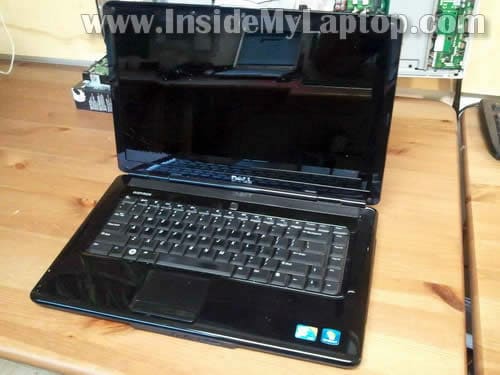
Today I show how to replace cracked screen on Dell Inspiron 1545 laptop.
Dell Inspiron 1545 uses two different types of screens:
1. Old style LCD with CCFL backlight.
2. Newer style LCD with LED backlight.
In my case I’m replacing the one with LED backlight.
Before you start, make sure the computer is turned off and battery removed.
STEP 1.
The display bezel has six rubber screw covers.
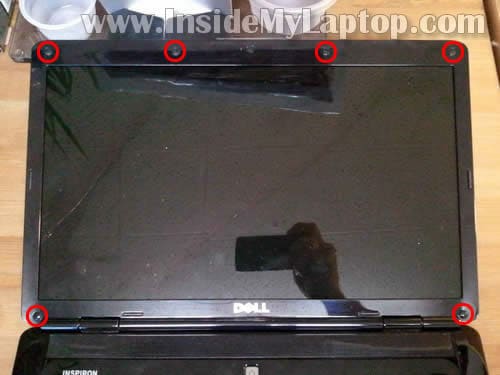
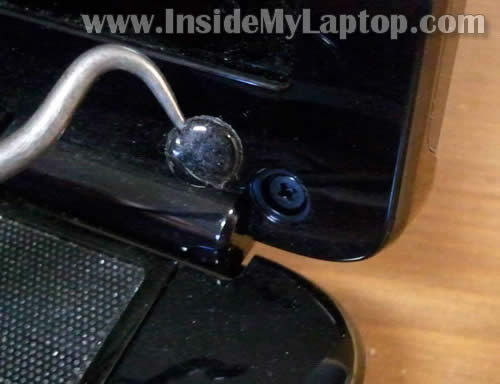
Remove all covers with a sharp object.
Glue these covers somewhere on the bezel so they don’t get lost.
Remove all six screws found under those covers.
STEP 2.
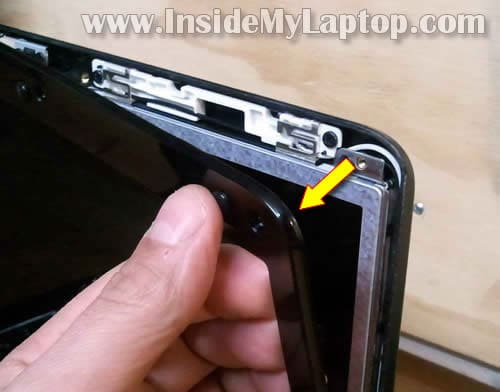
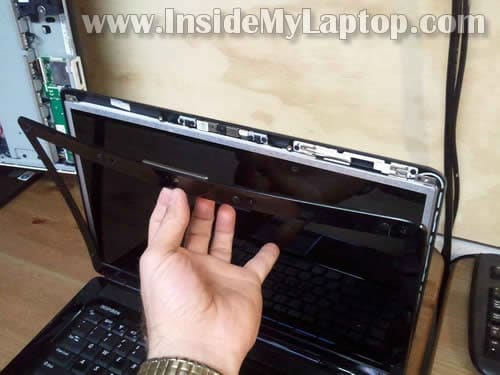
Insert your fingers under the bezel and start separating it from the display cover.
The bezel secured by hidden latches. You’ll have to wiggle the bezel in order to disengage those latches.
STEP 3.
Continue separating the bezel on the top.
STEP 4.
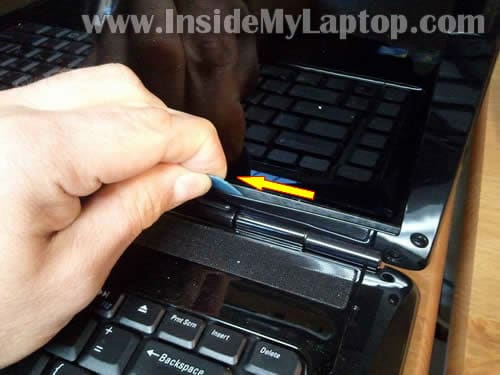
The bottom part of the bezel could be glued to the screen with sticky tape.
In this case insert a piece of soft plastic (I’m using a guitar pick) under the bezel and carefully move it along the side.
STEP 5.
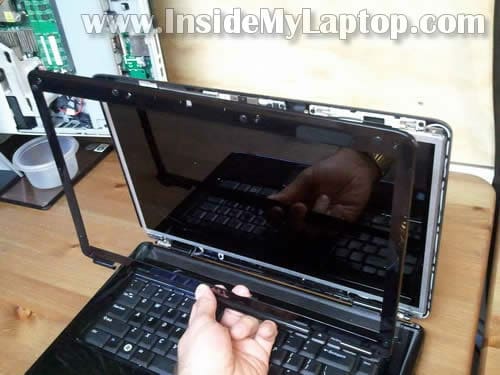
The display bezel has been removed.
STEP 6.
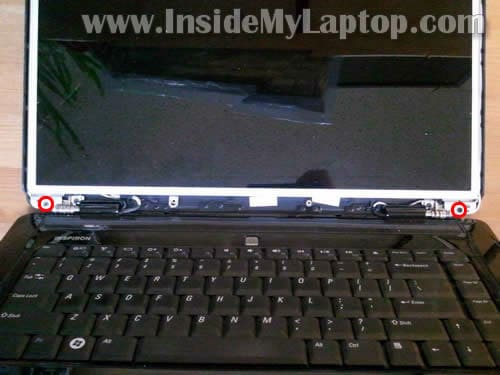
Remove two screws securing hinges to the display cover.
STEP 7.
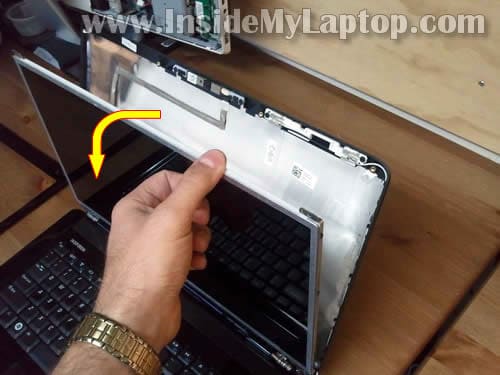
Separate LCD assembly from the back cover and place it face down on the keyboard.
STEP 8.
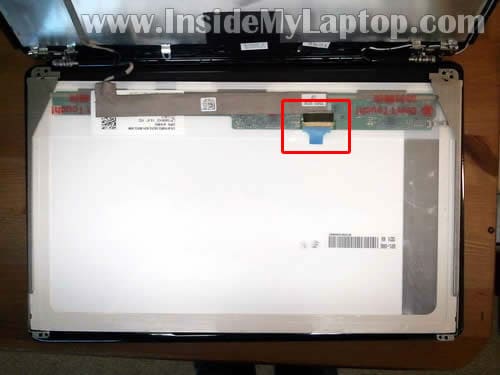
Now you can access the video cable connector on the back.
Laptops with LED backlit screens have no inverter board. There is only one cable plugged into the screen as it shown on the following picture.
If you are working on a laptop with CCFL screen, you’ll have to disconnect the video cable from the inverter board too.
STEP 9.
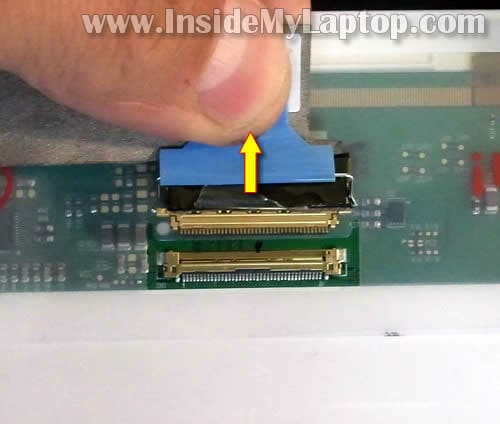
Remove sticky tape securing the connection.
Unplug the video cable.
STEP 10.
Now you can remove the cracked screen and replace it with a new one.
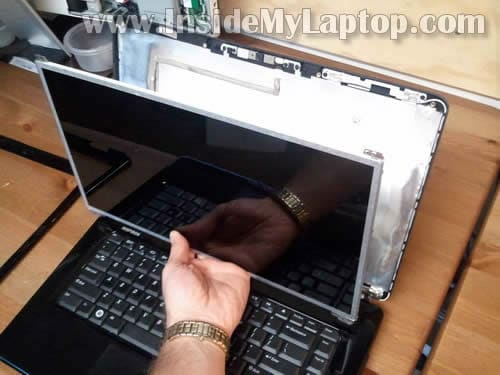
In my case I had this LCD installed: LP156WH2 (TL)(A1).
STEP 11.
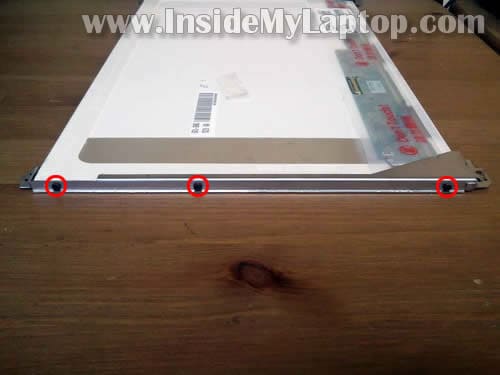
The final step would be moving side mounting brackets to the new screen. Each bracket is secured by three screws.
Update: if you need to take apart the body, check out my complete disassembly guide.
Jeff
Thank You Very Much.
I have replace my screen and cable on my Dell Inspiron 1545.
It now won’t start. I followed every instruction and video as well
as talked to a very knowledgeable friend. I’ve been searching
with fingers crossed for a simple overlooked answer.
What I’ve gotten down to is people referring to this model as
“Kraptops” lol
I’d Love any advice!
Sincerely,
Jeff B.
IML Tech
@ Jeff,
It’s not very clear. The laptop doesn’t turn on at all or the new screen not working?
Make sure the video cable connector plugged correctly. Try reseating it.
selizabeth21@yahoo.com
It is possible to replace a screen on the Dell 1545, just not the backlight which almost always breaks with the screen. The backlight for the LED LCD screen on the Dell 1545 is fused directly into the motherboard, which is why when you replace the screen it appears to not be working… it is… you just can’t see anything due to the blown backlight which cannot be replaced without replacing the entire motherboard. This happened to me, and after a million tries with different screens, I finally came across a knowledgeable computer guy who explained the problem with this particular laptop.
IML Tech
@ sarah,
What???? How the backlight could be located on the motherboard?
Backlight – back light – light on the back of the screen.
In LED LCD (newer) screens the backlight generated by Light-emitting diodes (LED) located inside the screen.
In CCFL LCD (older) screens the backlight generated by Cold Cathode Fluorescent Lamp (CCFL) also located inside the screen.
LEDs controlled by power coming directly from the motherboard. If something is fried on the motherboard and it’s not supplying power to the screen, it will not light up.
bernd
Is there a way to distinguish between the two different types of displays without opening it?
IML Tech
@ bernd,
Go to the drivers and downloads page for your laptop. You’ll have to enter the service tag number to get to the correct page.
On the left sidebar find “warranty status” and click on it.
On the warranty status page search for the “Original System Configuration” tab and click on it.
On this page you’ll see all parts used in your laptop. Search for the LCD screen part number and google it. You’ll find the description somewhere. It should say if your screen is LED or CCFL backlit.
IML Tech
@ bernd,
Here’s another way that I use most of the time.
Carefully separate the screen bezel from the screen and look inside. If you see the inverter board, it’s a CCFL backlit LCD screen.
If there is no inverter, it’s an LED backlit LCD screen.
bernd
Thanks for the reply!
I simply removed the screen bezel. Quite easy. And there it was: the inverter board!
🙂
Paulo
Hi,
Is it possible to replace the only the backlight?
My notebook started turning off the screen from time to time. I discovered that if I just change the screen resolution with the help of a flashlight, the screen turn on again. I’ve been doing that for a month or two, but the problem is now more frequent. I woult like to replace only the backlight.
Paulo
IML Tech
@ Paulo,
It’s possible but not easy.
If you have a problem with the LED-backlit LCD screen, you’ll have to replace the screen.
sharon
I have a dell inspiron 1545 with an integrated webcam that was working and now it isn’t. How do i go about replacing it. Do you have any instructional guides that could assist me. Thanks
IML Tech
@ sharon,
Are you sure this is hardware related problem? Maybe there is something wrong with the software?
The webcam is a separate module. You can easily access the webcam when the screen bezel removed. It’s shown in my guide.
Sharon D. Crutcher
One very helpful post you have here! My son broke my laptop screen and ‘m really pissed off! But with this DIY tips, I can fix my unit without bringing it to the repairman (I’m actually planning to buy a new one before). Thanks again!
Benjamin
I did exactly this with my inspiron 1545 and when I started it up I could barely see the windows logo very darkly. That’s about all I got. Now it’s just a black screen. The old cracked screen would at least light up when it was on. I reinstalled the old one and now it is black when it is on too. The computer works just fine while hooked up to my T.V. as a monitor. Anybody have any ideas??
IML Tech
@ Benhamin,
Your new screen, was it a compatible screen for Dell Inspiron 1545 laptop?
Benjamin
Yes. I contacted the company I bought it from and they said that it is compatible. They belive the problem is the new screen and told me to return it for a new one, but it seems if that were the case my old one would at least light up when I put it back in. I’m still going to send it back for another one, but I’m not really expecting that to do anything. Any ideas on what else it could be?
IML Tech
@ Benjamin,
I asked about screen compatibility because an incompatible screen could fry the motherboard.
Have you checked connection between the video cable and motherboard? Maybe you accidentally pulled the video cable and now the connection is bad.
Is it a regular LCD screen with CCFL backlight or newer LED-backlit screen?
Benjamin
The motherboard should be fine or else it wouldn’t work when it is connected to my T.V. as a monitor. I checked the connection and it seemed fine. It is a LED screen.
IML Tech
@ Benjamin,
Not necessarily. It’s possible the component responsible for LCD light is fright but the rest of the motherboard is fine. I hope it’s not the case with your motherboard.
I guess you’ll have to wait for the new screen and see if it makes any difference.
Benjamin
How would I know if that is the case? Is there a way to test it?
IML Tech
@ Benhamin,
There is not much you can do besides testing the laptop with a known good compatible LCD screen and video cable.
Alan Livesey
Brilliant! Your detailed instrcutions and clear photographs made this task very easy. I know where I’ll come to next time I have a problem I need fixing.
ultiracer
Can i replace my ccfl lcd by led by buying both cable(led connector) and led screen?
I am wondering whether led and ccfl have same connector from GPU.
IML Tech
@ ultiracer,
I could be wrong but I don’t think you can do that.
Donald
Thanks
The bezel removal instructions helped me safely remove the bezel. with the bezel removed i was able to tighten the 2 lower screws that secure the display and the 2 screws that secure the lid to the hinges and no i nolonger have a floppy screeen when i open my laptop.
trina
I have the CFFL one but I bought a new one with the cord at the bottom can I still use it without the cord at the bottom?
IML Tech
@ trina,
Did you buy a LED backlit instead of CCFL backlit? No, you cannot use this one. You’ll have to buy the correct one.
wallyB
*TIP: Only Specific Laptop Models may allow CONVERTING from a LCD with ccfl Screen and ADAPT it’s LCD to also use a LED Screen instead. BUT you must Purchase a ADAPTER CABLE HARNESS Separately
*NOTE* (average PRICE of LCD to LED adapter Screen cable is around $20 -$25 generally)
Here is one Example for this DELL Inspiron 1545:
15.6″ LED – LCD Screen Converter Cable for Dell inspiron 1545 (LED)40pin to (LCD)30pin $19.87
seek this search with exact model :
“LED – LCD Screen Converter Cable for Dell inspiron 1545”
wallyB
1 last bit of input, ^^ My Thoughts about converting from LED to LCD ^^
PLEASE UNDERSTAND there is 1 IMPORTANT Fact that Most Electronic Service Repairmen already know from Experience, ** 2 ISSUES ! = 1) other than the fact that a LED screen’s retail price is usually a LITTLE LE$$ than a LCD screen , what IS MOST Important here when thinking of CONVERTING from LED to a LCD with additional ADAPTING HARNESS CABLE creates a ISSUE: this ISSUE and FACT is MORE IMPORTANT to Understand about ISSUE #2) LCD screen WILL create MORE HEAT,and also this MAY be accompanied with a higher Power consumption than before. because LED lighting is cooler and uses Less energy than any LCD lighting if your AC Power Supply Laptop Charger is one of LOWER WATTAGE OUTPUT of TWO offered that your specific laptop CAN actually USE, then UNDERSTAND this: if your power supply is a 65WATT and you swap from LED to LCD screen that consumes more WATTAGE to operate than any LED screen did,you MIGHT have a Battery Charging Issue or if your power supply is aged a handfull of years,it MIGHT , i say MIGHT not Definitely = it may begin to Click OFF due to your lower WATT Power supply you have that was OK to run a LED,but MAY cause at random Issue time to time because you CONVERTED to a LCD screen and may not have the HIGHER WATTAGE Output Power Supply that SOME laptops only come with when they are for a LCD Screen version same model laptop.. check before you leap..Time vs Money.. LED id cheaper and cooler and uses LE$$ electricity than any LCD will .. Know all the Info before you decide to make do with a Poor choice.. OK!! .. Peace and have a great laptop day, wallyB .
billy
How can I find out if my screen is ccfl or lcd??
Bob9638
I have the dell 1545 pp41l and ordered a screen but the one that came has a smaller plug in the back and no wires on the bottom. Mine has a black n red wire on the bottom and a long plug on back
IML Tech
@ Bob9638,
Apparenlty, your new scree is LED. You need a CCFL screen – the older version.
Bob9638
What screen should I order
IML Tech
@ Bob9638,
You can find Dell part number on the back of the original screen. Or you can use the screen model number.
Christine
i was using my laptop just moving the screen and there was something that broke making the bottom left hinge cover plastic part pop out along the base with some grey plastic bits and i have no idea what is the cause of it and what i need to fix
LOVI
Im having dell inspiron1545 which was working fine but suddenly the screen is showing multicoloured vertical lines but the images are fine if i use a projector or external screen. The screen is not cracked from anywhere. A person is offering me the repair for it for 5000 rupees (india). He told me that the LCD for this laptop is not available in the market nowadays and so he will replace it by a LED by using a converter. Please suggest if i should get it repaired from him or not…thanks in advance. Im having dell inspiron1545 and now the screen is showing multicoloured vertical lines but the images on projector are fine. A person offered me the repair for it for 5000 rupees(india). He told me that the lcd for this laptop is not available in the market and so he will replace it by a LED by uding a converter. Please suggest if i should get it repaired from him or not.indian rupees projector works fine
Bhuvan
i have a different situation. i changed my inspiron LCD screen. but Dell welcome screen,startup screen desktop keeps on flickering due to this i am unable to click on any icon. but when i open explorer using shortcut key (win+e) flickering gets stopped. Please Advice.
Thanks,
Vats
Naveen
I have dell inspiron 3521. I try to remove the inverter board, but inverter board has three cables attached to lcd panel. One cable is very small connector(which is removable) and two flex cables coming from lcd panel and they are soldered or pasted on inverter board.
IML Tech
I’m not sure what you are talking about. There should be LCD cable (wide cable) that can be easily disconnected from the motherboard. Also, you will find two wireless antenna cables coming from the display. You can disconnect these cables from the wireless card but you will lose Wi-Fi signal.
In short. Yes, you can completely remove the display panel and use the base with an external TV but you will need either wired internet connection or buy a USB Wi-Fi adapter to get Wi-Fi signal.