

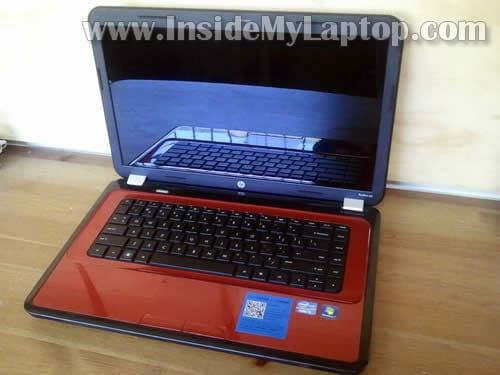
In this guide I explain how to remove and replace LCD screen on a HP Pavilion g6 laptop.
All disassembly steps should be similar for all models in the Pavilion g6 line.
Before you start, make sure the computer is turned off and battery removed.
STEP 1.
Lift up the screw cover from the lower left corner of the display bezel.
Remove  the screw located under the cover.
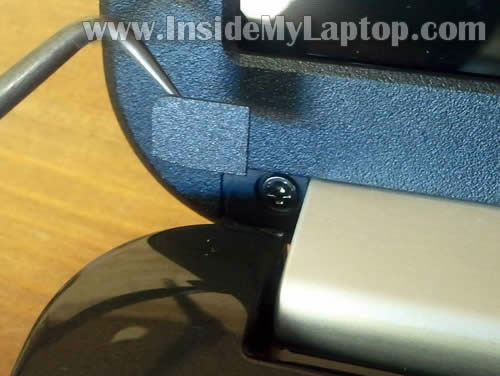
STEP 2.
Do the same with the lower right corner of the bezel.
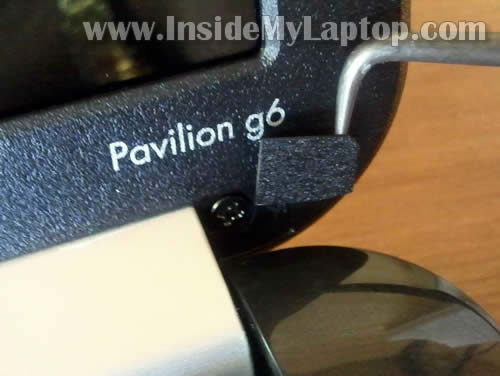
STEP 3.
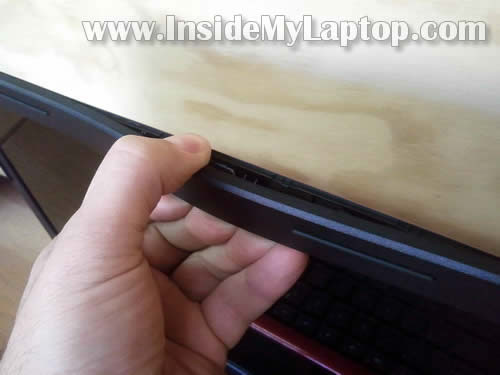
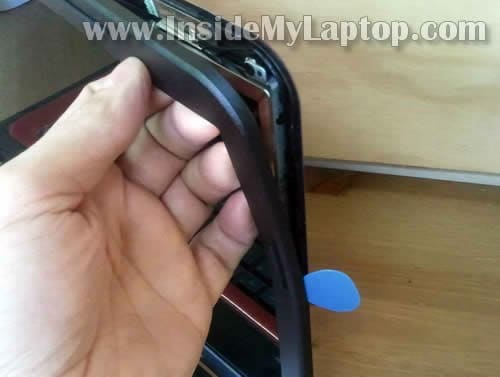
Insert your fingers under the display bezel somewhere in the middle.
Carefully separate the bezel from the display cover by wiggling the bezel.
There are hidden plastic latches securing the bezel.
STEP 4.
Continue separating the bezel on both sides of the display assembly.
STEP 5.
When the upper side of the bezel separated from the display cover, move to the lower part.

STEP 6.
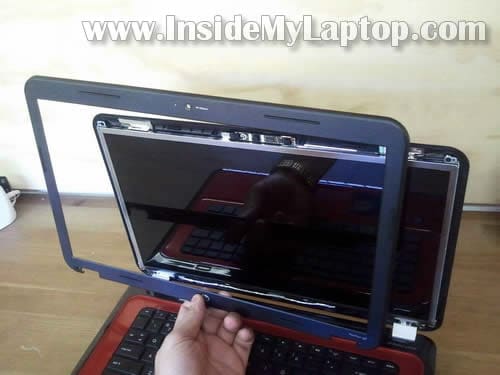
The display bezel has been removed.
STEP 7.
Remove two screws (top left and right) securing the LCD assembly to the display cover.
Loosen (do not remove completely) four screws on the bottom of the screen.

STEP 8.
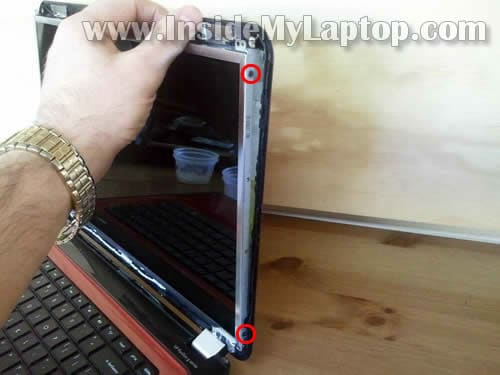
Remove two screws from the right mounting bracket.
STEP 9.
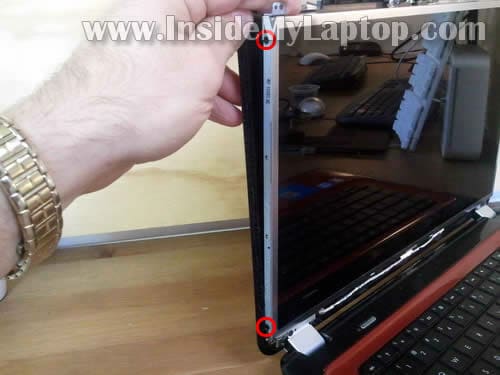
Remove two more screws from the left mounting bracket.
STEP 10.
Carefully separate the LCD from the display cover and place it on the keyboard.
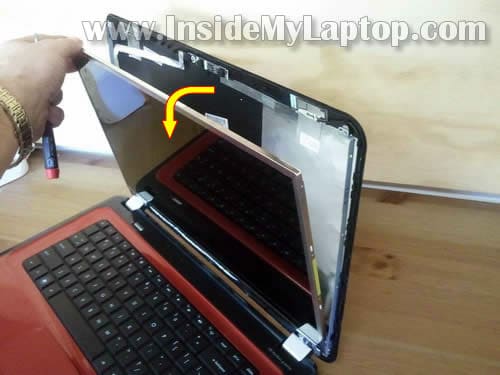
STEP 11.
Now you can access the video cable on the back.
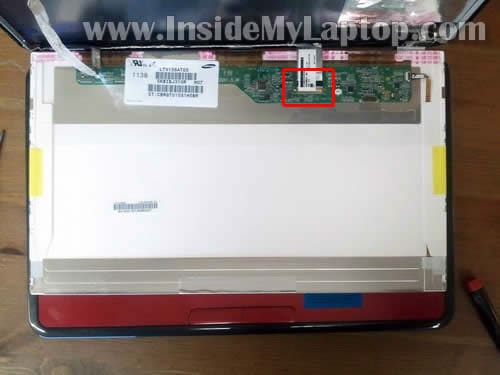
STEP 12.
Remove clear sticky tape securing the video cable connection.
Unplug video cable connector.
Remove and replace the screen with a new one.
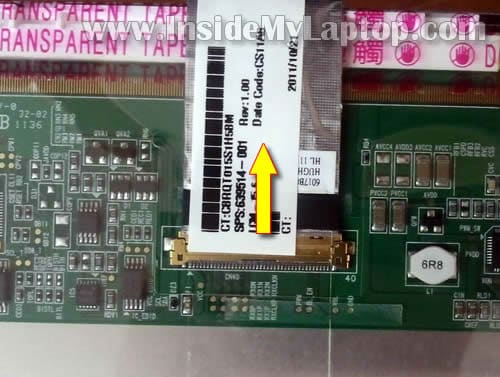
HP Pavilion g6 laptop has LED-backlit LCD screen installed.
If you are looking for the laptop base disassembly, please check out my previous HP Pavilion g6 base disassembly guide.
Danial
Thanks for the guide dude, ordered a new screen from my broken G6 so I’ll be trying your method out.
IML Tech
@ Danial,
You are welcome. I hope the screen replacement works well.
Sabrina
Now this is wat i call a helpful guy. im not a techi person at all. i thought i was going to buy a new laptop cuz hp wants me to send my laptop. I said no cuz it wil take longer. Email me if u have the same led or lcd screen thing and how does the payment situation
IML Tech
@ Sabrina,
I don’t sell any parts. I’m just providing disassembly instructions. You’ll have to find a new replacement screen yourself.
As I mentioned in my post, you should be able a new replacement LCD screen in eBay. I linked to the list of screens at the end of the guide.
c
Useful, simple, well explained, excellently ilustrated. THANKS A LOT
Ryan O'Hara
The screens available on eBay are for specific models – where can I find my model number? In the battery area, it has a model number, but that doesn’t match anything that’s being sold (1a43ca vs. 1095ET, e.g.)
kristi allen
I followed all of your instructions very easily. I ordered a new screen from amazon using the numbers off the back of the old one. I installed it today and the computer boots up perfectly, but the screen is black and there is only the faintest image of what is supposed to be on the screen. It almost like the back light is not working. I have adjusted the screen brightness to no avail….any suggestions?
Leopold
The HP Pavilion g6 of my girlfriend has a bug.
A real bug. Yes really! Today she noticed a small dot (about 0.5mm size) wandering under the glass of the screen. she pressed gently on it and now the tiny bug is dead. Dead in the middle of the screen under the glass. No way to get rid of it.
Is there a way to disassemble the glass of the screen to clean it?
Oh, and please stop laughing now 😉
Frank
Is there a way to take the whole laptop cover off? I am talking about with the Zollverein connecters in between the red and the laptop screen it’s self. If so can you tell me the steps?
IML Tech
@ Frank,
Here’s the top cover removal guide for HP Pavilion g6 laptop.
Frank
Sorry maybe I misinterpreted the way I wrote my question. I need a guide to remove the laptop lid which is the cover and as well as the.silver hindges because I am going to paint them. Sorry if my question was not specific enough but your removal guide of taking apart the palm rest worked perfect for Me! Thanks but please.help me out with the lid cover and hinges.please.
Frank
Actually i know this is very sudden but i did check if you had extra manual steps like this one, and i could not find one. What i am really most concerned about is the laptop display lid. Is It possible to take it off from following the screen replacement steps? If you can please try to answer this and the questions below. thank you
IML Tech
@ Frank,
Check out this service manual for HP Pavilion g6 notebook.
The display panel disassembly instructions shown on the page 66. I hope it helps.
gord
i have a pavillion g6 …i have to push on the bottom of the screen bezel in order for the screen to be clear and my cursor to work. what would cause this any help would be appreciated
Darren
I have a hp g6 and the screen is black when booted up. Sometimes the on off button doesn’t work, sometimes the screen is jet black and sometimes just very dim. I suspect it is something to do with the screen position sensor. Is this likely?
Steve
hello i am trying to get my bezel off my HP Pavilion G6-2235us 15.6″ and i have almost got it compleatly off but can seem to get the bezel loose from the area around the hinges.
Chuck
Clear and simple instructions on how to remove the display. Thanks for sharing. Also, I was more than happy to make a PayPal donation for your efforts.
Keith
Great step-by step guide! I was having issues with my HP Pavilion g6 screen and someone suggested that I replace it. It was flickering in and out so I ordered a replacement and did just that. The new screen would “flicker” a lot. I called the company and they provided return/exchange procedures.
I re-installed the original screen and it works just fine. The only issue I have now is it’s very dark, even on the highest setting.
I’ve been told to replace the back light or the inverter but don’t want to just start throwing parts at it.
Any suggestions? Is it possible I set-up some sort of “energy saving” display?
Keith
Marcus
My HP g6 laptop had a flickering problem and I just tightened the silver hinge because it was loose. It worked although I might have to take the screen out and replace/tighten the video cable… I hoped that worked! 😛
cat
well i recently replaced the screen which is working fine but over a year a go the hinges broke on my laptop and i never replaced them so the wire has been wearing down and now the screen goes white until i adjust it to the right position. can you tell me how to replace the wire.
IML Tech
@ cat,
In order to replace the display cable you’ll have to disassemble the display as it shown on this page.
Also, you’ll have to remove the laptop top cover as explained here.
MelvinJ
Thanks for this! Saved me $80 for a professional replacement. Works like a charm again.
brian
are their other screens that are compatable for the hp g6 series laptops?
Vineet Biswas
Some vertical lines with red tint appears suddenly on screen!
I hope it occurs due to Overheating!!
so how can i fix this,
here is a picture.
luca
Is there any Chance to replace the screen with the one with higher resolution?
indusha
Hi, this was so helpful but now the hinge is broken. Is there a way of fixing that?
Taranaki
Thanks a mil, screen replaced in half an hour and laptop up and running again 🙂
Who needs a technician?
T
I just wanted to say thank you so much. I am in no way techy but I did it following your instructions and replaced my screen!!! My daughter now thinks I’m a genius. The hardest parts were removing the front facing at the bottom and making sure that the video lead bit was completely in (I switched on the power to make sure I got a picture before going to all the trouble of refastening everything, didn’t, wiggled the gold bit in further and hey presto!). So thank you very, very much internet techy dude. I really appreciate you going to the trouble of putting up these instructions for us mere mortals and if I can follow them I reckon anyone can. xx
tracy
i need help i replaced my screen on the hp pavaillion g6 screen is black what else do i have to attach