

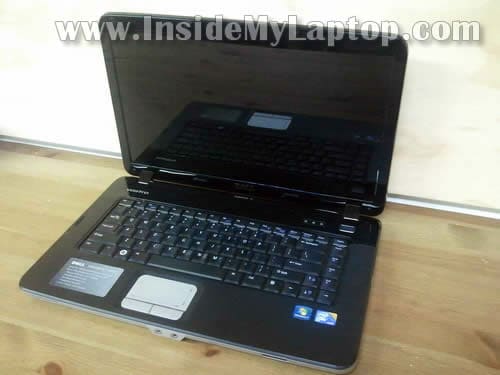
In this guide I explain how to replace failed or damaged LCD screen on Dell Vostro 1014/1015 laptop.
In my case I’m fixing a Dell Vostro 1015 model but all replacement steps should be the same for Dell Vostro 1014 and probably some other Dell models.
If this guide works for you please mention the model number in comments after the post.
STEP 1.
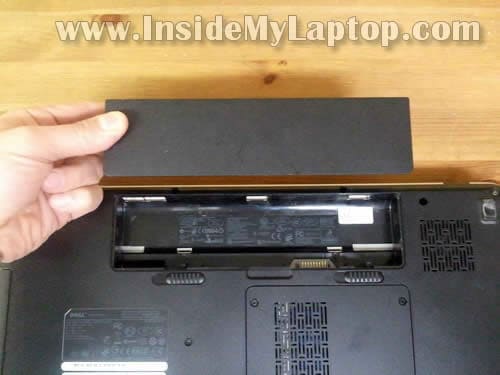
Before you start the disassembly process make sure it’s turned off.
Remove the battery.
STEP 2.
You’ll find six screw covers on the display bezel.
These covers hiding screws securing the bezel.
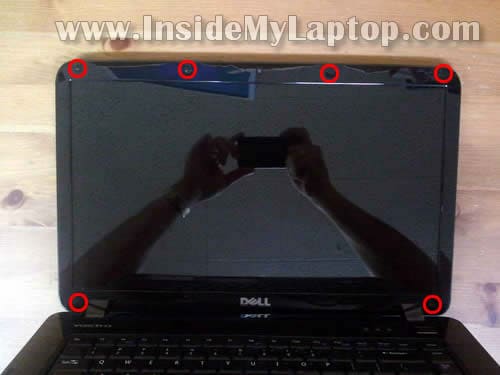
Remove all six covers with a sharp object.
Usually I glue covers somewhere on the bezel so they don’t get lost.
STEP 3.
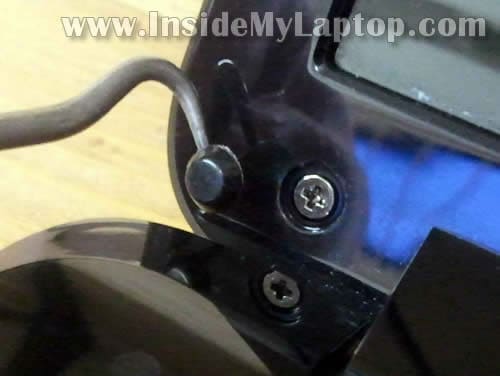
Insert your fingers under the bezel and start separating it from the rest of the display assembly.
You’ll have to wiggle the bezel a little bit in order to unlock hidden latches.
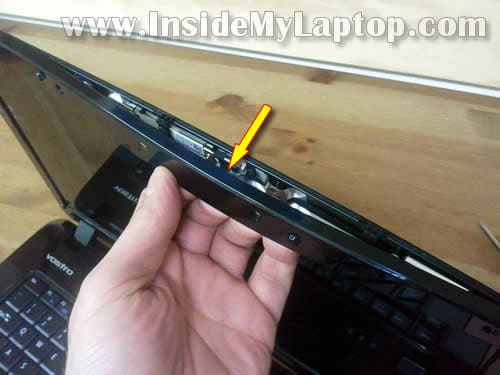
STEP 4.
Continue separating the bezel on both sides of the display assembly.
You can use a piece of soft plastic (I’m using the guitar pick). Insert it between the bezel and back cover and slowly move along the side.
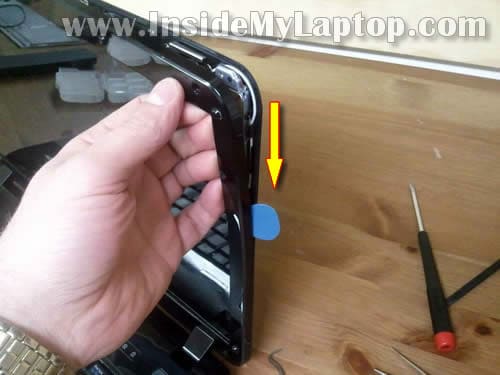
STEP 5.
Now move to the lower part of the bezel.
Lift up the part which covers hinges with a screwdriver.
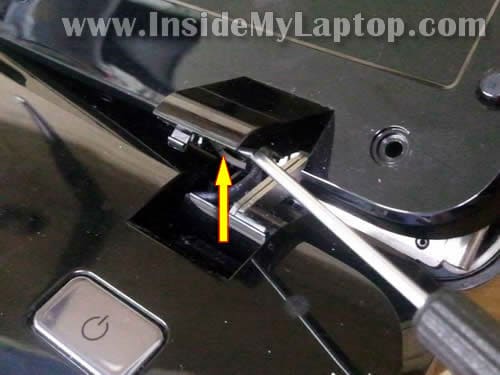
STEP 6.
The bezel has been removed.
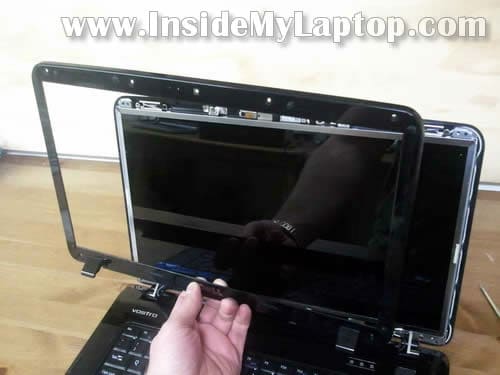
STEP 7.
Loosen (do not remove completely) four screws securing display hinges to the display back cover.
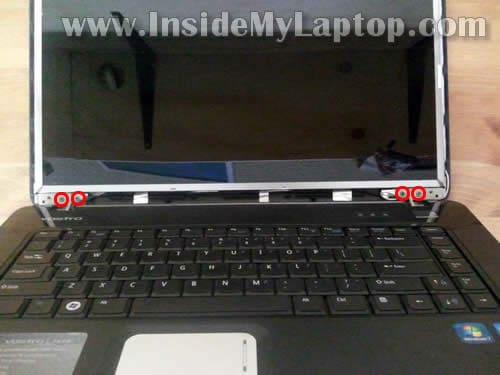
STEP 8.
Before you proceed with the screen removal it’s necessary to disconnect cable from the web camera module.

Carefully unplug the cable from the web camera.
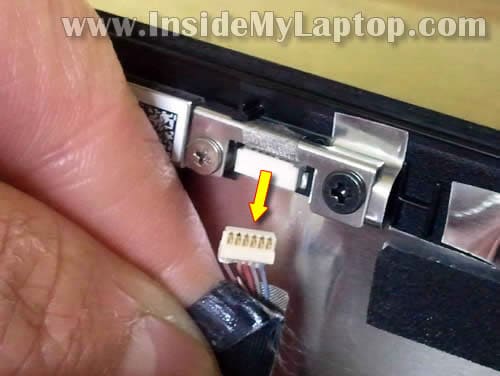
STEP 9.
Separate the display back cover just enough to access screws on the mounting bracket.
These screws securing the LCD assembly to the mounting brackets.
Remove screws from the right mounting bracket.
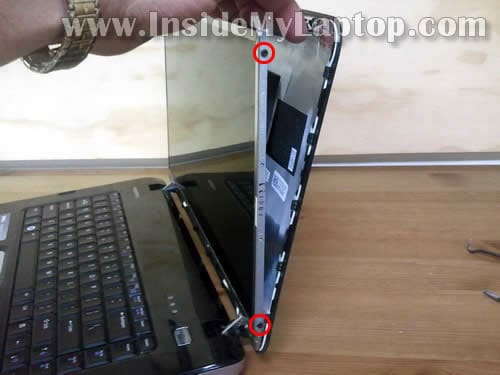
STEP 10.
Remove screws from the left mounting bracket.
For some reason I had two screws on the right side and three screws on the left side.
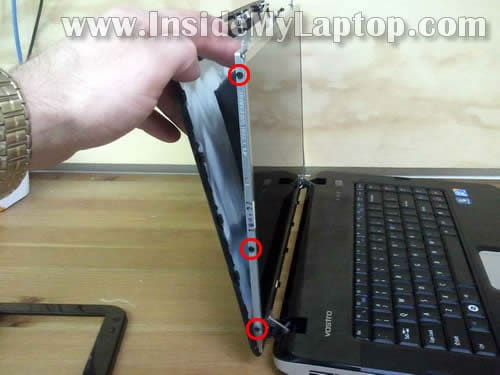
STEP 11.
Now you can separate the LCD screen from the display back cover and place it face down on the keyboard.
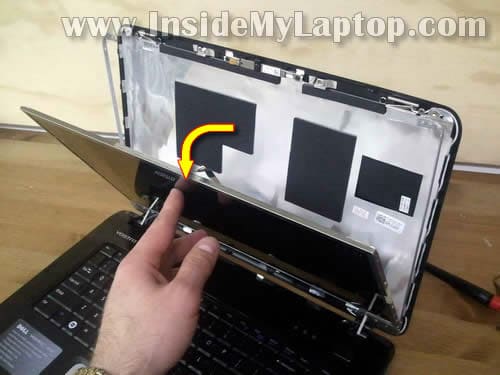
STEP 12.
The video cable is glued to the back.
By the way, the web camera cable is part of the video harness.
Carefully unglue the video cable.
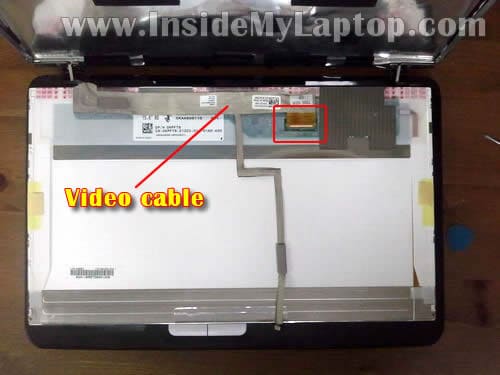
STEP 13.
Remove sticky tape securing the video cable connector.
Unplug the video cable.
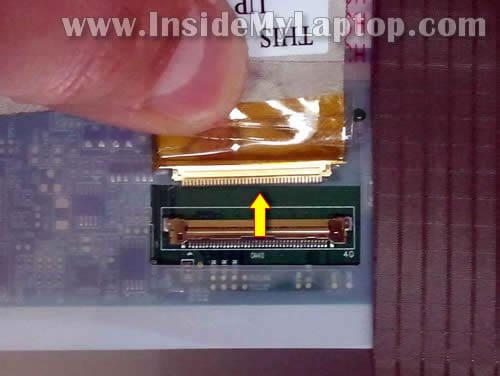
STEP 14.
Now you can remove failed or damaged LCD screen and replace it with a new one.
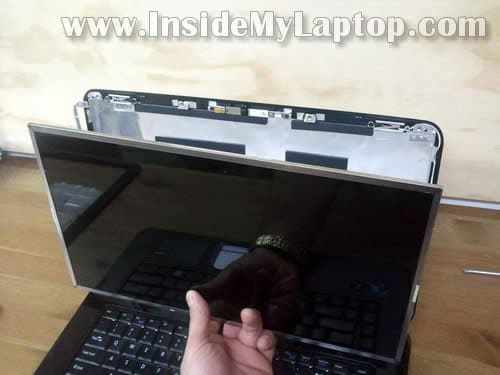
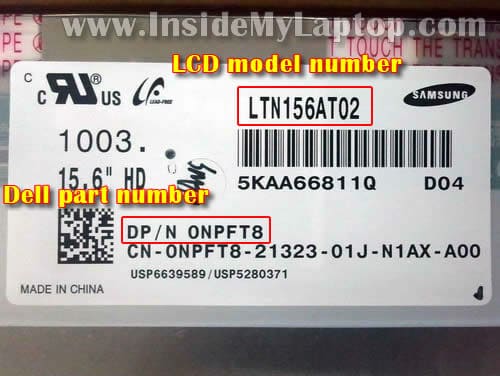
You can search for a new LCD using two different numbers:
1. LCD model number. In my case the model number is LTN156AT02.
2. Dell part number. In my case the part number is 0NPFT8.
NOTE: there could be more than one screen compatible with Dell Vostro 1014/1015 laptop.
Dell Vostro 1015 laptop has a 15.6″ LED LCD installed.
Dell Vostro 1014 laptop has a 14.0″ LED LCD installed.
swarup
sir, i am a student of computer hardware you are so nice clever thanks for this important info .
bpoppas
Hi …. I used this information to take out a faulty LED screen from a vostro 1014 and put a new one in and it worked really well….. Thank you so for this information……. It really helped…and it was really easy following the instructions and I’m 13.
samarjeet
HI
I have a problem with My laptop Vostro 1015
When ever i Keep On My Lappi It’s Screen Goes White But After Few Times It Become Fine,,
This Problem Is Running Almost 1 year But Ono-Off Process Resumed The The Solution ,,
But Still im Not Understand what the problem is ,, and Which Action Have to take to Free from this problem .. If Any One Knows About this problem Please Aware the Solution
Nisar
Hi! Thanks for sharing your experience and talent.
I am having similar problem in my Vostro1015 15.6 screen as with samarjeet’s.
I was wonder what would solve our problem.
any suggestions, please do.
Regards
Nisar
Hi Samarjeet,
I found a solution from the following location:
http://forrestbao.blogspot.com/2012/03/fixing-dell-inspiron-laptops-white.html
hope it would help you to
regards
Ehsan
Thank you so much!!
It was awesome!!!
stan V
office depot wanted 300.00 labor to do this.
THANK YOU for sharing your knowledge for those that cant afford money to be wasted.
Nowshad
Thaks.
parth Kansara
I have dell vostro 1015 laptop I had a problem that my laptop screen goes White when I start my laptop
plz.. help
Caxtro
I have a dell vostro 1015, working well since i got it but found out one morning that the screen has developed a little problem after I turned it on. My screen color came fade, some side of it showing the original color, other side not as the original color and have some straight lines inform of white colors that showing on the screen.. Please i seek for help to decide what to change to solve the problem..Thanks for this website..
Ali Nawaz Raza
Asalam o alikum
pls tell me de latest prise of led of dell vostro 1015…
if any body know then plx inform- me ,,,
thanks….