

In this guide I show how to remove the screen and inverter from a Dell Inspiron 9400 laptop.
This guide will work for a Dell Inspiron E1705 and probably some other Dell models.
If the guide works for you, please mention the model in the comments below.
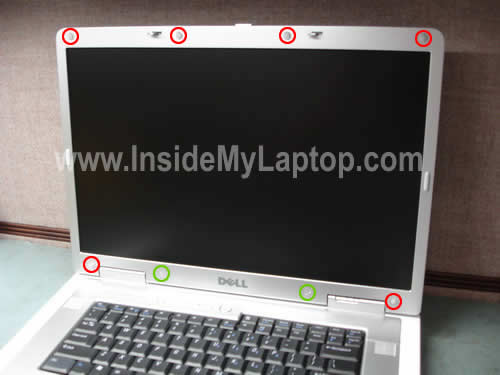
You’ll find eight screw seals on the front bezel. Six rubber seals (red circles) and two plastic seals (green circles).
Remove rubber seals using a sharp object. Glue these seals somewhere so they don’t get lost.
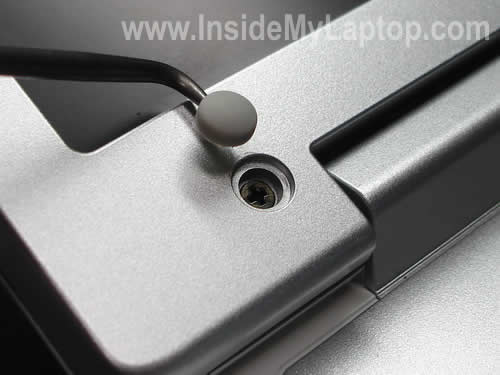
Remove two plastic seals using the same tool.
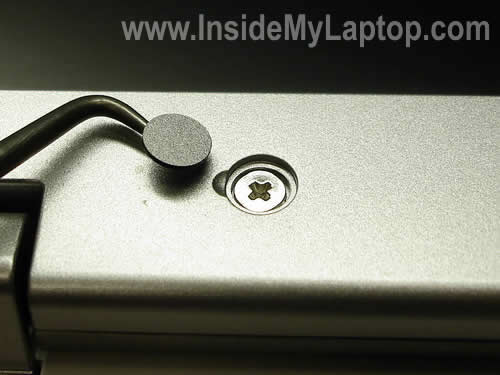
Remove all eight screws found under the seals.
When all screws are removed you can start separating the front bezel from the display cover.
Use your fingers and a piece of soft plastic. In this guide I’m using a guitar pick.
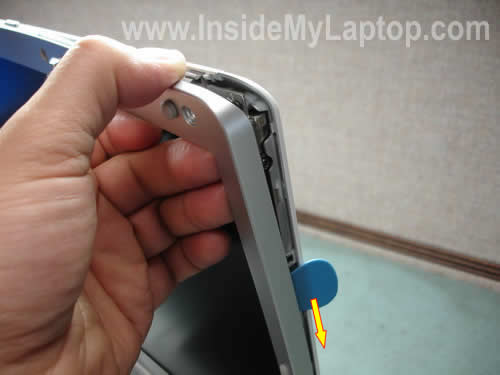
Continue separating the front bezel.
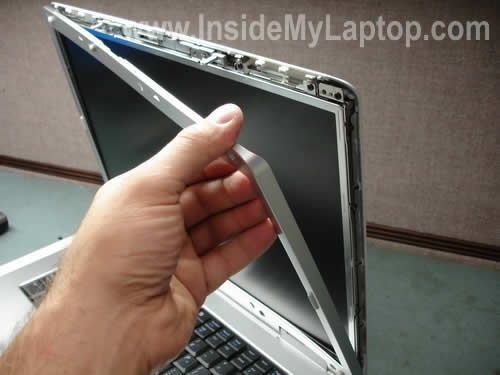
The bezel has been removed.
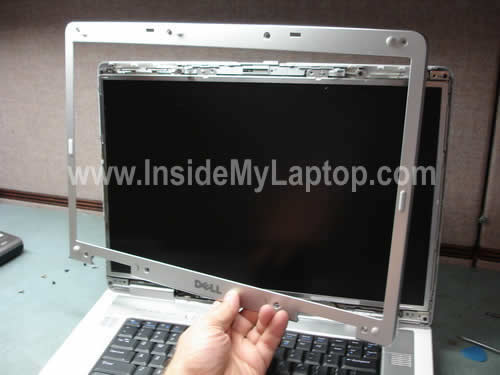
There are eight screws securing the screen to the hinge bracket. You’ll find four screws on each side.
Remove four screws on the right side.
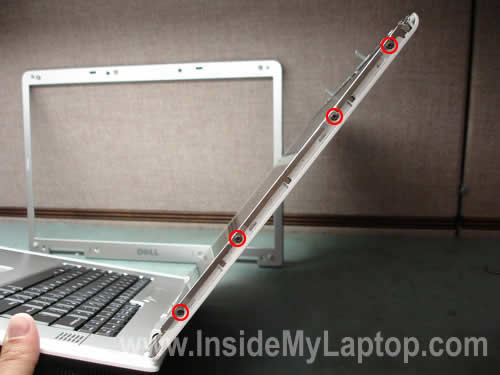
Remove four screws on the left side.

Now you can separate the screen assembly from the cover.
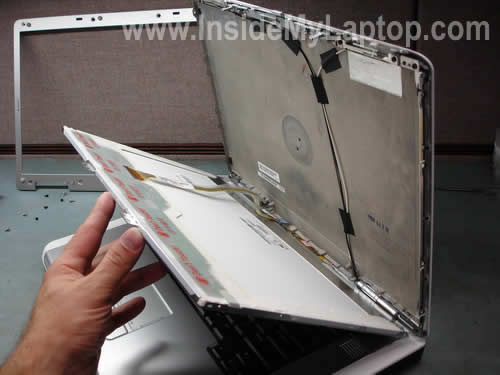
Be careful with the video cable connecting the LCD panel and inverter board to the motherboard.
Place the LCD on the palm rest so you can access the video cable connector on the back.
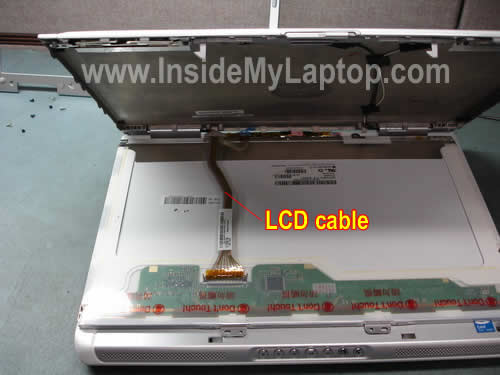
Press on latches on both sides of the video cable connector and unplug it from the LCD panel.
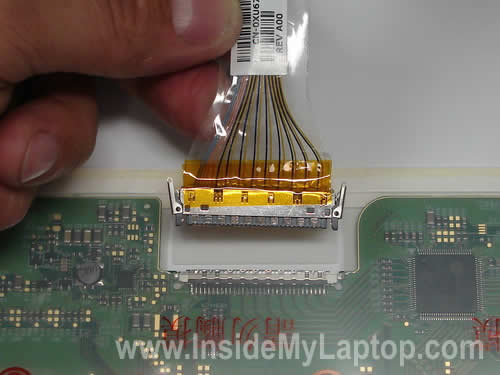
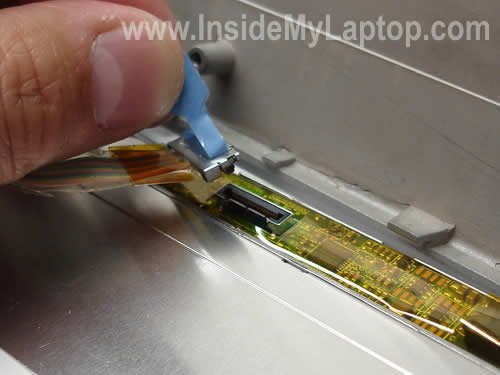
Unplug the other end of the video cable from the inverter board.
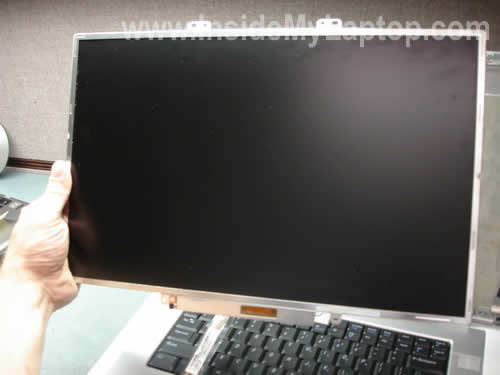
Now you can remove the screen assembly from the display cover.
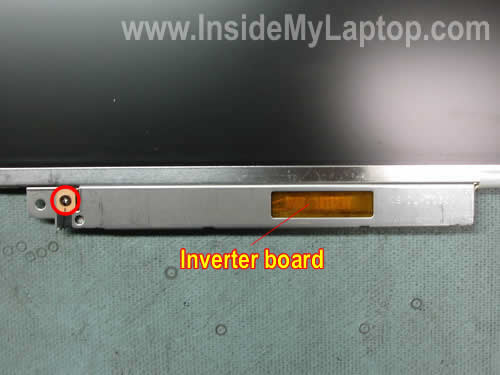
As you see, the inverter is attached to the bottom side of the screen frame. It’s very common setup for Dell laptops.
Remove one screw securing the inverter board.
Unplug the backlight cable from the inverter.
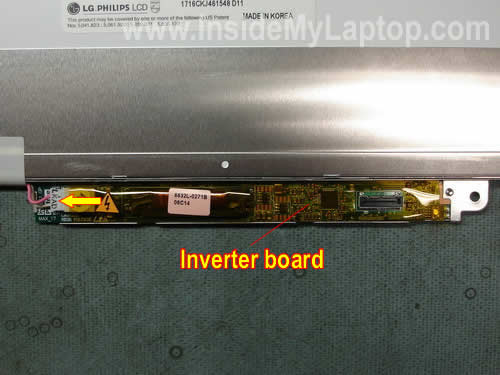
Carefully remove the inverter board from the metal casing and replace it with a new one if necessary.
When you buy a new LCD for your Dell, try to find one that comes with the inverter attached. In this case you will avoid any compatibility issues that might occur.
UPDATE: in next guides I explain how to fix damaged hinge and how to replace keyboard.
dawn
I can’t get the video cable connector back in at the top. it seems like the top piece has come loose.
Neal Howard
Dell Inspiron 1525:
I didn’t need to replace the screen, but the hinge on the lower right side of my screen had come unattached and I needed to fix it.
Using a guitar pick was perfect.
There are only 6 screws holding the Dell Inspiron 1525 front bezel.
Thanks!
Zaai
Thank you for these useful instructions.
Can you clarify how to remove the inverter board from the metal casing? Do you need to remove the casing from the screen first?
Tkx
Mike
Thanks for the step by step breakdown instructions. Realy worked well. I had to change the inverter board of my samsung replacement screen by taking the inverter from my old philips screen this did require a little work but worth it never the less considering that dell would have charged $500.00 for replacing thr lcd and inverter board.
Stressed
Thank you I just replaced my Dell Inspiron XPS screen with a Dell Inspiron 9400 works great. I just re-used my old inverter and ,back in business. Cheers, keep up the good work, sites like this one gives an old plumber the courage to dive right in..
Joe
I purchased a new screen to replace my broken one. I’m using the same inverter and plugged everything in where it needed to go but the screen doesn’t go on when I start up my computer. It looks like it lights up but nothing actually come up on the screen. Also I tried plugging the old screen in to see if it was the screen I bought and that no longer works at all either.
Is there anything else that could be the problem because I didn’t think I would have to replace the inverter board but I may be wrong.
Rick
Thank you for your tutorial on line that showed me how to change out the display. Had I now found it I would not have attempted the swap. The job took me about one hour to complete and my new display works like a champ. A tip to put on your site: Put then end of the small screwdriver in a stick of lip ice and the small screws will stick to the screwdriver with no problem.
I donated $10.00 to your site.
Thanks again
JIM
I just replaced my Dell 1705 WXGAt (matte finish) LCD screen, with your tutorial. The screen appears to be a glossy finish although I ordered the Matte finish. It works but the screen is dark and when I try to brighten the screen with FN button and then tried BIOS it only brightens a little and if I keep pressing the button to be brighter it goes darker. Could it be that I plugged the backlight cable into the inverter backwards or do I just have an inferior screen. Can you please offer a suggestion. thank You
Simone French
Hi
similar Problem to Neal. Screen works fine but right hand corner of front bezel is loose thus cannot close laptop or may break. Told the lining under the bezel has been damaged.
What is the best fix?
Being told I need to change entire screen but cant I just change the bezel? I see I can get he bezel only. I assume it comes with screws. as you can see I am a neophyte but determined to figure this out. Any help would be great
mario
Hi,
I also have the same problem as JOE and JIM.
I replaced my dell WUXGA with WXGA (sharp to LG ) and I used my original inverter board. The screen works normal while its booting but it has same issue like JIM has. It is brightest at lvl 5 out of 8….
Also it works only while it boots and in safe mode–in safe mode it loads standard VGA drivers. If it loads full Nvidia drivers for my go7900gs it looks its on but doesn’t show anything. I tired extending it onto my TV and it works fine on TV but nothing on LCD screen.
it seems that graphic drivers or graphic bios is blocking the new screen. I also read somewhere that all manufacturers block screens that are not for their line of laptops through bios but i cannot confirm it.
Can anyone help please.
thx in advance
Chip
This was an excellent help to me, I was able to follow instructions step by step, very good illustrations and had absolutely no problems replacing LCD screen on my Inspiron 9200. Please note that not all replacement screens have the inverter attached and it is not neccessary to attach inverter to screen. Thanks again for you r help.
hamudi
hi it was nice to see you step by step guide but my laptop’s left side holder is broken it is the plastic part i tried to attach it by using some metalic and plastic glue but it seemed it was affecting the other one (right) is there any option other than repalcing the frame if it the ony option how? laptop of type dell inspiron 1520
IML Tech
hamudi,
I think that replacing the broken part is the only option now.
Helen
The photos and the step by step instructions are great. I didn’t have to replace the display; for me it was the back panel and hinge. The guitar pick tip saved me — Thanks.
Cris
I have the same problem than JIM. I’ve replaced my dell 9400 WUXGA screen (without the inverter) and it the brightness was very low (I hardly can see the screen when booting neither when windows is started). I’ve tested the old screen and it seems that the inverter works properly. Any clue?
Thanks in advance
Lorrie
I can’t get the damn screw loose that is attaching the inverter board to the screen. Any tips for loosening a non-budging screw?? I don’t want to break anything. AARRRRGGHH!
Tin
Thanks for your detailed instruction. It helps me a lot in fixing my friend’s Inspiron 9200 LCD screen.
Toronto,Ontario, Canada
Jerry
Good instructions, but after unscrewing the 3 screws which hold the hinges, I could lift the whole screen off. The trouble is, the hinges latched in such a position that the screen would be vertical.
How can I unlatch the hinge? Picture on request
Gavin
works for Inspiron 9300
Dotnettex
For those who are having brightness issues following a panel upgrade (or downgrade): It’s more then likely the inverter. It’s the inverters job to make sure that there is enough voltage and amperage to drive the display, and the CCL backlight. For this reason, the inverter is MATCHED to the display. If your still using the same inverter, chances are good that it is either under-powering (or over-powering) the display. Install a new inverter which is recommended for your specific display. Also, as a note, if you want to upgrade your display, be sure to stay within the display offering for your specific model and mfg year. For instance, I upgraded my Inspiron 9400 from a WXGA+ to a WUXGA without any issues. I just made sure to replace my display with one that was offered for that model and year. I also made sure I replaced the inverter with one that was matched for that specific display. Looks and works great!!
IML Tech
Dotnettex,
I agree.
If you are replacing the screen, I would suggest buying the exact replacement. Otherwise, you may have a problem with the screen brightness.
If you decide to go with a compatible screen, make sure it comes with inverter board installed.
Kevin
Thank you for the instructions. On my Inspiron 9400, the WXGA+ LCD has gone dark and I would like to upgrade to the WUXGA screen just as you did. But how do I know which inverter I will have to get that is compatible with the screen upgrade?
Doug Boyd
THANKS plus FEEDBACK
———————————–
Hi…thanks for “How to remove LCD screen and inverter from Dell Inspiron 9400”. It worked very well for me – I used it to replace a bad inverter.
Here is a piece of feedback that you might find helpful => I used your imbedded link that says, “You can buy a new inverter board here for about $15-20”. So I bought one of those.
BUT….when I installed the inverter and put the laptop together, the screen worked ok, but I found I no longer had brightness control (Fn+cursor arrows). Apparently, this inverter is one that does not support brightness control.
I thought you would like to know so you (in the procedure) could warn neophytes like me to be sure the inverter we buy supports brightness control.
Thanks again, Doug
IML Tech
Doug Boyd,
It’s possible your new inverter either defective or not 100% compatible with the screen.
I believe all inverters support brightness control.
Dan B
I’m getting ready to replace my 9400/E1705 screen. My Philips screen indicates it’s an (A4) (K6). One I’m being offered is an (A4) (K5). All else is the same. Any significance in that one digit? If I don’t find a K6 am I risking running into brightness problems as well? Can you please tell me what those letters and numbers mean?
IML Tech
Dan B,
When you buy a new LCD screen for a Dell laptop, I strongly advise to buy one with the inverter board attached.
Why? The inverter board must match the LCD screen and Dell laptops are very picky.
What happens if you install not 100% compatible screen? The screen brightness will not work properly. It will never be as bright as before and there will be no way to fix it.
Again, search for a new screen with the inverter board attached to it.
It’s possible the screen part number will be different, just make sure your new screen is compatible with your model and it has same resolution.
Dan B
Well I contacted Dell about the alphanumerics and they had no idea, so I contacted Philips support, who referred me to the parts department, who referred me to the displays department, who told me they have no idea about laptop screens and don’t know who I should contact. So I went ahead and bought the screen LP171WU1(A4)(K5) [hoping it was close enough to my original (A4)(K6), with the inverter included, and assembled it a few moments ago. Well, unfortunately the screen is quite dark and the brightness control doesn’t work. When I pressed the power on, for a second the screen turned white, then became dark and continued to boot up. Could the inverter have gone bad at that second? Did it blow a fuse or flip some switch? Is there maybe a BIOS setting that needs to be changed? Or is the motherboard maybe sending a different voltage than the inverter expects, and then it shuts itself off? After I power the computer off, when I turn it on again, it flashes white again for a quick moment before getting dark. It seems to me it’s not burned out, but there is something the inverter isn’t happy with. I’m tempted to try the old inverter with the new screen, but don’t want to mess anything up permanently. Any ideas?
Dan B
Was going to try the old inverter with the new screen, but it seems they are slightly different sizes, I presume intentionally so that people like me don’t tried switching them out. So do you think (a) the used screen I bought came with a faulty inverter, (b) the K5 is just different enough from the K6 to be incompatible with my system, (c) I pinched a cable in reassembly and should maybe try changing that out with the one that came with the new screen, (d) graphic card settings or BIOS need adjustment, or (e) something else? Not sure what to try next. Recommendations?
Dan B
Tried swapping cables. No difference. When I ran Dell Diagnostics, it indicated an error code 0322 “error accessing the LCD inverter.” Interestingly though, once it’s past that point, the screen becomes bright for the remainder of the diagnostics. The keyboard brightness controls still don’t work at that point. After the diagnostics it prompts you to reboot. At that point it’s back to dark again. Since the screen evidently can get bright, that should indicate there’s no burned out bulb and that the inverter works right? Does that point to a compatibility issue rather than a bad inverter? Or some Video BIOS setting perhaps?
IML Tech
Dan B,
Sounds like hardware failure but I cannot tell if this is bad inverter or backlight lamp failure.
If you purchased a combo (LCD + inverter) and this combo was designed for your laptop, it should work.
You said it’s flashing for a moment on startup and then goes black. I think you received a defective part.
It’s hard (if not impossible) to troubleshoot LCD/inverter failure without known good spare parts.
Dan B
Thanks. I mailed it back and they will send a replacement. Hopefully it was just a faulty inverter. I thought it was odd though that while Dell Diagnostics is running, it starts dark until the error is found, then it brings the screen up to normal for the remainder of the diagnostics. I think that would mean the bulb is normal and that the inverter is at least capable of doing its job, though may not be responding the way it should. Frustrating. Hopefully the next one will work properly.
Dan B
As a followup, I got an altogether different LCD/inverter combo, made by Sharp, and it seems to work fine, with normal brightness control. Maybe the other inverter was faulty. Now I just have the odd finding of six “Default Monitors” in Device Manager. If I delete them, they all reappear when the system scans for hardware changes. The new display also seems to have somewhat muted colors. Maybe I’m just used to my old one or the color calibration needs to be adjusted and I haven’t found how to do that yet in XP. I’ve tried a couple different color profiles that were already installed, but they didn’t seem to make any difference.
IML Tech
Dan B,
Maybe you shout try uninstalling and reinstalling the video driver?
Deb L.
I have a Inspiron E1705 that the Boss dropped this morning.
The laptop boots with no problem. The screen however has issues
I’m getting lines going across like static and the left hand side is green.
When I plug in an external monitor the monitor shows no problem with
the laptop and I can work. Is just the LCD screen junk?
Vianite
In my case I replaced a 17 ” Phillips LG WUXGA with a Samsung screen. I did not need to replace the inverter. It did get a little complicated. The Phillips screen has the inverter attached to the metal frame whereas the Samsung does not. So once I had the screen free of the laptop my approach was to prise the metal bracket holding the inverter away from the metal frame which meant forcefully separating the rivets. Don’t be timid but be careful. The metal is quite soft so it can stand being bent around a bit. Once I had the inverter off still in its bracket I used double sided tape to reattach it in the same position on the Samsung screen but you have to be careful to align the screw holes at either end of the bracket because the bezel attaches to these and holds the inverter frame in place.
Patricia
Thanks so much. Fry’s quoted me $15 for the part and a minimum of $149 to look at the Dell 6400 I have with a screen gone dark. I did my research, found a part for $7 and it took all of 20 minutes for me – a 53 year old non-computer person to do it! I am so pleased with myself and the results. thanks again and cheers to what you do to help us poor saps save a little dough!!
Patricia
Oops – forgot to say I replaced the inverter.
Ron Marcotte
The hinge on my Dell E1505 broke and I couldn’t shut the case. I got a new lid and hinges for $19.95 from Dell, but no instructions. Thanks for your presentation on the E1705! It was close enough to show me what I needed to know and everything is now fixed.
Ishar
Pics were very useful, thanks. The only thing I’d add is that getting the front bezel off can be a bit frustrating, but is much easier if you pry the bottom section away from the LCD screen, which is very easily done, and then pull down and out on the bottom right-hand corner of the bezel to get it free. Otherwise, the whole thing is pretty straight forward.
For anyone else in my situation, if your Inspiron 9400 starts to gain a coloured hue (in my case, red/pink) and then blacks out completely, your LCD screen will likely need replacing and it’s MUCH cheaper to buy a replacement screen from some hardware supplier and then putting it in yourself than buying the part from DELL themselves (if you’re out of warranty).
Aydin
Is it possible to use LCD screen from my old Laptop (Dell 9400) as a secondary display? is it possible to convert connector to DVI or HDMI?
thanks
Phil
Dells version of this document..
http://support.dell.com/support/edocs/systems/ins9400/en/sm/display.htm
Jim C
My Inspiron 9300 was developing the Dell infamous vertical line problem. I had an Inspiron E1705 that was not working so I thought I’d try swapping screens. Your instructions were perfect. Only problem was the inverter was bad on the 1705 so I had to duct tape the 9300 inverter to the 1705 screen since the mounting system was different. Works great! No more lines. And now I know what the problem was with the 1705.
Thomas
My Inspiron 9400 has developed the pink problem, so I replaced just the screen (not the inverter) and it didn’t fix the problems – still color problems but they are a little different on the new screen (e.g., lots of green where black should be, but still some pink too). Does this mean the problem is just with the inverter, and do you think I can only replace it (keeping my old screen) and fix the problem?
My new screen came on its own in a different casing than my old one, so from the old one I had to detach the inverter board by unscrewing the two tiny screws that were attaching the metal strip (with the inverter board) onto the old casing. Then I just taped the inverter board onto the new casing, since there were not similar screw holes on the new casing. It worked as well as it could, and I could have closed it back up, but I think I need a new inverter.
Thanks for the directions regardless – very helpful!
Chris
I have an Inspiron 9400. I installed a new screen using your instructions. Worked GREAT!
Leandro
Hi!
I was planning to take my old Dell Inspiron 9400 and repurpose it for this: http://bluelinecity.com/projects/kitchenet/
Having had the experience of disassembling the display on this model, do you think it’s possible to mount it backwards for the purposes of the link above?
Thanks!
IML Tech
@ Leandro,
Do you mean mount it upside down? Yes you can.
Leandro
@IML Tech, not only upside down, but with the screen facing backwards, like in this image: http://bluelinecity.com/wp-content/uploads/1238254977469.jpg
Anyway, you’ve given me the courage to try, thanks!
IML Tech
@ Leandro,
Probably you can turn the display 180 degrees (if the length of the video cable allows that) but I don’t think you can mount the display to the laptop body this way.
The only way to figure out is to try it.
By the way, check out my photo frame project. I used an old laptop to make a picture frame. You can easily use this frame as a kitchen computer with a USB keyboard and mouse.
MiXX
The problem with this laptop – Dell Inspiron 9400 – Core 2 Duo T7200 and frequency must be 2 GHz, 998 MHz, but really with a multiplier x6 … flashed the BIOS with the latest firmware site Dell – A10 useless. Thought – change the frequency of loading, although this thing in the BIOS and disabled. Run CPU-Z or there AIDA, run hard test, or archive WinRAR – frequency should jump – but not, as it was in the area of ​​998 MHz, and remains …
What is the problem and what to do?
Shomir
I have an Inspiron E1705 that has developed vertical Gray bands on the screen. At first there was one and then 2 and now 3. The bands are about 1 inch wide and run vertically from top to bottom. They are about an inch apart. I connected the lap top to a TV and there were no bands so I am assuming that there is a problem with the LCD screen or the Inverter or both. Could you please advise me what I should do? Also, where can I find replacement screen+inverter – from DELL? The screen is the 17″ Ultrasharp Truelife Widescreen WUXGA I believe by Philips.
IML Tech
@ Shomir,
This is not inverter related failure, that’s for sure.
Most likely this is LCD failure and it has to be replaced. You should be able to find a new replacement screen on Amazon.
I recommend buying one with the inverter attached. This will help you to avoid screen-inverter compatibility issues.
Abrian Stemmet
Thank you so much for this article! Very helpful!
I need to purchase a replacement screen. I am in South Africa and will need to import. I however do not know what sites to trust and where I can buy from. Would you be able to send me a link to a trusted supplier? Apon removing the screen the code is as follow: LP171WU1 17.0″ WUXGA