


In this guide I explain how to disassemble a Dell Studio 1555 laptop.
I’ll show how to take it apart completely and remove all major parts.
Before you start, make sure the computer is powered off and battery removed.
STEP 1.
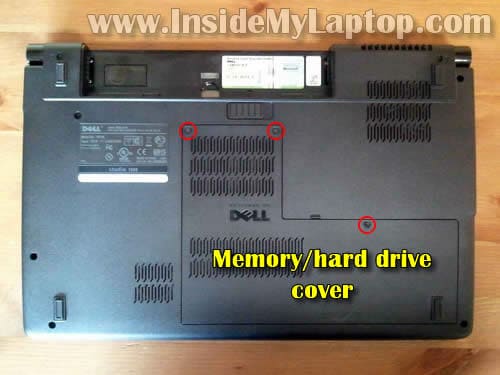
Start the disassembly process with removing the service cover secured by three screws.
STEP 2.
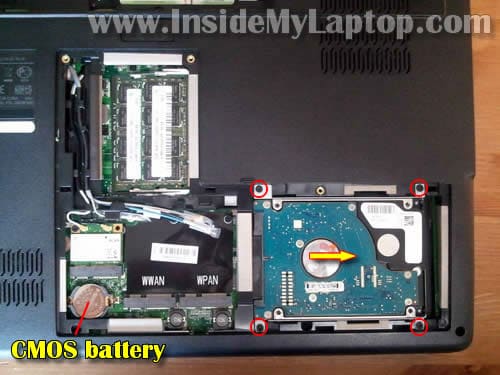
Under the cover you’ll get an access to both memory modules, hard drive, wireless card and CMOS battery.
Also, some Dell Studio 1555 models can be equipped with WWAN and WPAN cards.
Remove four screws securing the hard drive. Slide the hard drive to the right to disconnect it from the motherboard.
STEP 3.
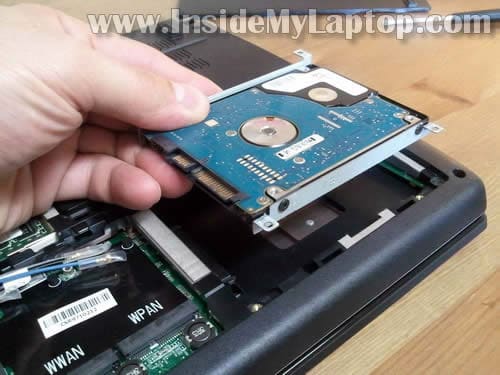
Lift up and remove the hard drive.
If you replacing the hard drive, you’ll have to transfer mounting brackets to the new one.
My Dell Studio 1555 has a regular 2.5″ SATA HDD which can be upgraded to a SSD (expensive but quite and fast).
STEP 4.
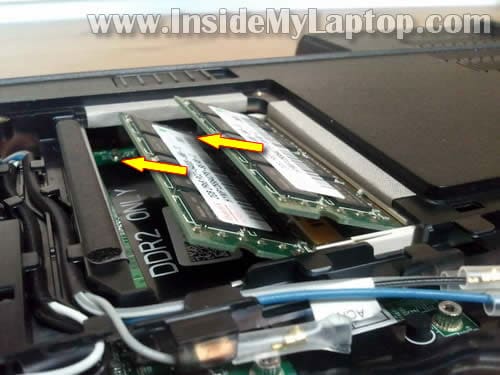
In order to release the memory module you’ll have to spread latches on both sides of the memory slot.
The memory module will pop up at a 30 degree angle.
Pull both modules from slots.
Dell Studio 1555 uses DDR2 PC2-6400 memory. It can take up to 8GB total (up to 4GB RAM in each slot).
If you want to use more than 4GB RAM, you’ll have to run a 64-bit operating system.
STEP 5.
Remove one screw securing the center control cover.
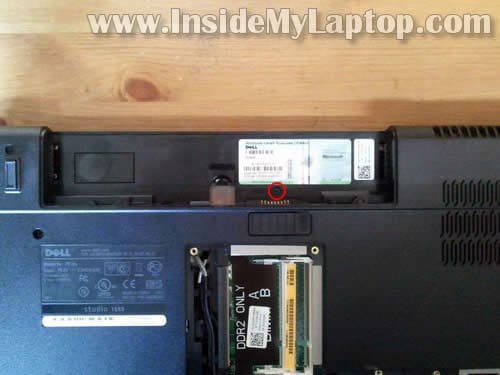
STEP 6.
Carefully lift up the upper side of the center control cover and slide it towards the display.
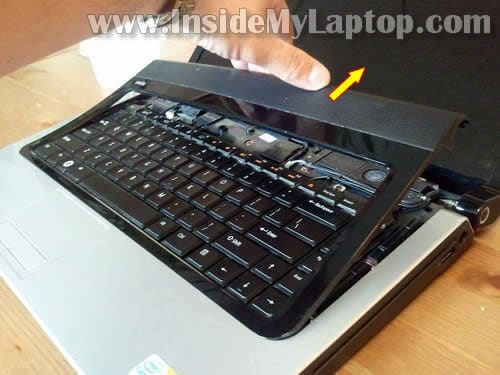
STEP 7.
Remove the center control cover.
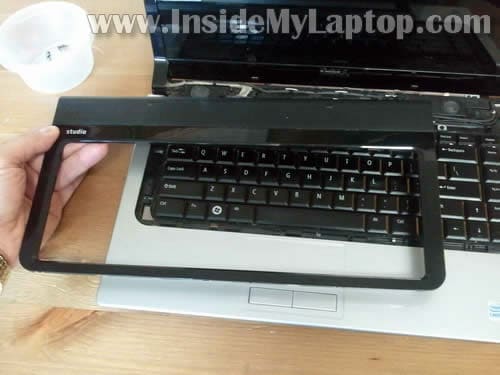
STEP 8.
Remove two screws securing the keyboard.
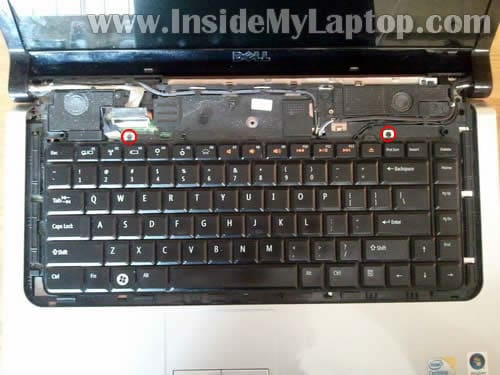
STEP 9.
Lift up the keyboard and place it upside down on the palm rest.
Be careful. The keyboard still attached to the motherboard. There are two ribbon cables running from the keyboard to the motherboard.
Before you can remove the keyboard, it’s necessary to unlock both connectors and release cables.
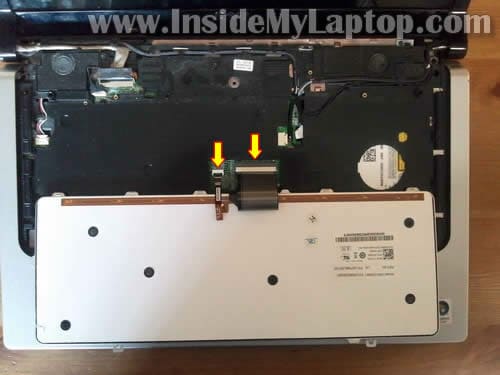
STEP 10.
You can unlock both connectors using the same method.
Lift up the right side of the locking tab. It will open up at a 90 degree angle.
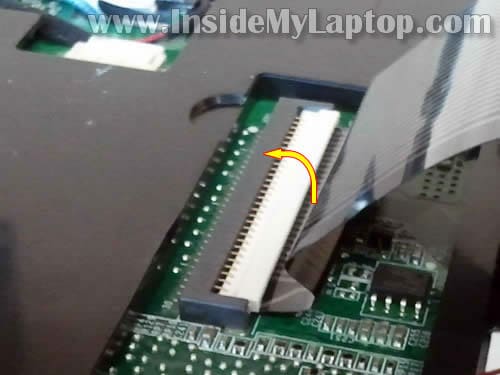
STEP 11.
On the following picture the connector shown in the unlocked position.
Now you can pull the cable from the connector.
Open up another connector using same method.
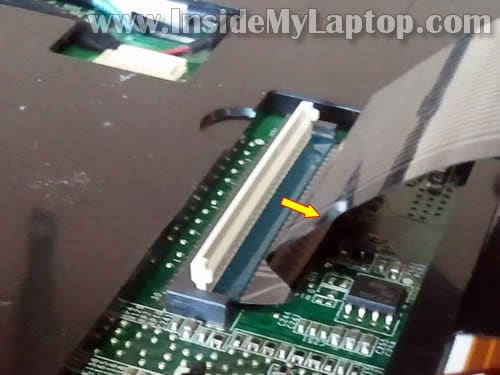
STEP 12.
Remove the keyboard.
Now you can replace it with a new one if needed.
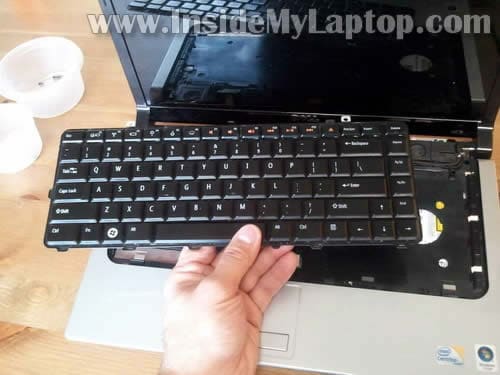
STEP 13.
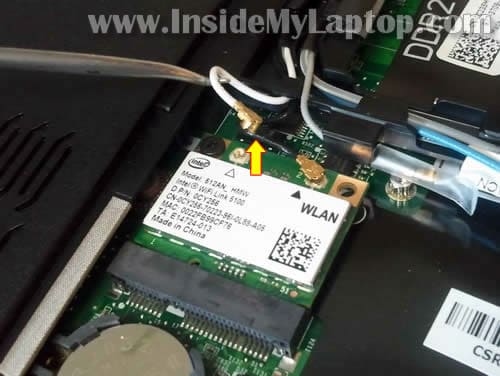
Disconnect both antenna cables from the wireless card.
If you have WWAN and WPAN cards installed, disconnect antenna cables from them too.
I would suggest making notes how those cables are connected.
STEP 14.
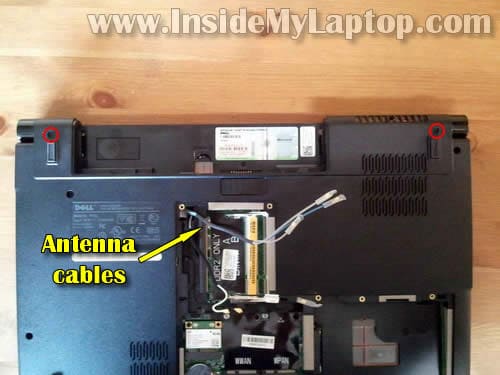
Unroute all antenna cables.
Remove two screws securing display hinges on the bottom.
STEP 15.
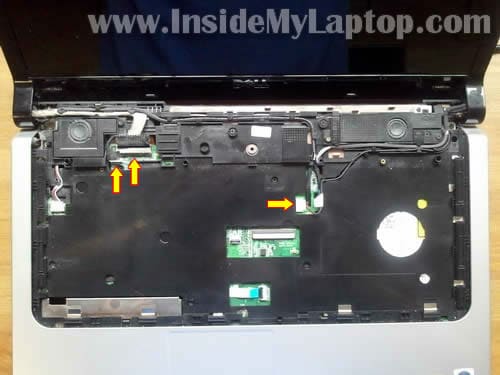
Disconnect shown display cables from the motherboard.
STEP 16.
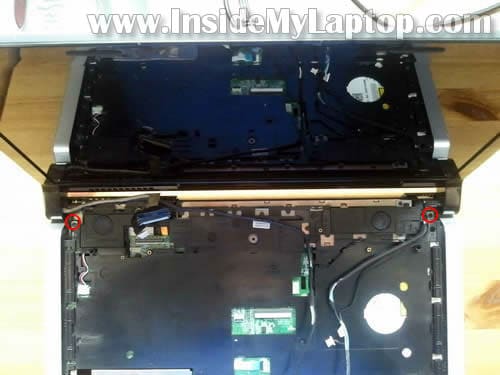
Unroute display cables and pull antenna cables though the opening in the top cover.
Remove two screws securing the display hinges.
STEP 17.
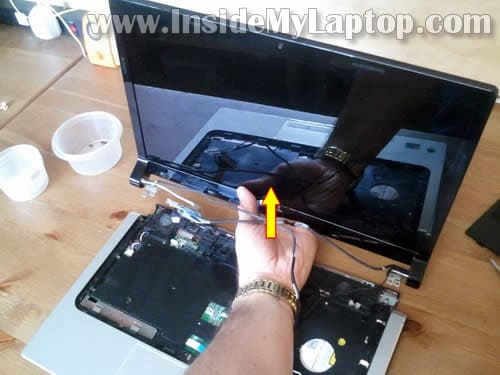
Lift up and remove the display assembly.
In one of the following posts I explain how to take apart the display assembly and remove the LCD screen.
STEP 18.
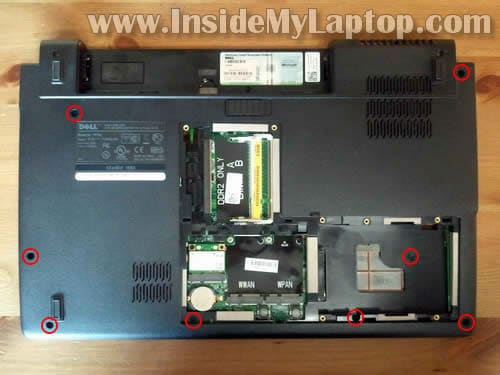
Remove eight screws from the bottom.
STEP 19.
Remove ten more screws from the top cover.
Disconnect shown cables from the motherboard.

STEP 20.
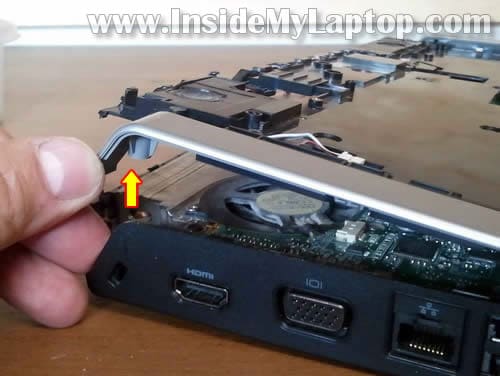
Start separating the top cover assembly from the bottom cover.
STEP 21.
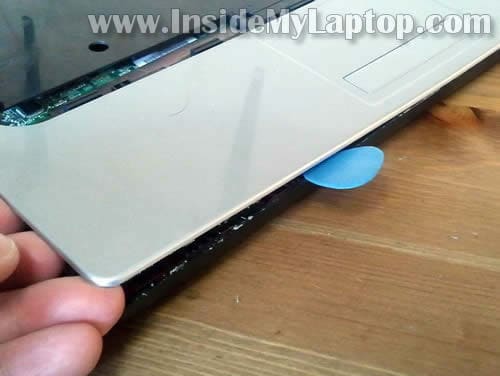
Continue separating the top cover.
I’m using a guitar pick as a case cracker.
STEP 22.
Lift up and remove the top cover assembly.
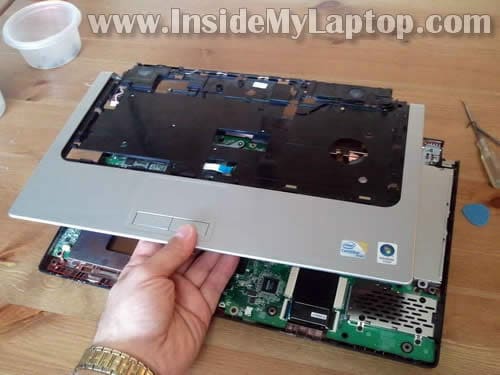
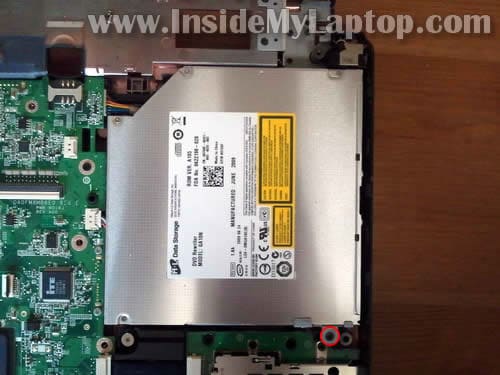
STEP 23.
Remove one screw securing the CD/DVD optical drive.
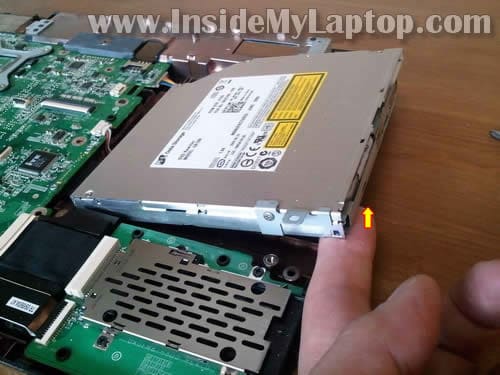
STEP 24.
Lift up the front side of the CD/DVD optical drive and disconnect it from the motherboard.
STEP 25.
Remove four screws securing the ExpressCard board.
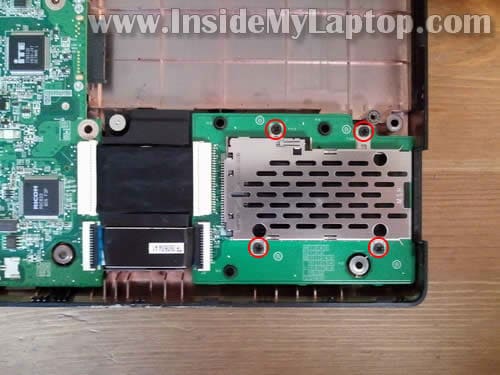
STEP 27.
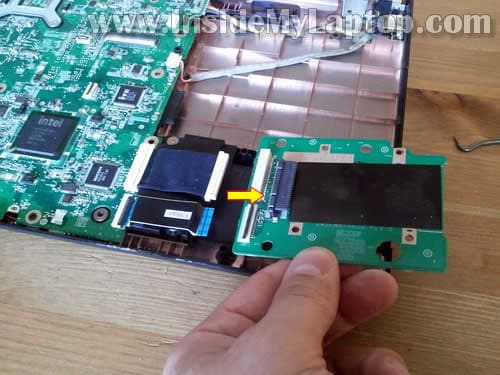
Remove the ExpressCard board.
As you noticed, I disconnected cables from the card itself and left them connected to the motherboard.
STEP 28.
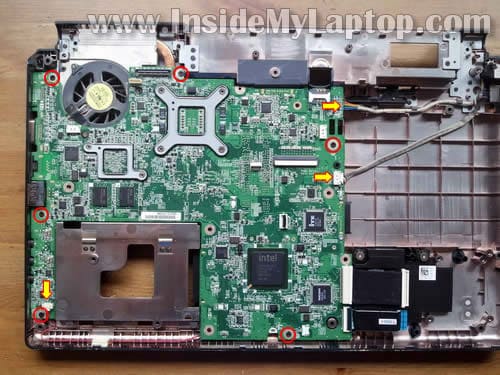
Remove six screws securing the motherboard.
Disconnect three shown cables from the motherboard.
STEP 29.
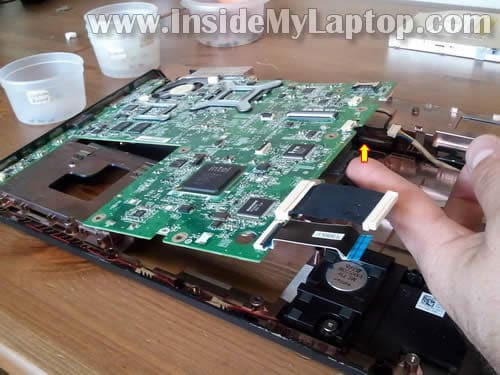
Lift up the right side of the motherboard and carefully pull it from the bottom case.
STEP 30.
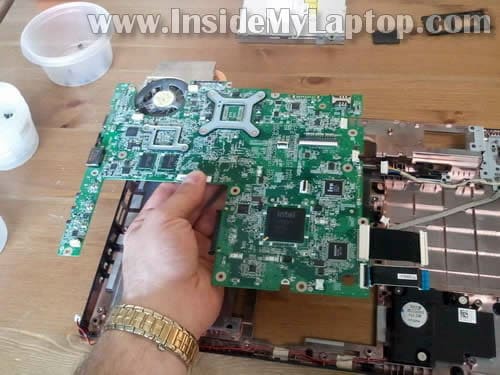
Remove the motherboard.
STEP 31.
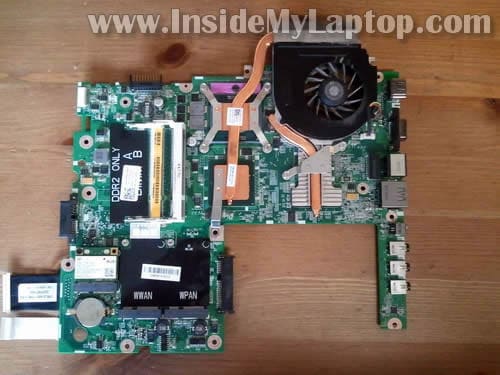
On the bottom side of the motherboard you’ll get an access to the cooling module (cooling fan and heat sink).
If the cooling fan and heat sink look dusty, you can blow it off with compressed air.
Also, cleaning the cooling module will fix any possible laptop overheating issues.
STEP 32.
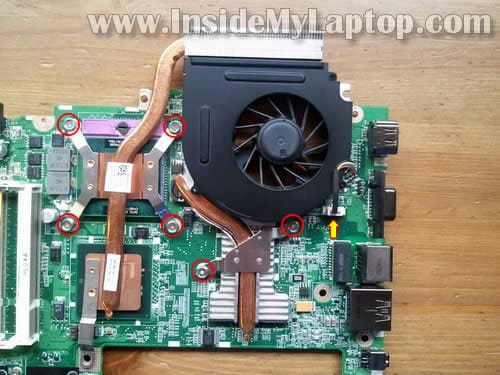
If you would like to replace the cooling module or apply new thermal grease on the CPU, you’ll have to remove it.
Loosen six screws securing the cooling module and disconnect the cooling fan cable from the motherboard.
Now you can separate the cooling module from the motherboard and access the CPU.
STEP 33.
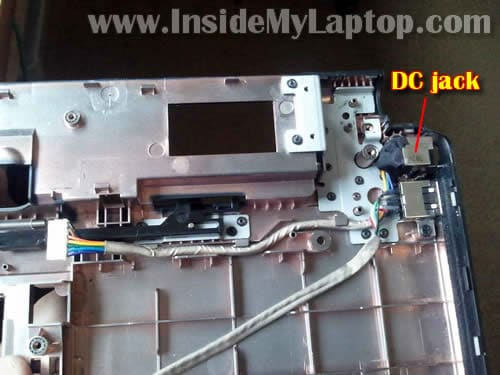
The DC jack (power connector) in Dell Studio 1555 laptop is not soldered to the motherboard.
The DC jack attached to the power harness which can be unplugged from the motherboard (we did it in the step 28).
If your DC jack failed, just replace the entire DC jack harness.
It’s possible this guide will work for some other Dell Studio models.
Angela
Thanks for this. It helped me a bunch.
Rox
Thank you, this was really helpful. I’m not sure how to tighten the hinges, though. Any help would be great.
Billy
Very useful. I would never have been able to do this by myself. Thanks
Franklin
This is awesome, many thanks
Doc
Vielen Dank und Grüße aus Deutschland !
Marc
Just a few weeks out of warantee on a XPS 1558 yor instructions worked a treat solving an overheating CPU. Only a few screws left over after re assembly 🙂
Tim
May I ask if this computer’s graphic card is integrated? I’m trying to find where the graphic card is located?
Jeff
I have to replace the power button cable. To what degree of disassembly do I need to do to accomplish this? I think the cable I bought has a wifi connection as well. Great detail by the way. Fantastic help.
Garvil
Thank you man, it’s very usefull to me.
Garvil
And it works for Dell Studio 1557 & 1558
Ron
Thank you! You saved me having to buy a new laptop 🙂
harsh
hii…can you help me whether i can change my usb ports from 2.0 to 3.0?….my laptop is acer 5745g…does acer 5745g has facility to change its USB ports from 2.0 to 3.0??please kindly help me…thank you…:)
harnek
thanks man osam clean work easy to undrstand….
Gecco
It couldn’t Be made better
Thank you!
Jay
Hi. This is a very thorough guide but is it possible to get an access to the video card without removing LCD or taking out the motherboard?
Phil
@Jay My Studio 1555 has an overheating issue with the GPU and therefore would like to investigate the cooling system on it. As this appears to be a lengthy process to take apart I’ll dedicate a few hours on Saturday and post back how I get on and what parts I didn’t have to disassemble.
If anyone has some hints or tips before I get to work I’d really appreciate them. Thanks for the guide, very detailed apart from mentioning the graphics card (I assume your machine has the integrated one?).
Jon
So helpful when I need to clean out my heatsink!
Anthony
i took apart my studio yesterday so i can repair the top cover.
n i put everything back together now my display wont show anything its just pitch black
is there anyway to fix this? did i do something to the connection?
IML Tech
@ Anthony,
Make sure memory modules seated correctly.
Check connection between the video cable and motherboard.
john kurtz
hi! thank u for that very helpfull informations. i have a question though. what is the brand and the model for dell studio 1555 laptop’s motherboard. is there any way to get that info with out pulling every thing apart
IML Tech
@ john kurtz,
Here’s how you do it:
1. Go to Dell warranty status page.
2. Enter your laptop service tag number.
3. Click on the Original System Configuration tab.
4. Find the motherboard part number and google it or search or eBay.
Diana
How do I reconnect the 2 wires hooked to the back of my on/off button. Apparently the last person who did a repair caused more damage. Any suggestions?
Frank
You don’t need to go past step 24 if just replacing the power jack. Excellelent instructions tho, thanks alot!!
IML Tech
@ Frank,
This is correct. In order to replace the power jack it’s enough to go though steps 1-22.
You can remove the DC jack harness while the motherboard still mounted to the laptop base.
In steps 23-32 I’m showing how to remove internal laptop parts.
David
Thank you. This is exactly what I needed to get the screen off so I could tighten up the hinge. It had been getting very loose and breaking the plastic when opening and closing. Excellent instructions 🙂
Vipin MG
My motherboard was the problem i have changed it with the above pic help now the present problem is that it has no sound wats so ever……is it the mother board problem ir something else?
IML Tech
@ Vipin MG,
Have you tested headphones?
If there is no sound coming from laptop speakers AND headphones this could be software related problem or motherboard problem.
If headphones work properly but there is no sound from the laptop speakers, it’s possible you forgot to connect them during the reassembly process.
Sam
Hi is there a way to just clean the dust of the fan by removing the bottom cover? I’m worried about the many steps it takes to get to the fan…i was hoping there was a quicker way. Thanks
IML Tech
Sam,
You cannot access the cooling fan without taking it apart completely. There is no way to remove just the bottom cover.
Here’s what you can try.
Buy a can of compressed air or find an air compressor. Blow air into the fan grill on the bottom until all dust is gone. After that blow air into the grill on the side.
Most likely this will cure your problem.
David
Great manual, thanks a lot! This guide to take apart my Dell…
+ some proper cleaning of fan and cooler (take fan out and clean fins from the inside!)
+ some other instruction for copper shims (http://forum.notebookreview.com/dell-inspiron-dell-studio/451422-studio-1557-copper-shim-dimensions-thickness-17.html)
+ a guide for near-to-perfect application of shin-etsu g751 thermal paste (http://forums.pcper.com/showthread.php?t=230649)
+ 8 gigs of RAM
+ an SSD in optical bay
+ my old HDD in main bay with it spinning down after 1 min if not used… (http://forum.notebookreview.com/hardware-components-aftermarket-upgrades/388625-diy-adding-ssd-hdd-storage-using-optical-bay-caddy.html)
…make me feel like I just bought a new laptop. It usually sits on the desk completely quiet now… only at times the fan goes on while before I thought I was constantly standing next to a 747 taking off.
Temps dropped by about 20 degrees (now below 50C in idle) with the fan turning not at all or only at low speed compared to it turning at max speed almost all the time (almost 70C idle). And thanks to the SSD it became super fast as well. To figure everything out took me a few days and parts cost about 300 euros but it was totally worth it.
A word to Dell: The cooling system of this model is a complete misconstruction! After about ONE year overheating problems started. I now figured out (after 2 years having this laptop) that the cooler fins were completely blocked by dust from the inside, not allowing the hot air to exit. Access to it for a proper cleaning can only be gained by taking the whole thing apart, removing the cooler from the CPU + GPU, getting the fan out to remove the dust and then putting the whole thing back together… Built to break and totally impractical for many people! So, perhaps a misconstruction for the user, not so much for Dell. Most probably my last Dell. But now hopefully good to go for another 2 years…
Thanks again!
Steven
This info is very helpful and i hope you can give me sources where i can get a motherboard for dell studio 1555.
Thanks
Jord
wow, that’s a lot of work for just cleaning the fan :/
Vipin
I have removed my mother board by this guide now need to order it how do i know which is the right one?
IML Tech
@ Vipin,
There should be Dell sticker somewhere on the old motherboard. Probably it’s somewhere close to memory slots.
The sticker should have a number, something like CN-0H5639-XXXXX-XXX etc… The first string of numbers and letters after CN- will be the part number.
In my example the part number is 0H5639 (example from a keyboard). You should be able to find replacement motherboard if you search on Google or eBay by the part number.
Chileno
I got a problem. After disassemble and reassemble my laptop, it don’t power up again. I did everything appears here and nothing?
What would cause this?
IML Tech
@ Chileno,
Most likely it’s not assembled correctly.
Check all connections.
Vipin
By the way i looked there is no sticker on the slots is there any other way of knowing it ?
IML Tech
@ Vipin,
I believe somewhere on the Dell website you can pull the original system configuration list (using service tag number from your laptop). It will pave part numbers for all major components inside the laptop. The motherboard part number should be in there.
renee
I so appreciate this! thank you!
phil
Great instructions! I have to say though it’s a pretty crappy laptop design to have to remove the entire motherboard just to clean the fan and the heatsink!
Some tips from my experience: those small white connectors are a pain to disconnect, and they’re fragile too. Be gentle and don’t yank the wires. Care needs to be taken when reattaching the screen: don’t try closing it until all four screws are tightly secured, otherwise you might end up cracking the case like I did 🙁
Apart from no problems, laptop is running fine. Although I do have three screws leftover and I’m not sure why…
fdx
On removing mother board screws you miss one screw that holds heatsink – top left corner there is a screw that mounts heatsink in to case. please mar it in red or that could be a “jesus! screw” for someone…
IML Tech
@ fdx,
Did I? I believe there are 6 screws securing the motherboard to the case and I marked all of them.
Athena
I needed to replace my fan on my 1558 since each time I turned on my computer it sounded like a helicopter taking off. Now after putting it all back together, I plugged it in, and all I got was a black screen, and beeping sound. Any ideas as to what I did wrong?
György
Thanks for an excellent guide!
Two questions I’m hoping you could help me are:
1, how can I remove the antenna connections from the WLAN card? if I’m any less gentle, I’m afraid I might break them.
2, after removing 9 (case) + 4 (HDD) + 1 (under HDD) + 3 (cover) + 1 (WLAN) + 1 (near the CMOS) screws, Memory modules, HDD, WLAN card, the media control cover still won’t budge (the screen is tilted WAY back). it isn’t as though it’s been loosened but something’s holding it – it’s completely TIGHT. What’s the right way to do it?
György
Okay, got the media control cover — you have to push on the top of it from the outside, near where it connects to the bottom part, to unlatch the claws that hold it in place (clickety click — there’s two of them, and they are near the battery compartment). You then lift the cover away, outwards (there are some other, smaller plastic claws that need to be unhinged).
kaushal mishra
thank u guys for this awesome information i just cleaned my fan and cz of u guys and now its working fucking awesome.
Maik
Thanks big times for the guide. Managed to completely disassemble and reassemble it and my fan is working again 🙂
Roberto
Thanks 😀 😀
Dave Z
Thank you for this great info! My problem concerns the screen switch (aka lid switch), located under the track-pad’s left-click button (see Step 22 under the hand). This switch is activated by a magnet in the lid above the screen. Normally, after powering up, the magnet’s contact with the switch is disengaged, therefore turning the screen on. This doesn’t work anymore – the lid switch stays in the off position and the screen stays off. So now – before I hit the power button – I have to tap the area of the left click-button several times to release the stuck switch, then power on the laptop in order for the screen to come on also. And it’s getting worse.
One other thing – perhaps the problem is not the switch – because tapping the switch after the laptop is already on never turns the screen on. I have to turn the laptop off, do the tapping, then power it back up for this ever to work.
Has anyone else ever had this problem? And can anyone tell me how to access the switch to either replace it or just short it out? (I’ve tried the Windows 7 repair checks, etc…they never find anything wrong.)
Thanks!
bob
was just wondering. i have a 1749 dell studio that keeps over heating. will these instructions for the 1555 be prettymuch the same for the 1749..any help will do. tired of it shutting down on me..
IML Tech
@ bob,
Check out this service manual for Dell Studioâ„¢ 1745/1747/1749.
The manual explains how to access the thermal fan.
Also, you can try cleaning the fan without taking it apart. Blow air into the fan grill until all dust is gone.
Luis
Well the process for the Dell studio 14z is a bit easier but pretty much the same.
On the last picture you can see the DC jack connector, which in my 14z has now failed twice. Since my battery is pretty shot and I dont want to spend money on it, I was thinking removing the jack altoghether.
So I tried to join the cable coming out of the power adaptor to the cables going into the jack (after cutting both) and now I have 3 cables on the power adaptor side, and 6 on the other side!
Seems on the 1555 you can also see 6 cables coming out (on your picture).
Any clue which of the 3 go to which of the 6 to make this work?
Thanks
IML Tech
@ Luis,
Probably you can use a multimeter to trace how six cables on the jack are connected.
Why didn’t you just buy a new DC jack??? It cost like $5-7.
Brian
Where can you get a DC jack for that little. Cheapest i could find was on Ebay for 14.
IML Tech
@ Brian,
I think this is a very reasonable price for the DC jack harness.
Plqstiich
Hello, very well done instructions. My question is where is the build in microphone located on Dell studio 1555? Is it possible to be replaced?
Thank you
Prinston Fernandes
if u cud oni temme how to put it back together..:'(
m lost,dunno where to begin n how…waitin in anticipation…
John Goerzen
The model is 1555 only. Thanks for the help
Cowkarier
Thanks heaps for these detailed instructions. My mum shoved an sd card in the cd drive and didn’t tell me about it. Then I tried to use the cd drive and the thing shit itself. Your instructions have saved me a trip to a technician. Yay you!
Moki
THANK YOU SO MUCH..
IF GOD EXISTS, U’RE THE FIRST PERSON WILL BE SENT TO HEAVEN..
Carl
Thanks for the fantastic guide.
I recently picked up a 1555 so this has been very helpful.
It’s a bad way…no output to the LCD screen but is OK via separate monitor.
Off topic I know but I didn’t get any driver or utilities discs with this machine, but have been offered some from a 1558 model would this be OK to use for the 1555?
Dell won’t supply me any OEM ones as I didn’t purchase the machine.
IML Tech
@ Carl,
Most likely it’s either failed LCD screen or failed video cable.
All drivers and utilities should be available for download from the Dell website.
Alex
Thanks so much for the photo guide! my laptop’s been broken for about 3 months (screen wont show anything on startup), and i reckoned i could fix it myself if i found a guide to take it apart with. This guide led me to find that a loose LCD display cable was the culprit. Thanks so much!
ruben
Thanks so much for this guide, was really helpful in dissembling my broken studio 1555.
My three year warranty on it ended 5 months ago however last week i realised I couldnt turn my studio on anymore…..whether on battery or cable only, the system wont start at all when i press the power button. I’ve tried a hard reset and now dissembling the laptop and putting it back together but neither seemed to help. The hinges of my LCD screen are cracked/dodgy but other than that theres nothing visibly wrong with it. In the weeks leading up to its failure to turn on, it crashed a number of times when i was gaming im assuming due to massive overheating.
Has anyone else encountered this problem of not being able to switch on their dell studio 1555 ? or maybe know a reason as to why this has occured?
Any assistance would be great.
EDIT: After I reassembled my laptop, it miraculously turned on!!!!!!!!!!!!!!! howeveer i didnt have the hardrive in so had to turn it off – only way to power it off was to remove the battery as the power button stopped responding after it booted. Now I cannot turn the laptop back on 🙁 ….. messing with my head.
I know it has nothing to do with the hardrive as I’ve booted it on my desktop, however is it fair to say from this that there is a problem with the power button? (maybe its worth replacing the power button?)
IML Tech
@ ruben,
Try removing memory modules one by one. Test the laptop with each memory module separately. Maybe one of the modules is bad.
Joe Q
Great guide. My power supply is dead – no voltage ant the plug but the blue LED in the plug lights (?!). Is there a fuse after the LED but before the plug in the molded plug itself?
Charlie
Great guide. In having issues of it overheating then shutting down. I brought it in for a diagnostic as they first told me that I would need to replace the fan and the hardrive. Then they call back after getting the parts and tell me I need to also replace the motherboard. They quoted me $180 for a reconditioned fan, a new hardrive and labor. I was cool with that, but they told me a reconditioned motherboard could cost over $500. I told put it back the way I gave it to them. I could buy a new computer for that amount.
What do you think can be the issue and did I make the right move not to have any parts out in?
IML Tech
@ Charlie,
It looks like your laptop has multiple problems. I’ve seen it happening before many times and laptops like that are very hard to troubleshoot and quote repair correctly.
Definitely that was the right move! Laptops like that not worth fixing. It’s better to buy a new one with new hardware and warranty.
Nikunj
Thanks a ton !!
Jyotiska De
Thank you so much.
i was using my laptop , listening songs , suddenly the screen was become crazy like white pink , sorts of colour in pixel way . the music was looping and it was not responding . i used the shut down button to shut it down , then when i tried to switch on again . screen is black . laptop is not starting , but if i connect ipod or mobile .the ipod/mobile shows it is charging.
i tried with exchanging ram slots then cmos battery . but nothing worked. any idea ?
karinaG
My Dell Sutdio 1555 won’t read dvds and is having a hard time reading CDs. Any ideas?
kasa
Thanks. this is the best Support than dell do with money
Milan
My Studio 1555 with ATI graphics was overheating. Tried cleaning the fan with compressed air. This made things even worse as the fan is not spinning at all. I limit my use of the laptop as it goes very hot very quickly. I plan on replacing the fan or the whole heat-sink.
I have a couple of questions:
– Should I just replace the fan or the whole heat-sink?
– Are there any heat sink/fan differences for ATI or Intel graphics model? Mine is ATI.
– If there are differences, what is the correct part number? Or can I find that through Dell?
Thanks
Mark@easyITme
@Jyotiska
I just had the same issue with my Studio 1555 laptop that I fixes. It is caused by connectivity issue between the motherboard and the video ram chips. The solution: reflowing the soldering. How to do it at home: bake the motherboard in the oven for 10mins at 200C. Not joking, and it works. Look at some videos on youtube on this, eg: https://www.youtube.com/watch?v=yFCFiSB2Fuk
Are you in doubt? I was as well, I did a lot of reading on this. Then I did it, and it worked!
Good luck,
Mark
p.s: remove the CMOS battery and the cables for the card readers before baking and of course the CPU as well.
dom
Thanks for the Great info above.
My laptop randomly shuts down when watching videos online on most websites such as BBC I Player and many others. . . .
Would like to know if i should try and clean the fan or is it a software issue or a virus?
If anyone could perhaps answer this I’d be very greatful.
Dom
Dave
I am replacing my WiFi antenna in my 1555 [the UFL’s were damaged on the old one].
How much dis-assembly must I do for this?
Thank You in advance for your help AND thank you for this great how-to.
Andre
Pelo amor de deus…alguem sabe aonde encontro a placa mae para esse note. Obrigado.
IML Tech
@ Andre,
You can find this motherboard on eBay. A see a few of them listed in the range of $100-$200.
Peter Lund
Thank you for a very instructive guide, it was a great help 🙂
Mikel
My computer also failed
like Jyotiska describes and I tried with the oven solution mark says and it works!!!
At first I couldnt beleive it but it works. Thank you so much!
Jim
Thank you so much for this step by step – it was very helpful!
bileg
Where is locating Bios chip
Matt
I know I’m pretty late to this thread but my Studio 1555 starts up for about 30 seconds before shutting itself off. The time progressively gets shorter (sometimes it just shows the “CHKDSK” screen and then just turns off before I can select anything) and sometimes it won’t turn on at all. The AC adaptor and battery are both new and I’m afraid it’s a motherboard problem. I was hoping to check and see if anyone had a similar problem.
jl
I’ve just found one of these on top of a pile of rubbish at work, marked “beyond repair, out of warrantynd a compatible power supply and booted it up, gets through to windows but hangs before desktop comes up, booted again using linux live usb, seems to run well for a bit, boom, crash out of the blue, just goes black and off.
Opened it up, felt and smelt a bit hot, So there’s a little white connector floating at the end of a cable and what looks like a socket where it should be but there is too much plastic in the socket so the connector cant go in. scrape the socket so I can get the connector plugged on to its pins. Close t all up, Fan noisier than before, not so hot now.. doesn’t crash.. windows partition needs repair but that seems to be all.
I’d say looking at this that there was probably a batch sent out like this so if you have this problem and nothing else works..
sadi
thank u very much…..
Siebrand
Excellent guide, and 100% accurate. Thanks!
Stephen Woodhouse
Amazing guide thanks, I’ll make a donation. I have an old Dell 1555 and I’m upgrading the CPU (plus SSD and more RAM). I’ll use an Intel T9900 processor instead of the existing 8700.
I have a few questions – will I need to remove the screen to get to the CPU? I don’t see mention of thermal paste etc but I understand there is some paste between the CPU and the fan which needs to be removed then replaced with new. Is this necessary? Finally is there any advantage in using thermal shims?
Thanks
Stephen Woodhouse
Excellent guide thank you (I’ve made a PayPal donation).
My 1555 motherboard has an ATI graphics card. I plan to replace the Intel 8700 processor with a T9900. (And a RAM upgrade and SSD). How can I check compatibility of the new CPU?
Thanks, Stephen
Riccardo
You’re my laptop guru! Thanks a lot mate!
IML Tech
Thank you! I’m happy to help.