

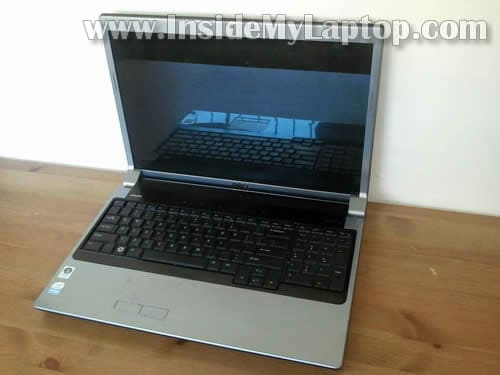
In this guide I explain how to disassemble a Dell Studio 1735/1737 laptops. I’m taking it apart in order to replace failed DVD drive.
Dell Studio 1735/1737 comes with a slot-load DVD drive which is mounted inside the case. It cannot be removed until you remove the top cover assembly.
The guide might work for other Dell Studio 17xx models.
Before you start, make sure the computer is turned off and battery removed.
STEP 1.
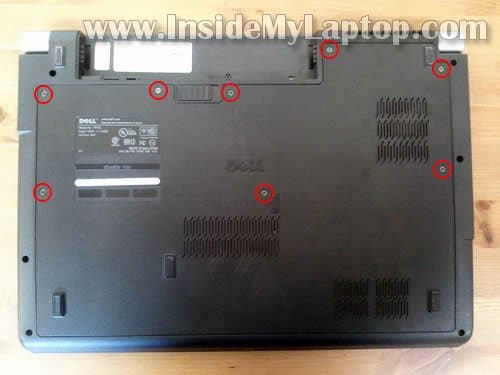
Loosen eight screws securing the bottom cover.
STEP 2.
Remove the bottom cover.
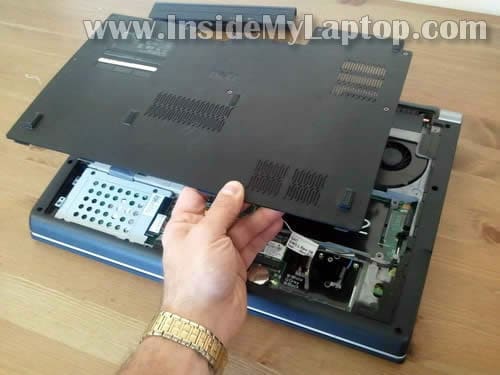
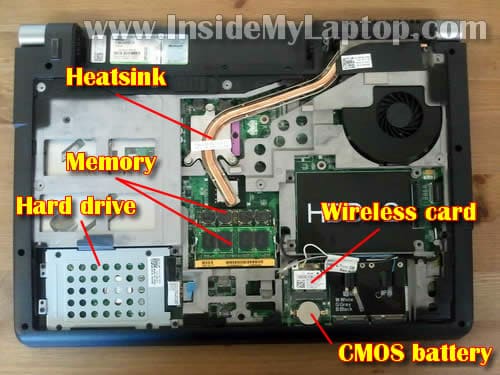
Under the cover you’ll get access to laptop hard drive, both memory modules, wireless card, CMOS battery, heatsink.
It’s not necessary to remove all these parts (except the HDD) for the purpose of my disassembly, so I’ll leave them connected.
By the way, this model can take 4GB RAM max. It means you can install up to 2GB RAM module into each slot. You should use PC2-6400 DDR 2-800 memory modules.
STEP 3.
Remove one screw securing the media control board cover. This screw located in the battery compartment.
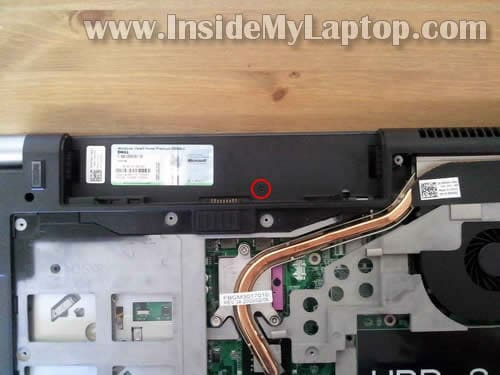
STEP 4.
Lift up the top side of the cover as it shown on the picture below.
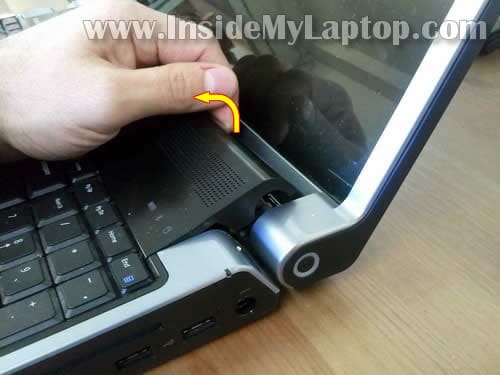
STEP 5.
Be careful, there is a cable connecting this cover to the motherboard.
Carefully turn the cover upside down and place it on the keyboard.
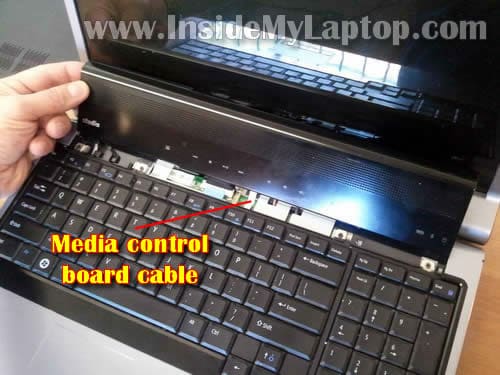
STEP 6.
Now you can disconnect the cable from the media control board.
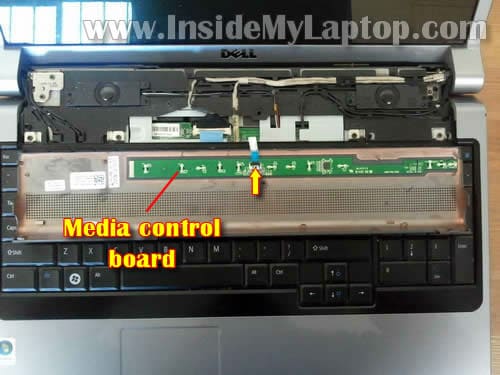
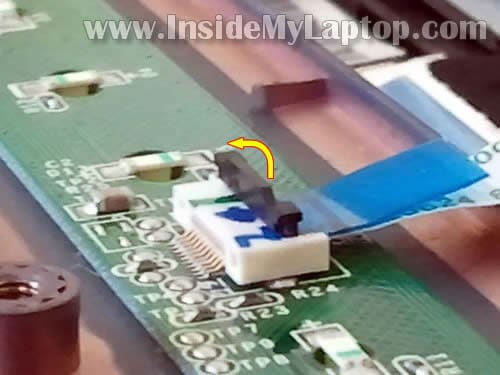
In order to disconnect the cable, you’ll have to unlock the connector.
The locking tab opens up like a hinge at a 90 degree angle. On the following picture the connector show in the unlocked position.
After the connector is unlocked, you can pull the cable.
Remove the media control board cover.
STEP 7.
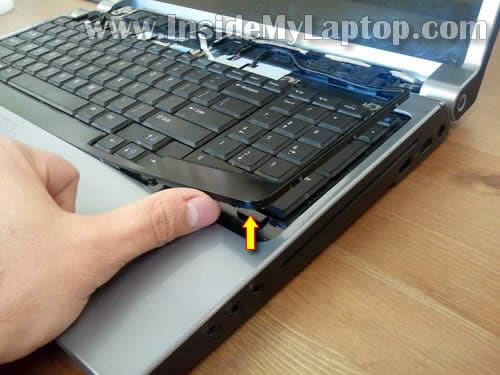
Start removing the keyboard bezel.
Lift up one side of the bezel and continue removing it with your fingers.
STEP 8.
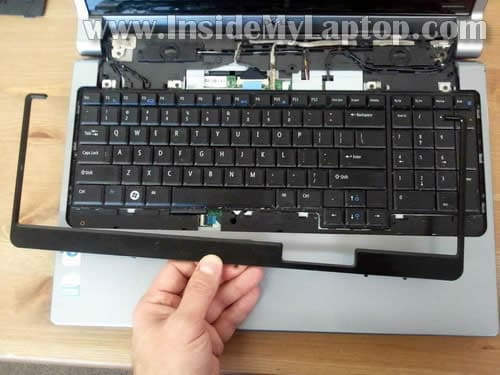
The bezel has been removed.
STEP 9.
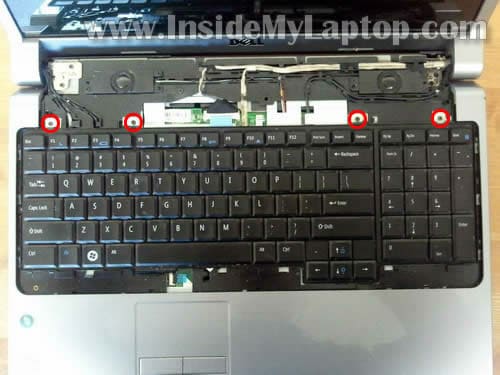
Remove four screws securing the keyboard.
STEP 10.
Carefully lift up the keyboard and place it upside down on the palmrest.
It’s still connected to the motherboard.
Before you can remove the keyboard, you’ll have to disconnect the cable from the motherboard.
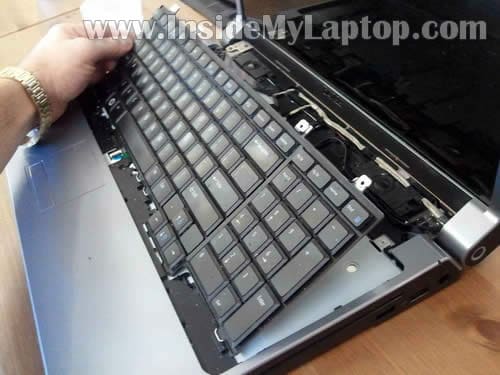
STEP 11.
The connector opens up like a door hinge at a 90 degree angle.
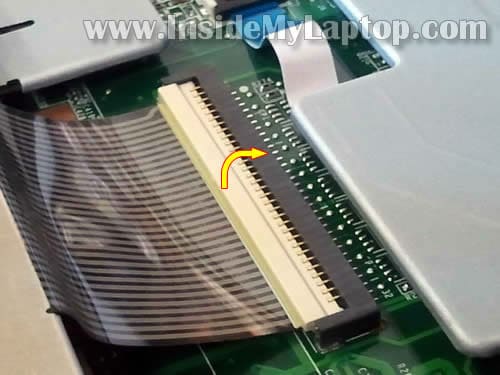
STEP 12.
On the following picture the connector shown in the unlocked position.
Now you can pull the cable from the connector.
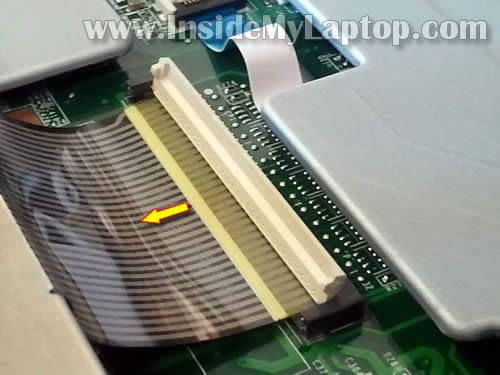
STEP 13.
Remove the keyboard.
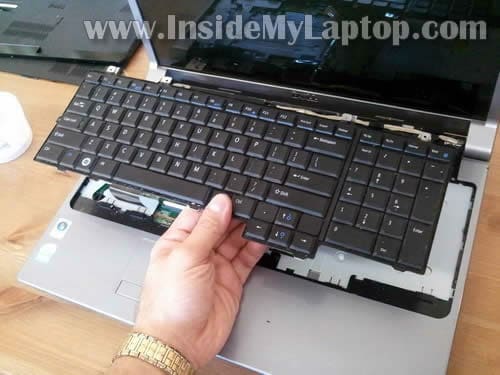
STEP 14.
Unroute all antenna cables.
In my Dell Studio 1737 I had only wireless card installed. The wireless card antenna cables have to be disconnected.
If you have WWAN or WPAN cards installed, you’ll have to disconnect cables from those cards too.
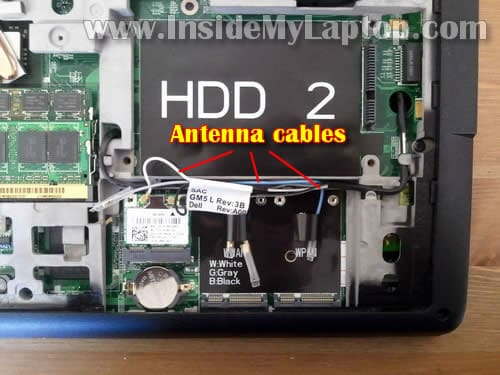
In order to disconnect an antenna cable for the card simply grab the gold connector with your fingers and lift up.

STEP 15.
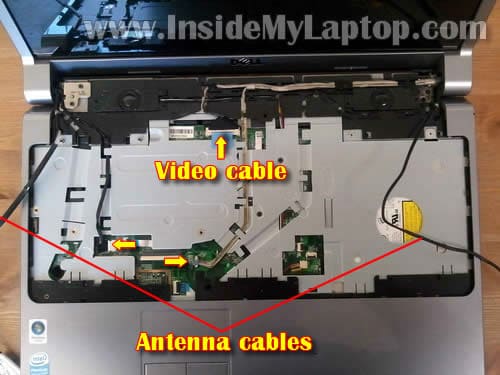
Pull antenna cables though the openings in the top cover.
Disconnect three more cables from the motherboard.
STEP 16.
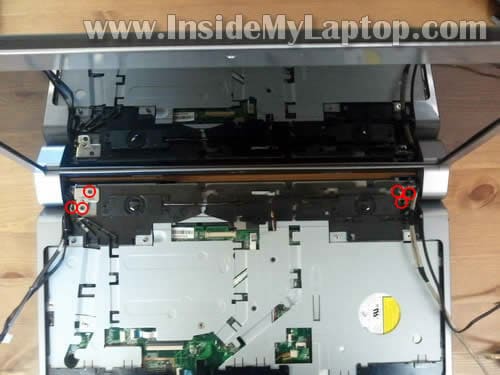
Remove all screws securing display hinges.
STEP 17.
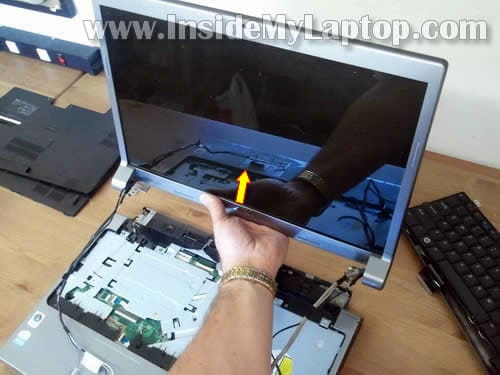
Carefully lift up the display assembly and separate it from the base.
In the next post I explain how to remove the screen with inverter board.
STEP 18.
Remove all screws from the bottom.
The hard drive also has to be removed.

STEP 19.
Remove four screws securing the HDD assembly.
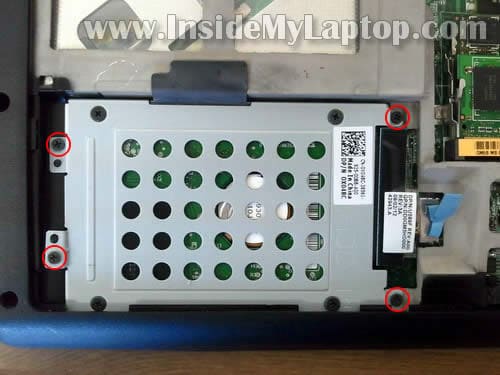
STEP 20.
Disconnect HDD cable from the motherboard.
Lift up and remove the HDD assembly.
My Dell Studio 1737 had a regular 2.5″ SATA hard drive installed.
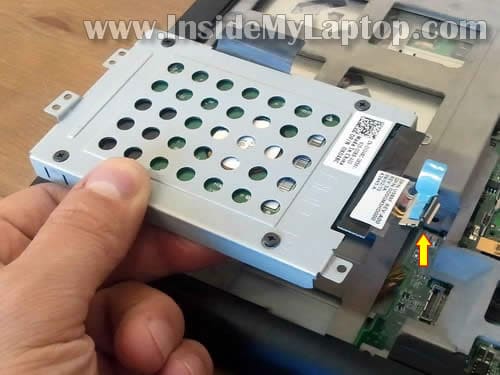
STEP 21.
Remove four screws securing the top cover assembly.
Disconnect all cables from the motherboard.
I didn’t have the finger scanning device installed but if you do, you’ll have to disconnect it too (green arrow).
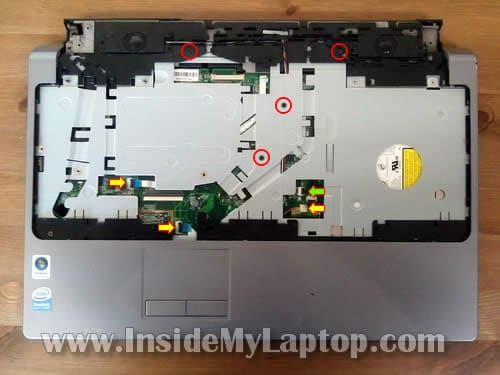
STEP 22.
Lift up and remove the top cover assembly.
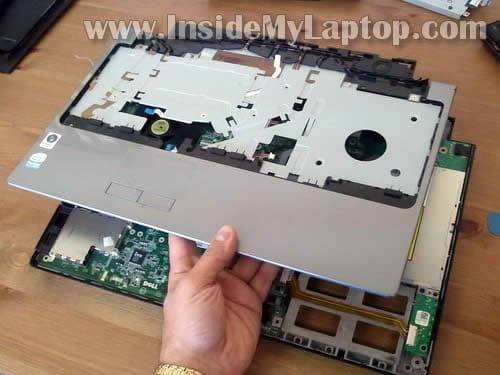
STEP 23.
Now we can access and remove the DVD drive.
By the way, it order to remove the cooling fan, you’ll have to remove the motherboard first. The fan mounted UNDER the motherboard.
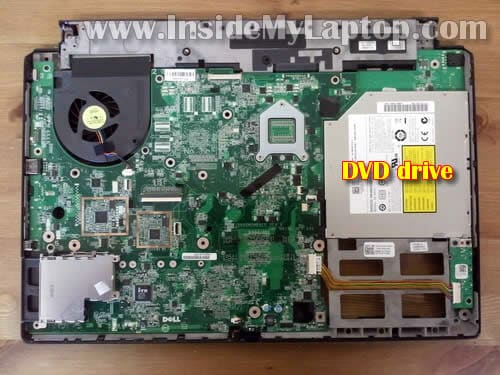
STEP 24.
Remove one screw securing DVD drive on the bottom.
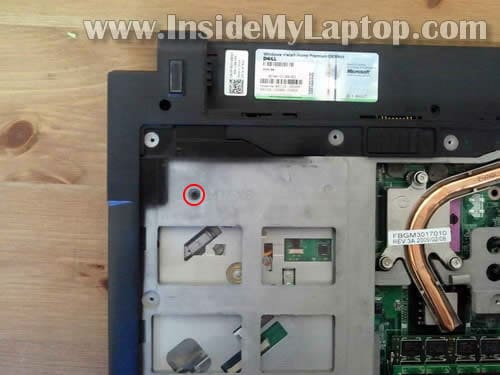
STEP 25.
Remove three more screws on the top.
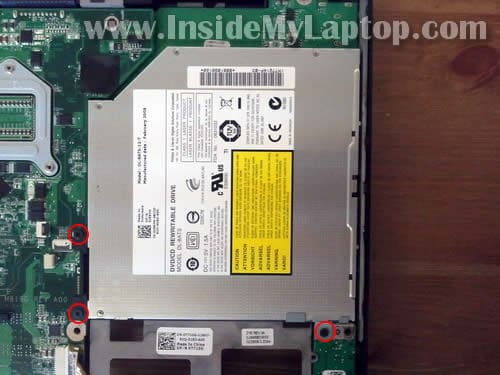
STEP 26.
Now you can lift up and remove the DVD drive assembly.
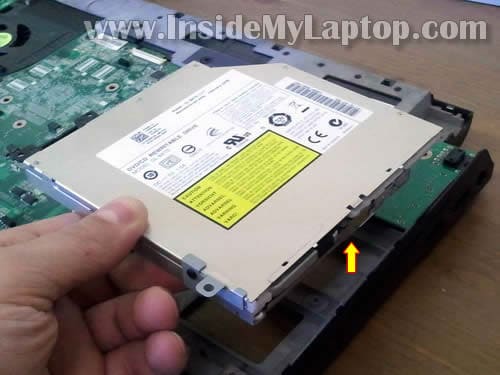
STEP 27.
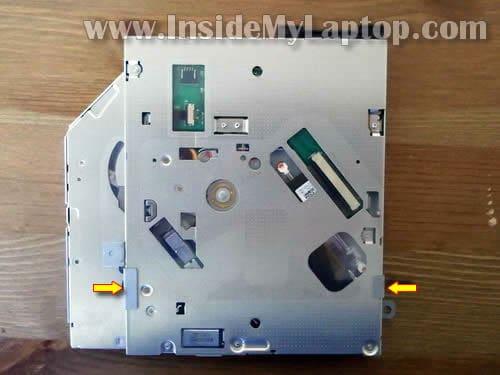
When you replace the DVD drive, you’ll have to transfer mounting brackets to a new one.
The Dude
Thank You!
charles
Thanks so much! Just finished and everything is working fine. It’s as if they designed it so that you can’t do the work yourself. Fortunately there is this website.
IML Tech
charles,
I don’t know why they made it so difficult to replace.
gordon
Thanks a million for these instructions, I couldn’t get the primary hard disk out because of the case, and now realise I should have kept it in the caddy to remove it easily, doh!!
Ken Bell
Thanks for the help. Made changing the keyboard a simple task.
-ken
Cheul
Hi,
I need to screw a 2nd HDD caddy in the HDD2 bay, to the computer base/motherboard. Do you know the reference of the screws needed for such a task ? (I’m not talking about the M3x3mm screws that attach the Hard drive to the caddy)
Thanks.
IML Tech
Cheul,
Unfortunately, Dell doesn’t mention which screws to use in the service manual.
Two screws should be enough to secure the hard drive. You can remove two screws from the primary hard drive and use it for the secondary hard drive.
Craig_ProComputing
This was a big help. Helped me finish the job efficiently, right down to the last screw. Thanks for the help!
bill
Very helpfull. some points not shown but were easy to figure out . This will work well if you take your time and don,t force anything. Thanks for the instructions.
Elizabeth
Dude thanks so much for all this info, my dog jumped on my laptop and the keyboard broke. having no idea i started searching and found you.. without you i could have never fixed my computer… thanks so much for the info.. you rock for sure.
Catherine
Can this process be used to replace the DC adapter as well?
Booker1688
Just wanted to thank you so very much for the help. Now to see if you have something on AC jack for same model.
IML Tech
@ Booker1688,
Here’s service manual for Dell Studio 1735/1737 laptops.
The manual has step-by-step laptop disassembly instructions.
The power jack in this model located on the charger board.
If you have soldering skills, you can desolder the failed jack and solder a new one.
Or just replace the whole charger board.
Chris
Thanks for a very helpful sequence of instructions.
One tiny thing missing: when you remove the keyboard there is a small secondary 5-pin cable on the right that needs to be removed.
Chris
IML Tech
Chris,
Thanks. I don’t know if I forgot to mention this cable or you have a different keyboard.
It’s possible your keyboard has backlight and it requires secondary cable. Not all models come with backlight keyboard.
Arnold Thompson
My DVD disc keep coming out on the 1735 studio, Any disc I try..What could be the problems Thanks
IML Tech
@ Arnold Thompson,
First of all, try reinstalling the DVD driver.
Here’s what you can try.
1. Go to the Computer Management (Right click on Computer icon and then Manage).
2. Go to the Device Manager.
3. Find CD/DVD-ROM drives line and and expand it.
4. Now right click on the DVD drive and Uninstall it.
5. Reboot the laptop and let it detect the drive and reinstall the driver. I think this might fix the problem. It did fix the same problem for me a couple of times.
If this doesn’t help, probably there is a problem with the drive itself. I guess you’ll have to replace the drive.
Heisenberg
Hi, how do I take out the fan to clean it? At which step? Do I have to disassemble the screen from the main body for this? Also, which other parts of the laptop gets exposed to dust and need to be cleaned? I have never opened it. Thanks a lot. Great website!
IML Tech
@ Heisenberg,
You don’t have to remove the fan in order to clean it.
Just remove the back cover as it shown in the step 2.
Buy a can of compressed air or use air compressor and blow air into the fan until all dust is gone. This should do it.
Just don’t forget to block fan while blowing air into it. If you don’t block the fan it will spin like crazy and you can damage the bearing.
ed
Useful guide. I managed to replace my screen, only thing is now when I close he lid the computer doesn’t seem to detect that it’s closed and go into standby. Any idea what I’ve not reassembled correctly?
IML Tech
@ ed,
These days many laptops have magnetic lid close switch – a small piece of magnet inside the display panel activates the switch which is located inside the laptop base. When you close the display the magnet goes close to the switch and it “knows” the display is closed.
It’s possible you accidentally removed the magnet while replacing the screen. I happened to me before.
Take a look at the old screen. Maybe the magnet is still attached to it.
Ryan
any idea where the ‘panel closed’ detection switch is located? The back light does not seem to be engaged (the image on the screen is incredibly dim) and i’ve already replaced the LCD so i’m thinking that this switch might be the issue if it’s stuck in the depressed position. I’m waiting on an inverter in the mail to test that as well. Failing either of these I guess it’s just the motherboard.
IML Tech
@ Ryan,
Mot sure 100% but most likely it has magnetic lid close switch. A small magnet (located inside the display panel) activates the switch (located inside laptop base) when the display is closed.
paul
WHAT IS THE NAME OF THE PART THAT IS ABOVE THE HARD DRIVE AND THE ON BUTTON PLUGS INTO THANK YOU PAUL
matt
Thanks for this article. I have only problem with step 4. I used to less power I have and I wasted 30 min, because I was afraid, that I will demage dell.
IML Tech
@ matt,
It’s better to “waste” 30 mins and remove it properly that break it in 1 minute.
jerry
Thank you for the help. What a lifesaver
Cheryl
I am not sure why my laptop is not working. (I am computer literate to some degree) I can’t distinguish if my computer has a virus or their is a mechanical problem. I purchased a new battery on eBay (that didn’t’ work). The problem is simply that the computer does not turn on with the cord plugged in. The blinking battery light is all that is happening). I turn it on the lights on the battery display board all go on once and then just the battery light blinks. Here is the weird thing once in a while if the computer is left unplugged for a long time (week). The computer then will turn on and work. As soon as I shut it off back to square one. The computer is about 4 years old it was purchased as a refurbished computer to save money. What do you think. I am willing to take it apart that is not my concern, it not really knowing what this could be? If you think you can help, the computer is useless at this point anyway
David Burns
Hi
Please can you tell me if I can install a SSD as the main drive and is this a SATA 1 or 2 connection?
Richard
I was wondering where i could get just the locking tab that holds down the keyboard ribbon cable. Somehow I broke the hinge pins when I opened it. Now I can’t get it to hold the cable tight enough to let the new keyboard work. It is the Studio 1737 and a 32 pin connection. Thank you
Richard
Thanks for the tip, I’ll give it a try when I get a chance tomorrow evening.
brandon
Is there a plug I may have left disconnected on my 1737? None of my USB ports are working lol
Eric
In step 21, there’s that blue cable attaching hard drive to motherboard … Can you get a replacement for that cable? Or buy a cable to connect a hard drive to hdd 2? I thought the new hard drive I bought would come with it and threw mine away…
I’ve searched a ton but can’t find a cable on Internet.
Bob
Studio 1735, ran all the tests, CD will not read disk. Tests indicate all sytems are functioning properly. Downloaded lastest driver, says I have current driver. Still will not read CD. CD will read music but no program CD’s to install. I am trying to install Office Home and Student
IML Tech
@ Bob,
I think you have bad optical drive and it has to be replaced.
If you have another computer with a working optical drive you can do the following:
1. Open Office disc to see the content.
2. Transfer all files and folders to a USB flash drive.
3. Plug this drive into the laptop with failed optical drive and click on setup.
Charlie
Note1:if you have removed the media control board cable more than 5 times in the past i suggest you put twists in it otherwise when you remove it more times in the future you will require a new cable because the cable has been kinked too much. now i gotta find a new 10 conductor 7mm wide 250mm long cable.
Note2: i opened the drive up and found the drive lost a tooth in the eject mech and does not seem repairable. id recommend not getting the same type of drive again (lite-on DL-8ATS-12-T) perhaps upgrade to blueray to guarentee you dont get it again.
cb
kris
Keyboard in my laptop dell 1735 been flooded and I changed on new but no working keys b,n,space and arrows left,right and down.Now I bought another keyboard and is same but when I use usb keyboard is ok.
Thanks Kris
Kevin Hall
I bought a studio 17 in 08 or 09. I5 processor 8 gig ram 1 terrabyte split in two separate 500 gig hard drives (or so they said). DVD, and some so called JBL speakers that sound like crap and shouldnt. I am on EBAY looking for spare parts for my 2800 dollar now worth 280 dollar computer, just in case of failure.
Problem I lost paperwork, I have sticker code, but nowhere does it say if I have a 1735 1749, 17 50 something or a boeing 707
I have searched the web. I have found sites that hint I may have a 175x with I5 sorta maybe flavor
I would like to have a spare motherboard like I have now, OR BETTER (I7) with minus no bells and whistles and with more if possible. Can you please tell me how to tell which subcode of this model I have. I stumbled on your site in my search. Thank You.
Mojary
– ‘I have searched the web. I have found sites that hint I may have a 175x with I5 sorta maybe flavor’
Press F2 to get into BIOS. Here you can see your modelnumber, if the sticker is gone.
David Waine
Hi, I just wanted to thank you for these instructions. I fixed two 1735’s (one with a bust display and the other with a defective CD drive) using this information. Really helped a lot. Thank you. Dave
Benbella Apecu
Hi, My Dell Studio 1737 battery stopped charging I bought a new which is not charging either. Where the problem be? The adapter works fine when I connect to power the laptop without the battery.What power problem is affecting the new battery?
graeme
Hi
i have a dell 1737 that has no signs of power no lights
nothing at all tried swopping memory no go looks like
motherboard failure but i opened the heatsink and the
gpu has a white compound with blue thermal tape and
the cpu has a thin thermal tape covered by blue gooey
stuff could you tell me if this is the correct assembly i was thinking
of putting the blue thermal pad on the gpu and artic silver on the cpu
do you think this would be ok
graeme
shyaka
My studio 1735 after few minutes, mouse stopped walking and sound also. How can i resolve the problem? Please help
IML Tech
@ shyaka,
It’s hard to tell what is causing the problem. You can try booting the laptop from a live Linux CD, for example Ubuntu (which is free).
Test your laptop in Ubuntu. If the mouse and sound work in Ubuntu but not Windows, most likely there is a problem with Windows OS.
Reinstall Windows OS.
Anioko
AM USING DELL INSPIRON 600M BUT IT CAN ONLY BE ON WHEN A.C OUTLET IS PLUGGED BUT NOT CHARGING . I HAVE CLEAN THE MOTHER BOARED BUT IT STILL NOT CHARGING, PLEASE WHAT CAN I DO?
IML Tech
@ Anioko,
It’s either failed battery or there is a problem with the motherboard. I cannot tell which one is causing the problem without testing the laptop with another working battery.
You’ll have to find another known good battery and test the laptop.
If the problem still exists, even after you replaced the battery, this is motherboard issue.
Jim
Hi,
great site, very informative.
I have a Dell laptop. Just curious as to what is the sliding button for between the 2 securing screws on the image in Step one
Thanks
Jim
JEFFREY K. K.
WHERE CAN I FIND OR OBTAIN THE ‘RIDGED RECTANGULAR RUBBER ANTI-SLIP PADS’, LOCATED ON THE BOTTOM OF MY S1737 LAPTOP? I THINK THAT THERE ARE EITHER 6 0R 8 OF THEM ON MY UNIT. AND WHAT TYPE OF ADHESIVE DO I USE TO AFFIX THEM TO MY LAPTOP? SOME OF MINE ARE NOW MISSING(ABOUT HALF). THANK YOU. JKK
JEFFREY K. K.
DOES DELL STILL MAKE THE 9-CELL BATTERY FOR THE S1737? WHERE CAN I GET THIS 9-CELL BATTERY AT A LOW COST, BUT WITH GOOD MANUFACTURED QUALITY?