


In this post I show how to disassemble an Acer Aspire 5560 series laptop.
In this guide I’ll be taking apart Acer Aspire 5560-Sb653.
Also it has Model No. MS2319 on the bottom sticker.
Most likely this guide will fit some other Acer Aspire models.
STEP 1.
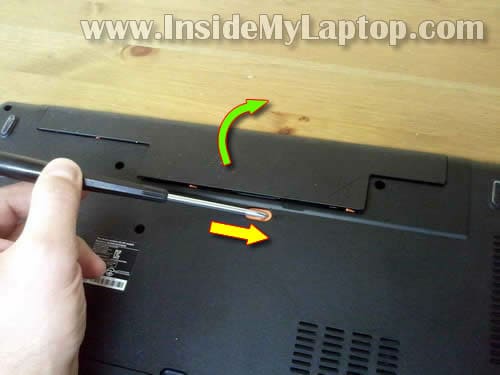
Make sure the computer is turned off. Unplug the AC adapter.
Unlock the battery and remove it.
STEP 2.
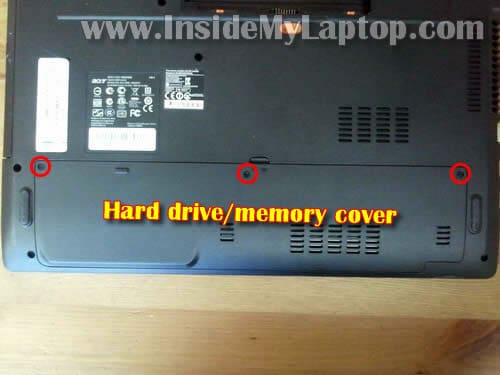
Remove three screws securing the hard drive and memory cover.
Lift up and remove the cover.
STEP 3.
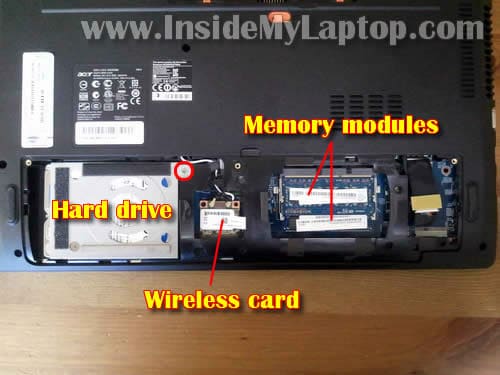
Under the cover you’ll get access to the hard drive, both memory modules and wireless card.
For the purpose of my guide it’s not necessary to remove memory modules and wireless card. I’ll leave them connected to the motherboard.
It’s necessary to remove the hard dive. Remove one screw securing the hard drive in the upper right corner.
STEP 4.
Slide the hard drive to the shown direction to disconnect it from the motherboard.
Lift up and remove the hard drive.
My Acer Aspire 5560 laptop had a regular 2.5″ SATA hard drive installed. It can be replaced with any other large capacity 2.5″ SATA hard drive or SATA SSD.

STEP 5.
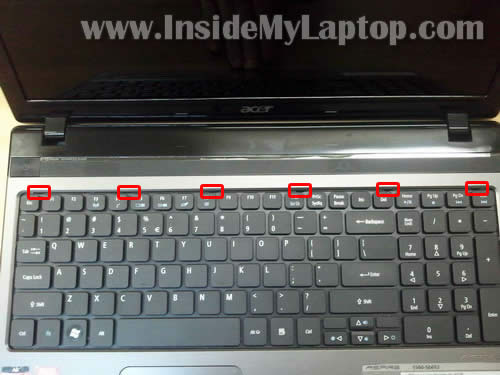
The keyboard is locked by six spring loaded latches on the top.
In order to remove the keyboard it’s necessary to push all latches into the case and release the keyboard.
STEP 6.
Using a small flathead screwdriver push latches into the case and at the same time lift up the keyboard a little bit.
When the keyboard lifted up it will not allow the latch to lock.
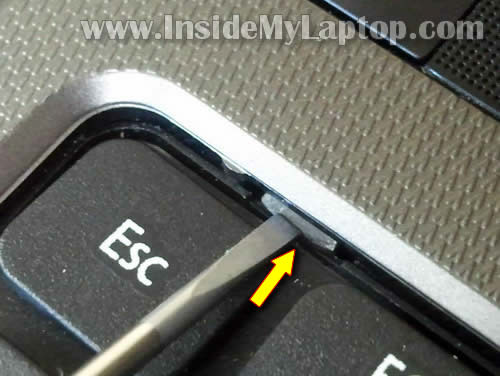
STEP 7.
After all latches are unlocked you should be able to lift up the keyboard.
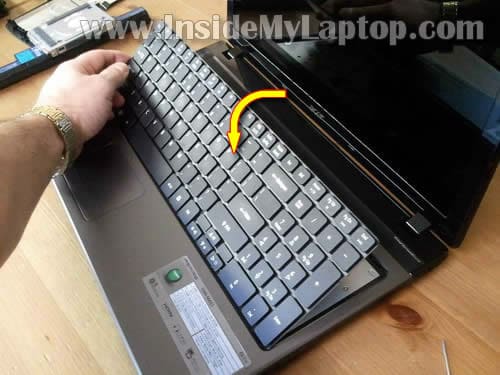
STEP 8.
Move the keyboard towards the display so you can access the cable connector underneath.
Before you remove the keyboard completely, the connector has to be unlocked and keyboard cable released.
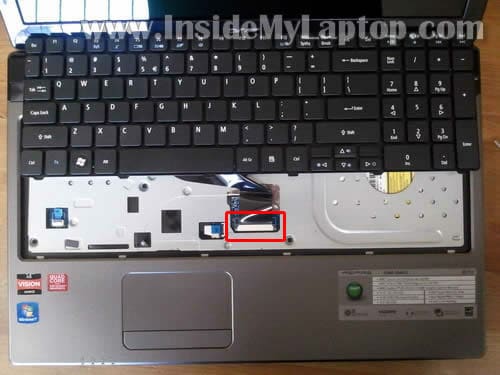
STEP 9.
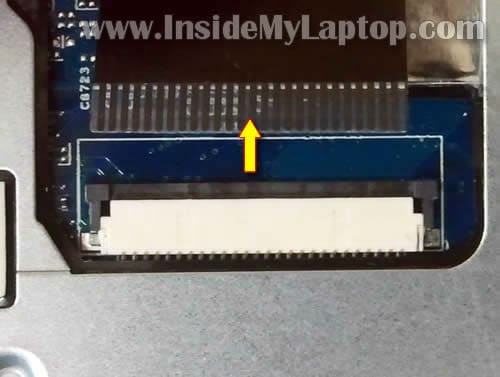
Here’s how to unlock the keyboard connector.
Very carefully move the brown locking tab about 1 millimeter to the shown direction.
The keyboard cable jammed between the locking tab and white connector base.
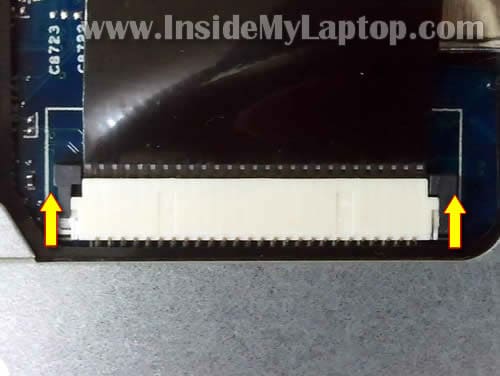
STEP 10.
On the following picture the keyboard connector shown in the unlocked position.
Now the cable is released and you can pull it from the connector.
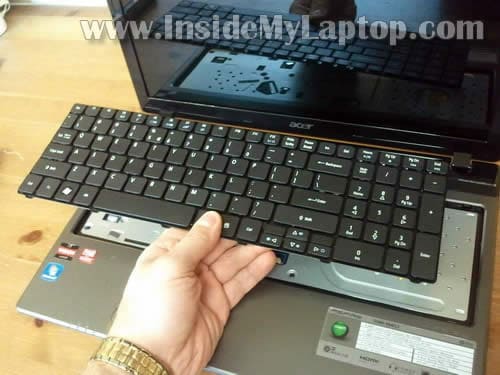
STEP 11.
Remove the keyboard.
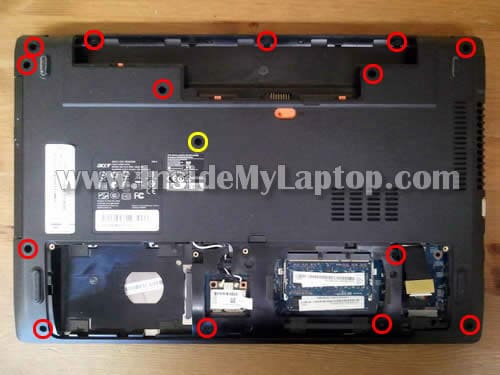
STEP 12.
Remove all screws from the bottom.
NOTE: the “yellow” screw secures the optical DVD drive. Normally, you should be able to remove this screw and pull the DVD drive out.
For some reason in my case the DVD drive was fitted very tightly. I couldn’t pull it out. I’ll remove the DVD drive after I remove the top cover. You’ll see it in the step 17.
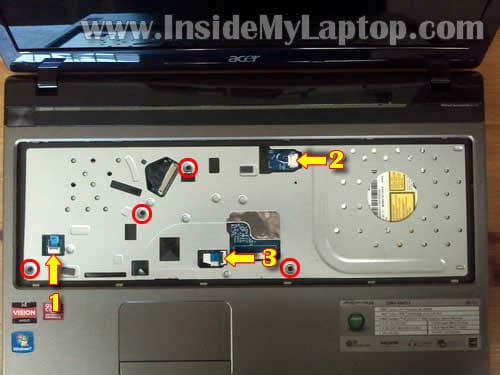
STEP 13.
Remove four screws securing the top cover assembly.
Disconnect the following cables:
1. Power button cable.
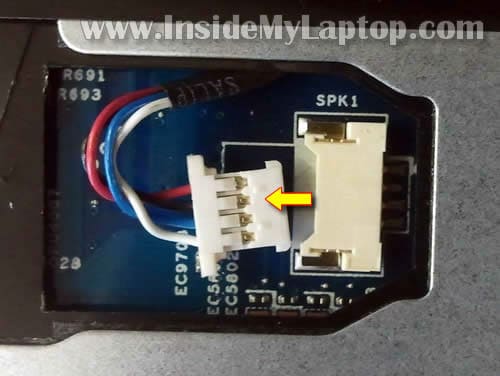
2. Speaker cable.
3. Touchpad cable.
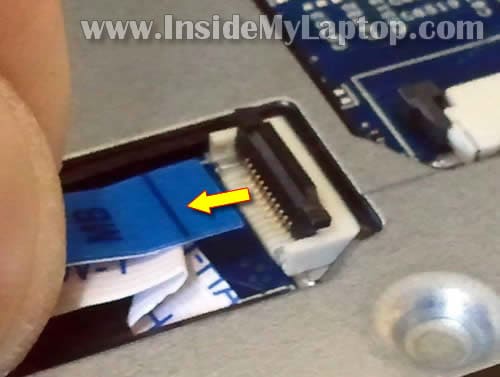
Here’s how to unlock the touchpad and power button cable connectors.
Lift up the brown tab with your fingernail. It will open up at a 90 degree angle.
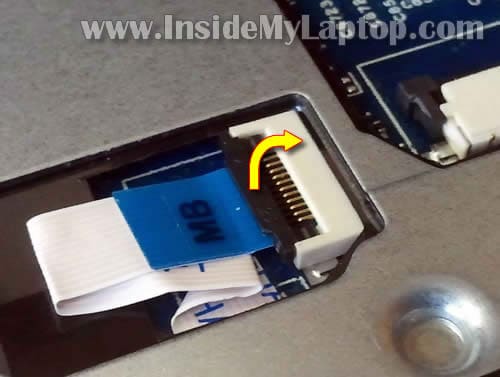
After the connector is unlocked you can pull the cable.
The speaker connector is a regular male-female connector. Simply unplug the connector.
STEP 14.
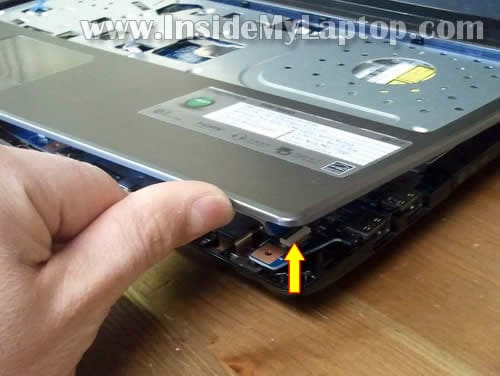
Now you can start separating the top cover assembly from the base.
STEP 15.
If the top cover doesn’t separate, you can use a piece of soft plastic as case cracker.
Insert it between the top cover and base and wiggle a little bit, move along the side.
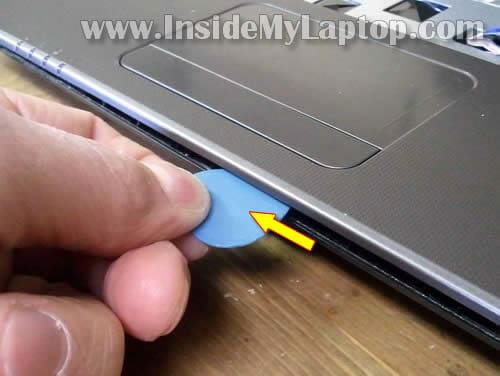
STEP 16.
Remove the top cover assembly.
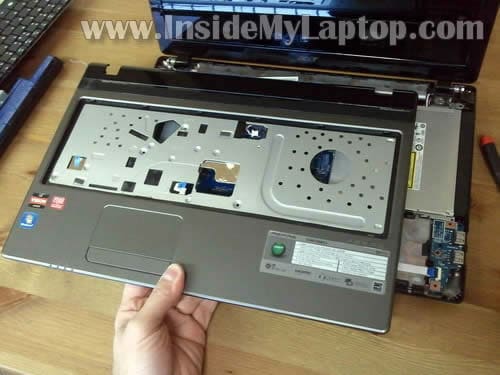
STEP 17.
Now I was able to slide the optical DVD drive to the right side, disconnect it from the motherboard and remove.
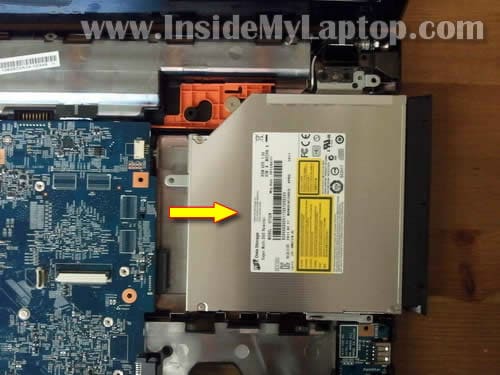
As I mentioned in the step 11, you should be able to pull the DVD drive without removing the top cover assembly. But in my case it was fitted very tightly and I had to remove the top cover in order to remove the DVD drive.
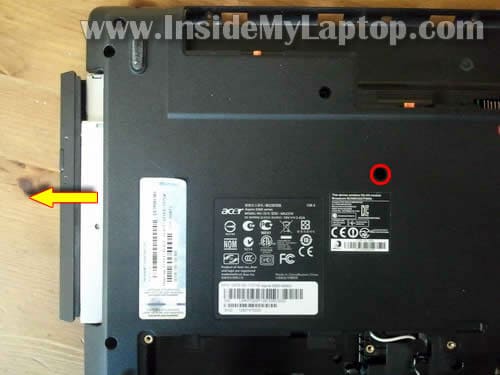
STEP 18.
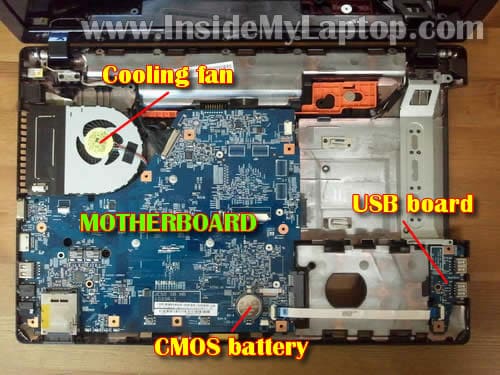
After the top cover assembly removed, you’ll get access to the following internal parts:
– Cooling fan.
– CMOS battery (regular CR2032 3V coin battery).
– USB board.
– Motherboard.
STEP 19.
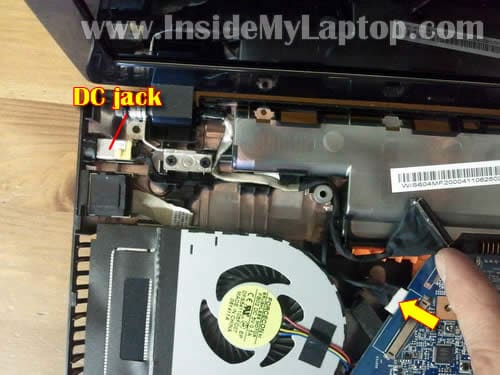
The DC power jack mounted in the upper left corner of the laptop base.
You should be able to unplug the DC jack cable from the motherboard after you disconnect the video cable.
In order to access and remove/replace the cooling fan it will be necessary to remove the motherboard. The cooling fan mounted on the bottom part of the motherboard.
For the screen removal and replacement procedure, check out this Acer Aspire 5560 guide.
austin ani
Hi I have a dvr pavillion. Lapto the internal speaker stop sounding. But if I connect it to external speaker is working, I have changed the internal speaker is not working I even connected the speaker to another dv6 the speaker was working. So what can I do to resolve the issues.
Matthew
Hi, do you know the part number of the motherboard by chance? Or where I could get a cheap replacement? Thanks.
IML Tech
@ Matthew,
At the time of writing this comment I found two BRAND NEW motherboards for Acer Aspire 5560 listed for about $40 on eBay! Search for stickers on your motherboard and compare part numbers with listed motherboards.
Matthew
Those listings look like they are for motherboards that would work for a 5560 (which is an older/different looking laptop), not a 5560-Sb653. I also noticed that in this guide it states the laptop can only handle up to 4GB (2GB each slot) of DDR2 ram. I know for a fact this is wrong since I have 2 sticks of 4GB DDR3 ram in mine. Anywho, when I have the time to, I will disassemble my laptop to record the part number(s) for verification.
IML Tech
@ Matthew,
Thanks for mentioning that. I edited the guide. It looks like Aspire 5560-Sb653 can take 8GB RAM total, but Aspire 5560 only 4GB.
Matthew
Ok, now onto to trying to find a motherboard replacement for the 5560-Sb653.
Daniel
Hi, is this guide good for acer aspire 5750G??
nick
hey great guide, do you know where i would find access to the gpu? i’m looking to upgrade mine as the default with the sb653 is a bit slow.
Nikki stoll
Besides the batterie,160 gig hard dr sticks1 g of ram, is there anythaing else that can be removed from the back side. it seems like something is missing in the bigger space.not sure since this is 1st time I have opened up the back
Gouge
Do you happen to know if and where a bluetooth module can be fitted. I have the 5560G Model no m52319. It doesn’t have bluetooth fitted but I suspect it could be added.
jezi
Does this instruction also fit in acer aspire 4750G Model no. MS2316.
I have to clean my cooling fan. Can i clean the cooling fan and heat sink without removing the motherboard? Thanks
Kevin
I’m Just wondering if this instruction can be done with a acer aspire 4750g! i really need to clean my fan! i just wanted to see if cleaning would do! if not im going 2 replace my fan! thanks
Noel
Thank you! this really helped me a lot. i was trying to upgrade the optical drive and i got the same problem after removing the back screw it was tightly fitted and would not come out. All i did was remove the key board and pushed it out from step 13 threw the small opening. thanks again!
junky
Hi
Can you please show how to take apart the 5560G screen + which cable is used there?
I want to know how to replace the 5560G screen to a better one
thanks
potatochobit
do you happen to know if this motherboard is SATA2 or SATA3?
I plan to replace the DVD drive with a 2nd HDD caddy
and I want to run the main as an SSD OS
do you also know if DDR3 1600 is supported?
Acer just includes a generic manual for all their models…
taz
@Daniel
yes! I’ve got a 5750g too and to disassemblate my pc i used this guide.
Jamie
Great article. Very easy and detailed. Thank you
Jamie C
Please help. Will I have to do all this JUST to clean my fan, I haven’t cleaned it once since I got my laptop and it’s been about 7months now.
if im not good with computers, should I even try taking it apart. If so, not sure why Acer made it so hard just to clean a fan 🙁
Vic
@taz, did you have to do a complete dismantling? or just after removing the screws at the back, removed the keyboard, took out the metal plate and removed the MB without the need to remove the screen. Thanks.
Radek
Wielkie dzięki za podpowiedź.
Jeżeli mógÅ‚by ktoÅ› jeszcze mi doradzić, czy do tego modelu (Acer aspire 5560) bÄ™dzie pasowaÅ‚ każdy dysk twardy 2,5 cala SATA – chodzi mi o spasowanie dysku z “kieszeniÄ… metalowÄ…” w której jest mocowany do obudowy oraz o zgodność gniazd w kompie. Po 14-tu mies. padÅ‚ mi dysk i muszÄ™ wymienić. I chole… nie zrobiÅ‚em kopii systemu!??? (Idiota) Za odpowiedzi dziÄ™kujÄ™.
IML Tech
@ Radek,
Any regular 2.5″ SATA hard drive (or SSD) should work just fine.
eok
Many thanks for this. Great guide. I have an Aspire 5560 (5560-7414) & your instructions are 100% accurate for it. Why I needed to open my 5560: to fix dead usb ports.
After a few months of ownership the two USB ports next to the DVD drive stopped working. I opened up the laptop & found the cause: the ribbon cable to the USB board had come loose because the latch on one of the cable sockets was not locked down by Acer during assembly. All I had to do was to reattach the cable & depress the connector’s locking tab to lock it down. USB ports are now working fine.
Joe
Thanks for the great info. My power supply was shorting and I first tried a new cord but evidently the solder connections behind the jack are very fragile. I re-soldered and was able to do my own repair. Thanks for the website 🙂
kashif
Hi, do you know where the 4 pin connector might be for bluetooth if we want to add bluetooth to the laptop?
Thanks.
aurelie
Bonjour j’ai ce pc mais j’ai un petit problème est ce que on serait m’aider?
Voila quand j’allume mon pc les bouton s’allume le ventilo tourne mais rien s’affiche sur l’écran il reste noir .. /: Quelqu’un sait d’ou ça peut venir? merci
IML Tech
@ aurelie,
This could be memory related failure. Access memory slots and try removing memory modules one by one. If one of the modules is bad, the laptop will start properly with another module still installed.
Mia
Hello everyone !
I have an Aspire 5560, ms 2319. Would please someone tell me where I could find a new dvd writer, cause the only drive options on ebay seem to be used .
Thank u in advance !
IML Tech
@ Mia,
I believe it’s just a regular 12.7mm SATA DVD drive. You don’t have to search for the exact replacement for your laptop, just buy a generic drive. You’ll have to transfer the face plate from the original drive to the new one.
You can search on google for “Acer Aspire 5560 DVD drive” and you’ll find new drives available for about $40-50.
Mia
Thanks a lot IML Tech!
Mephles
He does forget the jack plug in on the bottom of the laptop and the wi-fi connector, and i found one screw in my motherboard holding it in, other than that its perfect.
Thomas
Is it possible to replace the CPU?
Jim
On my Acer, for steps 6-8 it seems there are two other latches, one on each side [near the Tab key on the left, near the + key on the right] which are preventing removal of the keyboard. They will not push in. Any suggestions?
Jim
Never mind. I wiggled it forward and back in step 7, and it finally popped free.
Rick in Austin
Fantastic article, but it stops a little short. I took the computer apart to clean around the fan and heat sink. This required removal of the motherboard. This is where your article ended.
After reassembly, WiFi did not work. I took it apart again and found that the two wires connected to the WiFi card had unplugged when I removed the motherboard. I reconnected and everything worked fine. A picture or mention of those connectors would have been helpful.
Thank you for a fantastic article.
IML Tech
@ Rick in Austin,
It’s possible to clean up the heatsink without removing the motherboard. When you are at the step 18, you can see the fan. Just blow air into the fan and it should be enough to remove most dust.
michael
can the processor be up graded in theacer 5560 it has a A6 3400m amd thank you.
Bob
Thanks so much for the detailed step by step. My DC power adapter port was all loosey goosey inside and finally even jiggying the power adapter plug around wouldn’t work any longer. I needed to get inside and wire up my adapter directly, this allowed me to do so. I’ve donated a few bucks for your time as you deserve it!
Sheldon
Thanks for this article — helped me to fix a couple of laptops of the same model!
Gaurav
I removed and then reconnected usb2.0 cable.. but the ports are not working anymore…pls help..
model – acer 5750g
Foster
This works for 5560-7402 also. The comment for cleaning the fan by blowing air in is ok if you place a paper clip into the fan to stop the fan from spinning while blowing air in, otherwise you can damage the fan.
Dave
Excellent work. As a former electronic engineer, I have seen some manual instructions that take longer to work out than to do the job in hand.
This guide is how instructions should be composed.
Thank you.