

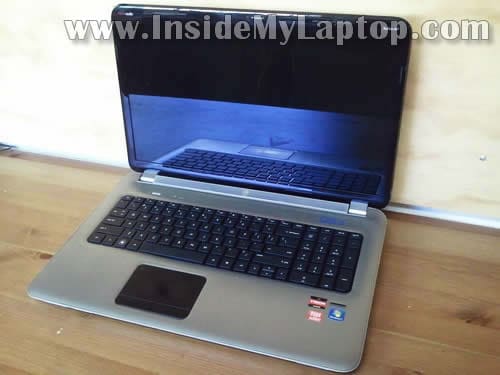
In this guide I’ll be taking apart a HP Pavilion dv7 laptop.
This is my THIRD disassembly guide for HP Pavilion dv7 series. This guide was made for HP Pavilion dv7-6000 series.
In this particular case I’m taking apart dv7-6113cl model.
If your laptop looks like one shown on the following picture, this guide will work for you.
At the end of the guide you’ll find links to other three dv7 models.
In the following guide I’ll go though the following major disassembly steps:
STEP 1-9: Accessing both memory modules, wireless card, CMOS battery. Disconnecting the hard drive.
STEP 10-16: Disconnecting and removing the keyboard.
STEP 17-23: Removing the palmrest assembly.
STEP 24-25: Accessing the DC power jack harness and cooling fan.
OK, lets take it apart. First of all, make sure the computer is turned off.
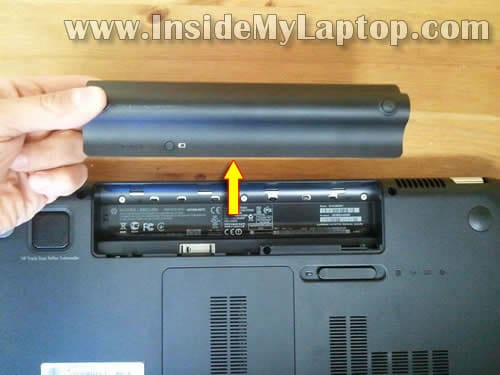
STEP 1.
Unlock the remove the battery.
STEP 2.
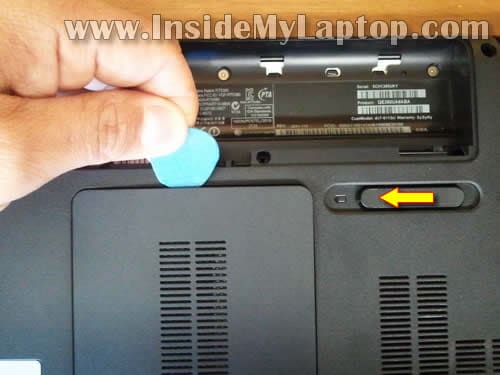
Slide the battery latch to the left (unlocked position).
At the same time insert something under the bottom hatch and lift it up.
Continue removing the hatch with your fingers. You’ll have to wiggle the hatch in order to remove it.
STEP 3.
Remove the bottom hatch.

STEP 4.
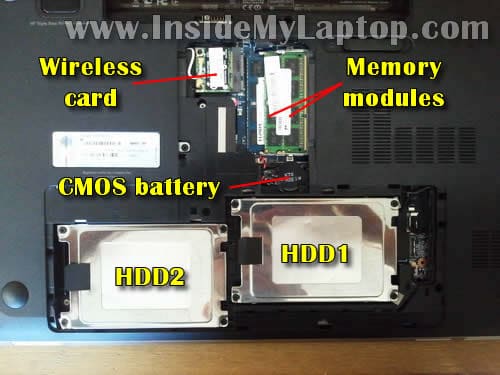
Under the bottom hatch you can get access to the following internal components:
– Both memory slots/modules.
– Wireless card.
– CMOS battery.
– Primary and secondary (optional) hard drives.
This laptop has two memory slots and can handle up to 16GB (2x8GB) DDR3-12800 SODIMM memory modules.
STEP 5.
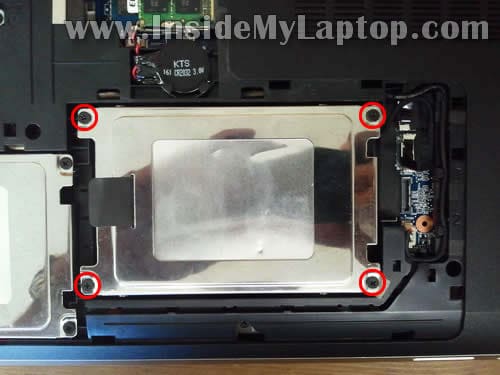
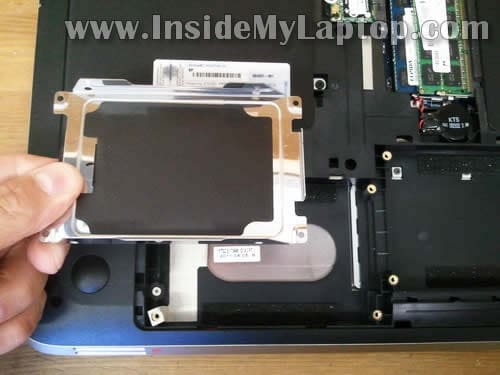
Remove four screws securing the primary hard drive mounting bracket.
STEP 6.
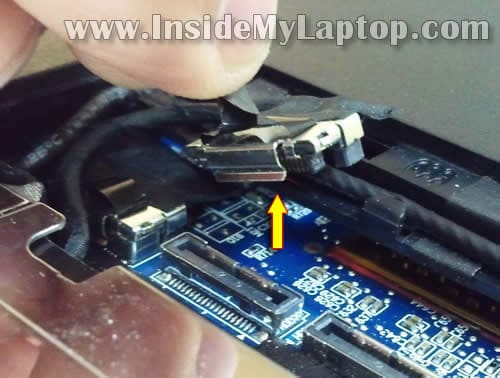
Disconnect the primary hard drive cable from the motherboard.
STEP 7.
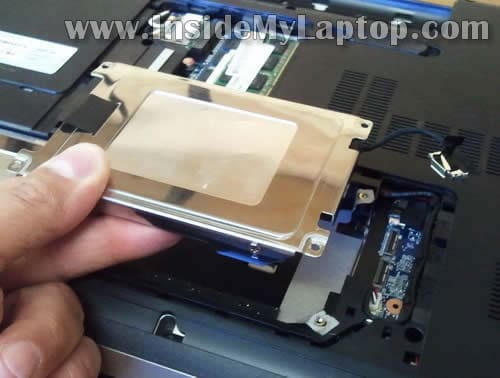
Lift up and remove the primary hard drive assembly.
STEP 8.
In my HP Pavilion dv7 I didn’t have secondary hard dive installed. I had only an empty bracket.
I recommend upgrading this regular (slow) hard drive to a 2.5″ SATA solid state drive. Installing a solid state drive will speed up your laptop significantly.
STEP 9.
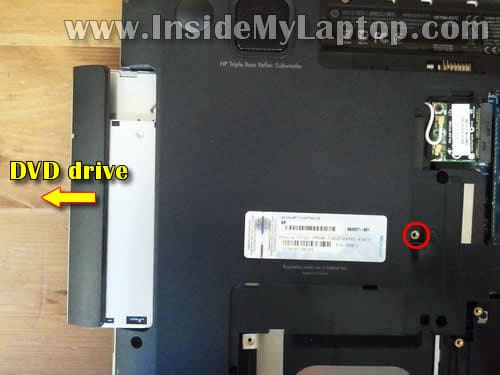
Remove one screw securing the DVD drive.
Pull the DVD drive to the left and remove it.
STEP 10.
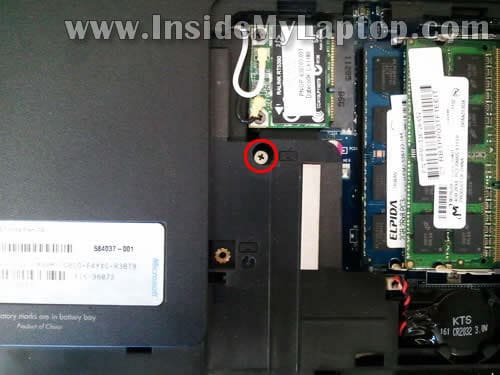
Remove one screw securing the keyboard.
STEP 11.
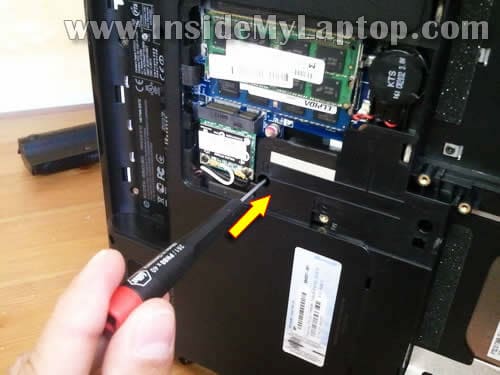
Now the tricky part to remove the keyboard.
Insert a very small screwdriver into the whole where the keyboard screw was located.
Push the screwdriver into the hole. By doing that you actually pushing on the back side of the keyboard.
STEP 12.
While pushing on the back side of the keyboard you’ll see the front side of the keyboard will lift up a little bit.
You’ll be able to insert your fingers between the keyboard and top cover assembly and lift it up.
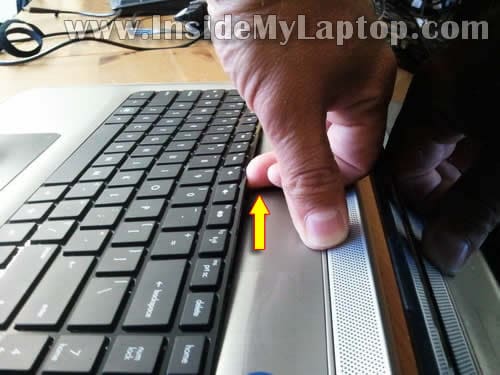
STEP 13.
Continue removing the keyboard and move it towards the screen.
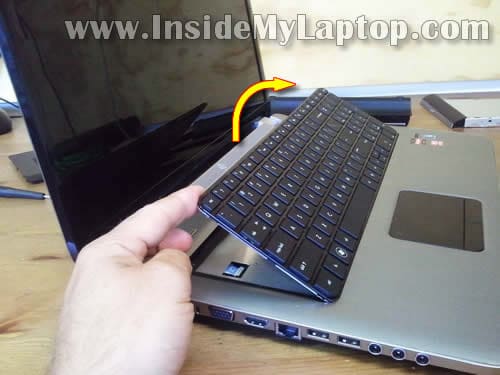
STEP 14.
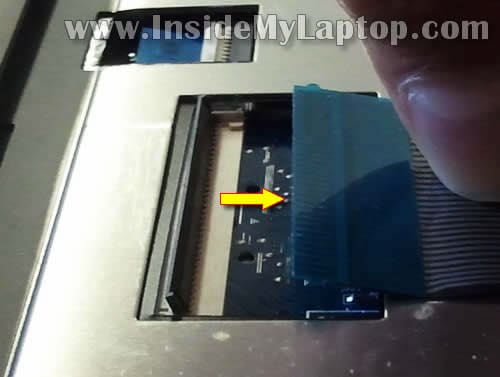
Now you can access the keyboard cable connector. It’s necessary to unlock the connector in order to release the keyboard cable.
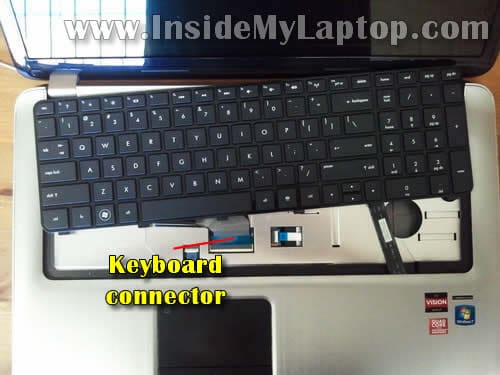
STEP 15.
Carefully lift up the outer side of the retainer. It will pop up at a 90 degree angle.
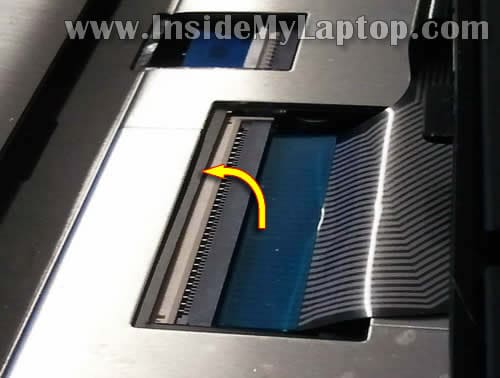
STEP 16.
After the connector unlocked you can pull the cable and remove the keyboard.
STEP 17.
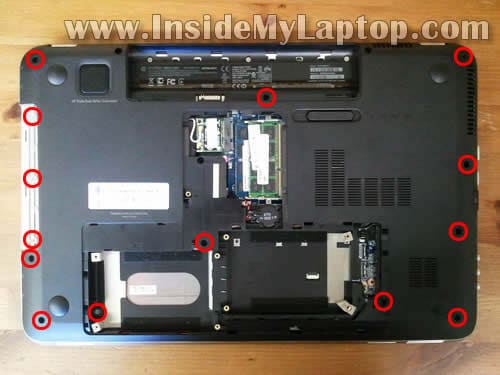
Remove all marked screws from the bottom. Make notes about removes crews, they have different length.
STEP 18.
Remove two screws securing the palmrest assembly.
Disconnect the following cables:
– Power button cable.
– Touchpad cable.
– USB board cable.
– Finger scanning device cable.
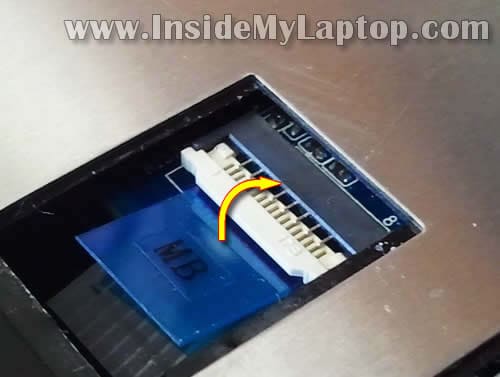
All cables have similar connectors.

First, lift up the cable retainer.
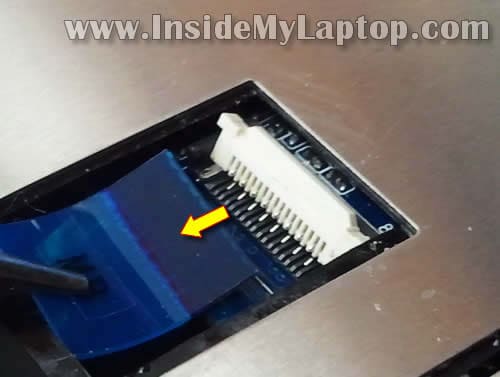
Second, pull cable from the connector.
STEP 19.
Now you can start removing the palmrest assembly.
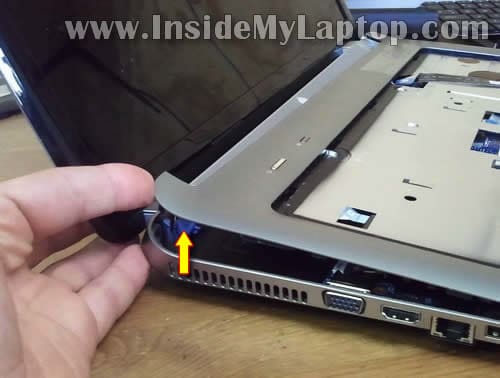
STEP 20.
I’m using the guitar pick to separate the palmrest assembly from the bottom cover. You can use a piece of plastic.
Insert it between the palmrest and bottom cover and slowly move along the side.
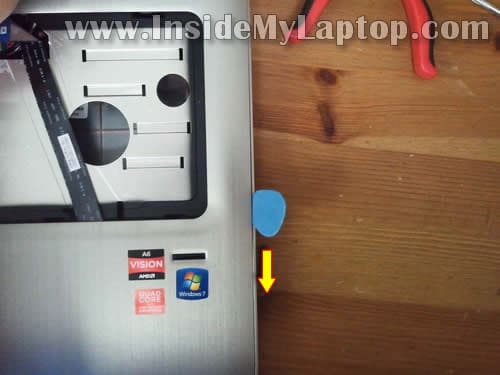
STEP 21.
Lift up the palmrest assembly BUT BE CAREFUL. You’ll have to slide the USB board cable through the opening.
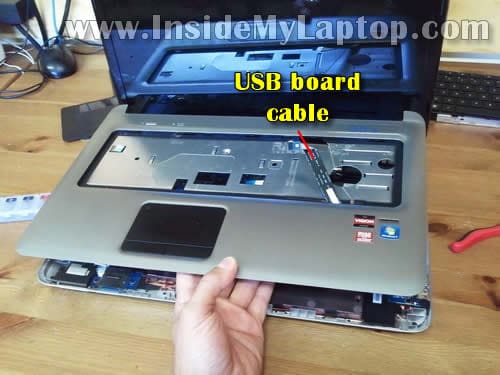
STEP 22.
Carefully pull the USB board through the opening and remove the palmrest assembly.
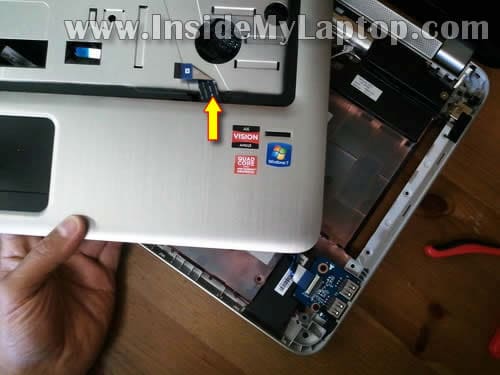
STEP 23.
Here’s the bottom side of the palmrest assembly. Here’s you can get access to the following internal components:
– Finger scanning device.
– Power button board.
– Touchpad assembly.
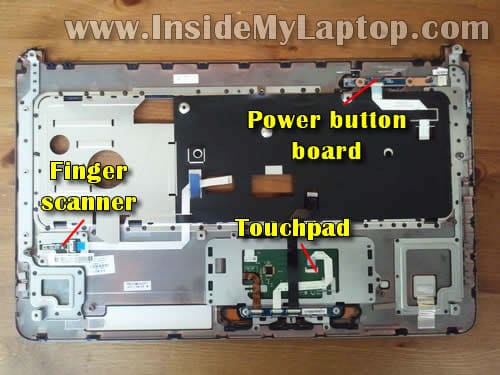
STEP 24.
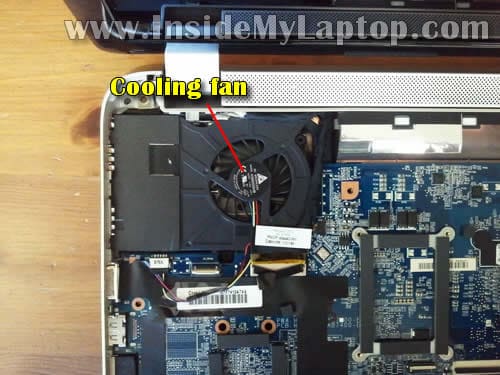
When the palmrest assembly removed you can get access to the DC power jack which is mounted in the uppder right corner of the base.

STEP 25.
Also, under the palmrest assembly you can get limited access to the cooling fan. It should be good enough for cleaning (in a case of laptop overheating).
In order to remove and replace the cooling fan it’s necessary to remove the whole motherboard.
Related posts:
First HP Pavilion dv7 disassembly guide (made for dv7-1000 series).
Second HP Pavilion dv7 disassembly guide (made for dv7-4000 series).
Fourth HP Pavilion dv7 disassembly guide (made for dv7-2000 and dv7-3000 series).
Shanthi
I have a compaq presario cq 45 laptop, I’m using windows vista 32 bit and I have the most up to date drivers for video card and everything. The following happens routinely
1) I boot up and I don’t see any DOS boot up messages at all, but I see only half screen, I mean the entire desktop can be seen but only half its size and I still can use the laptop fully but only with the reduced desktop size
2) I boot up again and I see a normal screen FULL screen perfect But I still do not see any DOS boot up messages.
This happens 50% of the time. Sometimes in very rare cases I am seeing the screen split into 4 and in each split screen I’m able to see the entire desktop but smaller.
3) If I connect an external monitor I’m able to see the DOS boot up messages and everything seems ok in my external monitor.
Please let me know what could be possibly wrong with my laptop ?
Thanks
Shanthi
IML Tech
@ Shamthi,
Probably this is LCD screen failure. I think you’ll have to replace the screen.
Shanthi
@IML Tech
Thanks. Is it the entire laptop screen that I need to replace or only the lcd screen invertor ?
about 50% of the everything works just perfect, full screen etc.
But in no case I’m able to see the DOS boot up messages ?
Regards
Shanthi
shanthi
“about 50% of the everything works just perfect, full screen etc.”
Sorry I meant
about 50% of the time, everything works just perfect, full screen etc.
Kushal
Found very helpful
V-man
Thanks for having the patience to put this guide together and publish it.
I hesitated to prop up the HD access door, I’m used to removing the screws to do that, and then I saw the picks you took.
So, I went ahead and did it.
vpvalentine
have you had nc6320 compaq or is there info in book. or is there info posted to read.i am new to sites and computers.i hop am at the right spot for this and i can even send and yo receive too. sure im a desk top monoter and computer runs. on the nc 6320 then is in the very right edge an extra key appears inbeded in cover . this is to the right of pad area. could you name or identify and what is its function. sure my labtop screen is dark but is there a posibility of it being turned off or the inverter being turned off at the input only. i would like to only test the input…. to ….onlyhow many input wires have a voltage and are run through key switches ect or hinde ect.. how many are grounds… as i stated i only consern with with input at this time..is the inverter 5v or 12 ect.
IML Tech
@ vpvalentine,
Here’s the official service manual for HP nc6320 notebook.
And here’s one of my guides: How to remove the display panel.
Hope it helps.
Brad
I have a dv7-6000 that looks exactly like this. I’m trying to replace the keyboard. However, when I push a thin screwdriver through the screw hole, the keyboard bulges but the back edge does not come up. As a matter of fact, no edges come up, and I am not able to get any finger or anything under the keyboard to lift it up. Is there another trick to this? Or is there another screw holding this in?
Do I need to remove the hard drives to get the keyboard out? It seems to me that the HD’s are totally irrelevant to getting the keyboard out.
Thanks for your help.
Tomas Pospisek
*Thanks a lot* for your guide, the trick with lifting the keyboard made my day – I was previously staring at the machine wondering how come it doesn’t come apart.
I’d appreciate if you could note one thing in the guide: HP doesn’t care to bevel the sharp edges of the metal parts, in particular of the palm rest cover. Which means that if you use your fingertips instead of a tool (you chose a guitar pick) to lift the palm rest (steps 19 and 20), then you risk very much to slit your fingertips.
Since the metal edges can be really sharp – as they were in my case – the cuts can go deep in an instant – as they did here. I’ve got nice deep cuts in three of my fingertips…
Ranjit
I like your detailed instructions on how to open a HP DV7 lap top. I have a hard time finding the parts to repair my HP laptop model DV7-4290us. The issue is about the left hinge (below the screen) got dislocated and the screen is tilting. I looks like it has lost the housing mechanism (a screw I guess). Right side is perfect. Laptop works fine, so I have to either forget the issue and use it with a USB docking station or repair it. With a docking statation I lose the portability altother. I am sure bottom cover (What do you exactly call it?), the palm rest, the missing screw(s), and perhaps the the hinge need to be replaced. My question is how do I find the exact parts for DV7-4200us? HP website doesn’t have any link on this issue. Who are the suppliers of such parts? I would be most grateful to you if you could point me in the right direction.
Thanks.
Ranjit
Failed Fix?
Hey everybody.
I followed this guide to try and clean out my laptop and found it very helpful. Opened and close no problem. But now my laptop is having problems it didn’t have before I opened it. Namely, it’s lagging. Programs will “get stuck” so to speak. Websites won’t load, videos stop both audio and video. Everything sits for maybe half a minute, and then starts again all at once with any tasks completed. Anyone know what might have caused this?
Thank you!
bob wikan
I have a dv7 with 17.3 screen like this tutorial however I need the directions to this task and it looks like you do not cover it in this but do with a similar computer but exactly on a previous one. can you direct me as to how to locate the beginning ?
Kimberly
Hi there. I wrote you a couple times and can’t locate my posts. I know it was in one of the dv7 articles you wrote. So, I apologize for duplicating my questions. I don’t know if I need to come back here to your site to read the response, or if it will come into my mailbox when you reply. So, at the risk of annoying you (and I apologize) I am going to ask again.
I have a dv7 NON HD screen on one of my DV7’s, I was sent by mistake an HD LCD panel.
Can I put that HD panel on my non-HD version? Yes, it is the matte screen, and the screen that is on the laptop is a glossy finish.
Do I need an inverter too?
I looked in the box and there is no inverter. I am assuming you would need an ‘HD’ inverter for it to work? OR does that have nothing to do with it.
I can’t imagine it working because if I remember correctly, within the laptop itself you can adjust the resolution (somewhere?) and you wont be able to adjust it to 1080 resolution on this ‘non’ HD version.
If I do need any special parts or an inverter, would you please give me the part number and an idea as to where to get it? I know I can get at HP more than likely and EBAY. But if there are any other places (i dont trust ebay and dont EVER want to give HP another DIME of my money)
I sure would appreciate a response..
Thank you!
IML Tech
@ Kimberly,
Probably not. Mose likely the HD screen needs a special video cable.
It depends on the type of screen installed in your laptop.
LED-backlit LCD screens do not need the inverter board.
The inverter board is used with older CCFL LCD screen. But you don’t need to replace the inverter if you are replacing the screen.
Kimberly
Thanks for the response…
Now, can I buy a special video cable so that I can use the HD screen that’s replacing the non HD screen?
Is there some way to find the part number? (I thought I saw somewhere on your site a complete parts tech manual)
If I can buy a cable, where besides ebay, would you recommend I purchase?
With your experience, do you think this will work? Or could there be any other issues that it would NOT work?
I sure do appreciate your help.
Kim
IML Tech
@ Kimberly,
Can you give me the full laptop model number and your new HD screen model number? I’ll try to figure out if you can use this screen at all.
Iron
Hi! I have a HP pavillion dv7 6000 series. I’ve got some leaking in my roof, and I got home today and there was some liquid over my keyboard. Now everything works fine, but the keyboard.. ;( I disassembled it and removed the keyboard to try drying it out with the hair dryer, but doesnt seem to work at all.. If you would take a guess, what could a short circuit in the keyboard have burned in the motherboard, or do you have some other guess? Thanx so much for the help!
ps.: I bought it in the US, but I live in Brazil, so, no warranties..
IML Tech
@ Iron,
This could be just a bad keyboard.
If your laptop works fine with an external USB keyboard, most likely replacing the keyboard will fix the issue.
Patrick
Just wanted to say thank you so much for posting this. This was the hardest laptop I’ve had to disassemble yet, and I couldn’t have done it without your guide.
All this, just to clean the fan.
Stupid HP.
Ar
Which of these cable is from Hp logo on the top?I have the problem that the HP logo all the time blinkin.Sometimes, all the off! mod dv7-6c63nr
Vijay Verghese
Hello, I have the HP DV7 6050ca (It’s just like this one), however my cooling fan doesn’t turn on. It sometimes kind of twitches, but otherwise it doesn’t turn on. I’ve tried playing around with the power cable for the fan and it twitches when I plug it in, but still doesn’t work. My laptop overheats all the time because of this. I’ve already tried cooling pads, using compressed air etc.But the fan mover smoothly when I turned it manually to make sure that it wasn’t stuck. So is there something I’m missing? I really don’t want to have to replace the fan!
Thanks 🙂
Fred
Hi, thank you for the clear instructions. I have an hp dv7t-6000 which appears to be very close to what you have in Guide 3 (laptop is about 18 months old). I get an error on my laptop that says the fan is not working correctly when I power it up (System Fan 90B). All of the external vents are clean and I don’t see signs of very much dust at all on the inside of the vents. This week, the fan was going on and off every few seconds, much more rapidly than it has done before. I did a hard reset today on the laptop and the fan doesn’t come on at all so I have shut off the laptop to prevent damage. Do you know how I can troubleshoot to know if the fan needs replaced or if the problem is the sensor or signal that is sent to the fan to turn it on and off. Thanks for your help!
IML Tech
@ Fred,
The only way is replacing the fan. If the problem still there most likely this is motherboard related failure. I hope a new fan will fix it.
Alejandro R
Hello,
First of all, thanks for the great guide and the link to the HP service manual. I´d like to hear some tips on what to do with my Pavilion DV76165 because, apparently, I screwed up. I disassembled it because the connector pin in the HDMI port bent and when I put it back together with the help of my uncle (who is an IT guy) it didn´t recognize the fingerprint pad and the screen was all blurry; where it should´ve shown white it showed fuzzy green and pink colors. It´s not an issue with the graphics card because it showed a perfect image when we connected the laptop to a screen. We disassembled it again but after this time, it doesn´t want to turn on at all. It was working perfectly before disassembling it, any idea why could this be??? Please help, I´m desperate!
Thanks in advance for an answer!
Glen
Thanks for taking the time to create and post this excellent guide that is the first non-video that I was able to find for the model I have (6197ca). Video is great but can’t give the detail that you have offered here, especially about minding the placement of the screws that are removed in Step 17, as this could be a real disaster, and the location of the keyboard removal screw and procedure.
I have had problems with overheating and understand that the problem was due to dirt build-up, so I was looking for a resource to be able to do it myself in the future.
I had this done under warranty from HP, along with the replacement of the lower case that broke at one of the speakers.
A word of caution to anyone who has warranty work done by HP – be sure that you have a working disk image before sending your computer in for “factory” service, as the buffoons there formatted my C drive while performing non-hard (purely mechanical) problems. Worse news is that the imaging software I had may or may not be able to get it back.
There can be an issue about voiding your warranty by changing the hard drive, but if I were to do it again, I would have sent them a “sacrificial lamb” hard drive – keeping the original safe and sound at home – and saved myself the days of research and reinstallation that I have spent – and will spend – to get it back to working order.
On that note, your guide makes it clear which is the C drive – and would have made this switch very easy.
As someone else has already commented “all that to clean the fan – Stupid HP”
Esteban
Thanks for the post –
Just finished taking apart my DV6100…and it worked like a charm.
I noticed in step 17, there’s one screw which is not circled…located below the primary hard drive. You’ll want to take this one out before lifting up the palm rest / touch pad.
Also, be careful of the clips. Somehow the clip holding the power cable ribbon broke off. Be careful while removing the ribbons in step 15. If you have larger fingers /hands like me, you might also want to find someone with smaller fingers to assist.
Thanks for the post!! Cleaned out my fan and replaced a keyboard (due to a broken up arrow)!
Adam
Hey! Thanks for a great gudie!
I got a dv7 6080eo and haveing some overheating problems…
Is there anyway i can acces the fan whitout haveing to take apart the keyboard and all that?
Thanks!
TJ
In the 6000 series, does anyone have the P/N for the fan unit? Mine has gone bad, and I desperately need to replace it, but I made the mistake of ordering the wrong ones before.
Iain
Hello,
I am having problem with my screen flickering (sometimes so bad i cannot see anything on it!) I have used your other guide to removing and replacing the screen, which was perfect in itself, but the new replacement screen is having the same problem.
Would you put this down to the cable, as i assume? In which case i thought i would find out how to check/replace the cable here…
Any help would be greatly appreciated, it is driving me slowly insane!
Regards,
Iain
IML Tech
@ lain,
First, I would test the laptop with an external monitor. If the external video works fine and flickering occurs only on the laptop screen, most likely it’s one of the following:
1. Bad connection between the video cable and motherboard.
2. Defective video cable.
3. Could be motherboard related failure but most likely it’s either 1 or 2.
Does it flicker when you move the display back and forth? If yes, probably it’s bad cable.
I would try reseating the video cable first and if it doesn’t help, replacing the cable.
Iain
@IML Tech
Thanks for your quick reply! I have, on a fair few occasions, had this laptop plugged into my TV (with a HDMI cable) and i have had no problems with this. It also does sometimes flicker when moved, though i often have to move it to stop it flickering.
I do think resetting the video cable would do the job, but i am unaware of how to do this. Do you have any guide of how to access this? It has been doing this since i replaced the screen, so i do not think the connection is bad at this end, but i do not know how to access the motherboard.
Regards,
Iain
IML Tech
@ lain,
The video cable plugged into the motherboard under the top cover (palmrest assembly).
It’s necessary to remove the top cover as it shown on the las picture in this guide. After that you’ll be able to unplug the video cable and plug it back in.
This sounds like video cable related issue. I doubt that reseating the cable would be enough to fix the problem. Most likely you’ll have to replace the cable completely. To do that you’ll have to disassemble the display panel and remove the LCD screen. Also, you’ll have to remove the top cover assembly.
Iain
Thanks, i thought this would b the case. Could you point out which area the video cable plugs into the motherboard? I have not stripped a laptop to this extent before…
IML Tech
@ lain,
Below the fan. Look at the last picture.
Tydye
Can u reassemble it?
Kyle
You never said to unscrew the touchpad screw and I almost broke it! Love this guide though. You are a life saver.
hillcountrychick
Hi!
I have a dv7-6179 and was wondering how difficult it would be for me to replace the power button myself? BTW … Thank you very much for the time & effort you put into posting all of this. I have been having so many problems with my laptop — what a disappointment 🙁
Black screen of death, doesn’t recognize the battery & the power button doesn’t work MOST of the time. This started when it was still under warranty, but I couldn’t get it powered on to remove all of my private photos. I thought that I had purchased the extended warranty when I bought it on amazon, but now looking back through my email I used at the time it’s a big confusion. I had actually picked out, paid & selected the extended warranty on a different laptop on amazon … Only to be notified a week and half later that it was no longer available. So that extended warranty had to be cancelled. On my amazon history it doesn’t look like I added it again …which if can’t believe. I need to contact amazon to be sure … Otherwise, I’ll need to repair it myself!
Is it possible for you to post the instructions? I am technically savvy …even though I’m a girl!!
Thank you so much
xo
D
IML Tech
@ hillcountrychick,
The power button mounted to the bottom side of the top case.
You’ll have to go though disassembly steps 1-23.
You can see the power button shown on the picture in the step 23 (upper right corner).
After you remove the top case, it should be very easy to replace the power button board.
You can buy a new power button board on eBay, just search for “dv7-6000 power button”.
Ryan
Killer tut, thank you just repaired the fan to my 4063 model laptop. Minor differences but got the job done.
Thanks
vov04ka
thank you, finally a detailed guide for the dv7-6xxx!
one remark though – on step 17, mine had an extra screw just below the lower left corner of the primary hdd bay, against the touchpad
Patrick
Thanks for the great guide!
One further note on step 17 – the longer screws have a small diamond next to the screw hole while the shorter ones do not.
Ziah
Damn keyboard HP DV7 6c60us and it will not come off. This is the closest guide and the screw it out. I gently tried to push up with a screw driver but short of putting the screwdriver THROUGH the keyboard, I just stopped and tried to use a pair of tiny flatblades. All screws are out and it refuses to come up. Whoever designed this needs a hard slap.
IML Tech
@ Zlah,
Did you remove the optical drive screw?
I believe this screw also secures the keyboard.
Tek
I get a message thatmy 99B fan is broken and may csuse.damage to the processor. It seems ineed to replace the fan. Can you please upload a fan installation for the dv7 6143 series.
I don’t.want to proceed without a guide on how to remove the fan unit.
Is it possible to replace the fan without removing the motherboard?
Liz
This guide helped me swap out my jack for my dv7. No issues, all the cables accounted for. Installation went perfectly thanks to this guide. Thank you!
Aaron
Hi Liz!
I know it’s been a long time since you posted but where did you find the power jack? I’m looking on Amazon and not sure which one. I don’t want to take it apart until I have parts. Also, did you have a hard time with the wires and plug fishing them around or through anything? Thanks in advance!
IML Tech
Try ebay, that’s where I buy them.
In order to find the correct jack search using full laptop number.
I didn’t have hard time at all but… I’ve disassembled over 10000 laptops. 🙂
Aaron
Perfect! Thank you for the dis-assembly instructions! I’m a mechanic and love taking apart things and fixing them instead of buying new. Your knowledge is invaluable!
Aaron
Found the right one on Amazon. Replaced it and it still doesn’t work. My issue is that the led light doesn’t come on even when plugged in no battery installed. I have 19.4 volts coming out of the charger to end of the cord. No voltage going to the battery terminals on the MB. Could it be the MB or get a new charger?
Aaron
IML Tech
I have a dv7 6c95dx and have a power issue. The battery is discharged and when I plug the charger into the power port it won’t charge neither will the led light come on. I checked to see if I had power coming in at the plug that goes into the charge port and I have 19.4 vdc. I replaced the charge port but still there is no led light on or power going to the MB. Do I need a new charge port, charger or MB?
IML Tech
If the power adapter outputs correct voltage and you’ve changed the DC jack, most likely this is motherboard issue.
Bob
YOUR INSTRUCTIONS ARE FANNNNNNTTTTAAAASSSTTTIICCC! I ran into the roadblock on how to remove the keyboard and disconnect the keyboard cable. Two frustrating steps that you described and pictured just what I needed. I was so afraid of breaking things but you gave me what other experts skipped over or gave vague instructions. Thank you !
HP needs to construct these machines better! They are not user friendly on somethings that should be. If they purposely made these to be difficult then someone needs to slap the engineers twice.
Armand
Thank You for the detailed instructions.
Fern
Hi i need a usb board cable same as above in the picture for my hp dv7 6195us can you please tell where i can get it, thanks
IML Tech
@ Fern,
According to the service manual for this model, the USB board cable included in the cable kit.
The cable kit part number is 639402-001. I searched on eBay and found one for $35.95 with free shipping.
Try to research this part number. Maybe you can find a cheaper one.
Mark
Thanks for putting up such a detailed guide for disassembling the HP Pavilion dv7 6000 series
Definitely put me on the right track for taking it apart nicely.
Al
Great Instructions Needed to replace the keyboard on an HP dv7-6187cl laptop. I removed battery, then back cover and followed steps 10 to 17 only to remove keyboard and reversed to install the new one. Only 1 screw to remove and put back in. I was very cautious but once you’ve done it you could repeat the process in about 15 minutes at the most. My replacement keyboard cost $27.50 and that was because had to be shipped from China. Kudos on a great site.
Mandy
Thanks for this post. It is a great guide easy to follow and super helpful. Couldn’t have done it with out this guide.
computer Dummy
I don’t know much about computers but your instructions made it really easy for me. Only problem I had was the keyboard ribbon locking clip came off in my hand when I tried to open it. BE DELICATE with it as I suspect it was designed to break to get you to pay for a new motherboard. I was able to salvage mine with some tape, after I put it all back together and realized it did not work. Second time only took me 5 min! Awesome job thanks.
Tek
I have a dv7-6143-cl laptop. I need to replace the fan. According to your instructions I need to remove the motherboard. I just hope the mother board isn’t welded to the case. Also, would you happen to know the part number for the fan, I looked and I couldn’t find it, it must be on the bottom which I haven’t removed yet?
When I start up my laptop I get a 99B fan error, indicating it’s not working. I’ved opened the laptop up and used a air can blower, but nothing came out and it still didn’t fix the problem. Replacement is my only other option.
IML Tech
@ Tek,
No, it’s not welded. You can remove it.
Search on eBay for dv7-7143cp fan an you will find it. It’s about $10. I believe HP part number is 650797-001.
ZXCV
Mine Laptop is HP DV7-6000 which i brought from Japan. Do you know where can i buy the thermal pads for cpu, gpu and capacitors?
Martin Robinson
Hola felicitaciones por el tremendo contenido para desarmar y reparar.
Tengo una dv7-6000 por error conecte un adaptador de cable usb con alimentación y queme los puertos usb, he visto algunos videos en YouTube como les dan voltaje sacándolo desde el alimentador del ventilador, este igual esta con problemas, pregunto que tan conveniente es eso o seria mejor cambiar el modulo que vi en amazon y no se si son compatibles Módulo de puerto USB para HP Pavilion DV6-6000 DV6T-6100 DV7-6B DV7T-6100 DV6-6B DV6-6C DV6-1000 HPMH-40GAB630S-C300 o cambiar la placa en general que vi modelos originales por aliexpress
Aaron
My HP DV7 6c95dx has a power issue. My battery is not charged and when I plug in the charger the led light doesn’t turn on. I have 19.4 volts dc at the end that goes into the charge port. I replaced the charge port but it still doesn’t work. Do I need a new MB or charger?
IML Tech
Probably bad motherboard.