


In the following guide I explain how to take apart a Sony Vaio VGN-S360P and replace broken power jack (DC jack). I’m not sure if this guide will fit all Vaio VGN-S models but I think it will be pretty close.
My reason for taking it apart is replacing the failed DC jack but I will remove all major components so you know how to do that.
First of all, turn off the computer, unplug the power adapter and remove the battery.
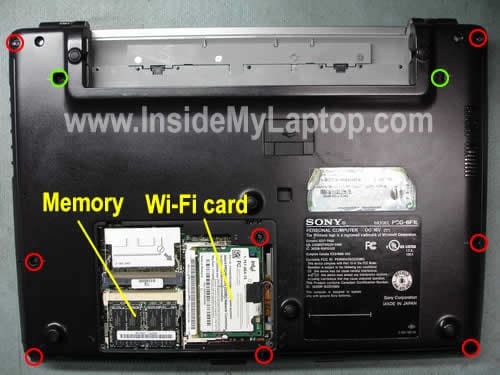
Remove two screws securing the cover on the bottom.
Under this cover you’ll find both memory slots and wireless card.

This model has two memory slots accessible from the bottom but unfortunately you cannot use regular notebook RAM modules. You’ll have to use PC2700 DDR333 microDIMM. I believe you can install 1GB total. Up to 512MB module into each slot.
If you are replacing the keyboard, remove only two green screws and proceed to the next step. These two screws secure the keyboard.
If you are taking the whole thing apart, remove all screws – red and green.
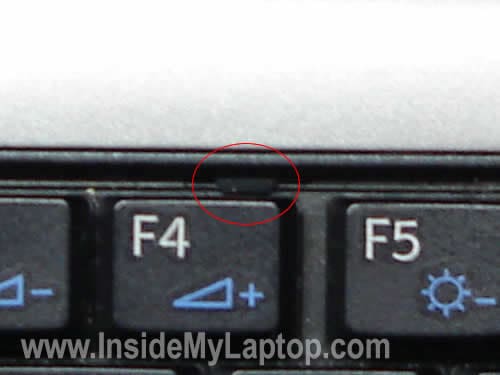
There are two spring loaded latches above F4 and F12 keys.

Carefully release these latches with a small flathead screwdriver.
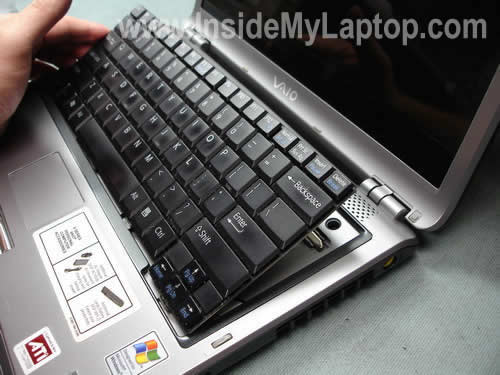
After the latches has been released, you can lift up the keyboard as it shown on the picture below.
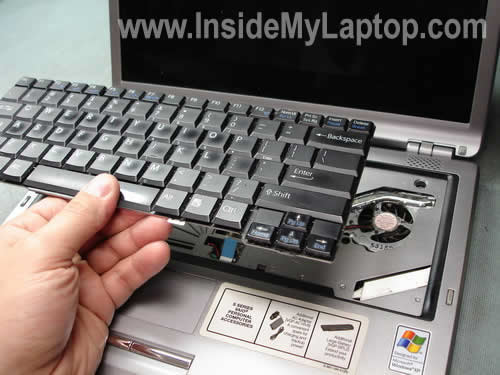
Turn the keyboard upside down and place it on the palm rest. Now you can access the cable connector.
In order to remove it completely you’ll have to unlock the connector first.

Remove the keyboard.
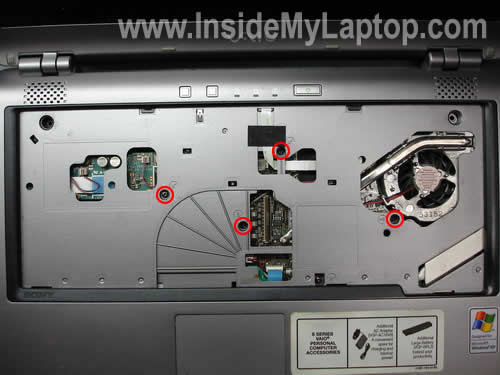
Remove four five screws securing the top cover assembly. (I forgot to circle one screw which is located on the right side from the touch pad cable).
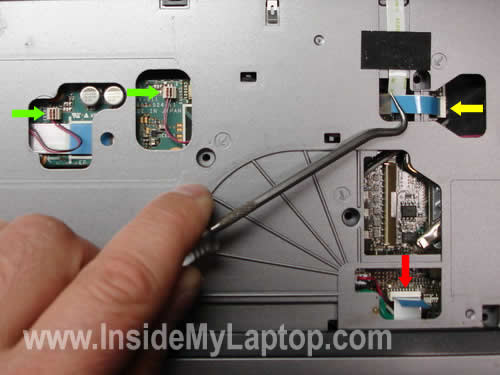
Unplug two speaker cables (green), the touch pad cable (red) and the power button board cable (yellow).
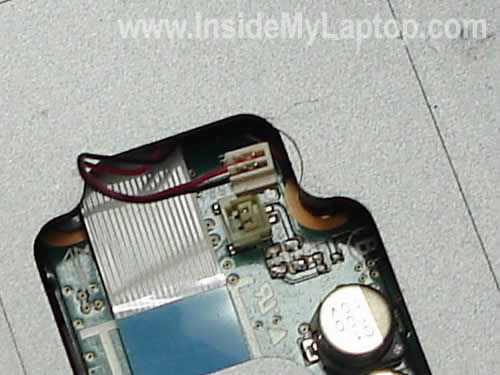
Here’s a closer shot on the speaker connector.
Now you can lift up and remove the top cover assembly.
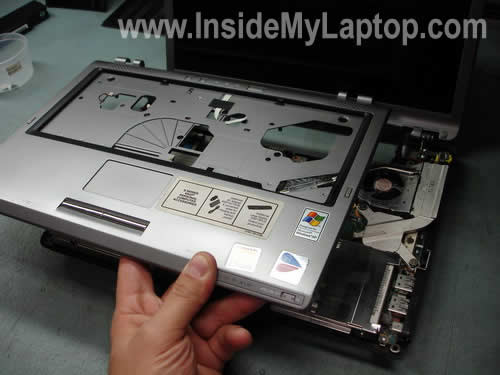
The top cover assembly has been removed.

Remove two screws securing the hard drive assembly. Unplug the hard drive cable from the motherboard.
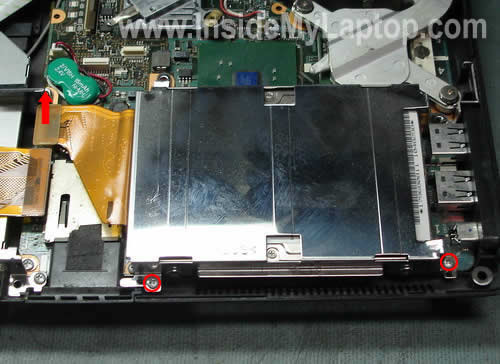
Remove the hard drive assembly. If you are replacing the hard drive, you’ll have to remove the mounting bracket with the cable and transfer it to a new drive.
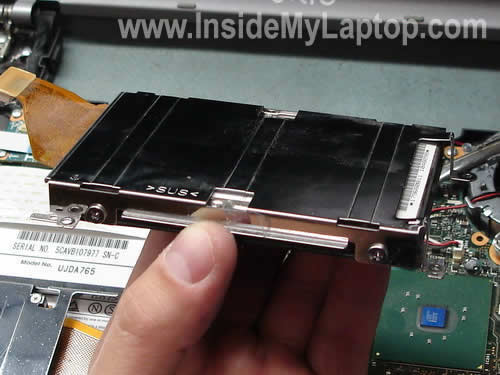
Before you can remove the CD/DVD drive, you’ll have to remove the PC card slot.
Remove one screw securing the slot and unplug it from the motherboard.
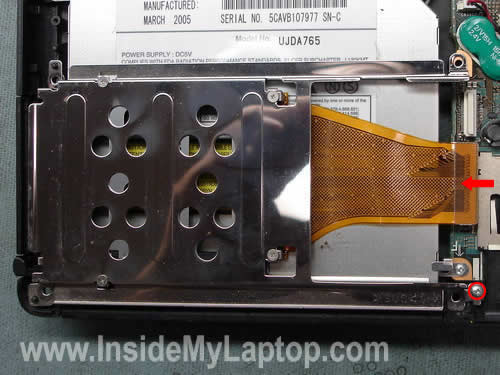
Remove the PC card slot assembly.

Remove four screws securing the CD/DVD drive assembly. Unplug the cable.
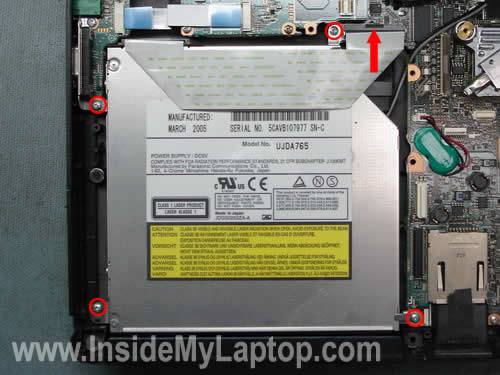
Remove the CD/DVD drive assembly. If you are replacing the drive, you’ll have to transfer the face plate with the cable and mounting bracket to a new drive.

Remove three screws securing the CPU heat sink.

Remove the CPU heat sink.
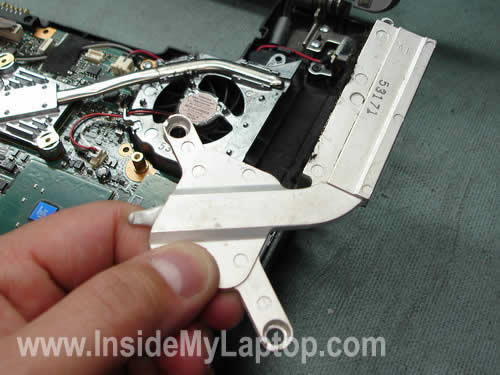
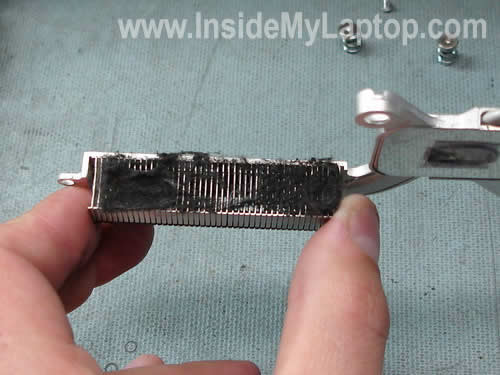
If the heat sink is clogged with dust blow it off with compressed air.
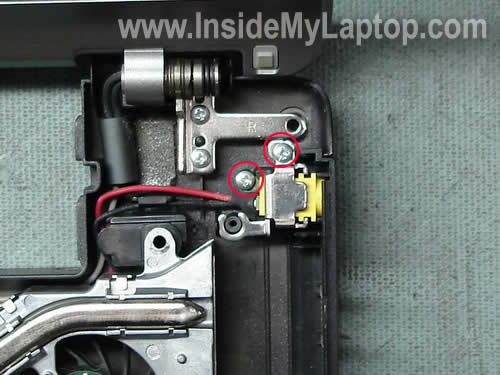
Remove two screws securing the DC power jack. Remove the mounting bracket and release the jack.
As you see on the picture below the power jack in my laptop is broken in two pieces. I’m going to replace it with a new one.
I will unsolder the broken jack and solder a new one.

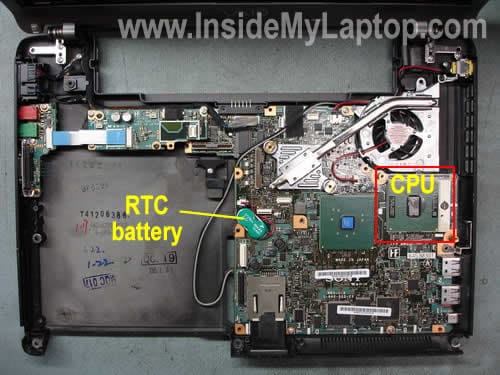
Before you install the heat sink back in place, you’ll have to apply new thermal grease on the top of the CPU.
Faraz Ahmed
I bought my laptop a month back, and no it is not new, i bought it used so there is no warranty.
The problem is that it does not charge the battery. When I insert a fully charged battery it works fine, but when i insert the ac adapter it does not charge.
The local repair shops cant find the fault and they have returned it to me.
please suggest something……
JimmyD
Your DC power port is broken.
Laptop Repair Tech
Thanks JimmiD, I have noticed that. 🙂
That’s exactly why I took it apart. I’m replacing the jack.
kevin
is the power jack and the dc power board the same thing?
IML Tech
Kevin,
I think you are talking about two different things. The power jack is the socket itself – the connector in which you plug in the AC adapter.
ctam
Hey, great reference site. I’m also need to replace the power jack but can’t you replace the jack as well as the wires and the connector all the way to the motherboard? If you can do that, then it would eliminate the soldering step. I don’t have a replacement jack yet so I don’t know exactly what’s included with this part.
Thanks much.
IML Tech
ctam,
Absolutely! You can replace the whole harness (power jack and cable) without soldering if you can find the harness. It make the repair process much easier. Simply unplug the old damaged harness from the motherboard and replace it with a new one.
donski
Hi,
This is a nice guide, indeed! Unfortunately, I couldn’t find an answer for my problem & the pictures didn’t show the part i’m interested in…
I have a question about the wireless switch located in the bottom right corner of the s-series. Something went wrong with mine and now it slides in either direction without the usual click & of course to no effect whatsoever… My guess is that it’s a physical issue – it might have somehow popped out of place, though the laptop was sitting on a flat surface & I hadn’t moved it for several hours when the failure happened. I tried to switch it with the screen down by sticking my finger in the little gap that remains when the laptop is closed – maybe that wasn’t a good idea. Would anyone have some info on what the little plastic slider looks from below & should I try disassembling the laptop to try fixing it myself?
thanks in advance
Henry Truong
Thanks so much for this how to it help a lot.
Marty Hankins
Thanks so much it helped a lot
ken
i just need to swap out my broken cd rw/dvd drive and install a new dvd r/rw drive; i also want to add memore and ram. do i need to go through all the preceeding steps to remove the optical drive?
thanks
IML Tech
ken,
Unfortunately, yes. The optical drive is mounted inside the laptop case, so it’s necessary to remove the top cover assembly. You’ll have to disassemble the laptop because there is no easier way to replace the drive.
Pete
how do you unlock the connector on the leyboard cable?
thanks
Randy Sun
Hi,
I took apart my Sony VGN-S360P to replace a fan. I did it successfully. In an unrelated incident about 2 months later I had many horizontal lines appear on my screen in 5 columns of different widths. Thinking it was a loose video cable I took the laptop apart again and looked at the video connector. It was intact and fine. To reinsure it was plugged in fully I pushed on it and it remained secure. I put the laptop back together and it does not turn on anymore. All screws and connectors are where they are supposed to be. However while I was inside the laptop examining all the components, I notice a tiny little spring (about 2 mm in length and about 1 mm wide with one leg of the spring bent out in a 90 degree angle with a loop on the end and the other end looks like a stepped wire shape) lying on the corner of the laptop located just back of the fan. Does anyone know what this goes to? Does it have anything to do with the laptop not powering up?
Any help would be appreciated. You may email me at sigma AT mchsi DOT com.
Thanks!
Randy
Pete,
The keyboard cable is “pinched” in place with a clamp type connector. If you would place your finger along the side of the brown colored connector and with a slight amount of pressure applied, pull up and push simultaneously. This will cause the hinge to rotate towards the cable hence releasing it.
Erin
I am wondering if the instructions for replacing a Sony Vaio VGN-S360P broken power jack will work for a Sony Vaio PCG-GRT250? If not can anyone direct me to where I can get the instructions to do so? Thank you!
Gerry
My S360 has a couple of buttons with weak springs that will soon fail altogether. The power/hibe/standby button above the keyboard and the left click button below the keyboard are sagging and floppy. A parts dealer tells me I need to replace the entire palm rest in order to fix the left click problem….. for $130!!!! The other button is apparently available seperately and costs about $15. Do I really need to replace the entire palm rest?
IML Tech
Gerry,
On some laptops the touchpad button is a part of the top cover assembly. If one of the touchpad buttons is not working properly, it’s necessary to replace the whole top cover assembly.
Gerry
Thank you for your reply IML Tech and thank you for this excellent resource website!!
thanks
Thanks for the guide and pictures.
I have a few minor corrections to the instructions for new readers: when removing the keyboard, turn the keyboard over and place it on the palm rest, not “Turn the laptop upside down and place it on the palm rest”. Also, there are 5 screws for the top assembly, not 4.
Someone has already commented about the keyboard connector, but don’t be worried when you first flip the latch. I thought I ripped the cable off of a connector, but there isn’t a plastic connector on the keyboard itself–it’s just the ribbon cable with some exposed pins. To reconnect the keyboard, put the connector back in the slot with the latch flipped up, and then hold the connector in place a flip down the latch.
IML Tech
thanks,
Thank you for letting me know. I corrected the instructions.
JOSE F.
hi,i have vgn-360P and i have a problem, i want to reinstall my windows xp SP2 but when i restart de pc and press any key to start the instalation it begins to install till it aks if i want to install windows i press “Enter” and the pc turns off, it seems like it’s blocked to not let me install the windows, can anybody help me?
sorry for my bad english
george
i was given a VGN-S150, and the problem is it does not power on and the original owner doesn’t know what happened, how do i diagnose the problem pls help
IML Tech
george,
First of all, test the AC adapter. Maybe it’s bad.
Paul
I’ve got a vgn-s360. I recently replaced my hard drive and re-installed windows and associated programs. When I put everything back together and turned it on, it all seemed to be working except for the touch pad and R/L click buttons, wifi switch and light panel near switch. After taking it all apart again and reconnecting speaker cables, touch pad cables, and power button cable, the computer wouldn’t even turn on. I’m confident that I didn’t damage any of the cable plugs, but I guess I can’t be sure.
Any suggestions to troubleshoot and/or of a place to get a whole new replacement keyboard panel including the cables, etc. ?
IML Tech
Paul,
Make sure all cables are properly connected to the motherboard. Sounds like a connection related issue.
Again, check the connections and make sure memory is seated correctly.
joe
My daughters laptop keyboard was not working as keys started to drop out (not work) intermittently.
I called Sony Canada about the situation. I went through 6 operators without any solution.
I was offered to have it fixed for 300- 500 dollars. Then I found MTC in Ontario and ordered a keyboard cheaper than Sony. Yes it is original parts.
So I get the keyboard from MTC. I ask Sony for a service manual. Seems Sony thinks these manuals are some kind of top secret document.
I find the right manual on a Russian web site and download it from Rapidshare.
Heres where it gets good. I dismantle the laptop and the quick connector for the keyboard is not locked in place.
That’s right NOT LOCKED DOWN. The keyboard connector cable just jell out of the non locked Jack.
No wonder the keyboard was having intermittent problems. How was it suppose to work (wireless or something, sarcasm).
So I’m out 70.00 bucks for your manufactures defect.
You owe me 70.00 dollars Sony plus my time.
Not impressed at all. I will be dam sure to tell all how Sony Canada treats there customers.
Paul
First of all, thanks for the response.
I made sure everything is connected correctly. I’m thinking it must be a damaged cable. What do you mean by “make sure the memory is seated correctly”?
If all else fails, can you recommend an online or retail shop that sells new top covers? Sony sells replacements, but they’re like $90. I was hoping to find something cheaper
Thanks again!
kumar
Hi,
I also have a broken power jack on my VAIO VGN-FS830/W. I went online and tried to buy a power jack. But all the pics show a jack with center hole. Pretty much like the one you showed here. But the jack on my laptop looks like it has 2 pins sticking out in stead of center hole. Online sellers refer to my model number and show the one with center hole. I would appreciate your help in this.
Thanks
oitsweetheart
Seems like the DC power jack connection is the weakest link in my Sony laptops. I have a VCN-NR123E Sony Vaio laptop model and am having the oddest experience in getting the keyboard off. Insteand of seeing two clips above F4 and F12 there are 4 clips at the top and something in the middle of the keyboard. So getting the keyboard off is where I need some advice. In terms of the remark kumar made the 2 pins sticking up is what is left of the original jack. Kumar needs to replace the DC power jack connection…ebay has some of the cheapest replacements for this solution. (Usually $10 or less) However, you still need to take apart your computer to get to the power jack and do some soldering. As it is a SONY you may hear at repair shops that they won’t work on them because of the name. Thus this website is a great place to learn and see how to fix it yourself.
kumar
oitsweetheart,
Thanks for the response. You r correct. The repair shop seams hesitant to work on my laptop. I don’t understand why they dont like to work on sony though. Anyways this is a great website.
Allan
Hi,
Great article, I was able to use it to take the cover off on my vgn-s580 to try and replace my broken fan, but not quite sure how to remove the two screws that are diagonal to each other, they just have have a tiny hole in them. From the last picture, you can probably see the screws I’m talking about, they are left of the fan.
Any help is appreciated,
Allan
kumar
Hi,
I replaced my power jack. everything went well. But when I tried to start the system back. I got the message OS couldn’t be found. IN BIOS the Hard drive,Floppy drive, optical drive are not detected.I am worried that I might have lost the data. How do i fix it.
Thanks
Vinod
IML Tech
kumar,
Not sure why you are getting this problem.
Access the BIOS setup menu and try loading default settings. Safe settings and restart the laptop. Can you access your hard drive now?
kumar
Tried to put the default settings in BIOS. Didn’t change anything. Still shows the error.
Thanks
Vinod
Kumar
Problem Solved. removed the harddrive and put that back in. works great. I am going to make a donation
Thanks a lot for the help.
gareth
hi,
i have a sony vaio PCG-9J1M laptop and need to replace the power jack but unable to find specs or s/n for the replacement part to buy from a electrical retailer, can anyone help with what type and where i could buy one of these?
thanks gareth
alfred
I have a Sony Vaio VGN-FW235J i accidentally ripped off the red cable. So i order a new part of the sony company and i open it up and plug out the old DC Power Jack and replaced it with a brand new one. Now my laptop doesn’t charge. Everything works find except it doesn’t charge at all and for sure its not the battery or the power adapter. Help anyone?
Kristin K
check out this comprehensive guide for repairing a Sony Vaio issued by Comcast: http://home.comcast.net/~nw_systems/vgnT.pdf
Dim St Thomas
Dismantle Vaio VGN-CS60B
http://www.patrickcraig.co.uk/diy/vaioVGN.htm
Maj
Hi, don’t know if this makes sense…Sony Vaio VGN F21L, on the left hand side there is a circular piece where the charger goes, unfortunately not very secure, as a reult it has snapped off- exposing two wires, one of which needs resoldering, is there anywhere i can buy the plastic bit? and resolder the wire
IML Tech
Maj,
This is not familiar model. Googling the model didn’t bring any good results either. Look for a different VGN-XXXX number somewhere on the display.
I guess it’s possible to resolder the wire but how can I help? If you know how to solder it shouldn’t be a problem.
Robert
I am having a ram failure per Sony and my laptop (sony vioa vgn-txn15p) has one stick of Ram that appears to be built in. anyway to bypass the built in ram I was thinking of just installing 1 gb of ram and not use the built in ram
Ed Burrow
I have a Sony Viao VGN-S260 (Model #PCG-6D1L) and I need to replace the fan. I disassembled the laptop without a problem to expose the fan unit. My question is .. how do I remove the fan unit? There are two brass colored fasteners on the unit that don’t have a slot or Phillips Head to remove them. They seem to be threaded and are spring loaded. Is there a special tool to remove these?
There are also two other holes in the fan unit. One larger one for the heat sinc and a smaller one. On the original fan unit .. the smaller hole is filled with some kind of material or fastener that appears to be blue or green. How do I remove it?
I hope this makes sense .. and thanks for a great article.
IML Tech
Ed Burrow,
Take a look at this disassembly guide for Sony Vaio VGN-S260 laptop. It explains how to remove the fan assembly.
James
Hi,
I have a Sony VAIO VGN-FS630/W, which is broken, there is no reaction either use A/C or battery, I have sent it out to check, they told me the mother board is out of order, how can I take out my document file from this PC? Thanks.
James
IML Tech
James,
In order to recover your personal files, you’ll have to remove the hard drive from the laptop. After that you install the hard drive into an external USB enclosure ($15-30 in local computer shop) and connect it to another working PC or laptop. The external hard drive will pop up in My Documents and you’ll be able to get your files.
Deron
Hello,
I have a PCG-3E2L that needs to have the power jack replaced. Will the instructions provide here also work for this model?
Thanks,
Deron
Robby
Nice little tutorial. I had just taken apart my laptop and replaced the hard drive and reformatted and all that jazz yesterday. But now my keyboard is unresponsive, as in certain buttons do not work all the time. I think that it is a bad connection, and I actually have another vgn S series keyboard that I tried and that had the same problem.
Have you run into this issue at all and do you have any tips on how to repair it? Thanks a bunch, we can always use a usb keyboard I suppose, but that’s a last resort.
Robby
Well, I figured out my problem. Like a dummy I was trying to insert the keyboard cable while it was in the locked position. I was wondering why it kept slipping out. Anyway, I inserted it while it was unlocked and then locked it up and it stayed in there tight and is working perfectly now. Thanks!
Rich
In one of your toshiba articles you describe the radio shack replacement part number with a picture for the dc power jack. Do you know what the radio shack equiv is for the dc plug on a vaio PCG-7Z1L laptop? mine has shattered inside and now the battery wont charge because the power brick cord keeps falling out.
IML Tech
Rich,
I guess you are talking about this post: https://www.insidemylaptop.com/repair-damaged-power-jack-toshiba-satellite-l305-l355-laptops/
I don’t know if RadioShack has a jack for your AC adapter.
When I was looking for my replacement jack, I just took AC adapter to RadioShack and tried a few different jacks available in there. I was lucky to find one.
If you cannot find a generic jack, you’ll have to purchase the original replacement and replace it.
John G
Do you have to solder it, or can you just buy a jack with wires and plug it into the motherboard.
Thanks. Great site
IML Tech
John G,
You can buy the jack with wires and plug it into the motherboard.
rey
Hi i have a sony VPCEB19FX i need to replace the power jack but i can’t find a diy with my model # can anyone help thanks
Vicki H
I have changed out the power jack on my sony vgn s360 with no problem but I still can’t get any power at all could I have blown the Internal battery? When we had a power outage from the tornato I plug my laptop into the car to charge it and I think I mayhave blown the Internal battery.
Help Please
IML Tech
Vicki H,
First of all, test the AC adapter if you haven’t done it yet. It’s possible the AC adapter is dead and the battery discharged.
If the AC adapter works properly but the laptop appears to be dead, most likely this is motherboard failure.
rey
Hi i have a sony VPCEB19FX i need to replace the power jack but i can’t find a diy with my model # can anyone help thanks
dan
this is the best i’ve seen but i have i have vgn-fw170jw is it the same?
Eddie
Ive also decided to change the fan. Is the fan screwed in from the bottom side of the motherboard? Im guessing I have to take the whole motherboard out in that case to change the fan? Thanks!
IML Tech
@ Eddie,
I think so. It looks like you’ll have to remove the motherboard in order to remove the fan.
Eddie
Thanks!
Juan
I haver a Sony Vaio vgn-fe31m laptop and the wireless/bluthoot switch not work correctly.
Even though my switch is in the ‘on’ position, the wireless internet suddenly disconnects. I have to push the switch hard towards the ‘on’ side to get it to connect again (any time not connect), but when I release my hand it disconnects.
Any photography for changing the switch?
Thanks !!!
Zeeshan
Great tutorial!
I needed to replace my HDD. After I replaced it and put everything back together, the laptop’s screen does not turn on when I power on my machine (the machine does – the fan and the drive can be heard). Problem remains when I put the old drive back just in case anyone was wondering. Anyone have any ideas on what could have happened?
IML Tech
@ Zeeshan,
Probably this is connection related issue. Did you remove the memory? Make sure it’s connected properly.
Also, check all cables disconnected during the disassembly.
Sorry, I cannot give you better advice without looking at the laptop.
setu
I needed to replace my RAM. After I replaced it and put everything back together, the laptop’s screen does not turn on when I power on my machine (the machine does – the fan and the drive can be heard).
IML Tech
@ setu,
Make sure new memory module installed correctly. Try reseating it.
richard
hi~ i’d like to thank you for the guide, once i need to change the hard drive. But there’s another problem is the fan …. i don’t think cleaning up the fan helps so decided to change new one, however it seems so hard to purchase…. my vaio is S38GP/B, do you know what model of dc fan is suitable ??
IML Tech
@ richard,
I don’t know the part number.
Probably you’ll have to disassemble the laptop, look for the fan model number on the fan and search it.