

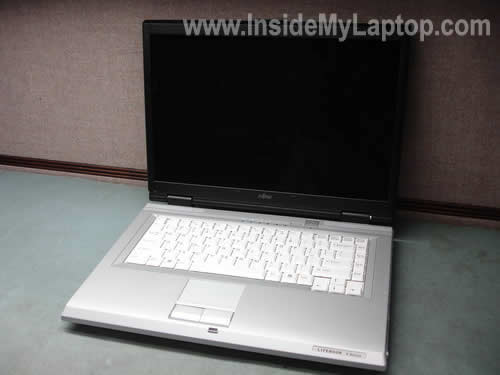
This guide will help you take apart a Fujitsu LifeBook V series notebook. It will show how you can remove the hard drive, memory modules, DVD drive and keyboard.
Also, I’ll show how you can clean up the heat sink. I have created this guide while taking apart a Fujitsu LifeBook V1010.
The badge on the front said “LIFEBOOK V Series” so I assume this guide should work for other modes in the LifeBook V line.
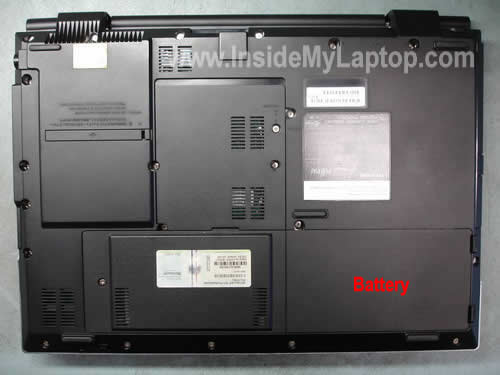
STEP 1
First of all, remove the battery. When the battery is installed, you cannot remove the hard drive cover.
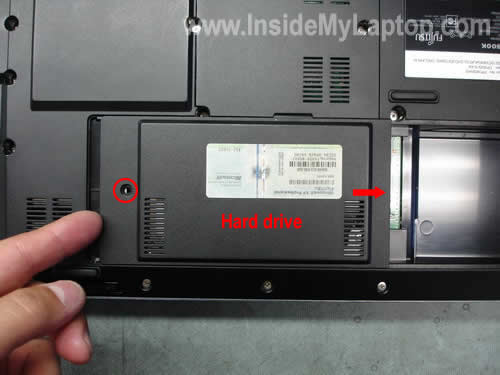
STEP 2
Remove one screw securing the hard drive cover. Slide the cover to the the right site and remove it.
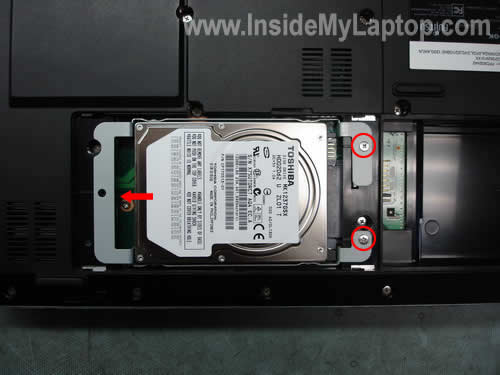
STEP 3
Remove two screws securing the hard drive caddy. Slide the whole assembly to the left and remove it.
If you are replacing the hard drive, you’ll have to transfer caddy to the new drive.

STEP 4
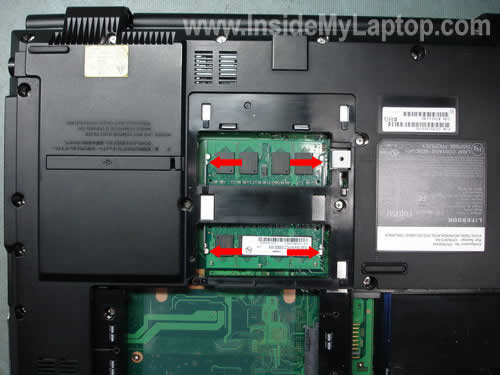
Remove one screw securing the memory cover. Remove the cover.
STEP 5
Now you can remove both memory modules. Spread latches on both side of the slot until the module pops up at a 30 degree angle. Remove the module by the edges, do not touch chips.
STEP 6
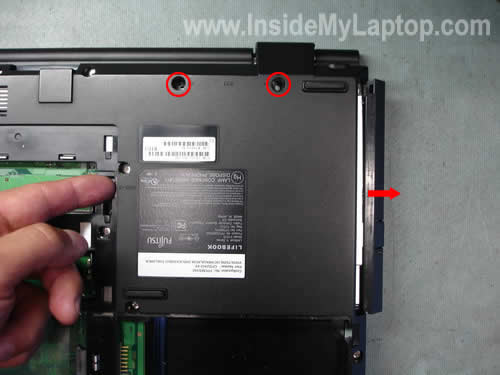
Remove two screws securing the CD/DVD drive. Push the CD/DVD drive out. Remove the drive.
STEP 7
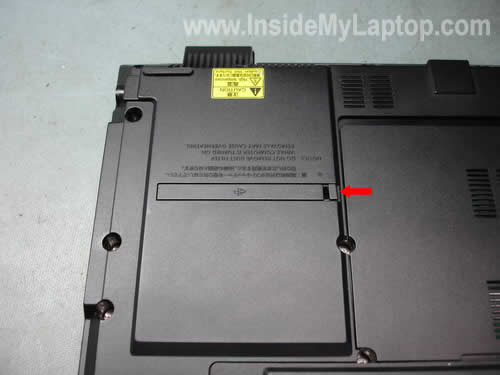
This cover gives you an easy access to the cooling module.
If your laptop runs hot and shuts down without any worning, probably it’s heat realated problem. Most likely the heat sink is clogged with dust and because of that the CPU overheats.
STEP 8
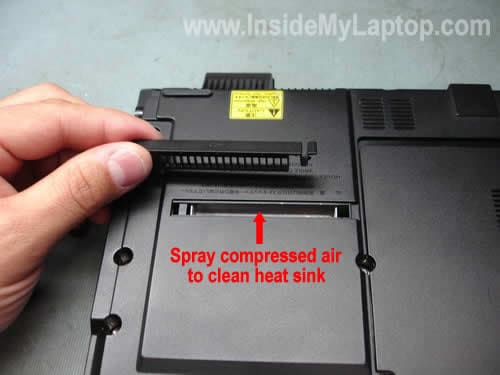
Remove the cover. You can clean the cooling module with compressed air.
Spray air inside the opening until there is no dust inside the heat sink. That’s an easy way to fix the overheating problem.
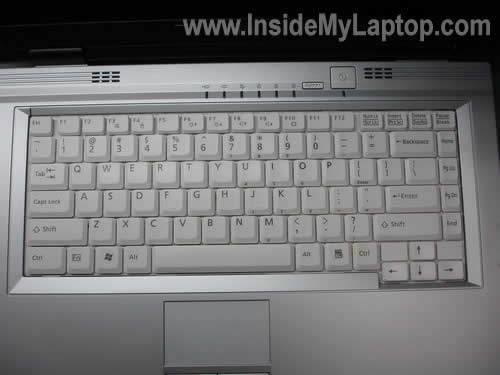
STEP 9
Now we are going to remove the keyboard. In order to remove and replace it you don’t have to go through steps 2-8. Remove the battery and then jump to the step 10.
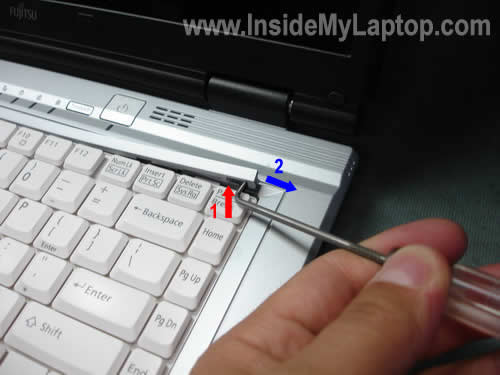
STEP 10
Start removing the keyboard bezel with a sharp object, you can use a small flathead screwdriver.
Lift up the right side of the bezel (move 1) and then slide it to the right (move 2).
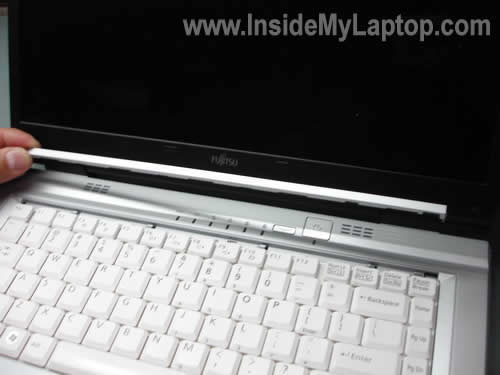
STEP 11
Remove the bezel.
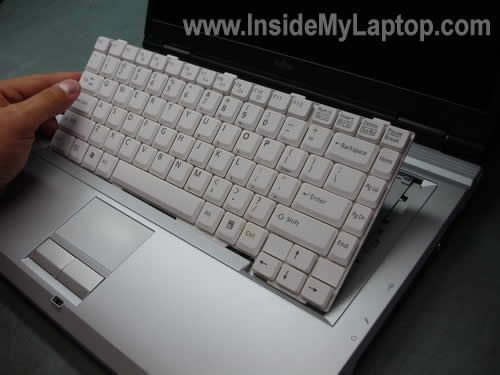
STEP 12
Now lift up the keyboard.
Place it upside down on the palm rest. Be careful, the it is still attached to the motherboard.
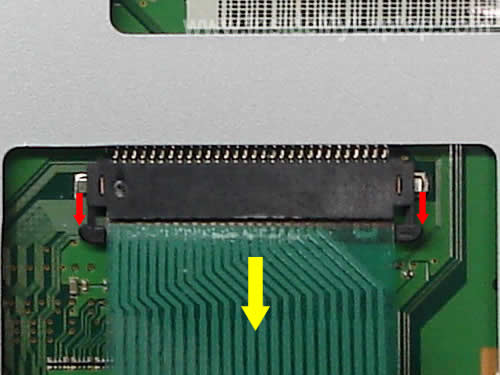
STEP 13
Unlock the cable connector on the motherboard as it shown on the picture above.
Pull the cable out.
WARNING! If you break the connector, you’ll have to replace the whole motherboard.
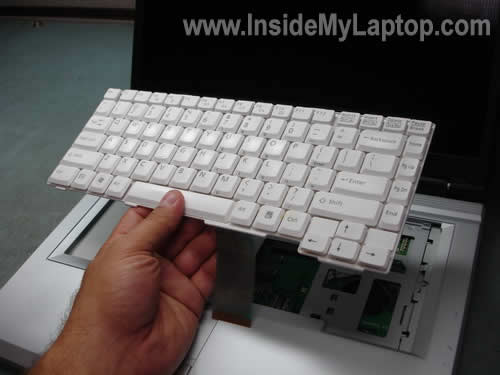
Remove the keyboard and replace it with a new one if necessary.
guyl
Many thanks for this information. My son’s laptop had an intermittent problem with his dvd disk. With your explanation I was able (not afraid) to open it. I found that one screw was missing and the dvd disk was not properly pushed inside. It now works fine…. They were asking 240$ for a new one without the labor. Boy! internet is sometimes so helpful ! Many thanks again for the article
His mother…
quan
can Fujitsu V1010 support WD Scorpio 320GB Black ? i want to replace HDD
Nabe
Hi there, my V1010 screen goes blank intermittently (as in the backlight as i can see the faint graphics on the screen), i reckon it’s to do with the sensor/switch that turns on/off the backlight of the screen when it’s closed/open. The reason is that, when it goes dark, i just close and open the screen and it lights up again, might be a loose connection due to wear and tear over the years.
Thanks!
Dan Harley
i NEED 1 OR TWO REPLACEMENT BATTERIES FOR MY FUTJITSU V1010. ANY IDEAS WHERE TO PURCHASE THEM?
Brian
I’m trying to see where the Atheros wireless modem is located?
Bill Olson
Hi, My Fujitsu v series keeps rebooting, the 3 green lights flash, I can see the screen powering up, then they flash again and screen powers up again; never gets to bios. Any ideas? Thnx
Tashia Weipert
Hmm is anyone else encountering problems with the images on this blog loading? I’m trying to determine if its a problem on my end or if it’s the blog. Any suggestions would be greatly appreciated.|
IML Tech
@ Tashia Welpert,
There shouldn’t be any problem unless the server is too buisy. Refresh the web browser.
Eddie Chavez
How to Repair faulty LCD on my Fujitsu Lifebook Laptop computer Model A1130.
X
HI,
would like to ask is there any ways for me to disassemble the keys of the keyboard? i would like to clean the spaces in between each key… they’re awfully dirty!!!!!!!!! (filled with dust)
thx
Kathleen
I have a very old Fujitsu laptop, Model N3530, with 2gb memory and a new 250gb ssd, running XP. I’d like to update to Windows 7 (I know you’re probably thinking ‘WHY”, just buy a new laptop, but it’s a really great laptop and fast eventhough its a relic). Is this even possible?