

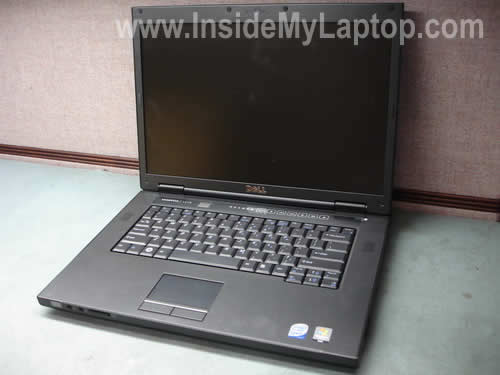
In the following guide I will take apart a Dell Vostro 1510 notebook.
You can use this guide for removing almost all internal components from the case.
I think these instructions might work for some other Dell Vostro models. If it work for you, please mention the model in the comments below.
Before you start the disassembly process do not forget to unplug the power adapter and battery.
STEP 1.
Remove hard drive and memory covers.
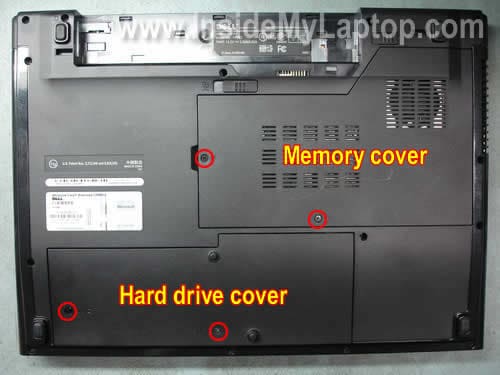
STEP 2.
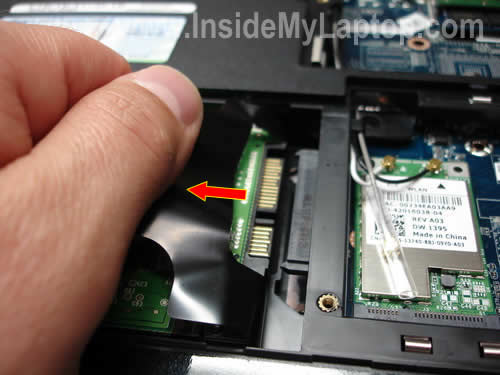
Pull the hard drive to the left and disconnect it from the motherboard.
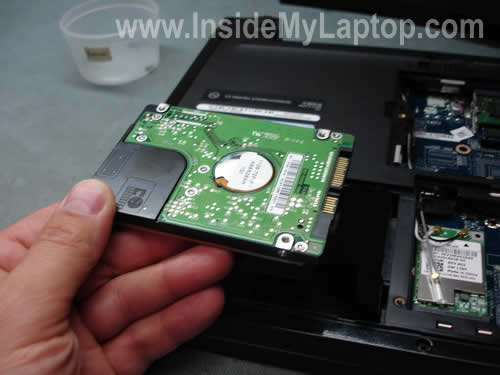
Remove the hard drive. As you see it’s a regular 2.5″ SATA HDD.
Any larger capacity 2.5″ SATA HDD should work just fine in this computer.
STEP 3.
Remove both memory modules.
Dell Vostro 1510 will take up to 4GB RAM (2GB module into each slot).
You should use DDR2-667 modules.

STEP 4.
Remove three screws securing the cooling fan. Unplug the fan cable from the motherboard.
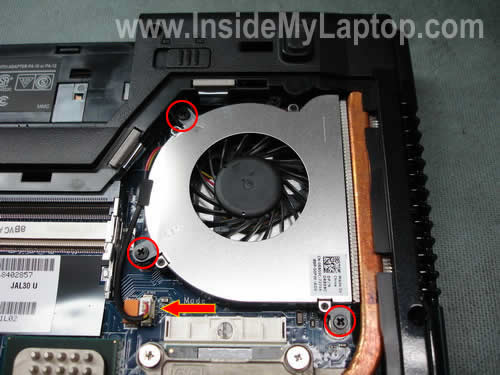
Remove and lift up the fan.
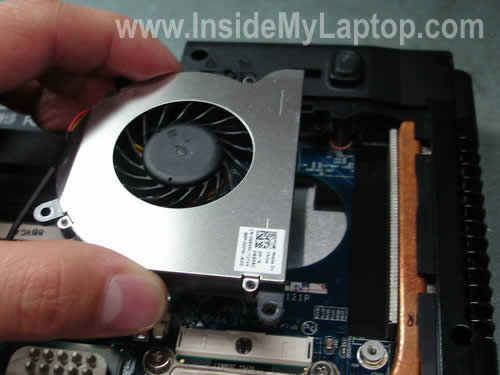
STEP 5.
Loosen four screws securing the heat sink.
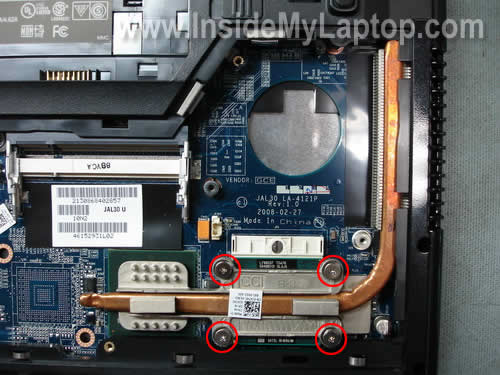
Carefully lift up and remove the heat sink.
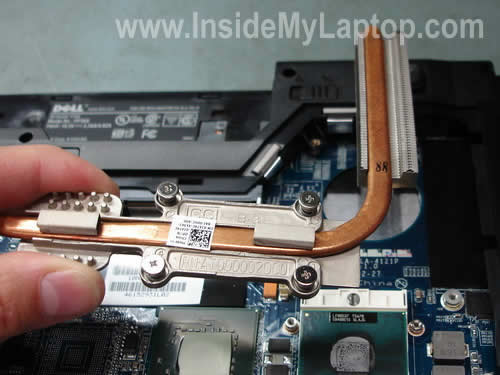
STEP 6.
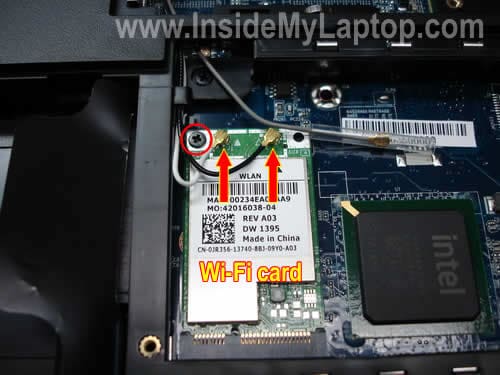
Disconnect two antenna cables from the wireless card. Grab the golden connector on the end of the antenna cables with your fingers and pull it up.
Remove one screw securing the wireless card and remove the card.
STEP 7.
Lift up the keyboard cover with a small screwdriver.
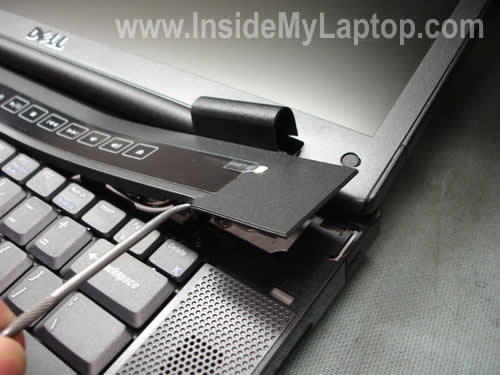
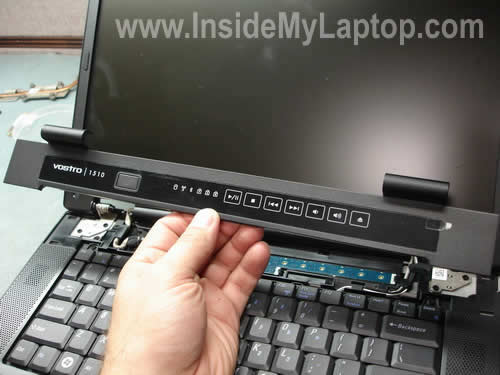
Remove the keyboard cover.
STEP 8.
Remove two screws securing the keyboard.
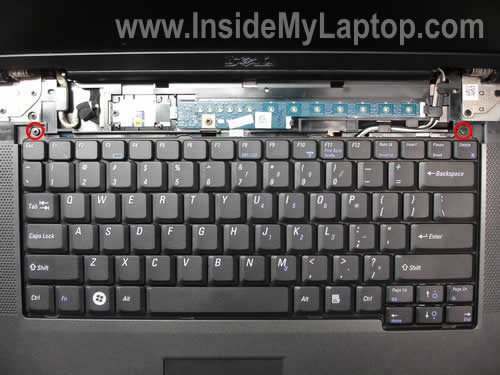
Lift up the keyboard so you can access the cable connector underneath.
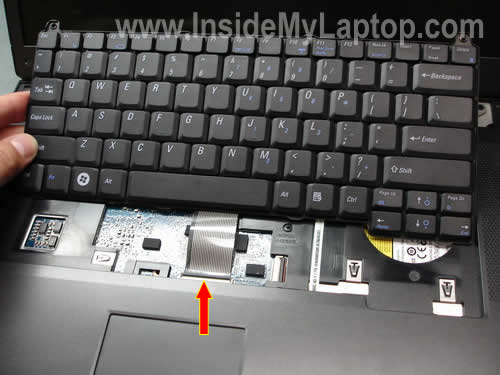
Very carefully unlock the connector and release the cable.
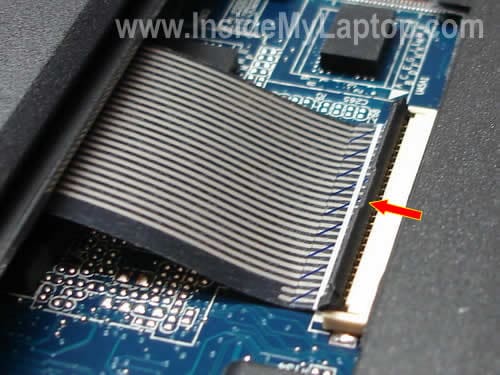
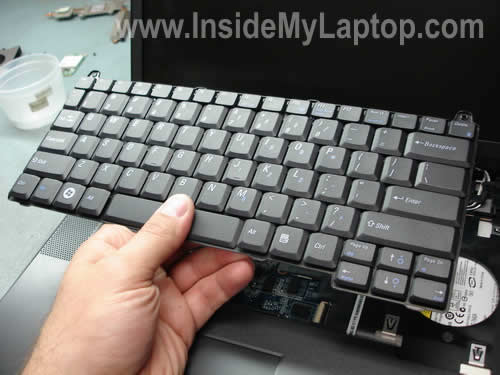
Now you can remove the keyboard.
If you are replacing the keyboard, you don’t have to through steps 1-6.
Simply go though steps 7 and 8.
STEP 9.
In the following three steps I’ll remove the display panel assembly.
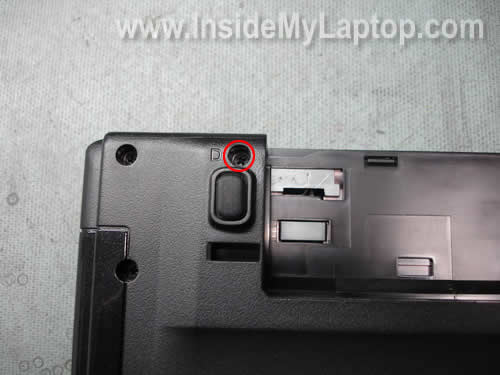
Remove one screw securing the right hinge.
STEP 10.
Disconnect the video cable from the motherboard.
Pull both wireless antenna cables through the opening in the top cover.
Remove five screws securing both display hinges.
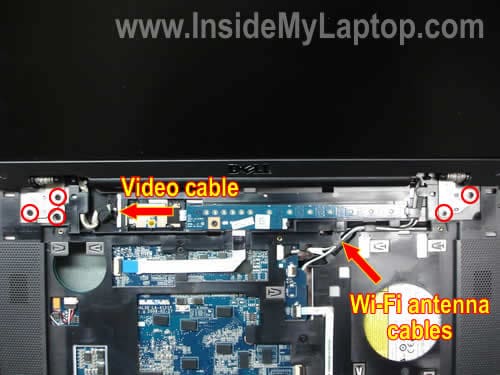
STEP 11.
Remove the display assembly.
For screen removal procedure you can refer to Dell manual.
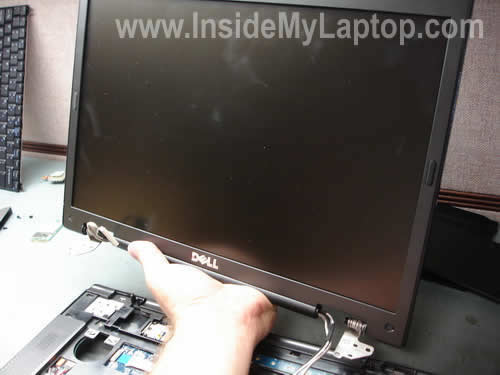
STEP 12.
Disconnect three cables and remove three screws from the top cover assembly.
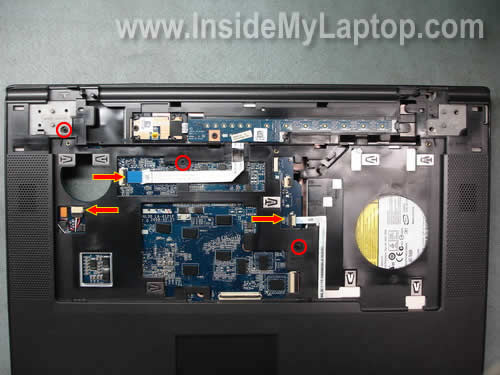
STEP 13.
Remove all screws from the bottom.

STEP 14.
Start separating the top cover assembly from the base assembly.

Continue separating the top cover assembly with your fingers.
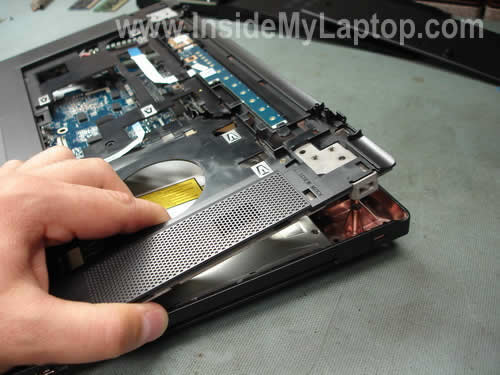
Remove the top cover.

STEP 15.
The CD/DVD drive is mounted inside the base and can be removed only after you remove the top cover.
Disconnect the CD/DVD drive cable from the connector on the motherboard.
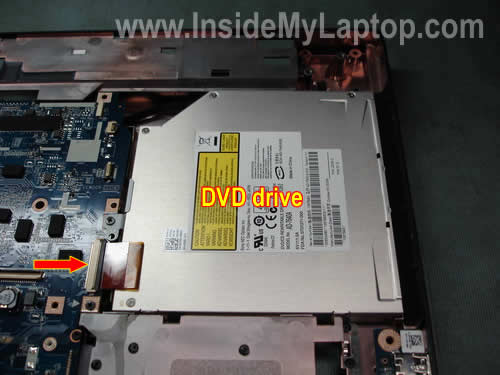
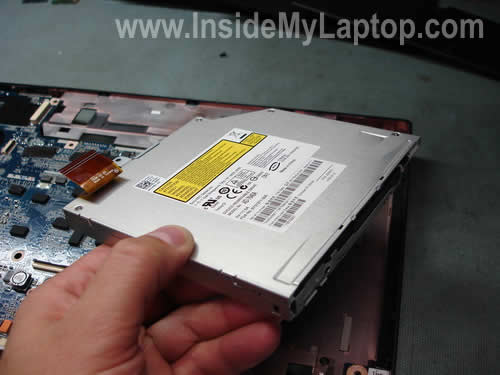
Lift up and remove the CD/DVD drive.
STEP 16.
Remove three screws securing the motherboard.
Unplug the USB board cable from the motherboard.
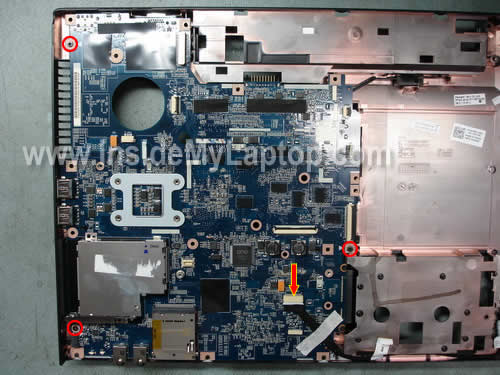
Lift up the motherboard as it shown on the picture below.
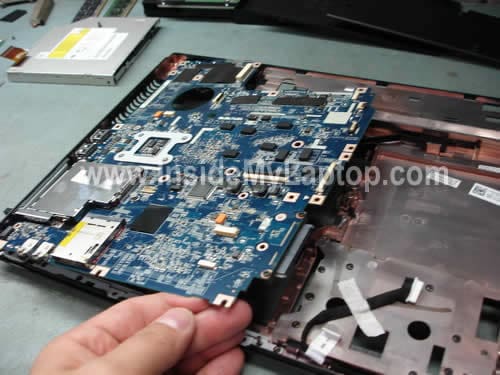
Remove the motherboard.
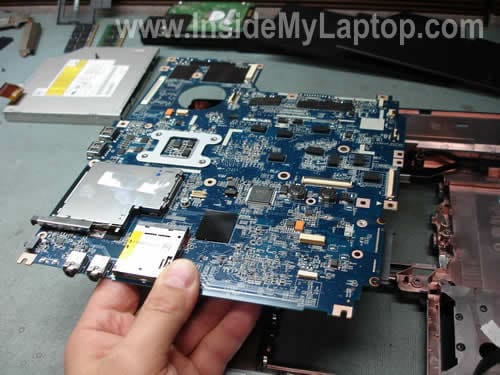
The processor (CPU) is locked in the socket. In order to remove the processor, you’ll have to unlock the socket first.
There is a small screw on the side of the socket. This screw locks/unlocks the socket.
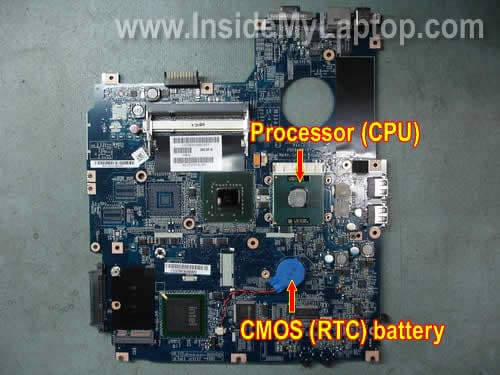
In this notebook the CMOS (RTC) battery is replaciable.
You can unlug the old CMOS battery from the motherboard and replace it with a new one.
Michelle
Hi, I have a Latitude D610 laptop, the hard drive is dead. I tried to recover the data through an external enclosure, but the disk was not recognized. I checked Dell for D610 hard drives, it costs around $175, can I find cheaper?
IML Tech
Michelle,
$175 for a laptop hard drive? That’s too much.
Is it an IDE hard drive in there?
You can find a brand new 120GB IDE hard drive for about $60.
Michelle
It’s an ATA/IDE 60GB, can you please help with some links I can check?
Thanks
IML Tech
Michelle,
You can search for a new ATA/IDE hard drive on Amazon.
Michelle
I’ll check it out, thank you!
Jon
Hello I have a dell vostro 1510. Is there anyway I can isolate and replace the receiving end of my power chord? a few prongs broke in the socket in the laptop where the power plugs in and I can’t get a charge. Any thoughts?
Jon
I realize now I’m asking if I can replace my AC adapter connector. Any ideas?
Leopoldo
Have experience with Acer Aspire One 1542 series. How I can to clear cmos over this model.
thanks.
rafi
hi can i do that with my self if am no profisional
IML Tech
rafi,
That’s the reason I published this disassembly guide, so you can decide you you can do it yourself or not.
Tom
I just bought my 1510 at a garage sale. The screen is cracked, I’ve removed it.
I’ve connected to my desk top monitor and there the hard drive is locked…. There is no sound from the Disk drive + won’t accept cd/dvd’s.
All the memory, and diagnostic checks are ok. – one – which I can’t remember at the moment as I’ve been at this for many hours now… If needed I can aquire it… ‘ ITC’ or something the like…
I removed the Bios battery for 20 seconds. it re-set the clock and I thought that it may cause the default settings for the hardrive to return. It asked for the hard drive pasword to be ‘set’ in the Bios. I put in ‘pheonix’ as this is the default for the Bios lock. I read this on a site that this might also be the default for the Hard drive. I booted, it gave me an error with ‘ Windows system 32 […….] ‘ + asked to reinstall Vista. I had shut te comp down and rebooted and the Hard drive, in the Bios said ‘HD locked’ again. Is there a way to correct the password ? or by pass, reset the lock for the hard drive?
Problem # 2
The computer had sustained a drop as I noticed a bit of a bent housing on the Disk drive. The disk drive is not recognised in the Bios.
I had taken the computer apart a couple of times thinking maybe the ribon connection was incorrectly placed. Each time there was ‘not installed’ listed in the Bios. My question is – the computer should recognise somethings there even if it’s not connected properly – correct?
thanks for any help…. I found a Display for about $100.oo new, but will try to find used…. so if you might now of one too…. also thinking I might need a Disk drive…..too tired to look right now….
please send any and all to- quantum19 AT hotmail DOT com
Thanks
SASIVARDHAN
My speakers are not working but thr headphone I am able to hear the sound. Can you guide me to troubleshoot? Mine is VOSTRO 1500.
Bysoftie
Do you know whre the cmos-ram is located. Have to reset or replace it after wrong bios update.
IML Tech
Bysoftie,
Sorry, cannot help. I don’t work on component level.
suresh
how to activate my laptop dell vostro 1500 model mini hsdpa slot , i insart mobile 3g SIM card but not detect i allredy down load all driver ,but not working , so how to use this mini slot , mini [sim] slot near to battery
As per Review Dell Vostro 1500 laptop
{In terms of communication the laptop can be equipped with a HSDPA mini-PCI card that will allow 24 hours free access to the internet without any annoying external hardware. }
Anibal
Hi!
I’m looking for some specification about put 2 hard drives in Vostro 1510. It’s possible? Thanks for advices.
IML Tech
Anibal,
I doubt it. It looks like this model has only one hard drive connector.
Afshin
Hi,
Is it possible to change the graphics card on Vostro 1510 or is it integrated to the motherboard? The 8400 VGA of my notebook is damaged and I need to replace it.
IML Tech
Afshin,
I doubt that you can upgrade the card. I just looked and the service manual for Vostro 1510 and they don’t mention the VGA board anywhere. I guess it’s built into the motherboard.
Pranav
Hi,
Do you have any suggestions on resolving a bad flash? Is there any way to reset the BIOS memory to factory?
IML Tech
Pranav,
If the laptop was flashed with a wrong version or failed while upgrading the BIOS, most likely you’ll have to replace the motherboard.
You can try removing the CMOS battery for a while.
dood
Pranav,
I managed to reset the bios (or cmos, I don’t really know the difference) by disconnecting the cmos battery.
Follow the guide above, but skip step 3 (removing the ram) and step 6 (removing the heat sink).
Careful with the cable connectors. Some of them work like the penultimate picture of step 8 (removing the keyboard) where you need to hinge the black bit away from the board. I didn’t realise this and broke the connector for the touchpad :-(. I’m trying to fix it now.
When you get to the cmos battery, leave the battery where it is (stuck to the board with a pad) and pull out the wires where they go into the white connecter on the board. I thought that part of the connector was a plug and /nearly/ broke it, but it isn’t, just pull the wires straight out.
I left it unplugged for about an hour and a quarter. I’m sure you don’t need to leave it that long, but after taking so long just to get to the battery, I didn’t want to risk having to take it all apart again.
Plug the wires from the battery back in and put it all back together.
Next time it started up, it gave a checksum error and reset to the factory defaults.
Hope this helps! It’s a hell of a job just to reset a bios, but better than losing 450 quid’s worth of lappie!
laughingjj
My daughters Vostro 1510 has a damaged a/c plug (where you plug the charger cable into). How hard is it to remove/reinstall this $25 part. Thanks.
Mm4
hi.i have a vostro 1510 laptop.it has 8400 GS graphic card.i play games too much with it.at last when i played for a long time with my laptop in the middle of the game suddenly system halted and graphic of the game changed.when i restarted my laptop , windows didn’t start and the screen became black.wt happened to my laptop ? :((
Bug
Hello,
I have the same problem with the video card like Mm4. I was playing a game and then the video card freez everything is black and I have to restart computer but then windows is freezing at starting…some help pls ? do I have to get it to service ?
bug
Hey,
I forgot to mention that this happend yesterday and the laptop is vostro 1510… Mm4 this is so strange, our computers broken in the same day in the same way……….omg wtf
Keith
A 13 month old Vostro 1510 shuts down by itself, restarts and hangs up. Upon entering set-up, it says I have no hard drive. I changed the settings to ACH, to no avail. I replaced the hard drive, reinstalled Window 7 Ultimate, worked fine for a couple of weeks, now the same problem is occuring, and more often. I’ve cleaned the contacts for the hard drive. Before replacing the motherboard, what are my other options to check/replace?
IML Tech
Keith,
This is kinda strange that your laptop worked fine for 2 weeks after reinstalling the operating system. Are you sure it’s not a software related problem? Maybe you should try reinstalling Windows again and see if it fixes the problem?
Just in case, check memory modules. Do you have two modules installed? Remove them one by one and run the laptop with only one module installed. It’s possible that your laptop restarts and hangs up because one of the memory modules is bad.
Keith
I’ve reinstalled, or tried to reinstall Windows 7. The problem seems to exist before Windows loads. Happened with the old HD, which had XP Pro on it. I’ll check the memory moduals. I have 4 gigs of RAM, so I assume there are 2 strips. The problem I will have is that I’m running the 64-bit version of W-7.
kismet
i have a vostro 1510. something fell on it while it was open and put a kink on the right side to the right of the touchpad. now when i turn it on the dell screen comes up and it only gives me options for f12 setup or f2. i dont know what that is but does anyone know what could be damaged? and is it fixable? the comp is less than a year old. email me w a solution if possible…thanx…
IML Tech
kismet,
Not sure what is wrong with your laptop. Try reseating memory module, maybe one of them got knocked out of the slot.
Reconnect both memory modules and try turning it on again.
Webmack
Hi,
I want to replace my optical DVD drive in my 1510 with a caddy that can house a hard drive. What is the model number or could you post a bigger picture of the DVD drive? I need to know what it is before I order the caddy so I only pull my laptop apart once.
In case you’re interested: http://forum.notebookreview.com/showthread.php?t=388625&page=14
Thanks.
Matt
Hey there, great guide. I am having a lot of trouble with my graphics card, it blue screens before login. Was thinking of replacing it. Is it somewhat possible or is it attached to the motherboard? You didn’t mention it on the guide.
David
I had a vostro 1510. The DVD unit refused to liberate one DVD, resulting in the need to remove the unit. The little retainer/pressure clips on the keyboard and toch pad connectors were not released before removing the cables. Result: they now do not lock. How can i get replacements? David
kosi
hello. please i use dell vostro 1510, suddenly, the dvd stoped swallowing my cdsor dvds, it only goes half way, i dont knw wat is wrong with it, but it sounds just fine. Its as if a lens is blocking it from enetering…. pleaseeee helpp….. thankxx
IML Tech
kosi,
I cannot tell what’s going on without looking at the DVD drive. Apparently something got stuck inside or it’s broken.
It’s necessary to remove the DVD drive and take it apart.
jesse
my power input that is inside the vostro 1510 has broken ( not the supply cord) what can i do? can i replace it? can i fix it and how do i get to it in the quickest steps? cheers and thanxs for your instructions.
Victor
Hi,
Stunning guide! one question though, do you know if it is possible to change the amount of shared memory? I haven’t been able to do so…. thanks in advance!
Best regards.
IML Tech
Victor,
Do you mean shared memory for video? You cannot change it.
Antony
I have vostro 1510 with NVIDIA GeForce 8400M GS graphics card in it. It gives me 1280×800 resolution. I want to increase it. Whats the best way to do it. Do I have to get a new graphics card to boost the resolution or can I do any setting change or install any software to do it. Please help.
Thx.
Marco
Are you sure that there is no faster way to remove the CD/DVD drive ? Is it necessary to remove all the components mentioned to have access to it ?
IML Tech
Marco,
I think it’s possible but…
As you can see on the step 15 the CD/DVD drive is connected to the motherboard via ribbon cable.
Without removing the top cover assembly you’ll get very limited access to the connector. Take a look at the step 8, you can see the connector in there under the keyboard. Without removing the top cover assembly it’s still easy to disconnect the CD/DVD drive but it will be harder to connect it back, even though possible.
Here’s what you can try for removing the CD/DVD drive without taking the whole thing apart.
1. Remove the battery.
2. Remove keyboard. Step 7-8.
3. Disconnect the CD/DVD drive cable.
I don’t remember where CD/DVD drive screws are located. Could be on the bottom or under the keyboard.
Remove those screws and remove the drive.
John
Hi,
Thanks for an excellent guide! My Vostro 1510 died a few days ago. One long and two short beeps that’s all I have. The screen is black. It’s out of warranty, and the only advice I got is to replace the motherboard. So I started to look for a new board but as a newbie I’m a bit lost, so if anyone can help me to sort out the following questions its most appreciated:
1. Are there different versions of the motherboard? On the specs its only written VOSTRO 1510 : INTEL CORE 2 DUO T8300.
2. Is the graphic card separate from the motherboard? I had a 15.4 screen with WUXGA resolution and Nivida.
3. On e-bay there are some boards listed for Vostro 1510, all of them are refurbished.
Who is the manufacturer of these cards? Some claim Intel, but Intel does not list them. Intel only list the chipset.
Thanks
John
IML Tech
John,
Probably this is the video card failure error message. Most likely the video card is integrated into the motherboard and it means the whole motherboard has to be replaced.
There could be more than one type of motherboard available for the same model. The best way to search for a replacement motherboard is using the Dell part number.
Take a look in the memory compartment and search for a sticker with the part number. Most likely you’ll see a long string of letters and numbers, something like CN-0P446J-12976-96D-4334-A00 shown on this picture (this is sticker from a keyboard)
https://www.insidemylaptop.com/images/Dell-Inspiron-1545/remove-replace-laptop-keyboard-11.jpg
The second set in the string is the part number, in my example the part number is 0P446J. In your case it will be a different number.
Find this number and google it or search on eBay.
Probably not, but I cannot tell without looking at the laptop. In most laptops the graphics card is integrated into the motherboard.
Don’t know.
Also, before you replace the motherboard, try removing memory modules one by one. Test the laptop with only one module (try both) in place. If still nothing, I guess you’ll have to replace the motherboard.
PointBlanC
I need to know how to add the geforce 8400 gpu into this vostro 1510…help anyone?
IML Tech
PointBlanC,
I doubt you can do that.
In order to an an external video card your laptop (motherboard) has to be designed for that.
Does your motherboard has a connector for the external video card?
Saurav
Hi, My dell vostro 1510 dvd is not recognizing any DVD/CD i put in. Please advice.
Laszlo
Hi,
A problem started with my 1510 a few days ago. When I switch on the screen is grey (when starts the bios). I have to switch on and switch off many times that this problem stop. It works by hours. After some hours the screen start to vibrate, disintegrate and freeze. Maybe the inverter?
Thank you.
Chamath
Guys i had the same problem too but i replaced the motherboard, lcd display, harrd drive, vedio card and ram.
now it works fine but the internal microphone is not working please help me with it.
Owen.C
I did this yesterday lol, except my motherboard was green and I have a graphics chip with the extended heatsink.
JT
Hello. I have a Dell Vostro 1510 that wouldn’t turn on. I’m thinking it’s a hard drive problem (Geeksquad said it’s either hard drive or motherboard). I’m planning to take out the hard drive as instructed and do a data transfer to another laptop. Does anyone know if I need a specific hard drive dock in order to do this, and if so, where can I buy this? This is my first time doing it so I appreciate any help I can get. Thank you!
Dave
Hi,
I have problem with my Dell Vostro 1510. I look to BIOS and maybe I click on something (I don’t know). When I want start my laptop, then write me “No TPM or TPM has problem”. When Windows starts, then go to the “blue death” and restart. Where is a problem???
khosrow
plz. advice me howto put a new BIOS password because I forgotten my password thanks.
Nils
I took apart my vostro 1510 because the DVD Rom started to make funny noises and did not read any more CDs or DVDs that I put in. Unfurtunately when I did step 15 the plastic that holds down the caple broke and fell apart. I try to fix it with some tape but after I reassambled it, the system did not recognize any DVD Rom anymore. DVD is not shown anymore in the EXPLORER. So I guess the connection with tape is not adequate. Do you have any idea what I can use instead. Or is it even possible to get this tiny little spare part thing from Dell. Second
After reassembling the mousepad was not working anymore. I am sure I connected all cables. You know which connection is responsible for the mousepad to work?
thank you in advance
Nils
IML Tech
Nils,
I don’t think you can buy this piece from Dell or anywhere else. This piece is a part of the DVD drive connector, it’s not sold separately.
You can try to disassemble your laptop apart again and secure the connector with duct tape. If it doesn’t help, probably you’ll have to use an external DVD drive.
Is it connected properly?
Pradeep
My vostro 1510 is not showing anything on the screen when I switch it on. The three lights glow on the keyboard with numlock key continuously blinking. Recently I had problem with my NVIDIA GeForce driver which I disabled and soon after I got vertical coloured lines on screen and finally this problem (nothing on screen not even bios on pressing delete on startup).
How can I confirm that the problem is with motherboard or graphics card?
Will it be possible to replace graphics card?
Where exactly it is located?
Adam
I have a Vostro 1510 it is also conntec to an external montor (extended) It was on today I had left it and the screens ‘went to sleep’ I moved the mouse and the extended screen came live but not the laptop screen. I did a hard reset and re-booted – the dell windows logo appeared on the extended monitor as usual which then went blow but the laptop screen still black. I moved the screen and the display came on and the off a couple of times. I can just make out the MSN box very faintly on the screen….is there anything I can do…can I change desktop display to the extended monitor?
Kelly
My power port is damaged and the plug keeps falling out. Dell wants almost $400 to fix it so I was hoping to see if you had instructions for this particular model Dell Vostro 1510 to replace the power port/jack? Thanks!
IML Tech
Kelly,
In your Dell Vostro 1510 the power jack soldered to the motherboard.
Here’s what you do in order to replace the jack. Beware! Some soldering experienced needed.
1. You remove the motherboard as it show in this guide.
2. You purchase a new DC jack for Dell Vostro 1510 laptop.
3. You desolder the failed jack and solder a new one.
If you don’t know how to solder, you can remove the motherboard yourself and find a technician who can replace the jack.
MaddScienstist98
Hello,
I would like to thank you for this amazing website! After searching through many junk website looking for a nice detailed set of instructions I found this gem. This is the first laptop I’ve had to work on so extensively and it has been a complete nightmare. After finally giving in and replacing the hard drive and reinstalling xp sp3 the dvd drive quit working. (not due to a driver) So now I am replacing the dvd drive, which is MUCH more complicated than it should be. Thanks to these instructions I can accomplish this task without feeling like I’m about to break something. So thanks again. By the way, this MATCHES the DELL VOSTRO 1310 EXACTLY.
MaddScienstist98
khosrow — I am not 100% on laptops, but with most desktop computer there is a set of jumpers or DIP switches on the motherboard that you can switch to reset the BIOS password. Hope this helps!
IML Tech
MaddScienstist98,
It’s different with laptops. On most newer laptops there are no DIP switches or jumpers.
You have to short some hiddent pads somewhere on the motherboard or call directly to the manufacturer tech support to get an unlock code.
aijaznisar
fantastic guideline. thanks
Peter
Thanks for a brilliant guide. I was able to replace my wife’s Inspiron 8500 LCD screen some months ago and it’s going nicely.
Now suddenly this week my Vostro 1510 has developed sound problems (scratchy distorted sound as though it is receiving too high a signal input – this happens regardless of whether it is driving external speakers via mini jack, or USB headphones, or internal speakers and I’ve naturally checked all volume controls – it distorts even with these down very low… The software troubleshooter can come up with no better answers than I did).
It appears to come down to a faulty sound card (Realtek High Definition Audio, location recorded as “65535” in the Device Manager Properties). Where is the sound card physically located? Is it separately replaceable, or is it integral to the motherboard? Thanks!
Peter
IML Tech
Peter,
The sound card integrated into the motherboard.
Peter
Me again… Panic is over. While I awaited your answer, I decided to run the Dell Diganostics Disk from bootup. When I ran its audio tests, I got perfect sound (both from internal speakers and from headphone jack to external). That meant it was definitely a software problem. So I rebooted and went back to the configuration causing the problem. The distortion was back, even at low volume. So I looked at the Windows Media Player graphic equaliser, on which I had previously elected to boost the bass (without apparent problems at the time). Guess what! – When I returned all frequencies to a flat response, the distortion disappeared and I could raise the volume without problems! In other words, the WMP graphic equaliser can create a profile beyond the parameters that the Realtek sound card can handle. Another lesson learned. When I mentioned it to my son, he retorted – “Are you STILL using Windows Media Player?”… So I guess it is time to use a different player software. Any recommendations?
🙂
IML Tech
Peter,
I prefer VLC media player. “It Plays Everything”.
virus
dude need help urgently
how to remove the small disc wich got stucked in side the drive,,,,,,,,
IML Tech
virus,
I guess you’ll have to disassemble the laptop in order to remove the drive.
I’m not sure if this drive has a hole as it shown in the following post: https://www.insidemylaptop.com/remove-cd-dvd-disc-from-not-working-laptop/
kara
ha ha, guess what i was looking for was a little simpler. i have 1000 and there was something stuck under my 4 and e keys, so i pulled them off (which ive done before) and there were little black pieces of plastic loose, i think they are part of the keys, and now i cant get the keys back on. my laptop took a pretty hard fall the other night so i wonder if they didnt get knocked around.
Bill
Great web page with detailed instructions for taking apart the 1510.
I have a 1510 with J475 motherboard (integrated intel graphics) and middle of the road T5670 cpu.
I was wondering whether anyone has any info on which other Intel C2D processors can be fitted to this (and other) 1510 motherboards ?
IML Tech
Bill,
Compare T5600 specs to T7800 specs.
Both CPUs look very similar but the last one has larger L2 cash and faster clock speed.
I think it could be possible to upgrade from T5600 to T7800.
Mac
what is the process of dvd lense clean?
IML Tech
Mac,
Open up the DVD drive.
Take a cotton swab and soak it in 99% alcohol.
Gently clean the lens inside the drive.
Felix
i need to replace the dc jack on a 1520. Do have to unassemble the entire laptop
IML Tech
Felix,
Dell Vostro 1520? Yes, in order to replace the jack you’ll have to disassemble the entire laptop. Moreover, the DC jack soldered directly to the motherboard, so it has to be deslodered.
Here’s how to do the job:
1. This service manual explains how to disassemble the laptop and remove the motherboard.
2. You can purchase a new DC jack for Dell Vostro 1525 on ebay.
3. Finally, when the motherboard replace it.
bloxta
Just a quick note. You prolly already know, but any one with lcd image probs eg. pink, green, grey, erratic screen images on their Dell 1510 or similar – it’s that dam nvida graphic card dying again. Seems to be the same right across the range for that year of manufacture. Phone Dell and you should still be able to still get this fixed under the “extended warranty” ( if you suck up a bit) Just got mine repaired. The warranty expired a year ago and they still fixed it for free.
I also just started having the DVD drive problem – wont recognise and ejects the disk. I was wondering if this is some crap I down loaded by accident, that did this or just a hardware failure – will also try to clean the lens and see if that works.
I had a similar problem previously with an older DEll and a fresh reinstall fixed it. ( seemed to have something to do with the DOS DVD driver in the install being hijacked. Not sure this time by what I have seen on the net as they all seem to be crapping out at the same time.
simple jack
hi boss! i’ve a very very problematic situation with this laptop. One of my friend has got this dell 1510. so he gave me his laptop for setting up all the required software and stuffs for editing videos, creating movie clips, converting and stuffs. I downloaded all required recent updated codecs n different video converter software and installed them, but due to some unknown issues of codec none of those software were working. so i used a registry cleaner “ccleaner”, and scanned and cleaned some of the registries. AFTER THAT DAY, his laptop’s DVD drive is no longer working. under device manager, “the device is working perfectly”. But it cannot recognise any of my new and old dvds cds, no nothings… especially, when i incert high-quality-movie(mkv)-data-DVDdisk, there is a huge sound inside the drive and the DVD doesn’t want to come up. So, then ive to use the pin for ejecting the disk…….Now that friend is blaming me everyday for this circumstances. Now what can i do??? Where is the relation between DVD DRIVE AND CCLEANER(unnecessary registry cleaner)????? please…please …please…help me…………………..GIVE ME A SPECIFIC SOLUTION, PLEASE!
Abdullah
Hello every one,
sorry to disturb, but can anyone tell me how to enable TPM on Vostro 1520? the bios for this laptop has no option in securtity secion for tpm.
Thanks,
IML Tech
Abdullah,
Not sure if it helps but check out this guide.
Jonah
Nice guide for disassembling the laptop there, thank you.
Just wondering though if I want to reset the CMOS, is it enough for me to just unplug the red/black wire connected to it from the board or do I need to unplug the CMOS battery as well? At the moment I cannot access the CMOS battery since there’s one screw that’s just cannot be unscrewed. 🙁
Btw there’s a website that stole your guide (edited: link removed) seems like they stole a whole bunch of other guides from this website as well.
IML Tech
Jonah,
Why you want to reset the CMOS? What is your reason?
Thank you. I saw this F*** site before.
They don’t understand that stealing content from other sites never works. Search engines way smarter than these stupid webmasters. They penalize sites like that. 🙂
Jonah
I want to reset the CMOS to try to fix the problem with the laptop freezing in the Dell Splash screen, pressing F2 and F12 does not work.
Googling a bit some ppl recommend to try to reset the CMOS to fix this problem. Whaddya think?
Steve
The power plug to my Vostro 1510 was broken when a family member tripped over the power cord. I am told that the only repair is to replace the motherboard as the the female plug-in is part of the MB? Is this a true assumption? Do I have to diassemble the whole computer in order to replace the motherboard?
IML Tech
Steve,
It depends on how bad the damage is. Probably you can fix it by replacing the DC jack, not the entire motherboard.
In order to replace the DC jack you’ll have to go though the following steps:
1. Find a new DC jack for your Dell Vostro 1510 laptop.
2. Remove motherboard as I explained in the post above.
3. De-sloder damaged jack and solder a new one. This requires soldering skills.
If you are not comfortable with soldering, you can buy a new jack, remove the motherboard and take it to a local laptop repair shop for the DC jack replacement.
Peter
Hi
My webcam always shows black screen and the reason is its USB cable connector. I appreciate if you answer these questions:
1-How can I take apart the display itself? Or is that necessary at all?
2-Where can I buy a new (not used) webcam cable? (I don’t trust used cables)
Thanks
IML Tech
Peter,
Display panel disassembly steps would be similar to this one: https://www.insidemylaptop.com/replace-lcd-screen-inverter-dell-inspiron-1525-laptop/
Alternatively, you can use disassembly instructions published in the official service manual.
You’ll have to research this one yourself. I don’t like used cables too but if a new cable is not available you don’t have many options.
Jabh
hey man my vostro 1510 recently got under attack by “Malware Doctor” and it finally stopped my laptop from even booting up, so i wanted to know is it possible to replace the harddrive with a new harddrive, install windows on it and use an enclosure on the old drive to recover all my files that were on it (files like: music/movies/pictures/etc.)?
thanks for any info you can give me
Jabh
IML Tech
Jabh,
Yes, it’s possible.
I’m not sure why you want to replace the hard drive. You can recover your files to another computer using an external USB enclosure. I explained this process here.
After that you just reinstall OS on the original hard drive and later move backed up files back.
If you would like to replace/upgrade the hard drive, you should be able to use any regular 2.5″ SATA hard drive.
Jabh
i also forgot to mention in my post that the sooner i can get a response the better as my laptop also holds all my college notes
Sunshuvo
My vostro 1510 is not showing anything on the screen when I switch it on. The three lights glow on the keyboard with numlock key continuously blinking. Recently I had problem with my NVIDIA GeForce driver which I disabled and soon after I got vertical coloured lines on screen and finally this problem (nothing on screen not even bios on pressing delete on startup).
How can I confirm that the problem is with motherboard or graphics card?
Will it be possible to replace graphics card?
Where exactly it is located?
IML Tech
Sunshuvo,
Vertical colored lines? NVIDIA chip?
Yep, sounds like you have a problem with the graphics card – known issue with some Dell laptops.
Diane
The DVD drive in my 1510 wouldn’t recognize the discs anymore. I got a replacement from Dell itself (robber without a gun) and had it installed by the local computer store. Receiving it back I am now experiencing problems with the keyboard. The Fn key won’t work and the eject button on the top panel won’t eject either. This is the second DVD drive from Dell as the first one was defective. Could it be something in the alignment of the keyboard after putting it back together.
Johanos
Hi
My Vostro 1510 has a faulty jerky LCD display with thin broken jerky lines and I think its the Nvidia graphics chip. I am thinking of purchasing another faulty 1510 which has a lower CPU of 1.8ghz. I wanted to know if its possible to unplug the 2ghz cpu from my 1510 and fit it in the other.
IML Tech
Johanos,
Should work.
fishy13
I formatted my dell vostro 1510 and put windows 7. After that sometimes the display just goes black for no reason and most of the time when the power cord is not connected. Even if battery is there, the display doesn’t show. Can you please help?
IML Tech
fishy13,
Did you have this problem before reformatting? Make sure you have correct video driver installed.
al
fishy13,
I’ve had the same problem with a Vostro 1520 running Win7 x64 build 7600. The machine completely freezed when power cord was taken out.
I’ve managed to workaround this problem by avoiding C:\Windows\System32\igfxpers.exe to run. This program is part of the video driver, but it is not absolutely necessary.
Doug
If I simply want to replace the CD/DVD drive are there any steps I can omit, such as disconnecting the monitor and such?
IML Tech
Doug,
Not really. If you have a slot load DVD drive (as in my example), it’s mounted inside the laptop case.
You’ll have to go though all steps. I guess you can skip steps 2-5 (removing memory, Hard drive and heat sink).
sergio
@Sunshuvo: not sure if this applies but i updated the bios on a perfectly working vostro and the update failed turning my moms laptop into a doorstop. same deal, powered on, three lights and black screen. after hours of research, it turns out that many people had the same problem and dell will not take responsibility but for around $200 they will fix it for you. luckily i found a guy on ebay under the name of biosdepot that sells the replacement chip for $20. you just have to have the tools and soldering skills to make it all come together or take it to someone that can do it for you. i lucked out again as i have the tool and skill needed so what could have been a major mess-up, turned out to be a inexpensive little one. hope it helps.
Will
Thanks very much for this walkthrough! It was quite handy as I had to find and clear out an *ant nest* from a Vostro this week!
Many thanks, again!
-Will
nate lan
This was a very useful guide for disassembling my Dell Vostro 1510. My CMOS battery died and dreadfully, I had to take the ENTIRE laptop apart to replace it. Then, I found that the CMOS battery module resides in a custom shroud, so I had to have one of my technicians resolder the existing cable leads to a new battery. PAINFUL OPERATION. But your guide was priceless throughout the endevour, so thank you!
Doug Joseph
This guide was very helpful to me. My plain-jane Vostro 1510 came an optical drive that would read DVDs but _not_ write them. So I bought a Sony Optiarc DVD burner on eBay. (Based on a little eBay research I knew that drive was compatible.) I had considered yanking the unit open without any guidance, but I have opened just enough laptops to know I would probably be better off the have a guide. Thanks for the wonderful help!
Paul
I have a Vostro 1510; aprox 3 years old. Similar to another post, the screen developed a jerky LCD display which at first was intermittent, then became permanent and would freeze in place. If I apply and hold pressure to the upper left hand corner of the screen’s frame, it works normally. I assume the screen does not need replacement since I can get it to function, albeit awkwardly. I did take it to a professional Geek, who said there wasn’t anything he could do and I had to listen to his litany of how Dell laptops have been notorious for problems in the past, but had thought that they had made improvements in their quality. Eitherway, I am basically left with an external hard drive, as the system does operate on a remote screen.
Any suggestions and/or help out there? Any brains to pick out there?
Miranda
Um, Is there any way to fix my speaker/headphone jack? I have tried several headphones and speakers, It works, but only when I press the plug to a certain direction, and it gets so frustrating as I always use headphones to listen to music on my laptop. I’m thinking that the jack might be loose? Do I have to take the whole laptop apart in order to get to it? (can’t see clearly in the images above.) Might sound like a simple problem, but it’s driving me nuts! Lol.
Pearl
I have problem. My Dell Vostro laptop’s battery needs to be replaced. Since I could not find an original one, for the time being I have been working on it by plugging it to the power. Yesterday while I was browsing suddenly a blue screen came on and then it went off, after that i switched it on and it is not booting. I got it checked by a technician and he says that its hard disk needs to be replaced. do you think that is the problem. I had such a lot of data stored in it and if at all the hard disk needs to be replaced where can I find the right one for vostro 1510.Could you please help me???
IML Tech
@ Pearl,
New batteries available on Dell website. Just google for “Dell laptop batteries and adapters” and you’ll find the place.
AJ
The graphics card on my Vostro 1510 seems to have failed. It boots up at minimal resolution and shows two identical desktop windows on top of one another.
Is it seperate or part of the mother board?
AJ
Sohail
awesome guide! i take it to remove the hard drive i only need to undo 2 screws? Also after i reformatted the laptop using the recovery disks i cant now get video playback as it cant locate the drvers nor any sound. any idea where i can get them from to download or evenbuy if need be? i have tried dell websites but nothing that works
cheers
Jethro
My 1510 has died and will not power up. I’v done all the usual checks and can confirm battery and psu etc. are OK. Any idea on what caused sudden death. Is there a replaceable internal fuse that can blow?
IML Tech
@ Jethro,
Probably this is motherboard related failure.
Fuses in laptops soldered to the motherboard, not easily replaceable. I think there should be a fuse located somewhere close to the DC jack. You can check the fuse with a multimeter.
Johney
thanx a lot lot lot
Dixon
help, which is the name of the integrated chip bios?
pekujawang
Thankss..really help
Norberto
Hi, I dont know if my Dell Vostro 1510 have or not a bluetooth device, because in Windows Vista the icon dont apear and at Device Manager either,this laptop owns a Bluetooth Device somewhere??in fact at the front panel is the icons Hard drive, Wifi, Bluetooth, …but the bluetooth icon is off not blue like wifi or hard drive……Please if you can help with this trouble…..Thanx a lot
gary
Just wanted to say thanks! Your step by step guide left nothing to chance. I appreciate it. Well done!
Alex
Fantastic walkthrough! Is the expresscard slot of the Vostro conected to USB or does it have its own pcie lane?
monideep
hey i’m not being able to find a suitable screw driver to remove the hard drive cover. Plz help.
Sitarama
is it possible to use two 4 GB RAMs in VOSTRO 1510?
vahid parsi
Thanks for this document about Dell vostro 1510
Sheh0786
for me only one speaker is getting sound what should i do?
Rahul
I need solution for complete cover policy… Actually, My system was having 3 years complete cover policy. Yesterday I had talked to Customer Care. In reply they told me , the policy can’t be extended because we have only policy under 5 Years. My system has not completed 5 Years Yet. Now What to do…………Further to tackle the case.
Aben Escalante
I did as instructed it and replaced the power jack,then I plugged in the power adapter, and charged the battery even the light of charging showed in the front, but I tried to turn on the laptop, I pressed the power button and then the computer goes off after one second or less.
Is the Motherboard bad?
Should I take it apart again and replace the CMOS battery?
Thank you !
Victor Carter
I a is there a short cut to cmos battery replacement or do I have to go through all the steps……….Im only replacing the cmos battery do I have to do all the steps or can I skip the display portion. Thank You Victor
Richard Weiner
Repaired my DC Jack on dell vostro 1510. After reassembling computer, LCD screen does not go on. Power light is on.
What do you recommend I try to fix it?
Thank you
IML Tech
@ Richard Weiner,
Did you remove memory modules during the disassembly process? Make sure both modules seated correctly. Try reconnecting them.
John Marott
I need to replace the vostro 1510 motherboard because the NVIDIA GPU died. Vill any replacement motherboard do? – if not then how do I identify excactely what board I need?
Thank you in advance and thank you for a very well prepared repair instruction.
Kind regards
John Marott
Joe
hi any advice as to how to replace the battery latch lock on the back?? mine is stuck
IML Tech
@ Joe,
The battery latch is part of the bottom cover (base assembly).
You can find it on ebay. A used base assembly is only about $10 but in order to replace the latch you’ll have to remove the motherboard.
Matthew Greaver
I don’t know if anyone’s mentioned it, but the Vostro 1510s are sweet upgrade-pups like the OptiPlex 755s. Mine are booting and working just fine with 8 GB of PC-6400 RAM and 64-bit Win 7.
asis
thanks a lot
ramdev
good thanks
Gambudito
Muchas gracias me sirvió de mucho, esta bien ilustrado y eso ayuda de sobremanera gracias nuevamente
John
@Matthew Greaver the maximum ram this can take is 4gb
Martin
Very good instructions…thanks . a lot of help need to replace the motherboard for a Dell vostro 1500 I know what to do now …. Thanks a million..