


In this guide I explain how to take apart an Acer Aspire 5520 laptop.
Also, I believe this model is very similar to Acer Aspire 5220.
Before you start, make sure the computer is turned off and battery removed.
STEP 1.
Remove two screws securing the hard drive cover. Lift up and remove the cover.
Remove four screws securing the memory/cooling fan/wireless card cover. Lift up and remove the cover.
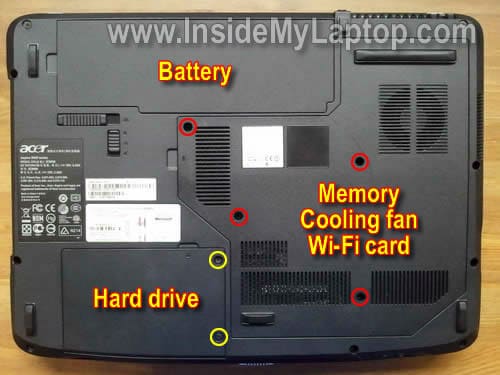
In my case the memory cover was seated very tightly.
I had to use a guitar pick in order to separate the cover from the laptop base.

After all covers are removed you’ll get an access to the hard drive, both memory modules, wireless card and cooling module.
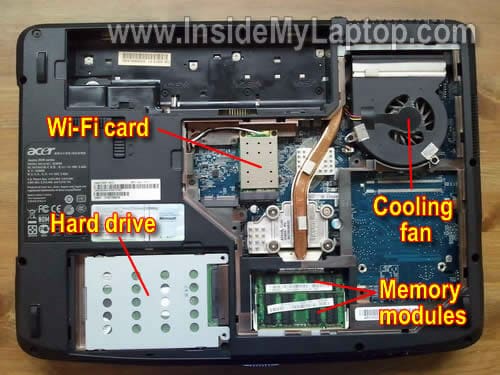
STEP 2.
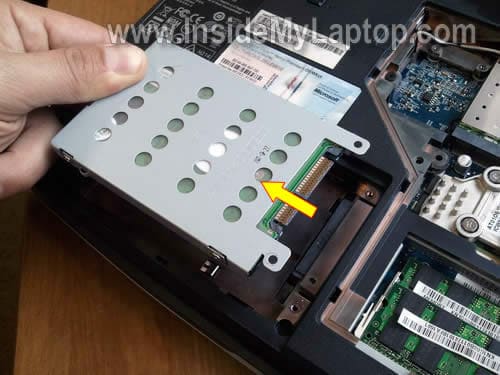
Slide the hard drive assembly to the left and disconnect it from the motherboard.
Lift up and remove the hard drive assembly.
If you are replacing or upgrading the HDD, you’ll have to transfer the mounting bracket to the new one.
Acer Aspire 5520 uses a regular 2.5″ SATA HDD.
STEP 3.
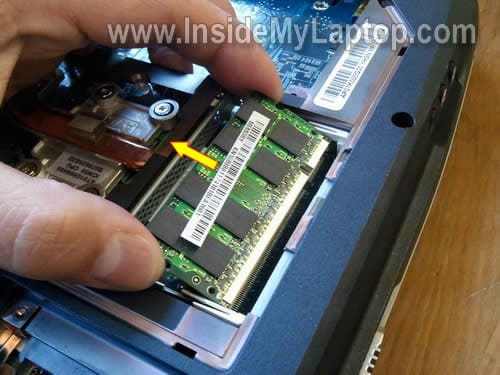
In order to remove the memory module, you’ll have to spread latches on both sides of the memory slot.
After the memory module pops up at a 30 degree angle, you can pull it from the slot.
Acer Aspire 5520 can take up to 4GB RAM total. There are two memory slot, so you can install up to 2GB RAM module into each slot.
Memory used: DDR2 667MHz (PC2-5300) SODIMM.
STEP 4.
Remove three screws securing the cooling fan.
Disconnect the cooling fan cable from the motherboard.

STEP 5.
Lift up and remove the fan.
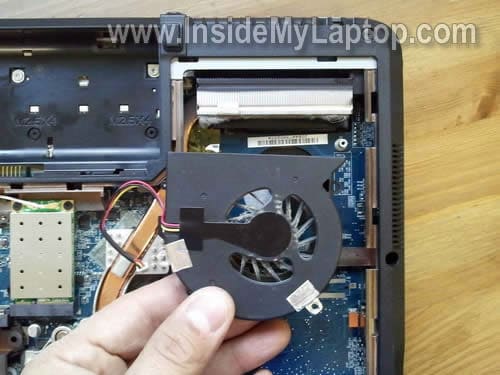
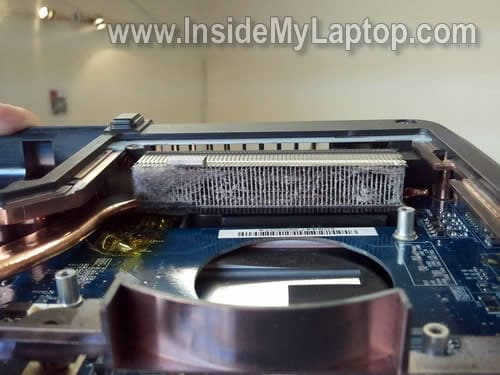
When the cooling fan removed, you can clean the heatsink using compressed air.
A clogged heatsink can cause laptop overheating and unexpected shut downs.
STEP 6.
If you would like to apply fresh thermal grease on the processor, you’ll have to remove the heatsink assembly first.
Loosen four screws securing the heatsink assembly, carefully separate it from the processor and remove from the laptop.
After that you can apply new thermal grease.

STEP 7.
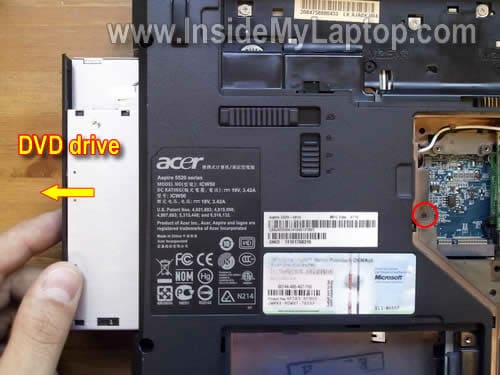
Remove one screw securing the DVD drive.
Pull DVD drive and remove it from the case.
In the following steps I explain how to disconnect and remove the keyboard.
If you would like to replace it, it’s not necessary to go though all previous steps (except removing the main battery).
STEP 8.
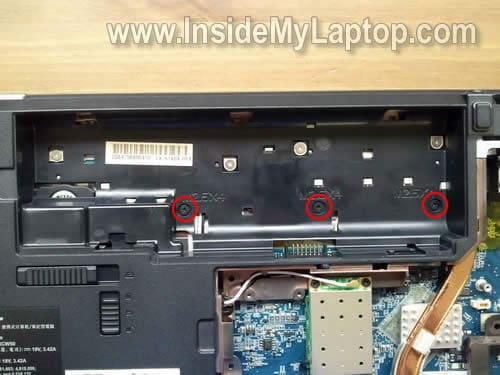
Remove three screws from the battery compartment.
These screws securing the switch board cover.
STEP 9.
Separate the switch board cover from the top cover using a guitar pick (or any other piece of soft plastic).
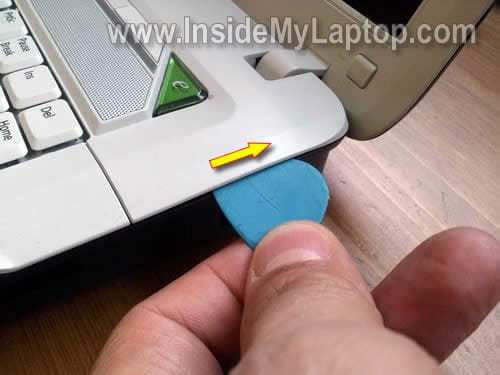
Lift up the switch board cover.
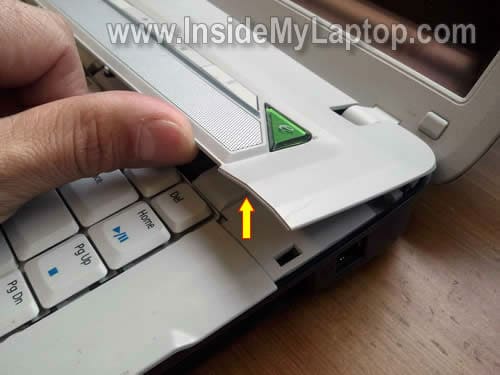
Continue removing the switch board cover with your fingers.
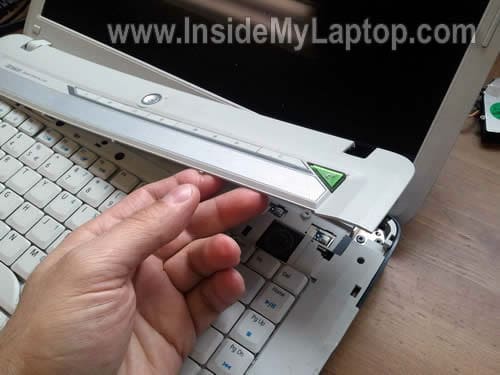
Remove the switch board cover.

After the switch board cover removed, you can start removing the keyboard.
There are no screws securing the keyboard.
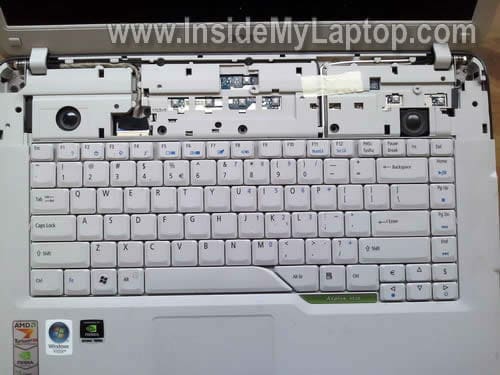
STEP 10.
Insert your fingers between the top side of the keyboard and top cover and carefully lift it up.
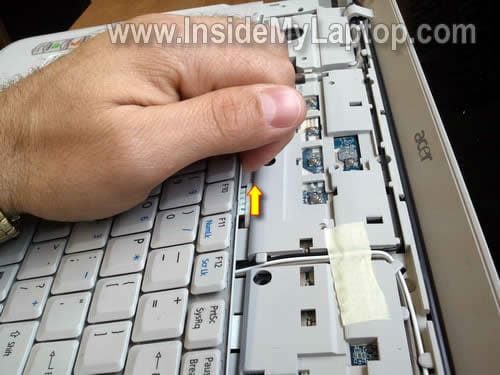
STEP 11.
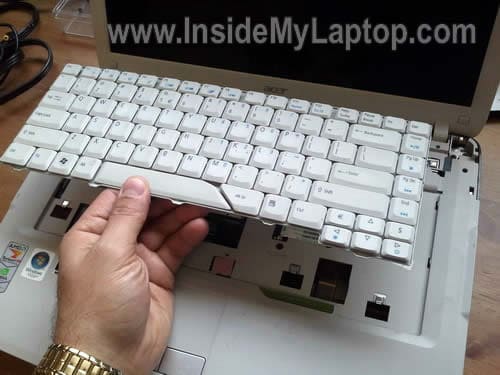
Turn the keyboard upside down and place it on the palmrest.

Now you can access the cable connector.
Before you pull the cable from the connector, you’ll have to unlock the connector.
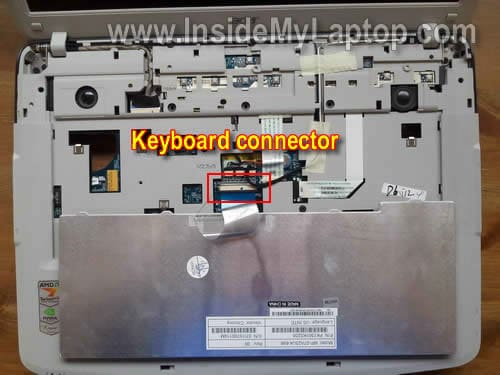
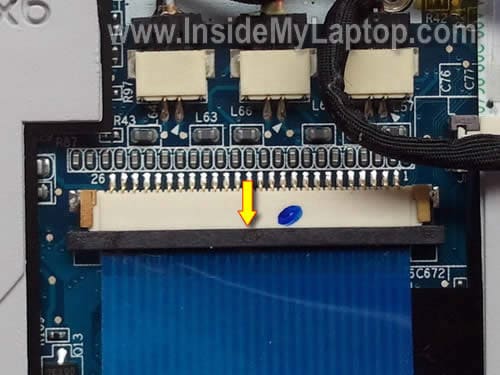
STEP 12.
To unlock the connector, move the brown clip about 2 millimeters towards the touchpad.
Do not apply too much force. The brown clip must stay attached to the connector base.
STEP 13.
On the following picture the connector shown in the unlocked state.
You see, the brown clip still attached to the connector base.
Now you can pull the ribbon cable from the connector.
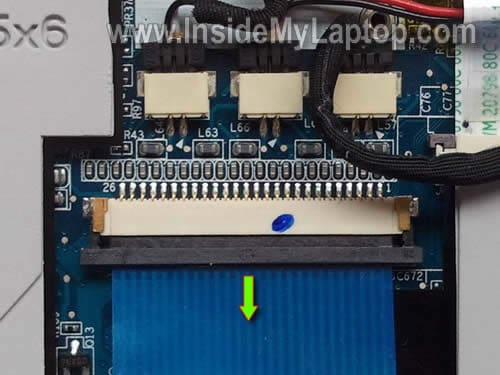
STEP 14.
After the cable released, you can remove the keyboard.
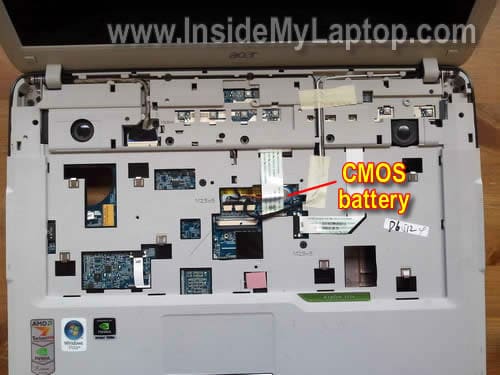
Just in case, I’ll show where you can find the CMOS battery.
In Acer Asprie 5520 the CMOS battery soldered to the motherboard.
In the next post I’ll explain how to remove the LCD screen.
mitbul
how to clear cmos because my acer 5520 does not show bios and restarts automatically.
details:
Hello,
i have acer 5520 laptop 3 year old.
from many times dvd drive shows and unshows in my computer. i thought dvd driver problem. i tried one of driver ditect softwear or registery clean up software .
that software asked me to save old registries as back up and i saved it on d: drive then i let it to search for registery and showed 12 earror in reg. anyhow i wasnt able to delete it bcz it was without licence software so i restore my saved registeries from d: drive from by same software.
suddenly my laptop shutdown and didnt start after.
it starts and shut down and repeating same cycle. CPU FAN ON FIRST BOOT MOVES THEN STOPS BUT SUSTEM RESTARTS CONTINUE. FROM FORUM I TRIED TO HOLD fn + esc with power button. I SAW FAN MOVES WITHOUT RESTART AND MY DVD DRIVE SHOWS MOVING WITH BLINKING LIGHTS. BUT EVEN WITH alt+f10. i cant get bios window.
Please help me . i m in the hell with this problem
IML Tech
mitbul,
Could be memory problem. Try reseating memory modules.
If you have two modules installed, try removing them one by one.
Mehraan Sayed
Would you know what that little notch to slide to the left to unlock the laptop screen would be called or identified as ?
I’ve been trying to look for it everywhere because I have about the requirement for 4 of them to replace on my and about 2 other friends laptops due to them breaking off after the first few uses.
and I’ve been referred to MIXMYACER.com and tried the number but could not Identify the part with them. If you could help with this situation, it would be appreciated.
IML Tech
Mehraan Sayed,
Are you asking about the screen latch? Is it located on the top of the display panel?
I doubt you can buy this latch separately, most likely this latch is a part of the display cover or front bezel.
lanie
I have my acer laptop it has a powrr but the monitor doesn’t open anymore I bring it already to the computer shop they said that it has been affected by the virus can you help me because I buy my laptop just 3 years ago…thank you hoping that you cAN HELP ME THIS WAY
David
Please i need your help. I want to format my laptop and load a new operating system on it but it could not do, first of all i set the first booting device on CD ROM and second booting device on flopping derive, i put on the ( XP Service pack2 CD on the drive it refuse picking up, it only blank Screen will be display on the Laptop screen. please what will likely be the problem please help. Thanks.
IML Tech
David,
Did you have any problem with the DVD drive before?
First, check if the DVD drive detected by the BIOS. Enter the BIOS setup menu and make sure the DVD drive is listed in there. If you don’t see the drive, try reseating it. Remove it from the laptop and install back in. Maybe connection between the DVD drive and motherboard is bad.
If the drive appears in the BIOS but will not read your installation CD, try cleaning the optical lens. Open the drive and clean the lens with cotton swab and 99% alcohol. Try again.
Jake
Hi there,
Firstly your website is amazing – helped me many times.
Could you please advise how easy replacing the DC jackn would be in this series of laptop.
Thanks
belinda
gud day! i have the same problem with Lanie, my acer laptop has a power but it doesn’t have any picture, i tried to connect it to our LCD TV to use as a monitor and also the LCD of my PC desktop but its still the same, they have no picture at all..what could be the problem of the laptop,,i ask about this in the computer shop & they told me it could be the memory card to be replaced..is it true?..please help me what i need to do,,i need it very badly ..thanks..
IML Tech
belinda,
It is true. If your laptop shows no video on external or internal screen, this could be memory failure.
Here’s what you can try.
Most likely you have two memory modules installed and it’s very unlikely that both memory modules failed at the same time. Try removing memory modules one by one. If one of the modules is bad, the laptop should start properly when you remove it.
If the problem still exist even after testing the laptop with each memory module separately, most likely it’s not memory failure. Could be motherboard failure.
Justin
I’m with Jake…I also need to replace the dc power jack on my wife’s aspire 5520. Any help or insight you could provide would be much appreciated. Thank you.
Muti
Hello,
Sir, I have an ACER 5520 laptop… It do not detect any hard disk… When installing Windows it says some message showing 0.0 GB hard disk space… I have checked three new hard disk all fail on this laptop… Now I think should I reset it CMOS… Would I had to de-solder the battery inside it.. Can you show me some link or pictures… Thanks for your help. Please also reply on my email…
Muti
IML Tech
Muti,
I think there is a problem with the hard drive controller (which is on the motherboard). I don’t think removing the CMOS battery can fix the problem. Looks like this is motherboard failure.
I guess you can run Ubuntu Linux from a USB flash drive.
edd
hi, my laptop cant boot, you can hear the fan spining then after about 3 seconds it goes off and then restarts the ssame cycle over and over. please advice what might be the problem
IML Tech
edd,
1. Remove laptop battery and test the laptop just with AC adapter.
if the laptop still restarts on its own,
2. Remove laptop hard drive and test the laptop. Maybe the hard drive is bad and causing the problem.
if the laptop still restarts on its own,
1. Try removing memory modules one by one. Test the laptop with each memory module in each slot. One of the memory modules could be bad.
if the laptop still restarts on its own, most likely this is motherboard failure.
Ciprian
For edd and all the others with the same problem. Acer 5520 has a construction faul that makes it overheat and the northbridge chip gets damaged. I took mine to a notebook rapair shop, they changed the chip and after 3 months it brake down again. I bought another notebook and I will sell the acer for spare parts.
Vicky
Just wanted to say my Acer 5520 did the blinking light no boot thing. I spoke to Acer and Nvidia so many times trying to get someone to take some responsibility for this chipset problem. Other manufacturers recalled this laptop, HP, Dell but not Acer. I finally had to give up too time consuming and would have to get lawyer but maybe someone else will.
jim-gr
a straight-forward guide.really helpful. did it on aspire 5715z with cpu temperature over 75 even 80 celcius degrees. result? a stable temperature of 50 celcius. thank you very much!!!
cat
I got an Acer Apsire 5520 with Windows Vista. For the past 2 years it’s been working great, up until I switched it off one night never for it to operate properly again. The laptop turns on ok, I mean all the flashing green lights are working. The only 3 problems I have are
1: The fan has completely stopped
2: The laptop seems to be trying to read a DVD/CD whilst the drive is empty
3: Nothing is appearing on the screen
The Laptop was bought through the shopping channel QVC. Windows Vista etc were pre-installed. No data discs were sent with the laptop.
Will this cause a problem?
laura
Having the same problem as alot of others. Laptop won’t turn on. You can hear it doing something and there is a light but it just keeps flashing and nothing else happens. What can be done about it? Will changing the CMOS battery help and how do you do this when it is soldered on?
Alex
I have this laptop and 3 months ago it was in a loopresething and the laptop service guys changed the controller but now it says that no sound device detected and after 30-40 restart with 50%-50% the sound it back,aslo when no sound device detected in device manager the sound category doesn t appear and when i have it does.
i have tried installing audio drivers,windows,deconnecthing /connecthing back the modem i read somewhere it could be the problem TO no luck.
Any advice is much appreciated.
Vivek Ashish
Hi I am using Acer-5920 Laptop. My problem is similar to Mr. Alex… It takes 4-5 restarts to show the boot menu. & on every start power gets on aith CPU fan sound and turned off again. And finally starts at -4-5 attempt by itself. This problem arise when i was updating my Windows XP sound driver for SP3 package. Now, I am unable to update the driver and its showsing unknow device and update of drivers is failed everytime. I am really frustated now. Kindly give me suggestion to sort out this problem
thanks in advance….
vineet
what is the motherboard batt specification(CMOS) for Acer aspire 4520???
IML Tech
@ vineet,
I think it’s a regular 3V coin battery which is located on the motherboard, about 2 inches below the keyboard connector.
In order to access the battery, it’s necessary to remove the top cover assembly.
Not sure 100%.
If you want to replace the CMOS battery, remove the top cover and you should see it. After that you can search for a replacement by the model number.
Catalin
Hi,
I have an Acer Aspire 5520g that refuses to let me use all his USB ports 🙂 what i mean is that i can only sucesfully use 1 of the 3 USB ports the other one wont work i.e. when i try to put something in that requires a driver install, this always fails and windows tells me that the device is not reconized, or if i put in a cooling pad the fab does not run at maximum speeds. I tried to remove usb ports drivers an reinstall them but no luck. Did fresh windows install and many other things … My question is: is this a known èroblem for this laptop? or can it be the result of an BIOS update (if i remember well i did that) ?
Any ideea would be much apreciated !!
Thx in advance
IML Tech
@ Catalin,
I don’t think this is a known issue with this model.
If one of the USB ports still works but 2 other ports do not work, probably this is hard ware related issue.
Are these failed USB ports located close to each other? If yes, most likely they are attached to a separate USB board (not motherboard). You can try replacing the USB board.
Here’s Acer part number for the USB board: 55.AHE02.003
Google it and you’ll find it.
No, it’s not related to the BIOS update.
charlie
Hi,the ACER TRAVELMATE 5520 is quite different from the Acer Aspire Travelmate 5520;it only has one back panel to remove,and no screws under the battery compartment.I will try again though to locate the CMOS battery.Is it a guarantee that taking it out and replacing will reset the BIOS password?
Charlie
Peter
i have acer aspire 5520g that eventually refuesses to boot up.when i power it on,it quickly shuts down before it even loads a POST and BIOS settings.Please help…a friend opted i check the CMOS battery,but the battery looks fine.
IML Tech
@ Peter,
Did you test the AC adapter? It’s possible the AC adapter is dead and the battery doesn’t have enough charge to start the laptop.
Pierre Champoux
My internal CD/DVD optical device is not working and is not recognized in BIOS and Windows. It is an ACER ASPIRE 5520 laptop running Windows 7 Home Premium and AMD Athlon Dual-Core TK-55 processor. The problem came while I was upgrading from Vista to 7. I have tried all the usual solutions like removing UpperFilters from the registery. There was no LowerFilters. I did the removing and reinstalling the device. I replaced the device with 2 used but functionning ones. I upgraded the BIOS. I installed Daemon Tools and created 2 virtual CdRom Device. Also, maybe of interest, when I go to BIOS, I can open the reader door with the button. As soon as Windows 7 start, I loose power. If I let the computer go to sleep, when I do wake it up, the device motor start to spin and the opening button doesn’t work. If I use a pin to open it, the motor stop and if I close it, it start again. I need to restart the laptop to stop the motor. If I open the System Informations windows, under Software Environment, Driver System, at the Starting Mode column, it is written Deactivated for:
cdfs, CD/DVD File System Reader
crcdisk, Crcdisk Filter Driver
udfs, udfs
ws2ifsl Driver IFS Winsock
I hope those informations help find a solution.
Thank you in advance for your help.
Also,
IML Tech
@ Pierre Champoux,
I think you have motherboard related failure. Probably something is wrong with the optical drive controller.
Unfortunately, there is not much you can do to fix this problem. Either replace the motherboard or use an external USB drive.
dimm
greetings
where can i find a palmrest i nid a new one
ray
Please help me to fix my aspire 5520. the “audio device doesn’t exist” where can i locate the chip and the connections for the audio?.. I use windows 7. please help me..
Deth
Hi!
I have acer 5520 and my problem is the letter z continously typing and when I started the laptop there was a continous beeping sound.Can you help me please?
IML Tech
@ Deth,
It sounds like the key is stuck. You’ll have to replace the keyboard.
Lori Kresse
My 5520, running Vista, will not run any disc in the dvd-cd drive. It gives me an error saying the disc is corrupt or damaged. Tried several discs, from cd-roms, dvds and audio cds. Nothing works.
Checked driver and it says it’s up to date. Troubleshooting says drive is functioning properly, but it’s not. reverted drive, didn’t help. Did all sorts of “housekeeping” scans, clean-up, malware- all good, and clean.
Should I replace the drive? If so… HOW?
Thanks for your help.
Cody
If I take the hard drive out and want to use it like a flash drive, what kid of adapter would I need?
IML Tech
@ Coby,
You’ll need an external USB adapter/enclosure for 2.5 SATA hard drives. Something like described in this post:
https://www.insidemylaptop.com/recover-files-from-broken-laptop/
thebertshow
Works perfectly fine for Aspire 5720 ! It kept shutting down from overheat, its fixed now ! Thanks !
mikel
all of my key doesnt work. what shoud i do?
thirdie alvarez
Did acer aspire 5520g laptop used a toshiba hdd2d92.? Or the technician that my sister recommended changed it.?
I am hoping for your reply. thank you very much.
IML Tech
@ thirdie alvarez,
Cannot tell. Very often laptop manufacturers use different hard drive brands.
Brian
Great leason thanks but I have a real Problem, I don,t remember the cmos setup password and now I cain’t get in to the setup, How can I reset it to default (eg) NO PASSWORD, Please let me know as its my daughters Laptop and yes its a acer aspire 5520
Thank you for your time on this
Timothy
I cannot see the cmos battery, everything the same but the battery. I followed every step to remove the keyboard
steve
i have an acer 5520 wene i hit the power botton it dont always turn on and wene it does come on it stays on for about a minute then shuts of do u think i should order a fan for it
Flora Adler
I have a laptop acer aspire 5520 and it has power but I can not get the WI-FI to work. I tried everything. I take it to BEST BUY and they can connect to their own WI-FI. Also I called our website subscriber ATT but they also failed to get the WI-FI to work. There is no light in WI-FI icon. How come I can not connect to our own WI-FI????Please help.
chris
Hello acer 5520 and the hard drve went bad i picked up a new one but it wont mount and cant run a cd or usb to load an operation program. When i try to go into bios it asks for the password. I got the laptop used and was wondering if i need to remove the cmos battery or is there a way to jump it so i can enter the bios menu… thanks
roger harris
3 days ago there was a sudden flash and bang from my Acer 5520. Somewhere towards the back. No smell and everything still seems to be working normally. Still using it.
Any ideas? Regards
Roger Harris
Mncedisi
I have an acer aspire 5520 the screen is blank but you could hear that the fan is working help me out please
acer owner
I have an acer aspire 5520
Can a faulty or dyeing cmos battery affect the laptop from recognizing the Optical drive, I have power to the drive as I can open it and light flashes.