

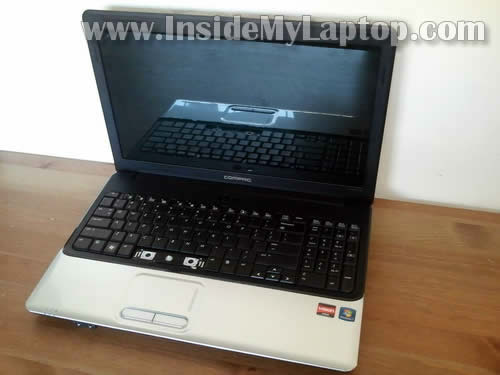
In this guide I explain how to remove and replace keyboard on Compaq Presario CQ61 or HP G61 laptops.
Compaq Presario CQ61 is similar to HP G61.
Before you start, make sure the laptop is turned off and battery removed.
STEP 1.
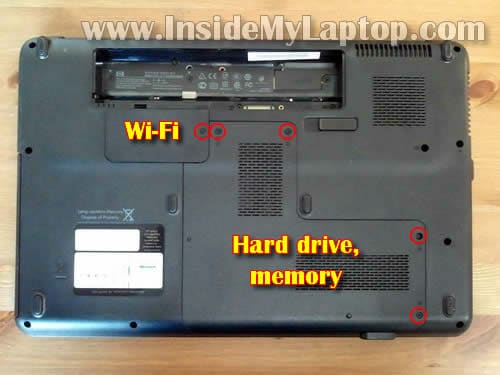
Loosen five screw securing the hard drive/memory and wireless card cover.
Lift up and remove both covers.
STEP 2.
Remove five screws securing keyboard.
By the way, under those two covers you’ll find the following internal components: wireless card, CMOS battery, modem, both memory modules and hard drive.

STEP 3.
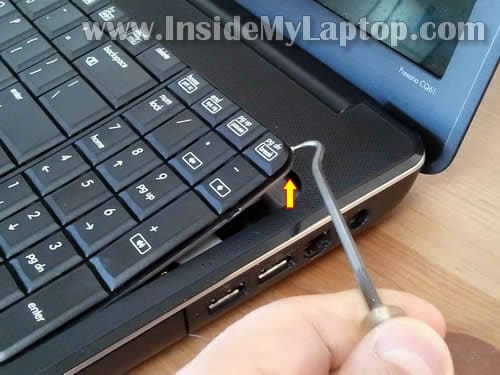
Carefully lift up one corner of the keyboard with a sharp object.
STEP 4.
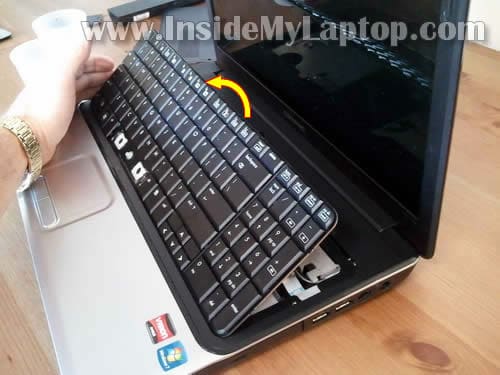
Continue removing it with your fingers.
Be careful, the keyboard still connected to the motherboard via flat ribbon cable.
STEP 5.
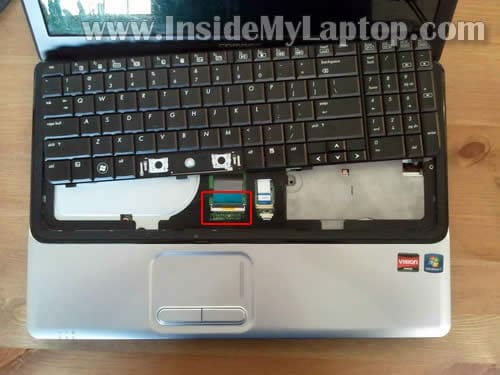
Slide the keyboard towards the display so you can access the cable connector.
Before you can remove it completely, you’ll have to unlock the connector and release the cable.
STEP 6.
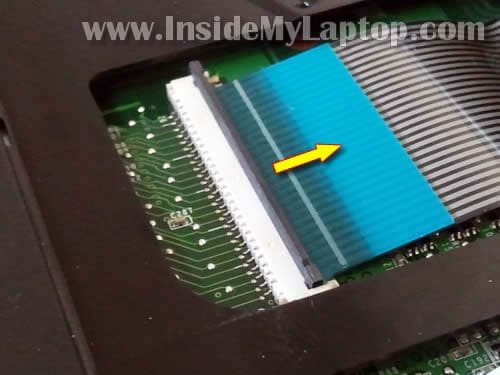
The connector opens up as a door hinge.
On the following picture the connector shown in the locked position.
Lift up the right side of the brown tab so it opens at a 90 degree angle.

STEP 7.
On the following picture the connector shown in the unlocked position.
Now you can pull the cable from the connector.
STEP 8.
Finally, remove and replace the keyboard with a new one.
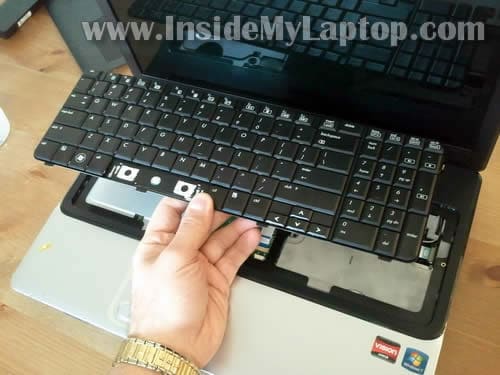
You can search for a new replacement keyboard using HP part number from the sticker.
In my case the part number is 517865-001.

rakesh
very useful knowledge i a have got from your site
Sander
Thnx! It’s worked, very helpful!
dani sebreros
are the speakers accessible also?
IML Tech
@ dani sebreros,
Yes, speakers are accessible but you’ll have to remove the top cover assembly.
You’ll find instructions in this service manual for Compaq Presario CQ61 notebook.
Disassembly instructions start on the page 4-1.
abdul
Wow! All these info for free this is really something. Are U on twitter?
Also, I av compaq CQ61 which froze and will not shut down, after removing d battery and a/c power to make it go off, the laptop will not turn on again. D a/c adapter indicator displays for 10secs then goes off. No light, nothing to indicate d mobo is working.
10x in advance.
IML Tech
@ abdul,
Sounds like possible motherboard failure.
G.C
This was very help. Till my unlock and locking pin broke off into pieces. Please i need help to replace that and the female connection of the keyboard to mother board
Matan
Very helpfull guide, thank you.
But I got a question…. 1 Of the buttons in my keyboard unplugged, and I can’t get it back in (I try to push hard, I hear a click like its in, but then its out again…) So if I will do like in your guide, do you think it will help me to fix it? Or I have to get a new keyboard? Thnx
Matan
Im still waiting for answer :\
IML Tech
@ Matan,
Remove the key cap and take a closer look at the hinges. It’s possible one of the hinges is broken and the cap will not stay in place because of that.
It’s likely you’ll have to buy a new key with hinges.
Matan
Ok, thnx man.
Rob.
Thanks for the guide, helpful, keyboard out and in and booted up keyboard working in 5 minutes.
Ripped apart and rebuilt PCs, never touched a laptop so this was handy.
Sqzn
Very useful information, thank you for sharing! 🙂
But I have a big problem now! The keyboard cable/membrane is not correctly connected and when I type Q it displays Q1, when W it displays W2 and so on… the same with the upper row from 1 to 9 (1Q, 2W…). It seems that the keys are not “hitting” the correct position; they’re hitting 2 positions at the same time!
I don’t really know how to fix this. I’ve tried every possible solution.
Could anybody please help with with this?
I’d really appreciate that!
Thank you for your time!
Niraj B
Thanks, this worked in my case. I was able to fit the new keyboard without any difficulty.
Faiyaz Ahmad
Hi this post help me to solve the problem of keybord in cq61….thankx for the post,,,keep it up
Sqzn
OK, I f***d my keyboard and it’s still not working. I had to buy a USB keyboard!
Becky ABC
Thanks so much for the great tutorial!
raine
can i also use this tip for my laptop? CQ60-615DX?
Guest
Thank you so much for this post- I had a question I was hoping you might be able to answer? I have a Compaq Presario CQ61. My initial plan was to purchase a few replacement keys, but using the link you provided, i found the full keyboards are actually cheaper than buying the individual keys.
My question is, you mention the sticker with the keyboard part number (yours was 517865-001)- and the keyboard you link to (for sale on ebay) is also a CQ61, with the same part # as yours.
My question: Do I need to find the part number, or can I just go by the CQ61when buying? And if I need the part # on the sticker, is there any way to find it without disassembling the laptop first? (I’m still using it in the interim, and I’ve never attempted anything this major before, so I’m hesitant to dissameble it more than once, in the event i mess things up ;P ). Any advice would be tremendoulsy appreciated.
john
Thanks! worked like a charm, easy breezy. Picked up a new knock off key board on ebay for $18.00 USD delivered.
Alex Wang
Very useful. I fixed this problem I ordered this from notebookworks.co.uk for only 13 uSD shipped to my home in CA. can’t beat their price.
FLu
Compaq Presario CQ60 I swapped the hard drive due to a a bad HD. After replacing and formatting. I turn on the machine nothing happens. The screen is does not come on. I think I may need to swap the BiOS. Which chip is the BiOS chip?
IML Tech
@ FLu,
Not sure why you having this issue. It’s very easy to replace the hard drive in a Compaq Presario CQ60 laptop.
Make sure the hard drive plugged correctly.
Remove the hard dive. Try starting the laptop. Can you get any image on the screen with the hard drive removed?
Bob
Great,replaced my keyboard, works like a charm. Thank you for the great tutorial!!! Step by step, with pictures, nailed it exactly!!!! No bla bla bla, just the facts!!! . Best “how to” I have ever come across. Many thanks.
FLu
@IML Tech Thanks for the reply/help
“Remove the hard dive. Try starting the laptop. Can you get any image on the screen with the hard drive removed?”
I tried starting the laptop with no HD, and still no image.
IML Tech
@ FLu,
So, it’s not related to the hard drive I guess. Maybe you accidentally touched the memory and dislocated it? Try reseating memory modules.
If it doesn’t help, you can try removing the main battery and CMOS battery. Wait for a while, install batteries back and try turning it on.
Anil Kumar.S
my laptop is hp g61 model. when i type anything “9” is repetingly shown …… what is the actual problem. last month i send to HP service center they told me that” change the graphic card…this part is not available…it will take time…..temperorly they short this ‘i80″ chip…..can i get any solution please
Roger
Hey yeah I have a compaq cq50 running win. 7 one my brother used like 20 gb downloading stuff and when I woke up and seen it I punched it on the keyboard 1 or 2 times the screen flickered a little but was still on and the bottom half went black but the top of the screen still showed windows i turned it off my mom closed the lid and put it her room and I went and got turned it on and it won’t start the screen stays black the battery lights on, the hdd light is on to but I hit the power button it turns white like its turning on but the wifi light glows orange not blue like it’s supposed to also I have a hp g61 that also had windows I reformated the hard drive cause I got it from someone and didn’t want there stuff I wanted mine so burned a copy of win. 7 from thepiratebay.org installed but it activated it atomaticly downloaded new updates and asked me to restart but when it restarted it won’t turn on now the screen stays black just the battery light blinks and I get the orange glow for the wifi and the power button does the same
joecoolvette
To guest at Sept. 15th, 2011 at 10:13PM;
It should be the same Keyboard, but why take a chance?
It is to easy to remove the Keyboard, and look. (Leave the Keyboard cable attached)
Remove ALL power. AC adapter (Charger) and Battery. Turn the laptop over on the Display Cover, and place it on a towel, on a table. Remove the 5 Philips head screws indicated in this really informative article. (Thanks!) Turn the laptop over, ease the display open. Gently lift the Back of the Keyboard up as shown. Reverse these steps to reassemble. Lay the Keyboard down into position, pop it into place. Close the display. Turn the laptop over, reinstall the screws. Voila!
Luis
Some keys in my keyboard started to fail a few weeks ago. After a few days, they started working again, and then started failing again after a week. Is there a possible way for me to fix it without replacing the keyboard? It will be very hard for me to get a replacement since I’m from the Philippines. Thanks!
IML Tech
@ Luis,
If the keyboard failing, you’ll probably have to replace the keyboard. There is no way to fix it.
You can try reconnecting the keyboard cable on the motherboard. Maybe some keys are failing because of connection issues between the cable and motherboard.
antre79
thenk’s man !!!
Alex
Hy,
My laptop is a Hp Cq61 but I’ve buyed a keyboard from a Cq60 model.Now I must fallow you’re steps and try to find out if it’s compatible.
Before I start,do you know if it will match or not?
I’m afraid of not damaging something inside my laptop when I will take out the screws.
Thanks
IML Tech
Alex,
I’m afraid they are different.
Robin
Thanks so much for these instructions.
Marco
This was really useful, I can’t thank you enough!
mik
I need to replace the lcd screen on a cq 61. is the lcd screen from a cq60 compatible? Please help!
IML Tech
@ mik,
If both screen are similar, have same resolution, size and connector type most likely yes.
I just checked eBay listings and there are many screens listed for CQ60, CQ61 laptops.
dessiej
Thanks a lot bud. very well explaned, thanks again
TechieHead
Thanks for this wonderful guide! I was able to repair my dad’s laptop within an hour and he’s absolutely delighted. Thanks again on his behalf!
Paul N
Thanks very much for your help, so many of the other sites seemed to be talking about a totally different laptop!
Token donation made, sorry I couldn’t afford more!
John in Atlanta
Just wanted to say this was my second time replacing my wife’s keyboard and it was even easier than the first.
Thanks again for the great instructions . Some people may get nervous with the ribbon but it’s easy breezy , don’t sweat it.
Small donation made
Joe Perry
Great instructions on changing out the keyboard. Everything was easy, went well, and I made a donation.
THANKS!
Bob Swanson
Beautiful instructions – thanks. Question: must the HP replacement part number be matched exactly or could your part number, 517865-001, be purchased and used successfully?
Stuart
Excellent instructions – worked like a charm. Thank you.
Peter
Thanks. Perfect. Fixed my niece’s laptop. Wouldn’t have been able to do it otherwise. The screwhead under the wireless unit door isn’t marked so there’s no way to know about it otherwise.
Felix
Thank you !
Brumlebassen
With these instructions you’ll be done before you know it. Top notch. Thanks alot.
Jem Wallis
Fantastic guide – thanks!
bill r
key board will not sit flat but works how do i get it to sit all the way down
Subashan Naidu
Really brilliant! Well done! Really inspired me to do one!
Sharad
Its a nice illustrated guide. Please someone tell me the approx. price of HP G61 Notebook PC Keyboard. Regards.
IML Tech
@ Sharad,
You can buy a brand new keyboard on eBay for about $15-18 with free shipping for a USA seller.
Sebert.O.Nesfield
Thank.you.for.this.well.written.procedure…
Sounds.like.something.even.I.can.handle…
66Years.old.Novice
Note:..spacebar.issues…hense.periods.!!!
John Screeton
Excellent!, looks like a nice straightforward job which makes a pleasant
change.Laptop keyboards are usually a nightmare!
IML Tech
Yeah, changing keyboard on this model is a piece of cake. Takes about 5-10 minutes.
Francisco
very good, Congratulations on the class.
xander
This is very helpful indeed i find all the staff you instruct are very helpful. Thank you very much for this.
I have an HP CQ61 and when i switch it on the on button,the wifi button turns on but the screen doesn’t turn on, and the Caps lock, the number lock will be flicking continously, the three indicators that is the harddrive indicator,charger indicator, power indicator are no longer turning on. what could be the problem?
thanx in advance.
johanpeeters83
@abdul , Its probably the connection between mobo and power, button i had it also ,
i put the rubber thing whats on the screen screws under the kabel very close to the connection so it push up the flat powerswitch kabel now its start up but caps lock and numlock blinkin
probably a flash or something need to try
ps no smokin only if it good sh**
misheck chikadzakuinani
thank u for the info. which is very helpfull.
i have a problem with my cq61 it is not producing any sound and i had to use external sound card. checked for drivers they are okay. what could be the problem
Dennis
my Compaq laptop blinks on keyboard lights and displays nothing, I’ve tried removing power supply and battery method but that isn’t a permanent solution