


In this post I explain how to remove and replace damaged LCD screen in a Dell Inspiron 6000 laptop.
Most likely this guide will work for many other Dell models. If this guide works for you, please mention the model number in comments after the post.
Before you start, make sure it’s turned off and battery removed.
Dell Inspiron 6000 display disassembly.
STEP 1.
Remove six screw covers from the display bezel.
Remove all screws found under those covers.
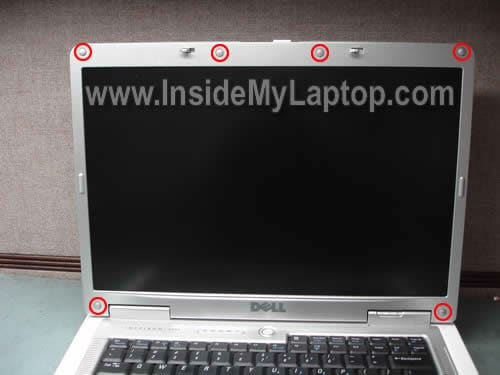
You can remove the screw cover with a sharp object or small screwdriver.

STEP 2.
Start separating the bezel from the display cover.
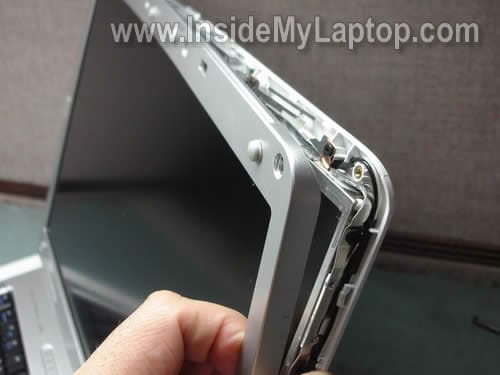
Remove the bezel.
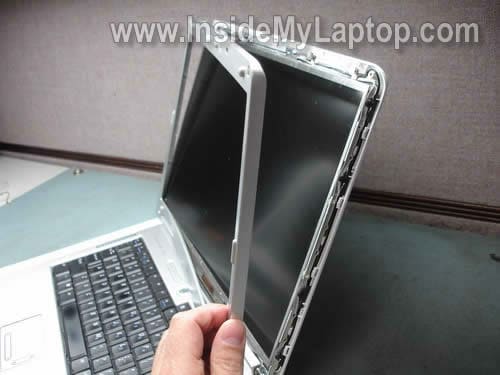
STEP 3.
Remove four screws from the right LCD mounting bracket.
Remove four more screws from the left side.
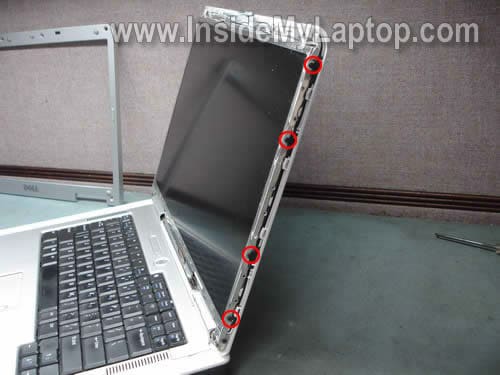
STEP 4.
Separate the LCD from the display cover.

STEP 5.
Place the LCD assembly the front side down on the keyboard.
Now you can access the video cable.

STEP 6.
Unplug the small connector from the screen inverter board.

STEP 7.
Disconnect the video cable connector from the screen.

STEP 8.
Remove the LCD assembly.

STEP 9.
Remove one screw securing the inverter board.

STEP 10.
Disconnect the baklight cable from the left side of the inverter board.

STEP 11.
Slide the inverter board to the right.
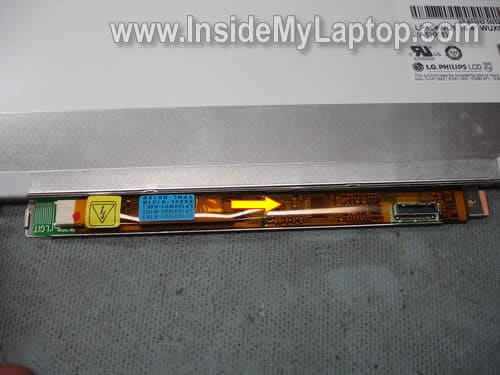
STEP 12.
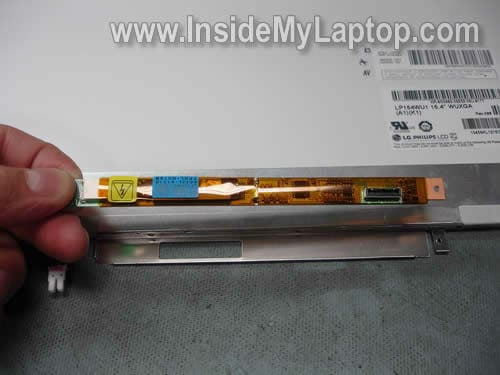
Lift up the left side of the inverter.

STEP 13.
Remove inverter from the mounting bracket.
Now you can replace it with a new one if needed.
Timothy Whitelake
Thanks I found this very useful
replaced screen easily with this guide
Dell Inspiron 6000
Tony
I was wondering where the laptop hinge switch would be on this particular model. I’m having a problem with the PC going to sleep when I close the lid. I have the correct settings enabled in Windows (when I close the lid “do nothing”) but it still goes to sleep. I have tried everything involved with the software (new drivers, BIOS, ACPI) and nothing has worked so I’m trying to find the physical switch to either disable it or remove it. Any help would be appreciated.
Natalie
Very helpful & easy to understand….. thank you
Frank
Thanks. Very helpful.
I just replaced my inverter succesfully with the help of your instructions.
I found two noteworthy things.
1. I had some trouble with step 10 thanks to a piece of clear tape that was put across the plug. Typical D’OH! moment but it was really clear tape.
2. The inverter I received was not the same as the original. After careful examination of the type numbers, it turned out that my original was a v2, while the replacement is a v4. They appear identical except for the mounting screw, which was on the edge of the original model and in the center of the replacement.
I happened to have a piece of clear tape that solved this problem for me.
Now I also received the backlight itself (did I order that?). From what I’ve been reading, you have to take apart the LCD screen and solder it on the existing wires.
I decided that this was best left to someone who doesn’t lose tiny screws between couch pillows.
Thanks!
franco cicioni
Re :Dell Inspiron 6400 display disassembly.
My Dell 6400 doesn’t start, needed fuse inside check.
How to disassembly Dell 6400 in order to check the inside fuse?
Awaiting for a your reply many thanks in advance.
Franco Cicioni
Vince
Great video, fixed my computor in 15 minutes for under $ 10.00.
Mary
Hi – I ordered a replacement screen for my Dell Inspiron 6000, however when I took it in the shop to get it fixed I was told that it was the incorrect one because there was not inverter bracket in the new one. Is this possible? He said he could remove the inverter based on your directions above (I showed him this site), but he said that the new LCD doesn’t have a mounting bracket for him to replace the old inverter back into it. Can you not use the same mounting bracket? He says he needs an LCD with 1 inverter assembly. The company I ordered the LCD from says its the correct one…. I’m a bit lost on what to do now. Any help would be super appreciated.
Thanks in advance. – mary
IML Tech
Mary,
It is possible. In Dell laptops the LCD screen has a bracket for the inverter board. Apparently, the seller sent you a compatible LCD screen but without the bracket.
I cannot tell without looking at the screen. In some models the inverter bracket can be removed and transferred to another LCD screen. On other models, the bracket welded to the frame.
Can it be removed in your case? I don’t know. Cannot tell without loosing at the screen.
I guess he can try removing the inverter board from the old screen and glue it to the LCD cover under the new screen with double stick tape, instead of using the bracket. Is it a good repair? Probably not. Will it work? Probably yes. I’ve never done it myself, so proceed at your own risk.
Some manufacturers don’t use brackets for inverter board, they simply attach it to the LCD cover using plastic latches of double stick tape.
Again, most likely the screen is compatible but it just has no bracket for the inverter.
Mary
Hi – Thanks for the quick reply. Just trying to figure out what the best direction to go from here, as the computer technician was pretty adamant about putting the inverter back into a mounting bracket, and not leaving it loose. He said you’d run into more problems in the future if it’s not secured properly. So, I don’t think he’ll even attempt to glue it to the LCD cover.
Do you think it’s worth just trying to purchase a new inverter with a mounting bracket? Are they even possible to purchase? Or do I try to track down a LCD that comes with a mounting bracket for the inverter? It’s funny, because since the laptop came back to me it’s worse — before I’d be able to just press my thumb down in a certain place on the screen and the whole screen would come back. Now I’m just getting half the screen, the rest appears in a black, granny-apple green combo of lines…
IML Tech
Mary,
Try returning the new LCD screen back to the supplier. Explain that the screen doesn’t have the bracket.
After that find the correct one. LCD screen with the inverter attached.
I’m pretty sure there are plenty of them out there. Try eBay.
Mary
Again thank you for all your help. I have contacted the company in which I purchased the LCD and they suggested using electrical tape to attach the inverter! Nonetheless, I shall try again to search for the correct model but it’ll be tough as I’m in The Netherlands right now and it’s near impossible to find anywhere that will ship here.
Confused John
Will an LCD assbly from a 6000D work in a 6400/E1505? The 6400 has a verticle line of yellow on it-drives you crazy.
IML Tech
Confused John,
I cannot tell without looking at both screens.
You’ll have to disassemble the laptop and compare both screens. If they have same size, connector, resolution, most likely it will works.
Magie
Ahhh, a Inspiron 6000 tutorial! My Dell (of this model) hasn’t been working for quite some time now. This doesn’t have anything to do with replacing the screen, but more with charging the computer. I believe the piece of plug inside my computer that holds the AC adapter in place (to charge) is cracked or loose or something, because it will no longer charge my laptop. I’ve bought a new battery (since it needed one by then) and several new adapters and none of them worked, so it has to be something with the computer instead. Is there a way to repair this?
Also, I’ve gone to get my battery charged fully so I could use the laptop for a few hours without the adapter (so I can get all my files off of it), but on the startup, the screen has a pinkish hue to it (you can still see what’s going on) and then eventually goes black. The computer is still running, I just can’t see anything. Could that be a loose cable or something? Is there a fix for this, too?
I’m no longer in warranty (I’ve had it since 2005 and started having this issue in 2008/2009). I just want it to live long enough to get all my files off of it.
Thanks so much!
Zack
Friend’s kid dropped their laptop, asked me if I knew how to fix it, told them I’d take a looksie at it. Removed a bunch of screws, reseated the monitor ribbon, it’s alive. I’m sure they’ll be happy… now, just to get it back together 🙂 thanks for the guide!
Leo
Where is the best source to buy a new screen with the bracket?
IML Tech
Leo,
You should try eBay. Instead of buying a new screen and brackets separately, you should search for the entire display assembly. It will be easier to replace and probably cheaper than buying piece by piece.
Brian
Great success! Very happy to have found your instruction; Dell wanted $245 just for the lcd, then I would have to find someone to install. I found one on eBay for less than $90 and installed it myself with your help. Many Thanks!
Jose
Hi, I own an Inspirion 6000, and it has a bunch of vertical lines all over the screen. Is this an LCD problem or a bad inverter board?
IML Tech
Jose,
It’s not inverter related problem, that’s for sure.
1. Test your laptop with an external monitor. If you see lines on both internal and external screens, this is graphics card (motherboard) related problem.
2. If external image is clean and problem appears only on the laptop screen, most likely it’s bad screen.
Kirby
When I turned on my Inspiron 6000 and got my desktop screen 2/3 of the screen went solid white and has remained that way? It only happens when I go back to the desktop screen?
Leo
Thank you so much!!! The pictures were a great help and your instructions were very easy to follow. This was the first computer repair I’ve ever done and I was able to do it for the cost of a $5 inverter!!!! Again, Thank You!
Matt
Followed the instructions, install went well, BUT, my new screen is essentially black… I can see VERY faintly what appears to be happening because when I plug in to an external monitor I can see fine and the extremely dark and faint image match what is on the external monitor, but my laptop display is far too dark to actually see anything… any ideas???
IML Tech
Matt,
What was wrong with the original LCD scree? Why did you replace it?
gene
This is a helpful article. The photos and the accompanying arrows are useful. I ordered an inverter board and am hoping for the best.
Scott
My Dell Inspiron 6000 monitor is a deep dark red and difficult to make out the image. Do you think i need to replace the monitor or just the invertor?
IML Tech
Scott,
Did you test with external monitor? The external image appears to be good?
If external image appears to be normal, most likely it’s one of the following:
1. Poor connection between the video cable and LCD screen or motherboard. Try reseating cable on both ends.
2. Could be failed video cable.
3. Failed LCD screen.
This is not inverter failure, that’s for sure. Most likely just bad screen but again, cannot be 100% sure without testing the laptop.
Scott
Thanks for the suggestions. I will do a little more checking.
Scott
Lou
Nice tutorial. Dissassembled to check FL inverter for part #. Unable to cross reference so far. Own a Dell Inspiron 6000 with 15.4″ screen and rather sure inverter is at fault, although do not have an oscillosope to confirm. Almost all sellers on e-bay caution the part they sell is not for 15.4″ screen on Inspiron 6000. Other websites list similar but do not reference this issue with 15.4″ screen and charge $55 instead of $5 (however part #s are close or exact match between these price points).
Seems to be part # A-15B13007 also known as P/N: IV11145/T from what I have researched, but there are other slightly modified versions of latter # also
Identifying numbers on my actual inverter board (25000000210053140108SM) do not cross reference.
Since you have done this before can you provide the correct part # and or address my concerns as relates to 15.4″ screen oddity as relates appropriate part.
Thanks in advance
MrData
Picked up a new screen WITH the inverter on eBay for $85. Just a screwdriver and a bit of self-confidence (provided by this tutorial) and the job was done.
Thanx !
Mitchel
I too bought a screen with inverter on ebay and installed it with no problems. Thanks for the easy to follow guide!
Lori
I have four colored thin lines on my screen. I have an extra Dell 6000 laptop for parts. Do I just need to replace the inverter or the entire screen? Thanks.
IML Tech
@ Lori,
This is not inverter related problem. Most likely this is failed LCD screen.
If you have another similar Dell laptop for parts, just replace the entire LCD assembly (LCD screen with inverter).
John
Had an inspiron 6000 brought to me that didn’t display anything on the screen, though worked via VGA. The built-in diagnostic from the boot menu returned a communication problem with the inverter. I replaced the board with one from ebay (listed as compatible with the 15.4″ panel), and it still has the same problem. Diagnostic throws error 1000-0322 on the inverter, but the LCD comm check passes. Nothing on the LCD, and the CRT/LCD button refuses to push signal to the LCD.
Sounds to me like there’s something wrong with the mobo (the hard disk got all screwed up at the same time; partition corrupted, lots of bad sectors). Before i condemn it though, if you have any ideas I’d appreciate your input.
Thanks for the great info on your site, as well as any hints you might have.
John
Disregard my previous comment, I got it working.
Greg
My monitor went black yesterday. I can barely see the outline of what’s on the screen, however, it’s way too dim to even see the cursor. When I hook the computer up to an external monitor, everything works fine.
Should I try replacing the entire screen or just the inverter board? Thanks for the help!
Tamzyn
My Dell Inspiron 6000 has lost the bottom third of the screen – it shows vertical lines all the way across and none of the icons or cursor can be seen in this portion of the screen.
But when I press the screen it works? Hardly ideal though!
Any ideas?
Thanks!
murky1980
My Inspiron 6000 laptop’s screen is dark, i managed to get to the settings by flashing a light at the screen and enabled external monitor. With external monitor video is ok.
Now, the question is should i replace the inverter or screen? I have oscilloscopes at work so please advise what signals to look for to identify if the issue is with inverter or screen.
thanks.
woo
Has anyone had any problems with the tiny screw that the inverter board is mounted to? I’ve tried multiple bits but can’t find a screw driver with a bit small enough to unscrew it.
Bruce
Have not replaced my LCD yet, but pulled it apart and reset the connectors hoping that might solve my vertical 34mm blue bar (can see things on it, just colors not right). It didn’t but it was nice having this guide to convince me I could tear it down and put it back together with confidence. Thanks.
THOMAS KELLY
the roll arm between laptop bottom and screen the screws just drop out any way to fix left hand side of screen when looking at screen. tried locktight did not work .. Inspiron 6000 laptop
IML Tech
@ THOMAS KELLY,
Not sure if you are talking about securing the left hinge, but look at this service manual for Dell Inspiron 6000 laptop.
http://support.dell.com/support/edocs/systems/ins6000/en/sm/index.htm
On the Display Assembly and Display Latch you can see where display hinge screws are located.
The manual also has step by step laptop disassembly instructions.
tygar
Thanks Buddy its solved the display issue.
Kelli
Thanks for the very helpful tutorial, there’s no way I would’ve felt brave enough to repair my lcd without it.
I just finally managed to remove the inverter and OMFG! was it a b%@#! to remove. First, the screw holding the inverter to the bracket was nearly impossible to unscrew. Even after finding the best screwdriver for the job I couldn’t get it to budge and was afraid I was stripping the screw. Finally I gave up on that and used needle nose pliers on the opposite site of the screw to grab it an twist it up, which thankfully worked. I wanted to throw the screw and stomp on it after that for giving me all that trouble. I thought the hard part was over, until I tried to remove the inverter from the bracket. After prying and tugging and thinking I was going to break the damned thing I got it out and realized there was double sided sticky tape holding it in there, keeping it from gingerly sliding out. Phew!
ipguru
Thanks! I have 2 of these and the LCD went bad one one years ago. Kids use these now and when the ‘d’ key stopped working on one, I almost went out to buy new cheap laptops. Saw this and wanted to say thanks!
Yossi
Thanks for the instructions mate.
I had to take apart an Inspiron 6400 and it was the same as described.