


In this guide I show how to remove and replace broken screen on Acer Aspire 5560 series laptops.
Most likely this guide will work for some other Acer Aspire models. If this guide works for you please mention the model number in commends after this post.
Before you start make sure the computer is turned off.
STEP 1.
Unlock and remove the battery.

STEP 2.
You’ll find two screw covers on the lower part of the display bezel.
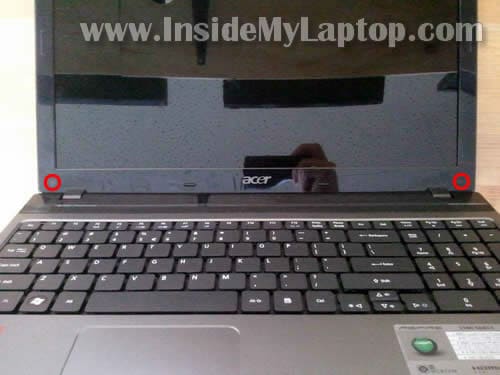
STEP 3.
Remove both screw covers with a sharp object and glue them somewhere on the bezel so they don’t get lost.
Remove both screws found under covers.
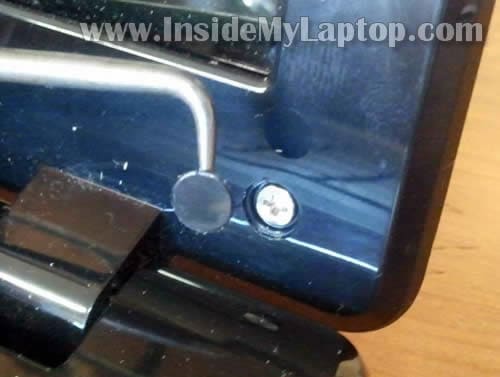
STEP 4.
Start separating the bezel from the display cover on the upper part of the display.
Carefully insert your fingers under the bezel and wiggle it a little bit to unlock hidden latches.

STEP 5.
Continue separating the bezel from the display cover.
When it’s separated on the top of the display, move to the lower part.

STEP 6.
The bezel has been removed.
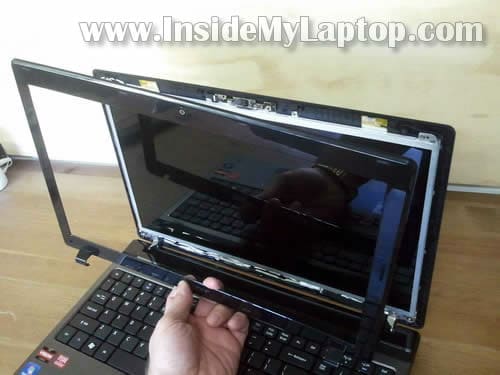
STEP 7.
Remove four screws securing the LCD mounting brackets to the display back cover.
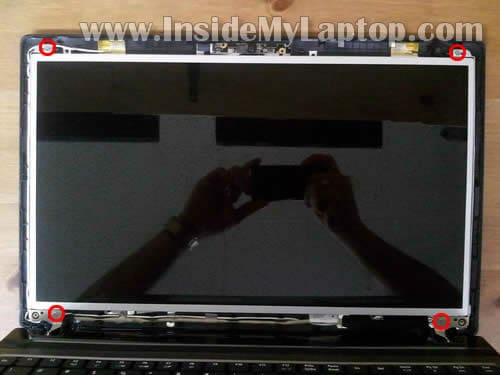
STEP 8.
Disconnect the web camera cable.
The web camera module mounted on the top of the display assembly.
Unplug the cable from the left side of the web camera.

STEP 9.
Now separate the display back cover from the LCD screen.
Be careful, the video cable and web camera cable still attached.

STEP 10.
The web camera cable is part of the video harness.
The web camera cable glued to the screen with double sticky tape. Carefully unglue the cable.

STEP 11.
Remove sticky tape securing the video cable connector.

STEP 12.
Disconnect the video cable from the connector.

STEP 13.
Remove two screws from the right hinge bracket.
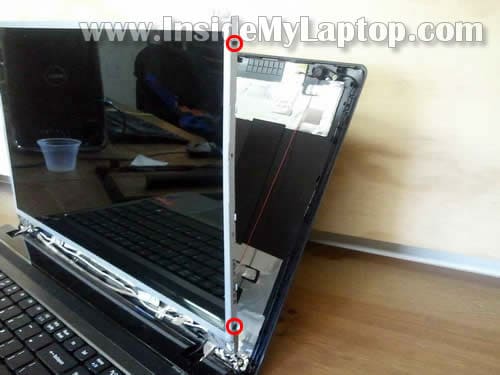
STEP 14.
Remove two more screws from to the left hinge bracket.
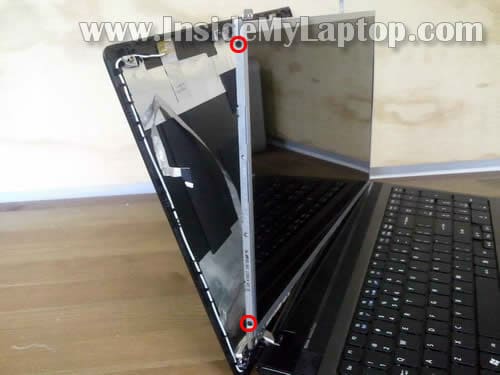
STEP 15.
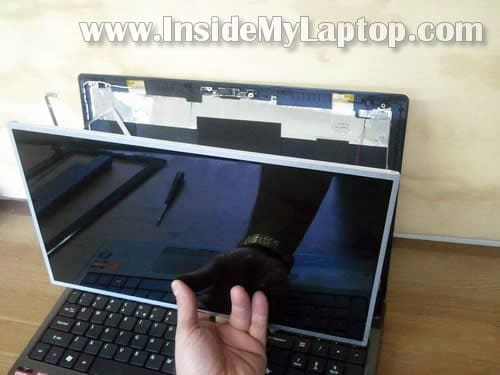
Now you can remove the damaged screen and replace it with a new one.
Assemble the laptop following steps in the opposite direction.
As I mentioned at the beginning of this disassembly guide, Acer Aspire 5560 laptop has an LED-backlit LCD screen installed.
The best way to find a new compatible screen is searching by the model number which is printed on the back side of the original one.

If you need to disassemble the laptop base, check out my previous Acer Aspire 5560 guide.
Dana
These instructions also work wonderfully for an Acer Aspire 5733 laptop. Thanks!
Kai
Would it be possible to change a fullhd matte Acer display for a glossy one?
IML Tech
@ Kai,
Probably yes. You’ll have to check if there are glossy HD screens available for your laptop. Check on eBay, Amazon.
If the new screen has same resolution and connector type it should work.
Russ
Hi, do you have a guide for removal of the top chassis as in the screen holder as i am going to be replacing that on mine shortly and it looks like a tricky job to try and undo all the connections and so forth, by top chassis i mean the screen houseing front and back.
Many thanks
Russ
Jacques Riopel
Thank you for this perfect guide. I am now typing on the laptop I dismantled to clean after a coffee was spilled in it and it works wonderfully. Only proble I had was I accidently pried off the Esc key while removing the keyboard, and I can’t seem to get it back on. Oh well. Again, many thanks.
k.lal
Thanks Bro ..its useful.