

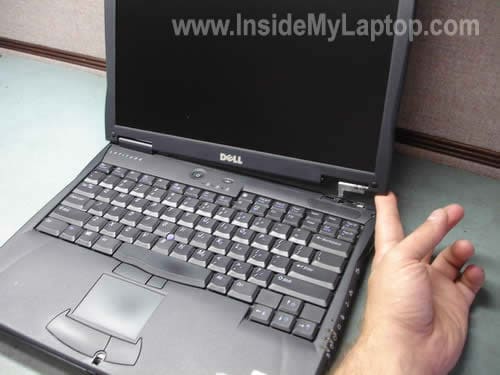
In the following guide I will explain how to replace broken display hinges on Dell Latitude C640 and Latitude C540 series laptops. Replacing and removing hinges is not a difficult task if you are careful and pay attention to details. I’m not sure if you can use same hinges for both models but the following removal and replacement instructions should be the same for both.
1. Find new replacement hinges.
2. Follow the disassembly instructions below.
Before you start, remove the battery.

Remove five screws securing the keyboard. These screws are marked with a letter K stamped on the base.
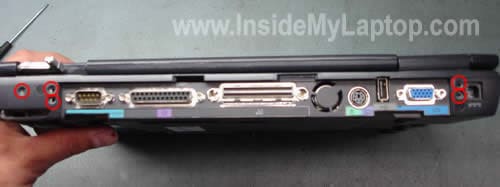
Remove five screws securing the display hinges. Three screws on the left side and two screws on the right side.

Carefully lift up and remove the keyboard bezel with a flathead screwdriver or another sharp object.
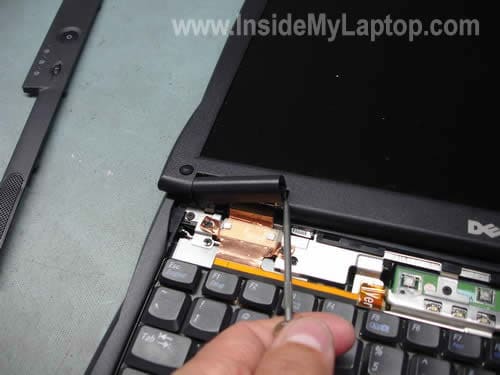
Lift up and remove both hinge covers.
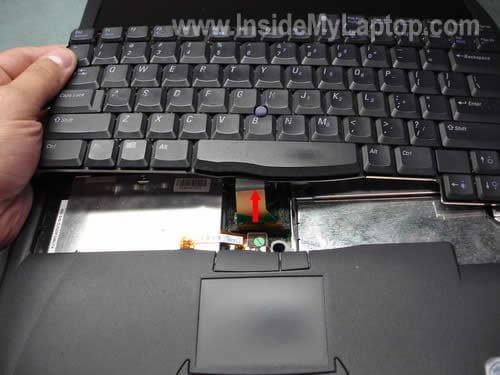
Lift up the keyboard from the base. Be careful, it is attached to the motherboard via a flat ribbon cable.
Disconnect the cable and remove the keyboard.
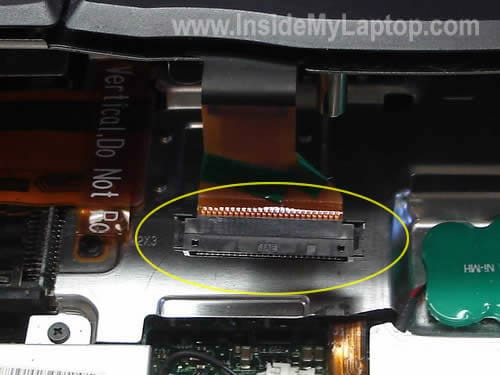
The able had been disconnected from the motherboard.

Remove four screws securing the video cable.

Carefully disconnect the video cable from the motherboard by the yellow belt on the connector.
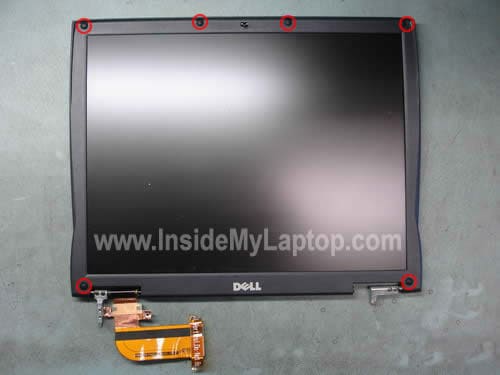
Remove six rubber screw seals with a sharp object. Remove six screws located under these seals.
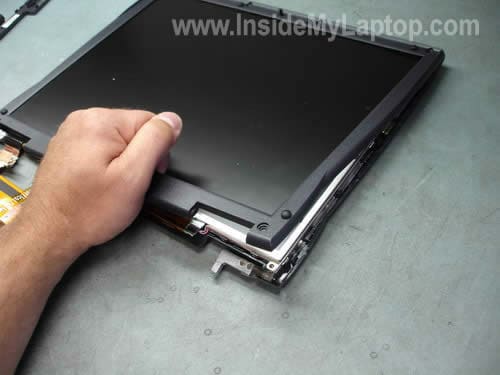
Insert your fingers between the display bezel and the LCD panel and carefully separate the bezel from the display.
Keep separating the bezel from the display with your fingers until you can remove it.

Remove two screws securing the LCD panel to the display hinges. You’ll find two screws on each side of the screen.
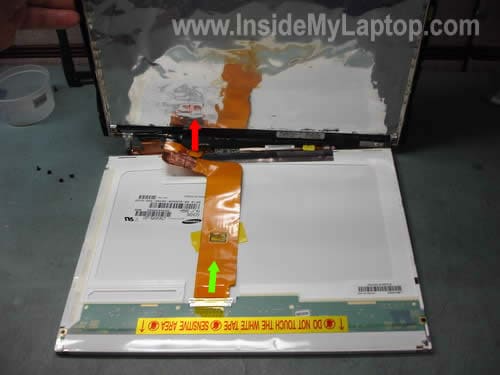
Remove the LCD from the display cover. Be careful it is attached to the video cable.
Unplug the video cable from back (Green Arrow).
Unplug the video cable from the inverter board (Red Arrow).
Remove the screen.
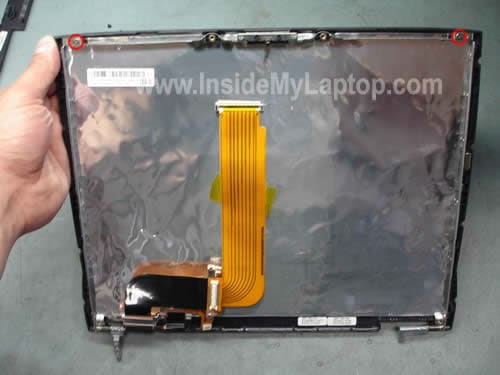
Now you can remove two screws securing both display hinges.
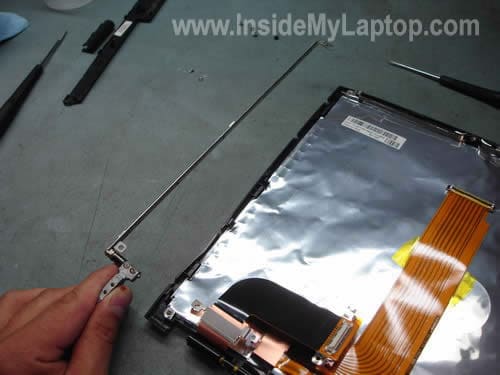
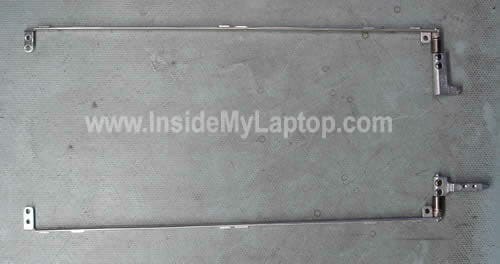
Remove both hinges from the display cover. Replace both hinges, or just the broken one.
C. Ryder
Your article on hinge replacement for the Dell C640 is quite helpful. However, I do not believe I have a broken hinge(s) but rather a loose one(s) for my 640. The screen tends to be very easy to position but drops thoughout the horizontal to vertical range (30 – 75 degree). Would I be better off just replacing the hinges?
Thank you for your input.
IML Tech
C. Ryder,
I think so. If you install new hinges they should fix the problem.
abdul razak
Thank you for this article as I’m thinking of replacing the broken hinge on my C640 myself. However I have another problem where after using the notebook for a few minutes the screen will be turned off. Actually it is probably not turned off but extremely dim, and I could see (barely) shadows of windows and moving cursors on it. If I close the LCD lid, which will put the notebook on standby, and re-open, the screen will be on again but only for few minutes before the same thing happens. I can however use it with external monitor.
Would replacing the broken hinge (and tightening things up) solve this or could there be other reasons?
IML Tech
abdul razak,
No, replacing hinges will not fix this problem.
Most likely you have a problem with the screen inverter and it has to be replaced. The inverter board is a power supply for the backlight lamp and it’s located inside the display pane. Take a look at this post. The inverter is cheap and most likely it will fix your problem. If you replaced the inverter but still have the same problem, apparently the backlight CCFL lamp is going bad.
You’ll find more information in the LCD screen category on the right side of the website.
abdul razak
Thanks for the prompt reply and the advice. I just thought the problems were related because the LCD problem started to happen a couple of days after the hinge was broken. Thanks again.
Marcel
My hinges are still in one piece, but after a fall the laptop case broke. I want to repair it, but therefore I need the hinge to be less tight. Is there a way to loosen up the hinges?
Thanks!
Jan R
These directions also work for the C-610 (the laptop I actually fixed) and probably also the C-510. The only difference is that the keyboard bezel looks a little different. Directions were great and the whole job – start to finish took under 2 hours. My daughter will be happy that the screen will finally stay where she wants it rather than falling down all the time. Thanks for the detailed directions and great pictures.
Ray MacClanahan
I have loose hinges on my Dell Precision M65. Do you have a repair article for this machine?
IML Tech
Ray MacClanahan,
You’ll find instructions for your Dell Precision M65 notebook in the official service manual. Go to the “Display Assembly” chapter.
MIke Kelly
Thanks so very much for a well written tutorial on the hinge replacement. My laptop was dropped and a hinge was broken in the process. I hated to have to replace the whole laptop just for going through the hassle of intstalling new software for my vinyl cutter. Belive me when I say it. You saved me some serious bucks!
daniel
Have you seen these instructions for an Inspiron 6000? Thanks
Bob Pearl
Thank you very much for this tutorial! I have removed my hinges sucessfully. Is there a way I can tighten up the swivel on the hinges so the display will stay where ever I put it. The hinges appear to be in great shape just loose.
John
Thank you – excellent step by step plans.
One minor observation: in the caption regarding the keyboard screws, there are not four, but five as circled on the photo.
IML Tech
Thanks John. Fixed!
Bruce Mac
the hinges in my c640 are so loose / slack that the lid will not stay up, it falls back unless i prop it up. any way to tighten them up
IML Tech
Bruce Mac,
I don’t think that you can tighten them up. I guess it’s time to replace hinges.
Rick
Awesome, thanks for the help
Bob Ensor
Thank you, Thank you, your details made it a very easy repair
Amy
Hey, just wanted to say thanks for putting this together. My 600m was working swimmingly except for the fact that the screen had started flopping around like a fish. I bought hinges for $15 on eBay, printed out this page and sat down at the coffee table. The whole thing took 20-30 minutes and I didn’t have to go through the pain and expense of buying (and transferring my stuff to) a new laptop. Thanks again for doing this!
Jacqueline
Thank you very much, my laptop has been this way for SOOO long and its just so irritating, I might actually have to replace both because it was broke for so long.
Rhonda
Need to replace the hinges on a Dell Latitude D600, which I have ordered from Dell. Do you have instructions? Is this an easy job for a female or would I do better taking it to a repair shop?
Thanks in advance
Rhonda
Andreas
Thanks for the great step-by-step guide. Made the hinge renewal very easy!!
Kevin
fantastic tutorial….thanks
please advise – my hinges are loose, not broken….any way to tighten them?
dennis walstrom
I need to replace the electrical conector on the back of my daughter’s Dell Latitude. I removed all the screws on the bottom(base), but it won’t come off. I can’t otherwise get at the connector. Any ideas would be appreciated!
IML Tech
dennis walstrom,
I guess you want to replace the power jack.
In order to access the jack you’ll have to remove the motherboard. Follow instructions posted in the service manual for Dell Latitude C640/C540.
The power jack is soldered to the motherboard.
Jerry Shed
Great article on hinge replacement. The replacement went very well, however the screen display is now distorted and nearly unreadable. I went back to be sure the video cables were secure but still have a distorted image on the LCD. Any ideas?
IML Tech
Jerry Shed,
Can you test your laptop with an external monitor? Find out if the distortion appears on the external monitor or not.
If the external video works fine, it’s possible that you accidentally damaged the video cable while replacing hinges.
kroneaux
I was able to pull the hinges apart and tighten them on a c640.
Turn the riveted cast piece back and forth and pull away from the long part.
Once off, there is a pin on the long bit that has a slot in it.
The grease made it hard to see the slot at first.
I put a screwdriver blade in the slot, wedged it open and put it back together.
There is now more tension on the hinge.
debbie
Will this tutorial work for a Dell Inspiron E1405? If not do you know where I can get instructions for that? I have heard conflicting opions on just removing the plate at the tope of the key board and the bezel plate around the screen. Some people say you have to take the whole thing apart, others say you can just take plates off and tighten screws. What is your opinion. My screen is so loose that it just flaps all the way back and has no more resistence, I cant use it unless it prop up the back of the screen, either that or I type with one hand and hold the screen up with the other hand.
IML Tech
debbie,
Here is the service manual for Dell Inspiron E1405 or 640M laptops.
Apparently one or both display hinges are broken and has to be replaced. You cannot tighten broken hinges, you’ll have to replace them.
If the hinges are broken, you’ll have to remove the display panel and disassemble it. You’ll find pictured instructions in the service manual I linked above.
In order to removed the display assembly, you’ll have to
1. Remove the keyboard cover (hinge cover).
2. Remove the keyboard so you can unplug the Wi-Fi cables from the Wi-Fi card and unplug the LCD cable from the motherboard.
3. Remove screws from the display hinges and remove the display panel.
4. Remove the display bezel, access hinges and replace them.
Robert Chase
Great guide. If these instructions are followed in order and you take your time its a rather painless process. I was able to swap out my hinge in roughly 30 minutes and that included removing parts from a donor system.
Chad
Hi
This question is not related to this section but I couldn’t find anywhere else to post in your website. I have Dell Inspiron 1525 and left side screen hinge is broken. Do you have any thing to show how I can repair it or replace it.
Really appreciate your help.
Thanks
IML Tech
Chad,
Here’s a link to the official service manual for Dell Inspiron 1525.
The manual has instructions for removing and taking apart the display panel. You can use it for accessing and replacing the hinges.
The broken hinge has to be replaced with a new one, you cannot repair it.
Numan
Thanks dear, The information was really very helpful, infact i was having problem with hinges the have got loose but not broken any way,
I accessed the Lcd and disassemble the hinges, and make them thight again by a special research on the topic, lol.
Regards, and mary xmas,
Noman
Gary
Dell Latitude C640 How to replace the CPU. PLEASE HELP! I am stuck at the thermal cooling assembly! Please please please how do I get it off! & replace cpu
Robert
This is helpfull. I had to replace only the right hinge. I did it without copmletely removing the panel and the keyboard. The hinge can be replaced by only removing LCD bezel and the keyboard bezil.
RMW
Mack
IML Tech
my dell latitude c840 has a screen problem. When i turn it on the screen comes on and u see windows loading. When it goes blank to switch to log in screen it never comes back on to log in. But i did notice that the screens backlight was on. I put it in safe mode w / networking and it started to start up but the screen just froze or the laptop just stoped loading wondering could this be a hard drive issue or what could cause this to happen thanks
mack
IML Tech
Mack,
It’s hard to tell what’s going on without testing the laptop. Could be software or hardware related problem.
Do you have any important files on the hard drive? If not, just run the Windows installation CD and reinstall it from scratch. After that run the drivers CD and install all missing drivers. It could help.
If you suspect the hard drive failure, you can run the hard drive test. I use Hitachi’s drive fitness test and it works fine for most laptop hard drives (even non Hitachi).
Peter
Thanks for the great guide. My hinges were shot, and this made replacement a lot easier. My only problem was that the inverter connecter was so tight that it wound up pulling off the cable instead of the board and I had to find a replacement cable (fortunately, a cheap one). I’ve found a few people who had the same problem, so be careful, it comes apart easily. If I were to do this again, instead of removing the video cable from the screen and inverter, and then having to re-attach and re-tape, I’ probably just undo the single screw holding the cable to the lid (at the hinge), and lift the screen and cable out as a unit. Less work, and less chance of messing things up like I did.
Thanks again,
Peter
Merv Baer
I’m delighted at finding your website. the replacement proceedures for the hinges AND THE LIST FOR VENDORS are a joy. Thanks for being there. Your site is going to several of my friends and, I,m sure they wii be pleased as I am. I’m 81, former broadcast engineer, who appreciates those who share information.
Scott G
Thank you so much for this guide. Just used it to replace the hinges on my old Latitude D610. You rock! Greatly appreciated!
Claudia
Thank you so very much!!! I wish I could move the decimal pt on my donation amount to the right, because you are worth much more than I can afford to donate (at this time) Your instructions are wonderfully I-D-10-T resistant, the photos are beautifully clear and I loved the way you encircled & marked parts in each step with highly contrasting colors. I was able to replace the hinges in my laptop and get back to my home studies much, much faster and easier than expected. If I can do it, anyone can-believe me-I’m one of those people that consistently hears * ” HHmmmm, wow, I’ve never seen one do THAT before” when asking for assistance with computers, yet was able to replace that broken hinge like I actually knew what I was doing! ;-D
Cannot thank you enough, hope my meager donation helps express gratitude a bit.
Sincerely,
Claudia
* ( an occurrence i usually blame on my “magnetic” personality-snicker)
IML Tech
Claudia,
Thank you for your warm words and kind donation.
I’m happy when my guides help people.
Rethoff
Hi, can i use D600 hinges in my D610?
Thank you
IML Tech
Rethoff,
Not sure.
You can google “Dell D600 hinges” and “Dell D610 hinges”. After that go to images and compare hinges.
If they look similar, probably you can use them. This is just a guess.
I don’t have full hinge specifications.
Rethoff
Thx for your advice. I just disassembled my broken D600 and could see that the screws to fix the hinges in the case are in different positions. So the answer is: No, i can’t use D600 hinges in a D610 😀
But thx a lot anyway, for this brilliant “How-To”
Paul
Will these instructions be the same for my D630 laptop? If not, can someone help me out. My hinges are obviously broken since my laptop cover can not stay open.
clint
DAMN IT! I followed these intructions and pulled the LCD cable off where the red arrow is and the ribbon cable pulled off the connector. Now I need a new ribbon cable.
Cmmwasda
Sir I have problem regarding loose hinges of C510. I tried to fix that problem but I could not find and screws to tighten the hinges. Plz help regarding this problem.
Prattenberg
Thanks a lot for keeping this article online. Your guidance worked out well just now for my old old Latitude D600 as well. – Almost like new now. Thx again, regards M.R.P.
JM
have you tried installing windows 7 on your C640/C650? Did it work?
BlueSkies
Just wanted to say thank you, i just replaced the hinges on my c640 with your guide and its back, baby!
BlueSkies
P.S. I put my money where my mouth is and just sent in a donation. i am happy to support your site. Thanks a million for sharing your knowledge.
IML Tech
@ Blue Skies,
Thank you for your donation! I’m glad my guide helped.
lynchmasterflash
You don’t have to do half these steps, I was able to do it just by removing the screws in the back of the laptop that hold the hinge, remove the little rubber things on top of the screws, the screws that hold the screen trim piece on and the screen trim and the screws that hold the hinge to the screen. took 10 min this way.
Anita Bingeman
Please can you give me directions for a Dell latitude D420? The hinges for holding the screen laptop seem to be broken, ie the laptop does not stay in place and either flops shut or flops backwards. Are these able to be repaired ?
Thanks for any help, I am due to take a 4 month trip around south America and this could not have happened at a worst time!
IML Tech
@ Anita Bingeman,
I cannot tell if the hinges are broken or just loose without taking it apart.
Take a look at this service manual for Dell Latitude D420 laptop.
The service manual explains how to remove the display cover.
You can find new hinges or entire display cover with hinges on eBay.
You’ll have to disassemble the laptop in order to figure out which part is broken.
sherry
I’m thinking of trying to replace my hinge(s) myself! Where would you suggest the least expensive site to get new ones?