

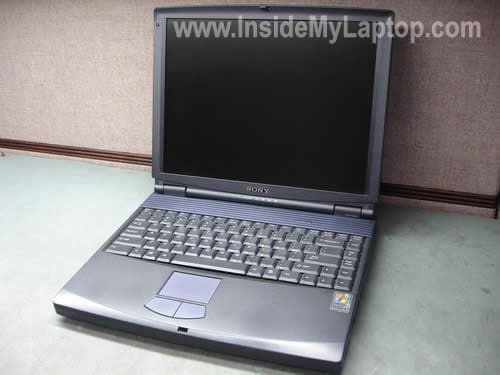
In the following guide I’ll explain how to remove and replace the keyboard on a Sony Vaio PCG-FXA63 laptop.
I assume this guide will work for some other Sony Vaio PCG-FXA models.
Also, you can use this guide for accessing and replacing the hard drive, DVD drive and cooling fan. All three could be found under the keyboard.
STEP 1.
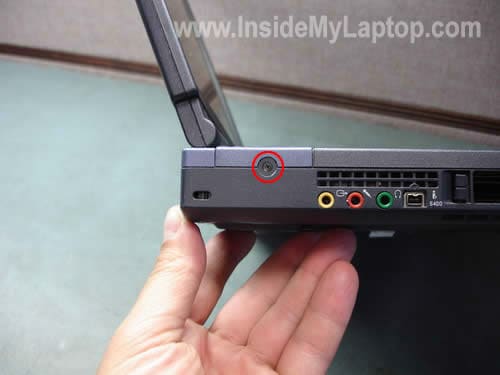
Remove on screw on the left side. This screw secures the speaker/hinges cover.
STEP 2.
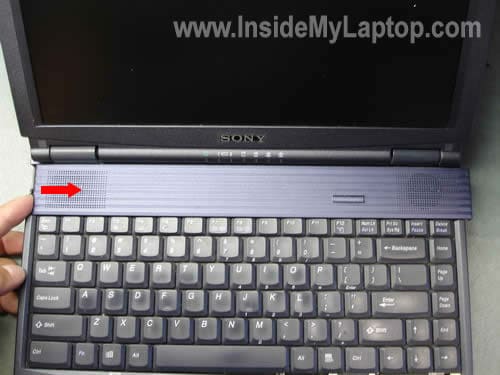
Slide the cover to the right side as it shown on the picture below.
STEP 3.
Lift up the cover and place it upside down. Be careful, the power button board is still attached to the motherboard with a white ribbon cable. You can remove the keyboard without disconnecting the power button board from the motherboard.

STEP 4.
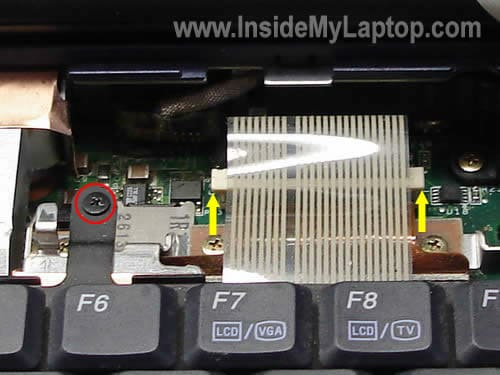
The keyboard cable is connected to the motherboard. Before you pull the cable you’ll have to unlock the connector.
Using your fingernails pull the top side of the connector upwards about 2 millimeters, not more. Now you can pull the cable from the connector.
Remove one screw securing the keyboard to the motherboard.
STEP 5.
Remove the keyboard and replace it with a new one if necessary.
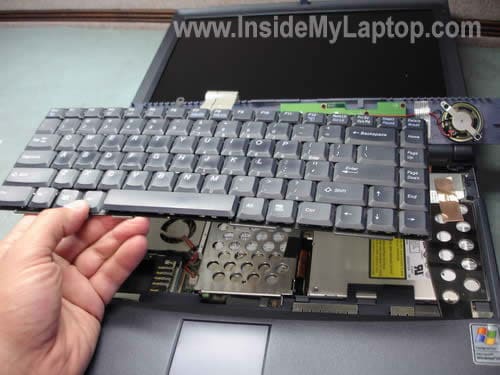
After the keyboard has been removed, you’ll get an access to the cooling fan, hard drive, DVD drive and RTC (CMOS) battery.

tony g
how to disassemble PCG-7L1L vaio laptop
David
A have a nosiy fan in my PCG K12P and I have removed all he screws and I can’t get it opened?
marc
thanks… very helpful guide 🙂
caroline
like David I have a noisy fan on the vaio laptop. P C world said it will need replacing, at a cost of 230 + vat! Mind you they charge the same amount for replacing a missing letter key.
Is it any wonder they are about to go out of business.
Adeniji Sunday
how to open keyboard from laptop VGN – A215M
( sony LAPTOP )
WHAT CAN I DO; OR WHAT IS DEFEKT IF KEY BOARD FOR C AND V DO NOT FUNCTION AGAIN.
Thanks
Sunny Adeniji
Milton
Great site!
Can anyone help?
Both usb outlets on my sony vaio laptop is loose and does not work. Can you show and tell a way to replace or solder the usb ports back on? I have tried unscrewing some of the screws in an attempt to open up the laptop but got scared to go any further.
IML Tech
Milton,
Replacing USB ports is not an easy repair. I wouldn’t recommend doing that if you have no experience fixing laptops.
Most likely your USB porst are soldered to the motherboard or a USB board. In order to replace them, you’ll have to disassemble the laptop and remove the motherboard. After that you’ll have to unsolder damaged ports and replace them with new ports.
Edward Mayer
Hello, I spoted your article as he “T” on my keyboard is failing and the letters are now rubbed away on many others. Do you have advice on changing the keyboard for he Sony Vaio PCG-K115M laptop please? I does not have the screw in the side that the model you show has, and removiing the upper case does not seem nearly so simple. Thanks for any help you can give with his, Yours, EM
IML Tech
Edward Mayer,
Check out this guide for taking apart Sony Vaio PCG-K series laptop. First few steps explain how to remove the keyboard.
Harlan
I have a PCG-FXA63 that i have had since 2002. Im not very computer literate can someone please just tell me where on the keyboard my wireless switch is! please……
IML Tech
Harlan,
I looked at the large picture of the keyboard and didn’t find any Wi-Fi key. I doubt that you can enable or disable the wireless card via keyboard shortcut.
If the wireless stopped working, take a look at the device manager. Make sure the wireless card is not disabled.
Right click on My Computer icon and then click on Manage.
Go to the device manager and find the wireless card. Right click on the card and enable it if disabled.
Bezukhov
I have a PCG-FXA63 that I bought at a flea market last month. Don’t laugh, it works fine, although in retrospect the $100 I through down may have been a bit steep. It must have been the Bourbon whispering in my ear “To hell with the money, buy it!”
I added 256MB of RAM for $15, hoping it would help with the problem of videos playing choppy. It was only a marginal improvement. My question is can I upgrade the video card? From the little reasearch I’ve done I’m led to the conclusion that it is soldered on to the Mother Board. Is that info accurate? It is an ATI Mobilty Rage, or something like that.
IML Tech
Bezukhov,
The video card integrated into the motherboard and cannot be removed or upgraded.
Did you reinstall the operating system after you purchased the laptop? This might help.
Ed M
try this for DVD playback stutter
http://esupport.sony.com/US/perl/swu-download.pl?mdl=PCGFXA63&upd_id=507&os_id=7
Bruce
My laptop will only pick up wi-fi if i’m right next to it. It’s a Sony PCG-FX63. I read that it might be the antenna. So where is the antenna? I am using a linksys plug in card and qwest’s PK5000Z router.
IML Tech
Bruce,
Usually laptop antenna cables running inside the display panel.
Here’s something to try.
Access the wireless card and reconnect both antenna cables on the card. It’s possible the antenna cable makes bad connection with the card and reconnecting it will fix the issue.
Stephen
i have sony laptop VGN-FS770/W. I have a replacement keyboard but i do not know how to unfasten the clip holding the ribbon. Can you help me?