

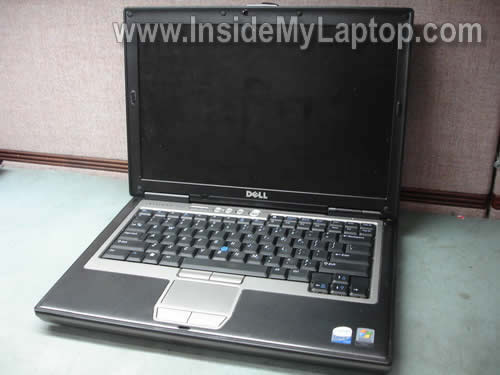
In this guide I explain how to remove and replace the LCD screen on a Dell Latitude D620 laptop.
All removal steps will be very similar for many other Dell models. If this guide works for you, please mention the model number in comments after the post.
STEP 1.
There are six screw seals on the LCD bezel. Remove all six seals and screws found under them.

You can remove the screw seal with a sharp object or small flat head screwdriver. The seal bottom is sticky. Glue all screw seals somewhere so they don’t get lost.

STEP 2.
Start separating the bezel from display cover with your fingers.
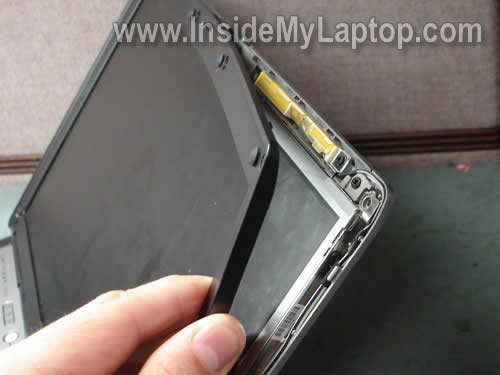
STEP 3.
Remove the bezel.
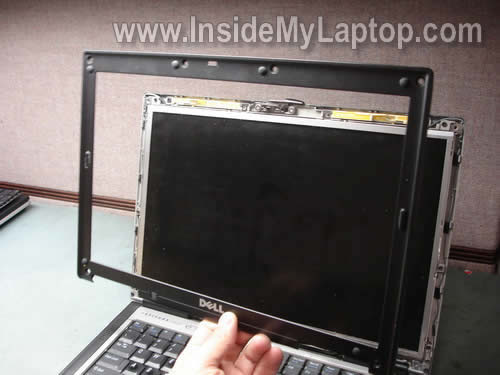
STEP 4.
Remove six screws securing the screen mounting brackets to the display cover.

STEP 5.
Separate the LCD assembly from the display cover and place face down on the keyboard.

STEP 6.
Now you can access the video cable on the back.
The video cable has two connectors. One of them is connected to the inverter board and another one to the screen.
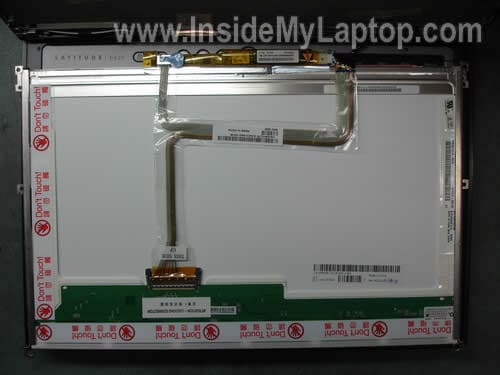
STEP 7.
Disconnect the small connector from the inverter.

STEP 8.
Disconnect another connector from the LCD.
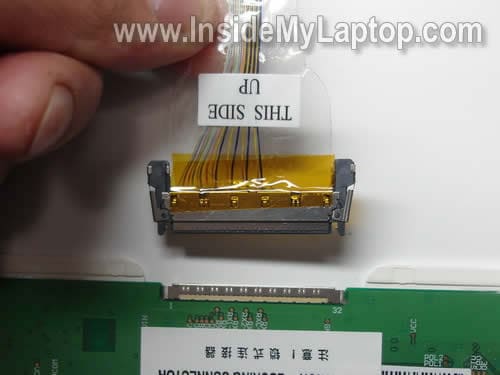
STEP 9.
Remove the screen from the laptop.

STEP 10.
You’ll have to transfer both mounting brackets to the new screen. Each bracket is secured by a few screws.
Some Dell screens have the inverter board is attached to the frame.
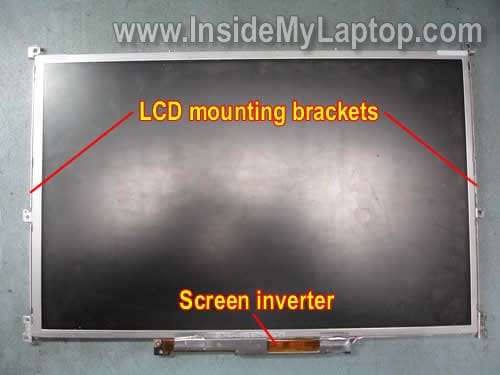
It’s possible to remove the inverter and replace it separately.

In one of the previous posts I explain how to remove the keyboard from a Dell Latitude D620 laptop.
sam
i have dell latitude D620 laptop and have problem with the display. the lcd is ok and when turn on , it will flick and i can not see anything. or a blue screen will display.
” hardware malfunction
call your hardware vendor for support
NMI : parity check / memory parity error
the system has halted
then i sent to shop , they told it is chipset problem and cannot be fixed
help me out , i kind of broke and cannot get new one …at least repair fix should do .
IML Tech
sam,
I guess it means you have a problem with the motherboard.
It cannot be fixed without replacing the motherboard.
Mr. Addy
Thanks, I followed your instructions and it worked like a charm!
Turned two dead 620’s in to one very live one
Trushar
This instruction works for my Dell Vostro 1400 too.
Thank you very much..
1xtra
Hello, This procedure is similar for a Dell Latitude D830 ? Regards.
IML Tech
1xtra,
This procedure is similar for most Dell laptops.
Richard Metzger
Hello:
Really appreciated your instructions on the removal of the LCD Screen on a Dell 620 laptop.
I am attempting to replace the inverter board (only) on my 620 but am not familiar on just how to do it for fear of messing things up. I followed your instructions and photos and proceeded with the sequence down to where I now see the inverter board but do not know how to remove it properly. There are wire connections on both ends and I cannot determine how to release them from their sockets.You state “Even though it looks like the inverter board is a part of the LCD screen, it is possible to remove the inverter board and replace it separatelyâ€. As stated, I am afraid to start pulling on the connectors to try to remove it so would like to know if you could furnish me with detailed instructions
and /or pictures on how to go about it properly. Sincere thanks: Richard
IML Tech
Richard Metzger,
Take a look at this guide for a Dell Inspiron 6000 laptop.
https://www.insidemylaptop.com/replace-damaged-lcd-screen-in-dell-inspiron-6000-laptop/
I’m explaining how to remove the inverter board at the end of the guide. I think it could be similar to your laptop.
Mip
I see other posts regarding a ccfl lamp being the cause of the “dark screen”. This post does not mention anything about a lamp, only an inverter. I dropped mine today and the machine is working and displays but with no backlight. Do you think this is an inverter or a bulb? Thanks so much for sharing this info for tech wanna be’s like me.
IML Tech
Mip,
If the backlight stopped working after you dropped the laptop, most likely you damaged the lamp.
Also, it’s possible that one of the cables got disconnected from the inverter board and connecting them back fix the problem, but it’s not very likely.
Adam Underfoot
Hi, I have a bit of a strange problem: My LCD (D620) almost always doesn’t work; so I have it hooked up to an external monitor. However, every so often, when the laptop shifts slightly, the LCD (again, the one removed in this tutorial) flickers on briefly- for at most 10 seconds, usually 1 second or less. I removed the LCD as per your instructions, but I can’t see any unusual crimps/bad connections. (and putting it back in did not clear it up.) Do you have any suggestions?
Note: I have been unable to reliably reproduce the conditions under which the LCD flickers on.
L T
OK I’m wondering if I have a inverter problem.
My back-light doesn’t come on…
You can see it boot, see the text FAINTLY and when my background pops up you can see that cause it bright green, but its all FAINT is it the actual back-light or the inverter i need to replace?
IML Tech
L T,
You cannot tell without testing the laptop with another known good inverter board or backlight lamp. Either one can cause this problem.
If you have to guess, try replacing the inverter board first.
Walter Broner
Thanks for this page. Just did a replacement on a D620. My advice to others after taking a lot of time and being petrified of screwing up my new screen:
Take your time.
Follow the pictures.
Find a safe place for the three sets of screws and rubber fastener caps (still looking for one of the screws, alas).
Remember that the mounting brackets on the sides fit UNDER the screen.
Don’t do this under the influence… 🙂
Donate (I did), even a small amount if this saved you a big fix-it bill.
Screen obtained from on ebay store laptopservicecenter. Great price, shipped right away, product looks good, new and so-far-so-good.
Deadtek
Just wanted to say thanks for the detailed instructions. I was able to dis-assemble and install the new screen in about 10 minutes.
Stuart
Hi, I have a strange problem I cannot seem to google an answer to.
My Dell D610 has the opposite problem to most, the brightness cannot be ajusted by the keys or by bios(the keys do work, as the dell software shows brightness level going up/down). its same brightness on battery or PSU..
but it is not dull, it is stuck on FULL brightness. it is very bright at night, and drains my battery fast. Any ideas? It did work before for previous owner. I have tried removing/reconnecting the cable under the keyboard that goes to the lid.
sfu
can you please explain the below line (or put some screen shots please)
Even though it looks like the inverter board is a part of the LCD screen, it’s possible to remove the inverter and replace it separately.
Thanks
AJ
Hi, My screen flickers incessantly. It’s still usable, but becomes very hard on the eyes before too long. The output to an external screen is absolutely fine. Before I go down the route of changing the screen, I wondered if you thought this would cure the problem?
Thanks, AJ.
IML Tech
AJ,
Could be a faulty LCD screen or bad video cable.
How it flickers? The screen loses just the light and the image stays on, or the scree looses both the light and the image?
The light flickers or the image itself flickers?
AJ
IML Tech says…”Could be a faulty LCD screen or bad video cable.
How it flickers? The screen loses just the light and the image stays on, or the scree looses both the light and the image?
The light flickers or the image itself flickers?”
The imagery is still all visible, and the laptop is still usable because you can see everything on the screen as usual – at full brightness and contrast. However it’s as if all the imagery has developed a hazy reception, so every image looks as if it’s being electrified. It’s shimmering as if it’s not quite being transmitted at the right frequency. a bit like a TV signal if the tuner isn’t at quite the right frequency.
Soul Doc
Thanks so much for this guide. It worked great on my D430. I got a cheap ($40) replacement screen assembly on Ebay for a D420 and swapped one screen out for the other. The only difference for me was that I didn’t need to remove the bottom 4 inner screws as shown on step 4, only the upper two.
ChrisH
Hi,
Thanks very much for the guide.
Just wondering, I have a Latitude D610 and a Latitude D620 but the D620 is having a faulty screen. Can I swap the D610 screen over to D620 and are they compatible?
Do share your thoughts.
Thank you for the great guide and your time reading my question.
Best Regards,
Chris
Dave
Hello,
I have a same question like ChrisH , I have a Latitude D510 working base(only the base of it) and the top of a Latitude D505. I saw that the plugs are different, but is there a possibility to put the top of a D505 to the base of a D510 ? Is there a adapter connector?
Thanks,
Regards, Dave
IML Tech
Dave,
There is no adapter. Apparently D505 has a different video cable. I don’t think you’ll be able to install the top of D505 to the base of D510.
simon
Thanks for the great info. My Lat D620 screen has vertical lines on it. It now on occasion powers up with this frosty look around the edge. If I press over on the left side of the screen sometimes it will come up normally. Is this a connection problem?
IML Tech
simon,
It’s possible but I doubt it. Sounds more like a faulty LCD screen.
You can try reconnecting the cable just in case. If it doesn’t help, replace the screen.
Simon
I took the screen out and reset the connections on the back. That did not work so I removed the while powered up and in the fuzzy, no picture state. I pushed a wire at the top left while facing the screen and the screen came on normally (with the vertical lines). I’ve turned it on and off a number of times and it comes on normally now. I have no idea what it was but hopefully it will last a little longer. Thanks again for your great info.
Heath
HI ,
I have the exact same problem as AJ has anyone discovered a fix for this problem. When I connect to an external monitor, the monitor works fine but the laptop still has the flicker
I contacted a local laptop repair shop he recommended changing the LCD screen, I changed the screen but used the old cable and still have the same problem. Can anyone help me??
Pierre
Greeting from France,
Sorry but I don’t know how to quote posted messages. IML Tech said to Dave (I have a same question like ChrisH , I have a Latitude D510 working base(only the base of it) and the top of a Latitude D505. I saw that the plugs are different, but is there a possibility to put the top of a D505 to the base of a D510 ? Is there a adapter connector?): “There is no adapter. Apparently D505 has a different video cable. I don’t think you’ll be able to install the top of D505 to the base of D510.”
Well, I can tell only about the European market but it is possible to install a D505 screen in a D510: I made it! The only known diference is the ribbon cable that has a different connector to the video board. You should also check the LCD display itself but in most cases, it will work because almost all displays (LCD panel + inverter) are the same for the whole line : D505, D510, D520 and D530. There are two major OEM who supply these displays: Quanta and AU Electronics. They also provide the inverter but do not produre them (SUMIDA in most cases).
You will find details at Dell Community (I posted technical details there). What does work for European market should do for US market.
Cheers
Wagoo
Procedure is the same for D630. Cheers.
ace123
would you be able to take some picture on how to Replace Dell Latitude D630 screen hinge Screen Hinges DELL Number /RE37712 the bottom hinge and the top hinge.
thanks
Tom
Please reply. Can you just remove the screen and use a monitor? Thanks so much
IML Tech
Tom,
Do you mean remove the entire laptop display assemble and use the laptop with an external monitor? Yes, you can.
But… there are wireless card antenna cable running inside the display panel.
If you remove the display panel, you’ll have to figure out how to run Wi-Fi antenna cable so the internal wireless card works.
Alternatively, you can remove Wi-Fi antenna cable and use the laptop just with wired connection.
Tammy
Hi, is the Procedure for the DELL ATG D620 the same?
IML Tech
Tammy,
I’ve never heard of this Dell model.
Does it look the same as Dell D620? Probably the disassembly procedure is the same.
Emerson Freitas
Hi, I did replace my Latitude D620 display from 1280×800 wxga for a new with 1440×900 wxga+. The BIOS recognized the new model, but the display didn´t work 100%. It haves alternade vertical lines on and off. No driver updated works. Do you know that may be a hardware incompatible?
Thank you!
IML Tech
Emerson Freitas,
Did you replace just the screen?
Maybe your new 1440×900 wxga+ screen requires a different video cable?
Sebycretzu
I have a d620 and the screen flickers on and off and when it is on it has vertical green lines on it, i tried to check the cables and they are fine, i dont know what to do because i dont think its the screen, when i enter the bios i deselect the “expand screen” option, the image is smaller but stable and no flickering and the vertical lines are partially visible? is it the cable or the inverter?
IML Tech
Sebycretzu,
Test laptop with an external monitor? How’s the external image?
SamD
I have a upgrader challenge — can anyone advise whether Dell left an upgradeable screen bezel with a built in WebCam ? If yes, then where? If not, then let the challenge begin…
I would like to figure out a mod to Dremmel a webcam into the existing bezel and subsequently connect it down below. Thoughts Anyone?
Too bad this discussion does not allow me to upload pictures….. otherwise….
Dave
Can you tell me how the cables on the back of the monitor unconnect? I easily disassembled the lid but it says the cables are locked into place can you tell me how they unlock so that I can remove them from the old screen and connect them to a new one? (this is for the main cable and the invertor)
IML Tech
Dave,
The video cable connector has two locks/latches on both sides. You just pus on both locks and at the same time pull the video cable from the screen connector.
Art
I have a D630 that went dark a week ago. Worked perfectly fine with an external monitor but the screen was very dark such that you can barely make out the contents and only when there is ambient light. I ordered a replacement LCD/inverter from Dell for $130 and just replaced it using your excellent instructions. Thank you. However, the screen is still the same. What could be an alternative problem?
IML Tech
Art,
If we assume that your new LCD screen and inverter are good working parts then your problem could be related to the LCD cable or motherboard.
I cannot tell which one is failing.
noor
I have a dell latitude 100L’s L C D I need to know the cable connection configuration of it, and I want to use it as a vga monitor.
IML Tech
noor,
I don’t think it’s possible.
Rev Will
After doing a CPU and MEMORY upgrade my LCD screen went out. There are 2 very tiny connectors inside the case and one of them came loose, after re attaching the cable nothing happened…how would I go about testing and repairing this problem?
ahmad
thanks help full
ahmad
Joe
Thank you for the great instructions . It made the replacement of the screen wasy .
Cheers
PeteH
I have a Dell D620 laptop with a broken screen. I purchased and received a replacement on Ebay however it doesnt work properly. I think it has 900 pixel vs mine has 800. It fits fine but there are many veritical lines that are black and has poor visual quality. Is there a way to resolve this with a driver? What other D series laptops are compatible and will work? How can I determine if a replacement screen is 800 resolution without mechanically pulling it out? Thanks in advance for any help.
Nana
After removing the keyboard to install memory my Dell D620 monitor now goes dim, flickers and goes dimmer. I can still see my desktop and read it if I’m close. Could a connection be loose? What should I look for under the keyboard that would affect the backlight? The Fn + up arrow does nothing. If I tap the top of the screen it gets bright again. It’s like it goes into hibernation or dims like it’s on battery power.
IML Tech
@ Nana,
It’s hard to tell what is wrong. Maybe the problem is somewhere inside the display panel?
You can try reseating the inverter cable. It’s shown in the step 7.
Phil
I swapped out a dell D620 lcd and put it in a D630, the lcd was completely blank. The cables fit perfectly. I then removed the LCD and put the original back in to see if it had the same problem. The D630 lcd works fine in the D620, but the D620 lcd is blank in the D630. Im assuming that the 620 lcd is different and isnt made to work properly with the 630.. What do you think?
Avon Sulser
The Dell Latitude D630s were built with a bad nVidia video card. We have replaced 15 motherboards here at my work because of the video card. Dell will extend your warranty for one more year if the problem is with the video card.
Clemence Kabuje
It works, thanks for sharing.
Lewis Fulk
My Dell Latitude D620 was working fine and then I connected it to a docking station for a couple of weeks. When I disconnected from the docking station the screen now shifts slowly through white, yellow tint, green tint, blue tint, etc. It doesn’t display any information at all. Would this be in the inverter, the LCD, or maybe a cable problem. That it quit working at the time I started using the docking station may be a coincident. Would like to know if anyone else has experienced this problem and what was done to fix it.
IML Tech
@ Lewis Fulk,
Does it still work fine with the docking station?
Also, test the laptop with an external monitor. Can you get image on the external monitor?
Look on the docking station connector on the bottom of the laptop. Can you see damaged pins in there? Maybe something got stuck inside the connector?
amy
Very helpful – had no problems. Thanks!
Marcela
Hi,thank you so much for sharing..I’m back in to life again:o))Thank you:o)
ibrahim
haye i got some problem in my D 620! i got 1 inches hieght lines on my scree and my display screen is shaking as well kindly can some 1 tell me solution for that! thanx…..
Eric
Hi there! Maybe you can help…screen on D630 went black, but monitor worked in docking station. Replaced screen and inverter, but screen is still black. I didn’t completely reattach it (put all of the screws back in) to test – would that make a difference? Both cables were attached, tho. made sure to order a WXGA replacement. There was one difference – the cable on the old screen (to the inverter) had a W on it, and the new one has HBFI. Any ideas? TIA for any thoughts!
IML Tech
@ Eric,
No, that wouldn’t make a difference. As long as your new screen and inverter connected to the motherboard it’s not necessary to assemble the laptop completely for test.
If we assume that new screen and inverter are good, your problem could be related to following:
1. Bad connection between the video cable and screen/motherboard/inverter.
2. Failed video cable.
3. Failed motherboard. Could be just bad video connector on the motherboard.
Sorry, I cannot tell what is wrong without testing the laptop with known good parts.
Lisa
My daughter dropped her Dell latitude D620 and now the screen is black. i pressed a key (not sure which one it was) and the Desktop showed for a split second. Does that mean that the screen is still ok or do you think I need to replace the screen?
IML Tech
@ Lisa,
Most likely the backlight inside the LCD screen is damaged. If that’s the case, you’ll have to replace the screen.
Lisa
I connected the laptop to a monitor and the laptop works fine.
Todd
Hi IML Tech!
Thanks for the help with the replacement of my LCD screen. My computer is up and running again! However, the picture on my screen is grainy. I ran an update for windows and I also looked at my graphic properties. Currently they are set at 1024 x 768, 32 bit & 60 hertz. Is there anything I may have missed to make the picture clearer? Could I have damaged the screen during installation that would cause this?
Please let me know.
Thanks again!
Todd
Sudheer
My Dell laptop Latitude D620 screen is not working, it is showing $ symbol whole the screen. plz. give me the soleution, is it recovered or repair the screen. Help me.
IML Tech
@ Subheer,
This sounds like a problem with the graphics card.
To confirm that you’ll have to test the laptop with an external monitor.
If the same problem appears on the external screen, most likely it’s failed graphics chip. In this case the motherboard has to be replaced.
Also, try removing RAM modules one by one. It’s not likely but possible you have a problem with RAM.
Daniel Stern
Thank you for the step by step instructions for disassembling the screen on Latitude D620, those photos helped me much, and I was able to repair the laptop for one of our beneficiary teachers from a school in Entebbe, Uganda. Kind regards, Daniel
Cyric Kasenych
I dropped my dell latitude and the screen is nothing but a rainbow colord and won’t turn on
Do I have to buy a new computer or can i just replace the screen
David
@ Cyric Kasenych Says:
December 12th, 2014 at 5:45 am
I dropped my dell latitude and the screen is nothing but a rainbow color and won’t turn on
Do I have to buy a new computer or can i just replace the screen
I would try to connect to an external monitor to see if it works, other components might be damaged as well.