

In this guide I’ll explain how to remove the keyboard and replace the internal memory module on a HP Compaq nc6400 series laptop.
HP Compaq nc6400 has two memory slots. One of them can be easily accessed from the bottom but the second one is hidden under the keyboard. In order to replace the internal module you’ll have to remove the keyboard.
First of all, turn off the notebook, unplug it from the power adapter and remove the battery.
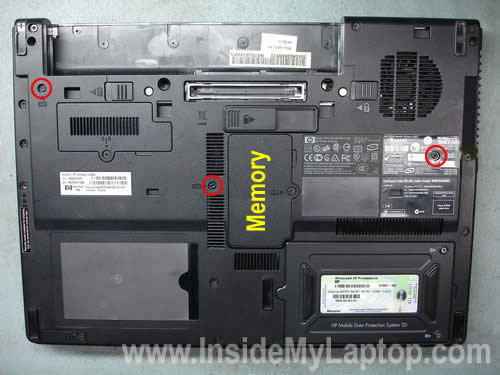
There are three screws securing the keyboard on the bottom.
You can remove these screws with a #8 torx or flathead screwdriver. Remove all three screws.
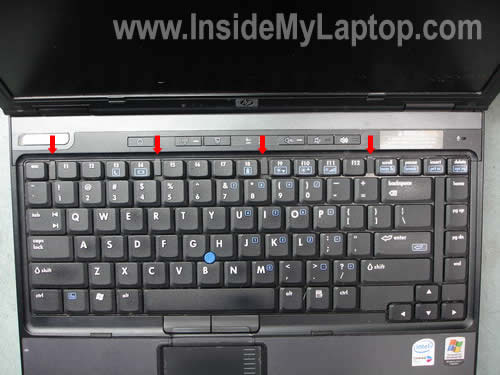
There are four small latches located in the top row of keys on the keyboard.
Unlock all four latches by moving them down with your fingernail.
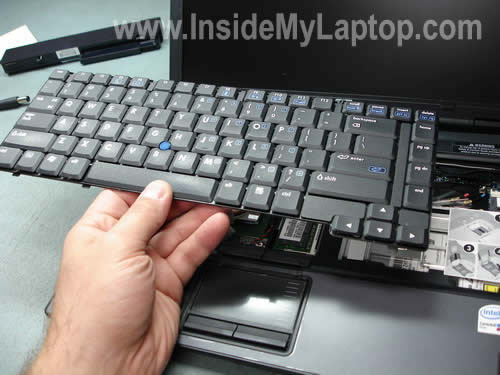
Now you can lift up the keyboard as it shown on the picture below.
Be careful, it is still attached to the motherboard.

It is possible to remove and replace the internal RAM module WITHOUT disconnecting the keyboard.
Carefully slide the keyboard aside and access the RAM slot.
I show how to disconnect and remove the keyboard only for readers replacing the keyboard.
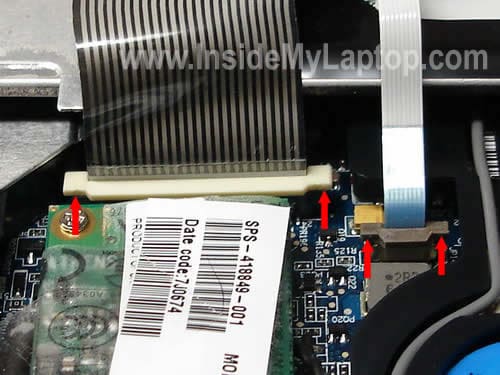
Place the it upside down on the palm rest. You will find two flat ribbon cables connected to the motherboard.

You’ll have to unlock both connectors in order to release the cables.
Each connector has a locking tab (one is white and another one is brown) witch has to be moved about 1-2 millimeters up.
Very carefully move both locking tabs up with your fingernails. Release both cables and pull them from the connectors.
Now you can remove the keyboard and replace it with a new one if necessary.
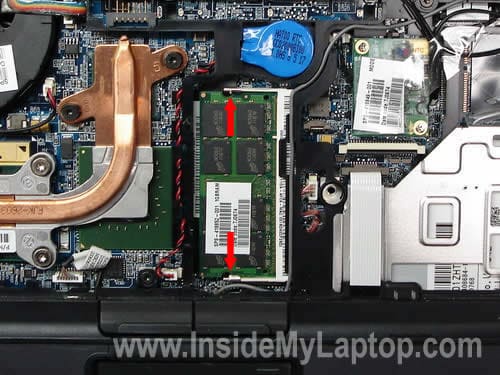
On the picture below you can see the hidden RAM slot.
Carefully push on two latches pointed with red arrows until the module pops up at a 30 degree angle.
Pull the module from the slot by the edges.
HP Compaq nc6400 is upgradable to 4GB maximum.
You can install up to 2GB RAM module into each slot.
Use DDR2 PC2-5300 667MHz SODIMM RAM.
Anand
Thank you for this information. Without this information, I don’t think I’d have been able to upgrade the memory successfully.
Nick
yeah thank you– a little tricky, this helped loads
Emery Jordan
Your information is clearer then the official site for HP on this issue. However, when I inserted a 1 GB stick (having replaced a 512MB stick of the same speed 5300), nothing happened when I turned the machine on–no booting up nothing.
Got any Ideas as to what happened or did not happened. I am supposed to configure the upgrade in the bios?
IML Tech
Emery Jordan,
You don’t have to configure the BIOS. The memory stick should be detected automatically.
Make sure the new memory module is seated properly, all the way down into the memory slot. Try reconnecting the memory module.
Also, try installing the original 512MB back and booting the laptop. It’s possible the new memory module is defective.
Most likely it’s just not seated correctly.
Matt
This was helpful. One minor change. In the first picture you list the keyboard screws, well the rightmost screw is not correct. The circle should be around the one directly left of the one you got circled.
IML Tech
Matt,
Thank you, I fixed the picture.
peili
Your website is really very helpful. I have a better idea on accessing the internals of my own laptop.
I have a Presario X1439AP. I should have 2 RAM slots. One of the RAM slots has its own compartment and is directly accessible from outside without dismantling anything. I cannot find the other RAM slot. Is it under the keyboard? How do I get access to this? Any help is much appreciated.
IML Tech
peili,
I’ve searched HP website for a manual for your laptop and couldn’t find any. If your laptop should have 2 RAM slots, but you can find only one on the bottom, most likely another slot is located under the keyboard.
The keyboard removal steps are the same for most HP Compaq laptops. Check out Compaq and HP laptops category on the right side of the website. I’ve published many guides for different HP laptops in there.
Randy
Your info saved me a lot of grief. HP instructions are no where near as well organized or as easy to follow as yours. Thank you so much for supplying this.
I did have one problem unplugging the ribbon cables. Those cheap little clips both broke on one side. My son, who works on computers all the time, helped me and he even broke one. They are VERY fragile. I put them back to hold the ribbons and will try to buy some replacements. They are working so far.
Thanks again!
tanstaafl
As Randy says, be VERY careful with the little clips that secure the ribbon cables. I broke one (even though I was being careful) and now the trackpoint nub does not work on my keyboard. I regret the entire process, and should have just been happy with the ram that I had already installed in the slot accessible on the bottom of the computer.
Mark
I added a 2GB stick in the external compartment and rebooted. System properties shows 1 GB of RAM still – should be 3 now.
I vaguely recall adding memory to a desktop and having to reset something in BIOS to recognize the added memory. Do I have to do that here?
Finally, since adding the RAM module, when I click on Workstation Info on my desktop I get the Warning message “Unable to access the N: drive, please check your network connectivity”. Huh?
Any help would be greatly appreciated.
IML Tech
Mark,
Make sure the second (2GB) memory module is installed correctly. Try reseating the memory module.
Nope, it should be recognized automatically.
I don’t think this problem is related to your new memory.
Rob
Hi,
I managed to upgrade with these clear instructions, but also broke one stem on each clip. Is there anywhere i can buy these clips?
Thanks Rob
Princip
How do you keep this site up? Its awesome! 🙂
IML Tech
Princip,
I really enjoy doing that. It’s my hobby. 🙂
simon
is this similar to replacing a keyboard on a hp compaq 6735s if not could you help me plz
IML Tech
simon,
I have a different disassembly guide which covers HP Compaq 6730s and 6735s notebooks.
Lou Ann
Your instructions were quite helpful, yet I could only figure out how to replace the 1 GB memory. I could not see where the other memory slot was and am wondering if I was doing something incorrectly? I am going to take my laptop to the electronics store where I purchased the 2 x 2 GB and figure out if I can install the second 2 GB memory card on my HP nc6400 notebook. The improvement with VMware and MS Office 2007 is huge with the upgrade to 2 GB. If you have any ideas of what to do for the second card, please reply. Thanks.
Jake
This is a good instruction. I am really looking to open the whole PC. I bike to work and my CD drive came partially disconnected and the PC will not boot. I know that i just need to connect it, but I cannot figure out how to get to it. Any suggestions?
Michael
Cool instructions! Took me 5m to repalce my memory
Sjors
I found out that you can just lift the keyboard and when your carefull you can replace the memory without having to disconnect the keyboard.
IML Tech
Sjors,
That’s true. It’s not necessary to disconnect the keyboard from the motherboard in order to replace or upgrade the memory module. Simply flip the keyboard over on the palm rest.
John
Your instructions were great. I added 2 mb to the bottom memory slot, when I put it under the keyboard. My computer came on but no screen. I put back the old memory under the keyboard and it works again.
Are all memory sticks the same, as long as you fit it in the wave of the slit?
IML Tech
John,
Are you using PC2-4200 DDR2 SDRAM SODIMM module?
It could be bad connection between the memory module and slot, incompatible memory module or bad memory module.
If the module fits into the slot without any problem, you are using a DDR2 module and it should be compatible.
Try installing the same module into the slot on the bottom and test if it works. If not, probably it’s a bad module.
Try installing the same module into the same slot again, maybe you didn’t connect it properly the first time.
If the new module doesn’t work
Dana
I am having a slightly different issue, but it’s about this laptop, sooo..
My screen has a 1 in 100 chance of turning on. Most of the time the screen will be completely dead, but very, very rarely, the computer works perfectly, so it’s not an actual dead screen. I surmise that the connector to the motherboard is loose, but for the life of me I can’t find it. Advice? 🙂
Rob
I have a Compaq NC6400 that runs fine off battery but with adapter plugged in, will not power up (with or without battery installed). I also tried docking it hoping that it was maybe a faulty power receptacle on the back of the laptop, and get same results. Proper adapters, etc – just blinky blink yellow charge light.
Can charge battery in another laptop, swap it out and all is fine.
Please help >>>>>>>
IML Tech
Rob,
If you get this failure with a known good AC adapter, most likely it’s related to the motherboard. Sorry, cannot point you to the faulty component. I don’t work on component level.
RobF
Thanks for the information. I found this trivially easy to do without disconnecting the ribbons. Given the problems people reported doing so it might even be worth updating the article.
IML Tech
RobF,
Thank you for your comment. You are correct, it is possible to replace the memory module without disconnecting the keyboard. I updated my instructions. You’ll see it under the third picture.
Akuma
Nice step-by-step guide. The questions / issues i have are as follows:
Issue
I currently have 2 gigs (1x 2 gigs) sticks in my latop. I was told XP only recognizes up to 3 gigs.
Question
1) If i use one 1 gig and one 2gig stick = 3gigs, will that affect performance of the box? Can this be done without issues or i have 2 run the same in parrallel?
2) Even though the machine can take up to 4gigs, does it use all 4 or 3gigs, since XP / The machine recognizes and shows 3 Gigs?
fred wilson
To short tempered human beings, if your keyboard on your nc6400 gets full of dirt, it will go crazy when you type a letter, and that letter will repeat over and over until your blood pressure hits the stratosphere. When you try to type a sentence, a sentence of unintelligible jumble types itself, looking like a language from another planet. This time your blood pressure soars beyond the limits of human restraint, and you do what? You slam your fist into the keyboard in an uncontrollable adrenaline-induced rage. This next sequence of events will shock unconditioned beings, so brace yourselves. The battery flew out of the bottom, and the plastic top cover latch flew across the room! Luckily, the battery went back in and snapped into place perfectly, and the plastic latch snapped back into place unharmed. No harm done. Except! My keyboard is bent inward now, and a few letters are lower than they should be. It works fine though, and I literally got away with the attempted murder of an HP nc6400 that rightfully deserved a good beating.
Everyone has wanted to viciously attack a computer before, and I hope you vicariously enjoyed the experience through me.
Now, i shall use your wonderful keyboard removal instructions to remove said keyboard, and push the dents out from underneath, and hopefully all my letters will be even again.
A court of law would ask if I had remorse, and I would tell them to go take a flying leap into Hades. Computers need beating from time to time, and everybody knows it.
As Edgar Alan Poe said in “The Tell Tale Heart,” …..”Do you fancy me Mad?”
With your instructions, I am sure I can fix it, or at least improve it dramatically.
Not that I need one, but how much does a new keyboard cost?
Finally, I am not going to confession for this sin. If my laptop wants to go for its sin of driving me crazy, then it can find its own ride to church. Maybe the priest can beat some sense into it.
Thank you immensely for your help. I will do the RAM upgrade when I get rich.
IML Tech
fred wilson,
A new keyboard for HP Compaq nc6400 could be found on eBay for less than $20.
fred wilson
Thank you so much your your removal procedure. It worked perfectly. I had to peel back some of the plastic backing, and push my dents out with a screwdriver. Got all my letters even. Plenty of adhesive left on the backing too, so i didn’t have to reglue it. Keybord is even and works perfectly.
How much do the 2 gb ram sticks cost for this nc6400? I’m anxious to upgrade.
When i move up to 4 gb ram, specifically what differences in performance will i see?
OH, and thanks so much for your procedure. It’s rewarding to have done this with your help.
I’ll stay in touch with your site. It’s very good. I’m a devoted follower now, and look forward to my next project.
Thanks Again,
Fred
IML Tech
fred wilson,
It depends where you buy it.
If you are not in a hurry, I would suggest buying online (no tax, free shipping 🙂 ).
Just google 2GB DDR2 PC2-5300 667MHz SODIMM and you’ll get an idea how much it is. I would say you can get it for about $30-40.
If you are running Windows XP, most likely you will not see much improvement unless you are running some very intensive applications. XP will not see more than 3GB anyway.
But if you are running Vista, it will run better.
Mark
Thanks very much. Your clear instructions helped me upgrade the memory on my kidm 514 Mb to 2 GB. They are now getting in to trouble much faster. Cheers MJE 🙂
Ronald
Hi,
Thanks for the instructions, very helpful.
One question:
Systeminfo on my NC6400 tells me I have 1 GB installed memory. Can I just buy one 2GB module to upgrade to 3 GB. Or does it need to be an equal duo, in other words, the same amount of GBs in each slot? I read this somewhere but not sure if that is right. If it is true I would have to buy two modules in order to upgrade to 3 GB, instead of just one module.
Thanks
Ronald
IML Tech
Ronald,
Yes, you can.
Nope, it’s not necessary.
SImon
hi, i wish to upgrade my nc6400 processor. how to remove the processor frm the laptop? is it same instruction?
pchallak
Instructions have been really helpful. I had accidently spilled some coffee on my laptop and have used these instructions to replace the key board
steve
I purchased 4gb of ram and installed it no problems. But it is only showing that i have 2gb installed.
Before i changed it out it said i on had 512mb but there were 2 x 512 sticks installed, any idea what would cause this?
IML Tech
steve,
Maybe one of the memory slots is bad.
Remove memory modules one by one. Try starting the laptop with only one memory module in place. Try different slots. This way you can find the faulty slot.
cezar
Friend is like you have the reference of the Integrated Circuit 8-pin is the IC PU25, located below the keyboard. under that black plastic and the modem card.
Laptop: HP Compaq NC6400
I thank you.
Steven
Thanks for this post! Followed the instructions to get to the fan to clean it – my system runs a lot smoother now.
But… I have the same problem as Rob in post 26. It seems to me that the back light is simply not switching on when booting with the AC cable attached. That is annoying, because I can’t leave the battery out when I have to work a few days form a desk (which I normally do to save the battery).
Is there any news on this issue?
Mike N Tara
Thanks, this was helpful in removing keyboard and installing 2GB RAm. Grealy appreciated.
Andrew
Hello,
I have the same problem like cesar. I’ve destroyed the IC PU25 (Integrated Circuit 8-pin), located below the keyboard. under that black plastic and the modem card.
Doesn’t somebody know what circuit is it? I want to replace it.
Laptop: HP Compaq NC6400
Thank you.
Alvaro
Thanks for the help. The instructions were simple, clear, and easy to follow.
Flemming Hoyer (DK)
Fred Wilson mentions adhesive and reglue. Does that mean, that I can’t clean the keyboard underneath. I have the same problem with letters, typing themselves and would like to clean the keyboard.
Thank you for a fantastic site.
IML Tech
Flemming Hoyer (DK),
Nope, you cannot clean it.
You need to buy a new keyboard and replace it.
Keisha
Hi, I just got a HP Compaq NC6400 PK130060200 for my laptop but when i decide to change it i realise that mine is PK130060100 and the ribbon that connect the system board on it is much narrower and the one i got PK130060200 is much wider so i can’t insert it to the ZIF connector.
Gino
Hello,
“Fred Wilson mentions adhesive and reglue. Does that mean, that I can’t clean the keyboard underneath. I have the same problem with letters, typing themselves and would like to clean the keyboard.”
Solution is easy: nc6400 has an issue which cause this behaviour, All You have to do it put sheet of paper under keyboard. It works for me and i like my laptop again 🙂
Thomas
Hi. I had 1 GB of ram in my laptop (2 x 512mb), and when I got a 2gb ram stick and replaced one of my 512mb sticks, I was expecting either 2.5gb of ram or 512mb of ram. I actually got 1gb again. I have tried both slots and got the same result. Any ideas?
Fred
AAUGH!! I broke the ribbon cable retention tab!! The larger one. Can anyone recommend where I can get a replacement?
IML Tech
@ Fred,
Is it broken really badly.
Here’s something to try.
Insert the cable back into the connector. Place the retention tab back in place the way it should be. Secure connection with sticky tape.
sam
hi
how can proceed to put back ribbon connector for Fujitsu LifeBook S7020 keyboard? it’s driving me crazy!!
thanks in advance
Arpad
Dear IML Tech,
Currently I have 2 * 512 MB RAM. I will upgrade to 4 GB.
What would be the difference between the following options?
512 MB + 4 GB – in this case I wouldn’t have to take apart the laptop; I would have to change only the easily accessible panel
4 GB – I would take out both modules and insert only 1 piece of 4 GB module
2 GB + 2 GB
Any of the above would do? Would the end result be the same?
Thanks,
Arpad
IML Tech
@ Arpad,
I doubt that this laptop can support 4GB RAM module in one slot.
I think your only option would be installing two 2GB RAM modules.
512 MB + 4 GB probably will not work at all. Laptop might start properly but will not see all memory.
4 GB probably will not work at all.
2 GB + 2 GB I think the only option.
Mark Mann
This particular laptop will not support DDR3 Ram (4GB Module). You will need 2 2GB DDR2 modules to obtain 4GB
ahchandio
dear,
IML Tech
1. iam having this machine hp nc6400, can i use my PCMCIA OPTCL broadband in pakistan please guide me in this reagard.
2. how can I replace his battery and also how can I use its SC SLOT located right side of the machine.
George
I have same machine working on IGB ram.I have purchased 2gb memory stick.I cannot get the computer to boot and the graphiocs arent clear with lines on a reduced screen .what can I do?
tim
Can anyone tell me how to replace the motherboard on this unit
IML Tech
@ tim,
Check out the official service manual for HP Compaq nc6400 notebook. The manual has step by step disassembly instructions.
CAD User
Thanks for the pointers. They are helpful. Cheers!
gafurr
HP Compaq 8710w Mobile Workstation I put another adapter and there is no ignition have the opportunity to tell a burn any part or otherwise has not done smoke no noise became
KISHORE
hi,
Thanks for the ” Tips . Pictures and careful removal ideas and guidance”
of hp nc6400 laptop, which are very much useful and I can’t find these even in hp site.
Once again Thank you Sir.
The Defenestrator
Tankee kindly.
Shishir
Hi,
First i thank you guys to keep such a great site and extremely helpful
step by step guide for this DIY. I have a different problem, the screen has become red all of a sudden and it remains same. Please guide me how to cure this.
Thanks in advance..
IML Tech
@ Shishir,
If it’s solid red, check connection between the video cable and LCD screen/motherboard. Also, try replacing the cable.
If the image still present but the screen has a red hue, this could be the backlight lamp or inverter related problem.
Rahed
Your information clear. Thanks a lot for sharing this.