


In this guide I will disassemble a HP Pavilion dv9000 laptop.
These instructions will help you remove the hard drive, memory, wireless card and keyboard.
All these components, except the keyboard, can be accessed through on the bottom of the computer.
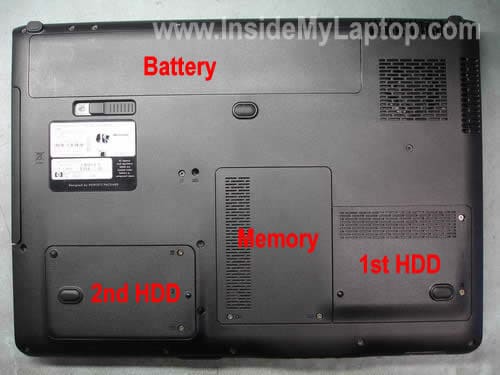
First of all, remove the battery.
Remove screws from the 1st hard drive and memory covers. Remove both covers.
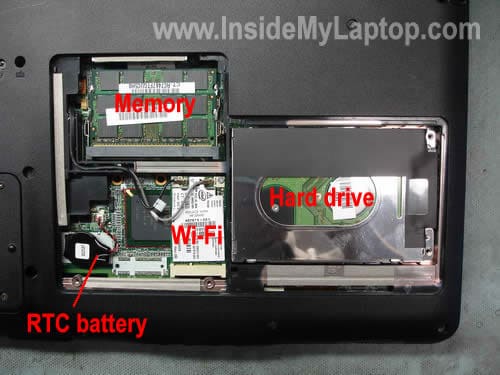
Under the memory cover you will find the wireless card and RTC battery.
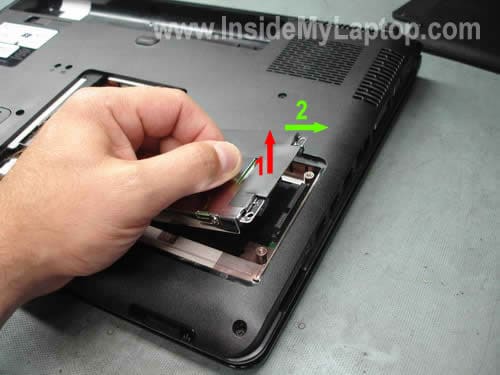
In order to remove the hard drive, lift up the right side of the drive assembly (move 1) and then pull it to the right (move2).
If you are replacing the hard drive, you’ll have to transfer the caddy and connector to the new drive.

Before you remove the wireless card, you’ll have to disconnect both antenna cables pointed with green arrows. Simply unsnap both antenna cables from the wireless card with your fingers. After that remove two screws securing the wireless card and pull it from the slot by the edges.

Some HP Pavilion dv9000 models have only one hard drive installed. As you can see, in my computer there is no second hard drive under the cover.
If you would like to install a second hard drive, you’ll have to purchase a new 2.5″ SATA HDD, SATA connector and drive caddy.
I refer to all HP Pavilion dv9000, dv9100, dv9200, dv9300, dv9400, dv9500, dv9600 & dv9700 notebooks as the “dv9000” since adding a hard disk drive (HDD) to all above mentioned models is similar.
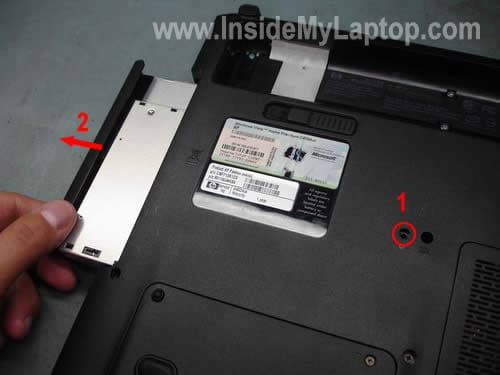
In order to remove the CD/DVD drive you’ll have to remove the securing screw (1) and then carefully pull the drive from the case.
KEYBOARD REMOVAL INSTRUCTIONS
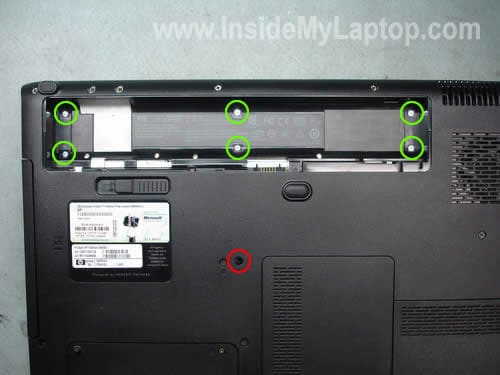
Remove six green screws securing the bezel and one red screw securing the keyboard.
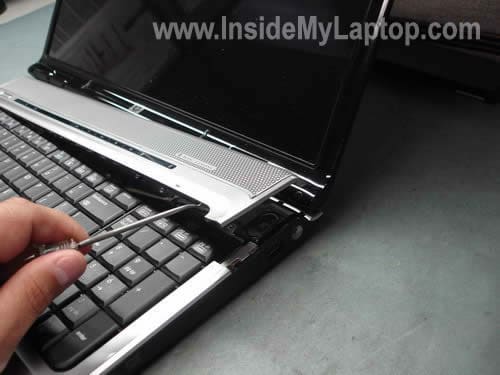
Carefully start removing the bezel with a small flathead screwdriver.

Be very carefull, the bezel is attached to the motherboard with a flat ribbon cable. The cable location is pointed by the green arrow. Do not disconnect this cable. Simply place the bezel as it shown on the picture below.
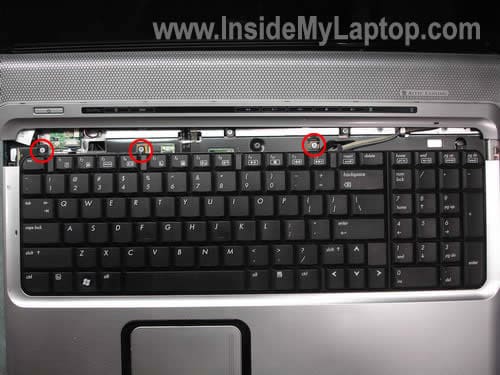
Remove three screws securing the keyboard.
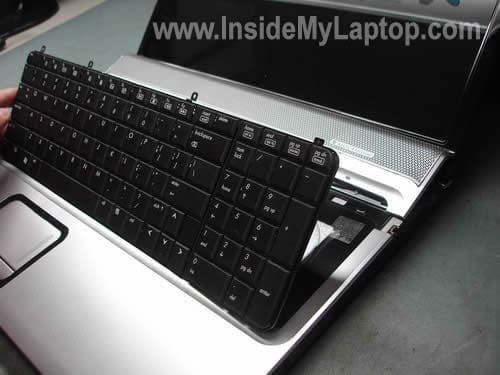
Lift up the keyboard. Be carefull, it’s connected to the motherboard.
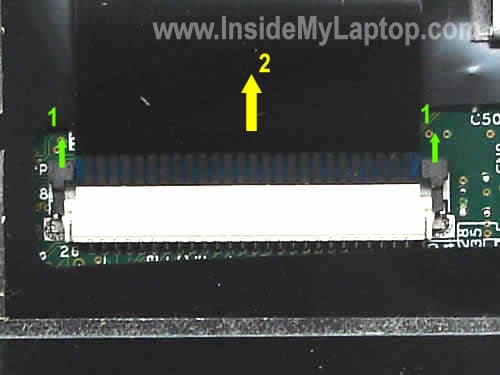
In order to release the cable you’ll have to unlock the connector as it shown on the picture above.
1. Slide the connector lock to the direction shown by two green arrows with your fingernails.
2. Pull the cable from the connector.

Now you can remove and replace the keyboard with a new one.
In the next guide I will explain how to disassemble laptop display and remove inverter board with LCD screen.
Also, you can read how to replace broken dispaly hinge in dv9000 model.
Ryan
I have an HP Pavilion ze5200 and I need to remove the hard drive. I read your instructions for the dv9000 but my computer is not set up in the same fashion. Can you help me?
Daniel
I have a HP dv9035nr. I was working with word pad over several hours when I decided to turn the system off too cool down some. It felt very warm throughout the top left and center area of the keypad. As I shut the display I heard a crack like sound, as though something had snapped or been pinched. I’m aware of the cracked hinge problems… mine is beginning to show some small seperation or a gap that looks between sealed and slightly unsealed. I don’t think the crack sound came from the left hinge but somewhere within the display bottom area. When I came back to continue and powered up I got the XP loading screen with the logo art and scan bar, but as it was wrapping up that it started to produce very large gray and black horizontal lines and some particle remnents of the windows load page art and went dead. It was still opening without screen display because I heard the windows theme play like it does when your in desk top. I attempted many tries with and without battery, removing and replacing battery and even some gentle slaps on its top and bottom sides. I plugged in an external monitor and they both came on except as it began into desk top the laptop screen went dead while the external continued operating normally. At some point or another leaving it alone for periods I got the screen to come back. I even turned it on and off before putting it away and it continued to work correctly. This AM after off all night I can’t get the screen to function. Still booting and loading just no display. What has happened ? This is a really big drag as I do my video editing on this machine and hooking an external display is unexceptable. Help!!! Could this have anything to do with the inverter box?
IML Tech
Daniel,
Did you try switching video between external and internal modes using Fn+F4 key combination? Maybe your laptop stuck in the external mode after you used the external monitor. Press and hold down Fn key and then tap a few times on F4. Can you switch video back to the laptop LCD?
This problem is not related to the inverter board.
Bobbbie
We have a HP dv6000 that has quit recognizing the hard drive and will not boot up. Do you have any tricks/tips to give us to get it to boot up?
Nemo Noman
I am very grateful for your helpful detailed instructions about Keyboard R&R. Impossible to find on the HP website. This is a real service to we slobs that like to slosh coffee on our laptops.
Nemo
Karl
I have the same problem with my 2 yr old HP Pav 9330us as does Daniel. I can assure folks my fn key and the F4 key ahs nothing to do with mine. I can’t even get the screen to come up on an external anymore….at firt it said my NVIDIA driver was corrupt. I reloaded the driver to no avail. I can get to the Vista splash screen sometimes but it locks up at that time and never recovers now. I have to shut down and I never do get windows to come up even in safe mode. Help?
Nicholas Pham
This information is very helpful. I am really greatful for the instruction on how to replace the hard drive. I didn’t know HP support can be hard to come by. I purchased a HP Pavillion dv9834 and had problem with loading software in preinstalled Vista machine. I decided to install a new hard drive with Window XP. Thank you for your wonderful service.
Ulli
I have problems with the nvidia drivers too, can’t install them without gettin a black screen and being unable to restart the notebook again to the desktop.
as long as i use the windows xp standard display mode(max 1024×768), i can work with the notebook. when i use the vista original backup..i get a bluescreen with some page error message, and unable to start until the desktop is there.
I think the video chip or memory is corrupt.
My dv9313eu gets very hot, especially during 3d games, I use a coolermaster stand, otherwise the notebook switches it self off.
ofcourse now i can’t play 3d games anymore, because of the prob;em with not being able to install the nvidia driver…..
best regards,
Ulli
G-ranical
Thanks so much for this. Also for the link to the manual, which didn’t come with my computer(seems a little strange and annoying now).
Now I can properly clean all the dust and cat hair out of computer and won’t have to worry about it freezing or overheating and melting the goodness.
Mique
This is a great tutorial, thanks.
Question, Can I upgrade my WIFI card to G or N and if so is it just as simple as buying the card and installing it as described in your tutorial.
terry
Hi, I have a HP pavilion dv9000. I’m wondering how do you perform memory test and motherboard test to see if it function properly. I tried to install Window xp sp2 into my laptop, but during the process i encountered problems like CANNOT copy xxx files so i have to press ESC key to skip that file and that probably caused me problem more problem. Im wondering if HP pavilion DV9000 have any protection switch build inside to protect from being over-ride? Can you help me out plz. I can’t install any hardwares inside my laptop now and i have very difficult when install Window XP sp2. Also i can’t even update my system bios or install any internal or external device for this computer now. Thx a lot
Mathey jean-Marc
First of all, please excuse me for my English… I am Belgian and speaks French.
I seek one « SATA connector (black plastic piece) that acts as an interface between the SATA hard drive and the HP dv9000 notebook computer ».
Can you give me a reference at HP?
In advance thank you.
Mathey jean-Marc
Shadow
I have a problem,I have the Hp Pavilion Dv9731ca laptop which i recently reformatted.I can’t seem to find all the programs that I had in it which I got at first.This is a Bell Sympatico high speed internet promotion,sign up 3 years and get a laptop of your choice plus pay per-month.Anyways when I got it it had all the bells and whistles,now I can’t get the fingerprint reader working,and I can’t get Vista to detect my Nvidia video card I have the Nvidia GeForce 8400M GS, so how do I get to make those 2 programs to work?Oh and I have this other issue why is it now when i wanna watch a movie on my dvd rom I get a message like this the dvd you wish to watch is protected Macrovision and does not meet the Macrovision requirement to play.What the hell??? how am i supposed to watch my dvd’s???Help please and thank you.
Stephen
I have a problem with my dv9000 17″. The top dropped off the end of my bed, about a two foot fall, and landed on upside down. upon retrieving and opening the top, the screen was in a large resolution and it was telling me the resolution was set smaller. I tried to restart my laptop but upon restart the screen is totally black. I hooked it up to my tv via S video cable, and it was all black and white. I reinstalled my video drivers, and the tv went black. Now my laptop has no display and will not display on any external monitor. Can someone help me??
Alan O'Neill
I’m attempting to fix a sound issue for a friend on his DV9035NR which had the system board replaced. He had 2 SATA drives in it(80 gig each, if I recall correctly). He hasn’t used the drive so I thought I’d remove the OS drive and move the second drive over and install Windows XP back on to it. When I made the switch and booted my own XP install disk, it couldn’t find any drives. I put the drives back in their original locations, and tried again, and my XP install still didn’t see the drives. I then created recovery DVD’s using HP’s tool on the computer and booted the first disk. It said it it wasn’t the right recovery CD for the system.
My questions are: Should I be able to reinstall XP using a egular XP install disk, or does it require HP’s? Second, Why won’t the recovery dvd’s work with his system? Are they looking for a specific system board serial number, or, did the company that replaced his motherboard possibly install the wrong system board from another system in the DV9000 series? He had his previous system board replaced when it failed, and when he got it back the sound didn’t work. I found I can get a small amount of sound on the right channel through headphones, but nothing through the speakers.
Thanks for any tips you can give, and thank you for this page which helped get me started helping my friend.
Al
Marshall
i have been working with the hp pavillion dv9000
but just until recently, my keypad wont work. only the “t” and “y” buttons are active
Phil Kowalski
I have an HP Pavillion dv9000 Laptop Computer Serial No. CNF70837LN that I bought at a Staples Store some years ago. It has been working fine except that recently I have not been able to connect to my Local or my Wide Area Network.
The light on the Wireless switch remains red and I do not know how to correct the problem.
Using Diagnose and Repair results in an error message that reads ‘A cable is not plugged into the Network Adapter’. I removed the rear Memory cover of my laptop and checked the internal NVIDIA nForce Networking Controller for any loose connections. I removed and re-installed the Wireless Card according to your on-line repair tips and tricks. Device Manager reports that this device is working fine. Still no blue light. Can you help me?
Phil Kowalski
Alex
i need to know if ther’s a way to erase everything from my HP Pavilion dv9000 and leave it with the factory setup…. as if i just bought it…… thanx
nik baldwin
i have a DV9000. recently it has stopped working and i cant get it to turn on. every time i try to start the thing it keeps turning its self off and tries to restart, but nothing happens. PLZPLZ help is there anything i can do to fis this problem.
Gus
Alex there is a way to do what you want .. however if you didn’t make a set of back-up discs upon first use your going to have a bit more fun.
IML Tech
Alex,
Gus is right. In order to reimage the hard drive back to factory defaults you’ll need recovery discs. I don’t know if these discs were supplied with your laptop or you had to create them yourself.
If you have recovery discs, boot your laptop from the first one and follow instructions on the screen.
If you don’t have recovery discs, I think you can call HP and order a new set.
Tyler
HP Pavilion dv9000 keyboard was sloppy, needed some shims and I couldn’t figure out how to get the dang keyboard out. Thx for posting these instructions. They were detailed and exactly what I needed.
adolfo
hello to everyone, can you guys answer my question, i have a hp dv9260nr it does not have a bluetooth & I was wondering if is possible to add a bluetooth module or is not built to have one…thankssss
Tont
I have a HP dv9000 and the problem is with the wireless switch. I havd my the battery die out and when I restarted it the wireless wouldn’t pick up. It was showing the the switch was dis enabled. Now istead of a blue function light I have an orange light. Does anyone know how to go about re enabling the switch?
IML Tech
adolfo,
Yes, you can add a Bluetooth module into this laptop but you’ll have to disassemble the laptop and remove the top cover assembly. The Bluetooth module mounts inside the laptop.
You’ll find instructions in the official service manual for HP Pavilion dv9000 and dv9200 notebooks. Take a look at the page 175.
Here’s the HP part number for a Bluetooth module (includes cable): 412766-001
Baron
I have the same exact problem as number 28. can anyone help us
Craig Donelson
I have the same problem that other people are having with their HP9000 laptop. I can`t get my computer to receive a wireless signal from my wireless router. For the wireless indicator light in front is now orange on the front of the computer. I checked the device manager and it said that everything is working. I checked the router and the modem.. it also is working. Do I need to replace the wireless switch or a battery? What is my next step? Thank you.
Craig
I Made Muliana
I have the same problem that other people are having with their HP9000 laptop. I can`t get my computer to receive a wireless signal from my wireless router. and i have been make recovery disk and after directly for 30 minute make restart otomaticly restart again without the bios coming…please any reason. thanks made
IML Tech
Craig, Baron, Tont,
That’s strange. A few different people are having exactly the same problem with Wi-Fi on different dv9000 laptops.
Maybe it’s somehow related to the latest Windows update?
1. Try reverting your operating system back to the time when it was working properly using system restore.
2. Try uninstalling and reinstalling the Wi-Fi driver.
Something tells me it’s not a hardware related problem. It’s very unlikely that the same problem happened on a few different laptops at the same time.
Also, find out which version of BIOS is installed on your laptop and then search the HP site. Do the have a newer BIOS release? Maybe it’s a known problem and there is a fix in the BIOS release?
Trent
Like a broken record, I too have the same orange light on the front of my HpDV9000 that wont let me switch back to the blue light (allowing any wireless access). I could really use some help here.
It sounds that HP made a mistake somewhere along the line because a lot of people are having the same problem.
Raven
I too was swindled out of my money with this expensive, HP DV9000 Laptop piece of crap, is it true that this speak and spell has a major recall.
Iv’e never dropped mine, or damaged it in any way. however my last update from the MS Mothership fried my NON compatible Nvidia Card, its made for Windows 2000!!! WTF??? Like they didn’t know this was going to happen.
John
I have recently had my nvidia 7600 graphics card stop working and HP is trying to charge me a little over $400 to fix it. Does anyone know how I can go about replacing this myself? My system starts up but I get no sound and no display. Please let me know is anyone has any advice. Thanks.
Jody
HP has a recall on the notebooks having the wireless adapter problems. I think you have to contact them and they will send you a box to send in the laptop. My brother in law went this route and had it back in a 1 1/2 weeks. I had mine fixed through Best Buy under the service contract.
IML Tech
John,
Do you know if the video card is integrated into the motherboard then you’ll have to replace the whole motherboard. You can do it yourself.
1. Find the motherboard part number. It’s usually located in the memory compartment.
2. Buy a new motherboard.
3. Download hardware maintenance guide for your model.
4. Follow disassembly instructions in the manual and replace the motherboard.
Are you sure that your problem is related to the video card? Could be just bad memory module.
Alin
I don’t know why, I took my harddrive out from the back and I put it back, the system cannot find my my hard drive. It says,” Operating System not found”. I spoke with the two online technicians and they guide me through a lot of steps and told me that that’s the SATA driver problem that I need to update the SATA in order to do it. It really become a mess to me. Can anyone help me? I tried to use the discovery disc also, in the progress of the 2nd disc, it just stop and said ” cannot load bitmap X:\Res256\BANNER.BMP”. I know my hard drive has no problem becuase I tried to use the other device to testify it and it works. Any suggestions? Thanks so much.
Also, to those people who wants to send the computer to recall, I think their services is very speedy and it cost me nothing but around 10 days of wait time. So, it’s always good to do that before your warranty expire.
IML Tech
Alin,
There are two hard drive bays. Did you put the drive in the right bay? Can you see the hard drive in the BIOS setup menu?
Did you try to load BIOS defaults?
Dustin
Hi everyone. I’ve recently had a major issue with my nvidia 8600m gs graphics card. I was playing battlefield 1942 and all of a sudden the screen lagged and then went to a black screen that was blank then it appeared as the monitor turned off. I powered off my notebook and turned it back on and now the graphics card is no longer working in windows. It has forced me into 640 by 480 resolution with 4 bit color and I cannot change it at all. I have tried to update the drivers many times, uninstalling the device completely and reinstalling it many times and tried many versions of drivers and NOTHING seems to work. I am still stuck in this resolution with the video card not working. In the device manager under display adapters there is a yellow caution symbol next to the name and under its properties it says: Windows has stopped this device because it has reported problems. (Code 43) Current driver version is 7.15.11.145 but i have tried the latest driver on the nvidia site.
My system specs:
HP Pavillion dv9000 notebook running windows vista home premium 32 bit SP1
Intel Core 2 Duo processor @ 1.50GHz
2GB Ram
I tried a system restore once and it worked until i played the game again. I dont think its the game because i’ve played it for years now and nothing like this has ever happened. I’ve never had a single issue with my card until this. I havent recently fooled with anything too so it was completely out of the blue. I also did a complete system recovery from the recovery partition on the computer but it did not solve the problem. Please someone help me out and let me know what I should do. It would be greatly appreciated. This is really quite frustrating :\. Is there a way to tell if the video card is fried or no longer is in working condition? Thanks!
-Dustin
IML Tech
Dustin,
So, the laptop worked fine with the same game before and running complete system recovery didn’t fix it? Sounds like a hardware related problem and most likely it’s related to the video card.
By the way, did you read about free repair from HP in the comment 40? Maybe your laptop qualifies for that repair?
Dustin
Unfortunately i do not qualify. I have determined that it is a faulty GPU but HP will not come clean to the problem. There are hundreds and hundreds of people like me out there that are not being taken care of by HP for something that they did wrong. I will never purchase another hp product ever. Their customer service is just a joke…really, they need to step it up and until they do i will no longer consider a product from them. Sorry for my rant but people deserve to know. – Dustin
Luis Sandoval
Hey many thanks for made a site like this.
Pls, i need some helpr more,
I have a hp pavillion zv5257la, but a cant find the rtc battery for clear the f… bios password.
Is a older notebook but i need use for some homeworks. Please response this questiions, i trie everything , thanks
Bob Tetor
sir,
I will like to know how to use the functions on my pavillion dv 9000. If possible, is their a website that i can use? I’am new to the computers and their high tech. Please help, i need a manuel bad.Robert Tetor
Alan
Recently I removed a DVD from my hp Pavillion 9000 internal optical drive and noticed a felt washer about the size of a fifty cent piece laying on the disc. I assume it is a braking component formerly attached to the topside of the drive compartment. I removed the drive and disassembled it for further inspection and would like to know if there is a simple fix for this, i.e. glue it back into position? If so, then with what adhesive? The drive will not function without this washer in place.
Zach
I have been having problems with my HP Pavilion dv 9000 laptop it can not read cds even though the computer says their is nothing wrong with it. I have unistalled the drivers and still it won’t read the discs I want to say the lens is scratched or broken but it won’t read discs. I tried putting a lens cleaner but it won’t read that can you help.
IML Tech
Luis Sandoval,
I doubt that removing the CMOS (RTC) battery will clear the BIOS password.
IML Tech
Zach,
Can you see the CD/DVD drive in My Computer?
Does it give you an error?
You can try booting the laptop from a bootable CD/DVD. You can use a live Linux CD, Windows installation CD, HP recovery disc or any other bootable CD. If the laptop boots from the bootable CD but you cannot access it in Windows, most likely you have a software related problem.
samuel
I have a problem with my HP 9000 , At initial stage when I switch on the laptop the screen comes up blank and after a while its start to move like cloud , one side white the other black before finally switch on , after 20-30miuntes it goes blank again.
Now is permanently off with the screen totally blank.
Can anyone please tell me, what might be the problem and whether I can fix it myself?
Whitney
Samuel… Sounds like the defective nvidia GPU like mine did and so many others. Mine has gone blank as well and needs a new motherboard and graphic card. I refuse to pay to have it fixed since it’s a major defect. Take a look at hp forum about this problem.
Kim
I have an out of warranty Pavilion dv9000 laptop with the same symptoms as the recall- overheating, dead wireless, dead motherboard. Unfortunately the product number is not listed on the recall list, even though it seems to be the same problems as the recall. I’ve contacted HP and they wouldn’t let me talk to a tech until I paid them for a warranty, but after I paid for that, the tech didn’t help me and they said that they could fix it if I sent it in for an additional price since it was a software problem. I got the money back for the warranty, but I’m still left with a dead computer. Is there anything I can do? Thanks in advance.
Richard
I’ve got a warning symbol flashing that says “a hard drive in the system reports that it may fail”. I ran a comprehensive examination of both hard drives. The main hard drive is 100% ok. The second hard drive has issues and it told me to replace it.
Anybody know if there is any system software on the second hard drive of the Pavilion dv9000? I can replace it thanks to the instructions given on this site but I’m not real computer savy and have know idea if just replacing the drive without knowing its contents is going to cause problems. If the only thing going on that drive is personal data I’m not concerned. Its system software that worries me. The only backup for reinstalling the software is on one of the hard drives. Help would be appreciated.
IML Tech
Kim,
If the HP tech said it’s a software related problem, maybe it is? Have you tried reinstalling factory software from the recovery disc? Maybe you should try reimaging the hard drive?
IML Tech
Richard,
Can you see both drives in My Computer? Can you access the second drive and find out what files you have on that drive?
I assume that system files are stored on the main drive and the second one is used as an extra storage. If that’s the case, removing and replacing the second drive shouldn’t damage anything.
Terri
Hi,
On your 11th picture on removing the keyboard, you state:
“Be very carefull, the bezel is attached to the motherboard with a flat ribbon cable. The cable location is pointed by the green arrow. Do not disconnect this cable. Simply place the bezel as it shown on the picture below.”
Well, I pulled to hard and the ribbon became disconnected. Can I just plug it back in?
Thank you for the site!
IML Tech
Terri,
Sure you can. I believe it’s the same type of connector as on the keyboard, I don’t remember of the top of my head.
Unlock the connector, plug in the cable and lock it in.
Terri
later that same day…
I was able to plug it back in – it was tricky, due to the small space, but it worked 🙂
junior
I have a dv9000 and have the same problem that comment #23 has. If anybody knows how i can fix this plz let me know.
IML Tech
junior,
Did you call HP to find if your laptop qualifies for a free repair? Follow the link at the end of the post.
Aaron
I have the same problem as number 55 your fix for that problem was no help. How are we going to down load software from recovery disc when there is a black screen. Any other solutions?
Whitney
Aaron, system recovery doesn’t work if you have the same issue as most people are having. The motherboard is fried, therefore system recovery is useless. I have the black screen problem, I hooked mine up to an external monitor to try the system restore. It won’t allow it, just comes up with an error.
John
DV9207 black screen caused by Nvidia defect. HP says for $400 I can get it fixed with a 90 day warranty 🙂 I got it down to $280ish but for a 90 day warranty? Now days you can almost buy a new one for that. OK for those who are adventurous I have a possible fix (it worked for me and others!)
DISCLAIMER: if you choose to attempt this as a LAST resort and damage your computer, self, anyone else or anything of value, you agree it is your fault and I bare NO responsibility!
Now that I am done scaring you :). I simply pulled the motherboard out of its case, used a good heatgun (bought at OSH $30) and followed steps on “youtube” (they are doing it to an IBM lappy t20 I think) to reset the solder. It is a simply 3 or 4 step proccess to reflow the bad solder. A temp fix but after trying the “ebay” motherboard replacement bit that only got me “refurbished” semi functional units, I am happy with it. I first did a fast method and didn’t follow the instructions and just did once cycle that lasted about a month. The second time I followed them to the “T” and it is still working 2 months +. So go for it you only have a doorstop anyway!
HP may stepup and fix it but I doubt it, they got millions from NVIDIA and simply screw us. Class action suits are being filed but only the Lawyers will get anything of value. We will be offered a discount on overpriced inferior laptops. The choice is yours.
Mr Black
Can i remove HDD 2 and not replace it ? i want to use it for my Ps3
Aaron Aguilera
Blog Poster,
Thanks a lot for posting this blog. It helped me a lot and I am now using my new keyboard that I installed just minutes ago. You helped me save a lot of money.
– Aaron
Lutz
Hi,
congrats for such a informative Hp on HP Laptops.
I’ve lost wifi. The Broadcom will no shoow up in the device manager. A Bios Reset will solve the prob until the next normal boot. I have the driver’s reinstalled and they are up todate.
So my problem, i need a spare for my wifi, the build in card is #407160-002. Can i replace it with every other wifi-mini-pci-card?
What is a common replacement?
Greet’s from Germany
Lutz
Nate
Thank you soooo much! I had flashed my bios with a bad version and my laptop was almost a brick until I found this guide and removed my Wireless card. Thank you very very much!
IML Tech
Mr Black,
I think so.
IML Tech
Lutz,
Do you have a Pavilion dv9000? Did you read my post about free repair from HP? You’ll find a link at the end of the post above, under the last picture.
AB
Hi guys,
I have a hp dv9000 that I would like to add extra memory to and have no bloody clue how to do so (step by step after oppening the memory cover).
I purchased an extra gig for the laptop and it seems not to fit as it is a long strip.
I read that in order to upgrade from the current 1 gig to 2, I need to purchase two 1 gig slots because this laptop does not have extra slots. I would have to remove the current pieces and insert the news ones.
I went into the HP guide to see how to add the memory and it didn’t help much.
I would greatly appreciate it if there was a step by step illustration that someone knew about and to answer my questions above.
Thanks guys
IML Tech
AB,
There are two memory slots under the memory cover. If both slots are occupied, you’ll have to remove original memory modules and replace them with new modules.
Here’s how you can remove the memory module:
1. Carefully spread latches located on both sides of the module. The memory module will pop up at a 20-30 degree angle.
2. Pull the memory module from the slot by the edges.
As an example, you can use this guide for removing RAM modules.
I guess you purchased memory for a desktop computer. The laptop module is shorter.
For your HP Pavilion dv9000 you’ll need SO-DIMM memory module which has 200 pin.
The service guide for dv9000 says you should use a PC-5300(667-MHz) SO-DIMM module.
A memory slot is a connector where you insert a memory module. You have to buy memory modules, not slots.
You’ll find step by step instructions in the official service manual. Take a look at the pages 128-130.
jozka
I have a Hp dv9408nr. Unvortunately, I spilled a slight bit ov beer on the keyboard. I didn’t act quick enough to thoroughly clean it, and unvortunately the key between the D and G no longer works. (Hence the v’s) As var as I can tell, there’s no other damage to things otherwise. Would anyone recommend pulling the keyboard out to attempt cleaning it, in the hopes I can bring that key back to live? Or is that key doomed never to work again? According to diagnostics on the laptop, the keyboard is in working order, despite that I cannot use that key. And what’s a good cleaning agent that might work/not destroy anything else? Thanks vor your time.
IML Tech
jozka,
Unfortunately, I don’t think that you can clean the keyboard. The contacts are hidden inside the keyboard and you cannot access them without breaking the keyboard.
You can let it dry for a couple of days. Maybe even remove the keyboard from the laptop and place it somewhere close to the heater. Try it again. If the same problem still exists, most likely you’ll have to replace the keyboard.
H.Marx
I have experienced wireless problems off and on as well. Bought a dv9033cl unit (Intel Core2 T5500 microprocessor chip) from Costco in early 2007 (last of the XP-loaded units). Has an Intel PRO-Wireless 3945ABG Network Adapter (WM3945ABG) 802.11a-g-b Mini-PCI card running Windows XP-MCE. Probably 99.5% of the time I keep this 17-inch unit plugged in on AC power.
In summer 2007 started having intermittent wireless connection problems. Sometimes it would work for hours, sometimes for only moments before the blue light would turn orange. Tried all the recommended tricks and hints to fix (uninstall/reinstall drivers, do it in safe mode, use DHCP vs fixed IP address, disable wireless power management, remove/reinstall battery, etc.). Utter frustration.
In October 2007, I thought I had finally figured it out. Uninstalled HP Wireless Assistant altogether (crap anyway). Enjoyed steady performance for over a year afterwarrds.
But from the comments that followed it apparently didn’t help others (or maybe it did and they didn’t report back?) as there also seems to be lots of motherboard problems, particularly with the AMD processor models (vs Intel) of the dv9000 and dv6000 series (and some others).
You did know, didn’t you, that there’s a list of recalled models eligible for an extended warranty repair, right? “HP Pavilion dv2000-dv6000-dv9000 and Compaq Presario v3000-v6000 Series Notebook PCs.
In January I unplugged the unit to run it on battery power (to play a DVD movie in another room). Worked OK on batteries (but actually had to plug it back in to finish the movie).
Next day, started it up on battery power alone. No wireless. Ever since, intermittent wireless again (battery or AC-mains powered). Lots of time wasted trying to diagnose. Finally couldn’t get it to run more than a few seconds before dying, and most recently not being recognized at all. Plenty of frustration and head banging (Not again!… NO-O-O-O-O-o-o-o-o!…).
Resorted to using my “Linksys Wireless-G USB Network Adapter with Wi-Fi Finder” WUSBF54G for my connections (BTW, a wonderful multi-purpose gadget — though not quite as fast, and sticks out the side, subject to damage — but any alternative USB adapter would probably serve as well for a working wireless connection).
Decided my machine had joined the ranks of the damned and its motherboard was dying. Resigned myself to this as a future. Oh, goody, my model not on the extended warranty list.
At this point the temptation is strong to abandon Windows and try the modifications, though it looks to be risky for a conservative newbie like me… But how much worse can it be than the hassles of dealing with HP’s outsourced and often clueless “technical support” (my own experiences anyway), sending in a machine for repairs (if you’re lucky enough to get the go-ahead) and, by many reports, it coming back unchanged, or all scratched up, or lost in the system for weeks, or all registered programs and document files gone, etc.
(Strong recommendation from the HP user forums: don’t send any machine in for motherboard or other hardware repairs with your own hard drive(s) installed — take them out and leave at home — HP has drives they can use for testing purposes.)
I have not yet tried the Insane Mac folks’ BIOS patch — still trying to understand if I can use a BIOS version (patched or not) that is several revisions beyond the one recommended on the HP pages for my specific model — but I’m wanting to possibly try an Atheros model of wireless card which reportedly works better than the Intel one for some folks.
Anyway, today I recalled that all this began when I powered up my PC on the battery that next day. Something *clicked* and I recalled reading on one of the many web pages something about voltage levels on the motherboard PCI-Express bus being low affecting the wireless card, and the other stuff about power management, etc.
So today, on a lark as an experiment, I removed the battery pack and left it out while booting to see if it affected the wireless device detection/drivers loading/connectivity endurance/etc. After all, perhaps the battery pack is aging/getting old (even though I rarely use it) and somehow affecting the motherboard voltages. The battery still seems to run the rest of the machine OK for over an hour, though, and that used to include the wireless connection working OK as well. (Normally, of course, the battery is installed to act as a UPS should the AC power fail or glitch.)
Or perhaps, even though I have the “Power Options Properties” management settings “optimized” for “Home/Desktop” (no hibernation, no standby while on AC power), maybe the presence of a battery still affects things. Perhaps with no battery at all the machine is forced to make no attempts at power saving any on-board hardware (wireless features included) such that if the Intel card is going “dormant” due to some instruction from somewhere (driver, core Windows, other services, etc.), it might stop happening.
All that “interaction stuff” is beyond me, technically.
Well, all I can report is that so far today my Intel wireless adapter card was detected (once again, hooray!), so I re-applied my various networking settings, and it’s been working great for several hours straight.
Perhaps another coincidence? I dunno… more time will tell… I would like to be able to re-install my battery pack, but first I’m going to see if this improvement lasts for several days straight. Maybe some of you out there could try this as well and report back.
Additionally, I agree with a previous comment, that all this trouble that resurfaced with my wireless also seems to have loosely coincided somewhat with some recent Microsoft update/security patches back in… what, mid-January? Something like that. (Unfortunately I didn’t mark my calendar or put an entry into my diary, “Today my wireless misbehaved for the first time in ages. I tried rewarding it with an increase in power allotment, but alas, it was to no avail…”)
If the presence of an older battery is what’s affecting things, then eventually I may get brave enough to try the BIOS patch and another brand wireless card to get around needing a newer battery pack since new card is cheaper than a new battery.
I hope this proves to be useful info — any comments (besides my comment being too long-winded)?
H.Marx
Follow-up to 3/10/09:
Drat! No luck. Although the up-time of the wireless does seem to have improved, the Intel PRO-Wireless 3945ABG Network Adapter Mini-PCI card still occasionally drops out (blue light changes to amber/red) for no apparent reason, even though the battery was removed. I guess it wasn’t an old battery pulling down the voltage slightly after all (in case the wireless card was somehow sensitive to that).
When this happens, the Device Manager entry for it still reports it as “This Device is Working Properly” — clueless.
To recover, I have to restart (reboot) and often it will restore back OK.
When it won’t, then I have to “Uninstall” it in Device Manager, detect it again (“Scan for hardware changes”), and type in the addresses for static IP, gateway, DNS (otherwise it doesn’t seem to connect like my other machines).
Sometimes, when the system seems to hang as I try to uninstall the device I have to restart in between the above steps to overcome it.
I noticed that when I tried to change the “Power Management” value (under device Properties > “Advanced” tab) from “Use default value” to “Highest” (max performance, min battery life), the wireless didn’t work.
I noticed that when it was indeed connected and working great, and I tried to uncheck the setting “Allow the computer to turn off this device to save power” (under the device’s “Power Management” tab) per the Intel tech support recommendation, this message appears when I close the property box (click OK): “The radio is off. The changes will take effect when you turn the radio on.”
Additionally, the following has not happened lately, but I thought I would mention it: Sometimes, after it quits working and I uninstall the 3945ABG wireless device, when the system detects it I get a message “…this device cannot find enough free resources that it can use…”, and suggests removing (disabling?) another device to free up resources, IRQ 16 I think. Odd that the same devices in my dv9033cl are sharing that same IRQ 16 when it is working OK. Go figure.
Sometimes when the 3945ABG goes out, without restarting I am able to uninstall it then re-detect it and the light goes from amber back to blue and I can re-configure it and get it working again. I understand there are motherboard issues with some production runs (especially AMD processor models), but without moving my system (to flex the circuitry traces) it seems odd that I would be able to use the wireless again.
Personally I think there is something basic wrong with how the 3945ABG card itself is designed (hardware too sensitive to voltage levels perhaps?), or how its driver interacts with Windows. All the bizzare behavior, even when it is successfully delivering me a wireless connection (like the “The radio is off” message when it’s on, “Device working properly” when it’s not, etc.), reinforce this belief.
On the InsanelyMac web site I notice every reference to the 3945ABG card indicates that it does not work for their purposes (though largely due to lack of suitable drivers due to no interest). They all indicate success switching to other brands/models, like the Dell 1490, after patching the BIOS.
Another thing I noticed in the past, and just remembered, is that when I’m running Copernic Desktop Search (CDS) to start with Windows and automatically run in the background (to index all the content of my files for quick searching later on), the wireless connection tends to disappear. I don’t know if it’s power-draw/drain related (low voltages, insufficient power to the card and disk drives at the same time), or a heating up of the motherboard or wireless card (hence a cooling design flaw and motherboard replacements; some blame on the hotter-running AMD processors and nVidia GeForce Go 7600 graphics accelerator chips), or what.
However, when it’s working, sometimes I’ve been able to simultaneously watch a 2-hour movie (running on AC power, of course) remotely coming in from off a LAN disk drive on my network, and also run microtorrent and/or Vuze (Azureus) to download gigabyte-sized files at the same time without it crapping out within a couple of hours at a time. I would think that would be enough time for video and disk drive power drain issues to show up fairly fast and/or heat to build up (before the movie ends).
It just all seems so random. It usually seems to happen when I’ve quit using it for a while and I’m not watching and it sits there mostly idle. At least I suppose it’s not doing anything. I can’t seem to pinpoint anything in particular. Maybe something kicks in when it’s idle (and yes, I’ve tried disabling the screensavers, any power-saving spin-down and screen blanking options, etc.).
As mentioned before, I had VERY random/poor wireless up-time when the “HP Wireless Assistant” used to be installed. It seemed that the “assistant” was competing for control against Windows own built-in features, especially when one day I caught it reporting the opposite status for the card that Windows was. After totally uninstalling that software that day I’ve since enjoyed much better connections… until recently.
Maybe ‘IML Tech’ is right — the recent Microsoft patches might have triggered an upsurge in the wireless problems. Reminds me of the old saying, “If it ain’t broke, don’t fix it!” I should take my own advice.
Ranger
for several fixes on dv9000 series red light on wireless switch and some quik play buttons not working this worked for me. Turn off the notebook and remove the battery for 2 minutes. With the battery still out after 2 minutes hold down the laptops power button for 1 minute then let it go. Reinstall the battery and power up. Worked for me good luck
Carmen
I have dv9000. We read the instructions on how to take the keyboard out, well my husband knows about computers, ribbon cables and such. We cleaned the keyboard out a little and when he put it back together the keyboard doesn’t work. Whats wrong? He has even made sure the ribbon cables were in there secure. Any ideas?
Martin
I have a dv9309ea that has a major problem…..when connected to mains and then i try to switch it on the lights just flash…..then it goes off…..anyway i can sort this out…..my laptop is my life please help
abe
i have hp dv 9000 most letters dont work ichanged keyboard still not working i need help pleeees
AB
IML Tech, thank you sooooooooooooo much for your step by step instructions… It was a breeze; took less than 2 min!!!!
Thanks for your patience!
IML Tech
Carmen,
Make sure the keyboard is plugged in correctly and the connector is locked. Apparently, it’s not making good connection with the motherboard. I don’t know what else could be wrong.
IML Tech
abe,
I guess there is a problem with the keyboard controller which is integrated into the motherboard. The next step would be replacing the motherboard or try using your laptop with an external USB keyboard.
IML Tech
Martin,
Sounds like a problem with the motherboard.
GAR
My DV9000 would not bootup any more because of a boot.ini could not be found so I tried to re-install Vista and then it said it could not format Disk 0. What can I do now?
yasar
i have hp tablet laptop that is wireless notworking ineed solution for this laptop
Gen
Thanks a lot for this useful information.
Chris
I have an HP dv9000. It was dropped and the screen stopped working. After that, the computer booted fine (windows start-up sounds and everything). It was taken to a repair shop. After it was taken to the repair shop, it did not boot and they then said that the motherboard needed replacing.
I can replace the motherboard, but I’m afraid that won’t fix the screen problem. I was wondering if you could suggest some tests to do before buying the parts for the laptop and to help pinpoint the problem(s) with this laptop.
Mike
I dropped my dv9700 the other day. The screen is cracked and needs replacing. There is power going into the machine as the lights are all on, however nothing is responding. I have tried to plug an external monitor into the monitor port but nothing comes up as it is getting no signal to it. I could do with getting all my work off it before it gets sent away but need to see it to do it! Any suggestions as to how I can get a picture on another monitor?
IML Tech
Mike,
First of all, check the memory modules. It’s very likely that one of them got dislocated when you dropped the laptop. Reconnect both memory modules and test the laptop again, it might boot just fine.
You can access and backvup all personal files using an external USB enclosure for notebook hard drives.
1. Purchase an external USB enclosure in a local computer store or online. Make sure the enclosure matches your hard drive, it’s either IDE or SATA.
2. Remove the hard drive.
3. Install the hard drive into the external USB enclosure.
4. Connect this enclosure to another working computer and the drive should pop up in My Computers.
5. Access all personal files and move them to the safe location.
miso
hi guys
can someone show me a picture on how to replace cooling fan on hp laptop-dv9700
thank you
Engr Austinmary
am having problem with my hp pavilion dv9000 drivers
Andrew
Hi,
Something very heavy was dropped on my notebook keyboard. Now the notebook will power on but windows will not load. In fact nothing loads the screen is like a lighted shade of black and i can make out some very faint multi colored lines behind the black. Any help would be appreciated.
Cassie
question have you experienced or know what caused the wireless to go out on the dv9000. Mine has gone out. I have re-down loaded drivers and switched the wireless chip out but it still does not work. I dont want to send in my laptop in the chance to be replaced with a used one.
I know i can use a usb hub but still want my wireless back.
Also i have had problems with the usb ports. i have only one that is workng.
Cassie
i have read and did post a question about the wireless. but still do not want to send it in for the chance of getting my laptop replaced
Roger
Thank you very much for these instructions,on removing keyboard :). I was able to replace my old keyboard with a shiny new one :D.
Matthew Buehler
Does anyone know if there is a step by step guide for cleaning the dv9000. I have had mine for about 2 years and have yet to crack it open and give it a nice clean. I think its about time now since the warranty is up. If someone had some advice for me please email me at matthewsb87@gmail.com Thanks
Hugh
Thanks alot for your help! You are the best! I will definitly hook you up with some cash as soon as I get payed.
Keep the help pages up!
Jack
I have an HP Pavilion dv9335nr laptop. I have replaced the motherboard, but had trouble reseating the fan/heat-sink assembly. The screws were “hovering” above the board as the heat-sink arm laid across the top of the CPU. I have photos. When I got it all put back together, the unit turned on, but the display had lins and fuzz going across constantly (but it was readable), must be a different display chip, and then is began shutting itself down in quicker and quicker intervals. I took this to mean the CPU was overheating. I am sure I need to reinstall the fan/seat-sink, I just cannot figure out how to do it. Unfortunately the first motherboard I received was faulty, so it was nearly two weeks between when I disassembled the unit and now when I am trying to get it all back together. Your information on other issues looks fantastic. I hope you can help me as well.
Thanks,
Jack
Computer Repair Toronto
Thank you for this information. I have noticed this laptop model has a problem in the motherboard and also pavilion dv2000.
Jerome
oh man thanks alot this really helped i just got an hp dv9600 and i wanted to change the keyboard to backlit thanks alot.
alex
number 28, try going to the hp website and downloading the drivers. I can’t remember which one it is but one of them is responsible for turning that blue light orange
mark
hp pavilion dx 9000 have a white wire not connected next to the 2 in on the wireless card. Came back from hp like this and I have no external sound. Not sure where it is connected to.
I think it will solve problem. Thanks
IML Tech
mark,
I think all these three cables are wireless antennas and HP just forgot to connect one of them. Do you have one more available connector on the wireless card. Connect the white wire to that connector. I really doubt that will fix your sound problem.
Maybe the sound is muted? Check the settings.
David B.
My fan is LOUD!! If I remove the keyboard, can I get in there and blow it out or something?
This is getting louder by the day.
Thanks in advance.
David
IML Tech
David B,
You’ll find the air intake on the bottom of the laptop, on the right side from the battery. Spray compressed air into the grill and it will remove most of the dust. If the fan is still loud, apparently it’s failing and has to be replaced.
Gene
Thank you SO much for the keyboard replacement guide! I also downloaded the PDF for the DV9335, again thank you! I have a problem, which I think will amount to there being a short in the keyboard, but thought I’d ask to be sure. On the keyboard bezel, there are several blue lights. the lights that are typically there for the volume control are out, but the rest of the blue lights are on. None of the bezel buttons work (QuickPlay, DVD, <>, Mute, volume), the lights that DO work are flickering off and on as I type with each keystroke! I will pull it all apart this weekend to make sure all the connectors are plugged in properly, but sure seems like there might be a cable running under the keyboard that runs up to the keyboard bezel that could be damaged? Any an all solutions offered will be looked in to. I have never dropped or damaged it, but I have typed TONS on the keyboard. Are the bezel and keyboard connected by a common connector? thanks in advance for any/all your help, gene
IML Tech
Gene,
Hard to tell what’s going on because it’s not a common failure. Could be bad cable, bad media button board or even motherboard.
Here’s what you can try. Remove the keyboard and start the laptop. Now press genteelly (like you are typing) on the top cover under the keyboard. Does it make the media lights to flash? If it does, most likely your problem is not related to the keyboard.
Gene
You are so absolutely correct about the cables. Followed your instructions to a tee, ran the computer with the keyboard OUT of the laptop. All lights, including volume control were lit! Started pressing on the keyboard, couldn’t get the lights to blink at all! I did blow out the inside of the laptop, re-assembled it, and the lights were out again! Took it all back apart, and noticed that the little ribbon cable that runs from the bezel to the laptop has two bends in it (from factory, was the way they routed it) starting pushing lightly on the cable, and found a short or break in it at one of the 45 degree bends. Now that I have that sorted out, got any of those mini ribbon cables for sale? If not, any suggestions as to where I might pick one up? Radio shack, Tiger direct? Your help was greatly appreaciated, and let me know where to send donations bud. Awesome web site, and will be sure to steer people your way. Have a great day, you certainly made mine! Gene
Gene
Found your donate button! Cash coming your way! Thanks again, gene
IML Tech
Gene,
Thank you for your generous donation.
You will not find this cable in regular electronics store. You’ll have to search online.
Take a look at the maintenance guide again. On the page 67 you’ll find illustrated parts catalog with part number. I think you need the switch cover (includes LED board and cable). I don’t think that you can buy this cable separately, but you can replace the whole switch cover. There are three different covers listed in the manual. Figure out which one you need and search on the Internet by the part number.
Gene
Update on cable situation.Hey, found this cable on ebay, should be a direct replacement for the original. Power seller, good reviews and should someone need a replacement cable, either go to google and look for this part # 434677-001. this is the part number for HP’s cable kit, or go to ebay and search for this cable under laptops:KOTL E220709 AWM 20798 80C 60V RIBBON CABLE I picked up two of them…don’t want to go through another waiting period for parts! HP’s cable kit can be found from 18.00 on up versus 52.00, and the individual ribbon cable i picked up was 9.91 each. Gene
IML Tech
Gene,
I hope this cable works well for you.
Robbie
Im replacing my fan in my dv9000 but I dont understand how to take out the CD/DVD drive. I unscrewed the screw needed but It wont budge.
Could you help me out?
David Thynne
Hi All,
On the premise that there’s no such thing as a dumb question !!!!!
I too have serious issues with a dv9000 and in messing about, have found it very easy to slide the on/off switch for the wireless. Just a thought.
Colt
I have the HP Paviliion 9700….I am going to replace my hard drive and add another in the other spot, per your tutorial. Is there anything else i need to do to get my laptop working? Like reinstall windows, vista, drivers?
Computer Repair Mississauga
Thanks IML Tech. this information helped me alot.
Andre
I have a HP dv9309ea, I formatted the Vista and loaded XP Pro with service pack 3, everything works well until I tried install bigger memory module. The notebook comes standard with 2 512meg modules, I inserted 1 2GB module and all I get is 4 beeps, black screen and a flashing led power light. HELP HELP HELP
Dheath
Andre,
“I have a HP dv9309ea, I formatted the Vista and loaded XP Pro with service pack 3, everything works well until I tried install bigger memory module. The notebook comes standard with 2 512meg modules, I inserted 1 2GB module and all I get is 4 beeps, black screen and a flashing led power light. HELP HELP HELP”
Posible causes: Memory is not compatible with board check mfg. website. Also you say you replace two chips with one bigger one. some mother boards require two modules installed to function properly. Try replacing the 1 2GB with 2 1GB and this may solve the issue. Also Check the Max amount of memory the board can handle. 2GB might be to big for one slot on this board.
The Swede
Dear all!
My sons DV9000 with W7 suddenly only shows a curtain of pixel stripes all over the display. We don’t know if this has some connection with downloading another graphics driver to be able to play some of his internet games or what…
At some occasions there has for a short while been a working display but not any more. As soon he played one short web-TV movie the display went wacko.
Is this possibly related to the graphics card? We can hear W7 booting allright but not see it.
If you fellows out ther don’t have a solution to the problem, I guess we have to consider changing the mainboard or throw it in the dustbin?
Tx in advance!
IML Tech
The Swede,
You’ll have to test external video output, it will help you to narrow down the problem.
Test your laptop with an external monitor attached to the VGA port.
1. If the laptop works fine with an external monitor, but video on the laptop LCD is corrupted, most likely you have either bad LCD screen or video cable.
2. If both screens do not work properly, there is a problem with the graphics card.
George
My Pavilion laptop was recently diagnosed with having a bad video card (ie. I need a new motherboard). My current board’s part # is 434659-001 (includes 256-MB of video RAM) but according to my manual there is also part #434660-001 with a video RAM of 512MB. Can I install the other motherboard without any performance issues?
FYI, it came with Vista so I recently upgraded the memory from 1GB to 2GB. Any chance the memory upgrade caused the video card to go bad?
IML Tech
George,
If the second motherboard fits your laptop there shouldn’t be any problem. More video ram will boost the laptop performance.
Nope. I think it’s just a coincidence.
Jack
I want to make a DONATION too. I just need some help with my problem. My post is number 101 on this site. I would really appreciate some help if anyone has any ideas.
Thanks,
Jack
IML Tech
Jack,
I’m not answering some questions not because I’m ignoring them. I just cannot keep up with all incoming questions.
You can download the service manual for your Pavilion dv9335nr here (it’s a pdf file and might take some time to download). The manual has step-by-step laptop disassembly/assembly instructions. It might help.
You’ll find the heat sink removal/installation instructions on the page 196.
Jack
I need to find the risers that go on the board and come up to meet the arm of the screws to the heat sink assembly.
Ali
Can someone explain why my dv9’s 2nd hdd won’t come out when i try oulling that plastic piece?
Rodrigo Sarapa
IML Tech,
I have a notebook hp dv9233 with a problem similar to the others cases, but in my case, the video not works in the laptop LCD and works corrupted when I plug an external monitor. Besides, I can start the windows with the external monitor, but only in safe mode.
I think that can be a problem with the graphics card, but I would like to know if in this notebooks the video card is integrated in the motherboard or I can replace only this part.
Thanks for you help!
IML Tech
Rodrigo Sarapa,
I think your diagnostic is correct. Sounds like a problem with the video card.
If you take a look in the service guide for HP Pavilion dv9000 and dv9200, you’ll find out that the video card is integrated into the motherboard.
John Wood
IML Tech,
I was wondering if you could give me some advice. I have a HP Pavilion dv9700 laptop. Recently the CD/DVD drive just stopped working. It is not showing in my computer or in device manager. I have followed instructions editing the registry and using Microsoft’s Fix-It program. None of these fixed the issue.
I have tried removing the drive blowing the inside of the laptop and re-inserting the drive with no luck either. I am starting to think it is a bad drive. But why would it just not show up anywhere in Windows?
Thank you in advance,
John Wood.
Sheryl
I have a pavillion us9220. the system starts to boot up, showing MS windows loading, then when before it gets to the start up page, the screen just goes blue. I called HP, they told me I need to do a system restore on it, and see if it helps. I did that, but still getting the blue screen.
Some one said I might need a hard drive or might be the mother board, is there a way to check these out before I go buy a hard drive? Appreciate your help!!
jeff
many thanks got keyboard off net for £12 pounds pc world wanted £85.00 scratched my head till i found your site took me 20 min to do once again…………….. many thanks xx jeff
Pyi
Hello.
I have a HP Pavilion dv 9000, wich was bought more than 2 yers ago in US, but I used in Romania. About 3 weeks ago, vertical pixel strips appeared on the monitor, and later tha monitor turned black. The Windows was starting, but there was no image. I try connecting my laptop to another monitor but it didn’t work either. I tried restrating the laptop, and after many times of doing that, I managed to get the image back, so i tried reinstalling the Windows. I managed to reformated the partition, but the when the Windows instalation reached about 70 %, the screen turned black again and it’s like this ever since. I had the laptop checked by a local service, one that it’s not connected with HP, and thy say it’s a problem with the video card; but it can’t be replaced alone, only with the motherbord. Now I have 2 chices:
1. Either a use the services of an HP affiliated company in witch case only the motherboard will cost me about 380 euros, or
2. I buy the motherboard my self and let the local change it.
My questions are:
Is it the problem caused by teh video card?
If it is, how I can find the part number of my matherbord?
And, those motherbord that I cadn find on the internet, are they reliable? Is it posible ther are used motherbords, rather the new ones?
Thanks.
IML Tech
Pyi,
Sounds like a problem with the video chip. The video chip is integrated into the motherboard and cannot be removed or replaced separately. When video chip fails, it’s necessary to replace the whole motherboard.
The best way to find a new motherboard is searching by the HP spare part number. In most cases HP places a sticker in the memory compartment and the motherboard part number can be found on that sticker. The part number will look similar to this: 450800-001
You might have different digits in this string but it will be the same format: XXXXXX-001
Find the part number and google it.
Depends on where you buy the motherboard. Look for a reliable seller with good return/replace policy.
Most likely you’ll get a used/refurbished motherboard even if you buy it directly from HP.
Pyi
Can anyoane recommend me one or more relliable sellers?
giancarlo
Thank you very match!
I took today from the assistantance center guys witch forgot to reconnect the keyboard flat cable :”'(
Now my netbook works again!
shariquesultan
please suggest me my web cam is not open
Anita Goinar
Guys I use to have one of those Laptops, paid £ 1800 two years ago and last week either the screen or the graphic card wend. To repair the dv9000 would have cost me far more than buying a new PC but this own thing made me feeling very strange, other people with the same Laptop reported very similar problems and many of the machines were send back to HP for this reason, just 3 months after the warranty was run out.
To be quite honest HP has lost me as a customer I have my nose full.
Bill
I recently had my DV9000 apart, and my zif connector holding the keyboard ribbon cable inside the m/board connector broke…does ANYONE know where/how to get a replacement for just that little retaining clip? It’s a pain my arse not having all the keys working!
IML Tech
Bill,
I really doubt that you can buy this clip separately. I guess you can search for a dead motherboard on eBay (if you can find any) and pull this clip from the bad board.
Theo
I am going to sell my broken laptopwhich does not turn on anymore, but I want to take out all the personally information. I want to physically remove the drive that contains personal information. What do i need to do in order to remove all my personal information from my laptop before I sell it as a broken laptop. Thanks.
IML Tech
Theo,
Remove the hard drive and use an external USB enclosure to get access to the data.
Theo
Well I don’t need any of the info. I am just nervous if I sell it for someone to use as parts they will be able to access my personal info. So, all I need to do is just remove the hard drive as shown above correct? Then destroy it. Also, The computer no longer turns on. Thanks.
IML Tech
Theo,
Yep, but instead of destroying the hard drive you can use it with another computer.
Buy an external USB enclosure and install the hard drive into this enclosure. After that connect the enclosure to any other working computer and you get an external hard drive.
Why would you destroy the hard drive if you still can use it?
Theodora
I may do that. Thank you. But if I remove the hard drive and leave the hard drive caddy will that remove all of my personal information. Also, I can do this by following your instrauctions above, correct?
Thanks. Theo
IML Tech
Theo,
Yes. All personal information is written on the hard drive. If you remove the hard drive you can safely sell the laptop.
Speed
Thank you. I had to remove the HDD from my dv6120us, and it had the same setup up as the dv9000. Everything was very easy to follow. Again, thanks a bunch!
Ian
So I followed your guide as far as hard drive removal, and i removed both drives, after replacing each the bios wouldnt detect them one after the other. Now I’m coming up with ‘no ide device’ in the bios at all. Connections are clean, hard drives are where they need to be, tried resetting bios and memory to no luck. Drives work good thru usb on another computer, get mbr error when I try to boot on the dv9000. Please help, I’d hate to have bricked my laptop following this guide.
IML Tech
Ian,
I don’t think that you can damage the motherboard while replacing or upgrading hard drives.
Probably it’s some kind of problem with the settings. Make sure both hard drives are properly connected.
I don’t know why you experiencing this problem. Did you upgrade hard drives or what?
Ian
No, I was trying to simply format a hd, put it in the secondary, and the computer wouldn’t see it, so i swapped it with the master hd, and again it wouldn’t see it. Put both original drives back to their specific bays and the computer isn’t seeing them now either. I’m now trying to look for a bios the replace the current one because PhoenixBios F.2D hardly lets you touch it.
Josh
Ian,
Depending on the drive, they may have settings for master/slave/cable select with a small jumper that goes on the drive itself. Please see the hard drive installation manual for more information, most likely this is your issue.
Ian
Josh,
They are Sata drives, no jumpers, no cables. It’s all wired through the motherboard, bay 1, bay 2, not unlike most laptops made in the last few years.
Stevef
HP DV9000 Warning! Banned from HP’s site!
Bad motherboard, overheating problem, no support from HP
I have been banned from HP’s web site for posting this. Therefore, I am going to post on every web site I can. My son bought an HP DV9235, which is a lot of money for him as he is 23 years old. I called for support and they gave me the standard BS “$400 for repair”. This “repair” would not permanently fix the problem as overheating is one of the main causes of the problem.
So… I called the BBB, the FTC and the Ca Dept of Consumer Affairs. The CDCA was the only agency that replied. I spoke with a nice lady (details below) that said she would pursue my complaint with HP’s legal department. I encouraged her to go public with the information she has to help others rather than just to pursue my complaint.
Brenda
how do u clean the cooling fan?
Justin
My wireless quit working. The wireless switch stays orange and my laptop doesnt recieve any wireless conections. Do you think all I’ll need to do is replace the WI FI card. Thanks. Justin
IML Tech
Justin,
That’s a good question. I know that some HP Pavilion dv9000 laptops may have a problem with the wireless connection and it’s related to the MOTHERBOARD failure.
Mark
In memory area I have #1 #2 wire connected to Wi-Fi and a #3 wire white that is not connected
Sent to hp and they replaced motherboard and came back with no sound. I think the #3 just need to be hooked up but where? any ideas
Thanks Mark
IML Tech
Mark,
I don’t think that this wire is related to the sound problem. Most likely, it’s just another Wi-Fi antenna cable (some wireless cards required three antenna cables).
Check your sound settings, maybe it’s muted?
earthdragon72
I have the same problem with hp. Their parts are cheap, your only paying for the name. I am going to replace the hard drive that I have with a name brand one and the same thing with the memory. I never heard of memory from Korea!!!!
I hate windows vista with a passion.
FinalFallenFantasy
Thank you so much for this! In the summer my laptop started to die and I followed your instructions and somehow managed to accidentally fix the CD drive at the same time (that was a surprise) and the laptop started working again, long enough for me to backup a load of files on USB memory sticks before it finally expired.
And now that I have a hard drive caddy to regain the files I couldn’t back up in time, I couldn’t get the hard drive to fit because I didn’t realise that the casing on the hard drive was removeable without damaging the hard drive itself, so finding this again was a real godsend.
Thanks so much!
Kevin
Thanks for the guide on replacing the keyboard. Just did it, and all went perfectly. My wife was shocked! 🙂
Doug
Bought a new HP DVD/burder Drive – installed it – laptop would boot but nothing shows on the screen when boot it back up – take the drive back out and put the non-burning one back in and the screen runs fine – any ideas???
Wayne
Thank you for these excelent instructions I was able to replace my KB in less than 10 min and all works well. I am an experianced Tech on other types of equipment but I have been afraid to tear into a laptop until I found your instructions. The Photos help a lot.
Anders Branderud
Hello!
I bought my computer 1,5 year ago. I recently found a crack in the right hinge. I have ordered a new hinge and my father will fix it.
(Thanks a lot for this article. https://www.insidemylaptop.com/remove-lcd-screen-inverter-board-hp-pavilion-dv9000-laptop/ !!)
Some weeks ago my Ethernet (wireless is still working) stopped working. It could have been caused by that I often plug and unplug cables to the computer, when I arrive from school to home. The error message I got was something similar to “Couldn’t start .. (Error message 10)â€.
I wonder if dv9000 has any free slot, in which it is possible to plug in a network card? Otherwise I think I will buy a wireless router, to be able to surf on wireless instead.
Thanks!
Anders Branderud,
Sweden
IML Tech
Anders Branderud,
Take a look inside the network port. Maybe you accidentally damaged pins inside. In some cases you can straighten bent pins with a needle.
I believe your laptop comes with one ExpressCard/54 slot. You should check laptop specifications. If that’s the case, you can use ExpressCard/54 network card. It’s similar to a regular network PC card but has a different type of connector.
Patricia
Hi,
Your instructions on keyboard replacement were great. Unfortunately I busted the little plastic piece that holds the keyboard ribbon in. Any suggestions as to what its called or how to get another one?
thanks again,
Pat
bearvarine
Fantastic instructions. Too bad you can’t write the instructions for complicated software as well! Did the keyboard replacement job in 15 minutes. Excellent.
That said, I would have to echo the negative sentiments about HP quality in general. Gone are the good old days of the 1980s and early 1990s when they built things to last forever. My HP Laserjet IIIp lasted 18 years!!! THAT is quality. What they have been building in the last 10 years is absysmal. I have a $500 high-end all-in-one ink jet printer that was inoperative after 3 years; a desktop unit that went T.U. after 3 years, and now this DV9000 that I paid $1000 for mysteriously develops a bad keyboard — sitting on my desk unused for 3 years (I always use the plug-in keyboard and mouse with it). I don’t get it Big Dan, why do I keep buying stuff from them? I don’t. My new desktop is a Dell XPS 9000 with the Intel i7 chip — only two words for this machine — simply awesome!
JustinT
problem with my dv9000. Started off by computer will run fine for about 20 to 30 minutes then lock up. restart run for about 20-30 minutes then lock up. Then after repeating a couple of times will stay on and run fine. Sometimes it will work fine the first time. Ran a hard drive diagnosis and it said the hard drive was bad. Also when I would run a a virus scan it would get so far then lockup. Now this week it will run then lock up but when I try and restart the DOS screen will come up but when it goes to the login screen its large flat pixels white and blue and they scroll. Know I am hoping it just the hard drive. Now a few questions. it has two hard drives. the second one has nothing on it. Can I take both out and put the second in the first slot and see if that will fix it. I have backed up everything to and external HD when things started messing up so file loss is really of no concern. Also I have worked on internals before just never done a HD swap myself just graphics boards, power supplies, and memory sticks. I read the steps above and it seems pretty simple but what do you do after you go start the computer back up. Do format and load the operating system back and reinstall all your software? And would this be a good time to upgrade to windows 7 Thanks for any help
Kerri
I have a 9700 that I sat down a little hard one day and the screen moved a little and the colors on the monitor went wonky. I noticed that if I slowly close the monitor there is a point that the colors are back to normal (it’s mainly the black that is effected, like there is a green border around the edge). I figured it must be a loose or broken cable. I followed the instructions and opened it up, but didn’t find anything loose. Any ideas what I can try next? I use this computer for work and I’m going blind trying to read charts on it.
Jessca
Was just wondering, do you have a site or know of a site to where I can go to find instructions on how to replace my DV9000 Motherboard? I’m positive that’s the problem, I took it into a shop but they wanted to charge me almost $400.00 to fix it.
Susan
I’m not sure why the previous reviewer had so much trouble with the character recognition. Perhaps it is a defect in the particular unit he received. In my case, it did a very fine job recognizing the data on a large variety of business cards. Very fast, and easy to use. I did not activate the integration with Outlook, but did set it up to make the Cardscan contact list available in Outlook, and that worked just fine. My only quibble is with the free online backup that they offer: the fine print tells you that they will email everyone on your contact list periodically to encourage them to join up. This sounds like a great way to lose all your friends, so I didn’t do it.
Marsha
Installed Xp on my laptop, updated it and everything because the laptop was online. About 2 days later it just stopped going online. The wireless internet is not reading anything. Took it to a repair man and he said the wireless internet needs to be replaced but I have to contact HP because they are the only ones who can do it.
Is he correct or can I try to buy the part and install it using your guide above?
IML Tech
Marsha,
First of all, I would try reinstalling XP again. Maybe you got a virus or some files got corrupted somehow. It’s possible that you have software related problem.
I don’t know what he meant by “replacing wireless internet”. If he was talking about replacing the wireless card, than yes, you can use this guide.
Amy
My hp dv9000 appears to have some serious hardware issues. I turn it on and just get a black screen with a blinking cursor. I tried to do a system recovery from my recovery disks. As soon as I enter the second disk, I get a message that says something to the effect of “cannot load bitmap x: res256 banner.bmp”. If I click ok, my pc shuts down. If I don’t click ok, it seems to stop the recovery process. Any advice would be greatly appreciated. Thank you.
IML Tech
Amy,
I think this could be either bad hard drive or memory.
Enter the BIOS setup menu and search for hard drive and memory diagnostic tools. Test memory and hard drive.
The laptop has two memory modules installed. You can try removing them one by one and run the recovery process with each module individually. If one of the modules is bad, the recovery process will run successfully when the bad memory module is removed.
HT
Good detailed instructions on how to take apart my laptop, thanks! Was wondering if maybe replacing my CD drive with a new one would fix my problem? If I have any disc in my CD drive I have about a 1 in 20 chance of my laptop even starting up beyond a blinking cursor. If I pop it open then it miraculously starts about 2 seconds later 100 percent of the time. Also if the laptop is already on and I insert a CD it rarely runs it, just makes a very loud whirring sound. What’s up with that and how can I fix it? Darn laptop is only 2 months out of warranty….grrrr.
Greg
Great instructions! I used it to take out the HP Pavilion DV9626 notebook CD/DVD drive. However, my device manager still does not recognize the drive. Flashed it with the new bios and MS FIX for the registry range. THe device manager does not even show or list DVD drives at all.
Pls let me know if you have posted a thought as to what may be the problem.
I have ordered the restore discs from HP.
David
I have a dv9812us HP. When I hit the num lock button, the numeral keys on the keypad act as a backspace button, and the bottom rows of the keyboard type incorrect characters. A USB keyboard acts normally . Any ideas? Great site! I will definitely make a donation if you can help me with this…..
Juan A
Check to make sure that your laptop keyboard layout is in US nto UK settings. Look under control panel for keyboard, then look for settings.
IML Tech
To David,
I think it’s either bad keyboard or there is a problem with the keyboard controller on the motherboard (controller is integrated into the motherboard).
1. Try reconnecting the keyboard, maybe connection between the keyboard cable and motherboard got loose/oxidized.
2. Try replacing the keyboard.
3. Replace the motherboard.
Juan A (comment 182) said:
I don’t think this is software or settings related problem. His laptop works fine with external keyboard and it tells me that settings are correct.
When you have wrong settings, it should affect both, the internal and external keyboards.
Aaron
I have recently bought a second dv9000 laptop to experiment with. I was going to upgrade my current one that I’ve had for a little over 4 years now with no problems (except for left hinge issue). But the more I thought about it the more leary I got about tinkering around inside a perfectly good laptop. So I just hit Ebay, and found one that had a burned out motherboard. Anyway, the last part I had ordered for my “upgrade” arrived yesterday so I decided to use my day off to “build” my first laptop. For the most part everything went together nicely. My problem however is that the blu-ray drive I bought won’t connect to the connector on the system board. Is there another kind of connector I can order to remedy this? And if so, where’s a good place to get it from? My best guess is that the normal dvd/rw drive is an ide connector while the blu-ray drive is sata.
IML Tech
Aaron,
Are you trying to connect a SATA drive to the motherboard with IDE connector?
danio
ok it’s not really crap but it’s justr driving me crazy, i had videos, proffesional designs and things that i did and many more and it’s all gone 🙁
System Administrator
Thank you very much for the pictures / video’s regarding the HP laptops. I need to replace my keyboard and now i’m confident I can do it by myself.
Mike
Question 13 was never answered and now I am seeing that there are 802.11n in both the mini PCI and mini PCIe available. Will these cards work in the DV9000 series laptops? I have a DV9310us model, does it have either of these card types. The cards are less than $25 and since I have an N router it would make my wireless speed much greater.
any advice would be appreciated as well as a donation to keep sites like this one helping people in need.
IML Tech
Mike,
According to the service manual for dv9000 series, it’s mini PCI wireless card.
robert
i removd the keyboard on my hp dv 9000 and put it all back and now the keydoard dont work at all i neeed held on how i can fix it
IML Tech
robert,
Make sure the keyboard cable is seated correctly in the connector on the motherboard. Try reconnecting the keyboard cable.
Joe K
I bought my girlfriend an HP G71 laptop (it looks similar to the dv9000), and unfortunately one of her lame cousins spilled chocolate milk on the right side of it. I was able to pop the keys and clean out most of the crap, but it seemed to have shorted out the DVD drive. It doesn’t respond to anything, including the old paper clip in the hole routine. I can see thanks to your blog post how easy it is to replace, but my question is, can I replace it with any slim DVD or Bluray drive? Or does it have to be specific to my HP? I know it has to be a SATA connection. I just figure that if HP wants 120 bucks to replace the drive, that I might as well upgrade it with a Bluray player. Thanks for your help!
Zubair
Excellent Guide, it helped me alot.
I was stuck on some parts but then i came across this helpful video which i am sure many like me will find it very useful asset, so i encourage everyone who is still having this issue to have a peek at the below video.
http://www.youtube.com/watch?v=bnkQNmKauEc
Divesh
I have a hp pavilion dv9000, and the disk drive wont open and its not appearing on the hardware manager, any ideas on how to fix it?
Jamie L
yea uh hi i have a dv9500 and cant use it because when i turn it on it displays a screen with vertical coloured lines then starts fading to a black screen and a few days before i got a error poppup sayin that my display driver has failed or sumthin like that and i was wondering if the problem can be fixed by getting a new graphics card or sumthin or if my computer is just rooted any advice….
IML Tech
Jamie L,
First of all, test your laptop with an external monitor.
1. If external video works fine and this problem appear only on the laptop screen, most likely this is LCD screen failure. Try reconnecting the cable and if it doesn’t help, replace the screen.
2. If there is no video on both screens (internal LCD and external monitor), most likely this is the GPU related failure. This is a known issue with HP Pavilion dv2000/dv6000/dv9000 series. The GPU is integrated into the motherboard and the whole motherboard has to be replaced (or repaired).
Helen
Hi. This looks really helpful and useful – I may yet need it! Switched on my HP Pavilion DV2000 this this morning, it started POST then nothing but a blinking cursor on black screen – no windows xp, nothing. Restarted and entered bios/setup, saw nothing obvious so ran hard drive check in diagnostics – it passed the quick and comprehensive tests. Have attempted re-boot from WXP boot disc – blue screen tells me Setup is loading files from CD, then a message appears which says windows is not installed, followed by another which says there is no hard drive installed, so I am now baffled and wondering what to do next.
IML Tech
Helen,
Could be memory problem. You have two memory modules installed, right? Try removing them one by one and start the laptop with only one memory module installed.
If one of the modules is bad, the laptop will start properly when the bad module is removed.
Luz Marina
I nee to buy the HP Pavillion DV 9000 Intel Motherboard
Part #61069- 001
Please let me know where can I get .
Regards
Hada
IML Tech
Luz Marina,
First of all, the part number is incorrect. There should be six digits in the first part of the number, not five.
Find the right part number and google it or search on eBay. You’ll find something.
Ray
Sorry, could you tell me how to replace the right hinges….?
IML Tech
Ray,
In the following guide I explain how to replace the left hinge on a HP Pavilion dv9000 notebook (it’s a common problem).
You can use same instructions for replacing the right hinge I guess. 🙂
https://www.insidemylaptop.com/how-to-replace-broken-left-hinge-in-hp-pavilion-dv9000/
Ray
Nevermind, got it.
isaac
my sister spilt some water on my laptop and now the screen doesn’t work, the sound effects still come in at the right times and if you press a button on the keyboard it still makes a blip sound but the screen itself just doesn’t work
IML Tech
isaac,
Don’t use the laptop. Unplug the AC adapter and remove the battery.
Let it dry for a couple of weeks days.
Test after that.
John Hoffman
Thank you very much on the keyboard replacement instructions. Worked great and computers scare the hell out of me. I have one more problem now, darn kids! The wireless switch in the front is very touchy. It all depends on how you have the computer tilted or if you lean on it. Blue means your connected and red/orange means your not and it keeps flipping back and forth if you move the darn thing slightly. Any ideas?
Windsor_pl
My Hp dv9700z cannot boot windows.
I see the HP invent screen, Then nothing happens. After a while I see a message: “Operating System was not found”.
I can access BIOS. In BIOS, I cannot see my HDD. I tested the HDD on my desktop and it is working fine. I tried a bootdisc but my optical drive does not seem to work either.
I am suspecting the motherboard, but if I see the BIOS screen, it cannot be the MB, can it?
I am thinking of replacing the MB but I want to make sure it is the source of the problem.
PS: My HP is less than 2 years old and out of warranty. It does not qualify for the recall, so I am on my own.
Windsor_pl
Can I use paypal to donate?
IML Tech
Sure you can. 🙂
Lou
I removed the hard drive as shown. (Trying to recover data). Mounted it in a SATA to USB encloser and the explorer window indicates it’s the recovery 9 gig Drive. My HP Pavillion dv9000 had a 80 gig drive and a 9 gig recovery drive. The other Hard Drive bay was empty. What’s up? where is the 80 gig Hard Drive?
IML Tech
Lou,
Plug the enclosure again. Windows will detect the drive and run file scan. Do not cancel this scan, let Windows to scan all files on the hard drive.
After it’s done, go to My Computer and take a look at the detected drives (partitions).
Thorb
Hi … the two drive letters with only one hd … mean that it was/is partitioned.
the 9gb drive will be a partition that was made to hold the recovery information.
for your new drive to properly replace the old one you will need to patrition it.
fnu herman
Hi, I have lap top hp pavilion 9000.I problem with my laptop, if i press the power buttom my lap top can not log into the windows. i read on screen says “A disk read error occurred press Ctrl + Alt + Del to restart” i already did it many times but still can not log in and my lap top asks me the same thing to press ctrl + Alt + del. what do you think about that? do you think the problem is on my hard drive…? what should i do. thanks…
ellyn
hi
i have a hp pavillion dv 9000, it has 2 disk drives, one of them ,the bootable one is broken, can I change it with the other one? I tried to install the windows on the other one, it worked, but the computer doesn’t see this drive when booting. What should I do? Thanks
deb
I replaced my hard drive and used the system recovery discs and it keeps telling me I have a corrupt file, mind you I get a differnt response of how it tells me each time I do a recovery.
I like my computer and would hate to just bag it. Any suggestions?
Erik
Hello,
I have a little problems with my laptop, each time I move (up & down) the screen of my computer when it is on I hear the noise of squeaking through my enclosure. Could you tell me how to solve this problem? Thank you.
Best regards
Erik
raj
Hi,
I have a similar problem as ellyn (#215). BIOS did not detect a hard disk in drive1 during boot up. I initially thought that the hard disk went bad. I took it from drive1 and placed it in drive2. I used a bootable USB and found that the hard disk was pretty good. Nothing wrong with it. It was the disk controller #1. But the problem now is that the system would not boot from drive2. I can go into BIOS setup and do diagnostics on the “Secondary Hard Disk”, but it wouldn’t boot from it. Is there a solution? I’m thinking of using a USB stick and a GRUB loader to chain load the OS. Haven’t tried yet. But it would be nice to boot directly from the hard disk. Any ideas?
On a side note, I’m quite disappointed with my HP DV9820US laptop. It’s 2 years old now, and the DVD drive does not work, volume control panel stopped working, and I had to replace a broken left hinge (thanks to instructions here).
IML Tech
raj,
Just in case, connect the hard drive back to the controller #1, boot from the USB stick and take a look at the HDD. Can you see the hard drive (from OS installed on flash drive) when it’s connected to the controller #1?
I’m thinking maybe it’s still a bad hard drive. You just cannot boot from it but you can see the content when booted from a flash drive.
Did you try another hard drive connected to the controller #1 just in case?
ChuckleHead
Much appreciation for the detailed information!!! Your very clear pictures really make the difference. I will soon need to replace the touch pad on my dv9000. I was actually hoping that you might show how it comes out, along with the keyboard, on this page. It would seem like a simple repair if I’m already down to my keyboard but I really would feel a little easier if I knew for sure. If you could help, I’d really appreciate it.
DFR
diessa
is there a way to fix the microphone on a hp pavilion dv9500. it stopped working and i cant figure out what is wrong.
Marco
Hi,can you tell me where can I check the multimedia keys’ connection cable?I can see blue leds under them but they don’t work.Thank you in advance.
Marco
michael
my wireless card will not read in my d6000 how can i get my laptop to read the card
IML Tech
michael,
Turn on the Wi-Fi switch. Does the LED light turns from orange to blue?
If not, this could be one of the known HP Pavilion dv6000 failures. A while ago HP was replacing motherboards.
Also you should try:
1. Reinstall Wi-Fi driver.
2. Reinstall Windows OS from scratch and install Wi-Fi driver after that.
3. Could be just faulty Wi-Fi card. Try replacing the card.
Duane
Hi
You have a great site! Nice job!
I have a question, not sure where to get an answer.
I have an HPdv9000 that is included under the nvidia litigation. While it was under warranty, it experienced video failure and I had to send it to HP for repair. The repair ticket said they replaced the Mobo. Nine months later, same problem, still under warranty. This time, when I got it back, they had underclocked the Video card. This was a CTO custom build (desktop replacement) to the tune of 1700. bucks. When I got it back, it was so underpowered, all I could use it for was web browsing…needless to say, I was not a happy camper, lol.
My question is, even though they “fixed” it while under warranty, I’m not sure if they will replace it. I hope I can ask that question to someone. Any help you may be able to provide, I appreciate it. Thanks!
IML Tech
Duane,
HP has records about all repairs done on your laptop. It’s possible they installed a “wrong” motherboard by mistake.
When they fix a laptop under warranty, they have to replace failed parts with EXACTLY same parts, not different once.
Try calling them and explain what’s going on.
Scott
Very helpful for doing a keyboard replacement. Thank you!
John-Paul
Hi, I have a HP dv9398ea laptop running vista 32bit 2gig ram. I would like to install windows 7 64bit with 4 gig of ram. The processor is a Core 2 Duo T7200 so it will take a 64bit os but will the laptop take more than 2 gig of ram?
IML Tech
John-Paul,
I just checked different sources and they all say your laptop can handle only 2GB RAM max but… you never know until you try.
I’ve seen some laptops recognizing 4GB even though specs they can handle only 2GB.
Can you borrow 2x2GB RAM modules for test somewhere?
Jenny
I will say a big big thank you for your tutorial with change the keyboard. I´m a woman and I have no idea with it 🙂 I have make this slowly and now my new keyboard is in and it TOP!!!! 10 minutes and I was ready 🙂 thank you so much for helping!!! Jenny
Cmore
Ok I have a question I have one of the HP dv9000 laptops that they will be replacing BUT since the time I first filed for replacement the darn thing wil bot power up and one of the hinges must have broke. Question is since it will not power up can I hook it to another computer to retrieve all the data off it? Or should I have a techie remove the hard drive and see if he can get the data off it?
WHAT will those people say if I send back the HP in parts?
IML Tech
Cmore,
You can do it yourself. It’s not difficult.
1. Buy an external USB enclosure for 2.5″ notebook SATA hard drives.
2. Remove hard drive from your laptop and install into the enclosure.
3. Connect enclosure to any other working PC and access your files.
I posted more details instructions in this data recovery guide.
Dave Johnson
My wife’s HP 9500 starts up but wont boot up at all. Ive tried to get it to boot by holding the power button down for 45 seconds while the AC and the Battery were removed, replaced the AC and turned it back on. Tried holding the power button with the f1-f12 keys, function key and 1-12 and all the other keys with function, control etc. Nothing seems to get it past lighting the displays and running the CD player. No Screen, No Messages, No Internal Mistakes on the Screen. The screen is just solid black. Ive read that by disconnecting some internal parts that might allow the computer to start once again?
Any suggestions?
IML Tech
Dave Johnson,
1. Remove hard drive. Try turning it on without hard drive installed. Can you get video on the screen?
2. Try reseating memory modules. Try removing memory modules one by one. Can you get video when only one (either one) memory module installed?
Gradstudent
My dv9000 video just went out. I believe its due to the overheating issue, Do you know if they have recalled motherboard due to over heating? I have had this laptop since July 2007 and spent a pretty penny on it and enjoy it very much other then the problem that just occured. I have read and heard that hp was replacing the motherboards but that was back in 2008 and just wondering if they would still do that. Any information would be helpful.
Thanks
Byron
My Hp Pavilllion dv9500 doesn’t start and when it does , it freezes before windows can start. I believe it’s a burnt motherboard. Is there any way i can fix this problem manually without going to a technician?
IML Tech
Byron,
Are you sure this is motherboard related problem?
Could it be OS related problem? Try booting your laptop form Ubuntu Live CD. Will it start and boot to the desktop?
Also check memory modules. Could be memory failure.
By the way, HP Pavilion dv9000 series laptops are known for the NVIDIA chip failure.
Lars Helge
Hi!
Thanks for a great guide, so far 😉
I want to clean the heat sink, and the fan as well, it goes on high speed all day long. I found a total disassembly guide for dv7-series (https://www.insidemylaptop.com/disassemble-hp-pavilion-dv7-notebook/). Do you have an equal fro dv9000-series? Mine is a dv9074ea if it matters. 🙂
IML Tech
Lars Helge,
I don’t have complete laptop disassembly instructions.
You can try cleaning the cooling module without taking it apart.
Buy a can of compressed air and blow air into the fan grill on the bottom and side of the laptop. It should be enough.
Jean-Paul
A large text book fell and hit laptop on the upper part of the key bored. It functions fine, how ever it makes a “humming” sound. I would guess that it’s not the fan, it sounds like the hard disk. But I don’t know. What should I do to fix it?
IML Tech
Jean-Paul,
Remove the hard drive and start the laptop. Listen for the cooling fan noises. If you still hear same “humming” sound, I guess it’s coming from the cooling fan.
Annie
HP9500 17inch LAPTOPget black screen, no sound. I do hear fans and it trying to power up, but do not hear the WINDOWs tone, or any tones. I gave it hard reset. still nothing. then I hooked it up to an external monitor and saw the windows logon. I login with the external monitor see that the computer operators normally, internet and all; but no sound. So….is it the graphic card on the mother board? or what? any suggestions? (I needed a working computer, so today I shelled out $800 on a DELL. No more HP for me….(originally had my HP special ordered at a cost of $1600)…now this is the third time this HP machine has given me problems in three years.
Frank
I have an HP DV9500 model DV 9617. I powered off windows normally and three hours later I tried to turn laptop on again. I pressed the power button. The blue lights came on for a second and nothing happened. I changed power supply and battery and still get the same thing. I tried holding the power button for 30 sec without battery and power supply. I connected power supply and pressed power button and still got the same thing. Laptop will not power on. Any idea?
IML Tech
Frank,
First of all, try removing memory modules one by one. Test your laptop with each memory module separately, try different slots.
It’s possible that one of the modules failed and the laptop will not start because of that.
If it doesn’t help, it’s possible the motherboard failed.
Montana
My HP dv9000 is going in the garbage. The mother board was replaced in 2007, months after I purchased it. It’s a total piece of junk I paid quite alot for.
I liken this thing to the car Uncle Buck drove in the movie “UNCLE BUCK.” Yeah, so I have uncle Bucks computer!
Same problems as above:
1. Began not booting up, with black screen a month or so ago. (Trick to re-booting is to keep screwing with it. Pull battery, hard shut downs, etc.) Today that process took almost 5 hours. YUP… I pulled all my photos and files I needed from it and transfered or printed. Heck, I am typing on it right now! It’s on it’s last leg.
2. Email does not synchronize with the rest of the computer. (What on earth???) Has done this for so long I can’t remember when that began happening either!
3. HINGE on left has been broken for over a year. (One other user on this site, posted same hinge problem). Next time I am getting a Macintosh.
Basically, I almost hate this computer. I have done quite alot of family genealogy on this computer, and have stored passwords, SS numbers, banking information, etc.
QUESTION: I am told that nothing you “delete” is really deleted. So, donating it is out of the question. I do not know what to do with this computer and the information stored on it, without risking personal family information from being stolen should I donate it to a recycle place. Do I take the hard drives out, and memory too? If so, how do I dispose of those? (A bon fire?)
I simply want rid of this thing, but need to dispose of all parts properly without putting information at risk of being stolen (identity theft). How do I do this.
By the way. My spouse has an identical computer that was purchased at the same time, that has been mostly stored as spouse has a company computer. So, I get to use another identical one when I dispose of this. Yipee…I am so excited. blah!
PLEASE HELP. THANKS VERY MUCH. From Montana!
IML Tech
Montana,
All personal information stored on the hard drive.
Just remove the hard drive and smash it with a hammer a few times. Now shake the hard drive and listen. Can you hear rattling noise inside the drive? If yes, it’s crashed platters rattling inside. All your data is destroyed permanently. It’s not necessary to remove memory.
Take your laptop and crashed hard drive to the donation place. They will gladly take the laptop and dispose of your hard drive properly.
Alternatively, you can buy an external USB enclosure and install the hard drive into this enclosure. Take a look at this post.
https://www.insidemylaptop.com/recover-files-from-broken-laptop/
In this case for $10-15 (cost of enclosure) you get an external hard drive.
Imogen
Hi,
This guide is so useful and I want to use it to replace my laptop speakers. The other day they just suddenly stopped working and are not even recognized by the device manager anymore so I assume it’s a hardware problem.
I’ve found replacements on ebay, will they be hard to install without professional help?
Any advice would be greatly appreciated! Thanks!
Jm Bautista
HI!
well i have bought this DV9000 from my boss, but it has some problems it has been repaired twice replacing the motherboard, and the one was last year (2010) and since that time the internal speaker doesnt work anymore, i tried to disassemble the front panel where the speaker where and checked the connection from the speaker to this small square chip that contains also the power button, I would like to as if there is another wire/connection from this square chip to the motherboard in regards to the internal speaker connectivity that my cause the malfunction, maybe the technician that replaced the motherboard doesnt fit the connectors correctly, maybe you have some pictures more inside the board of DV9000. are can you please advice me what I can do? (dont mind the experience as i can put it all back again..but with bonus screw-darn where does this come from.hahahaha-just kidding.) will be checking for reply from time to time…thanks and nice website you got..big help
Dodge34
Thanks a lot I repair a load of different laptops and sometimes I just need a hint on how to remove the hard disk to replace or retrieve data from it when the laptop is dead, the doc by HP is totally useless for the DV9700 I got here, there’s no clear instructions where to find the hard drive and you helped me a lot.
Mark
HI MY DEAR
I installed a second hard drive in my HP pavilion dv9000 laptop ,but it can not display on my computer,could you help my how to set it up! it is run at WINDOWS vista home premium.
THANK YOU
Mark
IML Tech
@ Mark,
Most likely you cannot see the second hard drive because it’s not partitioned and formatted.
Here’s what you can do:
1. Right click on Computer and go to Manage.
2. Click on Disk Management.
3. Find your new hard drive listed in there. Create a partition and format it.
Kiran Datla
Hi,
Can i use my HP pavillion dv9000 as a chassis and build a totally new laptop withh motherboard, graphics card and everything. Is it possible?
Sheila
Hi,
My HP Pavilion dv9535nr. Suddenly stopped working, I get these funny faint colors in lines or small dots on the screen. It wont start most of the time, it goes to the repair screen and all of that. I did a system restore, did not help. I even reformated and same thing. I then noticed a sort of burning smell, it was coming from the top of the keyboard. I saw your pic here on how to remove the bezel, the part that is attached to the motherboard with a flat ribbon cable. There is a little black bump thing just next to the part that the ribbon plugs into. It had melted a hole in the black tape that was over it. I reached up to pull off the tape and it burnt my finger. Is it supposed to get that hot? I have had the laptop for 4 years, but you can tell the tape was just melted it seemed like just few hrs. I was trying to fix it. but i have tried several other times over the past few weeks as well, and didn’t notice the heat. If you can offer any advice I would very much appreciate it. Thank you
Barbara
I have a HP Pavilion dv9000 and had the hard drive replace in April 2011 and now the computer will not boot up, could it be the hard drive again? thanks
Rebecca
Hi,
I am very much computer illiterate, so this may be a dumb question. I am ready to throw my hp dv9000 in the garbage as it has been giving me problems for a long time now, but today it will not turn on at all. I tried every piece of advice I could find, but it still will not turn on. I got a new battery and adaptor, still nothing(I’m using my sisters laptop now).
Question: I have some very important files, plus sentimental pictures on there that I really want to save from the computer before I take it to be recycled. Is there any way at all that I can do this? Can I take the hard drive out of an hp and put it in a different brand(there is no way I am getting another hp!).
Thanks!
IML Tech
@ Rebecca,
Here’s how you do it:
https://www.insidemylaptop.com/recover-files-from-broken-laptop/
engr wajih-ullah
i am using HP pavilion dv9000 laptop last 1 years , i am really glad to invest my amount on proper product . thanks to HP team & managment for doing this superbe job.
Tim W
Thanks to you my dv9009 now has a good LH hinge and the total cost was $10 – I even managed to replace the broken plastic bezel at the same time for a bit more money. Now my pc looks and works like brand new. Note, I had the same problem that you did in that the securing plastic mounts on the cover were toast…, so I decided to try using some locktight PLASTIC BONDER 2-part epoxy I had (nothing ventured…) in hopes of completing the repair. I put some epoxy in the place where the posts used to be and after tightening the screws to the little brass knarled backing/securing nuts on the hinge I set my new LH hinge in the epoxy & let it set up overnight. I removed the hinges in the morning by backing out the screws and the little brass nuts were soundly anchored and bonded to the cover… I’m very happy and I want to thank you so very much for your detailed approach to fixing the hinge problem
Kaz
Thankyou – excellent
Frank_from_NJ
Thank you.
HD1 is corrupt.
I swapped it with HD2.
I’m going to try to install OS on HD2 or (GULP) reformat HD2 and install whatever OS I have in an effort to get the machine running again.
John
Hello, my DV9000 motherboard died (infamous power shuts off seconds after turning it on). It’s over 3 years old and time for a new laptop. I need to take the HD out of my dv9000, so thanks for the instructions above. However, I need to backup all the data on that HD once it is removed. What is the easiet way to do that? Put it into an external drive housing? And, if that is the route I go, since it still has the OS on it, can I boot from my old HD when it’s in an external enclosure?
My intent is to backup it up on my external Beyond Micro 1TB drive.
Thanks
IML Tech
@ John,
I explained how to backup data in the following post: https://www.insidemylaptop.com/recover-files-from-broken-laptop/
John
hey. i have had a Big problem with my HP laptop for some time now and my volume has been gone but my laptop works fine & it the same as the laptop showing this web page. have you any idea what could be the matter? & if i switch the hard drive with a brand new hard drive would it make a different’s? please reply and tell me my problem. Thank You…. John.
IML Tech
@ John,
What do you mean the volume is gone? The sound is gone?
Mac
I have a recent problem with my DV9260. The computer underwent an automatic update. After the update, the HD DVD drive would not work. It does not appear on “my computer” and its not even listed under the device manager. I conducted a system restore to a point prior to the update with no luck. I went to HP and attempted to d/l the driver but couldnt install because the computer does not recognize the drive. I went to microsoft and utilized their “Fix It” program with no results. To date the computer has undergone numerous unsuccessful attempts at installing the SP 1.1 update. Every attempt at installing the update ends with failure with an error code “643”. I conducted a system check and its stated there was an undisclosed hardware malfunction. I think the drive may have just gone bad and want to replace it with a blu-ray drive instead of the old HD-DVD. Got any help for me or should I just get a hammer?
Mac
IML Tech
@ Mac,
Turn on the laptop and enter the Setup Menu (BIOS menu).
Can you see the DVD drive listed in there?
Here’s also something to try. Find a bootable CD/DVD disc (Windows OS installation disc, HP recovery disc, live Linux OS disc, etc…). Something bootable. Install this disc into the drive and try booting the laptop from it.
If the laptop starts booting from the disc but the DVD drive doesn’t appear in Windows, most likely there is a problem with the Windows installation.
Before you replace the drive I would suggest you figure out if this is hardware or software related problem.
Mac
So I started up the computer today and lo-and behold the DVD drive started working again with me doing anything. So Im not sure if it would do it again. Im still seriously contemplating updating the HD DVD (toshiba LS-802A) drive to a Blu ray. I found a Sony BC-5500A Blu Ray drive I liked but im not sure if it would be compatible. From the specs i found, it was the same size and same connections. Just dont know if its a plug-n-play and just need to load up the driver. what say you my friend?
IML Tech
@ Mac,
Could be just a bad connection between the drive and motherboard.
Haven’t done it myself but if the new driver has same size AND connector type, it should work. It should be detected by the laptop BIOS without installing any driver. Should be plug and play.
Mac
So turned on the computer today and the DVD drive is not being recognized by the computer again. Looked up under bios and its not listed there either. Options?
IML Tech
@ Mac,
It’s hard to tell what’s going on without testing the laptop with another working drive.
Could be one of the following:
1. Bad connection between the drive and motherboard.
2. Failing drive.
3. Motherboard problem.
I would try reseating the drive first and see if it fixes the issue.
Ron
Hi IML Tech,
My HP Pavillion works just fine except I can’t charge the battery. Changed bricks still no charging. I get the illuminated blue ring around the AC adapter port when I plug it in but the charging light won’t turn on at the front of the laptop and the battery indicator onscreen shows no charging. I’ve heard the AC adapter port is a weakness of the HP laptops. Is this repairable or do I need to swap out the motherboard? I’m working with a smaller Toshiba right now and I sure miss my HP’s 17″ screen.
IML Tech
@ Ron,
It’s hard to tell what is wrong without testing the laptop with another battery.
Could be bad batter or motherboard failure.
What bricks did you change? The AC adapter? The battery?
Ron
Hi IML Tech,
I replaced the AC adapter with a new one and swapped out the battery with my daughter’s. She has the same HP laptop as mine. Same problem. The blue ring at the jack lights up but nothing on the front of the laptop or on the screen saying its charging. With the battery fully discharged the laptop won’t boot up either since no voltage is getting to the laptop. I’m thinking I will have to replace the motherboard but was hoping there would be an easier fix like just replacing the jack.
IML Tech
@ Ron,
I doubt this is jack related problem. Sounds more like motherboard failure.
Think twice before replacing the motherboard. There are no new motherboards out there. Most likely you’ll get a refurbished one.
greg
i was wondering if i have a pavilion dv5000 hard drive would it fit in a dv9500 ?
IML Tech
@ greg,
It depends on the type of hard drive you have installed in the Pavilion dv5000 notebook.
If this is a SATA hard drive you can fit it into the Pavilion dv9500 laptop.
If your dv5000 has an IDE hard drive, you cannot use it.
Eric
I have an HP dv9620 that won’t wake up. When I try to power up my computer, either from a full restart or to return from hibernation, all the lights across the top go on, and from the disk access light, I can see that the disk drive was accessed very briefly, but then it never proceeds – I don’t see the HP logo that normally comes up before Windows starts up.
I have tried removing and replacing power, removing and replacing the battery, re-seating the memory cards — nothing seems to help.
I replaced the CMOS battery, but that didn’t fix the problem.
IML Tech
@ Eric,
I answered your question here https://www.insidemylaptop.com/take-apart-hp-pavilion-dv6000-laptop/.
Vince
Hi IML Tech
I have a hp dv9000 running Vista that I’m trying to fix for a mate, it seems when I switch it on it gets stuck at the hp screen with all the options. If i leave it there for a couple of minutes it comes up with “no operating system found”
The only options that have any effect is f10 (for the BIOS menu) and ESC for the startup message. (I managed to get the hp recovery up once to do a factory reset but it goT stuck at 10% for hours and never worked again)
start up message looks fine except that System BIOS is shadowed and Video BIOS is shadowed.
I tried doing the hard disk test and it doesn’t run and comes up with “no IDE Device”
I then did a memory test (which ran fine) and the result came up with “#10001 replace memory module”
Does that mean I need to replace the hard drive or the RAM? Or is this a problem that cannot be fixed?
Ive tried the basic stuff like a windows CD and taking the battery out. No effect at all.
Oh and it has PhoenixBIOS 4.0 Release 6.1. BIOS vVersion F.30.
Please if you could give me any clue or direct me to somewhere I could find the answer it would be appreciated!
I got a pavillion dv7 here too and was thinking of swapping the hard drives but unlike desktop computers I don’t know if it’s safe to do so?
IML Tech
@ Vince,
It’s possible you have more than one problem with the laptop.
1. Try removing memory modules one by one. It’s possible one of the modules is failing. You can run memory test for each module to find out which one is bad. There is a chance the laptop will start properly when bad memory module is removed.
2. Try reconnecting the hard drive. Maybe it’s just bad connection between the drive and motherboard. Unplug it from the laptop and install back in. Test after that.
If both laptops have SATA hard drives installed you can do that but… do not boot Windows from dv7 hard drive on dv9000 laptop. You can corrupt the OS. Use the hard drive just for test. Install it into the dv9000 laptop, access the BIOS setup menu and see if you can start hard drive test. It will not cause any damage to the OS.
SHAWNA
I have a pavilion dv6000 and I get no ide device when I run scan from bios. My hard drive sounds and everythings sounds good. I have a windows cd but it did not come with this computer. I was wondering if there is a driver for the ide device? If so, where could I get this? Thanks a lot Shawna
IML Tech
@ SHAWNA,
There shouldn’t be any driver. If the laptop cannot see the hard drive in the BIOS, this could be one of the following:
1. Bad connection between the hard drive and motherboard. Try reconnecting the drive a few times. Make sure it makes good connection with the motherboard.
2. Bad hard drive.
3. Motherboard problem.
Faiq
Hi,
Thanks FYI.
Iman
I have the HP Pavilion DV9508 Entertainment laptop. I wanted to know if the hard drives that it uses are SATA 2.5″ drives. I want to convert them and use it on my desktop using a 2.5″ to 3.5″ converter bracket, but I have to make sure of the size. Thanks
IML Tech
@ Iman,
Your laptop has 2.5″ hard drives installed. There shouldn’t be any problem connecting them to the desktop PC.
sami
hi IML Tech
i have a HP Pavilion dv9000 laptop .i have a bad second hard drive can i run my laptop on only the first one.and if i can how?? just remove it.
thanks
IML Tech
@ sami,
Yes, just remove the secondary hard drive. I assume the OS is installed on the first drive.
sami
I remove it and it works fine now thanks
larry
i have a dv9640us and was wondering if i could install a solid state drive
-thanks
IML Tech
@ larry,
There shouldn’t be any problem.
sami
hi IML Tech
my hp pavillion dv9000 it was good ..but now it has a little problem. The screen turns black and will not come back on unless I hold down the button and restart the computer. It is not the backlight on the screen and it is not the screen itself. I hooked an external monitor to it to confirm and it made that screen black as well. I run a test on the first hard drive and it pass.I removed the second hard drive cuz it did not pass..i did the same with the ram one did pass and the other did not so i removed it .now the screen wont go black as much as it used to be ,but still didnt fix the problem still go black even tho much less than before.
what should I do now thanks
IML Tech
@ sami,
If it’s not bad memory than it could be the graphics chip failure. It’s a known issue with some HP Pavilion dv2000/dv6000/dv9000 laptops.
Test memory again, try different memory slots in the laptop.
Sachin Deshpande
Hi,
I also have a HP dv9000 and the same black screen problem as mentioned by Sami.
How can I extract the data from the drive so as to dump the laptop?
Thanks in advance !
Sachin
IML Tech
@ Sachin Despande,
There are two ways.
1. Remove hard drive from the laptop and connect to a desktop computer. The laptop 2.5″ SATA hard drive have same connectors as a regular desktop 3.5″ hard drive so you can use same cables.
2. Remove hard driver from the laptop and install it into an external USB enclosure. After that connect enclosure to any other working computer.
You’ll find detailed guide here: https://www.insidemylaptop.com/recover-files-from-broken-laptop/
kaushalendra singh
sir i bought HP pamelian series last year.warenty is compaleat.my lap”s HD is not working. u tell me HD change or not
houci
my computers falls down from my table, while it was working , after that i turn it on then the screen shows just samsung icon after few seconds it turn to a black screen, then i took it to a repair store for checking, they said that my hard drive and my memory are broken, i took it back home because i think its expensive to repair a laptop for 300$, so i replace the hard drive, i already have (233 G) but the old one has (500G) now its working more fatser , but when i diagnose my ram the message said it needs to be fixed, for information my laptop is a samsung 500 G, Intel Core, I 3, 4.00GB memory, id like some help and advices , thank you so much in advance
Nancy
My dv9700 hp laptop power connection is iffy. I have to apply just the right pressure for it to power the laptop and charge the battery. The power supply itself is fine, as it works on my other laptop of the same type. How hard is it to have the power connection to the motheboard repaired?
Thanks!
IML Tech
@ Nancy,
Good thing – the power connector has a cable which can be unplugged from the motherboard without de-soldering.
Bad thing – it’s necessary to disassemble the entire laptop in order to access the DC jack.
Instructions: disassemble the laptop, unplug the failed DC jack, replace it with a new one. 🙂
John
Great site. Read right through your HP DV9000 q&a’s. Would be grateful for your comment on my query. I have a DV9700. It has 2 Ram memory slots with 1GB cards. I have discovered one of the slots is faulty and if I put memory in it I am unable to boot up (blank screen). At present computer is working on the one memory slot. Can these memory slots be replaced? If they can is it lay person replaceable or a professional job? Your advice will be appreciated. Thanks
IML Tech
@ John,
You cannot replace or repair the memory slot at home.
Wilma
I have a HP Pavilion dv9000. I can’t use my webcam and can’t find the drivers. I use Windows XP.
The setup is on my laptop but if i want to start the setup, it says that i first have to remove my temporary files, but there are no files there. Please help…….thankssss
IML Tech
@ Wilma,
Are you trying to install the correct driver?
You can try this one.
Mascenic Roche
IML Tech – I have an HP dv9700 and it runs when it is cool but blue screens after it warms up. Any suggestions? thank you Mascenic
IML Tech
@ Mascenic Roche,
1. Run memory test. Download Memtest86+ and run test overnight. Make sure it pass many times. Maybe the memory fails when hot.
Alternatively, you can remove memory modules one by one and test the laptop with only one module installed. Does it still fail when only one module installed?
2. Run hard drive test. It’s possible the hard drive fails when hot.
Paolo
I wish to know if it’s available an “How to…” about change the fan at the bottom (always HP pavilion dv 9000).
Thanks.
Paolo
IML Tech
@ Paolo,
Check out this service manual for HP Pavilion dv9000 notebooks.
The manual has disassembly instructions.
Laptop disassembly starts at the page 5-1.
Cooling module (fan) removal shown on the page 5-81.
Hope it helps.
Paolo
I wanted to replace 2 HDD with a larger one, something about 500 Gb. The manual refers to a maximum of 200 GB. it is imperative or can be exceeded?
smrmn
hello
I have dv9000 & the sound of it is damaged!
when i play music the equalizer of tray bar move but i cannot hear any sound from speakers & headphone & both of them are down!
I think drivers are installed good but somethings wrong in boards of laptop.
please help me!
Ted
I have a dv9000 running XP MCE, when I try to turn it on it just flashes the lights and shuts back down. What could this be? I am thinking it is the motherboard, am I right?
Thanks,
Ted
marcel levesque
i am looking to change the 2 hard disk 1ST HDD , 2ND HDD and i have difficulties to find does parts for HPpavillion dv9000 make in 2007 64×2 AMD vista. IF you want tow give me a adress or a place to find does disk its the N0.2 that is hard to find.Tankyou very much for your answer.
somebody
Crap laptop, full of problems.
Tuyen Nguyen
Thank you for your post. It is very useful.
Donald
Hello I have a dv9000 laptop that i got off eBay about 2 years ago and it was working great until recently, one day it just wouldn’t stay on it would go and off by itself, took the battery and tried again and it went on, then a few days later it did it this time tried what i did before and its doing the same thing is there any way to fix it Thanks