

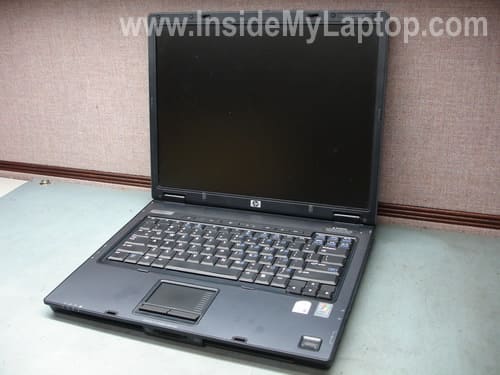
In this guide I explain how to remove and replace the display panel on a HP Compaq nc6320 (nc6300 series) notebook.
Also you can use this guide for:
1. Replacing the memory module installed in the internal slot.
2. Replacing the keyboard.
3. Replacing the cooling fan.
4. Cleaning the heat sink.
5. Replacing the CMOS (RTC) battery.
STEP 1.
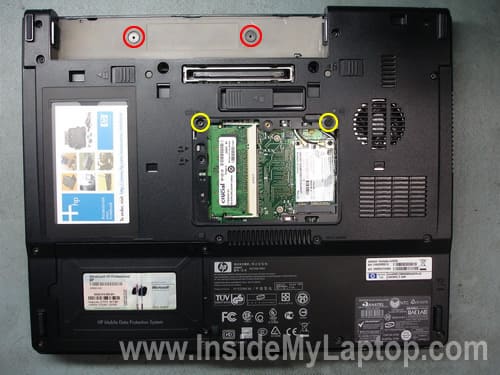
Remove the battery. Under the battery you’ll find two screws (red circles) securing the switch board cover. Remove these screws.
Remove the memory cover. Under the memory cover you’ll find two screws securing the keyboard. Remove these screws.
STEP 2.
Turn the notebook over and release four latches securing the keyboard.

STEP 3.
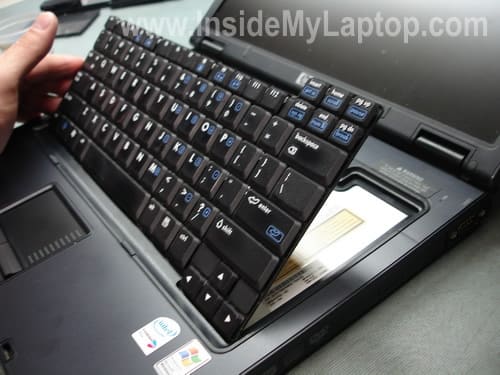
Lift up the keyboard and place it upside down on the palm rest.
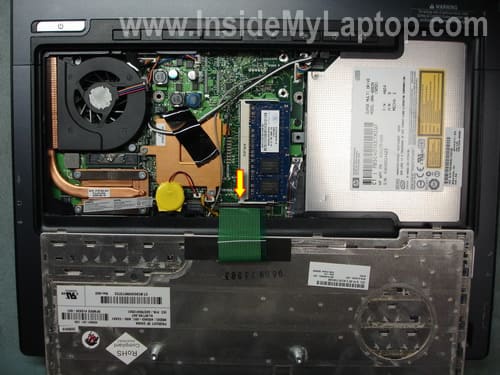
Now you can access and replace the internal memory module. This model can handle up to 2GB RAM total, so you can install up to 1GB RAM module into each slot. You should use PC2-5300 SODIMM RAM.
You can remove the cooling fan and clean the heat sink.
The CMOS (RTC) battery – a yellow battery on the right side from the processor heatsink.
If your computer sets default date and time after each reboot, the CMOS battery is bad and has to be replaced. Simply unplug the old battery from the motherboard and plug in a new one.
STEP 4.
In order to remove the keyboard, you’ll have to unlock the connector and release the cable first.
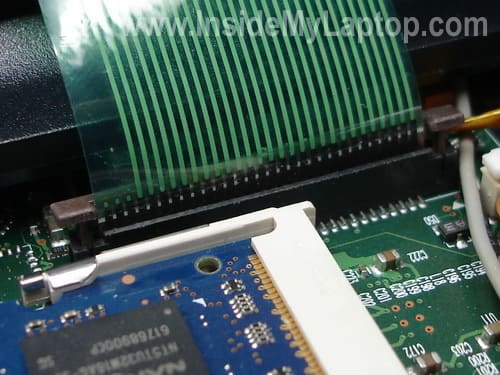
Very carefully lift up the brown part of the connector about 2 millimeters. The brown part must stay attached to the base.
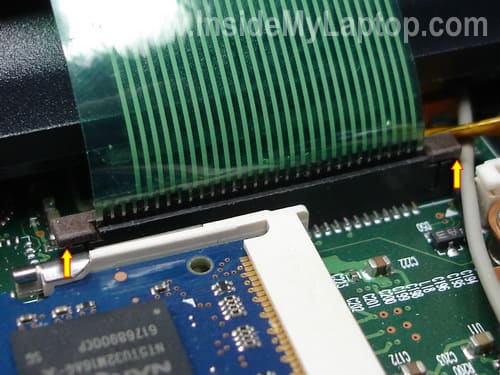
On the picture below you can see the connector in the unlocked state. Now you can pull the cable our of the connector.
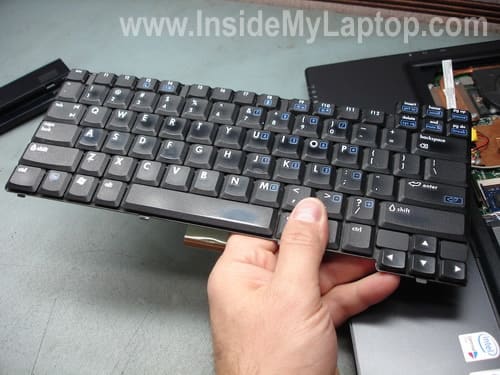
Remove and replace the old keyboard with a new one.
STEP 5.
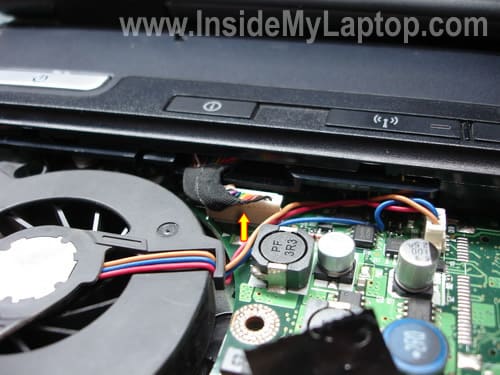
Unplug the switch board cable from the motherboard.
STEP 6.
Lift up the switch board cover with a sharp object and remove it from the top cover.
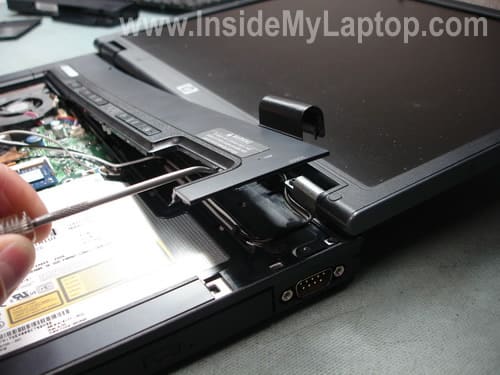
STEP 7.
Remove four screws securing the display hinges.

STEP 8.
Release the Wi-Fi card antenna cables.
Unplug the video cable connector from the motherboard.
Remove two screws securing the display hinges.
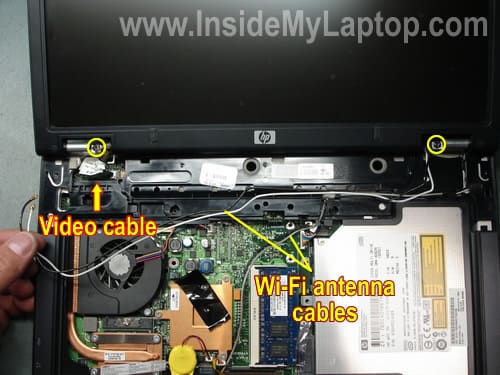
STEP 9.
Remove the display panel from the laptop and replace it with a new one if necessary.
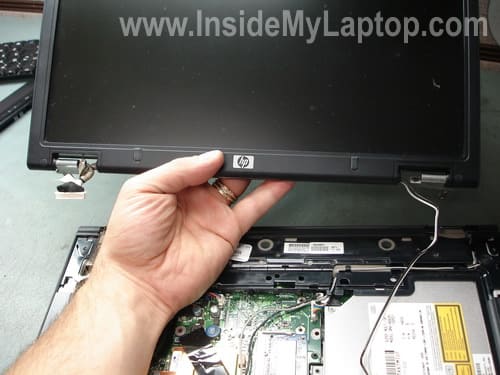
You can find a new display panel using the HP SPS part number witch could be found on a sticker located close the video cable connector.
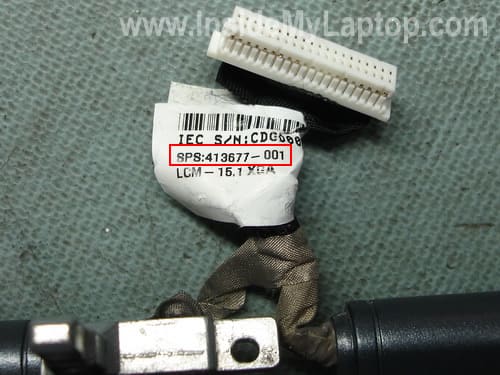
In my case the SPS part number is 413677-001.
Robert
I had a few stuck keys on my laptop but didn’t know how to replace the keyboard. Thank you for the guide. A new keyboard is coming. I’ll replace it myself.
Sunny
Man U Amazing.Thank U very much for Your Guidness.Keep It Up.God Bless U.
donna
hey there.love your site very good. I have a problem here.I have a 2100 compaq persario ..the problem is my monitor was working the other day.it was black but when i put a new mother board in..it went white.I look at the wire but it looks great.dont see nothing much wrong with it.Any sugguesting? If you can thank you donna
Ashraf Sabry
This article is very helpful.
Thanks.
ethicalhacker
Awesome guide! You really know what your doing there man! I appreciate it. Thanks a ton!
Keep the good work up!!!
J.Fisk
I have an HP zv6000 series laptop. The display cover does not stay in an upright position but the display panel does work. I noticed a small crack in the outside cover where it attaches to the hinge. I can’t seem to find info on your website regarding this issue 1). how do I remove the display cover? 2). where can I get a replacement cover / hinges? 3). Should I have someone else do it?
IML Tech
J.Fisk,
Apparently one or both display hinges are broken.
You can read through the official service manual for Pavilion zv6000 notebook from HP website (it’s a pdf file and might take some time to load). They explain how to replace the whole display assembly.
You can find new hinges on eBay for about $25.
This is up to you. It’s not very difficult but…
Blut Sohn
Is there a guide to getting to the motherboard? Or is the motherboard in one of these pictures? (if so which one?)
Ricardo
I was referred to this site because I purchased new 1GB sticks for my HP Pavillion dv8125nr notebook, and I can’t find the exact configuration explained anywhere…not the HP Manual, which I downloaded, or any other site except those that show me models that don’t have the same setup. I can surmise that the memory modules are beneath a cover, I remove the cover and see two compartments, one is the mini-PCI communications device, and hopefully, the other contains the memory modules. There are two screws which appear to be those that one would loosen to remove this memory shield, but with strong-arming the shield, it won’t come off.
IML Tech
Ricardo,
Apparently you downloaded a wrong manual. You’ll find instructions for accessing and removing both memory modules in this maintenance and service guide. You are correct both memory slots can be accessed from the bottom and located close to the Wi-Fi card. Check out the service guide on the page 98.
Russell
I have a nc6320 that needs the screen replaced. By chance do you know what size torx screwdriver you need to remove the screws under the battery securing the switch board cover? Thanks for the how-to!
Alex
Came across this site and Glad I did saved me hours on ..trial and error …technics.
Hope donation helps as much as you helped me
IML Tech
Alex,
I’m glad to help. Thank you for your generous donation!
Christie
Thank you 🙂
Krisjan
Can you please show a photo of the back of the keyboard. I want to know if its worth removing it to clean the keys.
IML Tech
Krisjan,
You will not be able to access keys from the back of the keyboard.
steve
how do i replace the two usb ports on the left side of nc6320
IML Tech
steve,
I believe these USB ports are soldered directly to the motherboard. It’s necessary to remove the motherboard, unsolder damaged ports and replace them with new ports. Finding new USB ports could be (and will be) a problem. I doubt that you can find them.
Using a USB PCMCIA card could be a good cheap alternative.
R
Thanks, your step by step instructions really helped me to clean my fan, due to dust it was making loud whirring sound, but now the noise is normal. Thanks for posting this instructions.
mtnbikerbob
I broke my sons DC connection on his nc6320 laptop, can I buy a docking station to charge it. Instead of replacing the motherboard or the dc connector.
Gerry B
Thanks to whoever wrote this article, as it has just saved me heaps of cash and a great deal of time. I had a keyboard that was falling apart and with your help I have replaced it & as you can see it works fine.
Many thanks
Gerry
Erik C.
It is always nice to have nice pics to go along with directions for the imagination impaired. I would like to replace my display with a higher resolution display. Do you happen to know where I can get a direct replacement with a higher resolution?
ACE
Grace2k3
Hey Man,
Your site has saved me a hours of trying to replace my nc6320’s LCD panel when I couldn’t find anything on HPs site. You’re a lifesaver. Please keep up the great work. I have referred others to your site. Thanks a million.
marcus
can i change my wga low resolution screen/display assembly for the higher resolution swga display by a simple swap without changing the video card or motherboard?
IML Tech
marcus,
Not sure about that. If you change LCD and video cable, it might work.
Ryan Marcelo
Hi,
i have these same model of laptop (NC6320) The problem is when i turn on its keep restart every 5 secs… They said motherboard is the problem. Please help me…Thanks
sarune2
Ryan Marcelo Says:
August 2nd, 2010 at 7:44 am
Hi,
i have these same model of laptop (NC6320) The problem is when i turn on its keep restart every 5 secs… They said motherboard is the problem. Please help me…Thanks
Here’s my opinion on checking out your issue Ryan…. Read these notes FULLY before starting anything… The resolution could be simple, and you don’t want to blow anything away or do anything you don’t need to…
— Things to narrow down the issue.. First, If you’ve got a Windows or Linux CD, boot the system from that, and see if the pc stays up and running for longer. You may want to pull the hard drive out before this test to narrow down the issue. If it stays up, the hard drive or OS may be the issue. Another check is to bring it up and F10 it into CMOS and see if it sits at that for a while (longer than the 5 seconds..). Another issue could be a BIOS problem, (or CMOS battery issue – you could disconnect the battery and see if the issue changes.. this will clear you cmos also, which could have a bad setting – reset to defaults, just in case, and reboot.) and you may want to go to HP and see if they have a flash bios update. (there are a few ways of running them, but the easiest are the one run from inside windows… if available and needed, which may require an OS reload..) Final Option: If it hasn’t got data you want, blow it away and reload, (format the drive in the process). Although, you could just find a USB drive, pull your hard drive out, and boot from a CD and temporarily load a windows OS on the USB drive to do this process.. (I wouldn’t register anything on that windows OS so you don’t bump licenses and shaft thyself though..) (Linux won’t allow you to do the bios updates, I believe, but I’ve been wrong before..maybe under Win for Lin or something…) I had a similar issue and booted my system with a Linux (ubuntu) cd and was able to run from that, which told me moreso that my hard drive OS load was hosed. Another issue could relate to the memory. If the issue still occurs after the other tests, and before doing any destructive tests (blowing away the OS, etc.) you may want to pull all but one memory chip and see if it comes up, if not, swap that chip for the other, and try again. (actually, either way, swap it and boot it again to make sure both work fine) A little due diligence never hurts.. If it’s the motherboard, someone may have a system they dropped and blew out their display, and you might be able to pick it up cheap. (although with an impact, the motherboard may be damaged… you never know. If the OS is the problem and you need the data and have to reload the drive, pick yourself up a 2.5 inch hard drive to USB enclosure and (first make sure you have up to date AV on the second system!) connect the usb drive to a second system, scan it for virus’ and then back up your data to the other PC. If the problem is the motherboard, take the writer of the articles advice and be wary of static, and take off any metallic jewelry (rings, bracelets, etc… anything that might give you a electrical short.), and remove the system battery and power before beginning. I hope this info doesn’t confuse you. I just happened to be looking for a written up script for replacing batteries for my techs to review. Peace and good luck, SA – network engineer
Joe
Thanks, this was exactly what I needed to do. Clear, easy to follow.
JimT
Spot On! Easy to follow instructions and well illistrated. Thanks.
nevo
where can i get a display panel for hp pavillion dv4-1028us?
IML Tech
nevo,
You can buy a brand new screen for HP Pavilion dv4-1028us notebook on ebay.
Here’s official service manual for HP Pavilion dv4 notebook.
You’ll find screen replacement instruction in the manual on the page 84.
By the way, I don’t think it’s necessary to separate the display panel from the laptop base in order to remove and replace the screen.
Eric Anosie
Good day sir, i have an issue here i think you might have the solution. i bought a fairly used hp compaq nc6320 but have not been able to use it. each time i put it in it pisplay power on password and i dont know the password nor the person that used it,what should i do. thanks.
Paolo
Hi
I have red your article and it helped me a lot changing the internal ram. Now I was wondering if u could help with another issue. I have a spare processor it is a intel core duo T5600 (1,83 Ghz) and I was wondering if it would be compatible with the actual motherboard which is the one that came from the factory instead of keeping the original T2300.
I honeslty prefer to havesome feedback from you before trying it myself risking to damage the pc.
Thanks in advance for the help.
IML Tech
Paolo,
I cannot tell without trying. 🙂
If you compare specs for T2300 and T5600. You’ll find that these two are very similar and support same sockets, same FSB.
When you go to T2300 specs and click on the Compatible Products link (in the left sidebar), you can see supported chipsets. Confirm that you have one of the mentioned chipsets on your motherboard. If yes, most likely you can go from T2300 to T5600 processor without any problem.
Paolo
Hey,
You are fast answering!!!
I am going to try right now and let you know! Thanks a lot for looking into that!
Paolo
Awesome!!!!
Done with no probs at all! and the windows assesment going up from 3,8 to 4,8!!!
Thanks again!!!!!!
Ps: i know i am asking too much now but I wanted to ask u one last thing:
Is it possible to change the VGA also on this laptop?
All i Know is that it is fused to the motherboard but can it be done anyway?
IML Tech
Paolo,
Unfortunately, you cannot. The graphics card is integrated into the motherboard and cannot be replaced or upgraded.
Joshua
I have a nc6320 and it shows a blck screen and reads Non System Disk or Disk Error. What do I need to do to fix it?
Cazza
i am currently in the middle of changing my screen but i cant seem to remove the wireles leads attached to the screen. Mine see, to go under the mother board by the fan? am i being stupid or is mine be wired wrong?
Matt
“i am currently in the middle of changing my screen but i cant seem to remove the wireles leads attached to the screen. Mine see, to go under the mother board by the fan? am i being stupid or is mine be wired wrong?”
They go under the computer and you can see where they end up if you turn the laptop around and look where Step 1 is you can actually see the black and white wire.
Cosimo
Very thanks for infos! My fan now is very quiet! 🙂
noah
i have a Compaq nc6320 labtop and i need to get my graphics card out. any suggestions please thx
IML Tech
@ noah,
I believe in this model the graphics card is integrated into the motherboard. The graphics card cannot be removed, replaced, upgraded.
If the graphics card fails, the whole motherboard has to be replaced.
Just in case, check your laptop specs again and make sure you have integrated graphics card.
Omar
Hi,
Very handy guide. I do however have a major problem. My cooling fan has stopped working after hearing a little pop and a weird smell. I tried replacing with a new fan but no luck. This may be a problem with the motherboard, if so, what would I need to do to fix the problem and what problem could it be? Thanks
MikeJ
My NC6320 screen is constantly distorted and flickering and is aggravated as the screen lid is moved up and down. It started with a vertical line up the screen and got gradually worse. Viewing on an external monitor is however perfect. Is this likely to be a loose connection, a dodgy graphics chip or a problem with the screen itself.
Would be grateful for advise before buying any spares.
Thanks
IML Tech
@ MikeJ,
First of all, I don’t think your problem is related to the graphics chip because external video still works fine.
Here’s what you should try:
1. Check connection between the video cable and motherboard. Try reconnecting the cable.
2. Check connection between the video cable and LCD screen. Try reconnecting the cable.
3. If reconnecting the cable doesn’t help, try moving the video cable while the laptop is turned on. If moving the cable affects image on the screen (it’s getting more garbled, getting more lines, or image clears), most likely there is a problem with the video cable. Try replacing it.
4. If moving the cable doesn’t affect image at all but moving the display back and forth affects it, most likely there is a problem with the LCD screen. Try replacing the screen.
abu idahosa
Thanks for ur support, but what can I do 2 my HP COMPAQ nc6320 notebook when I plug it to the charger(power) the laptop comes on without me using the power button, and after a few minutes it will stop charging while the charger is plugged to it, so pls what do I do thanks.
jayantha
Is it possible to replace the back light of the screen
IML Tech
@ jayantha,
Yes, it’s possible but not easy.
Paul
Thanks for this great how-to ! My display would fade if the lid was moved. Eventually i was able to track it down to a loosly fit video connector. I’m sure that the thing would not have survived if i had tried to find the connector myself! Thanks!!
Lorenzo
My NC6320 doesn’t switch on any more: it is dead.
Battery is OK and transformer/battery charger is ok to.
What could be the problem?
Thanks for your help
Lorenzo
GSR
It is possible to change Sound card? available at market? While Using skype there is more noise even format and drivers reinstall, but still continue the problem, but while making a skype call, that time i touch the such external port (Earth Contact) noise will be reduce but not clear..at the same time without earth contact from my hand at laptop there is fully disabled sound (no sound).
Please suggest idea.
IML Tech
@ GSR,
You cannot change the sound card, it’s built into the motherboard. I’m not sure if your problem is related to the sound card itself or something else is going on with the motherboard.
I guess you can try using an external USB audio card. They are cheap and worth trying.
ashok
Hi iam using dell lattitude 620d. Monitor is not working properly, it displays the black screen, but system works properly. Sometimes when i shake the monitor it works properly. but most of the times it wont works. Pls anyone help to resolve this.
IML Tech
@ ashok,
What do you mean the system works properly with a black screen? How do you know? Are you running it with an external monitor?
Please provide more details.
Matthias
Hello,
perfect manual! But I´ve got an other question for a plug:
on Step3 the second picture there ist a white plug (4 contacts) between the DVD an the memory-module. For what is it an in which order are the cable/color?
Thanks a lot!
best regards, Matthias
IML Tech
@ Matthias,
Sorry, I cannot help here. I don’t have the large copy of the image anymore.