

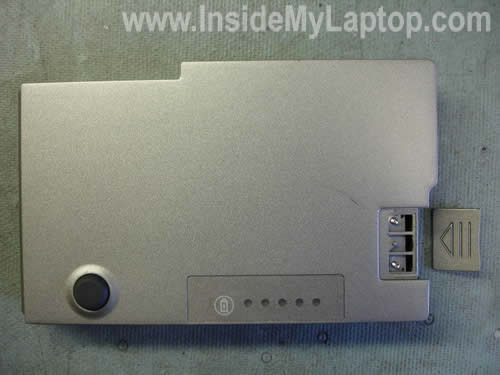
Here’s how I was able to open the battery from my Dell. I had to take it apart because the locking mechanism was broken. I decided to fix it by using the locking mechanism from another similar dead Dell battery.
I wasn’t sure if I can open the battery because it looked sealed.
To my surprise, it wasn’t difficult but you have to be very careful. If something goes wrong you can (and most likely will) destroy the battery or will not be able to assemble it back together. Proceed on your own risk.
I found it had two small latches close to the connector. One latch on the right side.
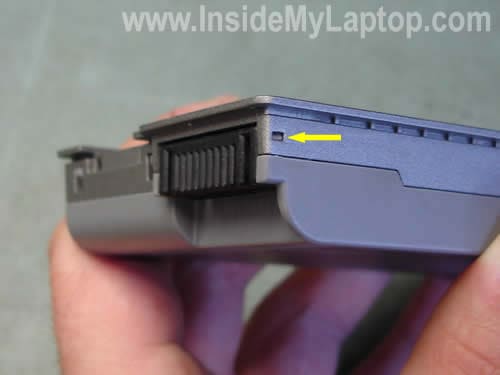
The second latch on the left side.
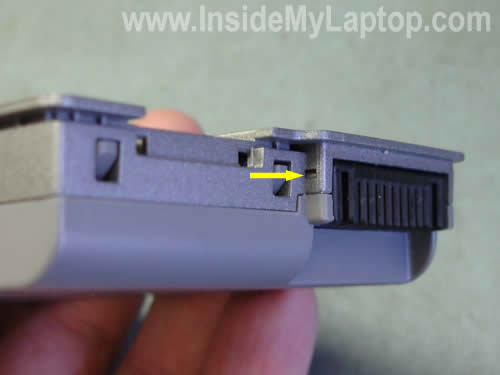
You can unlock latches with a small flathead screwdriver and insert something (I’m using a guitar pick) between the connector and cover to keep them separated.
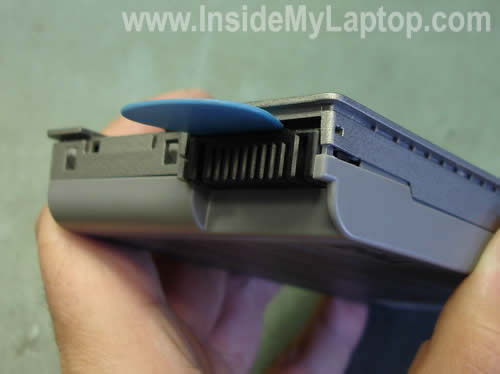
At the same time insert another guitar pick between the covers on the side and move it along the side unlocking hidden latches inside.
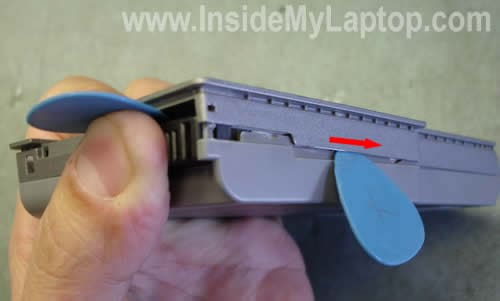
Do the same with the other side.
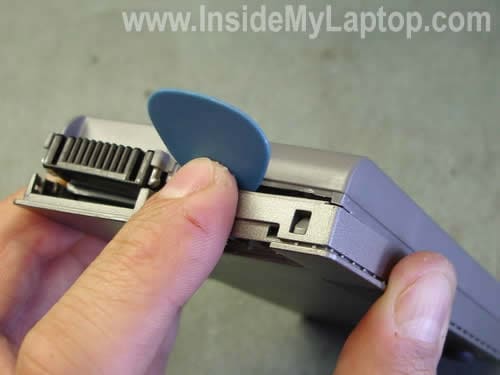
Keep working with the guitar pick until both covers are separated.
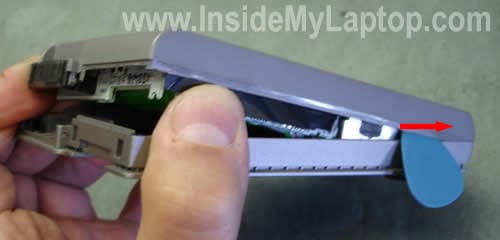
Now you can remove the cover.
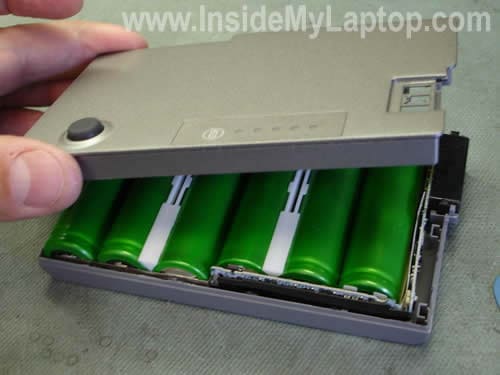
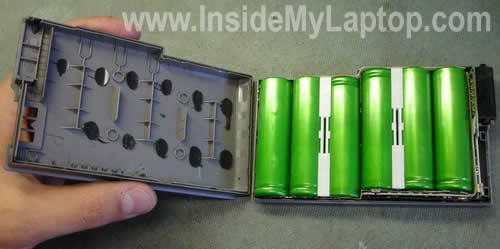
The battery has been disassembled. After that I opened the second (dead) one and transferred the locking mechanism to the working battery.
Ionica
I have tried but my battery did was glued together – not that simple as using a guitar pick.
I did destroyed mine in the process
IML Tech
It’s not easy. If you’ve never done it before you can and most likely will destroy the battery.
I’m just showing that it’s possible.
Brin
LOL just buy a new battery, they’re pretty cheap aftermarket, try FastBatts
IML Tech
Brin,
🙂
I’m not saying that you must fix the battery yourself. I’m just explaining how i did it.
Gil
thanks! i will try it after work.
dspot
Thanks!
But I have an other model of battery : PC764
Do you know (or link) how to open this one?
plecit
nice info
do you know how to open the PU556 (xps m1330)
thanks
antyhero
Which reset battery controller ???
It`s need for renew battery, when you change elements.
LearnEngerishFuk
Now what the hell does that mean ?
>antyhero Says:
>February 21st, 2010 at 2:12 am
>Which reset battery controller ???
>t`s need for renew battery, when you change elements.
Don
Thanks for the instructions. I opened up my Type Y4367 with relative ease. I don’t think I would have attempted without your pics. Mine looked just like yours except with 9 green cells instead of 6.
Duane
Glad for the information – I have a different method in mind to open the battery pack; I will either use a soldering iron to burn off the area where the little tabs are on each side of the connector
or use a sharp utility knife to cut that area off. After making repairs to the battery pack, I will possibly then use super glue to glue the pack back together. The pack that I am working on will not take a charge – I intend to “zap” each cell with low voltage/low current to see if a bad cell can be revitalized. Don’t laugh – it does work – one bad cell can trash an entire pack, and this might give a bad pack a bit more life.
computer service miami
It is highly useful for me. Massive thumbs up for this blog post!
Andrew
Could you please share with us what model of Dell battery this is (and for which computer model)?
Thank you,
Andrew
kipod
Works for me.
I was able to open the pack in 5 min and no damage.
Fitted 6 new 18650 Li batteries with 3.8Ah (instead of existing 2.35Ah) for 9$. another 2 hours work.
I could forgive Dell for the poor battery pack engineering if they charged less for replacement batteries.
michael
that’s Dell latitude d610 battery
Hirantha
Thank you… I removed my del d505 battery. it had only 4 cells.