

In this guide I explain how to take apart the display panel and replace the inverter board in HP Compaq 8510p and 8510w notebooks.
The inverter board located inside the display panel below the LCD panel.
The inverter works as a power supply for the backlight lamp inside the LCD.
When inverter fails, the LCD goes dark. The image is still on the screen but you can barely see it.
OK, let’s start taking it apart.
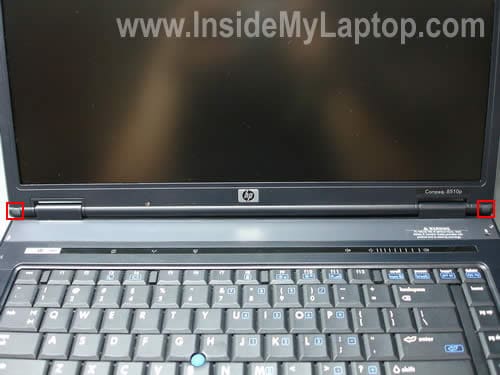
STEP 1.
There are two rubber covers in the lower left and right corners of the display bezel.
You can remove these covers with a sharp object.
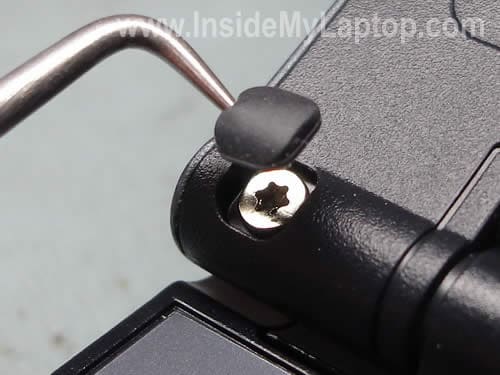
STEP 2.
Remove two torx screws found under covers. You’ll have to use a T8 torx screwdriver.

STEP 3.
Insert a piece of soft plastic (I use a guitar pick) between the display bezel and screen and slowly move it from left to right to release plastic latches securing the bezel.

STEP 4.
Continue removing the bezel with your fingers.
Carefully separate bezel from the hinge cover.

STEP 5.
In order to access and replace the inverter board it’s not necessary to remove the bezel completely.
All you have to do is lift up the bottom part of the bezel. You can see the inverter board located on the lower part of the display assembly.

STEP 6.
Separate the inverter board from the display cover and unplug cables on both side of the inverter.

STEP 7.
The inverter board has been removed. Now you can replace it with a new one.

According to the HP maintenance and service guide for HP Compaq 8510p and 8510w notebooks, there is only one inverter listed for these models.
The part number is 452214-001. Google the part number and you’ll find it.
By the way, in the previous post I explained how to remove the motherboard.
iqanime
I have a problem with my hp 8510p identical to the one in this youtube video: http://www.youtube.com/watch?v=L5L1T-YLgWw .
I would be greatful if you can tell me how to fix it.
Thanks
IML Tech
iqanime,
Looks like a problem with the LCD screen. Apparently, it has bad solder joint somewhere on the controller board and when you move the screen, you make it work temporarily. Unfortunately, there is not much you can do to fix this problem. You’ll have to replace the LCD screen.
Or you can try the following trick (proceed on your own risk 🙂 )
1. Disassemble the display panel so you can access the back side of the LCD screen.
2. Place a piece of pen eraser between the LCD screen controller and display cover, so the eraser always applies some pressure on the back side of LCD screen.
3. Assemble the display.
It might help to fix the problem temporarily but you’ll have to find the right spot for the eraser.
Danny
Hi
I have a quick question,
I had a wxga 1680×1050 screen and it cracked. I purchased the wuga 1920×1200 screen cause i wanted teh upgrade. Now the cable from the screen to the inverter does not fit. it is too short…is there anything i can do? Do i need to buy a separate inverter to go up to 1920×1200? Any help would be appreciated.
Thanks
IML Tech
Danny,
I don’t know if you can use this screen in the laptop. Most likely you can keep the inverter, but it looks like you need a new video cable.
Danny
Oh here it the part number of the screen i bought:
452209-001
Hopefully i can get it to work on my laptop…
Thanks,
Danny
Hi IML Tech,
Hmmm how come this laptop comes with an option for the 1920×1200 screen? Oh also where would i be able to get a video cable for this?
IML Tech
Danny,
I guess you’ll have to read through the maintenance and service guide for your HP laptop and find the part number for the video cable used with 1920×1200 screen. There is a chance that your new screen will work properly if you replace the cable. I’m not sure 100% about that because I haven’t tried it myself.
Mark
Hi IML Tech
I have the same problem with a 8510p and the screen going funny all the time. Bit of pressure and it comes back, then goes again, etc.
I have heard of people putting graphic cards in the oven to fix solder problems, can you do that for a screen, or will the plastic display melt?
IML Tech
Mark,
No, you cannot do that with the screen.
If the screen goes bad, you’ll have to replace it with a new one.
Mark
Ok….. was afraid that was the answer! Thanks for your reply 🙂
NotThatTech
Hi IML Tech,
thanks for a very useful guide. My brother has a 8510p where the screen is just black. No signal whatsoever. Have tried to connect a external monitor to both VGA and HDMI, but still no picture. Before it went completely black he managed to get a picture every now and then by turning the laptop off, and then on again over and over.
Any ideas? VideoCard? How can I be “sure” what’s wrong?
Thanks for any help. 🙂
cybercop
thanks for your useful guide.
my mother has hp compaq nc6120 laptop.
she has a blank-out problem with the screen.
goes someone who will fix it.
took 220$ for the inverter. and after a week the screen competly blanked.
the man doesn”t respond.
but thaks to your guide i was able to locate the problem.
and when i changed the old inverter it worked well.
220$ for 20$ thinks.
she still works hard and need some computer to use.
thanks again
smK
So many thanks, I thought I had to buy a NEW screen for my hp computer and I discover screen inverter thing on your website.
Now It works for 10€ !
Great supports !
Steve
Guys,
I also have a HP Compaq 8510p laptop and I have problems with external displays. I tried to connect several LCD monitors (both wide and not wide screens) I can see the screen for a second than it goes black. This is not a standby mode ‘case the led lights green.
I reinstalled the Catalyst driver with the latest one, nothing changed.
Do you have any idea, could it be a hardware problem?
Thanks!
Bye
Steve
IML Tech
@ Steve,
Tell me more about your problem.
Are you trying to connect to the external monitor because the internal screen failed?
I believe on some HP laptops you can switch to the external monitor only after Windows booted completely.
If your laptop screen doesn’t work, you can try disconnecting the internal screen cable from the motherboard and start it with the external monitor after that.
Steve
Hi,
The internal screen works fine, but I have an external monitor with better quality. I’m trying to switch after Windows booted completly.
I think it could be some electrical problem as it uses the 3rd power supply with the same laptop, during the times all of them failed to charge the battery. I also have problems turning the laptop on, sometimes it switches on after several presses of the power button.
So I think these problems could be connected to the external display issues, but I have no logs and found nothing in Google.
Any ideas? (besides buy a new one:)
Thank you very much,
Steve
IML Tech
@ Steve,
I guess this could be a problem with the VGA port on your laptop.
Unfortunately, the VGA port soldered directly to the motherboard. You can see it on the last picture in this guide:
https://www.insidemylaptop.com/disassemble-hp-compaq-8510p-8510w-notebook-pc/
G. C.
My 8510p display starts very pink/reddish, gradually gets better, becomes completely normal, and then goes black. Works fine with an external monitor.
Inverter or backlight? How do you tell?
Thanks,
IML Tech
@ G.C.
Sounds more like CCFL lamp failure. I think you’ll have to replace the screen.
Chris
I have followed your advice above to remove the screen inverter on my HP 8510W as the sympton where my screen was working normally and then suddenly started to flicker and then whent black with the very faint image of windows still barely visible and an expternal monitor working perfectly normally.
If when I get a replacement inverter, the problem persists, could it be the screen back light that is faulty and needs replacing and if so where might I purchase one and how is it fitted?
Many thanks,
Chris
Mark
Compaq 8510p when it starts up i get lines on the display after a short time i get a cloudy image around the edge. After a while it clears up and works good. What can it be.
IML Tech
Mark,
Test your laptop with an external monitor. If external video works fine and the problem appears only on the laptop screen most likely the laptop screen is failing.
dushmanta kumar sahoo
sir,
my hp Compaq 8510w laptop is screen problem, that like not visually clearly (shadow) . how can I solve this problem.
thaking u.
Mwewa Matipa
Sir, my HP Compaq nc6320 won’t come on and shows no lights when plugged to power.
please help out on how to power it up
IML Tech
@ Mwewa Matipa,
Did you test the power adapter? Does it output correct voltage?
Heather
I have a HP compaq 8510p. My husband and just notice that there is a multicolored cord not connected in the key card port area. We’ve tried looking in the area with a mirror n can’t find what it’s suppose to connect to. This multicolored cord runs under the thin piece of metal and spot you place the key card in. Need help please. Computer won’t do anything.
IML Tech
@ Heather,
I’m not sure what the key card port area is.
Here’s the service manual for this model.
The manual has complete disassembly instructions and hopefully it will help you to locate the cable and where it’s connected.