


This guide will disassemble Sony Vaio VGN-FE laptop. As an example I took a Sony Vaio VGN-FE855E model.
If this guide works for your Vaio, please mention the model number in comments below. This will help other users with similar laptops.
STEP 1.
Turn off the computer and remove the battery.
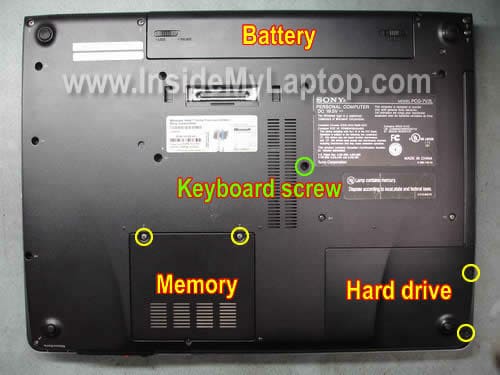
Remove the memory and hard drive covers from the bottom. Each cover is secured by two screws.
If you are removing the keyboard, you’ll have to remove one more screw (green).
STEP 2.
Remove two screws securing the hard drive mounting bracket.
Slide the hard drive assembly to the left to disconnect it from the motherboard.
Lift up the hard drive and remove it.
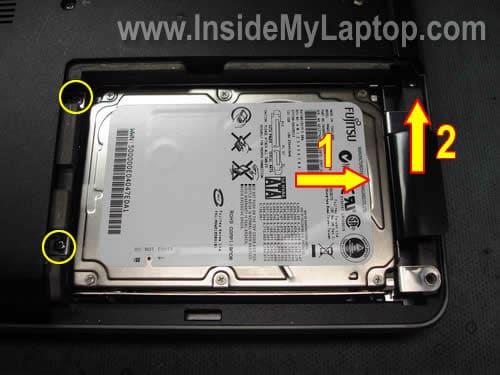
The hard drive is mounted inside the caddy.
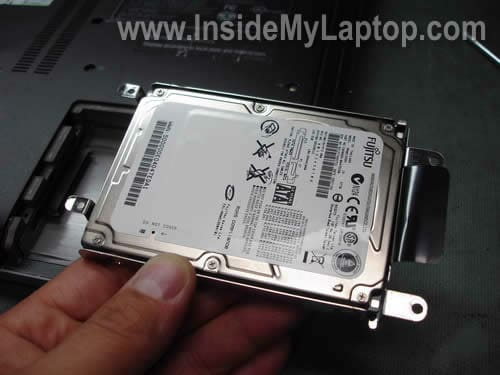
Remove two screws from each side.
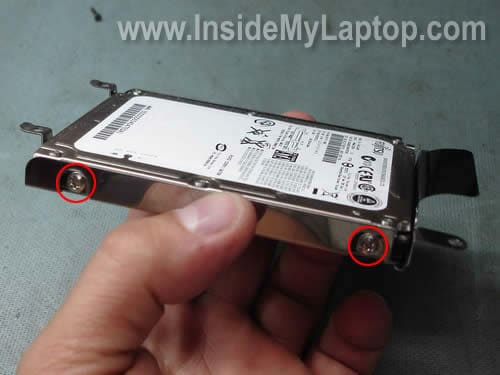
Remove the hard drive from the caddy.

In my laptop I had a 2.5″ 120GB SATA hard drive installed. You can replace it with any other larger 2.5″ SATA HDD.
STEP 3.
In a Sony Vaio VGN-FE laptop both memory modules can be access from the bottom.
In order to remove the memory module spread latches on both sides of the slot until the RAM module pops up at a 20-30 degree angle.
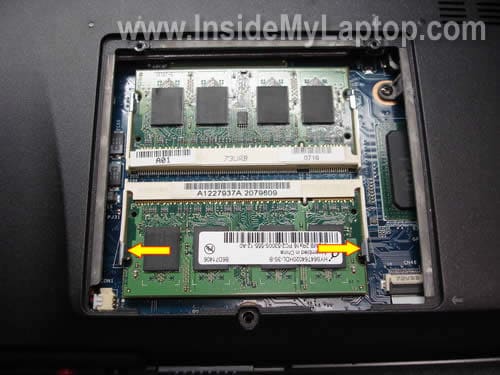
Pull the RAM module from the slot by the edges.
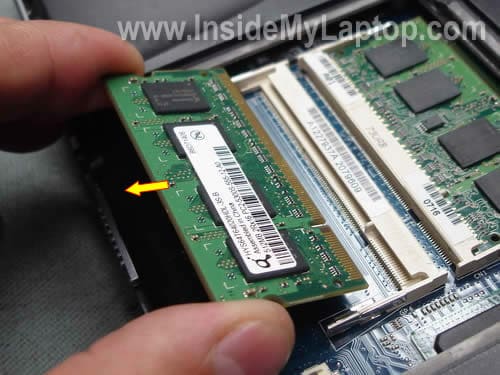
This Vaio laptop can take up to 2GB RAM. You can install up to 1GB memory stick into each slot.
Use DDR2 PC2-5300 or faster SODIMM modules.
STEP 4.
Remove three screws securing the optical CD/DVD drive. Pull the right and remove from the case.

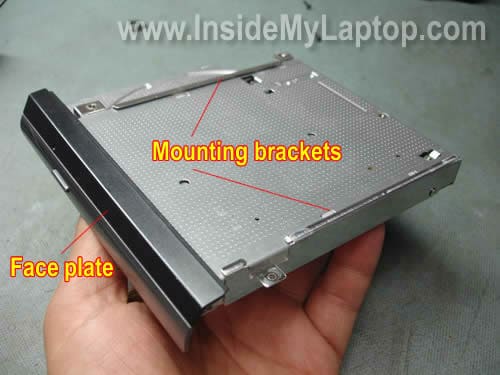
If you are replacing the optical drive, it is necessary to transfer both mounting brackets and the face plate to the new drive.
STEP 5.
Remove three screws located in the battery compartment. These screws are securing the speakers cover.
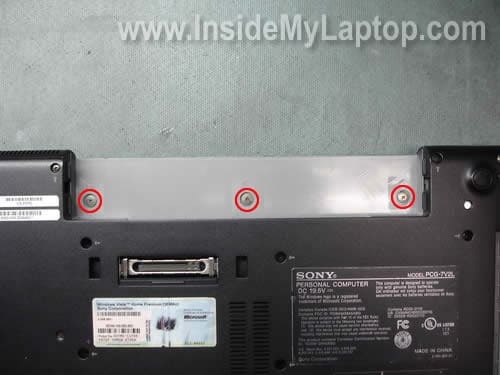
Start removing the speakers cover with your fingers.
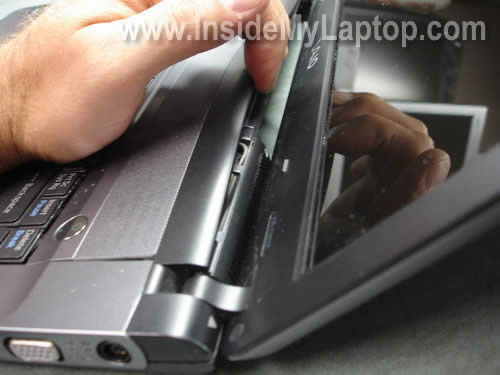
Carefully release and lift up the right side of the cover.
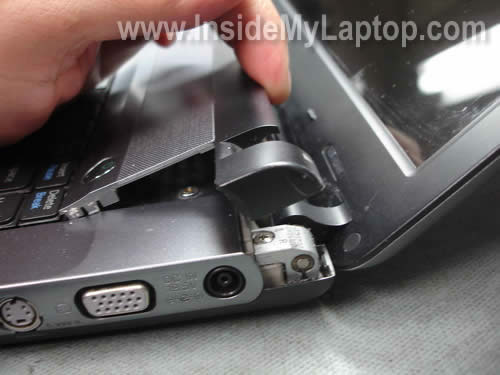
Continue removing the cover with your fingers. It might take some time. It’s harder than looks on the pictures.
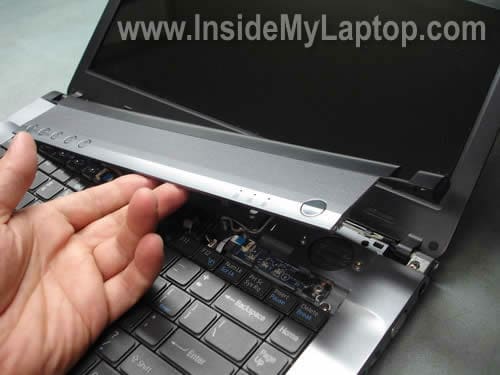
The speaker cover has been removed.
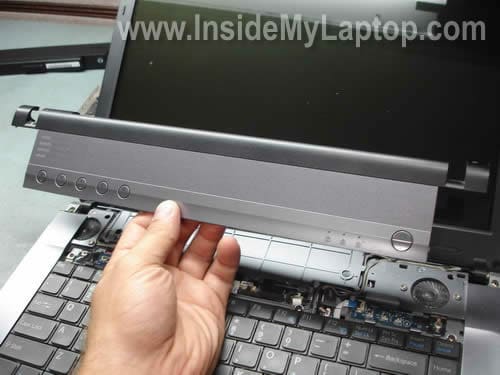
STEP 6.
Remove four screws securing the keyboard.
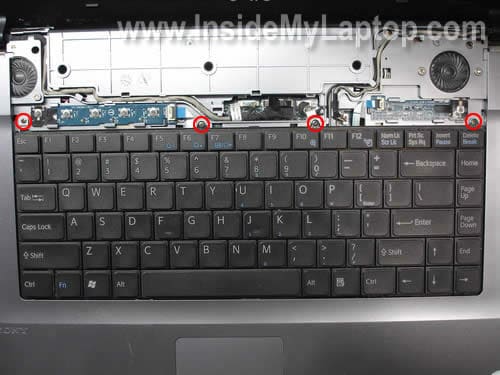
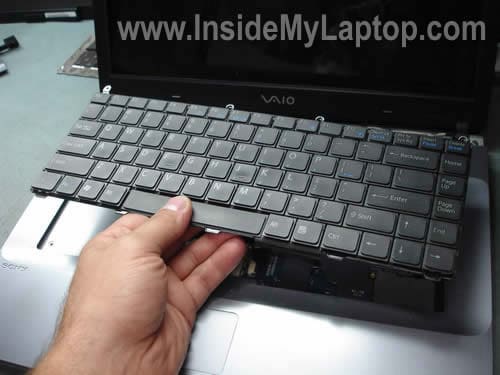
Lift up the keyboard and place it upside down on the palm rest.
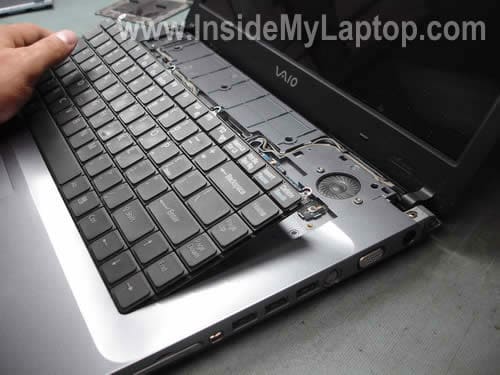
Now you can access the cable connector on the motherboard.
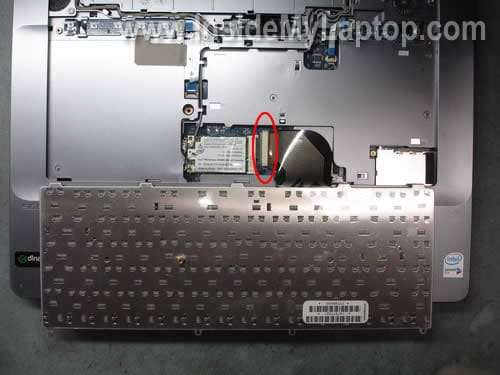
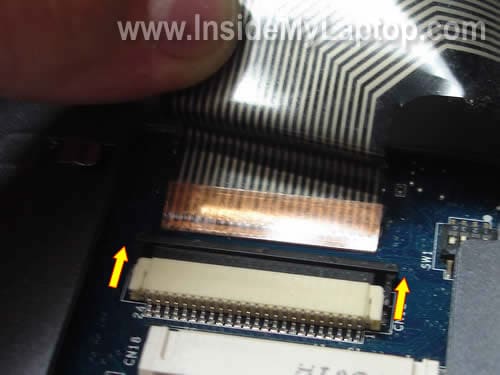
Before you can remove the keyboard, you’ll have to unlock the connector and release the cable.
In order to unlock the connector, move the black clip about 2 millimeters to the direction shown by two arrows. The click must stay attached to the white base. Now you can remove the cable from the connector.
WARNING! If you break the connector, you’ll have to replace the whole motherboard OR use the laptop with an external keyboard.
Remove the keyboard and replace it with a new one if necessary.
Search for a new one using the part number printed on the back side.
Alex
I have Sony Vaio VGN-FE790 and it looks very similar. I have only 1GB RAM installed and want to upgrade to 2GB. I will order new memory soon and use your guide. Thanks!
Trax Armstrong
Good-morning,
I cannot express how delighted I am coming across your website. I mean it is a god-send! I know you are very busy but please this is an S.O.S.
I bought a Sony VAIO Laptop with this serial number VGN-NR52B barely a year ago. The warranty just ran off! I woke on Monday to use it but it didn’t respond at all. I coudn’t switch it on.
I took it to a computer repair shop, who called Sony, which said that the memory is bad. That it will cost $600 to replace. The memory number is HYMP112S64CP6-Y5 PC2-4200 DDR2 SD-RAM 533MHZ SO-DIMM. I have checked with Amazon Japan and the price is below $20.
Can I change this myself? Please can you guide me? Thank you! I don’t mind paying for the consultation! Have a beautiful day!
mariam
hi,
i have a sony vgn-fe770g and would like to change the palmrest/touchpad. i just got the part today. please can you guide me ? thank you so much
Eric
I have a Sony VGN-FE790G and need to replace the LCD screen. I have removed the four hidden screws at the corners but the frame (bezel) still locked by something else. Can anyone help? Thanks!
Eric
I did it.
Beside the 4 screws, the bezel is held by several plastic latches (4 on each side and 2 extras on the bottom side) snapped into the frame. The bottom end, on my laptop, the bezel was also taped to the screen frame in the middle. I’ve forced the latches out and broke 3 of them on the top end. But, I think this is no big deal. The latches just to hold the bezel close to the screen. I can fix it by taping (double side tape) the bezel to the new screen’s frame as it did at the bottom side before.
Alberto
Please, Can you said me where is the CMOS battery.
I have this model and is imposible find it…
Thanks.
IML Tech
Alberto,
I don’t know off the top of my head. It’s possible that CMOS battery is soldered directly to the motherboard, like in many other newer laptops.
Javier
You forgotten that there is a screw in the bottom of the laptop that fixes the keyboard and it is necesary to remove it if you want ti remove it. I almost break my keyboard. My model is a FE41Z
But apart from this, it is a great guide, congratulations 🙂
IML Tech
Javier,
Thank you for your comment. I fixed the image and instruction. I did forget one screw securing the keyboard on the bottom. I mentioned that in the step 1.
Patrick
Good lord thank you. . . may i ask if you can make a “how to disassemble vgn-fe lcd” my display is kinda garbled so i hope i can check my lcd connector through opening the lcd and check the display
Helen
Hey this looks great. I need to replace my CD/DVD drive on my FE31Z and i think i can do it myself now with these instructions. Thank you!
IML Tech
Helen,
Shouldn’t be very difficult. 🙂
Find a new DVD drive and follow step 4.
Steve
Hi, I have an incorectly sized memory card stuck in my memory card reader. Could you advise of how i could go about talking this out as i cant use my memory card at the moment.
Thanks
IML Tech
Steve,
I guess you installed a Sony card into the SD slot?
I usually use a dental pick to get them out.
Steve
Thanks, for the help. I actually did use a dental pick and was able to get it out.
Appreciate the swift reply.
GBHFish
Hi there. What a great page! I have had a problem with the keyboard on my FE31Z since udpating the BIOS (to version R0172J3) ahead of a Vista installation (in line with Sony instructions). It is possible that the timing is a coincidence and I’m trying to figure that out. The problem with the keyboard is that the k, b, a, s, . and down cursor keys do not work. I have tried all sorts of solutions without success. What I’d really like to do is restore the original BIOS – though I don’t know the version number, before trying a replacement keyboard (or at least checking whether anything funny has happened to the connection etc.) Given that I have done a system recover and am back to XP with a wiped-clean hard drive, I think it can only be the BIOS or a hardware problem. Any advice? (I’m currently using a USB keyboard without a single problem. The inbuilt keyboard does not seem to work in the BIOS environment.) I’m feeling very stupid right now, not knowing what to try next.
IML Tech
GBHFish,
Did these keys fail right after the BIOS upgrade?
Man, to me that sounds like the keyboard failure but I’m not sure 100%. If it happened right after upgrading the BIOS, I don’t think it’s a coincidence.
Unfortunately, the only way to find out what is causing the problem is testing the laptop with another known good keyboard.
By they way, maybe you should try reconnecting the keyboard cable on the motherboard. Could be poor connection. Be very careful with the connector if you decide to try that!!!
Do they have a few different versions available? Can you go one step down?
GBHFish
Thanks for your really rapid reply. To be honest, I’m not exactly sure when the keyboard keys failed. It could have been after reflashing the BIOS or it could have been a bit later. I’ve spent hours installing and reinstalling various OSs so I’ve rather forgotten when I first noticed the problem! One thing I’ve noticed is that the keyboard does not work properly in the BIOS environment, so perhaps that also points to hardware failure rather than anything else. I’d like to go one step down with the BIOS but I don’t know what version number that would mean, nor where I would be able to find the BIOS. The Sony support website is not very good – and they don’t seem to provide an e-mail address for enquiries!
Is reconnecting the keyboard to the motherboard a very risky maneouvre? You have given strong warnings – and I really don’t want to end up with no hope of having a functioning keyboard!
Thanks again!
IML Tech
GBHFish,
Not really, I’ve been doing it a few times a day for 5 years. 🙂
Just be careful with the locking clip, do not separate it from the base. If you are careful, everything should be fine.
Most likely it’s either bad keyboard or there is a problem with the keyboard controller on the motherboard. If that’s the case, you’ll have to replace the motherboard.
It feels like a hardware related problem. I don’t think that a new BIOS version (recommended by Sony) would cause that problem.
GBHfish
Again, thanks. In fact, I’ve kind of decided it must be a hardware problem because the malfunction is not always present. In other words, sometimes the k, a, s etc. keys work properly. Presumably, they would never work if the problem was the BIOS. So I’ll take the keyboard off and give it a good clean and check the connection. If that doesn’t work, I’ll get a new one and try that. Meantime, the USB keyboard is working fine. I suppose I could just get a docking station and monitor and work off that – we don’t actually wander round the house very often with the laptop in any event!
GBHfish
Update: keyboard now working fine! I took all the keys off the keyboard and cleaned underneath – it was pretty filthy. I then took the keyboard out of the laptop and reconnected it – more for the sake of completeness really because I think the connection was fine. Put the computer back together and it has worked fine since. So the problem was completely unrelated to the Windows 7 installation or BIOS update that I initially blamed. I’m now working on a laptop that has had its hard drive wiped clean and that is fresh as a daisy. Just the long re-installation of software etc. to go! So I think the malfunction did me a favour. Thanks for giving me the courage to play around – and the confirmation that the software changes were probably irrelevant.
IML Tech
GBHfish,
I’m glad you got it working. It must have been very very dirty keyboard. 🙂
Lester55
How do you replace the Nic card in my Sony VGN-FE55QG. It’s either the Card or the switch and don’t tell me it’s an on board NIC would be just my luck.
Thanks L55
IML Tech
Lester55,
In most laptops the NIC card is soldered to the motherboard. There is no switch for the NIC card. Maybe you are confusing it with the internal wireless card?
Jose
THANK YOU!!!!!!!!!!!!!!!!!!!!!!!!!!!!
Saad
Hi I need to replace my optical drive. I found this page really helpful. I have exactly the same Laptop VGN-FE855E. Can you tell me how to remove the faceplate from my old dvd drive?
Mlizarde
Hi, I have a VGN-FE660G laptop and the face of the laptop is cracked all the way to the inside corner, the screen works well (not damaged) but i would like to replace the entire part (frame) were can i find the part? can you guide me?
Mlizarde
hello, also the cd/dvd drive does not work it scratches my cds…is there any way that it could be replaced with a blu ray one?
lansie
Hi,
what a great page and how helpful !!!
The power jack of my VGN-FE 41M is broken and needs to be replaced. I already opened the laptop according to your instructions, but it was unclear if it is possible to change the jack without detaching the keyboard as well as the motherboard temporarily. So I closed the laptop again and decided to ask you for some good advice / comment.
Thank you / kind regards
IML Tech
lansie,
The power jack is mounted inside the laptop. You cannot access the power jack without removing the keyboard and top cover assembly. You’ll have to disassemble the entire laptop.
fuller9box
Hi
IML Tech,
Thanks for the fine disassembly guide, used it to completely pull apart, a FE41M trying to find out why it will not start. Changed the on / off switch with another (not sure if known good) but the symptoms remain the same. Detected +19.5 vdc at power jack (at the point where jack enters the motherboard) but still no lights, no fan, no action. Is there a series of troubleshooting steps that i can use to determine where i have lost power? Thanks again for a fine tutorial.
Moogle
Thank you so much for your guide. I managed to change the keyboard of my european FE11M. It’s difficult to unlock the connector and move the black clip ! But now it works fine.
Nio_707
I have an FE31H which prooved to have a faulty Wireless LAN on/off Switch. I always had to try hard to turn it on. I mean, it was moving to On position but the switch itself wouldn’t make the “contact”.
So i removed the back cover (first remover the dvd drive, hard disk and covers), i slightly lifted the motherboard at the WLAN switch point, located the switch and dropped 2 micro drops of pure alcohol. Then i switched it to on/off many times for the alcohol to do its job, left it a couple of minutes, put it all back together and the switch is finaly working perfectly now!!!
Jaime
Hi,
wonderful guide! You saved my day! My daughter threw a cup of hot chocolate in my laptop… Most the keys didn’t worked anymore since then… but today I’ve replaced the keyboard using your guide.
Thanks a lot again.
Barry
I’ve just removed the keyboard, thanks to your photos. Someone who shall be nameless, spilt a spoonfull of Meusli in it, (bound up the cursor keys beautifully! I’m dunking it in distilled water overnight, to see if I can soak it off – followed by a very long and gentle dry-out phase. We’ll see if it works, and if not, thanks to your links, I can buy a new keyboard.
You’re warnings about removing the speaker cover carefully, (and gently,) are invaluable. Without the photographs I would have assumed I was going to break it and given up early on. A thin polythene spatula helped unfasten the many ‘snaps’ under the cover. Also be carefull you don’t get anywhere near the speakers when probing underneath to unship the latches and ease the ‘shoulders off the body patiently. It’s easy to rush this stage and break them ‘cos you think you’re nearly there. They have a forward facing hook which has to be released with a lifting rotating motion. It was also very nice to know which screw fastened the centre of the keyboard. As you say, if you force it you break it! THANK YOU.
Pablo
Hi, thanks for the instructions, they are really useful. I have a question though. I want to clean the cooling fan, do I have to unscrew everything that is on the back to take out the case? I don’t want to mess up anything. Thanks again.
Natasha26
My FE has a battery problem. Basically Windows XP (SP3) shows the “plugged in” icon only, even though the battery is safely in. When I click on this icon, it tells me that i have “#1 battery 99%” present. If I then click on that blue-battery icon, I get the details of the battery. So it would seem that XP knows that I have a battery but shows the “AC plugged-in” icon only?! And get ready for this, if I remove the AC adapter, the laptop switches off.
Have you come across this problem? This is my 2nd battery within my 4 years of operating that laptop. Some suggest that there’s a faulty component on the motherboard. Others say that the BIOS or ‘something’ runs a count-down before disabling the battery. I have updated my bios to R0200J3 but the problem is still here. Is Sony f*cking with us?
IML Tech
Natasha26,
Yes, I’ve come across this problem but… you cannot tell what is causing the problem until you test the laptop with a known good battery. It’s either bad battery or motherboard failure. Probably bad battery.
Joe
I have a friends VGN-FE790 who set the bios password and doesn’t remember what it is, I’ve followed your instructions looking for the cmos battery to try disconnecting to clear it. Any ideas where that battery could be and/or how to reset the bios maybe with a jumper or ??? Any help is greatly appreciated!
joe
I have a Vaio VGN-FE550G. I bought it new and it came with a 100GB HDD. The HDD died and I am trying to upgrade it to a WD 500GB. The PC does not do anything when I power it on. The caps lock, print screen, number lock buttons are lite up as is the power button. The power indicator light on the front edge of the laptop is also lite. The HDD indicator light shines for about 2-3 seconds and goes out. I am not certain the drive is spinning at all. When I put the old 100GB drive in it at least “ticks” and the indicator light is on so I know the laptop itself should be ok. What am I overlooking? I thought I researched this pretty well in advance but am stumped. Any and all help is appreciated. Thanks in advance.
Nele86
Hello,fuller9box i have same problem with sony vaio vgn-fe31h,where i cann find complete new motherboard for this laptop
Fabian
Hello how u doing i got a sony vaio laptop vgn-fe770g similar to the vgn-fe880 u showed on here taking apart well the question is that my power jack got damaged i bought the part required to replace it but the wires connected to the old one i dont no how to take them off to put them on the new one anyways u can give me a demo on how to do that or an idea of wat i need to do???
IML Tech
Fabian,
I guess you’ll have to desolder wires from the old (failed) jack and solder them to the new jack.
sigaldry
Hi there,
thanks for this great tutorial.
And MANY thanks to Nio_707: your tip allowed me to repair my WLAN switch that had been broken for years!!!
Desmond
i have a sony vaio VGN-FE855E laptop, i have being for close to two years nw, suddely the alphabet e, f5, and enter key stoppd working. can anybody please tell me what to do.
Robin Crofoot
Hi, thanks for the great page. Living in Germany it is hard to find info in English, and harder to find info that is accurate. Thanks for the time you spent in putting this together.
Lauren
Hi, Thanks for this. I bought a replacement keyboard and just fitted it but it’s not solved my problem. I wonder though if you have an idea what the problem is.
I have a Vaio FE21M and a year ago, I spilled water on the keyboard. At the time it froze and started making a constant beeping sound. After drying it out, it works erratically. Here’s what happens:
1) Boot up screen followed by constant beeps (close together no pattern to them). The only way to stop the noise..and to progress to the next screen is to press the volume + key (the keyboard cannot be operated during this time).
2) Hit and miss whether or not this takes it to a proper windows start up or hard disk recovery.
3) Weirdly the volume + key seems to operate the caps lock and num lock keys.
4) When it does progress to normal boot up, the keyboard works and every application results in a help screen popping up or the search function flickering constantly – these cause the whole thing to freeze up. Only once has it worked normally….then when I booted up the next time, it failed.
5) Thinking it was a sticky keyboard, I bought a new keyboard and have just fitted it…but it’s doing the same thing as always.
Do you think I need a new volume/short-cut bar or do you think the motherboard is fried? When I take out the keyboard, the sticky patch between the volume/short cut bar and the keyboard is stained. I’m stumped now. I’ve spent a few pounds on this now…but still less than Sony want to look at the bloomin’ thing.
Any thoughts, much appreciated.
lauren
Oh I forgot to mention, sometimes, but only sometimes if I hold CTR ALT DEL down as soon as the power up the laptop, it progresses to the normal Win XP screen.
Just done this and it’s brought up a System Config Utility screen telling me I’ve made changes to the way windows starts (currently in diagnostic/selective start-up). Anyway, still have a hundred help screens all over the place. 🙁
Jhn
hey, i have an fe28b and about 12 of the keys have stopped working, i havnt spilt anything on the keys and ive had the laptop for 5 years so i think it might be down to wear. is it possible to fix individual keys or will i have to replace the unit? thanks, john
ssa
My memory card got stuck in slot. The computer does not see that it is there. I have used it 100’s times before without difficulty. Can you tell me how to remove it please? Vital pics stuck on the disc.
thanks
IML Tech
ssa,
What do you mean it’s stuck?
What happen is you spread latches on both sides of the memory slot (as it shown in the step 3)?
Rachel
OH! You’re so great man! Helped a lot! I have a Vaio VGN-FE855E, and the keys are dying.. Now that I read your tips I can buy a new keyboard and replace it by myself..
Thanks for your help!
Michael
This was a very helpful tutorial – beats trial-and-error hands down.
I’ve just followed it to replace the keyboard on a VGN-FE51B/H. Before the repair the S key was making constant contact, making the computer unusable. Now it’s back in action.
Follow the writer’s advice and take it slow. The speaker cover tabs are a bit fragile so take special care there, it’s fiddly. The cable connector is nicely wedged in but it’s so light it frees up suddenly.
Thank you!
Transport InOradea Ro
hi, it really helped me a lot 😉 however I only wanted to clean my keyboard, take out piece of dust, hair … so I found out that I did not had to open the keyboard, just take keys one by one with fingers, …
Eric
Hi,
I have a VGN-FE31M and it’s playing up (or dying!). Basically a week ago a heard a noise like electronics frying (just like the movies!). Since then the screen has been showing lines and distortion all over it. At first it would boot correctly the odd time but has now gone to this state full-time. As I understand, if it’s the graphics card this is built in to the motherboard and therfore I can forget about the laptop. But it might also be the inverter? It won’t hook up to an external monitor and is also distorted in safemode. Any ideas before I go spending money? Any help will be greatfully appreciated!!
Ian
VERY helpful page – thought I’d have to remove every screw under the whole laptop (Sony FE41S) to replace the keyboard but after reading the article it was only three. Removing the speaker cover was a bit heart-stopping but it did snap out eventually (rather than snap in two!). Four more screws and the keyboard came loose. The connector looked a bit daunting but reading a few more paragraphs of the article all became clear. Everything now back in place and I have a fully working keyboard!
Lorenzo Verde
My wireless switch is broken, and sometimes it switches himself off without touching it.. i want to bypass the switch setting the wifi always on! any suggestion!?!?
mymarinejobs.com
WOW just what I was looking for. Came here by searching for
laptop repair london
John
Many thanks. I have a Sony vgn-fe28b which had started typing a ‘1’ repeatedly and endlessly, though other keys still worked, and the shift key turned the strings of ‘1’ into ‘!’. No need for removing the other parts in your demo, I just unscrewed the 3 screws in the battery compartment, removed the speaker bar (my, it sure does need some careful prizing all around to get it loose), unscrewed the long screw that goes from underneath to the keyboard and flipped out the keyboard. I now have a choice: I can buy a replacement keyboard on ebay for 40 quid or just plug in a USB keyboard, which works fine. Since it’s only used on a desk, the second option is good for me and costs nothing.
This site is really useful. Companies such as HP, Compaq, and Lenovo provide downloadable service manuals (pdf files). In contrast Sony are rubbish, they provide only the sketchiest of user manuals that give no useful info. So without this site I might have had to junk this laptop. A big thank you.
Rene Goldstein
I have a VGN-FE41Z running on Win Vista and all working well with exception of the Wireless Manual Switch. It sounds like the same problem reported by Lorenzo. The switch keeps turning off at the slightest touch or even if I move the laptop without touching the switch.
It is clearly a bad design problem. It was never reliable and doesn’t really “Click” to engage.
How can I disable the manual switch and keep it permanently on?
I’m pretty sure there is a sofware solution to avoid having to open the machine but I don’t know where to look.
Any suggestions will be apreciated.
By the way, this tutorial is a great resource, I’ll keep it bookmarked for the future.
Bruce
Hi Rene and others in case you are still checking this. I’ve had a dodgy wireless switch for years on my FE31Z. I thought it had finally packed up completely this time, as no fiddling with the switch brought the light on. I took the base off, and tried the switch while looking at the connected motherboard switch. You could see that it wasn’t going fully left (upside down from the front) when sliding the switch from the front. I tried pushing the end of the switch to the left, and it then snapped a little further, enough to switch it on properly! It’s obviously a crap bit of engineering which Sony should have done a recall on. If yours isn’t working, before doing anything drastic, try just pushing right on the left end of the switch (looking from the front, right way up as in normal operation).
Gozlemci
Bu güzel bilgi için çok teşekkür ederim.
İyi ki varsınız.
Thank you very much.