

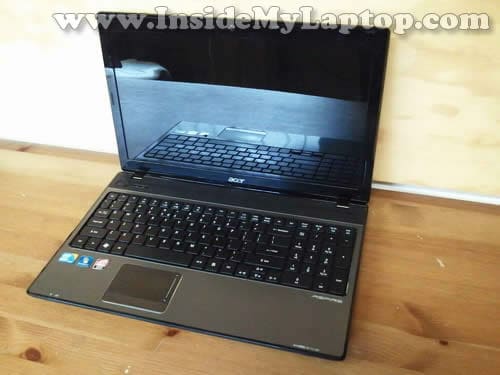
In this guide I show how to disassemble an Acer Aspire 5741 5741G series laptop.
In this particular case I’m taking apart an Acer Aspire 5741G-6983 model.
I will go though the following major disassembly steps:
STEP 1-7: Removing the the hard drive and DVD drive. Accessing RAM modules and wireless card.
STEP 8-13: Disconnecting and removing the keyboard.
STEP 14-18: Removing the palmrest assembly.
STEP 19-25: Disconnecting and removing the motherboard.
STEP 26-27: Removing the cooling fan and DC power jack.
Before you start, make sure the computer is turned off.
STEP 1.
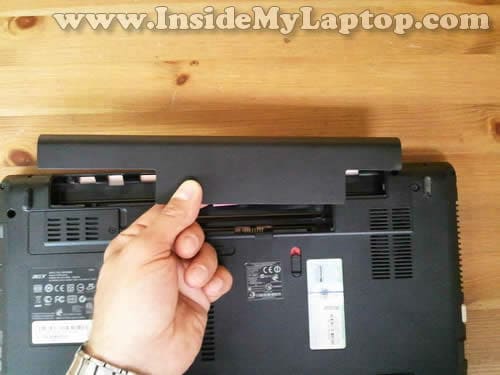
Unlock and remove the battery.
STEP 2.
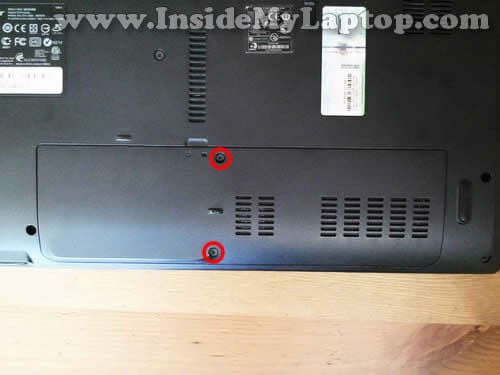
Remove two screws securing the hard drive/memory/wireless card cover.
Lift up and remove the cover.
STEP 3.
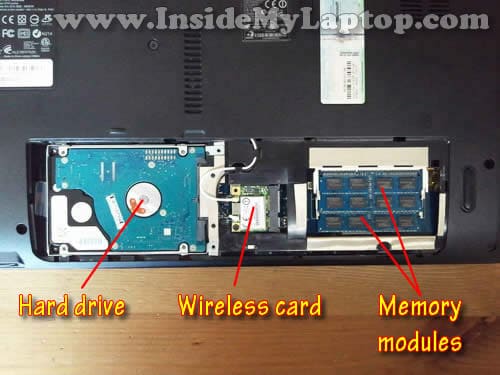
Now you can access the hard drive, wireless card and both memory modules.
STEP 4.
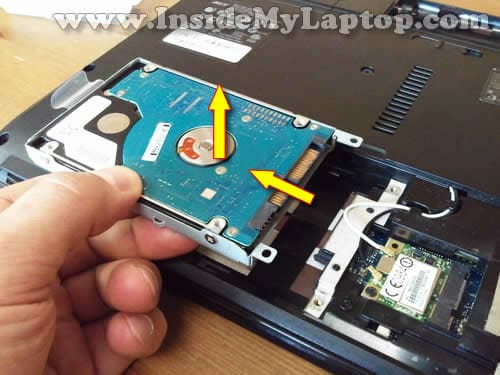
Slide the hard drive to the left to disconnect it from the motherboard.
After that lift up and remove the hard drive.
Acer Aspire 5741 5741G equipped with a regular 2.5″ SATA hard drive. It can be replace with a larger capacity 2.5″ SATA hard drive or 2.5″ SATA SSD.
STEP 5.
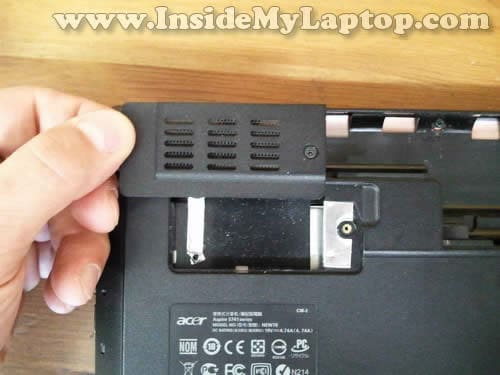
Remove the 3G cover.
My laptop didn’t have the 3G card installed.
STEP 6.
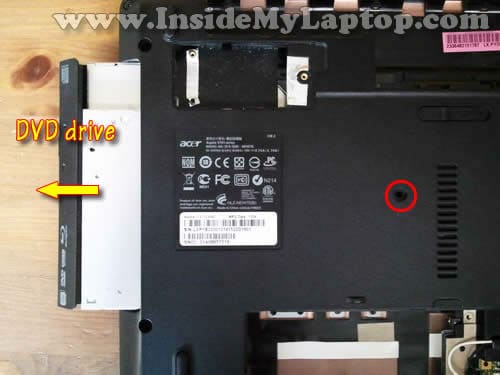
Remove one screw securing the DVD drive.
Pull DVD drive to the left and remove it.
STEP 7.
Both memory modules can be accessed on the bottom.
I’ll leave both memory modules connected to the motherboard.
Acer Aspire 5741 5741G has DDR3 memory installed. It can take up to 8GB RAM total (4GB module in each slot).

STEP 8.
There are six spring loaded latches securing the keyboard on the top.
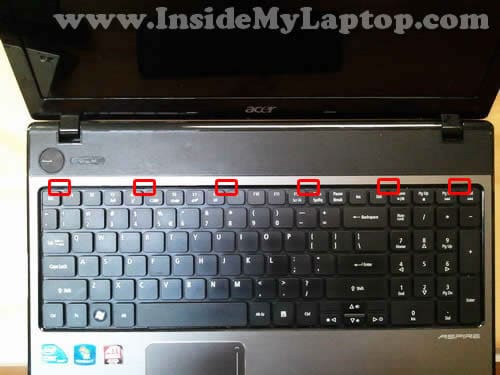
In order to remove the keyboard it’s necessary to unlock all latches.
Push on the latch with a small screwdriver into the case. At the same time lift up the keyboard a little bit so the latch doesn’t lock again.

STEP 9.
After you push all latches into the case you should be able to lift up the upper side of the keyboard as it shown on the following picture.
There are two small latches located on the left and right side of the keyboard.
While lifting up the keyboard you’ll have to apply some reasonable force to push the keyboard though the side latches.

STEP 10.
Turn the keyboard upside down and place it on the palmrest.
Now you can access the keyboard cable connector.
In the following two steps I explain how to unlock the keyboard connector and release the cable.

STEP 11.
The keyboard connector has the retainer which secures the cable inside the connector.
Carefully slide the retainer (brown piece) about 2 millimeters to the shown direction.
The retainer must remain connected to the white base.
Use your fingernails to slide the retainer and do not apply much force. It slides very easily.
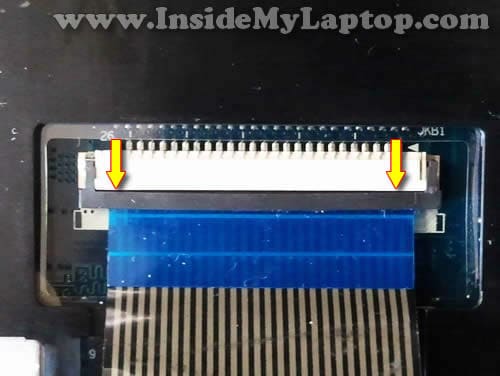
STEP 12.
On the following picture the keyboard connector shown in the unlocked position.
No you can pull the cable from the connector.

STEP 13.
Remove the keyboard.
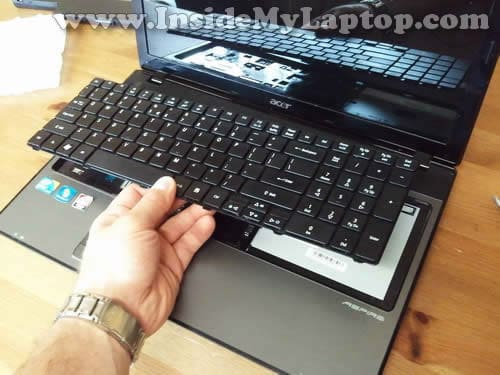
STEP 14.
Remove all screws from the bottom.
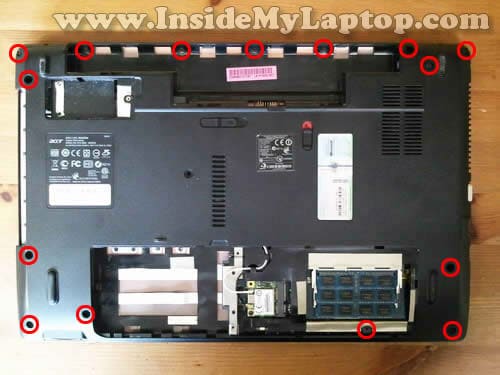
STEP 15.
Remove seven screws securing the palmrest assembly.
Disconnect the following cables from the motherboard:
1. Power button board cable.
2. Touchpad cable.
3. Left speaker cable.
4. Right speaker cable.
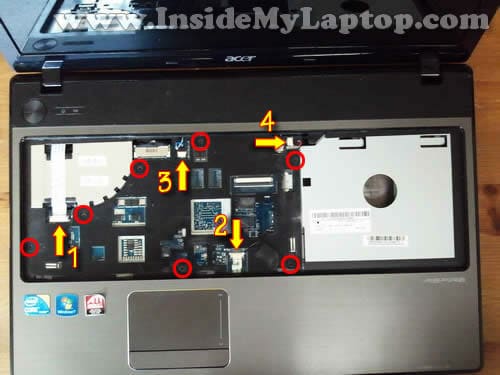
Disconnect the power button board cable and touchpad cable using same technique as explained in the steps 11-12.

Unplug the left and right speaker cables from the connector on the motherboard.

STEP 16.
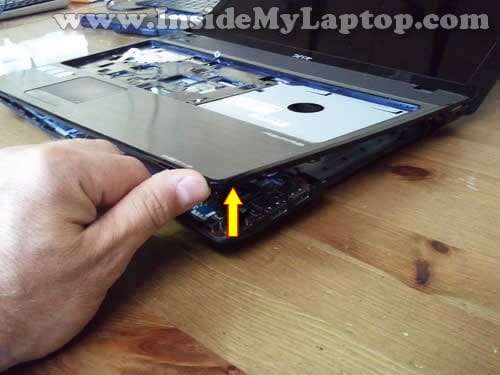
Start separating the palmrest assembly from the bottom cover.
STEP 17.
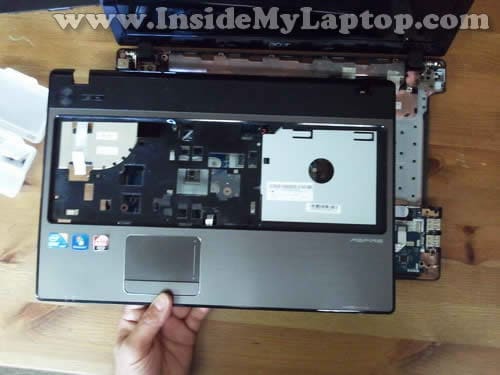
Remove the palmrest assembly.
STEP 18.
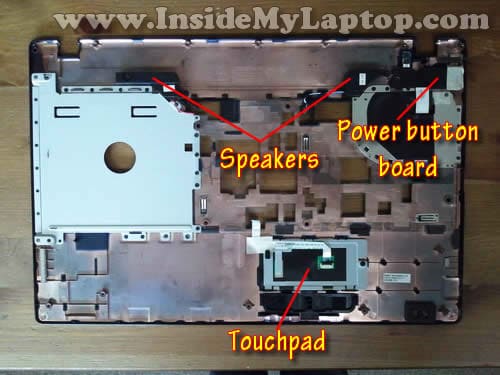
On the bottom side of the palmrest assembly you can access:
1. Both speakers.
2. Touchpad.
3. Power button board.
STEP 19.
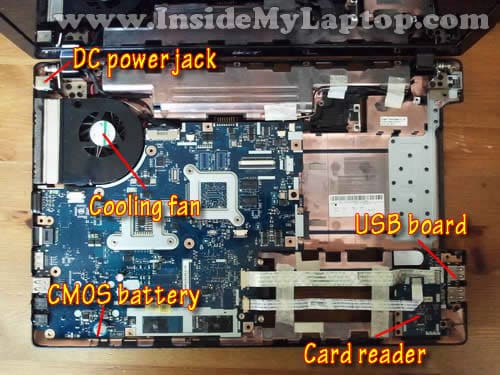
When the palmrest assembly removed you can access the following internal components:
1. DC power jack.
2. Cooling fan.
3. CMOS battery. It’s soldered to the motherboard.
4. USB board.
5. Card reader.
Let’s disconnect the motherboard and remove it.
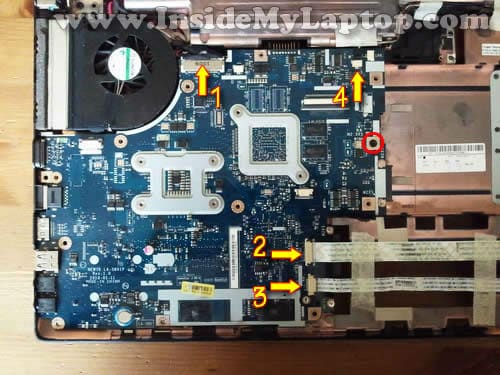
STEP 20.
Remove one screw securing the motherboard to the bottom cover.
Disconnect the following cables from the motherboard:
1. Video cable.
2. USB board cable.
3. Card reader cable.
4. Microphone cable.
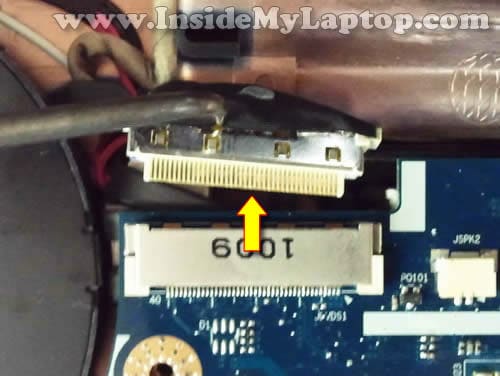
Here’s how to disconnect the video cable.
STEP 21.
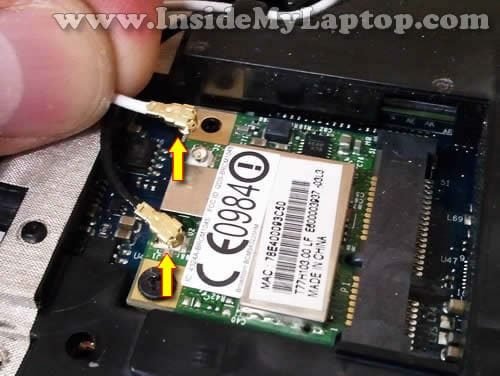
In order to remove the motherboard, it’s necessary to disconnect and remove the wireless card first.
Disconnect two antenna cable from the wireless card.
STEP 22.
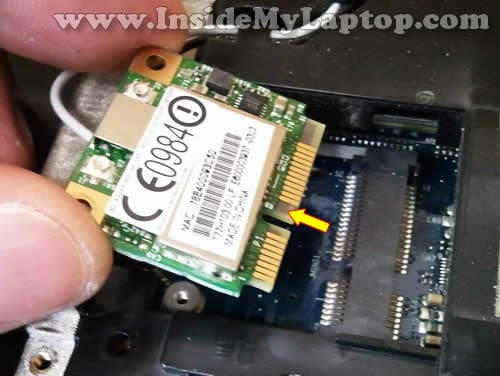
Remove one screw securing the wireless card.
Pull the wireless card from the slot on the motherboard.
STEP 23.
Lift up the left side of the motherboard and start removing it from the bottom case.
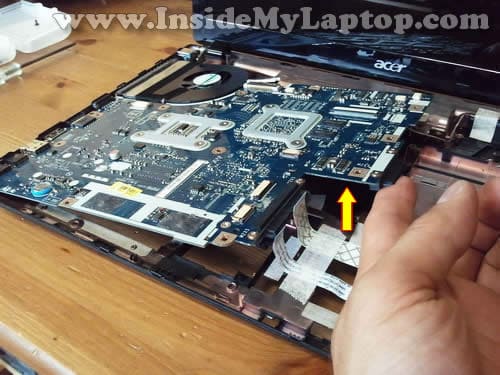
STEP 24.
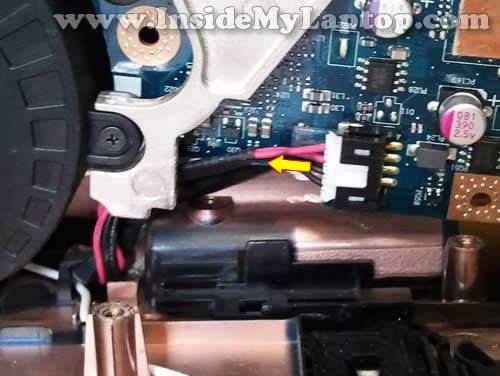
There is one more cable to disconnect – the DC power jack cable. It’s located on the other side of the motherboard.
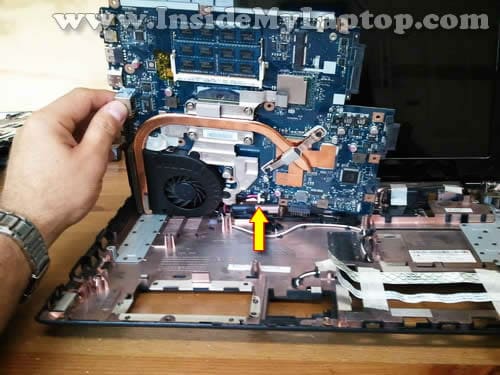
Unplug the DC power jack cable from the motherboard.
STEP 25.
Now you can remove the motherboard.

Here’s the bottom cover without the motherboard installed.
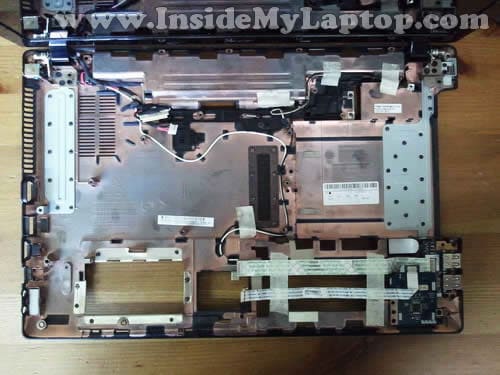
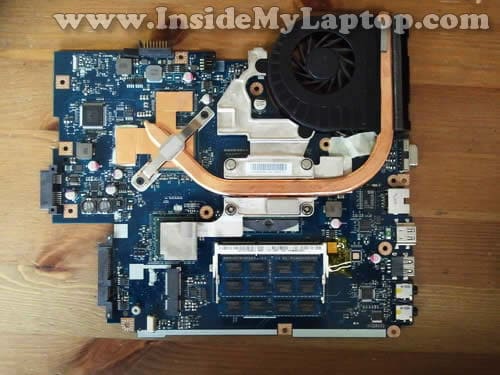
Here’s the bottom part of the motherboard where you can access the cooling module – the heatsink and fan.
STEP 26.
In order to remove the fan you’ll have to disconnect the fan cable from the motherboard and remove two screws.
After that you should be able to remove the fan.

STEP 27.
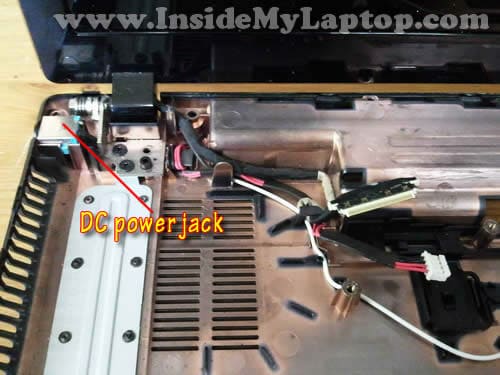
The DC power jack is mounted in close to the left display hinge.
The power jack cable is routed under the hinge.
If you want to remove and replace the DC jack harness, you’ll have to remove two screws securing the left hinge, lift up the hinge and remove the cable.
I haven’t created the LCD screen removal guide for Acer Aspire 5741 5741G laptops yet, but I think it should be very similar to the Acer Aspire 5733z and I have a guide for that.
Check out this screen removal and replacement guide.
Flytech
Nice tutorial with images.. easy to understand…
Fernando
Thank you so much for this.
epafred
good tutorials.i love it so much.please keep giving us more if it
Cody
Total life saver. Thank you sir.
HomeFixedPC
Thank you so much. By the way, this teardown guide also work on Acer Aspire 5742Z laptop.
thiru
very very thank u so much
Spyros
Hello, nice tutorial. But let me ask you something. The cooling fan of my 5741g doesn’t spin.
I disassembed the laptop and I want to replace it. But the fan is stuck with the heatsink with a black sticky tape. When I put the new one I have to stick again the fan with the heatsink or leave it side by side with no sticky tape?
Thanks
skilue
Very informative and well illustrated instructions. I have to replace the HDMI receptacle that has been damaged and now I know how to access it. I suspect there is a HDMI AUDIO USB VGA BOARD that I’ll have to replace Do you know if and where I may obtain one? I have the ACER ASPIRE 7741Z-5731 Laptop.
Icequeen
Says its charging, light is on, but not turning on.
Had slight, SLIGHT water damage but was left to dry completely.
Was found during a reno of a home. Had a multi-charger, so I plugged it in.
Light came on & it even turned on initially.
Screen has grey tinge from water damage on it in upper left area but not that you can’t see anything on the screen. BUT only thing that showed was blinking white cursor a la 80’s screen in the left upper corner. No bios flashing by before Windows loads, nothing.
I’m thinking, needs operating sys cuz it got wiped. Fine.
Wait a few weeks cuz of Xmas chaos aaaaand now it will not turn on.
Charge light is on (battery is garbage I believe) but unlike when I first got it, it won’t turn on at all now.
Really don’t want to take anything apart as I have no idea what is be looking for.
Not like I paid out of pocket for it, but with more Ram & GB than my own, would have been a good spare for the kids. Feel free to email anything of those forehead palm smack things that may not have occurred to me.
Thx!! At least I have the step by step if I want to learn right? Lol
Nick D.
I want to replace the bottom casing on my 7750G and i guess its not just a case of unscrewing it and screw in the new one right? …… i have to completely disassemble the laptop and remove various things and cables attached to the casing and re-attach them to the new casing as they were from factory ? …….
Nalin
Thanks this is very useful
Mad Rabbit
Mister, You are awesome. Thanks for helping us a lot, I’ll be sure to recommend this website for everyone in need with tech help.
Have a nice day!
Ralph
Thank you, this manual helped me replace a CMOS battery without damage. Awesome work, please keep it up.
George C.
Thanks for the great work you do.
Helped me get to the fan to remove a munch of hair from the cat!! 🙂
Keep it up!
Ryan
In step 11 of your tutorial above…….What hapens if the retainer clip is broken and apart from the white piece?
I have been looking online for a replacement part and cant find. Anyone know a link they can provide me with?
Elena
what if I disassembled and cleaned it but now it wont turn on? if I plug in the charger, the charging light is on as if it’s charging, but when I want to turn it on , the light turns of and it doesn’t start up.
Deano
Thanks! My laptop is a 5742 but the case is identical. Turns out my hinge tightened itself and started ripping the inside of my laptop apart, but thanks to this guide and some loctite it’s working again 🙂
John
Is it same procedure to replace power jack on a 5741z? Thanks
liviu_kit
does anybody have any idea if i can change the screen, screen cover and screen frame with hinges from a 5741g to a 5750g? i have a 5750g and the top part with the screen is destroyed. any idea? please
Jo
Just used this these instructions to replace the power jack on Acer Aspire 5741A. Worked a treat – thank you!
Stan
Spot on for Acer Aspire 5741. Took it all the way down to removing the fan. Very nice detail in images, especially for screw locations. I always miss a screw or two when disassembling without the help of a guide. Also, wouldn’t have though to take out wireless card before trying to remove motherboard. Thanks for a job well done.
Alex
With so many wanna be film directors out there on this same task, this is the clear winner, easy to follow and accurate. One happy laptop that won’t go over 59 degrees under full stress test.
Thank you so much!!
axl
Thank you. nice tutorial.
Soledad
I really need to clean my fan but I am not skilled at computers. Thank you for this tutorial. If I decide to do this myself I will follow this one.
Raza
I have opened the laptop according to your instruction and clean the Fan and processor cooling assembly. then i reassembled it. Before turning On i plugged in the AC power and the battery charging light is turn On but as soon as i press the power button the battery light is turn off and there is no display on the screen not the power light is ON.
please help pretty much worried
Eihab
The same problem that I had. The laptop wont turn on although the light on it as a sign of it’s being charged when I plugged in to the power source !!!!! HELP PLEASE.
IML Tech
@ Eihab,
Try reseating RAM modules. Try removing them one at a time. A bad RAM stick can cause a problem like that.
Try disconnecting the AC adapter and unplugging the battery for a while.
Carl Pingry
This is an excellent description of how to do it. My reason for wanting to do this is determine why the fan won’t work and to replace it if called for. The symptom is that the PC apparently does a hard thermal shutdown after about 11 minutes of operation and I cannot hear a fan or feel any moving air.
Do want to divulge your name as it’s not obvious as to who “I” is? You should be proud of your work.
Andy
Nice work and very well three scented I have a power problem you can’t turn the computer on if the power cable is plugged in and charging the laptop if you are on plug the laptop and then turn it on it will boot up and then I can plug it in to charge it. However as of today it is getting harder and harder to turn the laptop on whether or not the power cable is plugged in do you have any advice you could email me I’m not too bad with PC or laptop work so I’m up for a challenge do you think changing the AC unit inside the laptop but will help at all. thanks for your time and keep up the great work cheers Andy
Redone
my computer make a noise and when i shake it i fond that microphone cable is missed
is it bad for the computer ؟؟؟
can i use the computer for a long time without it ؟؟؟
is it danger ؟؟؟
IML Tech
It depends. If one of the screws got loose, it can land on the motherboard and short it. If a piece of plastic broke off, you are probably OK.