

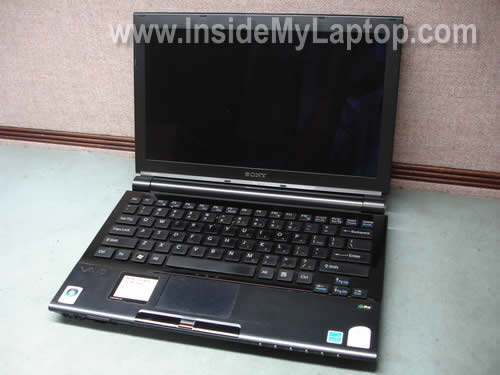
In this guide I explain how to disassemble Sony Vaio TZ series laptops in order to remove and replace the hard drive.
As an example I took a Sony Vaio TZ130N (Model: PCG-4L3L). The hard drive is buried deep inside the case and we’ll have to disassemble the whole thing apart.
I assume that my guide will work for the entire Sony Vaio TZ line. If it works for you, please mention the model number in the comments below.
Do not forget to turn off the computer and remove the battery. Work in static-free environment.
STEP 1.
Remove the memory cover from the bottom.
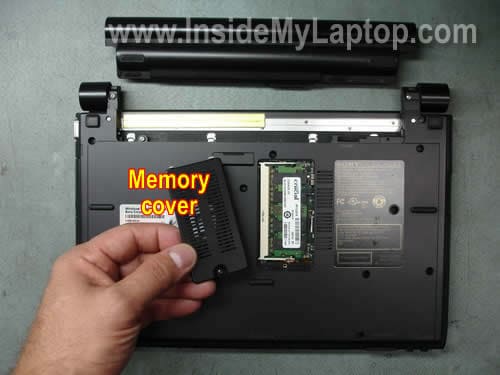
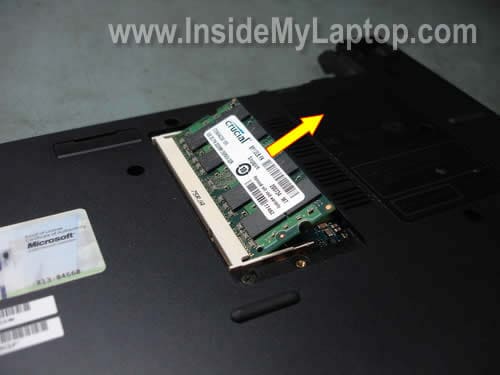
Pull the memory module from the slot.
You don’t have to remove the memory module in order to access and replace the hard drive. I’m doing that just to show where you can find the memory module.
STEP 2.
Remove all marked screws from the bottom.
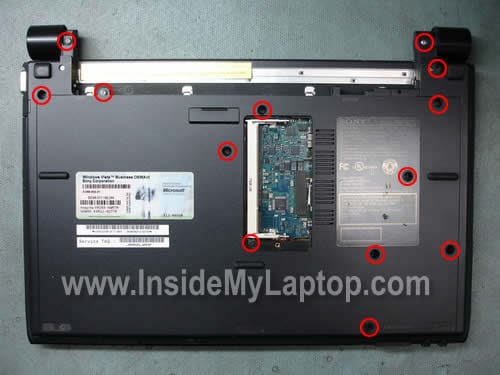
There are three more screws hidden under three rubber seals.
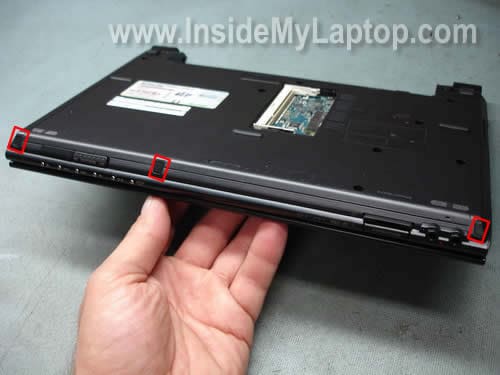
You can remove these rubber seals with a sharp object. Remove all three screws found under the seals.
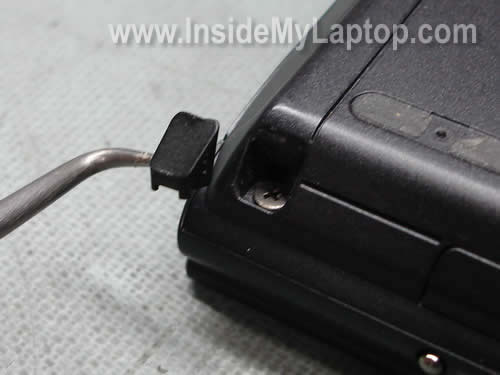
Remove one more screw found under the square rubber seal located close to the hinge.
STEP 3.
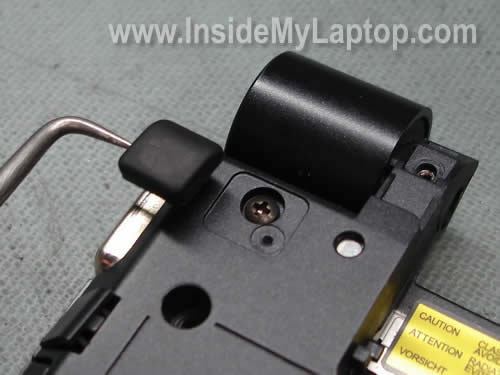
Very carefully remove the plastic cover from the left hinge. It’s not easy. I spent about 5 minutes trying to figure out how to remove the cover.
It has a couple of plastic latches inside and you can remove it using a small flat head screwdriver.
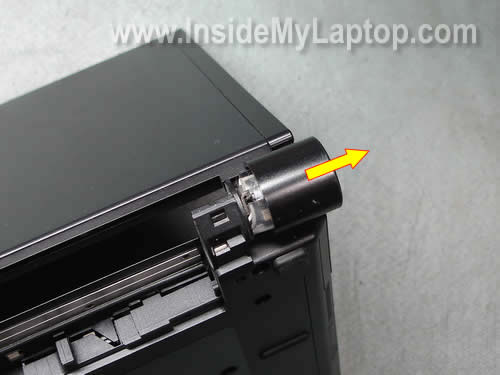
The cover has been removed.
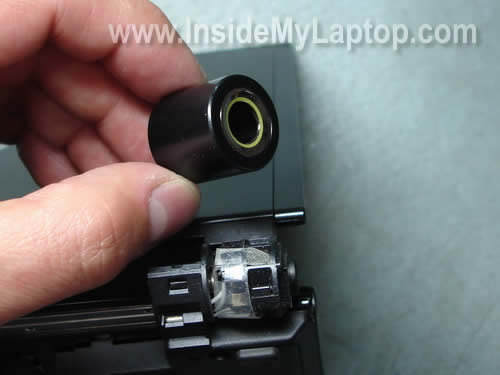
Fortunately, you have to remove only one cover from the left hinge. This cover protects the power jack.
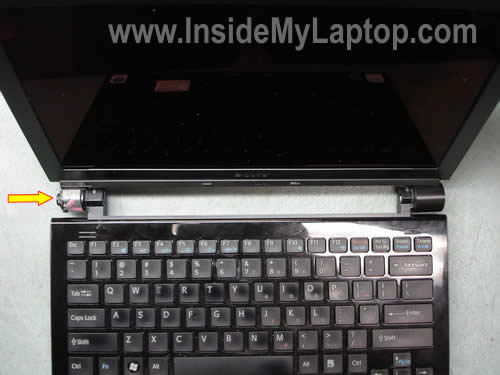
STEP 4.
If you have any SD card or cover inside the slot on the front, remove both.
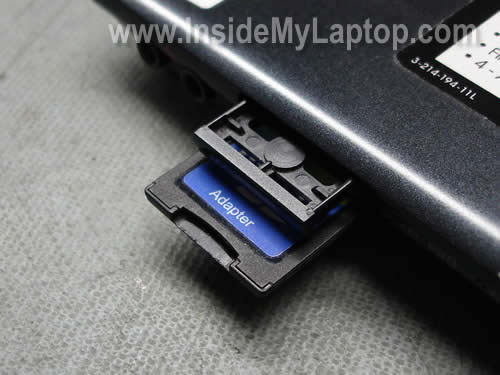
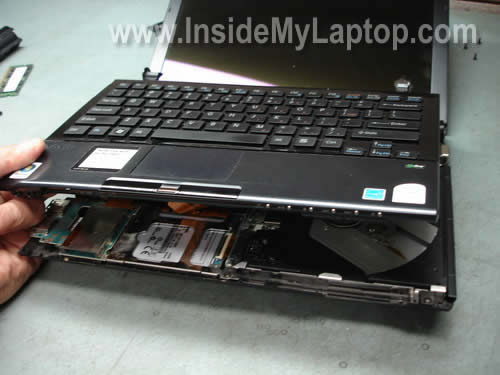
Start separating the top cover (keyboard) assembly as it shown on the picture below.
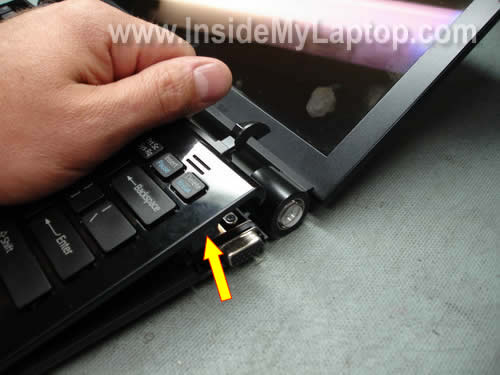
Work with your fingers until the top cover separated from the base.
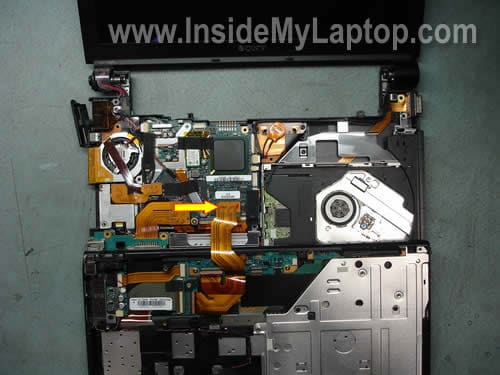
Place the top cover (keyboard) assembly upside down on the palm rest and disconnect the cable from the motherboard.
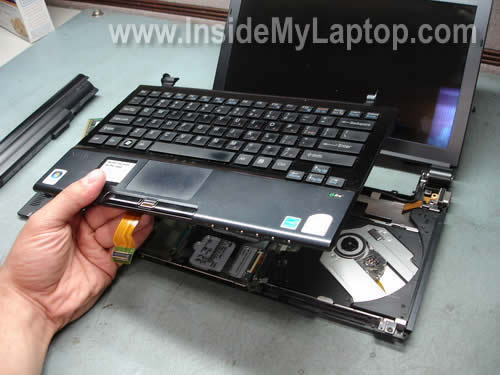
Remove the top cover (keyboard) assembly.
STEP 5.
You cannot access the hard drive until you remove the SD slot/USB board.
Remove two screws securing the board and unplug the cable from the motherboard.
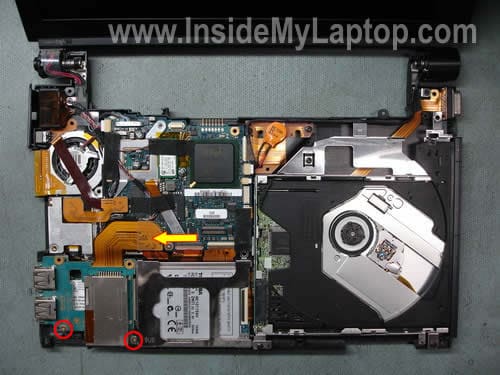
Lift up and remove the SD slot/USB board.
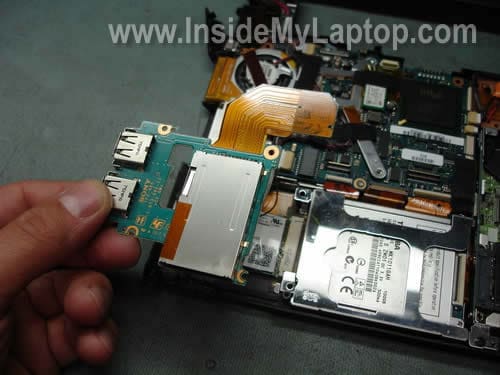
STEP 6.
The hard drive is mounted under the metal bracket. Remove one screw securing the bracket.

Remove the bracket.
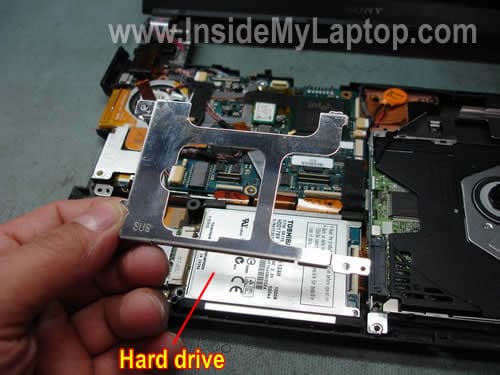
Lift up the hard drive and disconnect the cable.
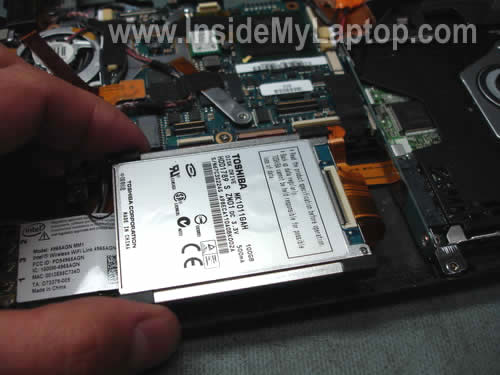
In order to release the cable you’ll have to unlock the connector first.
Very carefully lift up the black piece on the connector. Pull the cable from the connector.
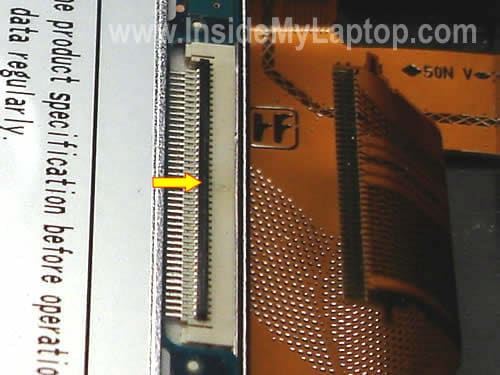
The hard drive has been removed. If you are replacing it, you’ll have to transfer four rubber corners to a new drive.
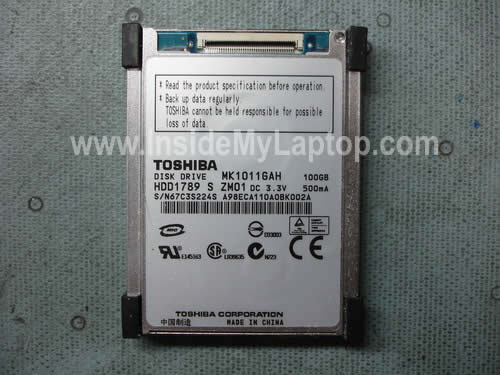
My Sony Vaio TZ130N had a Toshiba 1.8″ 100GB hard drive (MK1011GAH) installed. It’s same type of HDD found in iPods.
Kenneth Neely
I have model VGN-TZ150N, Do you have how to remove top lid and replace?
Thanks for this great information
Kenneth Neely
docssports.com
Noah Adams
Thanks for this great post. I was trying to get a TZ150 apart to replace the dead MK1011GAH, and was stuck on pulling the hinge apart, and that one screw hidden under the rubber foot on the other side. Once your guide got me past that, it was easy!
hyman
Please I need help with how to remove the keyboard and Motherboard of Sony vaio ( FZ11Z).
Thanks for your help
hyman
Please I need help with how to remove the keyboard and Motherboard of Sony vaio ( FZ11Z) ( PCG-381M)
Thanks for your help
ryan
Awesome thanks, works fine for VGN-TZ37GN
I had no idea there was screw under the rubber bits, I almost snapped the laptop in half!
IML Tech
ryan,
It took me a while to find all these hidden screws. 🙂
Bill
Thanks for this – thought the hdd cable was glued in place and have spent half a year trying to work it out – go figure, I am CTO with 25 years in IT….!!
Really appreciate the photos too – well done!
IML Tech
Bill,
You are welcome! Usually they don’t glue hard drives. There should be a way to remove and replace the drive.
alex
This was just what I needed. I replaced the drive on my VGN-TZ340 with a 128GB Runcore ssd. I did have to remove the screw inside the memory compartment. It’s not circled in your Step 2 photo — an oversight?
IML Tech
alex,
Thanks for the comment. Circled the missing screw.
James
aweseom step by step instructions on the TZ130 HD removal (fyi worked like a charm on the TZ160 as well)
QUESTION? in repacing the HD, do i have to settle for 100GB again or can i up grade to more storage capacity. Wha’t the highest capacity 1.8 HD currently available, andt would it be accepted by the TZ160 motherboard (I’m also a little unclear on which of these types i need: PATA 1-platter or CE-ATA TA)
Much appreciated
erdem
hi guys,
i have a vgn-tz340 and want to remove the existing 100GB HDD with a SSD but can’t be sure about the suitable model or the brand of it. I’ll be visiting NYC next week so wanna get it done when i’m there.
thanks
Tim
Great news for those with HD, I am one of the many who brought the 32gb flash drive TZ12VN (just too small) does anyone know if this can be upgraded with an SSD of larger capacity and make an expensive laptop usable ????
Melissa
Does anyone know how to remove the HD on a Sony Vaio VGN-TX770P? I cannot find any instructions on this model. Any help will be greatly appreciated!
Luttinger
I want to upgrade my Sony Vaio TZ-150N to an SSD. It currently has a Toshiba MK1011GAH HDD. According to Toshiba, this HDD has a ZIF 44pin connector and conforms to the ATA-7 interface. Which SSD model would be compatible? Can anyone shed more light on the differences between ATA-7, PATA and SATA?
Chandra
the network adapter on my sony vaio TX651 is not working. Is it part of the mother board? Can I replace the port?
IML Tech
Chandra,
In most laptops the Eithernet port is permanently attached to the motherboard. Is it possible to replace the port? I think it is, if you know how to unsolder the failed port and where to buy a replacement port.
By the way, you can use a PCMCIA network card. You install this card into the PC slot and get a new Eithernet port instead. Not very convenient to have a PC card sticking out of the laptop but might work for you.
vaio friend
how would I change out the processor
IML Tech
vaio friend,
I doubt that you can replace the processor in a Sony Vaio TZ laptop. I believe the processor is permanently soldered to the motherboard and cannot be removed and replaced.
Tony
Anyone out there now how to change bluetooth hardware in vaio TZ model? Mine cannot detech bluetooth device anymore after sending for service at sony centre. 🙁
Danny
Can you please state which type of SSD hard drive I can order from newegg.com? ATA..SATA..PATA? thank you. I am leaning towards Corsair brand.
shauno
Its a PATA drive
Guess
Hey guys,
Can anyone suggest where to find manual for how to clean (open) TZ-series keyboard, just the upper side? or any other ways to clean it?
Dr.Hesham Mohie
Thank you i found ur information very useful Great Work
adam leu
A repeat of message 23
Thanks for the clear information
The PgDn and a few other keys on my TZ11XN are wearing away, need a clean and repair. Any dismantling guide to that job would be welcomed.
IML Tech
adam leu,
You can remove and replace individual keyboard keys without removing the keyboard.
Paulo S
Hi! I have an VGN-TZ190N, it comes with a 32SSD and I want to put in the 100G Toshiba MK1011GAH but I found that the hd mount piece is too small, do you know where I can found one?
Jerry Evans
Thanks for this fabulous helper …
3 points of relevance for TZ31 series machines:
1. The hinge cover on the power supply adapter side has a single moulded wedge that locks it in place. The wedge is located directly behind the slot for the screen. i.e if the screen pokes through at 12 o’clock the wedge is somewhere between 12 and 1. Insert a *small* flathead screwdriver into the cover where the wedge is found and the cover will slip off.
2. The connection to the 1.8″ drive is of the ZIF (zero insertion force) variety. Slightly scarily you simply unscrew the drive as described then *gently* pull the orange cable back out of the drive socket. Note this can be tricky to reinsert – you will need some fine flat elctronics pilers, needle-nose or similar.
3. If you need to recover drive data you’ll need something like this adapter (disclaimer no affiliation i have just ordered from them)
http://store.era-ele.com/zif-to-toshiba-18-adapter-p-44.html
Thanks again!
Jerry
Robert Taylor
AWESOME step by step breakdown. I have to upgrade my bosses tiny 32 GB SSD drive in his VGN-TZ191N because he quickly maxed it out just with a few programs. I would have never found the hidden screws under the rubber bits or would have known that I only needed to remove the left hinge cover. GREAT STUFF!!!! Thank you very much.
Steve Li
Hi, I am a guy from Hong Kong.
I have bought a 64GB ZIF SSD and wanted to upgrade my TZ36. I have seen another demonstration on breaking down the laptop. However, it was not as detail as yours and carelessly, I have torn the keyboard cable! >.< [Which is in your step 13: "Place the top cover (keyboard) assembly upside down on the palm rest and disconnect the cable from the motherboard." ]
I have put everything back after installed the SSD, but the keyboard no longer work (mouse pad is still functioning). What can I do now? I saw there are some cables on ebay but very expensive, any other option?
I would be grateful for your kindly help~
IML Tech
Steve Li,
If the cable is damaged, I guess you’ll have to replace it.
If the cable looks undamaged, make sure it’s connected to the motherboard correctly. Maybe the connection is loose.
victor
can i use toshiba hdd MK2529GSG to sony tz? i know its a sata and not pata like the one you replaced it with but i want to know if theres gonna be a problem upgrading to a bigger hdd like battery life or over heating problems and can you guys tell me whats the best model of sony tz with a dvd drive? im looking forward at buying the 195n/xc or just buy a cheaper model and upgrade the hdd? thanks
Sunny
Hi
Thanks for the guide.
At the moment I have the standard supplied HDD….but I would like to install a SSD.
I am a little unclear what type I need…could you please confirm for me the exact name/type I need…..?
Perhaps provide a link as an example…?
Also what capacity I can go up to….?
Thank you for any assistance.
informale
Just remember that you need 1.8″ drive with ZIF connector.
UKSherminator
Hi, does anyone know where I can get a replacement cable from the motherboard as shown above?
Thanks in advance
Dave
I’d like to replace the CPU 1.06 – 1.33 can I simply swap them over or is the CPU soldered to the motherboard?
IML Tech
Dave,
If you google for Vaio TZ motherboard, you’ll find some pictures.
It looks like the CPU is soldered to the motherboard and cannot be replaced.
Dave
Shame, found the CPU for £70 but the CPU+MB = £350 and simply not worth it (buy a whole netbook for less) Thanks for your reply
Paulo
I got the TZ298N/NX with a Samsung 64SSD >>
Upgrading to a Runcore PRO IV 128GB >> or PHOTOFAST G Monster V4
Price diff Runcore +/- $420 Photofast +/- $600
Just wondering what is the pin count 40 or 44??
Nice photos/very helpful info.I am going 4 it
AlexC
This almost solves my problem. I want to upgrade my TZ27 to 2GB long time ago but do not brave enough to disassemble the NB until now. It would be perfect if you can show me where the hidden memory slot inside. Thanks a lot.
Fred
following the execellant instruction, I was able to install the supertalent 128GB 1.8″ ZIF SSD on my TZ250N, however the BIOS doesn’t recognize the drive at all. The ZIF cable is perfectly aligned and secured. Anybody knows what the issues could be?
IML Tech
Fred,
Enter the BIOS setup menu and try loading default settings. Safe settings and restart the laptop.
Fred
I tried loading default settings, but it didn’t help.
One thing I noticed is that the stock ZIF cable (copperish) is thiner than a generic one (blue ribbon), because I can not insert the generic cable to the stock Toshiba HDD (too tight) but the built-in cable can. Does it imply that when inserting the built-in cable to my new SSD, there will be more gaps in between? but I don’t feel the cable is loosening at all when the lever is locked.
Anything else you could think of? ATA standard, MBR vs. GUID, or cable select setting inside SSD?
Danny
Thanks for the guide. I am using a VGN-Z26GN and I get the idea on how to open the keyboard to replace my hard drive and installed Windows 7 successfully.
Besides, for VGN-Z26GN I need to remove all the screws from the button of the laptop and carefully and gently. The tricky part is that you need to slide out the hard drive from the metal mount.
Thanks buddy! You gave me the hints.
Enas
hi ive got sony viao TZ37 some tea came to the screen and the laptop is not working
they told me that i need to replace the motherboard
i couldnt find any one to help me doing that
and i need the hard disc and the info on it how can i do that ? pls help me
i live in dubai but sony jumbo they dont konw thr job , they ask me to send them the pic of the product !!!!!!!!!!!!!!!!!!!!!!!!!!!!!
David
THANK YOU SO MUCH
I have a VGN-TZ37GN and without this page I would have been totally stuck, and would have taken me hours.
Your step by step instructions were spot on.
Thanks again
ITRepair
Overzealous tech ripped the motherboard cable. We ordered a new one and put it in. The delete key and a couple of other ones do not work now. Should I order a replacement keyboard? Or is the cable the problem?
IML Tech
ITRepair,
There is no simple answer. It’s hard to tell what’s causing the problem without replacing the keyboard.
Try reconnecting the cable. Spray contacts with contact cleaning solution, maybe it’s just bad connection.
klittle
Thank You! You’re a life-saver (and a job-saver).
meskio
I have a TZ31MN, this article was pretty useful for change the hard disk. I replace the original MK1011GAH with a MK1224GAH. But I don’t manage to make it work. The BIOS detect the hard disk, but I can not install any operative system, I just get errors while partitioning. The shipper of the hard disk said that this hard disk is only for iPod and he don’t accept complains about using it on laptops. But checking on the Toshiba web page I can not find any incompatibility with laptops. Do you know if there is any known problem with that hard disk?
Thank you.
IML Tech
meskio,
Have you tried using original factory restore CD?
Just in case, enter the BIOS setup menu, load default settings and save it.
Maybe you have to update the BIOS to support larger hard drives.
Lorn
Awesome, now I won’t have to fumble, guess, pry, and yank on my two Vaio TZ240N when they need service…. thanks…
Regarding the IML Tech’s response on Aug 18th about putting a network adaptor into the PCM-CIA slot as a go around for a defective adaptor, there is NOT a PCM-CIA slot on the TZ series.. (Certainly not missed by me!)..
These TZ’s I have are the 4th generation of Vaio 10-11″ notebooks and its a perfect fit for me, running XP on the dual core processor is snappy and everything is engineered so well…
Lorn, in Hawaii
Tony
I also attempted to install a Super Talent 128GB 1.8″ PATA ZIF SSD (FZM28GF18H) in my Vaio TZ and the BIOS fails to recognise it. Have tried pretty much everything, including resetting my BIOS, trying CMOS hacks to enable AHCI, etc. BIOS will not recognise this drive. Unless someone happened to get this particular unit to work, take this as a warning to anyone considering purchasing this particular SSD to install in their TZ. FYI, my TZ is the VGN-TZ31MN model. Real shame as well as the shop here in Japan refuses to refund it!
d
hi i have got the tz17 model. the power jack cover seems a bit ‘wonky’ and not alligned with the rest of the battery and want to remove it and check if it is the cover i have to order. Could i leave the screws (just clip it out with a screwdriver- step3) or just follow the steps removing the screws until the cover for the power jack comes off. please advice i am new to this. thanks
IML Tech
d,
You don’t have to remove screws. Just clip the cover out with a sharp object. Be careful and work slowly.
James Fi
Hello all.
Vaio TZ31 W7:
1) Stiff hinges/broken screen mounts. Paid Sony to replace screen twice ‘cos plastic connected to hinge broke ‘cos hinge too stiff. They refute design fault. FIX: Opened it up when it started to brake again and lubricated hinge. Found that 4 micro screws (2 left, 2 right) fixing screen to hinge were loose 1 had actually fallen out – this causes excessive load on screen hinge mounts casing break. Conclusion: don’t pay Sony to fix your TZ, do it yourself!
2) Fan making terrible noise (previously silent). FIX: remove fan unit. The impeller is held in magnetically; just pull it down out of housing to remove. Drop impeller into mug of just boiled water and watch all the debris fall off. Your fan will now be perfectly balanced again. Put a micro dot of oil on the spindle end before replacing. Conclusion: don’t pay Sony to fix your TZ, do it yourself!
QUESTION: the hard drive reciently broke. MK1214GAH discontinued. Tried MK1214GAL (apple ipod?) which physically fits but BIOS cant see it so now looking for new solution. Has anyone fitted a 128GB SSD and got it to work?
Thanks, James
Ferry Kho
Excellent! Thanks a lot Bro! 😉
Roberto
Thank you..! this is an excellent guide… very good job
DaScud
Firstly , Thanks a lot for the detailed instructions on how to disassemble the Vaio TZ.
I got my hands on a almost new Vaio TZ but unfortunately this is the Japanese version and the keyboard layout is different (and some keys functions differently using a English OS) . I wanted to do a keyboard swap with the regular US version and I managed to disassemble the keyboard using your instructions. However, I was not sure how to detach the keyboard itself from the palm rest and the rest of the keyboard assembly. I see there are many ebay’ers selling the keyboard by itself without the palmrest . Can you pls post instruction on how to disassemble just the keyboard. Thanks for your help.
DaScud
IML Tech
DaScud,
I don’t have this laptop anymore so I cannot create another guide.
Is it more expensive to buy the entire top cover assembly? Can you find a used top cover in good shape and just replace the whole thing?
Replacing just the keyboard could be complicated.
DaScud
IML Tech,
Tks for the quick reply. So far I have seen a listing for only one used keyboard with palmrest whereas there are a number of vendors selling new TZ keyboards. I would have preferred to buy a new keyboard but looks like I may have to settle for a used keyboard assembly.
Once I receive the replacement assembly, I will try to remove the keyboard from my current one
and post some pictures if it is doable.
IML Tech
DaScub,
It is doable. You can take step-by-step pictures and I can attach them to the existing guide.
TZ36
Hi IML Tech, did you hear anything more from meskio whether he/she finally got the MK1224gah to work or not? If so, was it just by resetting the bios?
Many thanks!
John
Your guide also works for the VGN TN180N.
I wanted to exchange the hard drive but didn’t know until I opened it that it used a 1.8″ harddrive rather than the much cheaper 2.5″ harddrive.
Hairo
thanks for the instructions.
is the 1.8″ HDD 8mm height? or requires 5mm height?
i order toshiba 160G HDD to replace my 64G SSD, but after i installed it.
my TZ can’t read the HDD, do I need change bios or something?
can i use 8mm HDD to my TZ?
thanks
Brendan
Thank you so much for this and keeping it online. The resource was invaluable to me for my switch from Toshiba HDD to Runcore SSD. The tip about disconnecting keyboard cable from motherboard was very helpful – even where I was replacing keyboard (UK for US). Thanks again.
Raazik
The vaio tz17 connects to the original toshiba hdd via a bottom only contact flat foil cable (FFC). Many SSD drives have single contact 40 pin ZIF coonectors to mate with the FFC, and drives like the SuperTalent GF drives don’t work since though correctly aligned, the drive’s connector mates only with up facing FFC. A possible solution is
http://en.esskabel.de/adapter/datasheet/ada-ffc50-FFC50/186
& Using flip or dual sided cable
Chris
Hello,
Would appreciate if you could tell me where i could get a replacement ni Dubai for only one key (Pg Up) for my vaio VGN-SR 46GD Laptop, i called Jumbo service center and they said that i have to change the entire key board!
IML Tech
Chris,
Not sure where to buy it in Dubai but you can try eBay. Some sellers ship worldwide.
If you can find a single key, buy the keyboard but use it just for the replacement key.
tim
Thanks.! The instructions apply to VGN-TZ240N also.
Steve
Thanks for the great step-by-step instructions. I’ve been thinking about upgrading the HD to an SSD in my TZ160NB and this really helps put in perspective what I’ll have to do.
In a sort of unrelated question, I don’t use the DVD drive virtually ever. Have you heard of or seen anyone who has swapped the optical drive out for a second HD/SSD?
Ruth
Hi, IML Tech
You’re instructions are way awesome! I have a TZ240N and I wanted to use these instructions to replace my hard drive (100GB Hard Drive capacity with Speed: 4200rpm and it is a Interface: Ultra ATA Hard Drive – IDE) with maybe a 500 GB SATA? I was wondering if the new hard drive would work or if my system won’t accept anything but a 100 GB IDE? Quite frankly, these less than 300 GB hard drives for small notebooks are driving me nuts! I just don’t want to invest in a hard drive that won’t be able to work with my system.
Thank you for your time!
IML Tech
Ruth,
You cannot replace an IDE hard drive with a SATA hard drive. They have different connectors.
Also, isn’t it a 1.8″ hard drive you have installed? You cannot replace it with a regular 2.5″ hard drive.
Martin B
Since ther’s quite a lot of replies from people seeking to replace the internal HDD with a SSD, I just wanted to add a success story:
Laptop: VGN-TZ2AWN
HDD: Toshiba MK1011GAH
Replacement SDD: Mach Xtreme Nano ZiF 120GB (PN: MXSSD1MNANOZ-120G).
SSD was recogniced by Bios without problems, OS Install also just fine.
One thing to take special notice of: on the original drive, the ZIF Socket is on the upper edge (i.E the black ZIF lever is visible when the drive is installed. On the SSD drive, the zif socket is on the underside, with socket + lever completely hidden when the drive is installed.
Hope this helps someone with a similar replacement,
Martin
Mark
Will a 1.8″ SSD ZIF 40 pin work in the Sony TZ37CN? Want to replace the internal 4200 rpm hard drive. But not sure how many pins.
ebmudder
what to do when the fan in a tz2500 needs to be replaced? Where can one buy the parts?
Ismael
Hi,
Well illustrated.
Consider replacing my faulty hardirive MK1214GAH Toshiba for Sony Vaio VGN TZ37GN to any compatible SSD.
Appreciate your view
Tim
Well I wish I would have found this earlier…purchased a Super Talent 128gb and it does not work. Looking for something that does.
Gordon Laing
Fantastic guide, thankyou very much! I just swapped the failing 100GB hard disk in my Vaio TZ150N for a Renice K3VLAR K3E 64GB SSD and it all seems to be working fine, touch wood! Just installed Windows 7 on it and it feels much snappier than before.
andwan0
Sony PCG-4L1T
VGN-TZ13/B
working
petros
very well shown.worked with VGN-TZ31XN.THANK YOU!!!
Antti M.
Sony Vaio VGN-TZ11XN/B and Samsung 60GB SSD MCCOE64GEMPP-M1AL1 (no casing)
Success, thanks man!
I’m happy to donate, tho I’m poor student 🙂
Danny
Thank you! Saved me of hard work 😀
Riman
it’s great !!! unfortunately my TZ37GN broken on lcd panels and it similar with new laptop price to replace it.
So curious with connector on the hdd, which type ?
Thank you
Scott Johnson
This is an excellent guide. One caveat about the ZIF hard drive connector – it is not really shown in the excellent photos (best I found on the web) but the black locking piece is HINGED. It is FLIPPED UP – not really pulled up – in the direction the author’s yellow arrow is pointing. I used a small dental probe to flip the lock up and back toward the right side of the laptop. It is really very simple with a tool such as this. Don’t try to use your fingers.
Took under an hour to replace the 100GB Toshiba hard drive with a larger solid state. Hoping for faster and quieter. Also, for users who actual follow the guide I encourage a donation. I did. It was certainly worth real money.
Thanks again to insidemylaptop.com!
Twan
Used this guide with my Sony Vaio VGN-TZ21XN, replaced my original hard drive (Toshiba 100GB) with an 128GB SSD drive. I had some minor problems too removing the cover of the power socket but after a couple of minutes I succeeded. Just like Scott I managed to replace the drive within 1 hour.
Boris
fantastic guide!!
excellently detailed. well done.
my boy spilt coffee over the keyboard on my VGN-TZ250B so I was looking to get the keyboard out in order to salvage something….
many thanks
Boris
Andy
Hard drive packed up in my wifes sony TZ31WN, Web Sites like this are what make the internet the marvel it is. Great detail. purchased a replacement drive from parts4ipods.com
All up and running again.
Cheers
Atsushi Takahashi
Excellent guide! I swapped my Toshiba MK1214GAH hard drive for a Super Talent FZM28GW18P 128GB SSD in under an hour! Installing Ubuntu now and am excited to see if it’s any faster. Hdparm -t shows 70M/sec, up from 30M/s for sequential reads. My Sony is a VGN TZ-340 configure to order(CTO) medel purchased in mid 2008.
Weeteck
Hi IML Tech,
Great info. Do you have instructions on how to swap out the LCD screen on TZ machines?
Thanks a mil.
IML Tech
@ Weeteck,
I don’t have instructions, but it shouldn’t be very difficult. Like on most laptops, you remove the screen bezel, unscrew the screen, unplug the video cable and install new screen.
Read though other LCD screen replacement instructions and you’ll get the idea.
Raymond
Thank you, well explained and good photos.
D.N
hi guys,
Thank you very much for your guide! It is awesome and works well for my TZ-93S
I have the stock Toshiba Mk1014gah and would like to upgrade my TZ with a SSD. I read that the MK1014GAH has a LIF connector. I can’t find any SSD with LIF connector.
Could I fit a SSD with ZIF connector instead? If yes, does this one work.
Thank you very much for your answer!
Best regards,
D.N
IML Tech
@ D.N.
I don’t know if these connectors are compatible. I’ve never done something like this myself.
Probably you should email this question to the manufacturer.
Paulo Olinger
Replaced the 64GB SSD SAMSUNG with a 120GB SSD RENICE K3VLAR…
Tony
The toshiba hdd1789 drive is FINE and working, i just need a USB adapter of some sort so i can copy data to my working computer, nothing I have works with the small connector.
What can I but to do that?
Bruce
I have a Tony TZ 160C which I believe should have the same hard drive space as the other TZ series. Sony does not appear to want to give any of this info to me.
I am trying to find out what the correct replacement drive is before I take the laptop apart.
Your photo shows the HD model no as: Toshiba MK1011GAh but hen I look at the specification for this, it is 8mm high. You mention that there is only 5mm available height in the system for the drive.
Am I misreading this?
Can you can help me?
Sony does not want to help at all
Thank you
IML Tech
Bruce,
Where did I mention that there is only 5mm available hight?
Can you go to the BIOS menu and see if the hard drive model mentioned in there?
Suebase
Did anyone try the RENICE K3VLAR SSD 240GB. Does it work? Is the SDD known by BIOS?
Paulo Olinger
@Suebase….Just installed a 120GB Renice K3VLAR E on a fresh install of W7…its a plug and play situation…no problems whatsoever
Suebase
Ok it’s working now.
I replaced in Sony TZ21NM the Toshiba HDD 100 GB with RENICE K3VLAR SSD 240GB. I cloned the whole HDD with EaseUs ToDoBackUp (Free) to the SSD.
Stuart Turner
Very well presented article and very helpful.
Once I retrieved the hard drive from the laptop, I then went on a mission to find a ZIF to USB connector which I found on Amazon.
Extremely helpful and instructive article.
Thank you.
David Mays
Thank You so much – my Vaio TZ has been running very hot and the fan’s on all the time……followed your instructions and gave the fan a good old blast with compressed air. Now running silently again and all back together.. There are two types of screw though so keep a note of where they came from. Thank you so much again!
Anjobaba
hallo I want to replace the HDD with a SSD in the Vaio TZ 36sn (aisan thai version).
where can I found a list of SSD compatible? thanks
Angelo
I have the same Toshiba 1.8″ 100GB hard drive (MK1011GAH)
What model I can substitute with? I need a 40 pin one?
Paulo Olinger
@Anjobaba….You can find a list of 1.8 Zif Pata SSD’shttp://forum.notebookreview.com/solid-state-drives-ssds-flash-storage/531052-1-8-zif-pata-ssds-available.html .I got a RENICE K3VLAR E 120gb..
phil
I’m down to the hard drive but can see no way to pry up the black piece to release the connector. Can anyone expand on this? Does it open up like a gate or ???
Thanks
Roger Donoghue
Just a note to say thanks – saved me ages of slowly prying things apart and looking for hidden screws!
Billyo
Black piece?
Thanks – followed it perfectly with VGN TZ PCG 4L2L – a great machine but the HDD died a sudden death
However like Phil got stuck on what the ‘black piece’ is? I could not see a black piece in my computer or in your photo. Appreciate, if you have time, to clarify this one.
Claudius II
Thanks very much. I plan to replace my old HDD with a solid state one (SSD 128 Gb). The 1.8″ sizes are still a bit expensive but hopefully more reliable.
Paulo Olinger
@ Claudius II > Yes Zif Pata SSDs are somewhat expensive but changing from a spinner will make a hole word of difference such as speed/no moving parts/less power consumption etc..
What you have in mind as brand ?? Good luck
Rachel
Hello
I broke the cable that’ss in the picture under
“Place the top cover (keyboard) assembly upside down on the palm rest and disconnect the cable from the motherboard.” marked with an arrow
can someone please tell me what that cable is used for? Where can i buy a replacement?
Thank you
jasmin
Thanks!!
Mika
Thank you so much for this post. I have VGN- TZ21MN. I followed all instructions and the place I got stuck on step 3 which is taking out the left hinge, how much power should I use to take it of?(I used reasonable force, but I am afraid if I exceed that I will break it) Is there anything I should specifically push in order to take this cover out?
It would be really great if you give me a hint, links for videos or anything to procced to the other steps.
Mika
a m
An alternative in an emergency is to boot with a USB pen drive which you need to have created earlier or can make elsewhere.
When my Sony Vaio laptop Hard Drive died suddenly without the slightest warning (only 24 sectors were bad from the beginning over two years back), I booted into Linux Fedora 16 on a bootable 8GB pen drive which also has about 4 GB space for user’s data. Have continued with bootable pen drives keeping external hard disks for back up.
Am looking for any ideas how to bring out my data from the dead drive.
It is easier dealing with external than internal devices. One hopes the day is not far when laptops would be made of only external devices: plug gable motherboard, ram, drives, screens, keyboards and so on, a kid of DIY kit.
Niraj
My sony vaio tz just crash landed and thanks to this guide I was able to dissemble my hard drive. Now I want to recover my data. How can I do that? If there are any cables to this tiny little hard drive that connects to usb then that would be the best. Please reply
IML Tech
@ Niraj,
You should be able to find an adapter for this hard drive on eBay.
Winfried
Many thanks for this excellent and lucid exposition ! I have a TZ31XN and I swapped my HD for a 120 Gb ZIF PATA SSD. Taking the VAIO apart and assembling again went very well, thanks to your description. Start-up time is reduced considerably, power consumption is down and the TZ is now blazing fast…. Makes me very happy ! Pain in the ass though is getting the Sony software installed. I tried to download some stuff designed for other Sony models but this does not always work. Does anyone perhaps have a suggestion on what Sony VAIO is closest to the TZ31 but still has software available ? Cheers.
Júlio
Dear friends, can someone please help me out figuring what would be a good solution to replace the old hard drive from my TZ21XN? I was thinking about an SSD, around 120/128Gb, but I’m not really sure of what I’m supposed to buy.. Essentially because of the connection.
Thank you all in advance!
Pedro
Winfried, also have a TZ31XN, want to replace my HDD for an SSD as you did.
What SSD did you install?
Was it recognized without any problem?
Nick
This guide is awesome. Ive used it twice now for the same laptop (a tz150) that came with a 100GB mechanical hard drive – I swapped that to a 64GB runcore, and then a couple of years later (today) I swapped the 64gb runcore to a 128gb runcore).
The guide is clean, easy and dead accurate.
Jim
Great job man. Tried to find a service manual and this is the trick – thanks !!
Dev
Super helpful guide. I used it to try replacing the HDD in my TZ-180n with a Runcore 64GB SSD. However, when I drop in the new SSD, the BIOS does not recognize the drive. The drive works just fine in the provided USB casing and I used that to clone my current HDD. Any ideas on why the BIOS does not see the new SSD? Do I need to update something?
Thanks!
Nick
My hard drive failed on my VGN-TZ270N. I took it to a local retailer’s support counter and paid them $75 for analysis and they said it was the motherboard. I talked to Sony and they concluded that the BIOS info was indicating it was the hard drive that failed. I was also told I could replace with SSD. I ordered a Samsung 840EVO but then realized this had a mSATA connector and my hard drive had the ZIF ribbon cable connector (didn’t know this till I opened it up). I then ordered an adapter but couldn’t get this to work. Ordered a replacement hard drive and the system is back up and running. Your guide was very helpful. I have the skills but just like a mechanic you need an appropriate guide to know where all the hidden screws are and the steps to disassemble / re-assemble. Thanks!
tom
Is this laptop is similar to my sony vaio PCG-4N1M.
chris
where can i get a replacement fan and how to install it?? Mine is no longer working.
Peter Wallace
Fantastic
Any ideas where I might be able to obtain the XP drivers for a VGN-TZ37GN?????
EddieTheWire
Thanks for the helpful post. I successfully replaced my HDD with an SSD, using a USB memory to transfer the image to the new drive using AOMEI Backupper Standard (free version – get it at ubackup.com)
Here is the procedure to transfer the drive image to the new SSD – https://www.ubackup.com/clone/clone-laptop-hard-drive.html
My only comment/addendum is that the ZIF connector on my Toshiba hard had no locking mechanism – the ribbon cable simply pulled out when I tugged on it. The replacement SSD did have a locking mechanism, btw.
My laptop had the same Toshiba hard drive MK1011GAH – the laptop was the Vaio VGN-TZ180N.
I replaced the Toshiba with the Kingspec X002A4NUMP 128GB 1.8†ZIF SSD drive, model ZF18-128 ($75).