

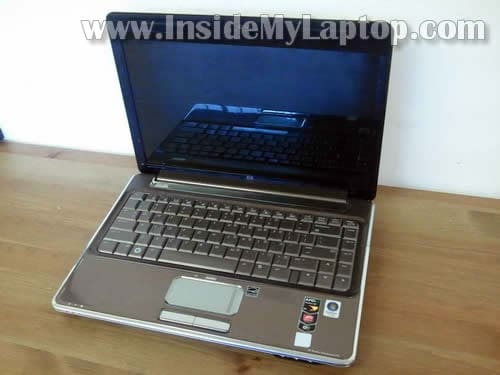
In this guide I explain how to disassemble a HP Pavilion dv4 laptop. I’ll be removing the display panel and top cover assembly.
Before you start, make sure the computer is turned off and battery removed.
STEP 1.
Remove the hard drive, memory and CMOS battery covers from the bottom.
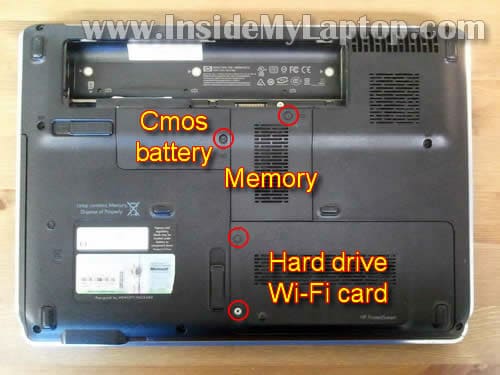
On the following picture you can see all covers removed.
Now you can get access to both memory modules, hard drive, wireless card and CMOS battery.
I believe HP Pavilion dv4 can handle up to 8GB RAM maximum. It means you can install up to 4GB memory module into each memory slot.
This model uses DDR2 PC2-6400 SODIMM memory modules.
For the purpose of my guide it’s not necessary to remove memory modules. I’ll leave them connected.

STEP 2.
Remove three screws securing the hard drive.
Slide the hard drive assemble to the left in order to disconnect it from the motherboard.
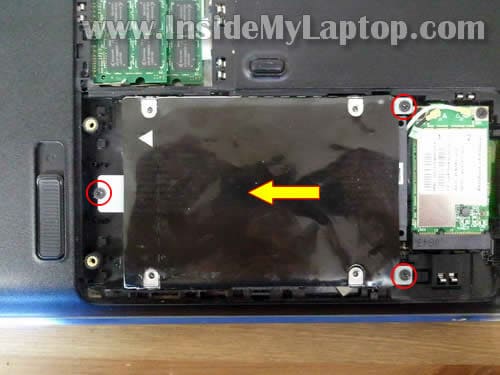
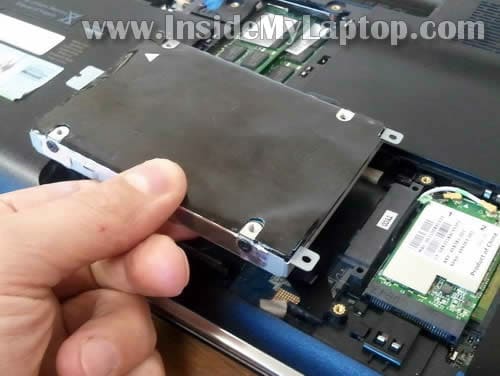
Now you can remove the hard drive.
If you are replacing it, you’ll have to transfer mounting brackets to the new drive.
HP Pavilion dv4 uses a regular 2.5″ SATA HDD.
STEP 3.
Disconnect both antenna cables from the wireless card.
For the purpose of my guide it’s not necessary to remove the wireless card, so I’ll leave it connected to the motherboard.

STEP 4.
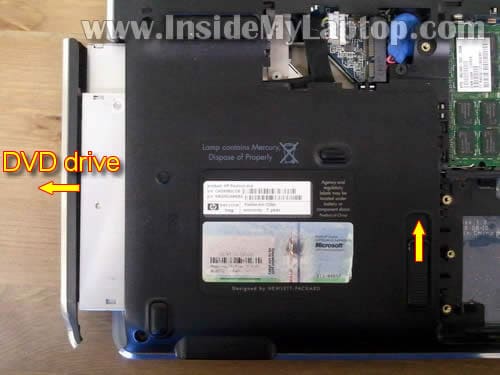
Unlock the DVD drive and pull it out.
STEP 5.
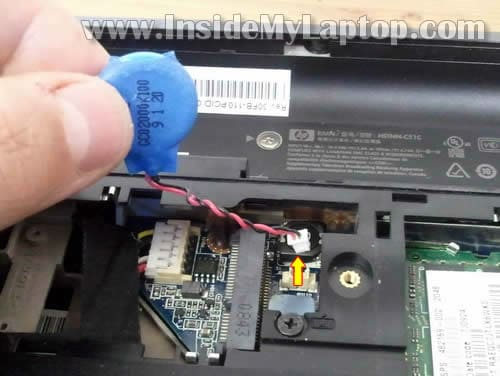
Disconnect and remove the CMOS battery.
In the following 7 steps I explain how to disconnect and remove the keyboard. It’s not necessary go though all previous steps (except removing CMOS battery cover) in order to remove the keyboard.
STEP 6.
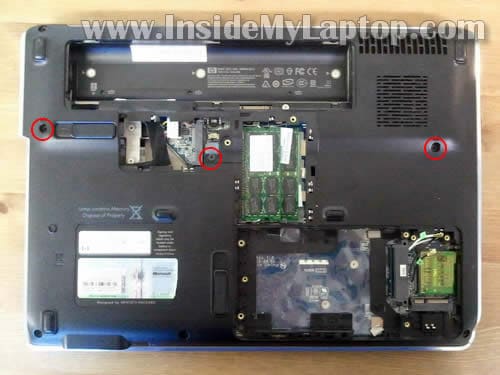
Remove three screws securing keyboard on the bottom.
STEP 6.
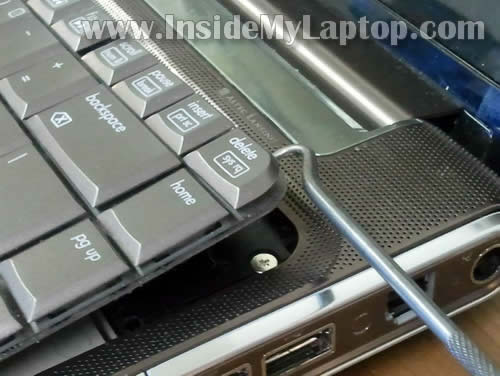
Carefully lift up the top part of the keyboard with a sharp object. Continue removing keyboard with your fingers.
WARNING! It’s possible the keyboard is glued to the top cover with double sticky tape. Remove it slowly.
STEP 7.
Lift up the keyboard and slide it towards the LCD screen so you can access the cable underneath.
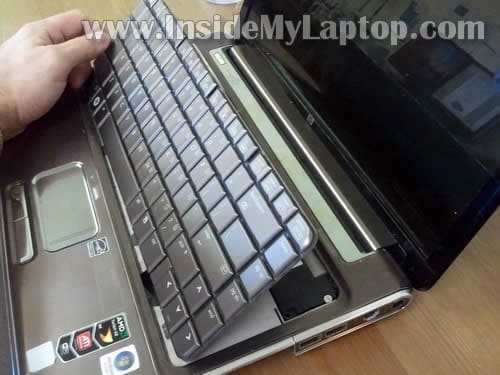
STEP 8.
Before you can remove the keyboard it’s necessary to unlock the connector.
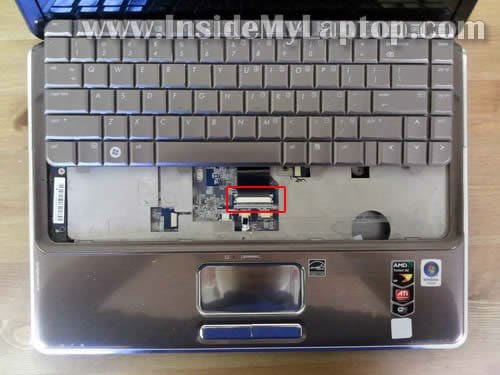
STEP 9.
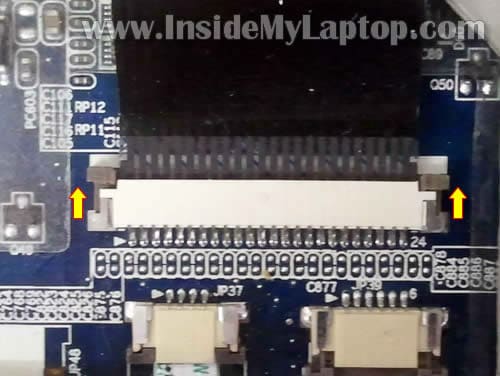
On the following picture the cable connector shown in the locked position.
In order to unlock the connector you’ll have to move the brown clip about 2 millimeters towards the display.
Be careful, the brown clip must stay attached to the white base. Don’t move it more that 2 millimeters.
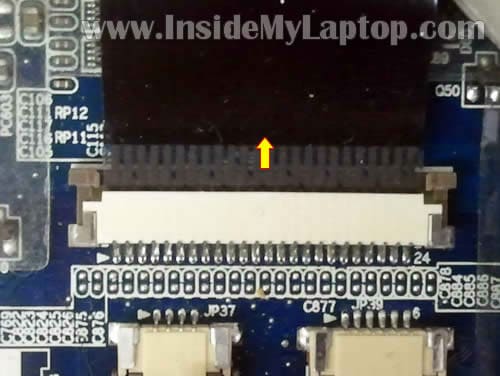
On the next picture the connector shown in the unlocked state.
Now you can pull the cable from the connector.
STEP 10.
Finally, remove the keyboard.
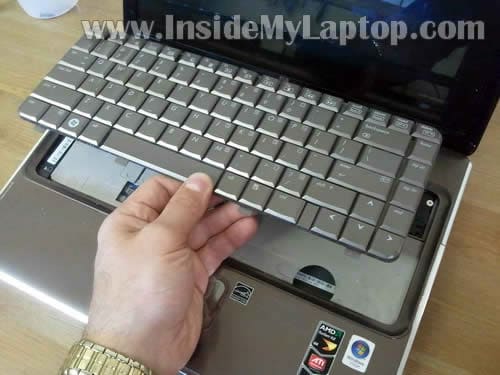
STEP 11.
Remove seven screws securing the bezel. Don’t forget two screws in the DVD drive bay.
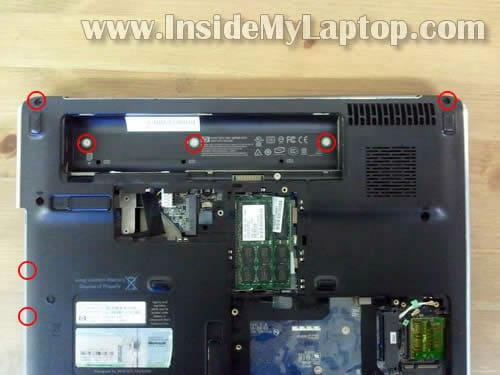
STEP 12.
Disconnect LED board cable from the motherboard.
Remove two screws securing the bezel to the top cover.
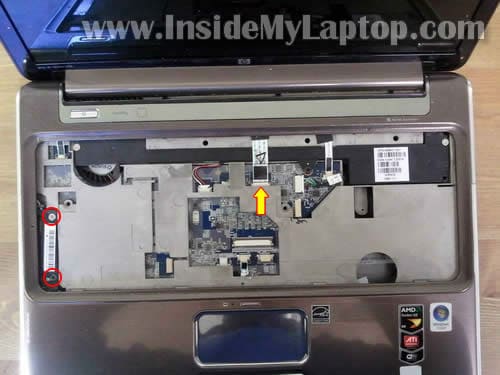
STEP 13.
In order to remove the bezel, slide it towards the display and lift up.
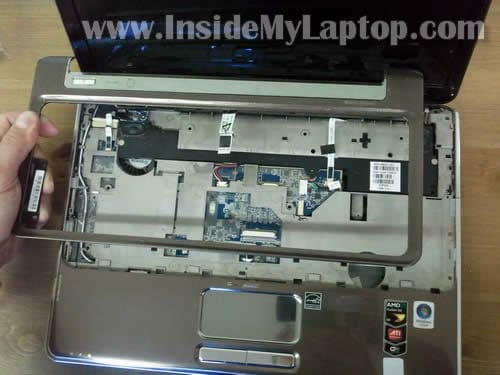
STEP 14.
Disconnect the power button board cable from the motherboard.
Remove one screw securing the board.
Remove the power button board.
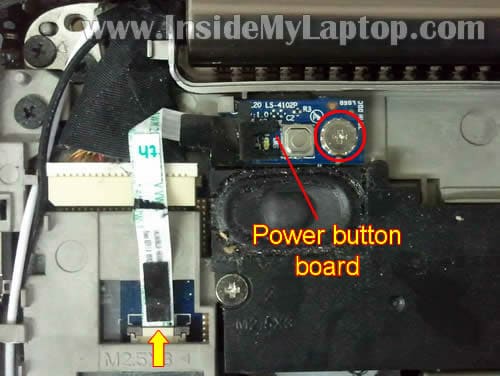
STEP 15.
Disconnect the speaker cable.
Disconnect the lid switch cable.
Remove three screws securing the speaker assembly.
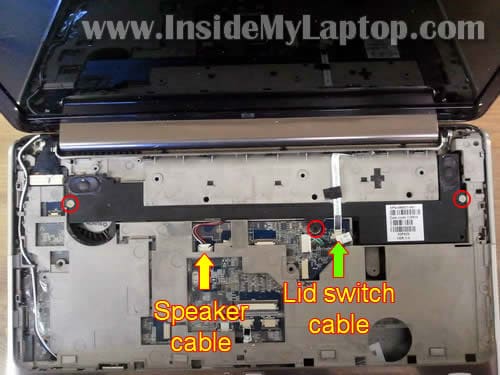
STEP 16.
Lift up and remove speaker assembly.
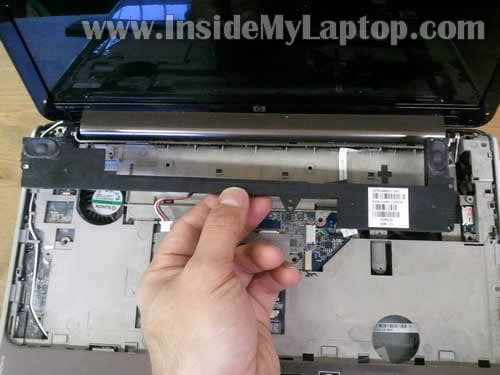
STEP 17.
Disconnect the video cable.
Pull wireless card antenna cables through the hole in the top cover. We disconnected both antenna cables from the wireless card in the step 3.
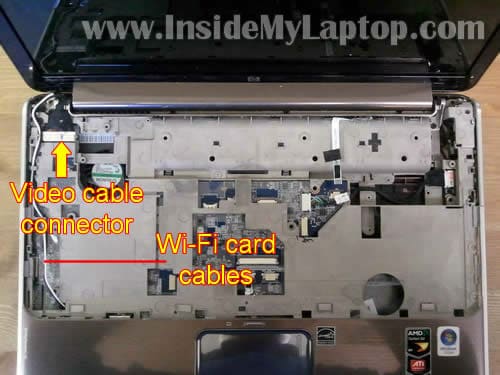
STEP 18.
Remove four screws securing display assembly hinges.
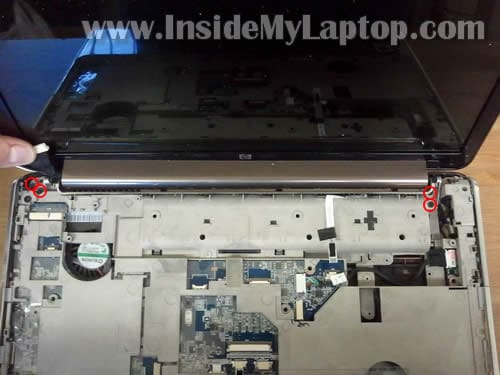
STEP 19.
Lift up and separate the display panel assembly from the base.
If you would like to replace the LCD screen, you can follow this screen removal guide for HP Pavilion dv4.
By the way, it’s not necessary to separate the display panel from the  base in order to remove the screen.
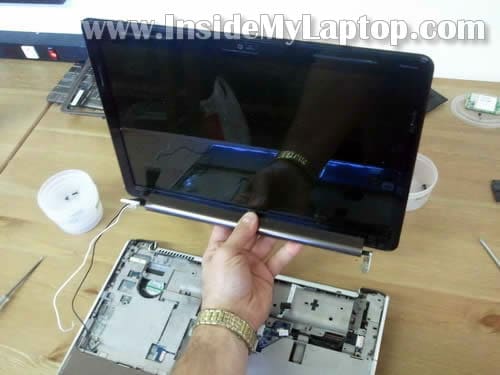
STEP 20.
Remove six remaining screws from the bottom.
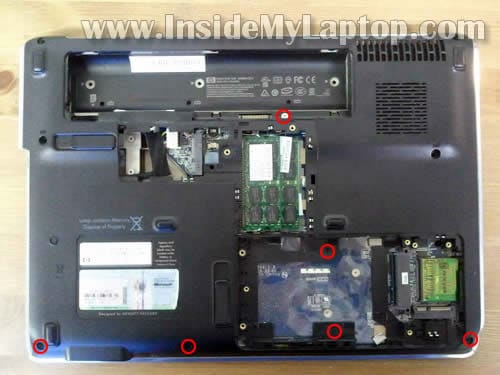
STEP 21.
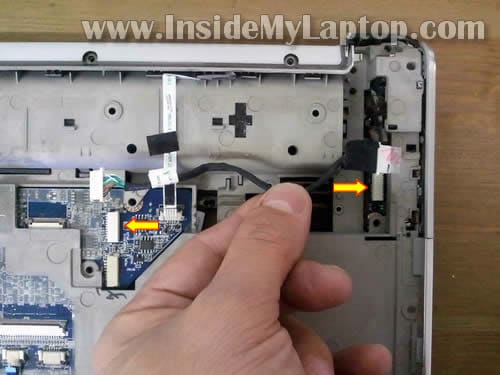
Remove four screws securing the top cover.
Disconnect the touch pad cable (yellow arrow).
If you have finger scanner installed, disconnect it too (green arrow).
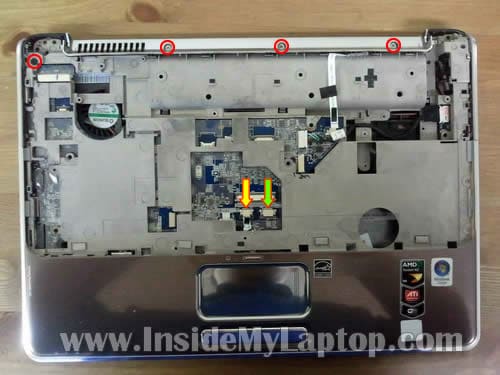
STEP 22.
It’s not necessary, but you can disconnect the USB cable.
It will be easier to remove the top cover when this cable removed.
STEP 23.
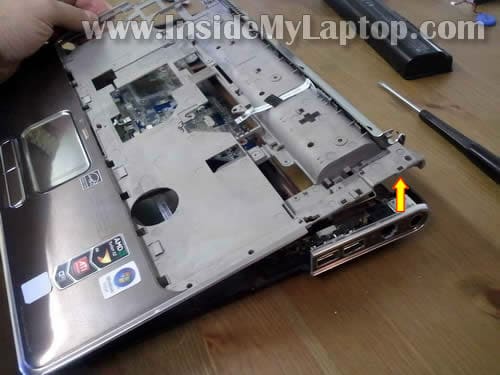
Carefully lift up and separate the top cover assembly from the base.
STEP 24.
Remove the top cover assembly.
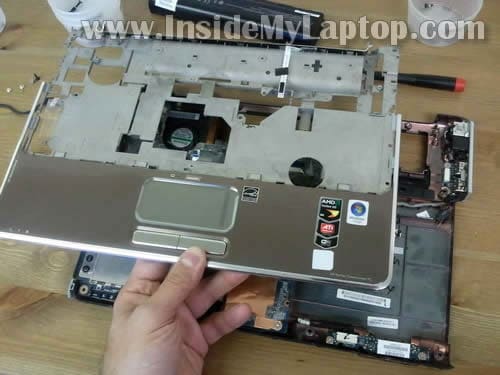
On the following picture you can see the laptop base with the top cover removed.
I’m not going to remove the motherboard but you can find instructions in the official HP service manual (available from HP website).
If you would like to clean the cooling fan and heatsink (to fix overheating) just used canned air and blow air into the fan until all dust is gone.
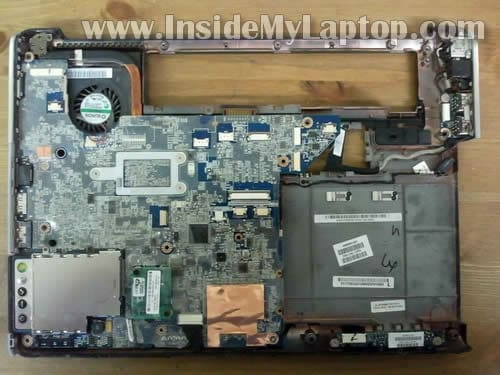
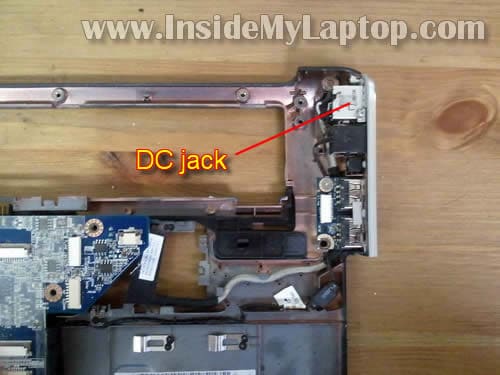
By the way, in HP Pavilion dv4 laptop the DC jack is not soldered to the motherboard.
If the jack is damaged, you can replace it with a new one without soldering. Simply unplug the damaged the jack harness and replace it with a new one.
Charitha
Thanx a lot !!!!
FMM
I have a problem that the DVD would not eject using the latch only as described. Is there a screw that needs to be removed somewhere? Otherwise, my compliments on the great instructions.
IML Tech
FMM,
I don’t think so. Slide the latch and wiggle the optical drive a little bit to remove it from the laptop.
There shouldn’t be any screw securing the drive.
patricia
can u please help me i have a hp pavillion dv6753cl and i was having problem with plug and i taped the wires and somehow the tape came off and the 2 wires touched and sparked so i fixed cord and the light from ac adapter comes on but not the power button i want to know if i fried the mother board , i took it to radio shack and there plug works but the power button doesnt turn it on
Joe Peach
I want to thank you for the incredible, helpful site you put together!
I dropped you some change via PayPal.
It seems only right for how you helped.
There are other helpful sites, but I know when I come to you,
it will be a painless disassembly, unless of course I read to fast 😉
Thank You again!
Joe Peach
IML Tech
Joe Peach,
Thank you for your donation. I’m glad you found this guide useful.
James
i got my escape key coming out of my keyboard.. tell me how to fix it again ?
i hav hp dv 4 laptop
Vikram
This website is awesome!
I own a HP Pavilion dv4t-1200 CTO notebook. My problem is that the screen display has started shaking. Also I can see fine lines near the bottom edge and top edge of my lcd display. The display however is nice and bright. Also, while connecting it using an HDMI cable to an external display, it has no shake and the display is perfect. Is this a loose connection problem?
I opened my laptop and reconnected the main video cable to the motherboard, thinking it may have come loose. But the problem is still there.
I did nould this be due to loose cot check the inverter connections. Connections of the cables with the inverter?
IML Tech
Vikram,
It’s possible you have bad video cable or failing LCD screen. I would try replacing the cable first. If it doesn’t help, move to the LCD screen.
No, it’s not related to the inverter.
When you have a problem with the inverter board, the screen backlight goes off.
kalakal
got problem with my pc.,., sometimes it open.,., the power light apeears but the screen is never sometimes?? what is it what will i do
carlosfsm
Hi. Do I have to go through all these steps to clean the fan and heat sink? I think I do.
To assemble back, I’m guessing I’ll just read the guide again from bottom to top, right?
Also, will the system run normally after reassembly? Or will it ask me to go through some setup config first?
Thanks! Great guide!
IML Tech
carlosfsm,
Try cleaning it with compressed air. This doesn’t require laptop disassembly at all. Just blow air into the fan grill on the bottom until all dust is gone.
That’s right.
If you assemble everything correctly, it should start right away. No setup/configuration needed.
Michael
I have an HP G61-511WP with a broken screen. I don’t see anything on this website on how to remove the LCD screen for this particular model. Could anybody help please?
IML Tech
Michael,
I don’t have instructions for this particular model but I think it should be similar to one of the following guides:
https://www.insidemylaptop.com/replace-broken-lcd-screen-hp-pavilion-dv3-laptop/
or
https://www.insidemylaptop.com/remove-lcd-screen-from-hp-pavilion-dv5-laptop/
oneluv06
Hi I have a hp dv4 1145go and i cant see anything on my screen, its on i can put contrast up n down and see it get lighter and darker. i hooked it up to an external monitor and the computer works great. what do you think the problem might be . ittok it to bb and they said it would cost 389.00 and i cant do that any help Thanks
IML Tech
Michael,
I just took some pictures for replacing broken screen on a HP G62 notebook, it could be similar to your HP G61. I’ll compile a new disassembly guide soon.
IML Tech
oneluv06,
It’s hard to tell what is wrong. Could be one of the following:
1. Bad connection between the video cable and motherboard. Try reconnecting the cable.
2. Defective video cable. Try replacing the cable.
3. Failed LCD screen. Try replacing the screen.
Gladys
Hi,
I think that my computer has an issue with the DC jack. Before i take the entire computer apart is there any way to test it?
If
My battery says it needs to be replaced but I feel the computer should work with out the battery when it is plugged in to an electrical outlet. I remove the battery from the computer shouldn’t it still work with electrical power?
Thanks, Gladys
Luke
website was extremely helpful in disassembling my laptop. My computer was not getting power but it worked when the battery is charged. I replaced the dc jack, however, the laptop is still not getting power. Any idea what the problem can be?
IML Tech
Luke,
It’s possible you have a problem with the AC adapter. Maybe the AC adapter doesn’t work correctly when loaded (laptop turned on). I’ve seen failures like that a few times before. You’ll have to find another working AC adapter to test the laptop.
If the problem still exists even after replacing the adapter, most likely this is motherboard failure.
yashrestha
hey, i use a pavilion dv4 1502tu, my display cable is damaged. is there any way i can get it fixed? when i connect my laptop to the external display everything else works fine. and if i have to replace it. can u suggest me where can i get the replacement part?
IML Tech
yashrestha,
Yes, it’s possible to replace the video cable but you’ll have to disassemble the display panel.
You can follow this guide for HP Pavilion dv5 laptop which should be very similar.
https://www.insidemylaptop.com/remove-lcd-screen-from-hp-pavilion-dv5-laptop/
You can search for a new cable using display cable part number listed in the service manual: http://h10032.www1.hp.com/ctg/Manual/c01597750.pdf
The display cable part number mentioned on the page 27.
It says: LCD cable for Flush Glass display assemblies 486878-001
Sudip
hello my dv4t laptop keeps showing me a white screen whenever i turn it on.
could it be the video card? video cable?
When i try to run it using an external monitor.. the monitor comes up black as if though its not getting any signal
thanks!
IML Tech
Sudip,
Could be bad connection between the video cable and LCD screen. Try reconnecting the cable.
It’s possible the laptop doesn’t start with external monitor because the internal monitor still connected to the motherboard.
You can try disconnecting the video cable from the motherboard and try starting the laptop with the external monitor. Can you get external image when internal screen disconnected from the motherboard?
Thùy
Hello and thank you for the very detailed instructions.
Will you be showing instructions for removing the motherboard from the base. I’ve tried to use both your instructions for HP Pavilion DV5 and the service manual for DV4 (page 107-109) and removed the DC Jack cable, audio cable, 2 slotted screws in the expansion port, one screw in the bottom right corner of the motherboard plus another screw but it still seems pretty securely attached and didn’t want to break anything, pulling more than it seems to want to give. Also couldn’t find the modem module cable to disconnect. I want to change the broken battery latch and it’s just behind the motherboard.
Also, you mentioned in your response to a post above that problems with inverter board would result in the screen backlight not working. Does that mean that there will be no image or a dim image? I’m sorry if that’s a stupid question but this is my first time taking apart a computer. My screen comes on but either comes up pink/red or green depending on the angle that the screen is tilted. I’m guessing that it’s a bad video display cable and should replace that? I have not tested it with an external monitor as I’m not quite sure how that’s done. Would I just plug the monitor into the HDMI port? I have already taken apart the computer and put it back together again and checked to make sure the cable connections are all secure but the screen still goes pink or green.
Thank you for your assistance and I hope I was clear enough.
Thùy
Sorry, I just found the modem module cable. It was wrapped under the modem module and I used the service manual (page 99-100) to remove module in order to access the cable itself.
And looking around the internet, realize that I won’t use the HDMI port but the VGA port to connect to external monitor?
Thank you.
IML Tech
Thùy,
When inverter fails, you still should see a very dim image on the screen.
Most likely it’s one of the following:
1. Bad connection between the video cable and motherobard. Try reconnecting the cable.
2. If it doesn’t help, this could be defective video cable. Try replacing the cable.
3. If the problem still there, most likely this is LCD screen failure. Try replacing the screen.
Yes, you can do that. Either HDMI port or VGA port. It depends on which port and cable you have.
Feels like bad cable to me.
Brandon
Hello, I took it apart to fix the power jack. Now I have all these different type of screws. Which ones goes where?
Robert
I have a dv4-1225dx, everything comes on, i can hear windows start up, I use avast antivirus and i can hear it update, I can also use the keyboard to shut the laptop down. My problem is, I have no display, the LCD seems to have the back light on, but nothing else. I have tried to hook up the laptop to my flat screen tv through the VGA connector,but no display there either, havent tried the HDMI output as I have no cable. It has a ATI Radion HD 3200 video card and I am assuming it is not replaceable. Any ideas as what I can do to fix it?
Hank
Robert,
I have the same problem with my dv4-2160us and mine would also not connect to my flat screen tv through either a VGA or an HDMI cable. I am currently having success hooking it up to a standard LCD computer monitor via VGA so that I can recover my files. I will keep you posted on my progress. If anyone has had this problem or has any suggestions, PLEASE SHARE!
IML Tech
Hank,
It’s possible you have to choose the right channel on your TV in order to get the image.
gaurav singh
hello,
i have a dv4 1241 and have gone through all of your steps regarding cleaning the heat sink but in the meanwhile during assembling back i missed connecting the lid switch as in step 15 and i think it has been removed from the other end and fixed on motherboard , so please let me know if the cable is damaged or the position where it was initially attached (other then motherboard end)…..
Pranav
I disassembled my dv4-1241 tx, i mounted it back, but misplaced some of the screws here and there. i also cleaned, fan, heatsink, CPU and GPU. I reapplied thermal paste on CPU and GPU. CPU is working very fine. It hardly crosses 65C while gaming. But my GPU is working weird. When i boot the laptop, GPU temp is 75C. While gaming it crosses 100C. Please somebody help
Thanks in advance
IML Tech
@ Pranav,
Not sure what’s going on but let me guess.
When you removed the heat sink, do you remember if you had thermal pad covering the GPU?
Did you remove the thermal pad and applied thermal paste on the GPU instead? If you did, that’s why the GPU overheats.
If you have thermal pad before, you have to use thermal pad again.
john Wilbur
This is an excellent instruction tutorial on tearing down the laptop. I have a dv4 that has been running so hot, it has occasionally stopped, even with a fan cooler. I tried cleaning, no good. Finally I decided to bite the bullet and tear it down. This made it easy. Although I have built many a desktop, I’ve never torn down a lap top. Actually getting the mobo out was still pretty hard. something was caught around the video port. Probably the flexible metal bracket. I cleaned and regreased the cpu, and when I blasted some canned air on the fan (now readily accessible), it tossed out a couple of big chunks of dust bunnies that felt like, well, felt.
When I put it together the first time it didn’t work! Graphics processor error. Tore it down. taped the loose connector tightly in place (come on HP!). Voila, it works, and with crossed fingers, I hope it keeps on keepin’ on.
Thanks again for the great tutorial.
SenorLeung
Quick question. For HP dv4t-1000 series, do they all share the same keyboard? So if I buy a keyboard from ebay for the 1100 series, would it work for the 1300 series?
Everett
Re: John Wilbur, loose graphics card connector
Hello! I disassembled my dv4 also to clean out fan (with this awesome guide) but upon putting it back together i am getting a non-start up due to the graphics card (four blinking lights).
I was wondering what connector you had to tape down when you had this problem and where to find it? Hopefully my comp i not dead 🙁
thanks.
Omeng Tinggi
thank you very much for this tutorial,
I follow many instructuction before I succes disassemble my hp pavilion dv3.
earth
hi! i just had trouble in taking out the bios battery. did you push it towards the main battery slot? or did you just pull it up? i tried both to no avail. thanks
Daniel
Thank you so much for making this guide. It really helped me to properly tear down my laptop so that I could clean the dust from 3 years of use.
I should have reassembled in the same order as disassembly because I messed up by routing the USB cable below the grey plastic, causing my battery to fail to sit properly and for the battery ejector to be stuck.. I noticed it after I had already completed reassembly, of course, so I had to go back and fix it, wasting about 45 minutes. So be sure to test all moving parts before reassembly.
However, thanks to your guide, I’m finally up and running, with new thermal paste and dust-free! Thanks
Melvin Anderson
Great documentation!!
I do have one problem with the assembly. I can’t find where the two wires coming from the display panel attach. I have followed them from the display panel down through the hole, but can’t find where they connect.
Please Help me!!
Thanks,
Mel Anderson
Melvin Anderson
In relation to not finding the place for the “two wires” coming from the display panel, I found it in step 3. The old saying, “If all else fails, read the manual certainly applies!!
Thanks very much,
Mel
Denver Computer Repair
I love this site for articles such as this one! Great tutorial for those that fix laptops and also useful for anyone who is just curious. With as many HP DV4 screen issues I have seen, this article is a really good quick visual reference. Thank you for creating it!!
Santanu bera
That’s a outstanding,really i want to give thanks to the owner of this website.from this i can assemble some specific laptops myself.thanks again sir…
IML Tech
Thanks guys,
I hope this disassembly guide is useful and helpful for all DIYers.
Gary
Wow, you saved my life. Was desperate to do it. Thanks a lot
Mo
Hi
Can someone please tell me exactly where the card reader cable is located on the HP pavilion DV4? I am trying to disconnect the card reader cable itself and not from the MB and I am having trouble finding out where its located.
Thank You
Melissa
Great details with great photos! Thanks so much. I’m hoping I can fix my webcam problem and get the fan really clean, so I can sell this laptop to help pay for my new one. =)
Sam
Hello thank you.
I’m a computer idiot and yet by following your clear and detailed instructions, I managed to bring my laptop back to life again TWICE. The first time happened a year ago with fan problem and the second time was bad connection between the video cable and LCD screen that I fixed yesterday.
Thanks again.
Mike S.
Excellent tutorial! I needed to disassemble my wife’s laptop because she spilled iced tea on the touchpad and the touchpad started acting up. After removing and rinsing the touchpad with water and drying it everything is working properly.
I followed the directions exactly except for step #20. For my laptop (DV4-1283cl) I had to remove a seventh screw inside the hard drive bay to get the top cover assembly off. It is a black screw located on the left side inside the drive bay. Probably just a variation in the models.
I’d like to give a big THANK YOU to the author.
steely74
can you tell me what the lid switch cable connects to? not the zif end on the mobo but the other end. I just did a fan replacement job and it appeared to not connect to anything! now the customers volume buttons etc don’t work. I see they sell just that cable piece so it’s repairable but I couldn’t find any info on how to connect it on the non zif end.
steely74
disregard my last post! different cable.
wolf3345us
Hi and Thank you for you great breakdown. I took apart my DV4 thinking I had a bad DC jack on the side but when I applied a multimedia to the other end of the power cable that connects direct to the motherboard I got 19 volts. It seems the motherboard is getting power but still not turning on. I tried the electrostatic dissipation trick but still nothing(hold down the power button for 1 minute without a battery or charger plugged in. I think it’s probably a bad motherboard but I’m not sure. Is there anything else I might have missed?
IML Tech
@ wolf3345us,
It’s not turning on at all? Could be the power button board failure (shown in the step 14).
If the laptop turns on but there is no video, could be memory failure.
It’s not very clear from your description how the laptop is failing.
John
Hi Thanks for the detailed description to open it. Here is a problem. I have HP dv4-1225 dx with Windows 8 OS. Recently i had a problem that while switching on, the system switches on but i dont see any video, rather seeing capslock and numlock LEDs blink, continously. If i leave it on for a while, sometimes the whole system switches on. Considering the problem with Win8 OS, i tried with Linux, but the system didnt boot up. I have no clue. But for a long time, the system was warning me about the internal battery replacement. so can it be the major cause for the present problem. I couldnt think anything else, since, while it switches on occasionally everything works well, seems my hard drive, mother board and other things are working. I would be happy to provide more info if you need. Thanks a lot for your help.
IML Tech
@ John,
Check the memory modules. Try reseating them. Test the laptop with only one module installed. This could be memory related failure.
Diego
HI Mr. Great Guy , heres my probs , i have the same model as this Laptop youve’d shown to dis assyble method . Now heres the error codes numlock & capslocks blinks every 4 seconds , somebody told me and give me error codes for this matter . now where is video chip controller is located to this motherboard so that i can resolder it by me self. HP Service Center Saudi Arabia dont have a clue for this or never touch if it is this case. i’ll try to cross my finger even though to try to make this crap alive again . Tnx.
IML Tech
@ Diego,
First of all, remove the hard drive and try removing memory modules one by one. Will it start with only one memory module installed?
Sarah
Is there a place where I can buy the replacement clips that you lock the ribbon cables in place with? My brother lost one of the clips
Cliff Krelove
Thanks for the pics – helpful in correctly and easily disassembly. I am going to impose on you and ask a question. I replaced the top (the diplay panel) in my dv4 1014nr but I may have made an error. The display fits and works great, but I lost the controls at the top (the touch volume, media player, and wifi on/off switches) and the battery is no longer detectable. Does it seem like I missed some reconnections somewhere?
I would appreciate any information you could give me, if you have time.
andrelo
Hi, thanks for great breakdown. I have a dv4 that does not connect to power, I’ve already tested my AC adapter and is working. When I connect the laptop on power not even the DC jack led turn on, the only thing that happens is the front power led starts to blink if the batery is in it, but without the batery I get nothing.
mike
My Pavilion dv4 turns on boot will not boot. My number lock and caps lock blink at the same time, every 2 seconds? Is there a trouble shooting code chart that can help my figure this out.
Thanks!
IML Tech
@ Mike,
First, I would check laptop memory. Try removing memory modules one by one and test the laptop with each module separately. If one of them failed, the laptop should start properly when you remove the failed module.
Raine
i have a HP Pavilion DX4 2145DX. I think i have a missing module. May i ask what module that isconnected beside the remote compartment.(internal module).
chiranjit
I recently upgraded my dv4 to windows 8. but after installing I am facing a lot of heating problem. I never faced it when Win7 was installed. any suggestion?
Kevin
Help!!!! I need help asap please…..
my problem is common I guess…..Thought it was battery problem because battery warning replacement shown couple months back and finally gave out….so bought new battery and adapter..tried every suggestions….no cigars….So……..heres the problem:
Blank screen, fan on, caps and nums lock blink every 3 seconds.
I was told to remove the ram and insert back in maybe and motherboard may be the problem….
Do you know anything about it?
Thank you if you have the time
Sekhar
I am facing a lot of heating problem. and last few days its showing battery need to replace any suggestion?
Mcctink
The brown clip that you talked about when removing the keyboard, broke. For the life of me I can’t find a replacement clip. Any ideas? HP is no help!
Dave
Great photo’s. How would i replace the SATA connector, i think i bent a pin when i removed the HD? Is there a quick way or do i need to basically remove everything. Looks like maybe screws on top side holding it down?
thanks in advance
Ben Tellez
How do I unlock the DVD Drive? I have the laptop disassembled to that point. Since there is no power, pushing the button on the DVD door does not pop open the DVD.
Thanks
Katie
Followed you procedure, any Ideas on what to do if the following keys; tab `56ty-=[], have stopped working afterwards. Should I just buy a new keyboard? or did I miss a plug somewhere? Everything else works as it should. Thanks for your help 🙂
IML Tech
@ Katie,
Try reconnecting the keyboard cable. Maybe the connection is bad. Make sure there is no dirt stuck in the connector.
Michael
My hard drive SATA connector is cracked. Is there a way to fix it without replacing the motherboard and without soldering?
Thanks for the help!
Meshera
Thank you so much for publishing this information. I’ve never touched the inside of a computer before. I’m not technically inclined, but I’m willing to try anything (with instructions). I was successfully able to replace the video ribbon cable on my HP Pavillion laptop following the steps on this site. You saved me about $300!
M3r^j
where is the connector for sim card? Where to get those cable and how to connect?
Allen Wardle
Can I remove laptop screen part for good and just use external monitor?
IML Tech
@ Allen Wardle,
Yeah, that should work but…
Don’t forget that wireless card antenna cables running INSIDE the display panel. If you remove the display, the internal wireless will not work. You’ll have to use LAN port or external USB wireless card.
Ana
How would I be able to replace the display panel cover? Would I have to go through all of the steps to remove the display panel? And what would I do after that?
IML Tech
@ Ana,
Are you asking about the display back cover?
Yes, you’ll have to go though steps 1-19 to separate the display from the laptop base.
After that follow this display disassembly guide.
Once you remove the LCD screen and inverter board, you should be able to replace the display back cover.
Lanny Weintraub
To replace the flex connecting cable to the screen is it necessary to disassemble the entire computer with the steps show above or can the cable replacement e accomplished with less
steps?
IML Tech
@ Lanny Weintraub,
You’ll have to go though STEPS 1-14 in order to access the LCD cable connection on the motherboard.
Also, you’ll have to disassembly the display panel as it shown in this guide.
After that you should be able to remove and replace the cable.
Zach
When disconnecting the lid switch from the motherboard, the other end of the lid switch was also disconnected and I cannot find where it goes. Please help!
IML Tech
@ Zach,
What cable you are talking about? In which disassembly step?
Otavio Guerd
olá, sou do Brasil, mesmo não entendo muito o inglês sigo este excelente site.
Aqui tem muitos HP dx4, e com muito problema técnico, e seu post está me ajudando muito.
Obrigado! SUCESSO!
hello, I’m from Brazil, even I do not understand much English follow this excellent site.
Here has many HP dx4, and very technical problem, and your post is helping me a lot.
Thank you! SUCCESS!
Mike
I have had video problem the first with DV4 2045dx no boot blank screen,this is a common problem with DV series Bad solder on video chipsets.I replaced MB (350.00) new from Hp,DON’T DO THIS ! it went BAD in 6 Months with the same problem.Next I bought a used MB(2140dx) on EBAY(100.00) DON’T DO THIS ETHER! It went bad in 2 months.If you search the net you’ll find all DV and many other Hp model laptops with same problem CAUSED by ROSH standards for lead solder. I repaired mine by buying a video chipset without the balls (BGA) found some old lead solder balls reballed about 200 on a squire inch !!! and solder it back to M board this is the only fix that will last you can send out to have reflowed WON’T last,, LEAD FREE SOLDER will be causing problems so if you don’t know how to do this repair,THROW the laptop out. BUY A MAC!! That is how i solved the problem of my DV series BUT I still have one that the color changes from REG. to white area becomes PINK,if someone has a fix lets talk..Thank you
Chris
Working on my HP dv4-2145dx following above guide to step 6, but cannot get keyboard to release, removed 3 screws and prying up keyboard but it is firmly afixed between the f12 and scroll keys and between f4 and f5. Seems more than just sticky tape. Noticed 3 small holes with keyboard icons in the battery compartment, pushing with blunt tip through these holes the top of the keyboard raises but will not release. Anyone have suggestions for getting keyboard up without over stressing? Ultimate goal is to fix black screen. Works with external monitor. Thanks for any advise.
Chris
Got the keyboard up! Small black tabs at gaps between function keys. Needed extra pull at those spots.
Abhishek
Hey, I really Need Your Help. My laptop Freezes so Often and its temperature rising to 80 celsius then again freezes. I’m not able to use my Laptop now and its not in warranty period. I think issue is with heatsink or CPU fan.
Can you please show me how to clean CPU FAN.
My laptop is HP DV4 2106TX .
IML Tech
@ Abhishek,
Find an air compressor, canned air or at least a vacuum that can blow air.
Turn the laptop upside down and you’ll see the fan grill on the bottom.
Blow air into the fan grill until all dust is gone. After that switch direction and blow air into the grill on the back side of the laptop.
This should be enough to clean up the fan.
NOTE: when you cleaning the fan, block it with a needle so it doesn’t spin like crazy. Very high RPM can damage the fan bearing.
Cks
If you google the dv4 models, there is a chipset problem. Because of the laptop running so hot, it causes the chipset to have a bad connection with solder contacts. Only fix is to have the chipset reflowed which you will find tutorials on how you can do it yourself on youtube. But from others experience after doing a reflow, the problem will return within months or even weeks. Time for a apple which never runs into these problems. Good luck.
Naresh
my laptop dv4 hp blinks from the bottom i am trying to fix it but i cant find out from where is the problem.
Tony Battaglia
Thank you for picture tutorial, worked perfectly. Changed video flex cable and now my grand daughter has a laptop
Robert
Great web site, Thank You !
dave
Tearing mine down to replace thermal compound and check fans as it has started running hot…Thanks for this great reference
Terrapin2190
Thank you for your time and effort posting this so many years ago. I used this guide roughly… 6 yrs ago or so to disassemble my 1275mx successfully! Though I did break a few clips in the process which, thankfully, weren’t crucial to it’s ‘structural integrity.’ Mostly while dismantling the screen, since the video converter (or whatever it’s called) slowly crapped out. Started with a single horizontal green bar on the topmost edge of the taskbar, then took over the taskbar entirely and worked it’s way up the screen until it was unusable.
I can”t believe there was never a class action recall on the 08 dv4 models. Between bad airflow and cheap thermal paste and padding leading to critical issues with the motherboard, and the video converter (and or video wires shorting due to stress, caused by opening and closing the lid) going bad, being shipped w an inadequate power adapter, the adapter plug port going bad… Man, it had a LOT of issues lmao.
Mine was a frankenlaptop eventually. Used this guide to clean it out, and completely remove the screen after it went bad. Just a thicc shiny keyboard with VGA and HDMI wires routed to a 24″ LED TV (wouldn’t boot via digital output [HDMI], so needed the analog signal [VGA/full size DVI] to post bios). And wifi receiver wires dangling from one of the screen anchor holes, since they were routed inside the screen bezel.
On my second or third disassemble I ripped off the heatsink while it was cold (knowing nothing about thermal paste at the time) with a loud CLANG. Put it back on without reapplying fresh paste. Worked okay still for about 2-4 months, but began having blinking keyboard light errors at boot and forced shutdowns. I decided to plug it in a few months ago and realized it still runs! For about 20 mins on cold boot… Gonna take ‘er apart again and apply new paste to see if that fixes it. Then possibly toss a bargain bin cpu upgrade in there if it runs okay after.
Anyways, just wanted to share my accomplishments and blunders after finding this guide lol. Thanks again!