

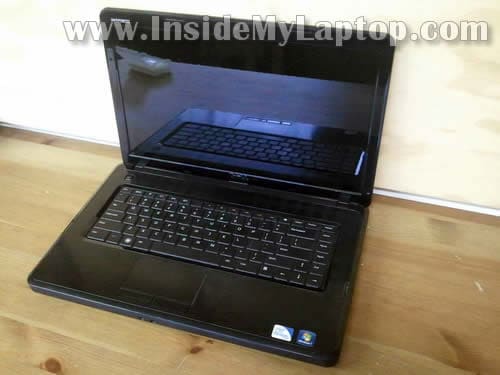
In this guide I explain how to disassemble Dell Inspiron N5030, N5020 or M5030 laptop.
In this case I’m taking apart a Dell Inspiron N5030 but all disassembly steps should be identical or very similar for Dell Inspiron N5020 and M5030 models.
Here are major disassembly steps:
STEP 1-8: Disconnecting and removing the keyboard.
STEP 9-11: Accessing both RAM modules, wireless card. Removing the DVD drive.
STEP 12-15: Disconnecting and removing the top cover (touchpad) assembly.
STEP 16-17: Accessing most internal components. Disconnecting and removing the hard drive.
Let’s take it apart.
STEP 1.
Make sure the computer is turned off (not in sleep mode or hibernation mode).
Remove the battery.

STEP 2.
Remove two screws securing the keyboard.

STEP 3.
You’ll find three spring loaded latches securing the keyboard on the top.
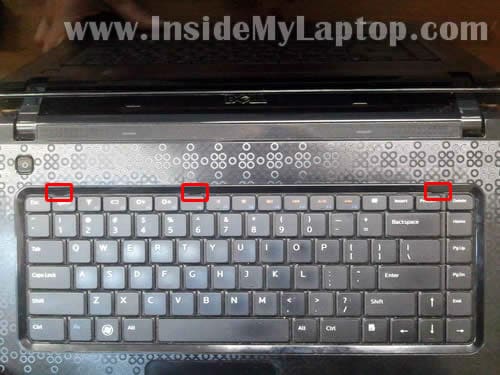
Push latches into the laptop using a small flat head screwdriver.
At the same time lift up the keyboard a little bit so latches remain unlocked.
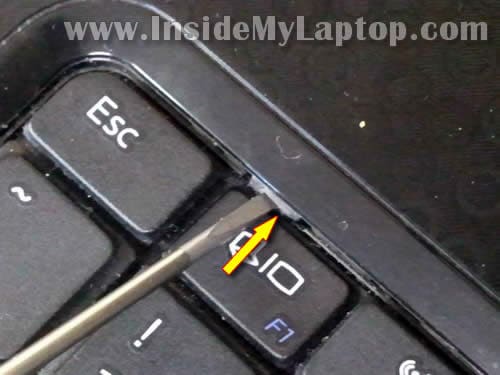
STEP 4.
Lift up the top side of the keyboard and slide towards the display.
Be careful, the keyboard still connected to the motherboard.

STEP 5.
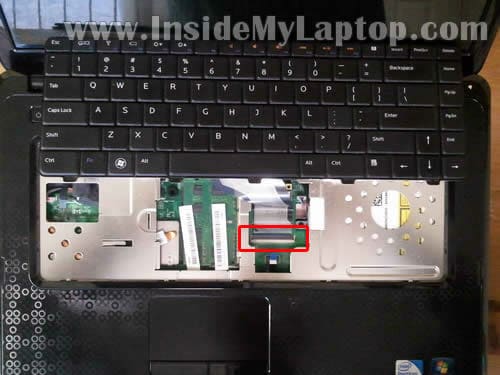
The keyboard connector located under the keyboard.
You’ll have to unlock the connector and release the cable before removing the keyboard.
In the following two steps I show how to unlock the connector.
STEP 6.
The keyboard connector has two parts: white base permanently soldered to the motherboard and  brown locking tab, the moving part.
Carefully lift up one side of the locking tab with your fingernail. Â It will open up at a 90 degree angle.
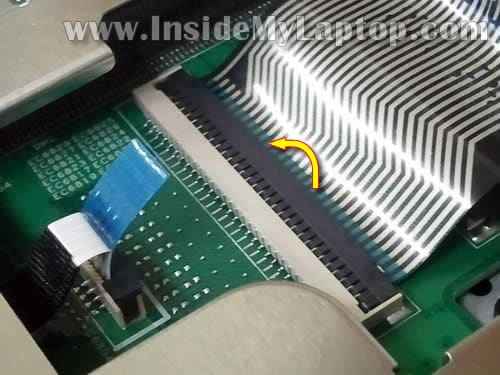
STEP 7.
Now you can pull the cable from the connector.
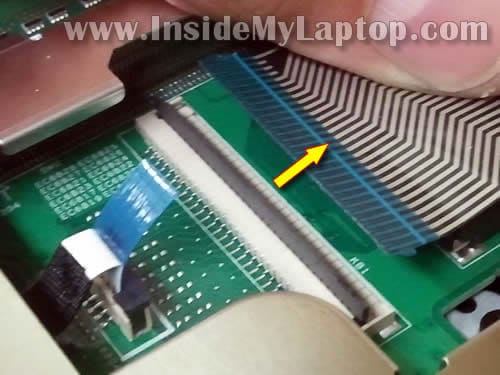
STEP 8.
Remove the keyboard.
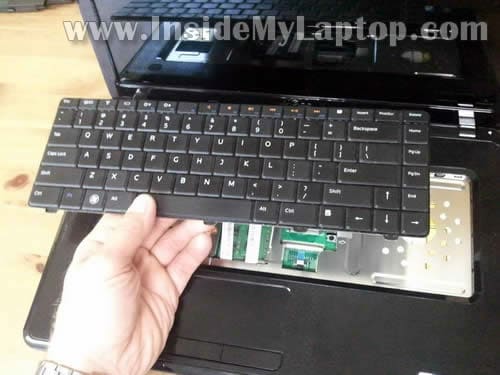
STEP 9.
Under the keyboard you’ll get access to the following parts:
– both memory modules.
– wireless card.
– DVD drive.
I’ll leave memory modules and wireless card connected to the motherboard. It’s not necessary to remove them for the purpose of my guide.

STEP 10.
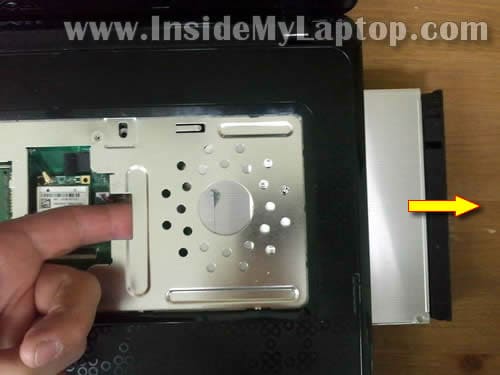
Remove one screw securing the DVD drive.
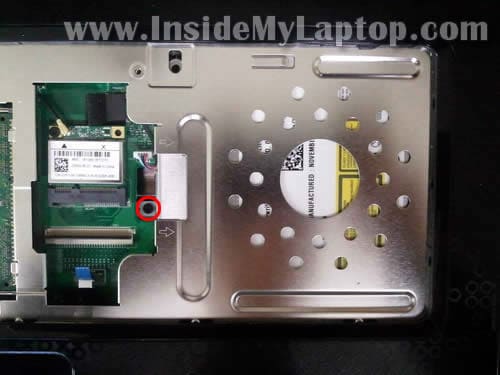
STEP 11.
Push DVD drive from the laptop with your finger.
Now pull the DVD drive and remove it.
STEP 12.
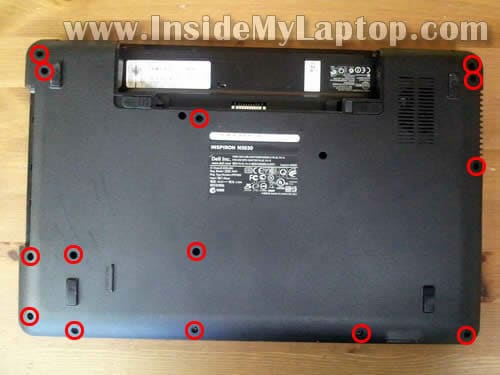
Remove screws from the bottom.
STEP 13.
Disconnect the following cables:
1. Power button board cable.
2. Touchpad cable.
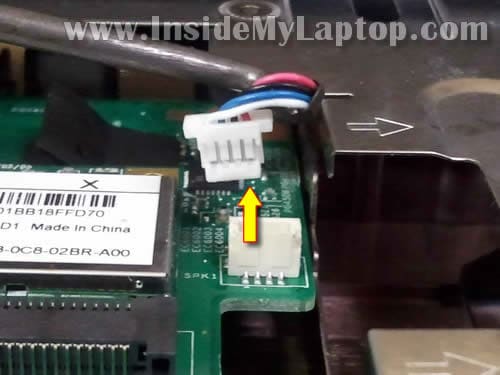
3. Speaker cable.
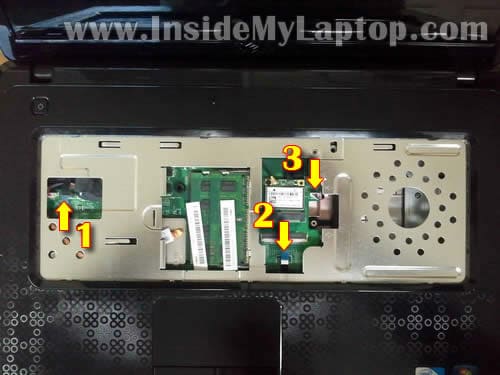
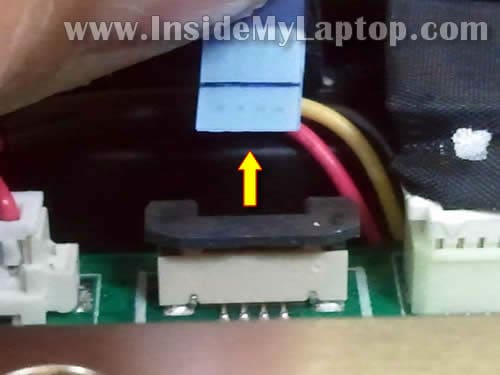
Here’s how to disconnect the power button board cable and touchpad cable.
Carefully lift up the locking tab about 1 millimeter up. Do not separate it from the white base.
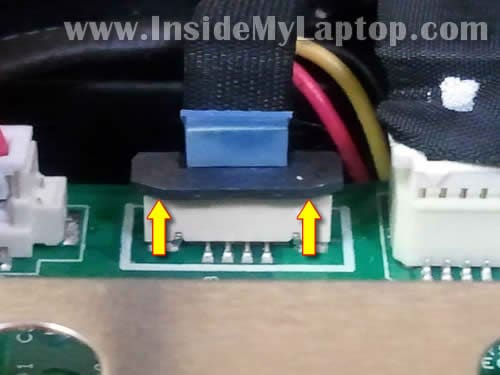
On the following picture connector shown in the unlocked position. Now you can pull cable from the connector.
The speaker cable has a regular male-female connector. Unplug speaker cable from the motherboard.
STEP 14.
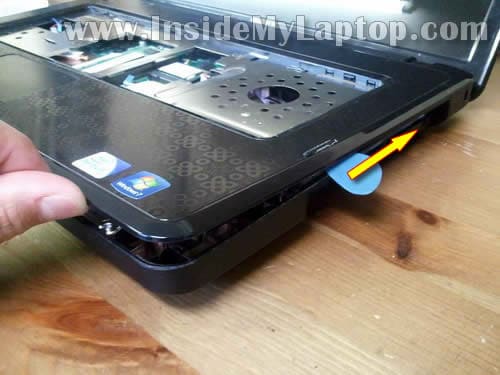
Start separating the top cover assembly from the base.
I’m using the guitar pick as case cracker.
STEP 15.
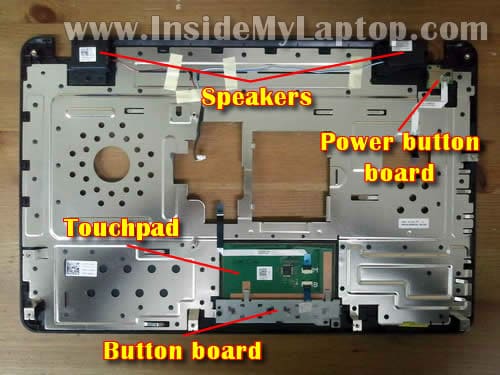
The top cover assembly removed.
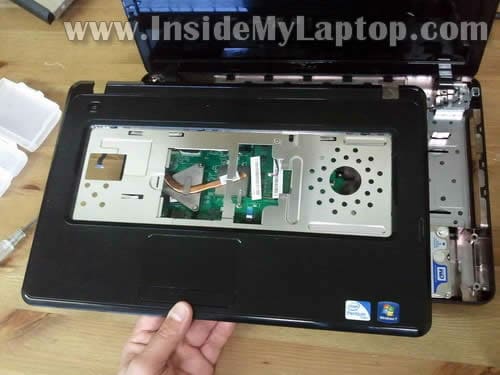
On the bottom side of the top cover assembly you’ll get access to the following parts:
– Both speakers.
– Power button board.
– Touchpad (sold as part of the top cover assembly).
– Touchpad button board.
STEP 16.
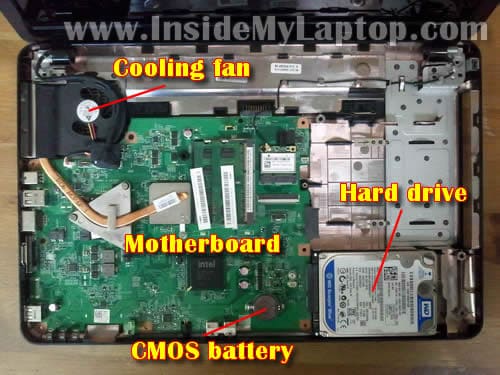
After the top cover assembly removed, you’ll get access to the following internal components:
– Cooling fan.
– Motherboard.
– CMOS battery.
– Hard drive.
We already removed screws securing the hard drive in the step 12.
STEP 17.
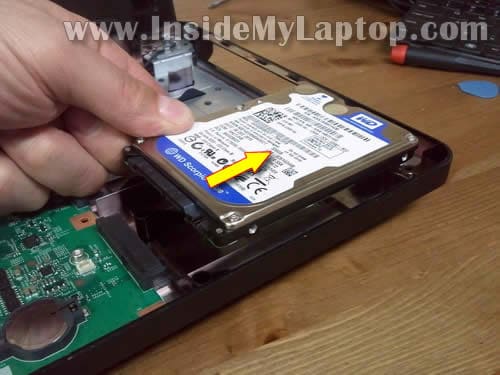
Slide the hard drive to the shown direction to disconnect it from the motherboard.
Lift up and remove the hard drive.
Dell Inspiron N5030/N5020/M5030 models have a regular 2.5″ SATA hard drive installed. You can replace it with any other large capacity 2.5″ SATA hard drive or SSD.
In the next guide I explain how to replace LCD screen on Dell Inspiron N5030, N5020 or M5030.
Carrie
I have one of these laptops that belongs to my 13 year old grandaughter (she hasn’t used it much and taken good care of it, but it’s been broken a lot. Dell used to fix it but now the guarantee is expired) Some of the keys had fallen off then it stopped working, the built in diagnostics said the hd ws gone. I like to try and fix computers (and none of us have much money to live on, let alone pay for repairs) but have never worked on a laptop. I found tutorials to take it apart, but don’t see how it’s possible to put it back together? I mean plug in the 2 tiny ribbon cables (one I think is the keyboard) with the top part close enough to connect them, with only about 1″ of space to work in? Unless maybe you do it with the keboard off? Anyway, another problem, if I buy a harddrive, is getting Win 7 back on it. I’m trying to find out if she has a reinstall CD but a lot of them don’t (my Dell XPS400 has it built in) If she has the CD okay… What I need is a harddrive and keyboard, thinking changing the keyboard at the same time, since a lot of the keys have fallen off, makes sense. The screen and everything else seemed to work good. I have the computer apart (all the screws out) just not sure, if I buy a hd and/or keyboard for it, will I be able to get it back together? Why are the cables made so short, are there extension pieces I could get, then be able to plug them back in before the top part of it is 1″ away from the bottom? There’s no way anyone can get their fingers in there and plug the tiny cable back in, that I can see. Do you have parts for this that are “affordable” and any suggestions?
Thanks!
James
I have this laptop, and the mouse pad is giving me grief. I have big hands and poor typing posture so my palm always hits the mouse pad and clicks all over the place when I type. Would it be worth it for me to take it apart and disconnect the mouse pad or will that just pop error messages up at me telling me that it’s not communicating? Thanks! Great guide by the way very clear and detailed.
IML Tech
@ James,
You should be able to disable the touchpad though software. Go to the control panel and find the touchpad (mouse) icon.
Look at the settings. Also, you can disable touchpad tapping function. It’s not necessary to disconnect the cable.
PrinceEhis
My Laptop is DELL INSPIRON N5030. When i turn it on what comes next after the Dell screen is “”KEYBOARD CLOCK LINE FAILURE” how am i to go about this? further more it tells me to resolve the issue by trying to reseat the ëxternal”keyboard.
Kushal Daimary
I find very helpful Thanks..
steve
thank you and save my headache it worked so well
joshua muiruri
Hi,
i have a dell inspiron n5030. it has been working well but recently i experienced a problem with the DVD DRIVE NOT READING THE CD. immediately the fan stopped working then the audio port stopped working. could it that the quality of the materials which were used o make the laptop were of low quality coz of the sequence of the breakdown? am worried for the loss i have incurred to fix the machine.
Bryce
Hi and thank you for the very helpfull post. When removing the keyboard from the motherboard, the little black tab broke. Do you know how I can remedy this or find a replacement for this little piece. Thank you in advance. B.
Candy
Thank you so very much for this tutorial. YouTube does not even come close to the detail that you present here. By following your instructions I was able to replace my keyboard in about 17min.
IML Tech
You are welcome. Glad to help.
edem
Hello, I have the m5030, and the charging part of the mother board where I plug in the charger does not work, please please help, I am a student and my coursework is on the laptop and I can’t access it pls help thanks
IML Tech
@ edem,
Unfortunately, in Dell Inspiron M5030 laptop the DC jack soldered directly to the motherboard.
If the jack is broken, you’ll have to buy a new DC jack, remove motherboard from the laptop as it explained in the guide and replace the damaged DC jack. Replacing the jack isn’t an easy procedure and some soldering experience requited.
But before you start fixing the laptop MAKE SURE this is not the AC adapter problem. Test your adapter with a voltmeter. Test your laptop with another known good adapter.
Daniel
Please I own a Dell Inspiron N5030. There is no bluetooth module (internal bluetooth) installed on the board what do I do please?
IML Tech
@ Daniel,
The easiest way is buying a USB Bluetooth adapter (Bluetooth dongle). You just plug it into one of the USB ports on the laptop.
Derrick
My laptop screen goes black after start up. I can faintly see the image on the screen but the backlight does not work until i apply pressure with the ac jack plugged into the computer at an upward angle. The screen will come on and usually stay on for a minute or two then flicker out. As long as I keep pressure in the area of the ac jack the screen will stay lit. Any ideas?
terry davies
Hi ,when I switch on my n5030 the screen is white.after a few tries it is ok.I s it a problem with the LCD LVDS cable? if so how can it be fixed.As a silver surfer & only for about 12 months,could you please give some advice.Thankyou
kevo
i have dell m5030 inspiron,i installed windows 8.wen i check my graphics properties in the chipset part it says n/a ,wen playing games like fifa it hangs n goes off.it has 3gb ram n had windows 7 originally
Jacob
I have a N5030 and it has been working fine with all of the virtual games and the internet is kinda slow but the thing is that the charger keeps on falling out AND i keep on hearing a loud buzzing sound coming from the top right of the laptop so if you guys know anything about the charger or the buzzing sound please reply
IML Tech
@ Jacob,
Do you mean the adapter plug will not stay securely in the socket? It’s either defective DC jack inside the laptop or wrong power plug for the laptop.
Make sure to use an original Dell power supply and not a generic replacement adapter.
sheryl good
Hi, maybe you could help me…I have no sound when I like want to listen to a video etc. but my laptop {dell 5030 inspirion} does make the turn on beep , the turn off beep and any other beeps associated with windows. So why can I hear those but not sound from videos? And can I use a smaller GB hard drive than a 250? please i hope you are my hero with the answers…thank you
IML Tech
@ sheryl good,
You’ll have to check the sound settings.
Go to the control panel and click on sound icon.
In the Playback tab you should see the playback devices on your laptop. Make sure it’s set to laptop speakers.
When you select the internal speakers and click on Configure you should be able to test the left and right speakers individually.
Make sure all settings are correct and you can hear the sound.
Also, you can try reinstalling the audio driver which can be download from Dell site here (link for Inspiron N5030).
Tyler
I have a quick question regarding the CMOS battery. What is it exactly, and it’s purpose in the computer. Thanks!
~Tyler
IML Tech
@ Tyler,
This battery provides power to the CMOS chip which keeps date and time settings, BIOS settings, boot device order, etc…
Jan Newton
Oh boy have I had trouble with Step 7. How do I get anything in through the Laptop to replace the ribbon connector? Do I take off the keyboard layer to enable this although still looks difficult. Please Help with whatever tools you may have used to get in!! Many thanks.
MBULWE
hi,my dell m5030 keyboard is somehow misconfigured .l opened the laptop to put in a new cpu but i sort of fitted the keyboard reborn cable wrongly and the laptop stopped booting untill i tried powering it without the keyboard and it booted.lt seems l somehow was shorting it.finally i fitted the cable properly only to find that the input is not exactly corresponding to the pressed key and hence i cant punch in my password.l am stuck what should l do?is it something to do with the motherboard or the key board?should i resit something?
gaddora
thank you very much
jessica
I have taken my inspiron N5O30 apart now the power strip on the inside has came away from the top of the keyboard and I don’t know how to fix it.I have tried a heat gun but been unsuccessfully at putting it back on my computer won’t turn on.
Dave
Excellent guide. One addition: The screws on the bottom of the N5030 case come in TWO lengths. Two are much shorter than the rest. Make sure you get the shorter screws in the correct holes.
I was able to replace my GF’s HD in less than 30 min.
Thanks.
Christian Müller
Be careful to use the right tools so that the screws are not damaged.
prakash
sir dell inpior N3050 but key pad lock system will not work what can i do
FELIPE
Thanks a lot for your work and help, so useful