

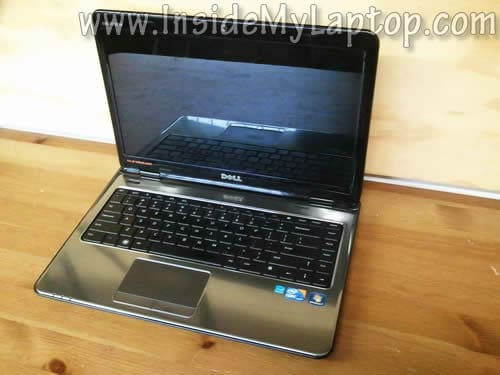
In this guide I explain how to disassemble a Dell Inspiron N4010 laptop.
My goal is removing and replacing the hard drive.
Dell Inspiron N4010 doesn’t have easy access to the hard drive. It’s mounted deep inside, under the motherboard.
In order to remove and replace the hard drive I’ll have to disassemble the entire laptop and remove the motherboard.
In this guide I’ll go through the following major disassembly steps:
STEP 1-3: Accessing both RAM modules and removing the DVD drive.
STEP 4-11: Disconnecting and removing the keyboard.
STEP 12-15: Removing top cover assembly.
STEP 16-18: Disconnecting and removing the cooling fan.
STEP 19-23: Removing the motherboard and hard drive.
If you need to remove and replace the LCD screen, check out my second guide for Dell Inspiron n4010.
STEP 1.
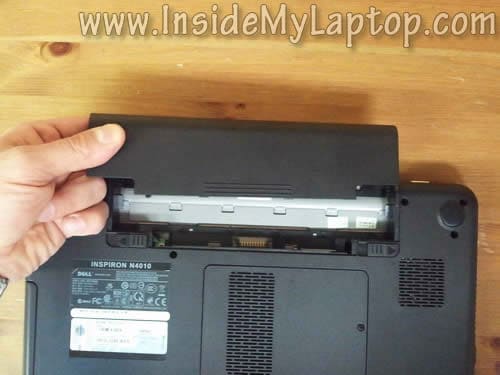
First of all make sure the laptop is turned off.
Unlock and remove the battery.
STEP 2.
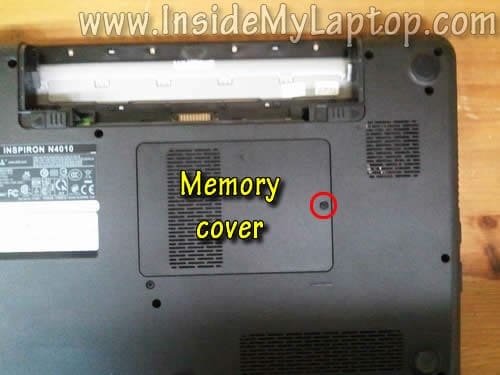
Remove one screw securing the memory cover.
Lift up and remove the cover.
STEP 3.
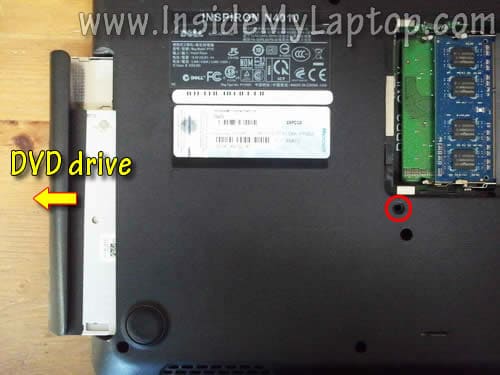
Remove one screw securing the DVD drive.
Pull the DVD drive and remove it.
STEP 4.
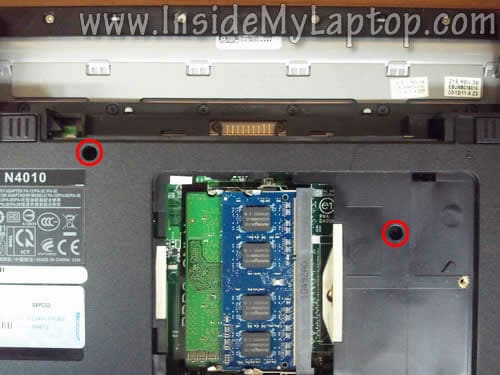
Remove two screws securing the keyboard on the bottom.
This laptop will take up to 8GB (2x4GB) DDR3-12800 SODIMM memory modules.
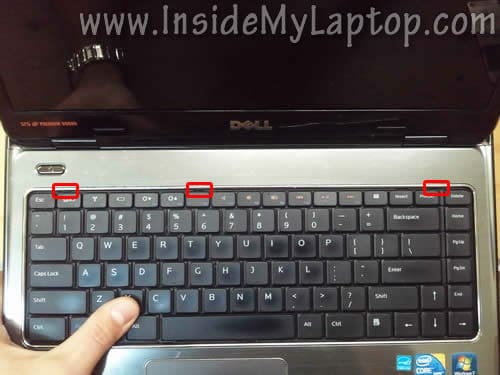
On the front side the keyboard secured by three plastic tabs.
STEP 5.
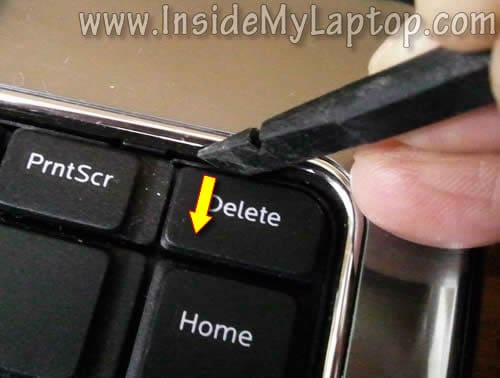
Insert a thin object (I’m using plastic stick) between the keyboard and top cover assembly.
Slide the keyboard towards the touchpad about 1-2 millimeters.
STEP 6.
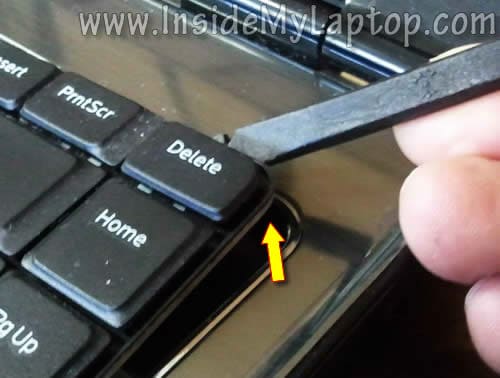
Lift up the keyboard.
Continue removing the keyboard with your fingers.
STEP 7.
Carefully lift up the top side of the keyboard and move the keyboard towards the screen.
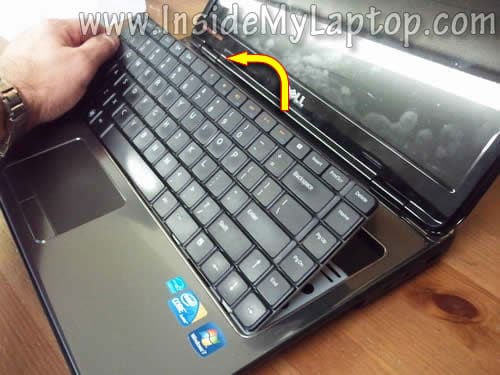
STEP 8.
Now you can access the keyboard cable connector.
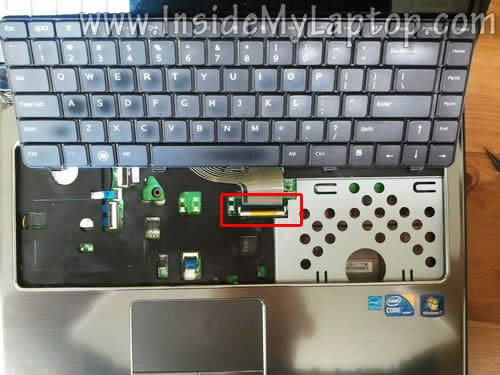
STEP 9.
Before you pull the cable it’s necessary to unlock the connector.
Lift up the left side of the retainer with your finger nail. The retainer will open up at a 90 degree angle.
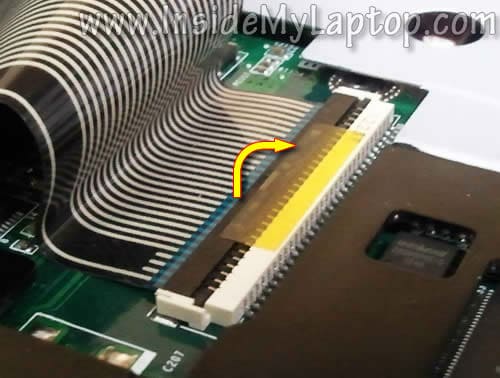
STEP 10.
Now you can pull the keyboard cable from the connector.
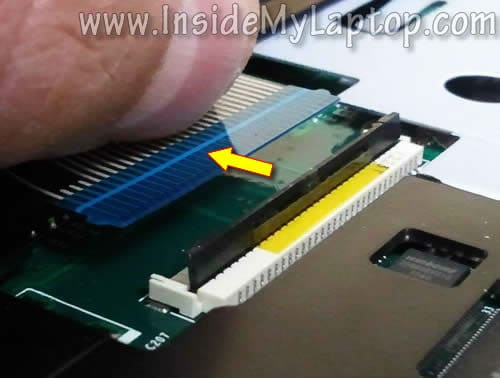
STEP 11.
Remove the keyboard.
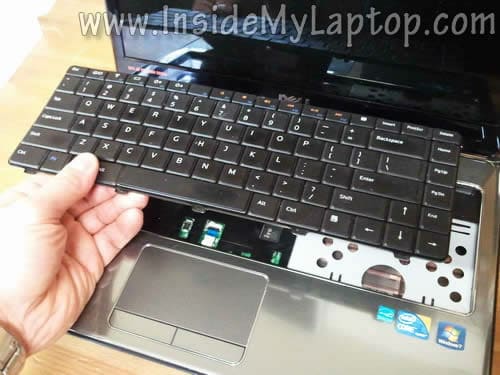
STEP 12.
Remove screws from the bottom.
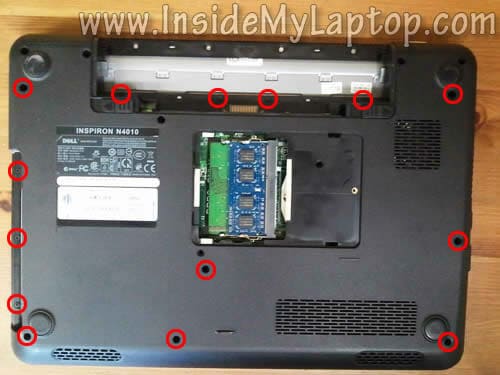
STEP 13.
Disconnect the power button board cable (1) and touchpad cable (2).

Use same technique as for disconnecting the keyboard cable. Unlock the connector and pull the cable.
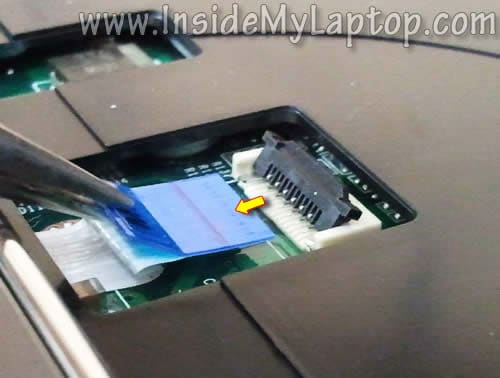
STEP 14.
Start separating the top cover assembly from the bottom case. I’m using the guitar pick for that.
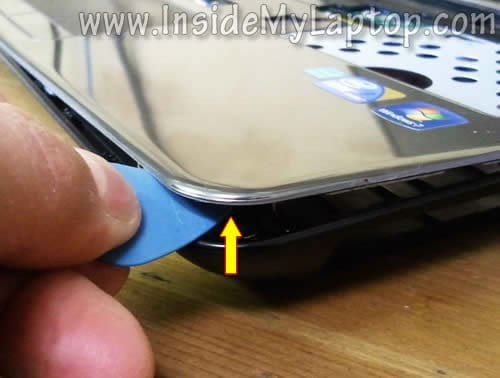
STEP 15.
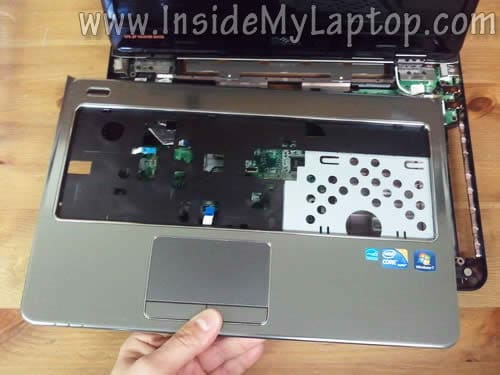
Remove the top cover assembly.
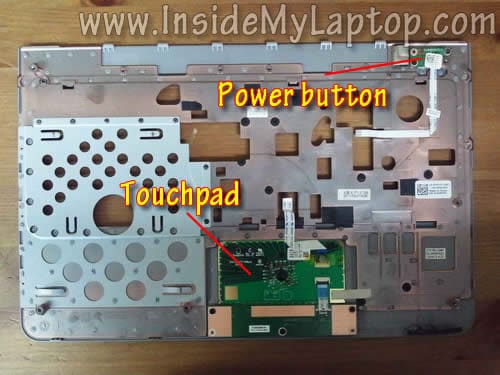
Here’s the bottom side of the top cover assembly.
Here you can access the power button board and touchpad.
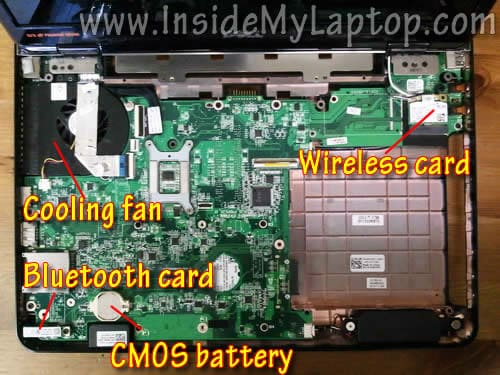
When the top cover removed you can get access to the following internal components:
– Cooling fan.
– Wireless card.
– Bluetooth card.
– CMOS battery.
STEP 16.
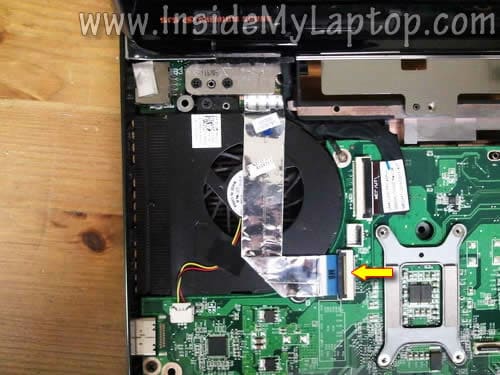
Disconnect the I/O board cable from the motherboard.
STEP 17.
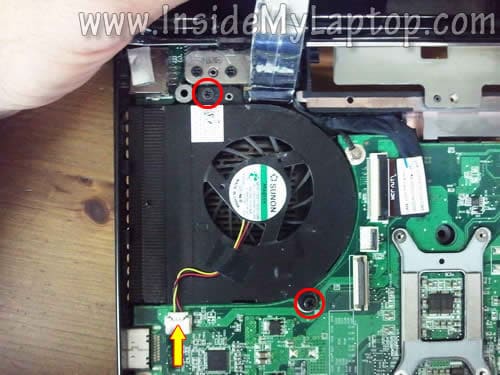
Remove two screws securing the cooling fan.
Unplug the cooling fan cable from the motherboard.
STEP 18.
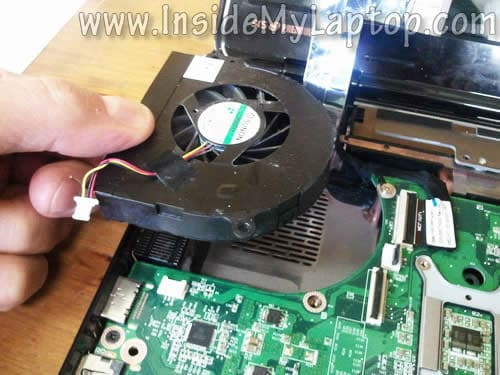
Remove the cooling fan.
STEP 19.
Disconnect the following cables from the motherboard:
– Video cable (1).
– DC jack cable (2).
– Speaker cable (3).

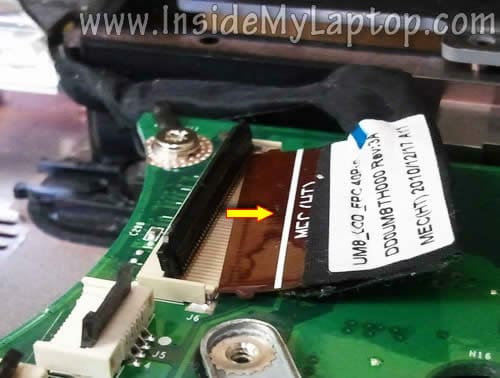
The video cable connected the same way as the keyboard cable.
Unlock the connector and pull the cable from the connector.
STEP 20.
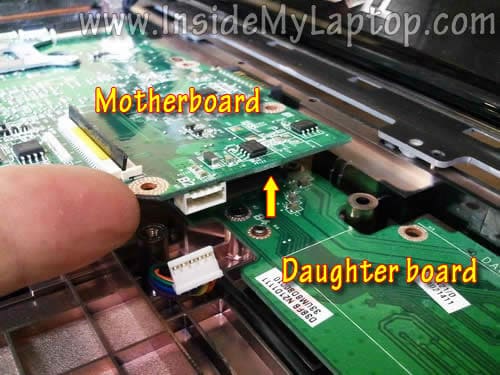
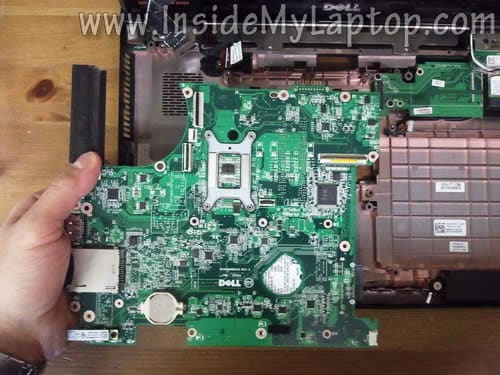
Carefully lift up the right side of the motherboard and separate it from the daughter card.
STEP 21.
Remove the motherboard.
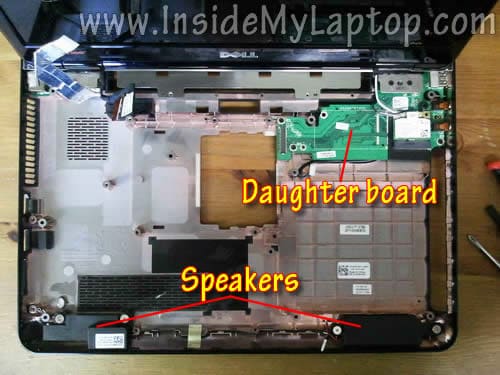
On the following picture you can see the base without motherboard installed.
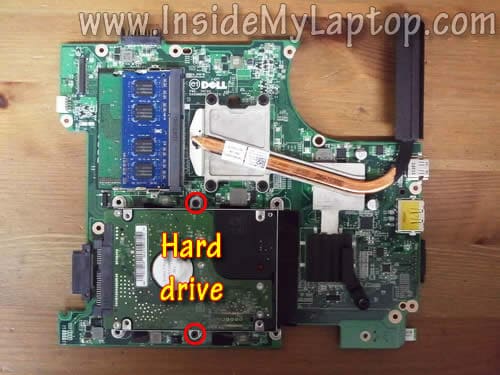
STEP 22.
Turn the motherboard upside down.
Now you can access and remove the hard drive.
Remove two screws securing the hard drive assembly to the motherboard.
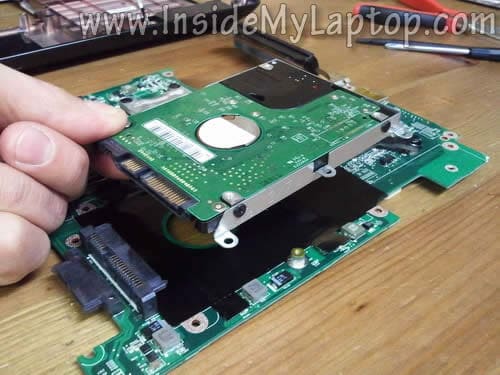
STEP 23.
Remove the hard drive assembly.
Now the hard drive is ready for the replacement.
Replacing this regular hard drive to a 2.5″ SATA solid state drive will improve laptop performance significantly.
Portland Roofing
This was perfect– Now that I have the mini hard drive in hand, is there some way to get the information off of it easily?
IML Tech
@ Portland Roofing,
Check out this guide: https://www.insidemylaptop.com/recover-files-from-broken-laptop/
aivy
big help… thank you so much… God Bless
Justin
Sooo, when I was going through my same laptop, I broke the little gray piece for the keyboard connector. The same one in step 9.
Does you know where I can find the replacement part?
IML Tech
@ Justin,
Do you still have the broken piece?
1. Install cable back into the connector.
2. Place the broken piece on the top the way it should be.
3. Secure connection with sticky tape.
Amal
man this is awsome great help.
Need help ma lcd ain’t working it gives beep sound 8 times. wer can I find gud lcd screen its too costly in India can u help.
off the map
Huge help, LIFE SAVER! Thanks for posting this!
LadyM
Thank you sooooo much. Cooling fan was clogged with lent. Laptop back in tip top. You’re the best!!
HARISH R
Thank you Very Much
Dave Husak
Thank you for the professional step by step instructions. I have recently replaced my HD and reinstalled windows7 64bit from the re installation cd. I have downloaded and installed the drivers
in the suggested order. I can not get the SRS Prem sound Realtek ALC269Q-GR sound system
to work. Is there a cable unplugged I missed? I did not see one in your step by step. It is saying
no speakers or headphones plugged in. It is showing Digital audio HDMI checked. All of the cables look plugged in. Is this a driver problem? I have uninstalled the drivers many times. I have
uninstalled the audio device, reboot and found new hardware, then reinstall the drivers. I am
baffled. Thank you for any suggestion.
Best regards,
Dave
Vera
Thank you for ths tutororial. It worked like a charm, and now I want to reassimble. I’m assuming you just take the steps backwards correct? Please excuse my lameness in this question but I’m obviously newbie.
IML Tech
@ Vera,
Yes, this is correct. Just follow all disassembly steps backwards.
Jan
This Dell N4010, what SATA speed does the motherboard support? I would think its not cost efficient if I buy SATA3 SSD for it if its board maxes at SATA2. Kindly share that information. Thanks.
loknath
hi thank you very much i have replaced my hardisk from 320 to 500 gb once again thanks.
justan
i replaced my hard drive now it wont turn on the light comes on when th chord is plugged in in but wont turn on on and the battery wont turn on the light either please help!!!
IML Tech
@ justan,
I really cannot tell what is wrong without looking at the laptop.
Probably you didn’t assemble the laptop correctly. Check if memory modules seated correctly. Check cable connections.
lodge weber
thank you so much! easy to follow – truly appreciated
carlos
i can’t believe you have to completely take apart this laptop just to access the hard drive. shame on the designers
James Paige
Thanks for this guide! it was extremely helpful!
Unfortunately when I got to step 12, several of the smaller screws were so overtight that they stripped out when I was trying to remove them, and I had to drill them out with a dremel. It was a harrowing experience.
That left me in terror of step 19, but thank goodness all the motherboard screws were easily removable, as smooth as butter!
izzadeen
thank you sir..,
Some Dude
Are you freaking kidding me? I’m glad a read this before buying this crap.
Richard Hay
Wow – never thought it would be this extensive. It is practically disassembled to do this. I will be tackling a HDD replacement later today and will let you know how it goes.
Of course your guide will be right beside me on the screen!
Richard Hay
Well I am happy to say this is an excellent guide. Just less than an hour to get in, install HDD and then reassemble. Will give it a write up on my website to reference others to your work.
IML Tech
@ Richard Hay,
I have no idea why they designed the laptop this way. It’s hard to access the hard drive for a regular user. I’m glad it worked well for you.
mark strelecki
I am about to embark on doing this to replace the HD with a new Momentus 1TB hybrid hard drive. Your instructions are BY FAR the clearest I found on the web. IF THIS WORKS and we are successful, your donation will on its way IMMEDIATELY, if not sooner. Thank You very much for taking the time to put this up and make it easy to find via a Google search. You are a great example of what makes the Internet so Great.
MARK STRELECKI
Atlanta, GA. USA
Dario Gonzalez
Great…It works…..Thanks for this guide! it was extremely helpful!
Gibu
Worked perfectly. Thank you very very much!
Mike
Thanks so much for this. The step-by-step instructions was very helpful. One other warning I would give is that some of the screws are easy to strip, so be careful when unscrewing.
Geebs
Thank you! This was legit!
Len
This is awesome. Not a tech type, but I successfully replaced a bad hard drive and had only one screw left over at the end. (!) Two hours to disassemble and 1.75 hours to re-assemble. It works, too. Much easier than what I had to do next: re-installing an OEM Windows 7 with no drivers (separate drivers disk with 12 install programs) and having to re-install 145 updates Thanks so much.
Nitya narayan gautam [DANIAL]
This was really very helpful. Thnx a lot.
camille
Even though I wasn’t replacing the hard drive, I needed to figure out how to get to my speakers since that is what I was replacing. And this showed me where they were and how to get them.
ADChacon
Nicely done. The only unanswered question is why did Dell make it necessary to take the laptop to pieces to replace the disk. All other Dells I have owned have the disk in a tray that can be removed w/o opening the case.
Moc
Thanks so much for this helpful step by step to accessing the hard drive on this Dell. Terrible that they didn’t have an easier way to access the drive.
A M PATEL
Thanks for well explained / illustrated dis-assembly procedure…. would request few tips from experienced people on precautions during disassembly to ensure correct assembly later
Charry Gaspi
Thank you for making this guide. Very easy to follow unlike the ones in videos. It is just frustrating to know that manufacturers would make it extra difficult to replace such a simple item as a CMOS battery. I thought that I could just replace this on my own but now I am quite hesitant for fear that I might damage my laptop and incur greater cost many times over than the cost of the CMOS battery.
J. S. Pontacq
I can’t find the right words to THANK YOU!!! You’ve made an incredible job building this tutorial; obviously you knew exactly about what you’re explaning here, because every single step matched perfectly with reality (unlike other posts and youtube video tutorials).
So again, THANK YOU!!! You saved me a lot of time and headaches.
clark kent
Thanks…it really help… tow thumbs up!!!
To DELL,
This kind of design for a hdd to be remove… its sucks because you need to dissamble all parts 🙁
Hemant
Amazingly simple description for an equally complex task! Although, I am yet to take up the task to take the HDD out, but after reading this particular blog, I am feeling the confidence that I could do it too without much technical know-how. Many many thanks once again for taking pains and writing this.
APatel
What brand of hard drive and capacity / model is needed to replace the one in this laptop?
msholman007
Is there a way to remove the CMOS battery on this model?
sanjeewa
Thank you very much!
Stacy
I have the Dell Inspiron n7010 i5. I’m having power button problems and I didn’t see anything on here about it. Nothing was spilled on the laptop, I have plugged it in the the ac adapter and the light the the key board on the far left turns on. But when I press the power button nothing happens. If I press the FN button or the batter symbol button then the power button it flashes. If I do that several times it sometimes with power up and start. I can then get anywhere between a couple hours or 45mins…it’s not over heating…it’s cleaned the fan out and it run quiet. Please someone get back to me and let me know what you think it may be. I’m willing to try just about anything to fix it, even if I have to open up myself to replace something.
Stacy
Nikunj
thanks to guides step by step disassemble dell inspiron n4110 work done in my personal laptop but issue is after press power button on start a laptop shows dell logo then screen is blank.try to boot from CD drive and also HDD but screen is blank please guide me for further what to do in this issue.
bob
absolutely ridiculous that anyone should have to go through this in order to swap out the hard drive. I have a bunch of these that I’m probably going to just give away because of it. (Too many projects, too little time). Still, thanks for posting this guide! 🙂
Jack Peterson
Do you know how to reset or clear the CMOS/BIOS. The system is not booting or letting us into BIOS with F2 or F12. It was, then nothing.
Thanks in advance.
Violet
I have a hard time opening the top cover, I unscrew everything but the top cover wont come off, but only the place near the touchpad 🙁
T Roby
Thanks….donation on the way.
Roberto
I have an Inspiron N4110, and I opened to replace the CMOS battery, but it is not in the same place as N4010, actually, I didn’t find it, do you know if this model does not have CMOS battery? And also, the motherboard is attached to the daughterboard, do you know if it is possible to separate them or they have to be removed together?
Prashanth kumar
The assembly guide was superb bro. With the help of your guide I became a pro. :-). I am trying to donate some bugs now using the link provided by you, because I understand the hard work and time you spent.