

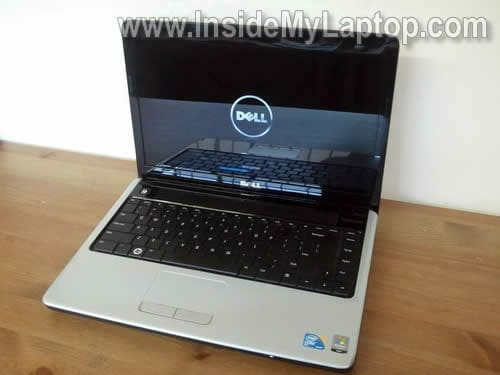
In this guide I explain how to disassemble a Dell Inspiron 1440 laptop.
All disassembly steps could be the same or very similar for some other Dell Inspiron 14 models.
Before you start, make sure it is turned off.
STEP 1.
Remove the main battery.
Remove one screw (yellow) securing the DVD drive and pull the drive from the bottom case.
Remove tow screws (green) securing the hard drive and pull the hard drive out.
Remove one screw (red) securing the memory/wireless card cover and remove the cover.
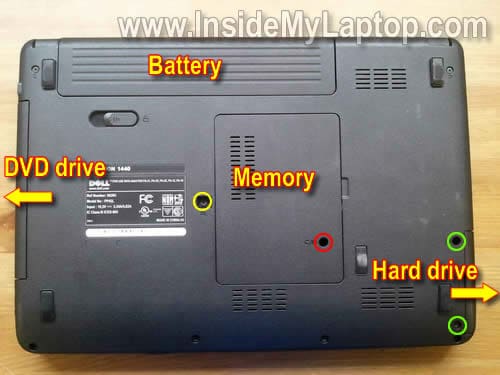
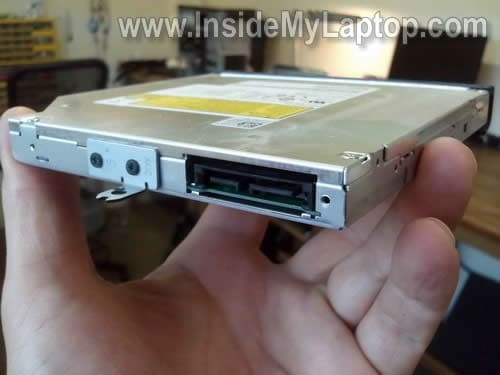
Dell Inspiron 1440 has a SATA DVD drive installed.
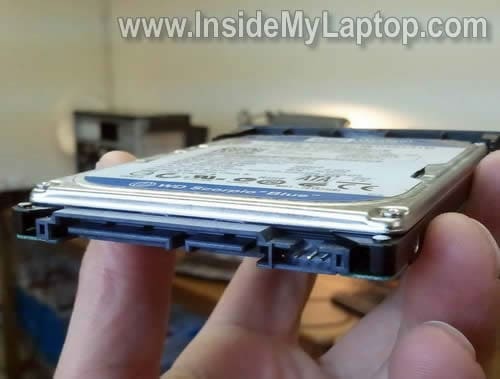
It comes with a regular 2.5″ SATA hard drive. Any large 2.5″ SATA HDD should work fine in this computer.
STEP 2.
Both memory modules can be accessed though the door on the bottom.
Dell Inspiron 1440 can take up to 8GB RAM max. You can install up to 4GB memory module into each slot.
You should use PC2-6400 DDR2 200pin SODIMM memory modules.
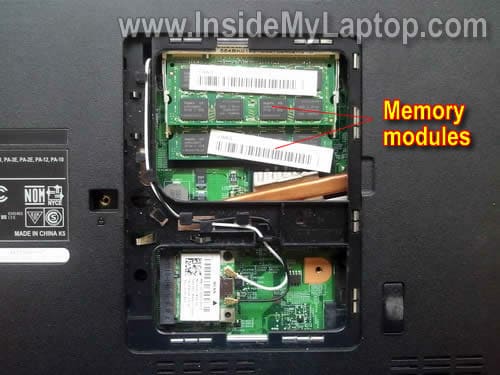
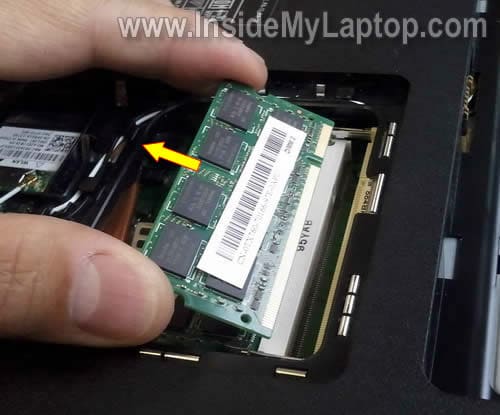
You remove the memory module in the following order:
1. Spread latches on both sides of the memory slot until the memory module pops up at a 30 degree angle.
2. Pull the memory module from the slot by the edges.
STEP 3.
Remove one screw securing the wireless card.
Pull the wireless card from the slot.
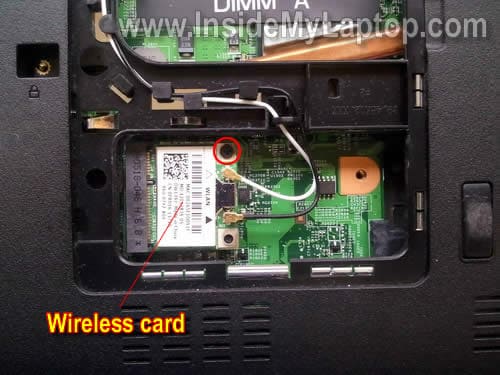
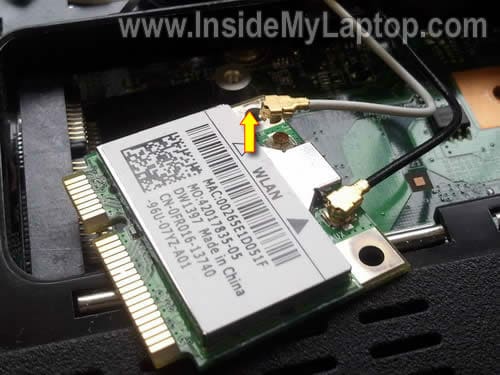
When the wireless card removed, you can disconnect both antenna cables.
Simply grab the gold connector with your fingers and unsnap it from the wireless card.
In the next 8 steps I explain how to remove the keyboard.
If you just replacing the keyboard it’s not necessary to go though all previous steps.
STEP 4.
Lift up the right side of the speaker cover with a sharp object.

Remove the speaker cover.
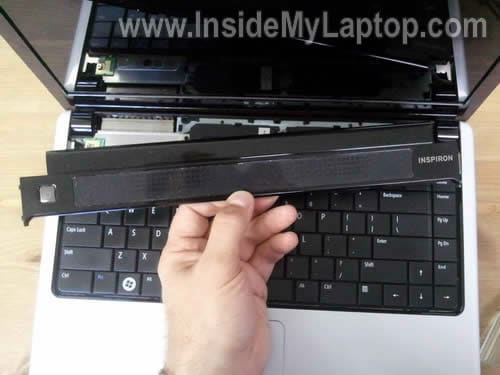
STEP 5.
Remove two screws securing the keyboard on the top.
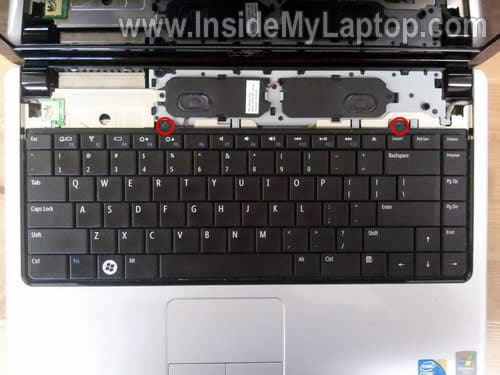
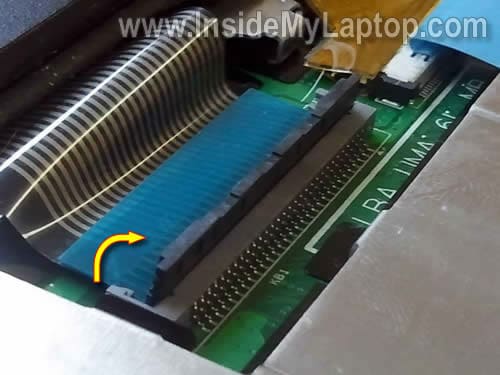
Lift up the top side of the keyboard as it shown on the picture below.
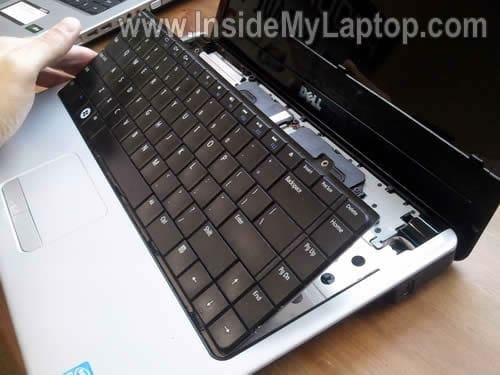
Now you can access the cable connector.

Before you pull the cable from the connector, you’ll have to unlock the connector.
On the following picture the connector is shown in the locked position.
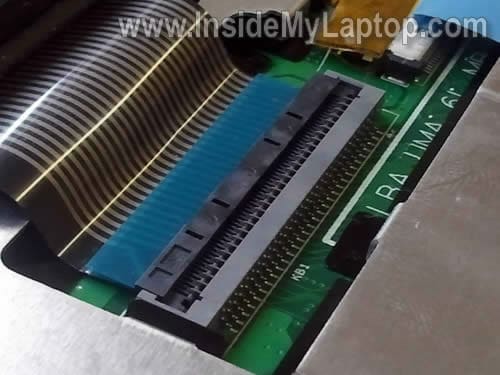
The locking clip opens up at a 90 degree angle.
Now you can pull the cable and remove the keyboard.
STEP 6.
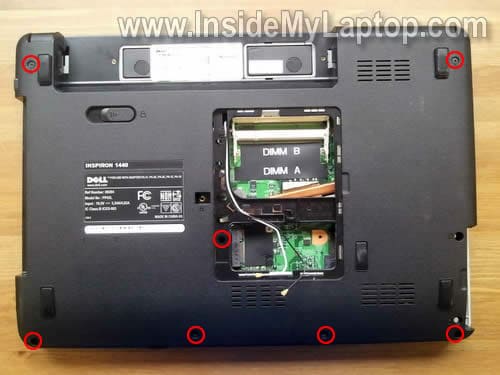
Remove seven screws from the bottom case.
STEP 7.
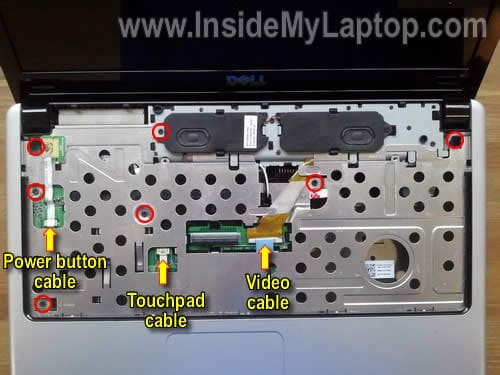
Remove seven screws securing the top cover assembly.
Disconnect the power button cable, touchpad cable and video cable from the motherboard.
Here’s how to unlock connectors for the power button cable and touchpad cable.
Very carefully move the brown clip about 2 millimeters towards the LCD screen.
Do not separate the brown clip from the white base.
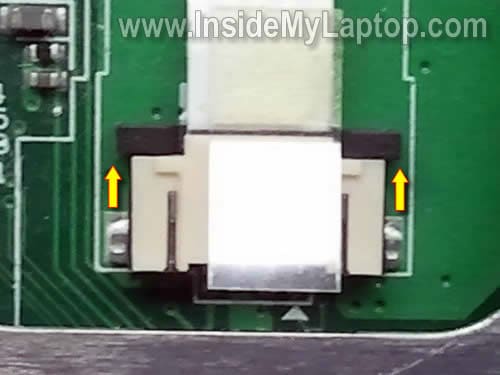
On the following picture the connector is shown in the unlocked position.
The brown clip still attached to the base but the connector unlocked.
Now you can pull the cable.

In order to disconnect the video cable simply lift up the connector by the blue tab.
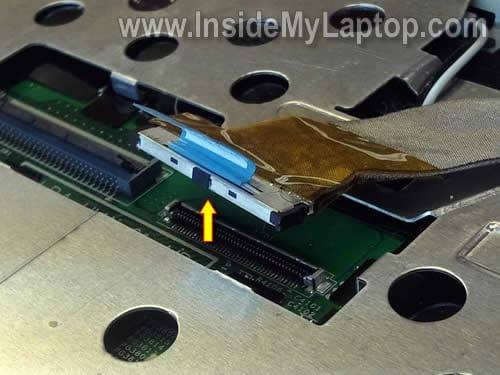
Pull both wireless card antenna cable through the opening in the top cover.

STEP 8.
Now I’m going to remove the top cover assembly.
You can separate the top cover assembly from the base with a guitar pick.
Insert the pick between the top cover and base and slowly move it along the side.
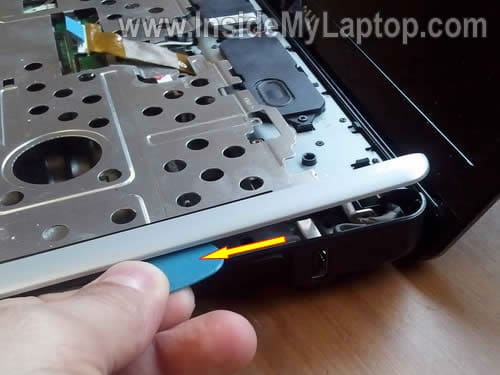
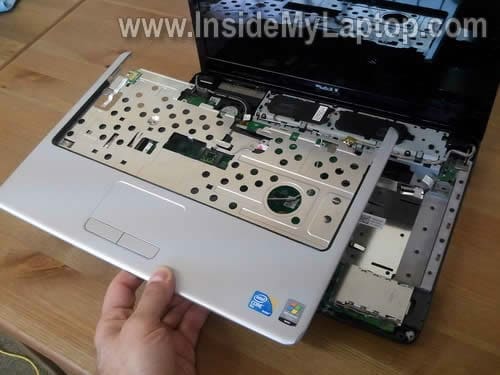
Remove the top cover.
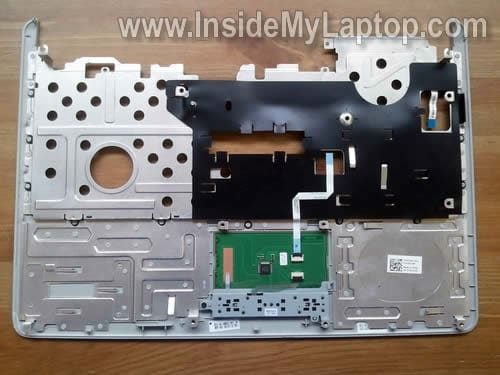
On the following picture you can see the bottom side of the top cover assembly.
Here’s laptop without top cover installed.
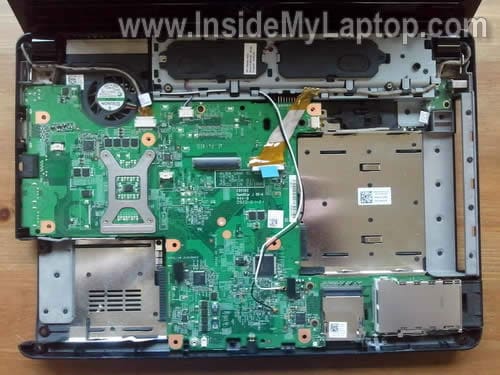
STEP 9.
Now I’m going to remove the LCD screen assembly.
Disconnect the display cable.
Unroute the video cable, wireless antenna cables and display cable.
Remove two screws securing the hinges.

Carefully lift up the LCD assembly and separate it from the base.
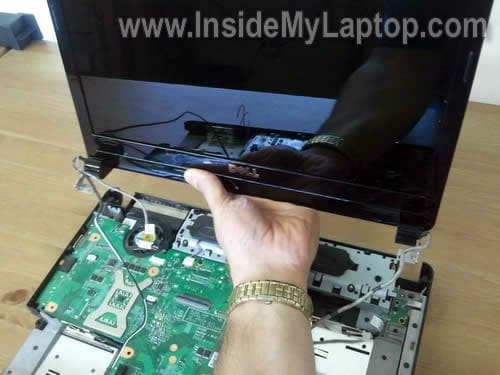
After the screen assembly removed, you can take it apart and remove the screen. It shouldn’t be very difficult.
1. Separate the screen bezel from the cover with your fingers.
2. Remove all screws securing the screen.
3. Remove the screen and disconnect the video cable.
You’ll find lots of similar guides explaining how to take it apart on this site.
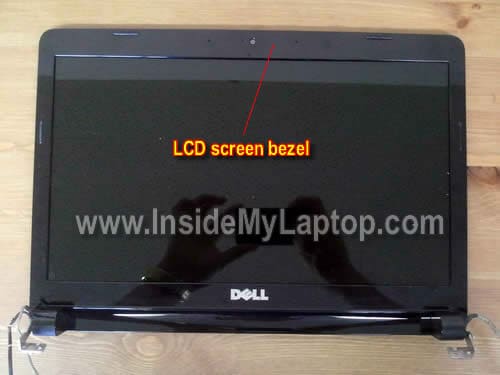
STEP 10.
Now I”m going to remove the motherboard.
Disconnect the speaker cable from the motherboard.
Disconnect the USB board cable from the motherboard.
Remove three screw securing the motherboard to the base.

Lift up the left side of the motherboard.
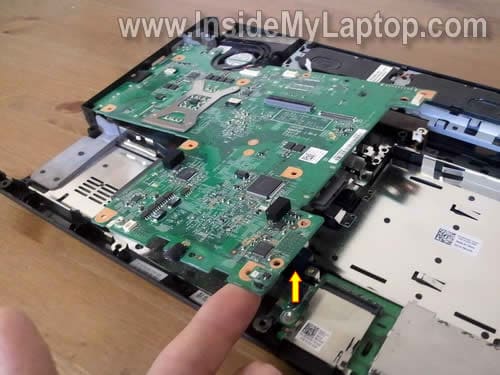
Remove motherboard.
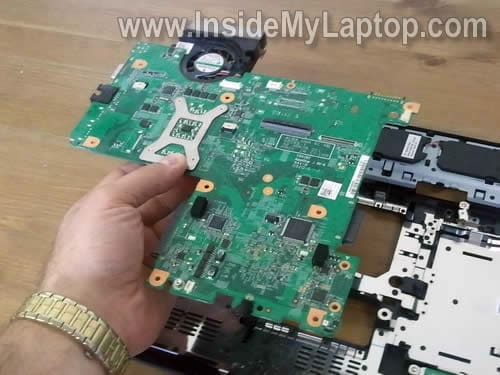
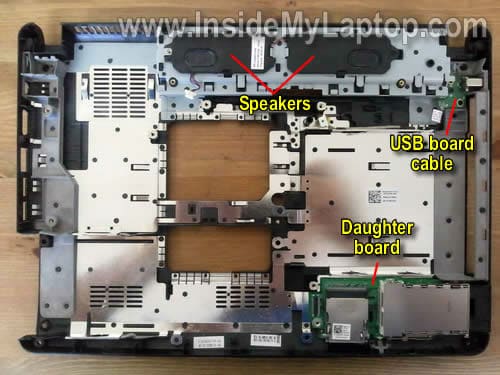
Here’s the base picture with the motherboard removed.
Both speakers, daughter board and USB board still attached to the bottom case.
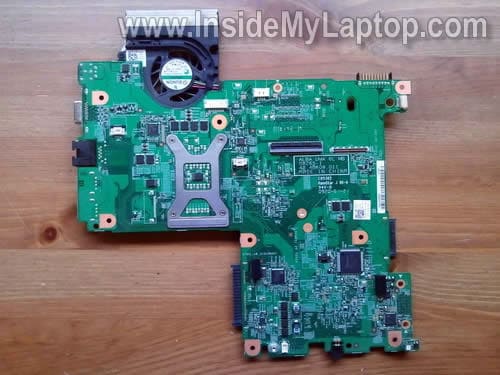
There is nothing to remove on this side of the motherboard. Let’s turn it over.
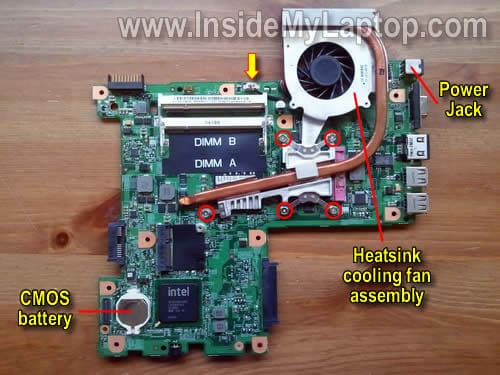
On the other side of the motherboard you can access the CMOS battery, cooling assembly (heatsink and fan) and processor.
In order to remove the cooling assembly you’ll have to unscrew five screws and disconnect the cooling fan cable from the motherboard.
After that you should be able to remove the cooling assembly.
By the way, in a Dell Inspiron 1440 the power jack is soldered to the motherboard.
Jack
Detail content about disassemble Dell 1440. Good job. I also want to know which tools will be used in the course.
IML Tech
Jack,
Check out these laptop repair tools.
I was using a Phillips screwdriver and case opener (guitar pick).
brian
can we change the laptop cover on the LCD part?
IML Tech
brian,
Do you mean the display back cover?
Yes, you can.
1. Separate display panel from the laptop base as it shown in the guide.
2. Take apart the display panel and remove LCD screen with other internal parts.
3. Replace the cover.
Mike D
Very nice article. One question…how do you take off the LCD screen bezel to get to the actual screen? Mine cracked and I need to repair. Any tips to that as well?
IML Tech
Mike D,
You can remove the LCD screen bezel after you remove the whole display assembly as it shown in the step 9.
You lift up the screen bezel with your fingers.
Scott
Hi!
I just replaced a cracked screen in a Dell Inspiron 1440. Now the backlight doesn’t work. I tried the old screen and the backlight doesn’t work on that one now. Does this mean I need a new motherboard? Does anyone have any experience with this?
I can see the image on the new screen, but just no backlight.
Thanks!
IML Tech
Scott,
It’s hard to tell what went wrong.
Did you use a compatible LCD screen? I hope it was the right screen for your laptop.
Check connections between the cable and screen. Make sure the inverter plugged correctly. Try reseating connections.
abbas
please help me, i need screen laptop dell inspiron 1440
Type (active-matrix TFT),14.1-inch WXGA
i broke my screen.
Gregory
Hello, IML Tech:
Thank you for you excellent website. We have a Dell Inspiron 1440. It’s just over a year old (The warranty expired two weeks ago!) The LCD screen has just gone white; we can use the laptop via external monitor. I was told it was the inverter, but articles and posts on insidemylaptop.com state that the screen is dark when the inverter fails. So, is it the inverter or is it a loose cable or is it something else? If we just need to check or reseat cables from the motherboard to LCD, do I need to go through steps 1 – 8 ? Can I start with step 4? If the problem is the cable from MB to LCD, is it easy to find? (I already checked the Dell website with no results.) Thanks again.
Prem Prakash
this is a very helpfull website to inprove our hardware skills
tebza
hello!
i’ve just disassembled mine too and i assebled it again, thanx for the photos, thank you very much.
I’ve got one question what is the bios password for inspiron 1440 Dell laptop?
IML Tech
tebza,
The BIOS password is different for each laptop. You set up the BIOS password yourself to protect your laptop form thieves.
grissel
where is the jumper password thingy i cant find it …they say its next to the cmos battery but i dont see it lol
Maurice416
How to short circut it to get pass the bios password
Henry H
Great information and good descriptive pictures etc. I just replaced broken LCD screen. When I hooked everything back together, however, I get the message “battery not detected”. I see no reason for this as each of the steps I took to disassemble, then reassemble, do not relate to – or affect – the battery. I disconnected – and reconnected – the Power Button Cable and b/c the laptop works with the AC cord I don’t think I have done anything to directly affect the battery system, etc.?? Any suggestions? Thanks
manu
Thanks for this article.My Inspiron 1440 screen is flickering while moving the lid up and down. Please tell whether it is due to loose flex cable and how to minimal disassmble the laptop to repair it.
AmandaK
Any idea how to take the lcd screen apart? There are no screws like older laptop models. I thiink it pops off, but I have no clue.
sevan
Hi
Please help me with an issue related with screen
1st my screen goes to only withe and no any picture
I changed the LCD panel with new one and now
my dell laptop LCD screen is dark but still I can see my windows desktop
I also changed the data cable but the issue remains same
please guide me
thank you in advance
sevan
Dibya
I want to remove the hard disk can you tell how to remove it.I saw the pictures but i did not get how to remove it.
Dex
man this was superb……thanks for the step wise assistance, it was a real great help
Sf33
Thanks for the tutorial. As always it was incredibly useful!!
Kathy
I disasembled my Dell Inspiron 1440 because I had a power issue. Now that I have it back together, I am having keyboard problems. the g t h y types gt gt hy hy, and some of the other keys are not functioning properly either. I have cleaned the keyboard, taken keys off and cleaned them as well. I have also ran a defrag. Any ideas of anything else to try?
The Mighty
Hi, I have Inspiron 1440 and my screen got blue color (not Blue Screen of Dead). My question is, what is the problem, my LCD screen or the video cable.
When I asked this problem to computer service center, they said that the “flexi cable” is joined with the LCD screen so I have to replace both of them and that so expensive for me.
Any advice ?
Thank you
IML Tech
The Mighty,
First of all, I would test the laptop with an external monitor. If external video works properly, the problem is somewhere inside the display panel.
This could be one of the following:
1. Bad connection between the video cable and LCD screen or motherboard. Try reseating connectors on both ends of the video cable and test the laptop.
2. Bad video cable. Try replacing the video cable.
3. Bad LCD screen. Try replacing the screen.
Also, this could be a problem with the motherboard but it’s unlikely.
I cannot tell you which part is failing without testing the laptop.
Leandro
I also have a Inspiron 1440 I know that is capable of 8GB RAM, when I was checking the hardware throught AIDA64 I have saw that the chipset is capable os supporting DDR3 is this correct or the software is wrong? or it is just the chipset but not the motherboard?
IML Tech
@ Leandro,
Your motherboard doesn’t support DDR3 memory, only DDR2.
DDR3 memory will not fit into DDR2 slot.
Sergio
This is the FIX for the “Battery Not Detected” problem. It has to do with the Video cable routing.
Yes, Believe it or not. As you can see in the STEP 7 Picture in this page, you will note the Video Cable runs very close to the Battery/Motherboard connector. The last picture of STEP 8 shows it better. The idea here is to route the cable OVER the metallic part as you can see it on the picture.. NO Under it… That way , you will get a little gap between Video cable/ Battery connector.
I tested it myself and fixed my “battery Not detected” problem.Someone posted this solution in the DELL forums. Just spreading it because it seems to be a very common issue.
Sorry for my bad English, just trying to help.
And Thanks for the excellent site!
Best Regards.
RAMSHANKAR ACHARJEE
SIMPLY THANKS.
Digger
Sergio you rock!!!!
My Dell is loving the battery once again.
Thank you
eni
hi! pls help me!!! i went on holiday for two weeks, when i got back my inspiron 1440 won’t turn on anymore. i tried using with and without the battery but its still the same.. i tried pressing the power button for 30 secs but the power button only lights up for 8 secs and turns off by itself.. helppp!!! my laptop is only 2.5 yrs old and is no longer under warranty 🙁
IML Tech
@ eni,
It’s hard to tell what’s going on but first I would test the AC adapter. It’s possible the AC adapter failed and the battery doesn’t have enough charge to start the laptop.
It would be ideal if you can test the laptop with another known good AC adapter.
Jude
I replaced the powerjack in my dell 1440 and now it powers up but does not charge. Error message “Battery not detected” although it is the same battery I have been using. I tried inserting a new battery, tried a new power adapter, tried both and nothing solved the problem.
Someone earlier posted that they fixed the “Battery not detected” message by rerouting the video cable. Any ideas for me? Do I need a new mother board? Is there a chance the traces got damaged during the powerjack repair?
Please advise.
Thanks,
Jude
IML Tech
@ Jude,
I don’t know if your DC jack is soldered properly but let’s assume it is.
If you are getting the same “Battery not detected” message with a new battery and AC adapter, there must be something wrong the the motherboard.
Probably it’s just a coincidence. I don’t see how you can fix “Battery not detected†error by reseating the video cable.
sajeesh
There is some noice coming out from my inspiron 1440 laptop while i am shaking it. Can you please help me out of it.
IML Tech
@ sajeesh,
Could be loose screw or broken plastic.
You’ll have to remove the keyboard or if it’s not enough remove the top cover and remove the loose piece.
Caitlyn
The cd/dvd drive on my laptop stopped reading any disks, and does not recognize that a disk has been inserted. Help…?
candra
help please, i have inspiron 1440 laptop, everytime i plugin the charger to the laptop the led indicator on charger is turn off, so the power from the charger cannot get into my laptop, what the problem with my laptop ?
sorry for my bad english
Duy Liêm
thanhk you. i did.
joey
what happens if you separate the brown clip from the white base?
seriously all i wanted to do was to replace a new colored cover and now it won’t even detect the battery. Only the charger works.
I pretty sure somethings not right in the power button area? sigh..
joey
@ Jude,
you are right! it was the video cable that kept the charger from be detected.
all you have to do it make sure that the video cable is “latched under the clips” on the upper right corner
ediz
help..when i on my laptop, nothing appeared only black screen
but the LED indicator for the on button, mouse and cooler lights up
so what could be the problem here? lcd?,ram?,mobo?
Karthik
hey ediz, i got the same problem! When i took it to the service center they said they cldn’t help as it was out of warranty, so first i wld have to bring my lap into warranty by paying a huge sum to get the board changed “they” said. So i took it to a normal technician who said a certain part of the board related to the video card or graphics card needed to be changed, bt as the part was a rare part (so they told me), they did some small work and got it started. bt they told me that it too wld eventually fail! and that did happen abt 2-3 months ago. from then i hadn’t touched my lap. bt recently when i swichted it on it started! bt it lasted nly a few days. I guess graphic or video or what ever pert they were telling me abt needs to cool down so as to work! Atleast that what i guess! If any one cld tell exactly wats worng here and how to by-pass the problem it wld be a great help!
TY!
Irv
How far does one have to dis-assemble this laptop in order to change the fan? Do I have to get down to the point of removing the motherboard?
JB
I’ve seen a lot of electronics disassembly pages for products I have owned, and this one is the best. I appreciate the labeling of different parts/cables/etc. I was wondering if I should go to the trouble of cleaning my laptop fan, and this helped me decide.
Jessica
Hello, I disassembled up to the key board part and I tried to unlock the keyboard cable connector, but couldn’t’ . I gave up and put everything back together. When I turned it on the screen is black and there’s a beeping noise with a green light to the side, but then it disappears and the beeping noise continues.
Also would it be the memory modules. I put them back in, but when I pull them they come off easily. Would this be the problem? by the way I have a dell 1440
If so can you please help me how to insert them back?
Thank you 🙂
007k
I have a dell Inspiron 1440 and I have a hard drive failed . I want to know what I can do to fix it because I have hosting the blue screen like 30 times already and I have try to fix the problem by restoring it, defragmente, disk clean, but nothing works so what can I do????
chuck
I have an inspiron 1440…I go to turn it on, the power on indicator light come on, the led for the DVD drive come on, in about 15 sec I loose power. Battery is ok, and the charger is ok, some one told me it was the motherboard… any help will be appreciated.
thanks!
rio
HELP! My Dell inspiron 1440 cant boot up. I turned i on & it doesnt even go to the bios setup screen when pressed F2. HDD & optical drive are working properly (tested on other laptop)and I even try to switch the RAM unit (I have spares) but it doesnt work. It just make a short “double-beep” sound.. Help? could it be motherboard problem?
Arun Kumar
Hi I am facing with black screen problem with my dell 1440 laptop. Everything else seems to work fine except display. I disassembled my laptop and reassembled it again also tried suggestions from various forums but still I face the issue. can anyone suggest me the best solution for my problem?
jhon
Hello friend I am looking for the reference of the two integrated model of dell inspiron 1440 alimentasion thanks
rahul ch
really great and detailed advice
thank you
Ashwin
Superb tutorial mate thanks a lot
Kelly
Thanks a lot. This guide is very good indeed.
Megan
I have a Dell Inspiron 1440. The battery light was orange and the computer would only work if plugged in. Now has a brand new battery as well as charge cord, but it won’t charge. It just says “0% available (plugged in, not charging)”. Help?
IML Tech
@ Megan,
This could be related to one of the following:
1. AC adapter failure. I would suggest testing the laptop with another adapter.
2. DC jack (power socket) failure. Maybe it has to be resoldered or replaced.
3. Motherboard failure.
4. There is a chance your new battery is defective.
It’s hard to narrow down the problem without testing the laptop with spare parts.
Frances
I have a Dell Inspiron 1440. How do I unlock the Bios master pw? I don’t remember it. How do I find out what my Bios password is I forgot it? my hard drive is not found to resolve this issue what can I do? do I need a new hard drive. And it say no bootable devices. Could u email me to let me know how to find out my Bios password.
James
Ok, so I must say thank you for sharing this with us and will make the process a lot easier! However, I have a question… I’m gonna be doing this next week when the bottom comes in for mine. I bought the bottom because this one is terribly cracked and there is a chunk missing in the corner by the screen hinge… Here’s where my question comes in 😛 In order to replace the bottom on the Inspiron 1440 EVERYTHING must be removed including the speakers, USB board, and daughter board -__- Is it as simple as unscrewing a few screens and screwing into new bottom? I really do appreciate your services!
Alex
What is the normal working/idle temperature for Inspiron 1440?
Xixia
Hello, while your guide was helpful, it left me with a question: Would all these steps be required to remove and replace the fan of the device? If not, then can you explain? Thank you, in advance. Any help you can provide would be great.
Waad
Can you guide me where is the jumper in this laptop Dell 1440 ??
PLS.
Thhobb
Thanks so much for your help ,you’re very generous in providing such content high quality , best regards for you, I hope much more learn with you , again thanks, best wishes for you !
Amit
My inspiron 1440 touchpad is getting hot. Any soln for it. I will be highly appreciated.