

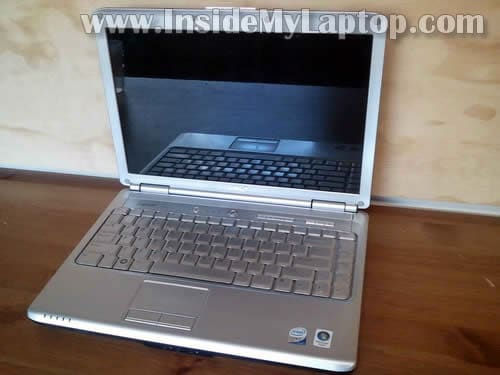
In this guide I explain how to disassemble a Dell Inspiron 1420 or Dell Vostro 1400 laptop.
I will completely disassemble it and show how to remove the motherboard.
Dell Inspiron 1420 is very similar to Dell Vostro 1400. If there are any differences, they should be very minor.
Before you start, make sure the laptop is turned off and battery removed.
STEP 1.
Loosen eight screws securing the hard drive, memory and heat sink covers.
Remove all three covers.

STEP 2.
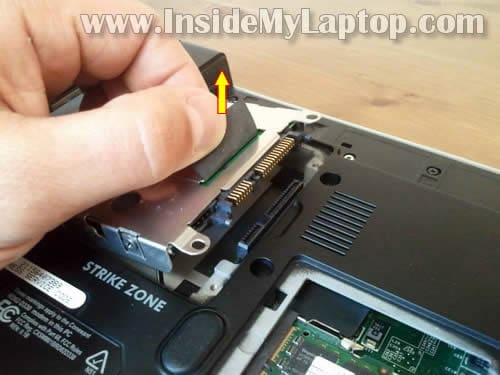
Lift up the hard drive assembly by the black tab to disconnect it from the motherboard.
Remove the hard drive assembly.
STEP 3.
The hard drive connected to the laptop motherboard via connector.
Dell Inspiron 1420/Vostro 1400 uses a regular 2.5″ SATA hard drive.

STEP 4.
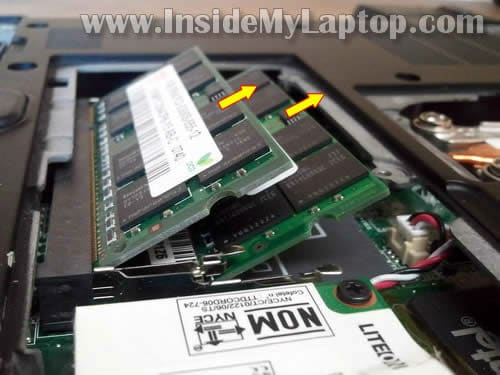
Both memory modules can be accessed on the bottom.
Remove both memory modules.
Dell Inspiron 1420/Vostro 1400 can handle up to 4GB RAM. You can install up to 2GB RAM module into each slot.
You should use PC2-5300 DDR2 or faster DDR2 memory modules.
STEP 5.
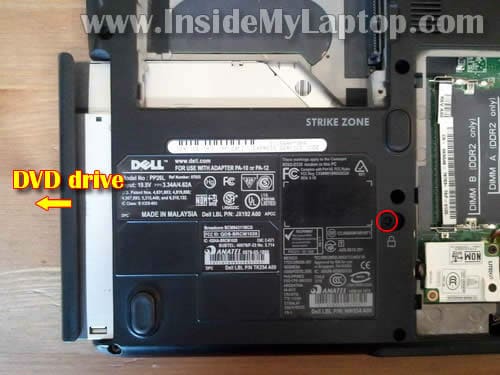
Remove one screw securing the DVD drive.
Pull the DVD drive to the left and remove it.
STEP 6.
Loosen four screws securing the CPU heat sink.
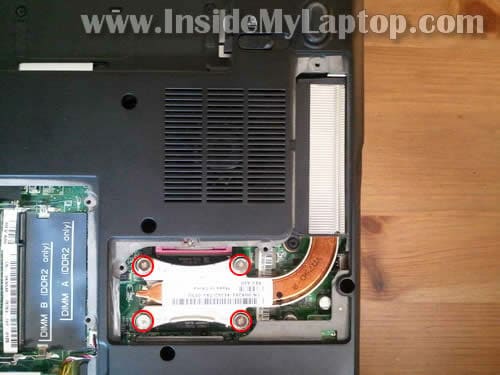
STEP 7.
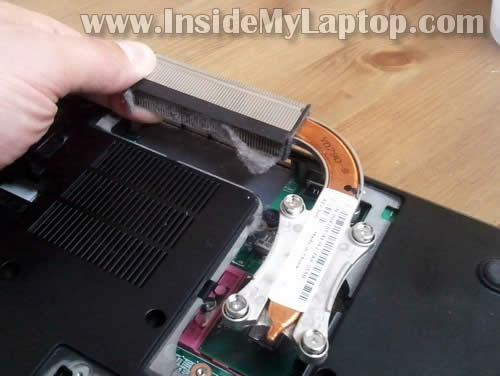
Carefully lift up the heat sink and remove it from the motherboard. If the heat sink is clogged with dust you can clean it with compressed air.
NOTE: before installing the heat sink back on the motherboard don’t forget to apply new thermal grease on the CPU.
After the heat sink is removed, you can access and remove the CPU (processor).
In the following six steps I explain how to remove the keyboard.
If you just replacing the keyboard, it’s not necessary to go though all previous steps.
STEP 8.
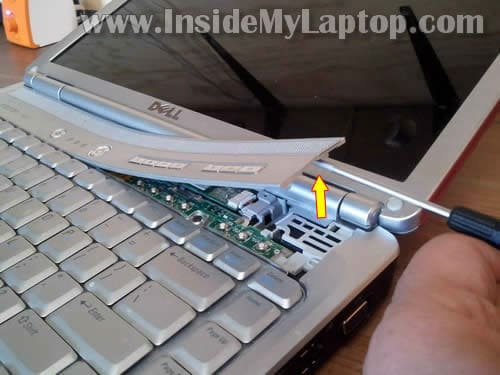
Carefully lift up the right side of the keyboard cover with a screwdriver.
Continue removing the keyboard cover with your fingers.
STEP 9.
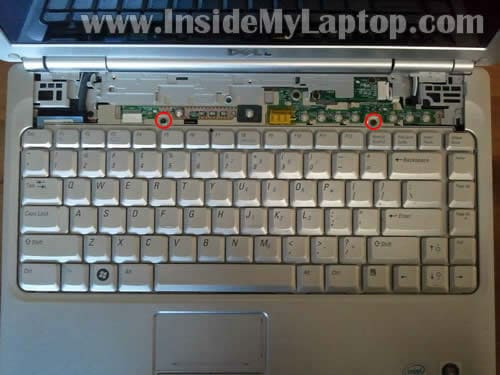
Remove two screws securing the keyboard.
STEP 10.
Lift up the keyboard so you can access the cable connector underneath.
You can remove the keyboard only after the connector is unlocked and cable released.
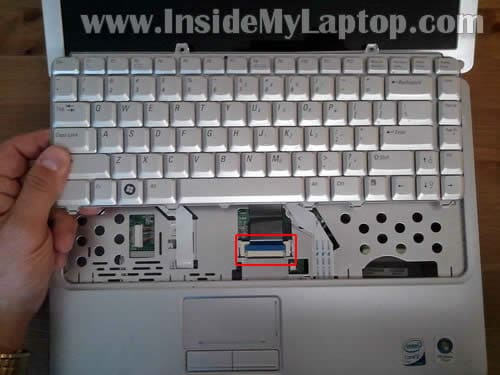
STEP 11.
In order to unlock the connector lift up the right side of the blue locking tab at a 90 degree angle.
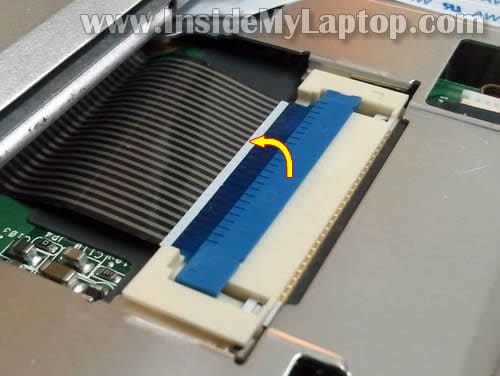
STEP 12.
On the following picture the keyboard connector shown in the unlocked position.
Now you can pull the cable from the connector.
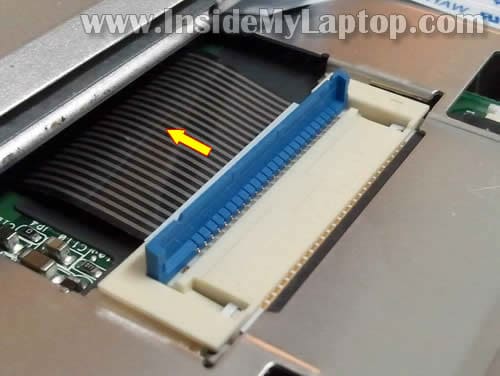
STEP 13.
Remove the keyboard.

In the following eight steps I explain how to remove the display assembly.
STEP 14.
Remove two screws securing display hinges on the bottom.
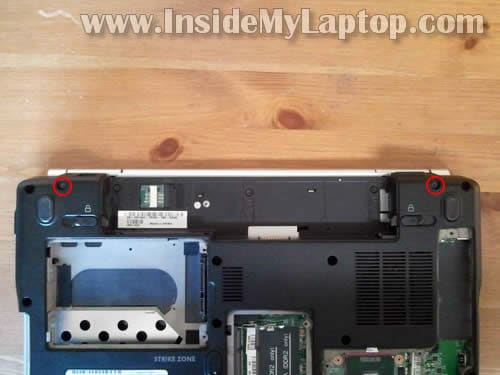
STEP 15.
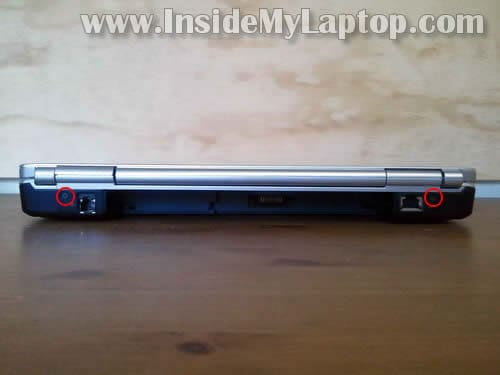
Remove two screws securing display hinges on the back.
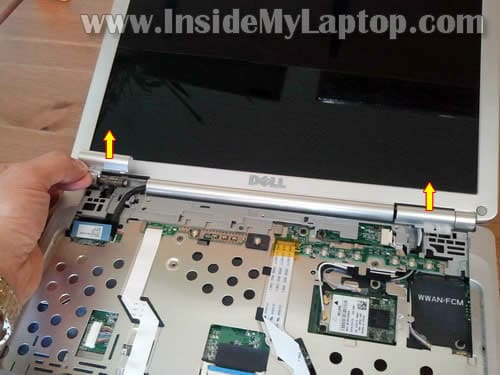
STEP 16.
Lift up and remove both hinge covers.
STEP 17.
Lift up and unplug the video cable connector from the motherboard.

STEP 18.
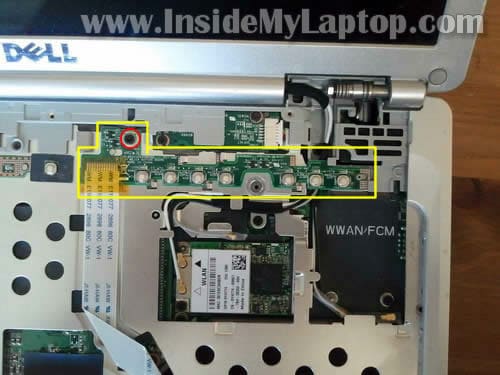
Remove one screw securing the 7-button board and remove the board.
You do not remove the board completely, you just put it aside so you can remove the wireless card antenna cables.
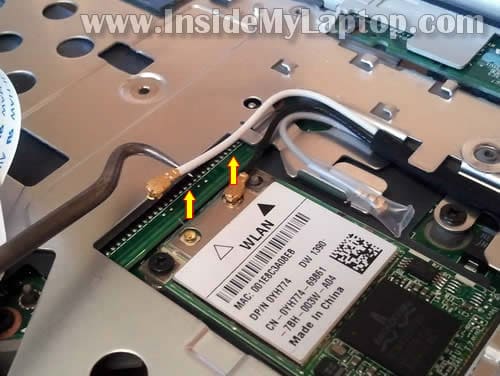
STEP 19.
Disconnect both wireless card antenna cables from the wireless card.
STEP 20.
Now you can remove one screw securing the wireless card and pull it from the slot (optional step).

STEP 21.
Lift up and remove the display assembly.
In order to remove the LCD screen you can follow this Dell Inspiron 1520/Vostro 1500 guide.
It’s a different model but LCD screen removal steps should be very similar.
By the way, the screen can be removed and replaced while the display still attached to the laptop base.
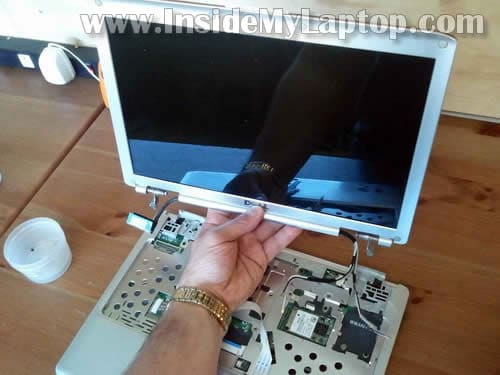
In the next eight steps I explain how to disassemble the base and remove the motherboard.
STEP 22.
Remove all remaining screws from the bottom.
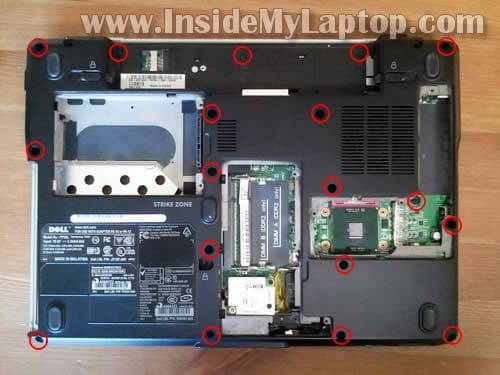
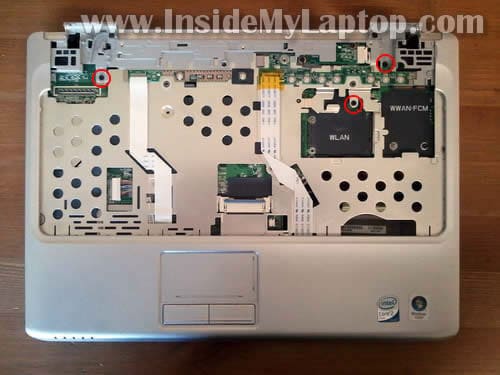
STEP 23.
Remove three screws securing the top cover assembly.
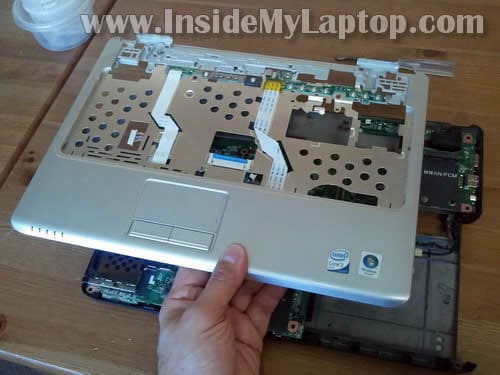
STEP 24.
Lift up and remove the top cover assembly.
STEP 25.
In order to remove the motherboard, you’ll have to remove the modem card first.
Remove one screw securing the modem card, disconnect modem cable from the left side and remove the modem.
By the way, the CMOS battery is hidden under the modem.

STEP 26.
Remove three screws securing the motherboard.
Disconnect three cables.

STEP 27.
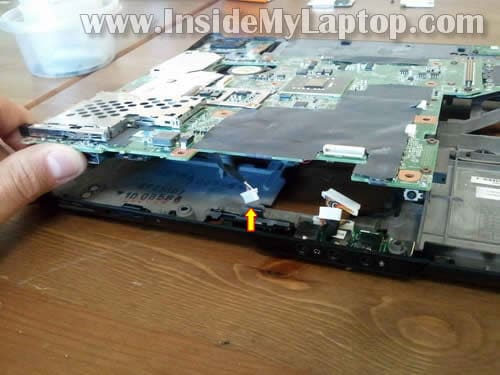
Carefully lift up the motherboard.
There is one more cable on the bottom which has to be disconnected.
STEP 28.
Remove the motherboard.

STEP 29.
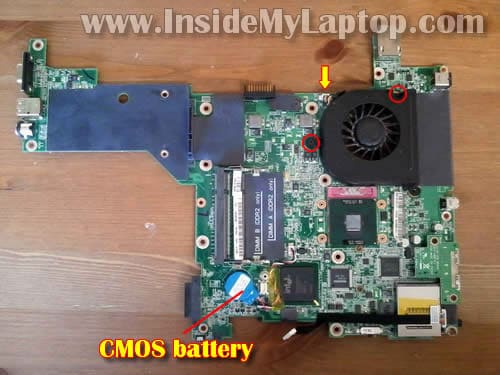
On the other side of the motherboard you can access and remove the cooling fan.
Simply remove two screws securing the fan, disconnect the cable and remove the fan.
nuc
awsome tut & guide…i want to replace i3 processor in acer 4741g with i7 proc, can u give me step by step how to disassemble acer 4741g…
thanks
Brandon
Thank you very much for this guide.
I spilled cola on the keyboard and repair shop said it will be over $100 to install a new keyboard.
I found a new keyboard on ebay for $15 and installed myself in 30 minutes.
Everything works fine.
jony
hi !
i have disassemble my dell vostro 1400 laptop. all parts are separated but now i don’t know how to re assemble. can you help me how to re assemble?????????????
thank you..
ajwath
pls sent me a guide for laptop repair…..good and usefull of this site
Kgerson
Thanks for this great blog folk!
fer
Excellent guide 😀
Mr
Can you install a faster graphics card into the inspiron 1420?
sultan
excellent and best picture thanku
Samdev
Hey There,
First of all i’d like u say u Rock dude….gr8 tutorial…managed to disassemble my entire inspiron 1420 and reassembled it even though i’m a noob at computers…thnx a ton
secondly, the reason i disassembled the laptop was coz my laptop’s stopped working 2 days back…when i hit the power button only the power light comes up for 5-6 seconds and then turns off…and there is no other response from the laptop, even the fan isnt working…i’ve been having this problem since the past 2 months or so. before the same thing used to happen but when i left the computer aside and tried again after a few hours it used to start working fine with no probs…but gradually the problem increased and now its been two days since its not working.
also i thought there might be problem with the battery but i checked it in my friends computer who had similar model and it works in him flawlessly…i cant even start the laptop using the AC adapter alone…so if u or anyone else reading this post have any ideas regarding the problem pls do email me on samthegame AT gmail.com or post reply here
Thnx a ton again
Riyas
0xc000000f Error Need HELP!!! File:\Windows\System32\Config\System
Ben
hi Samdev, we have the same problem… sometimes it bootup then after i shut it down it wont bootup again… when i presse the power button, i can only see lights from power led and wifi/bluetooth then turns off… is this a thermal problem??? please help!
mamat
i’ve got problem when i want to turn on,just come out only light..after that,that light will turn off back..it cannot open the window..please help..
IML Tech
@ mamat,
It’s possible the laptop doesn’t work because the AC adapter is dead and the battery doesn’t have enough charge to start the laptop.
I would test the laptop with another working AC adapter first.
JERSS
THANKS FROM MEX, I DIDN´T KNOW HOW TO UNLOCK THE KEYBOARD
korn
nice dude..just want to ask,i had a prob with my inspiron 1420..when i turn on evrything is fine,fan ok,harddisk also ok cause i already try at another laptop but my monitor not show any display just blank black lcd..bios also not display when i connect it to external monitor also cannot use..did someone here know about my laptop problem..i dont know is mothrboad problem or anything else and if mothrboad problem,how much for the new one or 2nd hand motherboard,.
Sorry for my broken english..thank you..
IML Tech
@ korn,
First, I would check memory. Could be faulty memory module.
You have two memory modules installed, right? Try removing them one by one. Test the laptop with each module separately.
Vasanth
Hi,
i gave my laptop for service and got it back , gave the same to other center and he diagnoised one part of heat sink is missing in my lap top vostro 1500, i am using nvidia graphics card , but in the above description i am able to see only one part of the heat sink. why is it so??
Every laptop will defer on the components?
can i buy generalised heat sink online and fit the same?
Avinash Parida
Hi,
I have a DELL Vostro 1500 laptop. The warranty is expired. It came with Windows Vista which I later upgraded to Windows 7 ultimate. A few days back, the sound stopped working. Neither the in-built speaker nor headphone produced any sound. I tried re-installing the sound drivers but in vain. Then I tried an external USB sound adapter, now the headphone or external speakers are working fine, but not the inbuilt speakers. How do I fix this problem ? Can I replace just the sound card (if there is any) or do I have to replace the whole mother board ?
Thanks in advance.
IML Tech
@ Avinash Prida,
Dell Vostro 1500 laptop doesn’t have dedicated sound card. It’s built into the motherboard.
If the sound card failed, you’ll have to replace the entire motherboard.
First, I would try reinstalling Windows OS from scratch. It’s likely your problem is software related. Sometimes reinstalling audio drivers cannot fix the problem but reinstalling the entire OS might help.
By the way, you should be able to test sound if you boot your laptop from Ubuntu OS (live Linux CD). If sound works in Ubuntu, it’s definitely Windows OS related problem.
Leslie
Great tutorial! Thanks so much for taking the time. I just fixed my own noisy fan (and learned a lot about the inside of a laptop) thanks to you. I appreciate it!!!
Anthony Heng
Can i install win 7 on my vostro 1400. Previous using windows vista.
I hv problem with the keyboard when i key in something ….then the sign of this \\\\\\\\\\\\\\\\\\\\\\\\\\\\\\\\\\\\\\\\\\\\\\\\\\\\\\\\\\\\\\\\\\\\ appear non stop.
Can someone tell if this bcos of virus or keyboard problem….thanks you.
IML Tech
@ Anthony Heng,
I checked Dell website and for Dell Vostro 1400 they have drivers only for Windows XP and Vista 32-bit. It’s possible that Windows 7 has all drivers for your laptop but you’ll have to try.
Most likely this is keyboard related failure. I think the “\” key stuck.
Here’s what you can try. Disconnect the laptop keyboard from the motherboard and test your laptop with an external USB keyboard. If the laptop works properly with the external keyboard, your internal keyboard is defective. Replace it. You cannot fix individual key.
Patrick
Thanks for work well done. I need a little help here. Could not locate where the bluetooth connector plugs underneath on the motherboard. Can you help please. Thanks.
loda1110
Thanks so much for the guide! I ‘ve just cleaned my old laptop without any problems.
Pavan
Great tutorial! I have recently put in a T8300 processor inside my Inspiron 1420 in place of the older T5xxx, using a bit of Deepcool Z5 thermal paste in the process for reseating the heat-sink. I have upgraded the HDD to 1TB, and the RAM to 4 GB. The laptop runs quite cool, and is adequate for most part of my day-to-day requirements. Its cosmetics are still good after seven years of use. Of late, I am seeing some dust accumulating inside the (1280 x 800, matte) WXGA LCD screen, i.e., between the outer plastic layer, and the actual LCD panel. Any tips on how to address this issue?
Dmitry
Thanks for great guide. I could rech and clean properly the fun blocked by dust on my DELL Vostro 1400.
But after assembling speakers not working, headphones out is OK. So I suspect bad connection somewhere ore I forgot to connect something?
Wei Xian
Hi,my laptop wont start after assembly just like the problem stated in previous comment. When i presses the power button,the power lights on for few seconds and thats it. I am sure it s not the ac adapter,cable or battery problem. Hopefully someone can give me a solution…thanks