


In this guide I explain how to disassemble Acer Aspire 5251/5551G/5551 series laptops.
To be precise, I’m taking apart an Acer Aspire 5251-1005. Model number NEW75.
In the following steps I’ll go through complete laptop base disassembly.
Before you start make sure the computer is turned off.
STEP 1.
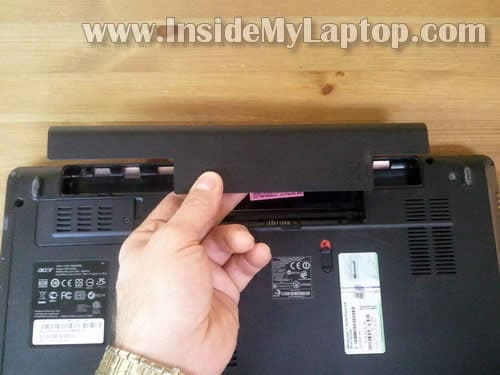
Remove the battery.
STEP 2.
Remove two screws securing the hard drive and memory cover.
Lift up and remove the cover.

STEP 3.
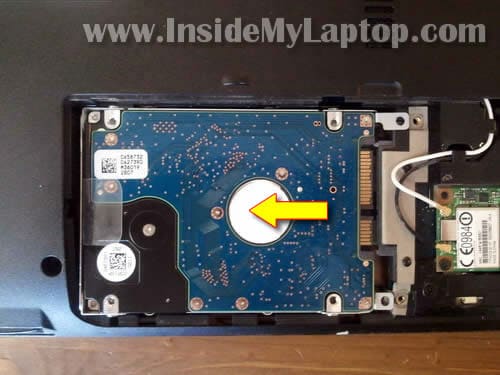
Slide the hard drive to the left to disconnect it from the motherboard.
Lift up and remove the hard drive.
My Acer Aspire 5251 had a regular 2.5″ SATA hard drive installed. It can be replaced with any other large 2.5″ SATA hard drive or SSD.
You can leave the wireless card connected for now. It’s necessary to remove the wireless card only if you plan to remove the motherboard. I’ll be removing the wireless card in the step 19.
STEP 4.
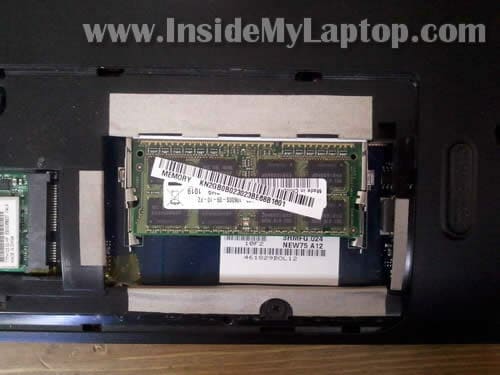
Both memory slots accessible on the bottom of the laptop.
It’s not necessary to remove memory modules for the purpose of my guide so I’ll leave them connected.
By the way, Acer Aspire 5251/5551G/5551 series can take up to 8GB RAM total. You can install up to 4GB RAM module into each slot.
Memory type: PC3-8500 DDR3-1066 204pin SDRAM SODIMM
STEP 5.
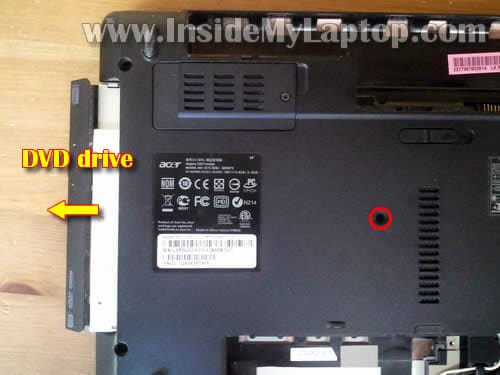
Remove one screw securing the optical DVD drive.
Pull DVD drive to the left and remove it.
STEP 6.
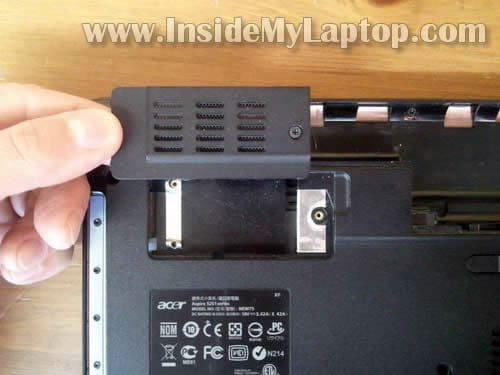
There is one more cover in the upper left corner.
In my laptop there was nothing under the cover.
I believe some Acer Aspire 5251/5551G/5551 laptops might have a 3G card installed under this cover.
STEP 7.
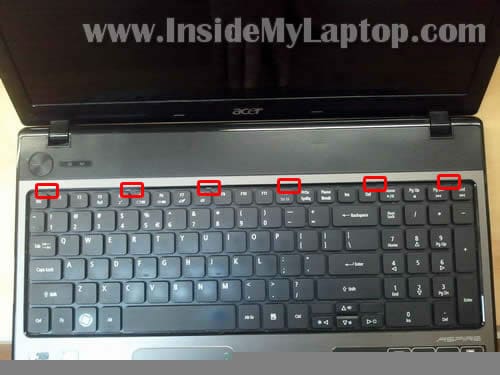
The keyboard secured by six spring loaded latches on the top.
STEP 8.
In order to unlock the keyboard you’ll have to push the latch into the case with a small screwdriver and at the same time lift up the keyboard a little bit.

STEP 9.
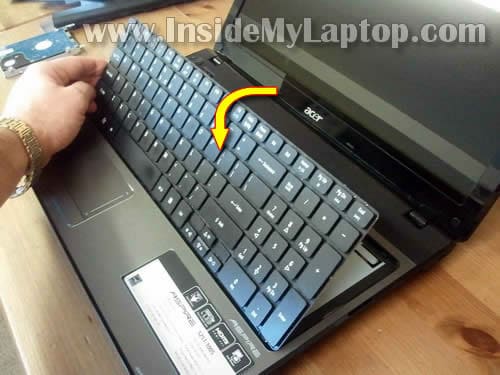
After all latches pushed in, you should be able to lift up the keyboard.
Turn it over and place upside down on the palmrest.
STEP 10.
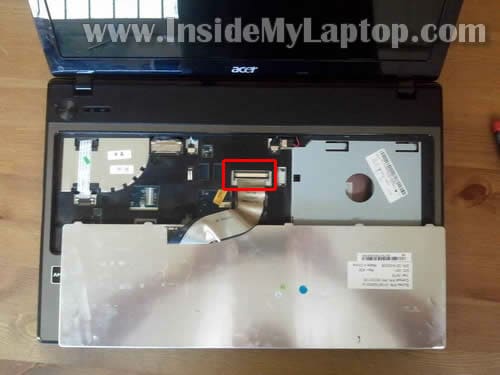
Now you can access the keyboard cable connector.
You’ll have to unlock the connector and release the cable.
STEP 11.
Here’s how to unlock the keyboard connector.
Move the brown locking tab about 1-2 millimeter towards the touchpad (away from the screen).
The locking tab must stay attached to the connector base.
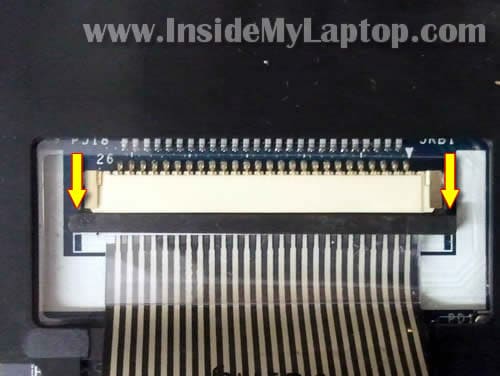
STEP 12.
On the following picture you see the same connector in the unlocked position.
After the connector is unlocked you can pull the cable from the connector.
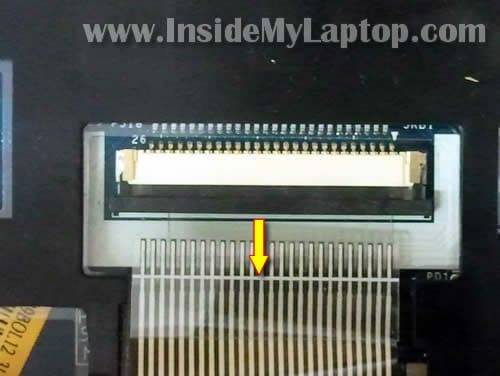
STEP 13.
Remove the keyboard.
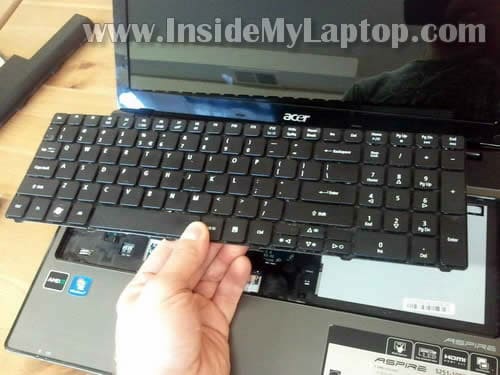
STEP 14.
Remove all screws from the bottom.
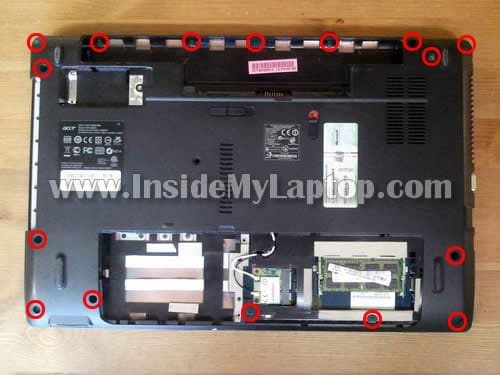
STEP 15.
Remove seven screws securing the top cover assembly:
Disconnect:
1. Power button cable.
2. Left speaker cable.
3. Right speaker cable.
4. Touchpad cable.

You disconnect the power button cable and touchpad cable the same way you disconnected the keyboard cable.
Slide the brown locking tab about 1-2 millimeters to the shown direction.
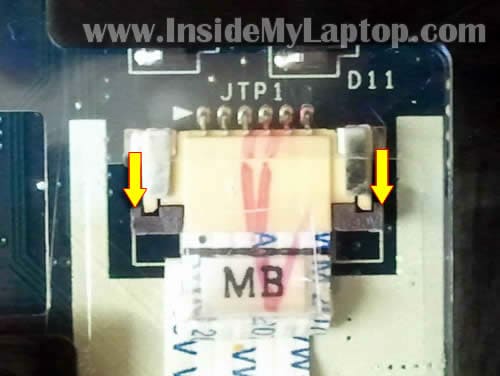
After the connector is unlocked, pull the cable.
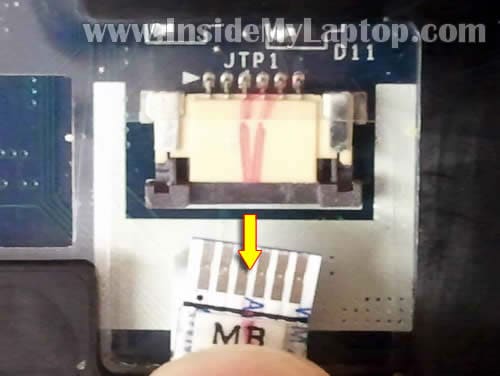
STEP 16.
Lift up and remove the top cover assembly.
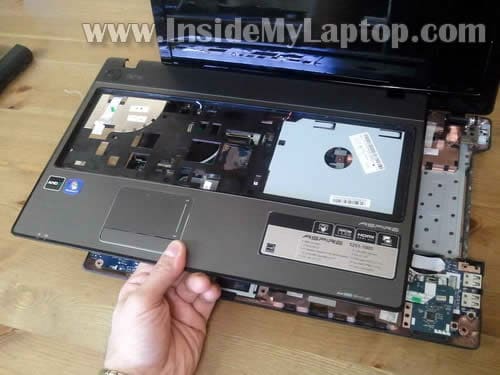
STEP 17.
Under the top cover assembly you can get access to the following internal laptop components:
– Cooling fan.
– CMOS battery (soldered to the motherboard).
– USB board.
– Card reader board.
– DC jack harness.
– Motherboard.

STEP 18.
Disconnect four cables from the motherboard.
Remove one screw securing the motherboard.

Here’s how to unplug the video cable connector.
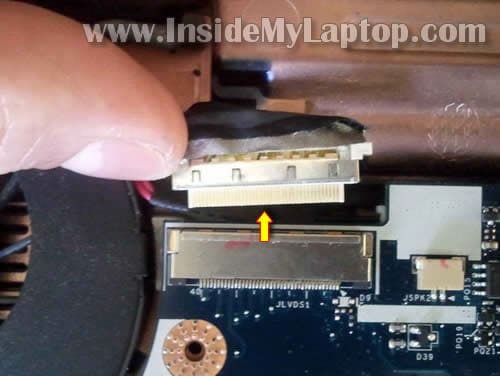
STEP 19.
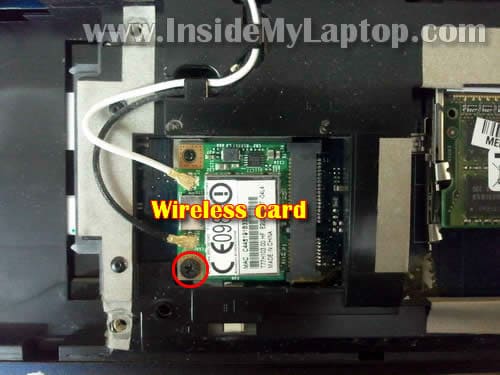
By the way, in order to remove the motherboard it’s necessary to remove the wireless card which is located on the bottom.
It’s not necessary to disconnect antenna cable from the wireless card. Just remove one screw securing the wireless card and pull it from the slot. You can leave it connected to the antennas, just be careful not to damage them.
STEP 20.
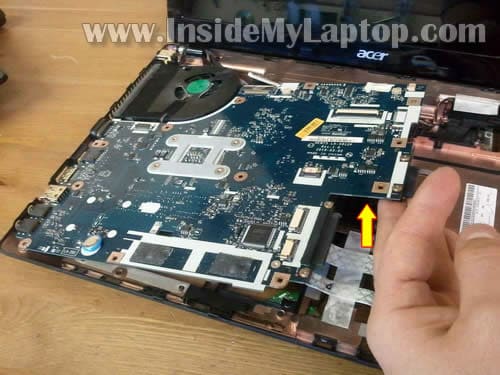
Lift up the right side of the motherboard and remove it from the base.
STEP 21.
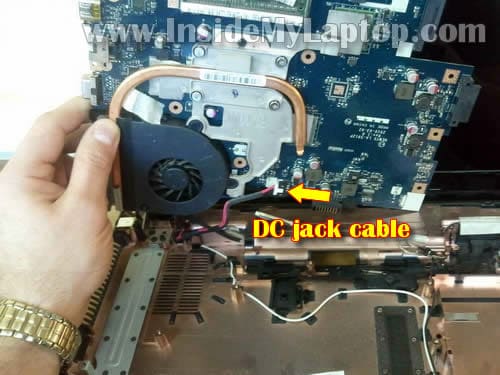
There is one more cable you’ll have to disconnect before removing the motherboard completely.
It’s the power jack cable which is located on the bottom side of the motherboard.
STEP 22.
Remove the motherboard from the base.

STEP 23.
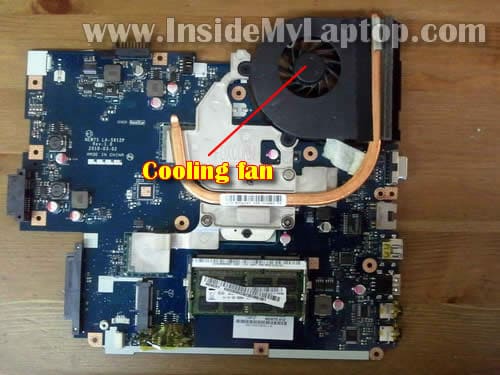
On the other side of the motherboard you can get access to the cooling fan.
It’s easy to replace the fan. Just remove two screw securing the fan and disconnect fan cable from the motherboard.
After that you should be able to replace the fan with a new one.
STEP 24.
The DC power jack located in the upper left corner of the base.
It looks like in order to remove and replace the DC jack harness it will be necessary to lift up the left display hinge. Shouldn’t be a problem though.
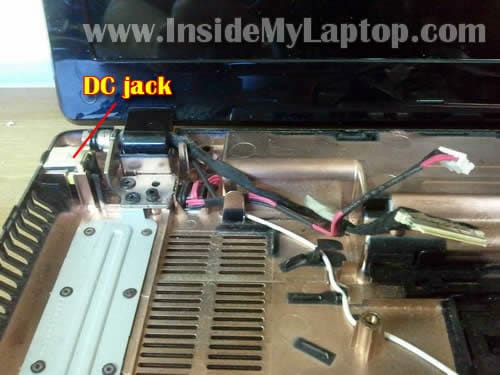
For the screen removal instructions check out this guide (disassembly steps 21-29), it should be similar.
Ron
Hi,
I have a broken right hinge for my Acer AS5552.
Do you have a link to any place I can get it?
But any source in US will do.
Thanks, Ron
IML Tech
@ Ron,
I believe Acer AS5552 is the same as Acer Aspire 5552.
By the way, let me know if Acer Aspire 5552 designed the same way as Aspire 5551. Will my instructions fit AS5552?
Joshua
Help! I’m at the last step but I’m not sure how to lift the left display hinge. Can you walk me through this?
IML Tech
@ Joshua,
Maybe must remove two screws securing the hinge and after that lift it up?
Joshua
Yeah, I’ve tried that. There are two other pieces, one that is seen in the picture on yours and another metal piece in the hole above it that juts out that would prevent one from lifting it up.
Joshua
Wow, nevermind. Last night was a really long night apparently. I figured out how to remove those metal pieces. Thanks for all the help and the great guide!
Julio
Hello:
The DC power jack wires just unweld. There are 2 reds and 2 blacks. Do I have to weld 2 red wires in the same point and the 2 black wires in the same point too? The power jack has 3 points to weld. It has 1 point in the center and another 2 points in the corners. Where do I have to weld? Thanks
IML Tech
@ Julio,
I cannot tell you how to solder wires because I don’t have a similar jack with me. But I’m sure if you do it wrong, you can fry the motherboard.
Just buy a new DC harness (included DC jack and cables). A new DC jack harness is not expensive.
Joshua
@ Julio
I bought one for less than $4.50 dollars (including free shipping) off ebay. If you have a yellow tip you can get a blue tip (as I did) but they appear to be longer cords which may cause you a problem getting it in but I didn’t have too much of a problem. My laptop now is perfectly functioning thanks to this guide. Below is the link to the one that I bought for my Acer 5551. The seller also sells them for other models and some of them are cross-compatible. I could not get the screw off the wireless card no matter how hard I or anybody I know tried. Luckily the cord is right on the edge of the mother board and I didn’t have to take out the motherboard to take out the cord. For the record, there are only two cords coming off of the end of the tip. These would be the center and one of the peripheral ones. You can get a look at this if you google image search “dc jack acer”. Good luck Julio!
Eliver
the laptop will not come on at all! no blinking lights or anything. so i am guessing is the dc hack?
IML Tech
@ Eliver,
Did you test the AC adapter? Could be bad adapter.
Schopen
Welcome.
I have got the same laptop and it’s really need fan cleaning from dust.
Is it required to disassemble it all to clean the fan ?
Is it possible to reach fan after removing screws from bottom of this laptop?
I am little afraid doing anything inside it that’s why if you can please tell something more about cleaning the fan. I don’t want use compressed directly into ventilations slots because it’s possible to damage it or spread dust inside it.
IML Tech
@ Schopen,
You can try using compressed air or air compressor. Blow air into the fan grill on the bottom of the laptop until all dust is gone. This should do it.
No, it’s not possible. You’ll have to disassemble the entire laptop as it shown in the guide.
In this case you’ll have to disassemble the laptop.
Kevynn
Can this model utilize 1333MHz or even 1600MHz DDR3 SO-DIMM? bout in invest in an upgrade to 8gb. running 64 bit of course.
While we are at it, any one know if the HDD connected is via sata II or III? also planning on upgrading it to 240gb SSD sata III. think i will be getting sata III for future use but would like to know if it is over spending on this machine, but i have been lead to believe it is sata II in this laptop.
Thanks,
Kevynn
Josh
First things first, great guide. Im thinking about upgrading my CPU from the stock to a AMD Phenom II Quad-Core Mobile N970 and the memory to two 4gb cards, but I have one question, why is it that my laptop didnt come with a wireless card?
Its a Acer Aspire 5251-1005, do you know where i could purchase a wireless card and also how to install it?
IML Tech
@ Josh,
Are you sure about that?
You can see the wireless card in the step 3 on the right side from the hard drive.
Check your laptop again. Is the card there?
Dan
Thank´s for your post, hope you can help me a little more…
I saw some Bluetooth module on eBay for the aspire 5551, can you say where is the bluetooth jack on the motherboard and where the module will fit?
There is a white connector next to the wi-fi board, but I could not figure out if thas is the bluetooth jack.
Thank you in advance and sorry for the bad english, I´m from Brazil!
Marcus
STEP 15.
Remove *seven* screws securing the top cover assembly
IML Tech
@ Marcus,
Thank you, I made a note in the guide.
IML Tech
@ Marcus,
Thank you. I fixed it.
Gurban
Thank You for this. I’m planning to use your guide this weekend in order to change the cooling fan.
linda
Thanks this helped out alot now i replaced the fan and new hard drive but get a flashing white screen did i do something wrong. thanks your great
talyon
When I plug in my dc power cord, the power button, charge light and the light bulb light flash in a steady on off pattern. Do I need a new dc jack? I am not getting a charge on my battery at all.
IML Tech
@ talyon,
Check voltage on the AC adapter. Maybe the adapter is bad.
talyon
The power adapter is the original one, it used to work and then it just stoped one day. My wife has an identical laptop and the charger works fine for her’s. Plus I can change out the battery and mine charges just fine in her laptop and with either charger. My charger is 19V and 3.42A
Kat
I have an Aspire 5551-4200 and one of the screw threads right by the power button broke so the top cover of the keyboard area is lifting off. I do a lot of work on my computer and can’t be without it for any period of time (plus I just don’t like anyone to touch my computer LOL) I’m looking to fix this on my own.
I found your site which lists that I’m looking for a replacement for the “top cover assembly” and I see these on Ebay for roughly $35 (but from China). Anyhow, I have no idea how to fix this on my own. Do I need to pop out the keyboard, then unscrew the 4 screws on each corner of the bottom and lift the top off? I see you state there are more screws that must be taken off inside. is it that easy? Do I need to avoid touching anything? I’ve never opened a laptop in my life. This is my first laptop I’ve owned and its only a little over a year old (out of warranty) the whole thing is starting to crack and I need to fix it the fastest cheapest way possible.
Thanks for any help you can give me 🙂
Jim
I have as 5755-6482 and I tried to disassemble it but the structure of the laptop is a bit different from that of this laptop. Would you post how to disassemble AS5755 series?
Denise
I need to get to the fan. Is through the top of the laptop really the only way? (That scares the crap out of me)
Big Mike
Awesome! I have an Aspire 5551 and this guide helped me immensely to replace the DC jack.Saved mula indeed! Just follow this man’s instructions and take it slow.Very slow.I also had the loose hinge issue due to a broken screw retainer,a little super glue and voila! thanks for this guide!
Sunny
Hi there im trying to reassemble my laptop, but now when i turn it on the lcd shows no picture, it turns on just no picture? any ideas on how to resolve this issue?
thanks plus when i try to connect to hdmi to a new monitor, doesnt work!!
IML Tech
@ Sunny,
Check the memory modules. It’s possible that memory not seated properly.
Ryan
Hey there, I have done this today because my laptop is getting majorly hot. I sent it off to acer previously not long after I bought it due to a headphone port malfunctioning. I got all the way through, no problems as it’s a simple enough task even without your guide if you have a little computer knowledge… HOWEVER! Once I got to the wireless card section (Yes allll the way to the end) I realised, to my joy that the screw I need to remove has cross threaded itself so I can’t get the bugger out. Any ideas on what I could do? If I do get it out, I have plenty of screws lying around and will replace it
Jarius?
Is this same that acer aspire 5250
Paul
This laptop has a design fault which means that the DC jack plug can easily break the retaining screw housing – causing the socket to be pushed in and thus problems with charging.
I am usually terrible at fixing these things but could not afford to pay to get it fixed.
The instructions above are excellent. To fix my problem I just followed the instructions up to point number 16. I was then able to superglue the screw back in place and re-assemble which hopefully has solved the problem for now. It’s still a bit delicate – but at least we get charging easily now.
Top Marks
Piero
Just upgraded my V120 to a N640 and 4+4 GB ram.
The head of the WLAN adapter was stripped so I had to drill it.
Great patience and calm, but eventually it worked out.
THANK YOU!
Carlos
I recently replaced the plastics on a friends aspire 5251. I need to purchase a new toucpad pcb. The oldone was glued to the palmrest plastic. I removed it with a razorblade carefully. I am not able to find this part. Do you know of any place? I have looked at all the places online I know about. Please advise if you can help.
Mr Bean
Just performed a soldering reparation on my DC Jack cable. This was my first laptop disassembly but thanks to your detailed explanation it turned out to be a fairly smooth experience.
JOHN
Hi, I have recently stripped down my Acer Aspire 5551 to change out the dc jack and thanks to your guide was so simple but when i put it all back together it tries to start up, the fan runs, the blue lights come on but just a black blank screen and it just switches itself off! any ideas would be greatfully appreiciated Thanks John
Haneef
Hi, I have recently replaced my dc power jack and when I attempted to re assemble it, it doesn’t turn on at all. I thought maybe it was the power button board, so I replaced it as well. Still doesn’t work. PLEASE HELP ASAP. I have no idea what the issue is and I can’t afford a new laptop at the moment.
paul
great guide, however one thing that should be made clear is that the ribbon connector for the keyboard goes under the brown plastic locking mechanism while the rest of the ribbon connectors go above the brown plastic locking mechanism. In fairness the pictures do show this.
Had me scratching my head why the keyboard wouldn’t work once i had reassembled it.
Scott
This directions were brilliant. Thank you for making them available!
I also, repaired the charging socket in my 5551 which is now working a treat. Oddly though upon finishing the job the keyboard puts in 4 characters for each key press around the e, r, t, y, s, d, f, g, h etc. any idea what this might be?
slavco
Hi
Thanks for the post, I only have one question
What is that slider with the red padlock? the one in the Step 1 picture.
IML Tech
@ slavco,
The battery lock.
Chris Linden
Great instructions. I was able to take my daughters laptop apart and re-solder the DC jack. Everything went back together and all is working. Thanks for making this available.
Drew
Hello, I am replacing the screen in my Acer Aspire 5251 and accidentally pulled the cable that connects to the webcam loose. I have tried putting the 4 small cables back in (there are 5 slots apparently), but Windows cannot start the device. Can you please tell me which order the cables should go in, by color?? THANK YOU!!
krissy
thank you for this step by step it was very helpful but can anyone help me with where the red wire soldiers to on the power Jack my friend snapped his off in temper so i said i will try to fix it but don’t know where the red wire goes. please help
Vall
Where is the LCD Inverter?!
Thanks
si
hiya can some please tell me whats the default bios password for this machine please i have got an acer aspire 5551-a. just trying to get into the cmos to change some settings
Thanks
Martin
How do you disconnect the left and right speaker cables? The tutorial just mentions it but never provides an explanation or pictures :$.
IML Tech
@ Martin,
Just unplug the cable from the connector. Should be similar to this connector.
Martin
Hey It’s me again, managed to unplug the speaker cables :D.. Though now could you explain what exactly you’re doing in step 18? The step where you disconnect the video cable?
Do you just pull it out without unlocking anything? Just to be clear, do you push it towards the monitor? Also, what part of it should you grip to pull it out?
allen
How did you end up erasing the bios password? I bought this model from a pawn shop and need to access bios to remove the password. Did you short it? Thank you for your time
al
Erick
Great instructions, what do you use to secure the DC Connector in the holder?
Thanks
Alberto
Worked fantastic, thank you!
andy
howv to reset password 4 my acer aspire 5251 series.thanks
IML Tech
@ andy,
The BIOS password? Here’s what I found on one of the forums:
Update: just found this.
Enrique
Donde esta el sensor que detecta si la pantalla esta abierta o cerrada?
IML Tech
@ Enrique,
Probably the switch is located somewhere on the motherboard and it’s activated by the magnet hidden in the display panel.
Here’s how to find the magnet and switch location.
Take a small screwdriver (magnetized) and slowly move along the screen bezel. The screwdriver will stick to the place where the magnet is located.
Now close the display panel and find the area under the top cover closes to the magnet inside the display. This is an approximate location of the lid close switch.
Mahdi
Hi
I did your solution, that was very good.
but when i reassembled and all works finished, the monitor screen was off?
can you help me??
thanks
IML Tech
@ Mahdi,
1. Make sure both RAM modules seated correctly.
2. Make sure the display cable plugged in correctly.
ravi
Cannot thank you enough. You saved my laptop from death! You are the best!!!!
Chris
Thanks for a really useful guide. I’m wanting to fix the DC power supply, and I’ve successfully got to the part where the screen hinges are off and i’ve released the DC cable connector from the motherboard, but the four wires of the cable (two red, two black) are wound around a small metal block about halfway between the DC jack and the final connector (you can see it in your picture for step 24). How do I release the cable from that?
Blair
Hey my friend, I replaced the power jack. But I unplugged the video cable, while the charger was plugged in. It sparked an then smoke came from the card reader!? No power at all now 🙁 wat happened? Did the jack burn up ?? Hope u can help? This helped so much. But I made a bobo! I don’t know wat blew… Dc jack? Video cable, card reader?
Andrzej
Hello Guys, can I just remove a back of laptop to clean fan and change Thermal Paste or is it necesarry to dissamble everything?
IML Tech
@ Andrzej,
No, you cannot. You have to disassemble everything and remove the motherboard as it shown in the step 23.
Only after that you can remove the heat sink and replace thermal paste.
If you want to clean up fans WITHOUT replacing thermal paste, you can just remove the top cover as it shown in the step 16 and blow off the fan with air compressor.
Andrzej
@IML Tech
Thank you very much.
Ralph
Hay, I think that what you do is great. I have a question for you.
Do you see them two buttons on the bottom of this things motherboard, in the picture of it in picture on step 22 rite to the right side of the cmos battery and rite to the right of your thumb in that picture, also. ?
What are these (2 ?) two ? buttons ?????????. Two seems rather odd to me. I need to erase my bios info, though I do not want to fry my CMOS. ? any Idea.
I forgot my hard drive and bios setup P W. 🙁
Thank you in advance, 🙂
Ralph
Paul
Thank you for this guide. I have just used it today to re-seat my laptops heatsink with new thermal paste [Gelid Solutions GC-3 Extreme] which has made a huge difference to CPU temps. Combined with undervolting using K10STAT my laptop no longer reachs its thermal limit of 97 degrees celcius. Prelimarly testing using Prime95 to load all 3 CPU cores has it maxed at 82 degrees celcius. Would not have attempted without this guide, never opened a laptop before.
Selwyn Murphy
First, my right hinge was damage, then the left hinge was damage. Can these hinges be fixed or replace. Please tell me what I need to correct these problems. The strain of trying to open the laptop with the damaged hinges has also damaged the upper housing just below the screen. Will a new shell solve all these problems.
Thanks in advance for your help,
Selwyn
Dale
Many thanks for guide, needed to repair damaged left-side hinge plus top cover retaining screw near hinge stripped, this meant charging jack had come loose & wires broke off! Only needed to go to step 16 to get access, then re-soldered charging jack & drilled through case (carefully) replacing original hinge and corner screws with countersunk 2.5mm bolts with washers/nuts. Almost like new now . . . . original design a bit mechanically weak in this area!
martin
thanks for putting together such an excellent guide. I had problems for something caught in the fan, one of the connecting screw holders near the power switch being broken , with the occasional grating noise , which became serious.
so great work a true hero like so many others