

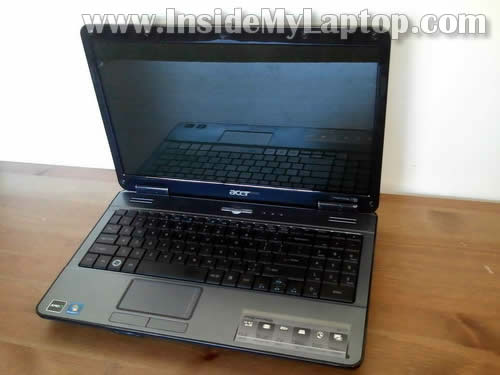
In this guide I’ll be taking apart an Acer Aspire 5517 laptop.
Most likely this guide will work for some other Acer Aspire models.
Before you start, make sure the computer is turned off and battery removed.
STEP 1.
Both memory modules and hard drive can be easily accessed thought covers on the bottom of the laptop.
Remove screws and remove both covers.

STEP 2.
In order to disconnect the hard drive from the motherboard, slide it to the shown direction.
After that lift up and remove the hard drive.

STEP 3.
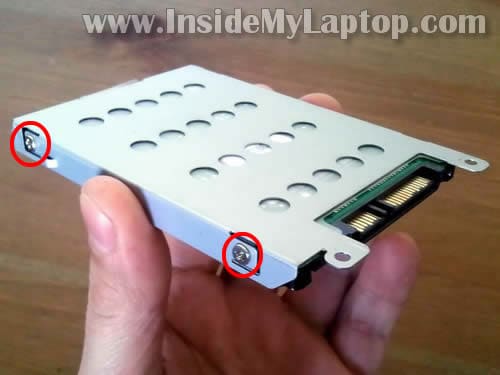
If you are replacing the hard drive, you’ll have to transfer the mounting caddy to the new one.
Simply remove four screws securing the caddy (two screws on each side) and transfer the caddy to the new HDD.
Acer Asprire 5517 uses a regular 2.5″ SATA HDD.
Any large capacity 2.5″ SATA HDD should work fine in this laptop.
STEP 4.
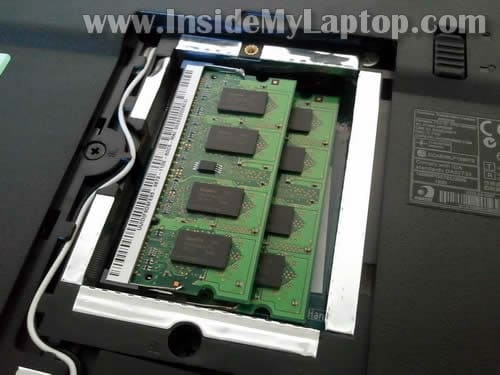
Both memory modules accessible though the cover on the bottom.
In order to remove the memory module, carefully spread latches on both sides and when the memory module pops up at a 30 degree angle, pull it from the slot.
Acer Aspire 5517 can handle up to 4GB memory total. It means you can install up to 2GB memory module in each slot.
Memory used: PC2-5300 DDR2-667 200pin SDRAM SODIMM.
STEP 5.
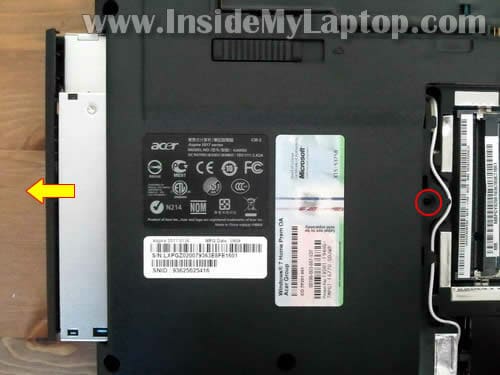
There is only one screw securing the DVD drive. This screw located under the memory cover.
Remove one screw securing the DVD drive and pull it out.
STEP 6.
The wireless card also located under the memory cover.
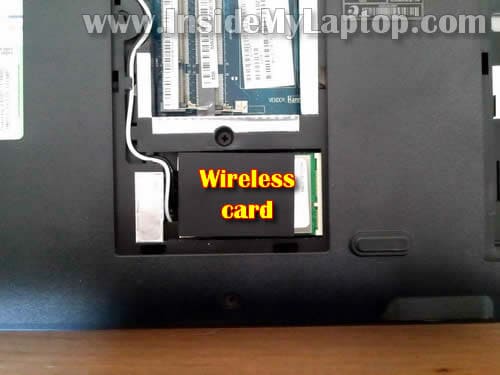
In order to remove the wireless card you’ll have to disconnect the antenna cables first.
After both antenna cable disconnected, you remove two screws securing the wireless card and pull the wireless card from the slot.

REMOVING AND REPLACING THE KEYBOARD.
If you would like to remove and replace the keyboard, you don’t have to go though all previous steps. You can start right from here. There are no screws securing the keyboard at all.
STEP 7.
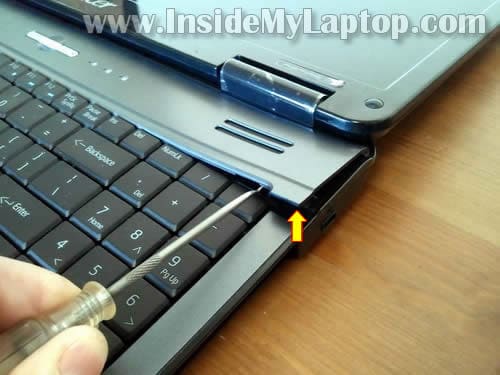
Carefully lift up the power button cover with a sharp object as it shown on the following picture.
Continue removing the cover with your fingers.
STEP 8.
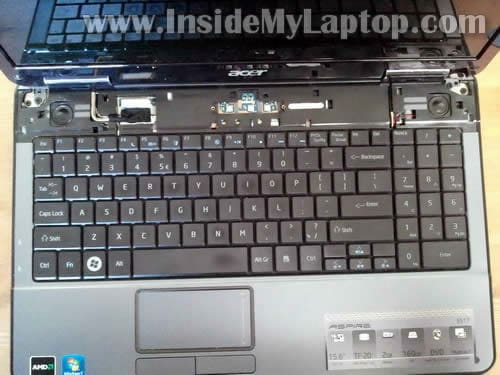
The power button cover removed.

STEP 9.
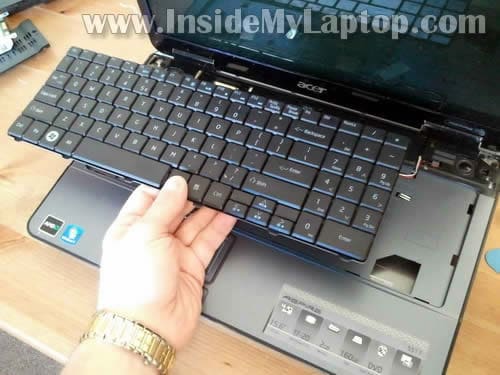
Now you can start removing the keyboard.
Work slowly. There is a cable connected to the motherboard.
STEP 10.
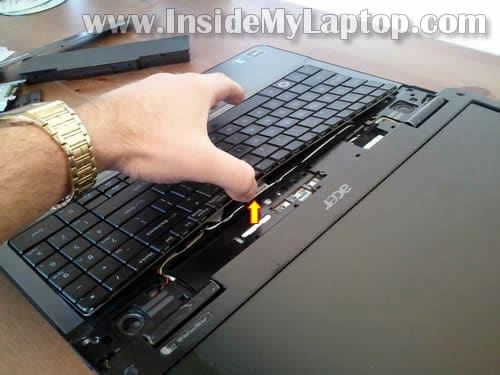
Carefully lift up the top side of the keyboard.
STEP 11.
Continue removing it from the top cover.
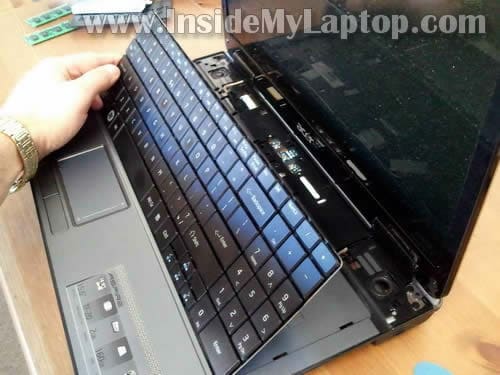
STEP 12.
Turn the keyboard upside down so you can access the cable connector.
In order to remove the cable, you’ll have to unlock the connector first.
BE VERY CAREFUL with the connector. If you break it, the keyboard will not work.
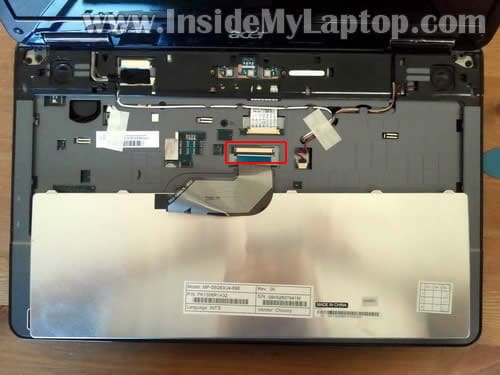
STEP 13.
On the following picture the connector shown in the locked position.
To unlock the connector, you’ll have to move the brown piece about 1-2 millimeters to the shown direction.
The brown piece MUST stay attached to the white base. Do not apply to much force. Unlock the connector very slowly with your fingernails.
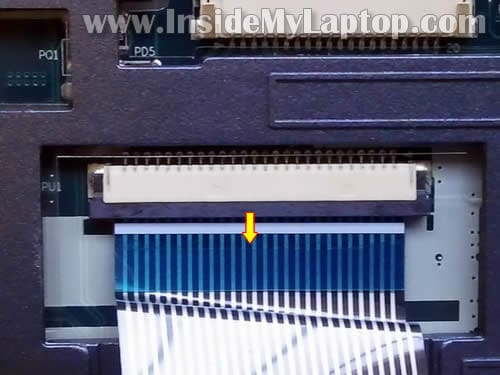
STEP 14.
On the following picture the connector shown in the unlocked position.
You see, the brown piece still attached to the white base.
Now you can pull the cable from the connector.
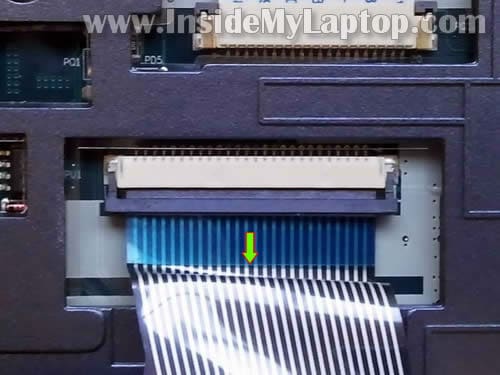
STEP 15.
Finally, remove the keyboard and replace it with a new one.
Martien
eMachines E725
Sc0rP
Hello! Nice job you are doing in here.
I have an aspire 5541G and i guess it has the same case like this you are taking apart… But my problem is overheating, and i can’t reach the fan, to clean it… I unscrewed the screws under the keyboard, and all other screws… Do I have to dissemble the LCD too?? Thanks!
Jose Javier
Thanks so much!
I let my computer fall about 2 meters high and the hinge covers broke, but i did not know how to dismantle the keyboard, to take the hinge covers apart without breaking them… even tough 1 broke. I can’t believe it costs 15 dollars to get a new hinge cover ._.
TSeymoura
Thank you…..this was the most straight forward and simple instructions that I have found any where on the internet!!!! I was able to replace my hard drive in a few minutes!!
TSeymoura
Now that I have the hd replaced, I need to disconnect the internal battery….how to do this??? It is for an Acer Aspire 5517….can’t find the watch style battery….
Otto
Thanks a LOT guys!! you are a really big help!!
John
Anyone have an idea where the CMOS battery is located on this eMachines E725? It’s not visible when you take the keyboard off.
Tracy
I have a question about the USB ports on the Acer Aspire 5517. My wife has ruined both of them and I was wondering how you can replace them, fix them or add new ports to her laptop. Amy help would be appreciated.
IML Tech
@ Tracy,
Unfortunately, both USB ports on Acer Aspire 5517 laptop are soldered to the motherboard.
In order to find out how bad the damage is it’s necessary to disassemble the laptop, remove the motherboard and take a closer look at the broken ports. If USB ports are physically broken, it would be necessary to desolder them from the motherboard and solder new ports. I’m just giving you an idea what will be involved in the repair process.
Martha
I also had both ports break on my Acer Aspire 5517. Is it easier to replace the entire motherboard than try to repair the USB ports? I have been told that it is risky to try to solder replacement ones on the motherboard because it is easy to fry the board. How do I replace the motherboard?
IML Tech
@ Martha,
In order to replace the motherboard you’ll have to disassemble the entire laptop. I found Acer Aspire 5517 service manual here. The service manual has step-by-step motherboard removal instructions. I hope it helps.
Rachel
The Acer Aspire 5517, as well as some other Acer laptops, is really a poorly made computer. I have one and it’s just about impossible to get to the fan to clean it when it overheats. Every other laptop I’ve had you just access the fan from opening the bottom. With this stupid Acer, you have to take the whole computer apart.
I won’t be buying another one.
thom fouger
I’m trying to replace the dc jack and basically have problems desoldering the jack. Any suggestions? Thanks.
Zero
Thanks for the tutorial. It made replacing the keyboard a breeze!
steph
My mother has an Acer Aspire 5517 and I believe the DC jack has gone bad. We have tried a new power cord but it will not charge and it will run with the battery removed. Also, the metal rod inside the jack will move. How do I go about getting to the port to replace it? Any suggestions will be greatly appreciated!!!!
steph
I need to correct my post. The laptop will not run with the battery removed.
janet
I have an Acer Aspire 5517 and i believe the DC power port has gone bad. The pin inside the port moves around and while i have my curser over the battery indicator it will tell me that the power cord is connected but it is not charging. I was told to check to see if it is the battery, by taking the battery out and then trying to start the computer. This did not work. I have also bought a new power cord. can anyone help with this problem?
Betty Myers
My daughter broke both of my USB ports do you know how much a motherboard will cost?
Or is it cheaper to get a whole new computer?
Thanks, Betty
shane
i have this cpu and want to upgrade my processor and know i can be done but i cant even get to it,there is not one video on how to open this thing all the way,you only showed what i already know,i need to get the entier caseing off not just down to the keybord,any help would be nice.
IML Tech
@ shane,
Search on google for Acer Aspire 5517 service guide.
The first link (PDF file) should be what you are looking for.
Pamchito
Have a Acer Aspire 5517 and it will not connect to my router even though it shows full bars but it will connect to my guest side of my router 70 percent of the time. my roater is a Cisco Linksystem 4200
Adelaide
Hi i’m so happy I found your website, it looks very promising. I started taking apart my Acer Aspire 5517 laptop in an attempt to reach the mother board. I only ended up removing the hard drive and memory and then putting them back exactly in place. MY PROBLEM is when I booted up my laptop the screen read:
“Check cable connection!
PXE-M0fF : Existing Intel PXE ROM.
No bootable device — insert boot disk and press and key ”
I’m guessing I may have detached something in my dissembling process. I was hoping you would have an idea. Please help me resolve this issue.
Many thanks,
Adelaide
David a Barnes
I wish to replace the memory cards and the hard drive because I have a virus. I don’t feel like paying the cost for the virus over and over again. I feel that if I replace the memory and hats drive it should work like a new computer. I think? Is there something else that has to be done? Where can I get the KN1G8030259367B9031601 top plate and KN2GB0301093636CAA1601 bottom plate and the 160 GB WD1600BEVT 22ZCTO WD Scorpio blue hard drive
IML Tech
@ David a Barnes,
It is not necessary to replace the hard drive and memory in order to get rid of a virus. All you have to do is reinstall the operating system from scratch. Also, I would recommend using a good antivirus program after that. I use Kaspersky antivirus on my PCs and never have a problem.
Lyle Hazelwood
Thanks for the VERY useful page.
Complete teardown, removed main board and cleaned fan/radiator.
Computer was horribly slow before a windows reinstall, and was
shutting itself down immediately after(actually during the re-install process). At the moment I suspect it was slowing the clock down as the temp went up, and that “feature” has not (yet) re-installed itself.
Now cleaner, running cooler, and proceeding with the neverending windows install/update process.
toney
i replaced my sons hdd with a hdd from a machine with a damaged screen. 2 issues, 1) mouse pad is not functioning, 2) hdd is from a broken machine and is password protected, son bought his acer from pawn shop so we dont have a copy of windows 7 to reinstall. what are my options
charif
please help me i have a serious problems my laptop acer aspire 5517 series i have changed the inverter board but the screen havn’t the light i don’t know what to do help me this my first laptop. I see the desktop on screen it’s dark. thanks
IML Tech
@ charif,
If you see a dark image (no backlight) it’s either failed inverter or failed CCFL bulb inside the screen.
If the problem doesn’t go away after replacing the inverter, the next step is replacing the LCD screen.
There is a chance of bad video cable or motherboard issue but it’s not as likely as failed CCFL.
annette m.
how do you get to the built in webcam i’m trying to find out if I’m having hardware issues. The webcam doesn’t work consistently.
john
acer aspire 5517, will not boot/post, external vga does not display. replaced motherboard and still no post. have removed all devices, HD, RAM, etc and still will not boot. Any idea what it could be?
thanks
mark
i need to replace the usb ports on my acer aspire 5516, if I screw that up, I can put in a new motherboard. I took off all of the screws off of the back, but something is still keeping me from removing the back.
Vicky
Thank you so much for this helpful images. A year ago I took my acer aspire 5517 apart with your help and seems to me I have to do it again. Makes me very happy to find your website still online. Thanks.
The problem with my laptop is that it turns off by it self. I changed the power jack because it was broken and was giving the message of connect but not charging. I also cleaned the fan. I bought a new battery wish when is connected works perfectly fine but the computer won’t recharge it. Still says plugged but not charging. I updated the BIOS. I try updating and uninstalling the battery drivers. Then I took off the battery and powered the computer using just the power cord and the computer worked for 3 days and nights stray without turning off. I could live with that I don’t really need to move the laptop from my desk since I work from home. The problem is that now is doing it again. I guess it is time to change the fan inside.
Does any one knows if I should change the fan or is this is something will never get fix? Any help would be deeply appreciated.
Thank you so much again for keeping this page up 🙂
Sandra webster
What size battery does the mother board take in acer aspire 5517?