

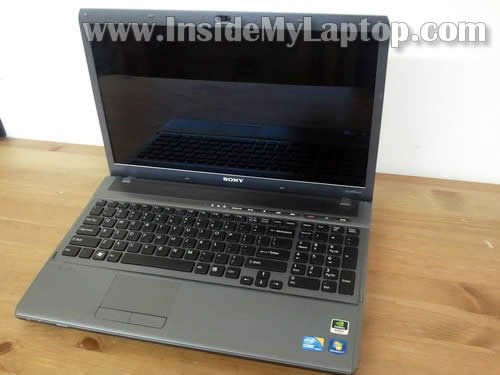
In the following guide I’ll be taking apart a Sony Vaio VPCF1 laptop. I’m doing that in order to replace the damaged screen.
The full model name is Sony Vaio VPC-F11KFX/B.
Also, there is another model number listed on the bottom: Model PCG-F1114L.
Before you start make sure the laptop is turned off and battery removed.
STEP 1.
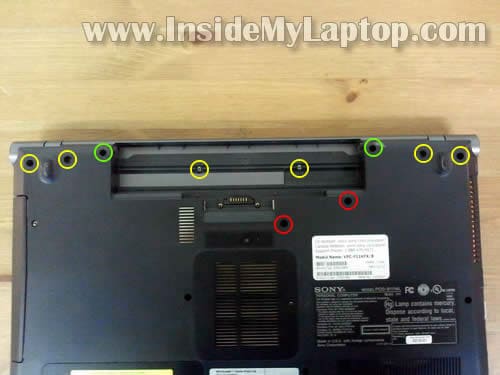
Remove six (yellow) screws securing the media button board cover.
Remove two (red) screws securing the keyboard.
Remove two (green) screws securing the display hinges.
STEP 2.
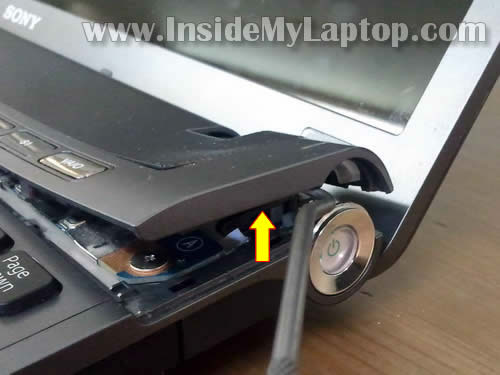
Carefully lift up the media button board cover with a sharp object and continue removing with your fingers.
STEP 3.
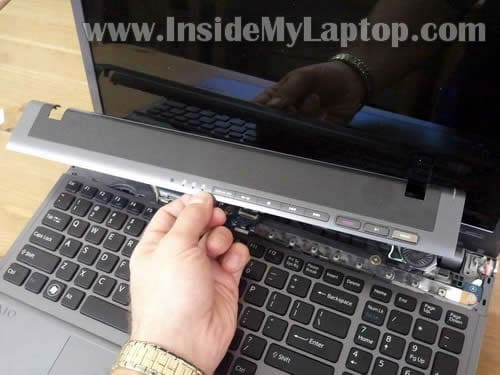
Media button board cover removed.
STEP 4.
Carefully lift up one corner of the keyboard.
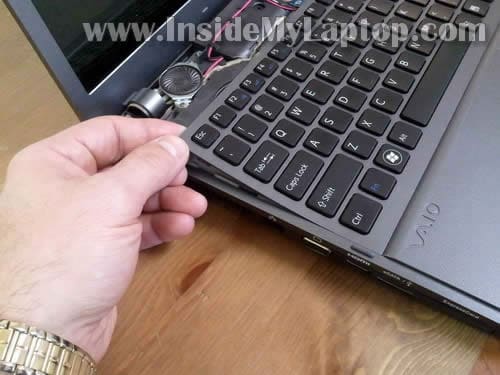
STEP 5.
Slide the keyboard towards the display and at the same time lift it up.
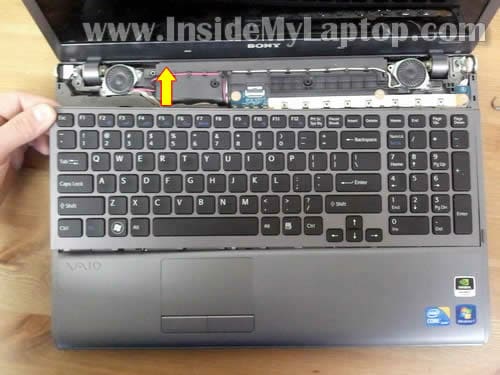
STEP 6.
Place the keyboard upside down. Be careful, it’s still connected to the motherboard.
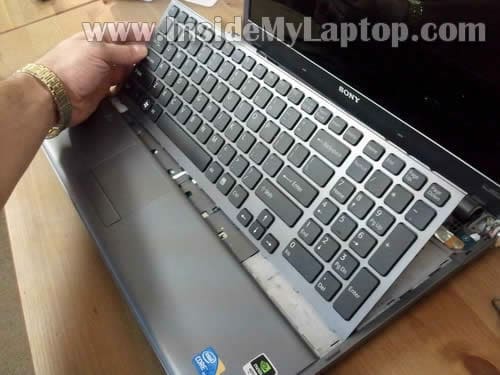
STEP 7.
Now you can access two cables connected to the motherboard.
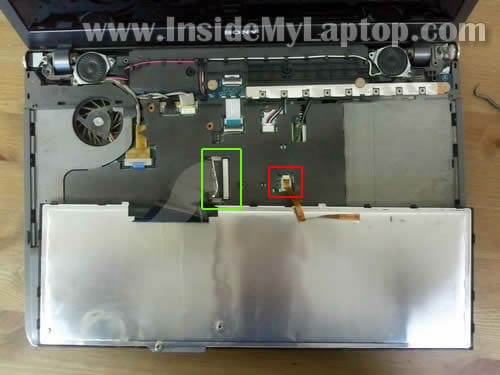
STEP 8.
There is no lock securing the cable on the small connector. Simply pull the cable from the connector.
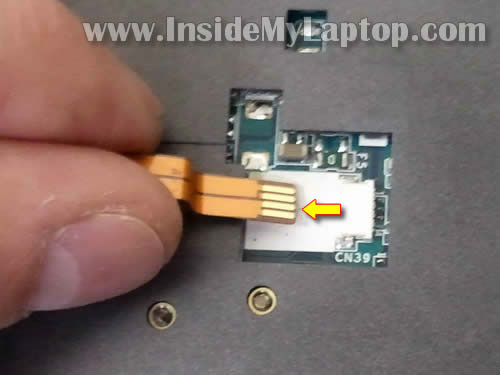
STEP 9.
The big connector has to be unlocked first.
Move the brown locking piece about 2 millimeters away from the white base.
The locking piece MUST stay attached to the connector base.
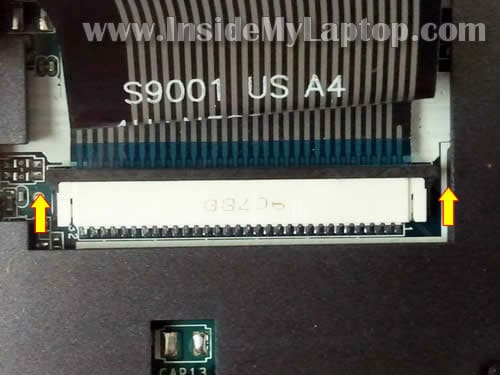
STEP 10.
On the following picture the connector is shown in the unlocked position.
Now you can pull the cable from the connector.
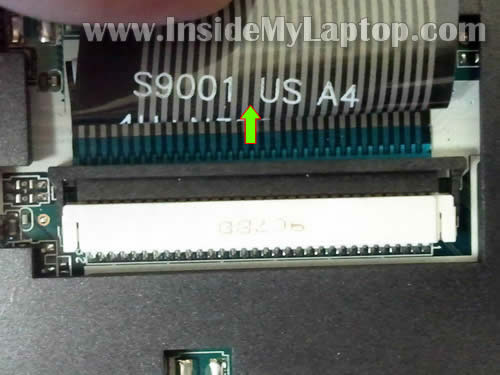
STEP 11.
Remove the keyboard.
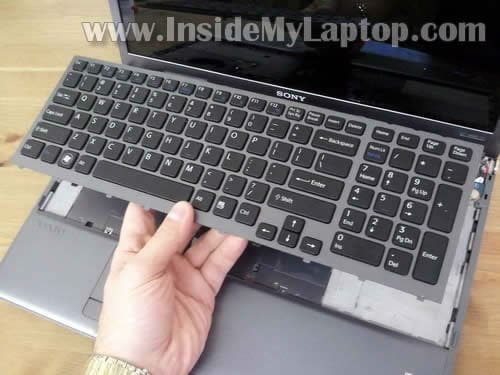
STEP 12.
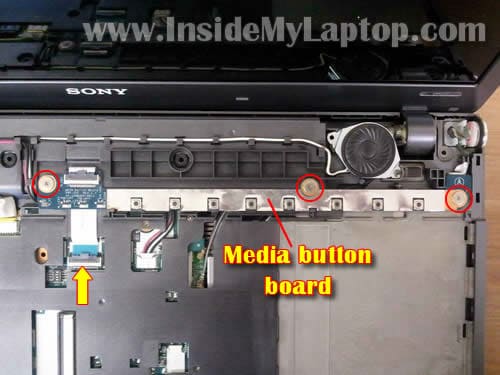
Remove three screws securing the media button board.
Disconnect the media button board cable from the motherboard.
STEP 13.
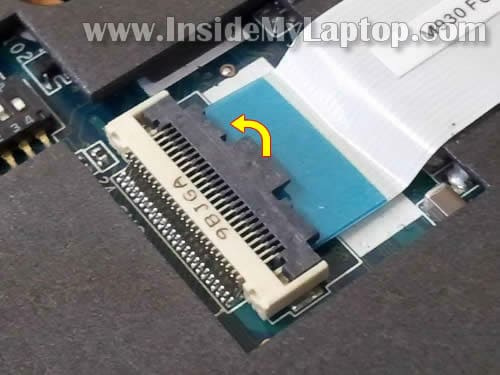
In order to unlock the connector, you’ll have to lift up the right side of the locking tab so it opens up at a 90 degree angle.
STEP 14.
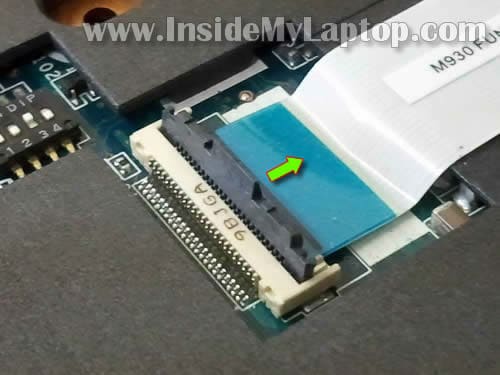
On the following picture the connect is shown in the unlocked position. Now you can pull the cable from the connector.
STEP 15.
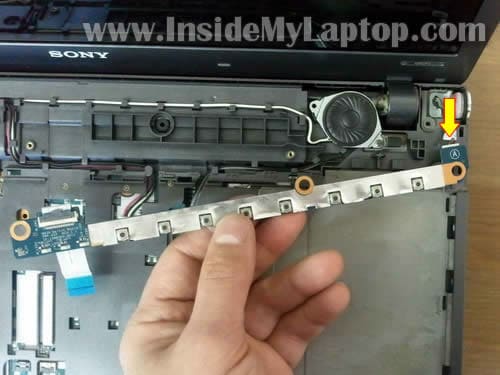
When you remove the media button board you’ll have to disconnect one more cable.
STEP 16.
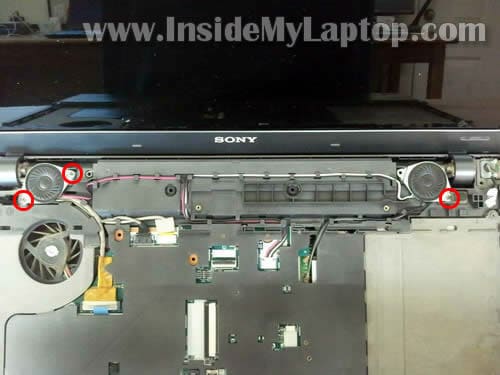
Remove three screws securing the speakers.
It’s not necessary to remove the speakers completely. Just turn them upside down so you can get access to the hinges.
STEP 17.
Disconnect display cables from the motherboard.
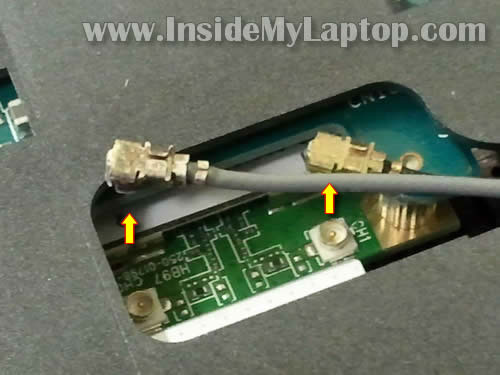
Disconnect wireless card antenna cables from the wireless card.
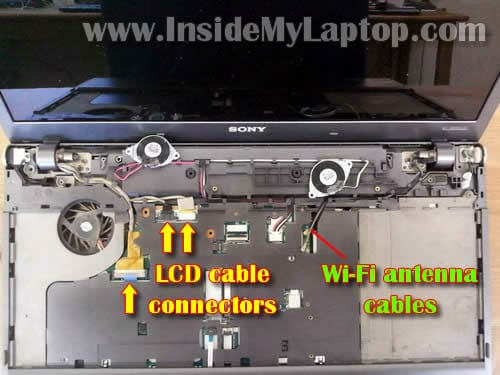
In order to disconnect the cable, grab the gold connector with you fingers and pull it up.
STEP 18.
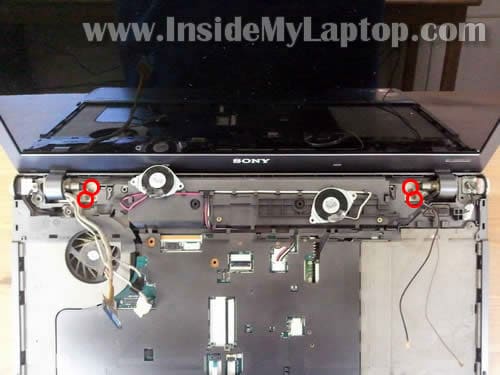
Remove four screws securing display hinges to the laptop base.
STEP 19.
Now you can separate the display assembly from the base.
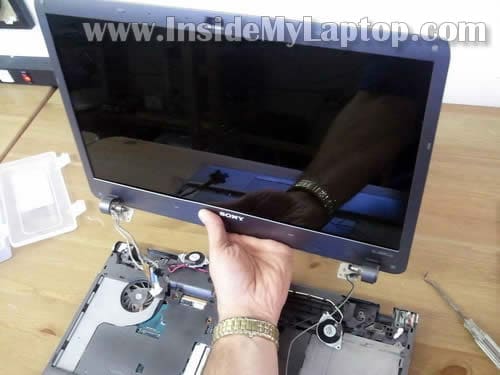
REMOVING AND REPLACING THE SCREEN.
STEP 20.
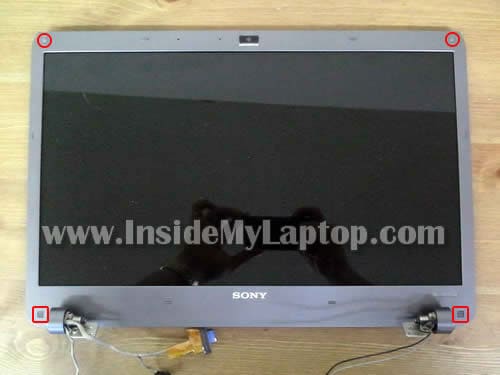
There are four screw covers on the bezel.
You’ll have to remove all four covers and after that remove all four screws found under those covers.
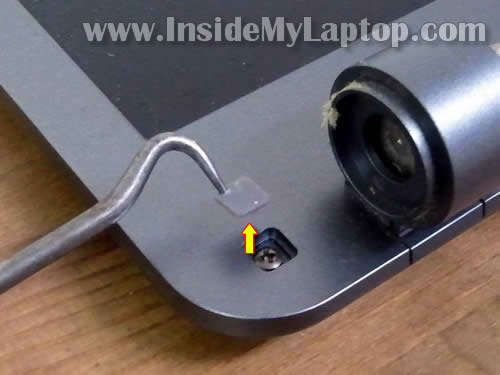
You can remove screw covers with a sharp object.
STEP 21.
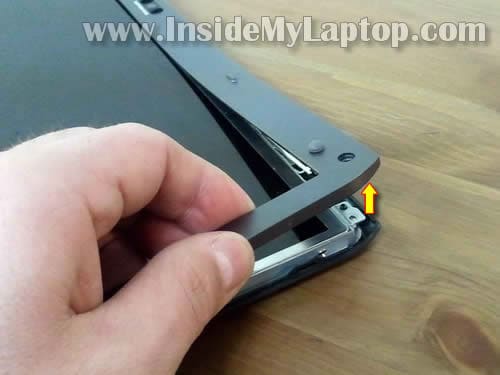
Start separating the bezel from the display cover.
STEP 22.
Continue separating the bezel.
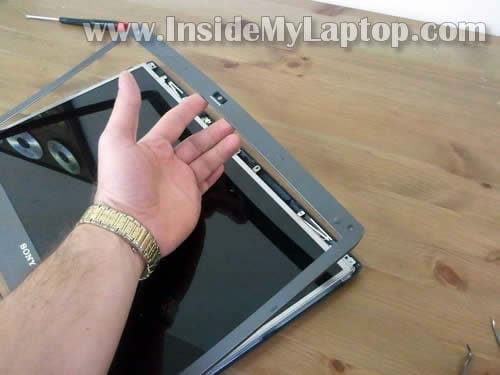
STEP 23.
The bezel removed from the display assembly.
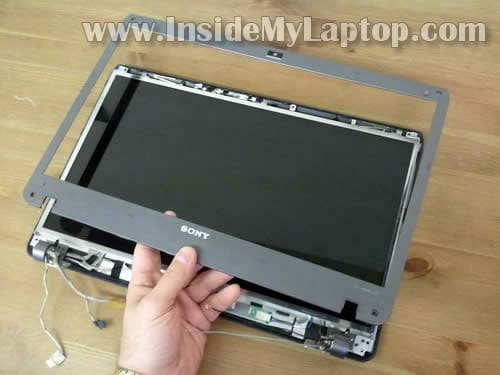
STEP 24.
Remove four screws securing mounting brackets to the display hinges.
Disconnect one cable from the right side of the inverter board.
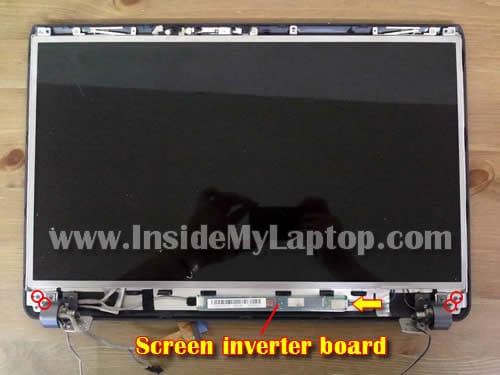
STEP 25.
Place the screen face down on the table and carefully lift up the display cover.
Now you can access the video cable.

STEP 26.
Disconnect the video cable.
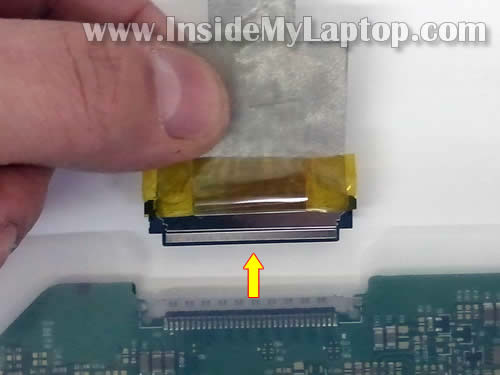
STEP 27.
Remove the LCD screen.
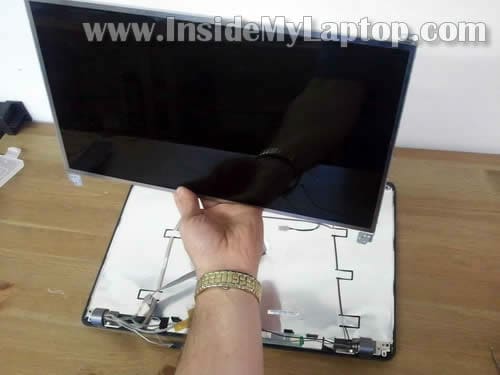
STEP 28.
Finally, remove four screws securing each mounting bracket. Remove brackets from both sides.
Transfer both brackets to the new screen.
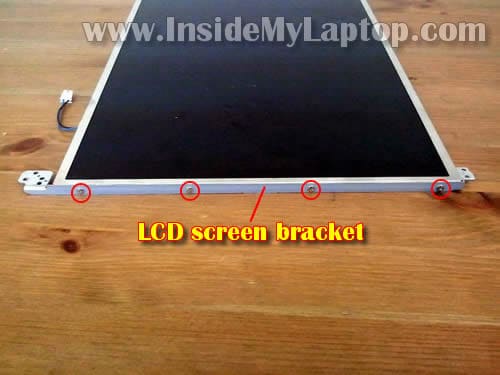
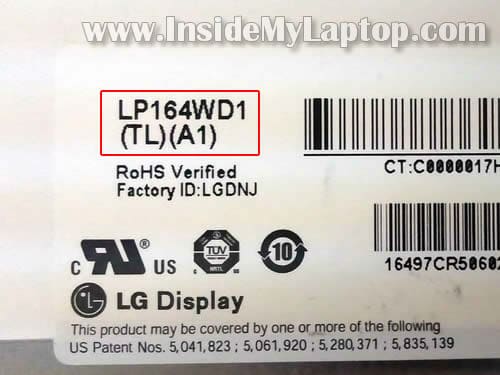
You can search for a new replacement LCD using model number printed on the label.
In my Sony Vaio VPCF1 I had the following LCD installed: LP164WD1 (TL)(A1).
Adam
Any tricks to putting those ribbon cables back into the connectors? Special tool I should have or something? I destroyed a gateway laptop mobo a few years ago because I couldn’t get the ribbon cable for the keyboard back into the connector on the mobo.
Adam
Also, this writeup appears to be dead on for a VPCF115FM as well.
Adam
Trying to do this now.. You don’t explain how to separate the most confusing connector of all, the big one connecting the LCD to the motherboard. Can anyone chime in with how to do this one?
IML Tech
Adam,
Just grab by the blue tab and lift it up?
SF
Thanks for the great guide.
Is it necessary to remove the display and wifi antenna cables (and therefore the keyboard) in order to separate the screen assembly from the body of the laptop (step 17)? To put it another way, since I only want to exchange the LCD, could I get away with leaving these cables connected during the process, or will there be no slack for the screen assembly to be pulled off the rest of the laptop?
Santhip
Thank you 🙂
kelli
you just helped me fix my computer by myself. thank you so much.
Hernan
Thank you very much! I have a VPCF113FX (which it seems to be just a color variation from the one described here) that started to get screen freezing and faded to white. Sony eSupport guys couldn’t help me, but I found many cases of the same problem: loose LCD to Motherboard cable. I followed your steps until the part about getting the keyboard of, then fitted the cable plug(s) and MAGIC! It’s fine again. Can’t express how thankful I am.
Hernan
It worked for a couple of hours and the white screen started again. I’m pretty sure it’s still the loose cable: I tried plugging and unplugging the LCD connectors you show on step 17 several times, but it still goes white. Is there an easy way to check the other end of the cable? I don’t want to remove the whole screen, just to check the video cable on the back of the cover. Can you please help me?
IML Tech
@ Hernan,
You can try the following. I’m not sure if this is a good advice, so proceed at your own risk. 🙂
You can try accessing the back side of the LCD screen while the display still attached to the laptop.
1. Remove two screws securing the screen bezel on the.
2. Carefully separate the top side of the bezel from the screen.
3. Carefully separate the display panel from the screen and you should see the back side of the screen.
Be careful, because the display will be assembled on the bottom but you should have enough gap to check the cable.
Kiko
Hi all,
I have carried out the whole process, managed to get a new screen on there and all was great.
For the first five or so minutes. After that the screen kept going blank, like it wasn’t getting enough
power. I tried checking all connectors but everything is fine.
I then tried to use the old laptop screen which also did the same thing. So I have figured its most
likely the screen inverter board. Anyone have any idea where I could find a replacement or any
fixes as it is not fully dead, it works for a bit but then it goes blank.
Thanks in advance.
IML Tech
@ Kiko,
You don’t fix the inverter board, you replace it with a new one.
Look at the old inverter and find the part number. Google it or search on eBay.
bianchi
this is a great post. Thanks for taking time taking these photos, they are really useful.
marilyn
I have a Sony Vaio VPCEE25FX laptop. My little sister dropped it and now the screen does not light up. I put a flashlight to the screen and can see the images on the screen. The screen is dark but with a flashlight I can faintly see my home screen (images are still very dim). I do not know what is wrong with it.. Please help.
Russo
I loved this info, I should have found this site before opened my laptop wrongly, but now this help me to find my issue with my touchpad. But I think after opened so many time and wrongly I ‘ve got screwed my Wireless card as well as the Turn on/off button. I have asked for a new card since this one is getting so poor connectivity and I was wondering, how can I replace this wireless car by a new one that use 3 antennas at 450Mbps? I saw the antennas going to the LCD monitor but how to add a new one there? Any thoughts?
Thanks in advance
Regards…
Russo
YanK (Développeur web)
Good site! It’s bookmarked. 🙂
I would open my VPCF11S1E to change the DVD player with a hard drive. Do you know if is possible?
Thank you in advance. 😉
andrew
This guide worked for my laptop also. Model number vpcf133fx
elias
Hi,
REALLY useful post. Thanks!
I have a vpcf11s1e (european model) and after one year the fan is soooo loud… I am desperate..
I wanted to ask if there is a possibility to replace the fan?
IML Tech
@ elias,
Yes, it’s possible but you’ll have to disassemble the entire laptop and remove the top cover (probably motherboard too).
I don’t have instructions for replacing the fan but it’s possible.
james robinson
Great article! Where can I find the replacement wristpad for the same model? Thanks for the help!
Steve
You saved me paying someone a lot of money man. Thank you so much!
umair
i have vaio f121. problem is that some thing is bothering the left touch pad button and am not able to press it properly. how can clean under this touch pad button?
IML Tech
@ umair,
I’m afraid you’ll have to disassemble the laptop and remove the palmrest assembly. After that you’ll be able to take a look on the other side and see what is causing the problem. You cannot just remove the touchpad key.
ilteriÅŸ mutlu
Now my laptop is ok, I hope never need it 🙂
nice post, thank you.
Dimitar
I have a Sony Vaio VPC-F13Z1E with broken DC power jack. Please, if somebody knows what is the part’s number (model number) of this jack for this model of laptop, please, let me know? I am unable to find it on the net!
IML Tech
@ Dimitar,
Maybe this one will work: A-1772-165-A
It looks like this jack fits all models in the Sony Vaio VPC-F line.
james robinson
Thanks so much. Where can I purchsas the palmrest for the same model, and what is the part number and price? Thank you
IML Tech
@ james robinson,
At the time of writing this comment a found a few offers on eBay.
C. Goff
HI. Great article. I have a Sony Viao VPCF121FX with a problematic touchpad and a keyboard that suddenly stop working occassionally. When removing the keyboard connector, the little black locking device popped off. One of the “legs” is broken off (not sure if it was already broken or I did it). Can you get a replacement locking peice? Advice? Do you have instructions for removing and replaicng the touchpad? Where can I find a replacement? I have not been able to locate one. Thanks!
Lloyd Burpee
when I put my Sony Viao back together everything worked except for the webcam and mic, which cables do I need to check to make sure they are connected correctly I didn’t see those mentioned
IML Tech
@ Lloyd Burpee,
Take a look at the step 17.
Maybe connections pointed with two arrows?
Samuel
I currently “have” this laptop,
i’m getting bb 116 BSOD,
I believe it’s to do with a loose connection to the graphics card. What would the best course of action be?
bren
i have a sony vaio model vpcf13pfx / pcg 8114l, if a open loptop there is no display but lcd is there a power, if a transfer a external lcd there is a work, what is the problem of my loptop, lcd or lcd board? what is your suggestion to me, we buy me a new lcd or what parts to buy me, how to fix them, what is your advice me, thanks
Ron
Thanks for posting the disassembly instructions. I have been searching for a service manual so that I could replace a bad inverter board. Your presentation was right on point. I have a Sony Vaio model VPC-F115FM/B which appears to be identical to the model you used for the presentation. Everything was the same, down to the location of every screw and connector. Thanks again and keep the info coming.
Gokhan
It appears that LP164WD1 is a glossy finish screen but my broken one is matte finish. Do you know the part number for the matte screen for VPCF13S0E? It would be great to know the number without disassembling it first, I’m still using it with an external screen.
Thanks a lot.
Daniel
Ahhhhhh
I wanted to see if it had a removalble graphics card.
calvert
i will like too learn how too clean its fan itso slow now and it over heats !
Giacomo
Hi… I have a question really important for me… there’s a water indicator under the keyboard?
And in the notebook?
Thx
James
nick
How does the wireless switch connect to the wireless card? I seem to have lost a part or something and now the switch is loose and will not turn on the wireless. Any advice?
IML Tech
@ nick,
I don’t remember this model off the top of my head. Is it a physical switch on the side of the laptop?
If yes, it’s possible the pin on the switch is broken.
Where is a chance that you can push the pin into the “on” position with a needle when you access the switch. After that you can enable/disable wireless in the device manager.
Joe
Thanks for publishing these repair instructions. My F series doesn’t seem to want to power up with the AC connected. The battery has been depleted of charge and now I can’t power it up at all. I tried my power supply on another sony and it works fine on that one. The power jack on the F series is very loose and I have a feeling that it needs replacing. From doing some research it looks like it uses a plug-in (rather than solder type power jack which is nice). My question is, how much more dis-assembly is necessary to get to the power jack from what is presented here? I haven’t found any other F series specific repair how-tos. Thanks!
daniel
hyi this model of display lcd have a compatibility with lq164m1la4a b can you pleas tell me.
IML Tech
@ daniel,
I cannot tell. I don’t sell LCD screens. You’ll have to contact the seller with a question like that.
Make sure to install the correct LCD screen designed for your Sony laptop.
Cristi Staicu
Hi there! I need the dc jack for this laptop. where can i found it? i don’t care if it’s second hand or new
Michael
Used this guide to replace the LCD on my VPCF13C5E. The only difference was that there was only 1 keyboard connector cable.
Worked perfectly, thank you.
giannino
Thank you so much!
That helped to replace my broken keyboard.
Hint for those having a VPCF1 version: this model has no backlight keyboard (at least my VPCF13D4E doesnt), but the backlight connector is on the motherboard, so I guess it’s possible to replace the basic keyword with a backlighted one.
Mike
Thank you, this worked for my VPCF111FD. I had problems with the LCD showing lines and going black. I found I had a similar problem to Hernan above: loose LCD to Motherboard cable. I followed all you steps to Step 25 and checked/ re-set the seating of all the cables. Thus far it seems to be working fine. Thank you again and thanks to those folks who made comments, I found them very informative and assisted me greatly.
Diego
Hi,
I’ve done the entire process, replaced the LCD screen, I left the keyboard cable disconnected and then I assembled everything again… But then the computer doesn’t turn on anymore, do you have any clues of where I could have get mistaken ? Or is it because there’s no keyboard connected to the motherboard anymore (wich seems wierd to me..) ?
Thanks
IML Tech
@ Diego,
I don’t think this is keyboard related problem. The laptop should turn on even with the keyboard disconnected.
Try this. Unplug the laptop LCD screen cable from the motherboard and test the laptop with an external monitor. Can you get image on the external screen? If yes, your problem is somewhere inside the laptop display panel? Maybe defective screen?
Kgm
In reply to post 42
Follow the instructional steps 1 thru 3, no need to go any further with these notes.
Then you’ll need to remove the rear panel, Undo all the screws on the back of the laptop. Remove the bluray drive, the hard drive and the memory slots plastice cover. Pop the rear panel up from the side the blueray drive is on, levering up and pushing slightly to the far side. Should slip off fairly easily.
Undo the DC connector from the motherboard, there is a small hole in the top of the connector, push it gently while pulling the lead.
Flip the laptop back over and undo the screw earthing the dc jack to the chassis.
Lever out the dc jack and pull throught the cable.]
Replace everything in reverse.
Alternatively you can just extract the dc jack socket , unsolder the +ve and -ve cables and solder on a new dc jack socket – quicker as there is less dismantelling, steps 1,2 and 3 from this tutorial are all that is required to reveal the socket. Undo the screw holding the earthing lead, prize out the socket.
Hope that helps
waynesprt
i have a f series like the one on your tutorial and i droped it off of my laptop table and the earphones were connected . but it bent the jack and brock the little blue incert and for a while i tapped the jack in ..in the right spot to get audio but now cannot do even that…seems to need the jack replaced ….now how can that be done by a dummy who is disaqbled and cannot do much with his hands…or do you know of some one who can do it…..how much and how long as i use it daily for my healthcare and corespondence and etc…..
rev. wayne vann
Def
Thanks! This guide helped me clean the fan!
Raj
Thanks.it was very useful!
Nathan
Hey, I know this post is pretty old, but I was hoping I could receive some advice still. I just replaced the screen, and I followed the instructions carefully (multiple times), but the screen doesn’t display anything. The backlight turns on, the lcd screen connections are connected, and so is the video cable. Everything else works perfectly fine. What could be wrong?
IML Tech
@ Nathan,
1. The new LCD is not compatible with your Sony laptop.
2. Defective screen.
3. Poor connection between the video cable and motherboard and screen.
4. Motherboard failure.
Did you test the laptop external video? Does it work?
Was your original screen cracked? Did it show any image at all?
Nik_F
Thanks.it was very useful!
Thank you, this worked for my Sony Vaio PCG-81112M – constructive copy Sony Vaio VPCF1.
Thanks! This guide helped me clean the fan!
Kat
Thank you. Worked great to replace the keyboard in my PCG-81114L / VPCF 13 Series model altho I did have to remove the other three screws before the keyboard would come out.
Dmitry
Thank you! I repaired hinge using your guide!
Bill
You did an excellent job on this. Very clear and easy to follow. Better than a video.
I had attempted to figure it out myself and fell way short. But when I reassembled the dead screen after my failed attempt, voila! it worked again. I’m sure there is a broken cable wire or loose cable. So for now I didn’t go through all your steps, but I feel certain that it will work with my laptop, model VPCF1190X… the pictures look identical to my model.
Thanks for taking the time to do this.
Derek
I needed to get some compressed air through my fan on my VPCF12AFM and everything looked almost exactly the way yours is. Thank you!
Tony Chan
Hi,
Hi Thank you for this wonderful website. Its been helpful so many times!
I’m having a weird issue with my Sony (exact model)…. It would run on a fully charged battery and powers on fine however once the battery dies it doesn’t turn back on once plugged into the charger.
I take the battery out completely and just try powering on with a charger and same thing. The green power light on the laptop BLINKS RAPIDLY as soon as I plug the charger in (kind of looks like a short) and nothing happens. When I press the power button I see 2 lights on the mother board light up briefly as if its power on but no fan spin or anything else.
I changed the DC jack port and still the same thing. I’d appreciate any help you guys can give me here as Im stuck and I don’t want to have to buy a new laptop.
Allan Shane
Hi,
I would be happy if i could get some help. I would need the front casing, the bezel, and the screen frame/bracket and hinges. The screen still works fine.. But i cant seem to find the screen bracket anywhere. The model i have is the VPCF115FM
I would be grateful for any help.
mephisto890
Can you please fix the images to be presented on the web site. THanks.
IML Tech
@ mephisto890,
All images should be there. Try refreshing the webpage.
Zimos
Hi I have a Sony VPCF13M0E laptop I’m having trouble with the power supply connection into the laptop. If I move the laptop the power supply disconnects can you help, thanks.
Robert
In attempting to replace my palm rest on a vpcf126fm ( broken DC plug holder. seems that this series of comp are notorious for this)
As I said I was attempting to replace the palm rest when all of a suddenly there are these two wires with odd looking connectors dangling with no apparent place to connect them. I have searched and searched for so much as a description of them. With your tutorial I have found out where they connect. Now, any suggestions on how they reconnect? I know this post is very old, I just hope you still monitor it. Thanks for putting an end to months of searching for the answer. Very well done.
Dave
Thank you so much for this guide.
I have model VPC F126FMB and was able to use this guide to replace my display inverter with a new one. The only problem I have is that it didn’t fix my display issue. 🙁
I’ve seen other people that have the same issue I have, where an external monitor (either RGB port or HDMI) works, and if you shine a flashlight on the screen, you can see the desktop, icons, etc. – as if the LCD itself is working fine, but the backlight is not. If I press the “Display Off” button on the Media Bar, the display will light up for a fraction of a second and then go off again. Everywhere I read online said this was the inverter gone bad, but sadly that didn’t fix the problem. It’s almost like a fluorescent light with a bad ballast that won’t fire up.
If you have any ideas on how to fix this I’d be extremely grateful! I can’t afford a new laptop right now, but I’d be able to donate some $$$ to your PayPal if you can save me. 🙂
Sarah
Dave, did you figure your problem out? I am having the exact same issue.
Dave
I have a pcg-81114l are these instructions the same for lcd screen replacement on my model?