

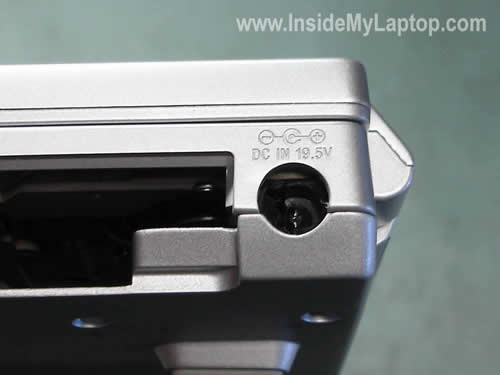
These instructions explain how to take apart a Sony Vaio VGN-FZ220 series laptop.
I had to replace the DC-IN power jack because it was broken. The jack is soldered to the power harness and can be easily replaced if you have basic soldering skills. Use this guide on your own risk.
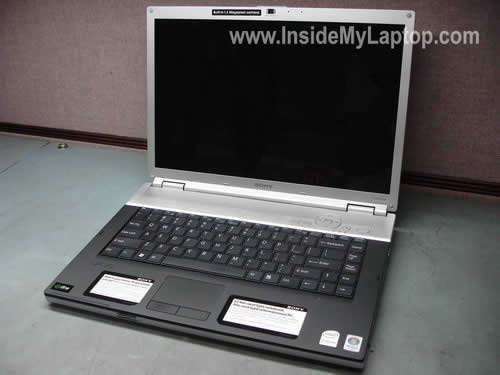
I will be taking apart a Sony Vaio VGN-FV220E model but I think you can use them for entire VGN-FV220 line.

STEP 1.
Unplug the power adapter. Unlock and remove the battery.
Remove one screw securing the memory cover and remove the cover.
Remove one screw securing the hard drive cover and remove the cover.
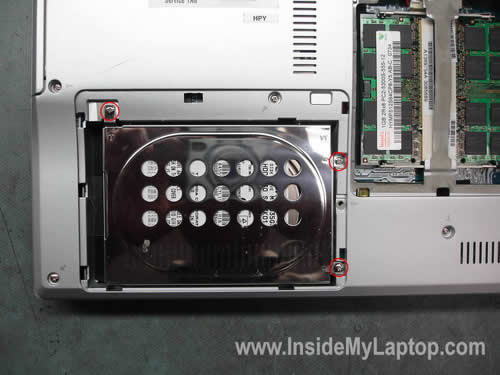
STEP 2.
Remove three screws securing the hard drive. Slide the hard drive to the left side and disconnect it from the connector on the motherboard. Remove the hard drive.
Remove both memory modules (spread latches on both side of the slot and carefully pull the module out).
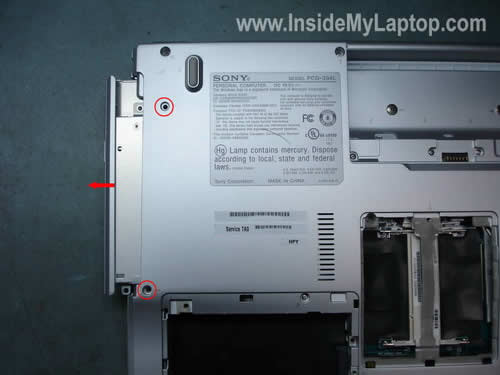
STEP 3.
Remove two screws securing the DVD drive. Carefully pull the DVD drive out and remove it.
STEP 4.
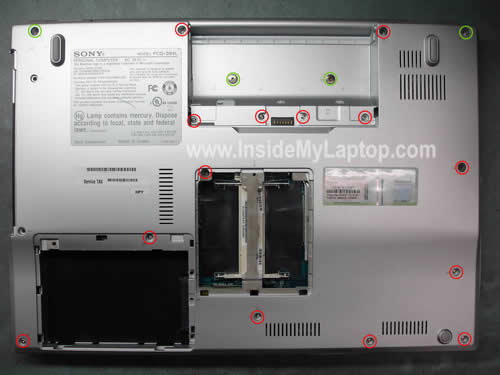
Remove all screws (marked red and green) from the bottom.
If you are taking apart the whole laptop, you’ll have to remove all screws.
If you are using this guide just for removing or replacing the keyboard, you’ll have to remove just four green screws (they secure the keyboard bezel) and after that you can proceed to the steps 7-9.
STEPÂ 5.
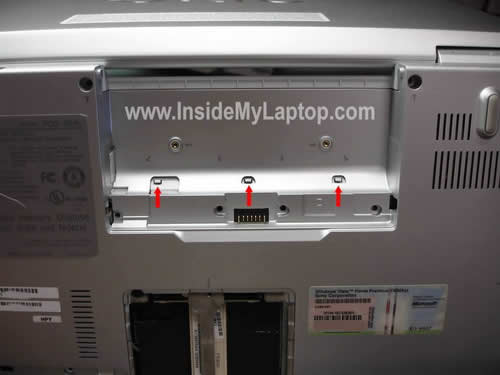
Carefully disengaged three latches in the battery compartment. These latches secure the keyboard bezel. Push on latches with a small flathead screwdriver until they are unlocked.
STEPÂ 6.
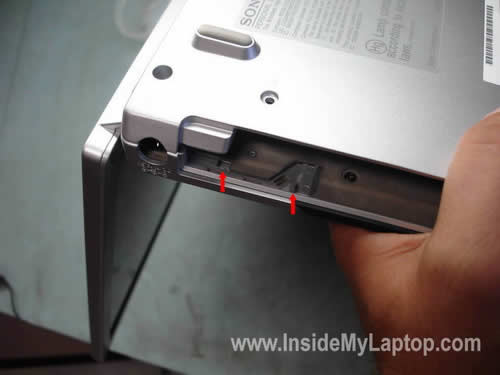
Unlock two more latches in the DVD drive compartment. I wasn’t careful enough and broke one latch. 🙂
STEP 7.
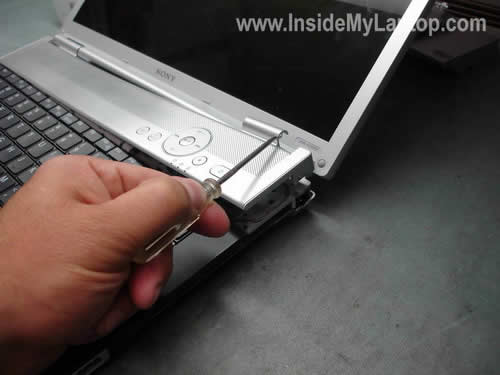
You can remove the bezel with a small flathead screwdriver.
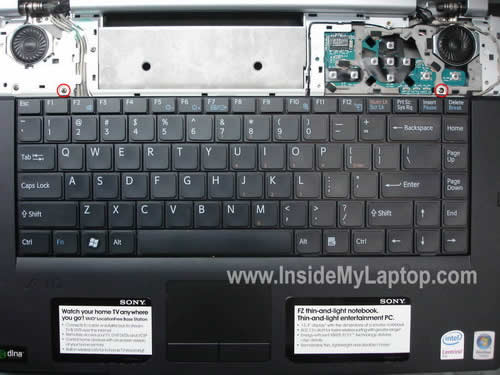
STEPÂ 8.
Remove two screws securing the keyboard.
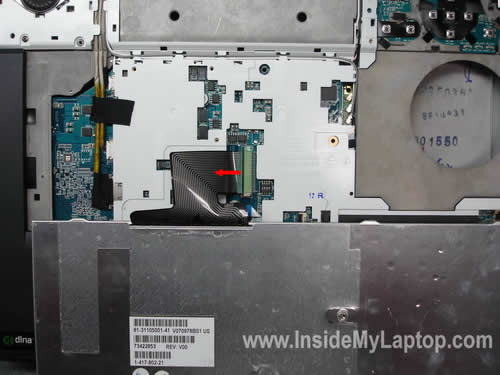
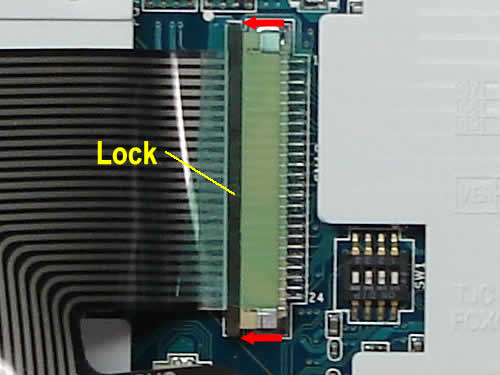
STEPÂ 9.
Carefully lift up the keyboard and place it upside down on the palm rest. The keyboard cable is connected to the motherboard.
First, unlock the connector. Remove clear tape securing the connector. After that slide the LOCK (this part of the connector secures the cable inside) about 1-2 millimeters to the left using your fingernails. This will release the cable. Now you can pull cable from the connector and remove the keyboard.
WARNING! If you break the connector the keyboard will never work again (unless you find a way to repair the connector or replace the whole motherboard). Be careful.
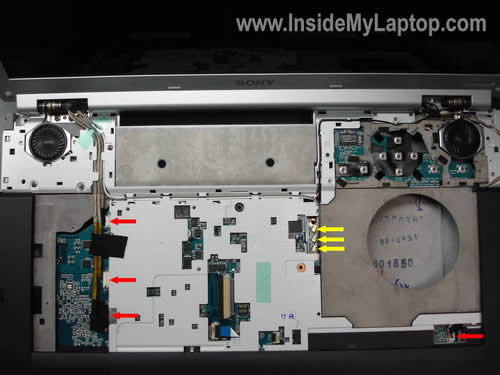
STEP 10.
Disconnect cables pointed with red arrows.
Disconnect three wireless card antenna cables pointed with yellow arrows.
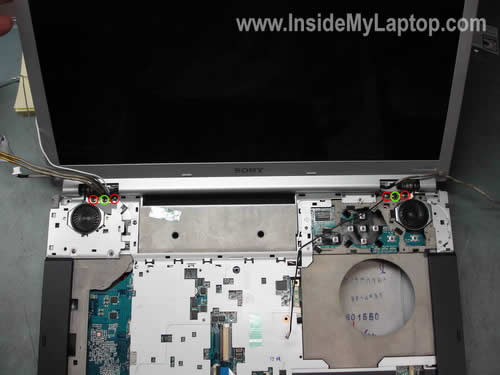
STEP 11.
Release all disconnected cables. Remove screws securing the display hinges (three screws securing each hinge).
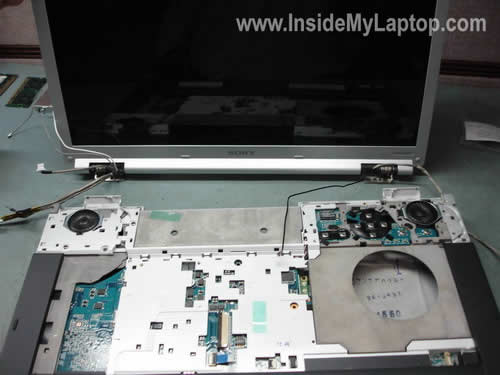
STEP 12.
Lift up and remove the display panel.
IMPORTANT! You’ll have to go through steps 10-12 only if you want to remove the display panel.
In order to remove the laptop base cover and access the power jack, it’s not necessary to remove the display panel. I understood that only after I removed the display.
Here’s what you have to do. Leave all cables mentioned in the step 10 connected and go to the step 11. Remove only two red screws from each hinge and do not remove green screws. Now you can close the display and proceed to the step 14 (removing base assembly).
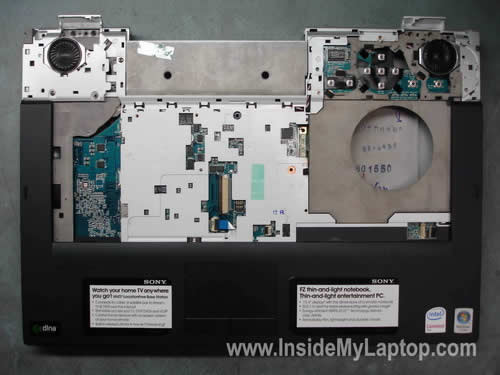
STEP 13.
The display panel has been removed. I didn’t have to remove it but I did.

STEP 14.
Turn the computer upside down and remove the base cover.
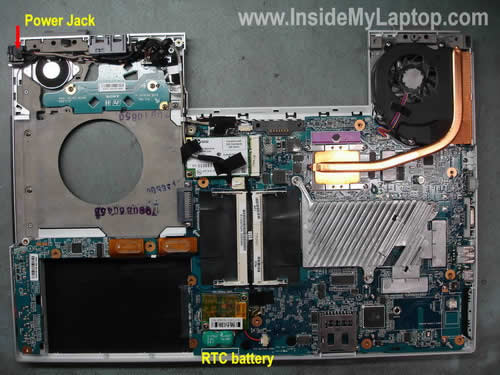
STEP 15.
Now you can access and replace the DC-IN power jack located in the top left corner.
Do you see the RTC (CMOS) battery? I’ll explain at the end why I mentioned the battery.
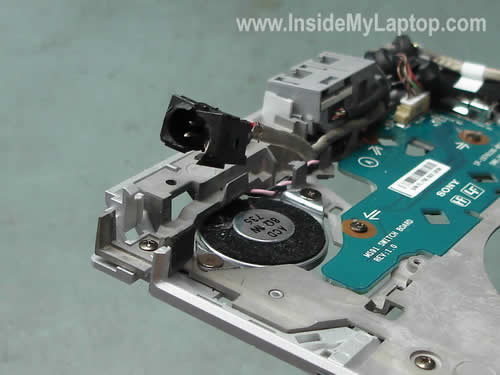
STEP 16.
The DC-IN power jack was broken in many pieces. I unsoldered the broken jack and replaced it with a new one.
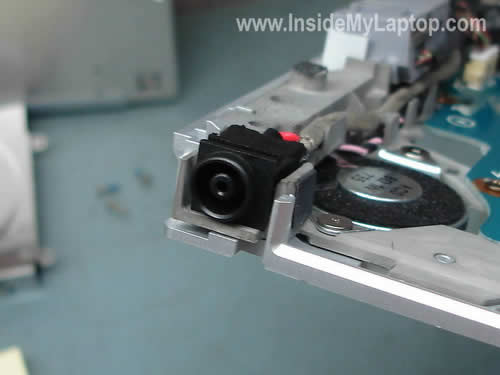
The power jack has been replaced. Now you can assemble the laptop following steps 16-1.
IMPORTANT! After I replaced the jack, I assembled the laptop back together, plugged in the power adapter, pressed on the power button and NOTHING! The laptop was dead! There were no LED lights or any activity at all. I tested power jack continuity with a voltmeter and didn’t find any problem. The motherboard was getting power but didn’t turn on. I thought the motherboard was fried. Just in case I unplugged the RTC (CMOS) battery from the motherboard, waited for 30 seconds and plugged it back in. Tested the laptop again AND it started like new!!!!
D@uthyW@rlorD
Thnx Awesome work! ^^ …
I have VGN-FZ190FE and it´s the same body! I can reach heart easier that I tought! ^^
Greetings! ^^
Piccolo
Thanks I have a VGN-FJ290 cant find the CMOS
Amit
Hi, I have Sony VGN-FZ18G laptop and I have to clean the CPU fan and heat exchange as it was very dirty and your instruction worked perfectly.
Thanks a lot for such a wonderful description..:-)
Amit
moin
thanks, for the tip that is really helpfull
Jeffrey
Hi, I only want to take apart my laptop to sand and repaint the whole thing. It’s all scratched up 🙁
Just wondering if I need to take out the memory and hard drive if I only want to take part the casing only. Also, how do you take out the silver border of the laptop where the SD card slots, headphone jack etc are? Thanks.
IML Tech
Jeffrey,
That means you’ll have to take the WHOLE laptop apart, not just the memory and hard drive. Maybe you should use a laptop skin instead? (Google laptop skin).
Jeffrey
O no worries, I plan on taking apart the whole thing. I was just asking if I need to take out the HDD and the memory to take apart all the cases. I guess the answer is yes. Thanks for the reply.
Lee Eburne
i might add… this does not explain how to take apart the WHOLE laptop. i got this far myself earlier, but i want to get to the graphics card… if anyone has help to do with this matter please email me of msg me at lee_eburne@hotmail.com
thanks
IML Tech
Lee Eburne,
Are you sure this laptop has a discrete video card? Isn’t it integrated into the motherboard?
Chris
Yes, this is nice and helpfull, but where is the graphics card, it says it has a nvidia geforce 8600 GS GPU graphics card, so where is it I cannot find it inside
IML Tech
Chris,
I doubt that you’ll find a discrete video card in this laptop. I believe the video card is a part of the motherboard, it’s not a discrete module which you can remove and replaced. If there is a problem with the video card, you’ll have to replace the whole motherboard.
Take a look at the picture in the step 14. Do you see a gray heatsink on the right side form the RAM sockets? I guess you’ll find the GPU chip under this heat sink, but it’s soldered to the motherboard.
Sin
I have sony Vaio laptop (VG-FZ21E). This morning the laptop turned on and then the screen went black. The lights on the front of the laptop started to flash for a while and then the whole thing went dead. I tried to turn the laptop back on but if failed to work with either the battery or the power supply attached. I have tried with both the battery and mains power connected together with no luck.
Using your very good instructions i took the laptop apart. I checked to see if, when connected to the mains, power is coming out of the other end of the power jack plug, which it is nearly 20V. I checked the motherboard to see if any of the components look burnt out and it looks fine to me. I do not have much experience with electronics and I am at a loss as what to do next. Is there anything left for me to check to work out why my laptop will not start?
Many thanks
Sin
IML Tech
Sin,
Unfortunately, I don’t have any experience at component level repair. From your description I can assume that you’ll have to replace the motherboard.
Ryan
Hi, great work!! 😉
Do I have to remove any warranty seal till step 3?
My VAIO is broken due to an accident so I’m gonna send it to the shop, but I need to backup the hard drive first connecting it to another computer.
Waiting for your answer,
many thanks,
Ryan
Sampad
Hi,
When i am switching on my laptop its giving a long beep seems like some problem in S-Video keys. Windows is not booting at all. If i removed my CD drive, the windows setup screen is coming up and no keyboard keys are working. Can you please help me on how i will disconnect S-Video and still continue to use my laptop. My laptop model is VGN-FZ240E. Thanks in advance.
Sampad
Please alo let me know how to remove the keyboard. I am not able to open it.
afgarza
Hello, nice tut.. does any one could help me.
I need the restore disks for an FZ190FE.
Will appreciate any help to afgarza@gmail.com
thanks
Richard D.
THANK YOU! This also works for taking apart a VGN-FZ240E. I needed to clean the lint out of the fan and heatsink was all that was wrong. Sony wanted close to $300. Like a dummy I broke one of the latches putting it together even after heeding your warning but it’s okay, not loose at all. Thanks again!
Tom Fotherby
A big thank you. My Sony VGN-FZ21S wasn’t powering up and I took it apart and disconnected the RTC clock for a few minutes and it now boots up. Amazing.
acb
Thanks for the walk thru. My son split his juice in the laptop while it was running the other day. I removed all power sources and let the laptop dry for the night. The next day I replaced the battery and plugged it in. When it started to boot I noticed the display was funky. Everything is a horrible shade of red, looks like its running in 16 bit mode and on a bad acid trip. I connected an external display to see if the GPU was shot, but it works fine. I decided to take apart the laptop following the directions above, which are great, but didn’t notice much wrong, except some stick residue. I checked the display connector which seems to be undamaged. Does anyone else have any suggestions as to what may be causing this issue? Oh and I have a FZ140E. Thanks a lot.
IML Tech
acb,
Did you take a closer look at the motherboard? Did you find any stick residue on the motherboard?
Favour
Hi, this Tutorial help me a lot. But how do I get to the touchpad area? I have it open now. I can t find a way to get to the touchpad. Does anyone have a idea, what I have to do to get the touchpqad are free. Please mail me dilarien AT accfanmail.com
IML Tech
Favour,
The touch pad is attached to the top cover. In order to access the touch pad area you’ll have to remove the motherboard first.
tarsonis
Yeah, I see. I couldn’t/didn’t want to take it all off. My left button (touchpad) only works when I hit it. So it’s really anoying.
After all. I couldn’t fix it and now I got one problem MORE…
This part http://s10b.directupload.net/file/d/1769/h83dqv6m_jpg.htm (hope yoou can open it)
It felt down as I lift the mainboard. I wasn’t fast enough to see where it comes from. -.-
Now I didn’t build it in. The laptop works, but it seems to me that he is much louder.
Any pro got an idea, where this thing have to be?!
Simon Elliott
Hi,
Found this site after I had taken the unit apart, but looks like I did it right anyway. My question is this, do you have a part number and supplier for the socket? Whilst mine still works it is intermittant, and when moved goes off, this means it gets much too hot and if not watched could be a problem. I have two of these laptops and I know it is the socket not the plug as it does it both supplies, and when removed and metered, you can replicate it.
Many thanks
Tim Bocek
Thank you so much for the instructions! Just a note though that it doesn’t look like you have to remove the keyboard to get at the back of the motherboard and replace the power jack.
Also, having trouble removing the RTC cable, any ideas?
Tim Bocek
Never mind the RTC cable comment above, it just required more force than I was giving it.
But, ~30 minutes after completing the repairs my keyboard stopped working. It worked great at first but now it’s not responding at all. I think I got it hooked back in OK, otherwise I’m thinking it wouldn’t have worked in the first place. Anyone had this happen?
Deus Ith
Thank you for this awesome article. I looked everywhere for something similar and thankfully I ended up here. This seems to work with the FZ series for what i read in the other comments.
I have a FZ150FE and the instructions worked perfectly. I would like to add that if you have (like me) to remove the RTC battery you don’t need to remove the keyboard (which I did). It is indeed a very delicate move and shouldn’t be done unless you somehow want to remove the display panel… or are willing to send your laptop to the service shop (which of course you don’t since you’re already disassembling it by yourself).
Peace.
Jonathan
Hi, Great resource, thanks you.
I was only replacing the keyboard and found a few discrepancies. When removing the screws in step 3 you need to remove the “green” screws but also two additional screws. One is the screw to the left of the batter connector. The second is the screw in the upper left corner of the memory bay. I don;t think there is any real reason to remove the memory chips themselves or any portion of the HDD.
One question. I ordered the replacement part from Sony and they said I needed (and supplied) one piece of Kapton tape (10mm x 24mm). I didn’t remove any tape and didn’t see where this piece should be attached. Do you have any ideas? Sony could just be wrong as they sent the completely wrong keyboard he first time I ordered!
Thanks again. You saved me a lot of work.
Chirag
hey
i have sony vaio fz190.
my laptop gets overheat n i want to clean it up.
so di i have to follow same process, i mean removing lcd screen n all or i just remove screws n unlock…
Mitch Moga
Hi i have an FZ260E and i have kept it ON for most of its life. I shattered the DC jack and plan to replace it however the battery life seems to have about 30-40 SECONDS. So if there is any interruption of wall socket power while i am away from the laptop it turns off! Very annoying! Any idea why my battery doesnt hold a charge? Also my laptop was getting extremely hot for a very long time, so hot that the laptop would be painfully hot to the touch. I finally opened it up and cleaned out the heat sink a couple weeks ago which was completely full of dust.
Simon
The battery is knackered. Batteries need to be regularly discharged and recharged. Being connected to a charger all the time with no discharge will eventually kill the battery.
You can try discharging it completely and charging several times, see if the life comes back but I would say it’s new battery time.
Simon
Gianluca
Many many thanks!!!!! With the help of this guide i can finally clean the fan of my vaio FZ11z!
Everything goes right apart from the latch in the dvd drive that i broke just like you, but theres no problem from this!:) Very thanks! best regards
Sanjay
I just need to replace the DC IN jack. Do I still need to remove the keyboard? Is there a way to just remove the back cover and access the DC IN jack?
IML Tech
Sanjay,
Nope, you’ll have to go through all disassembly steps.
CHIRAG
hey i just want to clean my laptop’s cooling fan.
so do i have to remove keyboad?
any tell me which are the required step i have to follow.
plz it’s very urgent
IML Tech
CHIRAG,
You can try cleaning the fan without removing anything. Find an air compressor or buy a can of compressed air and spray it into the fan grill on the bottom of the laptop. After that spray air inside the grill on the side of the laptop. This will remove most of the dust from the heat sink and fan.
Kevin
I have a VGN FZ260E that just went to crap. I took it apart following the directions and had no problems. Now the amount of dust between my cooling fan and the copper air cooler was FULL of dust and was totally clogged. I guess this is what burned up the NVIDIA processor.
Now I’m trying to find a motherboard for a reasonable price. I found one but it’s 439.00 dollars. I was expecting less. I bought the computer DEC ’07 and it was around 1500.00.
If you have one of these FZ series computers clean the fan heatsink and vent a lot or you’ll burn yours up just like I did mine.
momz
Hi,
first of all I wanna say thanx for the helpful instruction. I’ve just got one question left…
I need to remove the keyboard, do I still need to disassembly HDD,Dvd drive etc (which are the first 3 steps), or can i simply proceed from step 4 by removing the four greenmarked screws?
someone
Great job man!
Now one thing, as many above i need to clean the fans and the main heatsinks of the laptop. In order to do that, what steps should i take ? tnks in advance
IML Tech
someone,
1. Buy a can of compressed air and spray it into the air intake on the bottom. After that spray into the grill on the side. This way you will remove most of the dust.
2. For complete cleaning you’ll have to go through steps 1-13 and remove the bottom cover. When the fan is exposed you can clean it.
Kenneth
Hi i have a VGN-FZ140E ,my window took forever to doad at the black screen,i have try to boote all difference way ,even the sony VGN-FZ100E serial recorvery disk.it stay at the black sceen.
but when i tried to use the the sony recorvery dick K serial ,it took to the blue page and loaded the files and at last ,it said “the wrong disk” plese help
kheimbuch
do I have to do all these things to replace the DVD drive, or can I just remove the screws and take it out?
(my FZ needs a new drive)
IML Tech
kheimbuch,
You don’t have to go through all these steps. Simply remove two screws securing the DVD drive and pull it from the laptop.
X
You are a god amongst men, great guide!
My computer crashed and wouldn’t start up or even acknowledge it was connected to power. I decided to crack it open and unplug the RTC battery for a while and replug it back in. The laptop was good as new after your guide and I am a proud owner of a functioning vaio once again!
nydatapc
Thank a lot for your guide. Awesome job.
Talal
Can I use this guide to clean my fan and heat sinc?
By the way, the guide is great!
Talal
IML Tech
Talal,
Why not? The heat sink is shown in the step 14.
steve
Hi, is it possibe to see a close up of the heatsink and fan assembly on step 15, or a larger image of that picture displayed?
kris R.
first of all thanks for the guide it worked great. my problem now is that when i boot up it says no operating system found. any idea what i did wrong?
IML Tech
Kris R,
Most likely you have a software related problem or bad hard drive.
1. Try reinstalling original factory software from the recovery disc. This will load your laptop back to factory defaults. All data will be erased from the hard drive and rewritten, so do not forget to back up all personal files first.
2. If reinstalling software doesn’t help. Try replacing the hard drive and reinstalling software again.
flipswitch5point
So I decided to spray out my laptop with compressed air… without opening it. Later that night… Shutdown due to high temp. I thought for sure the fan was gone, because it had never failed to cool this laptop before, and that’s saying a lot; I live in the Caribbean. Thanks to this guide, I was able to open up my laptop without breaking anything… besides the fragile piece of plastic just under the SD slot (vgn-fz290 btw). To find out I forced all (most) of the dust to form a huge ball which wedged my fan and stopped it from spinning. Thank God it was a brushless fan, lol.
So thanks guy who wrote this guide, you saved me the cost of a new fan, which seems quite expensive @ $65 (for that tiny fan? wow, I usually pay about $4 for good pc fans!)
One note, on the right side, the VGN-FZ290 has an additional cable from the lcd panel to the motherboard, dunno what it’s for, but if you’re using this guide, remove it before trying to move the lcd, lol.
chokedup
thank you so much for this guide! if only i had found this before! i could have saved my laptop from dieing! i have fz21m and the graphics card is gone on it! i have funny artifact during boot as well as in windows! sony wants 500 pounds to replace motherboard! i am not buying sony anymore!
IML Tech
chokedup,
Me either! I had one Sony before and found that out of warranty parts for Sony laptops are VERY expensive. I’ll stick with Toshiba.
Rajeev
This is wonderful.. thanks for the help..
I have VGN-FZ150E and need to replace the motherboard.. Can you please direct me to the direction if available or add some next steps to go motherboard level?
Goergi Dobrev
Thanks for the perfect guide dude.I had temperature problems with my vgn-fz140e and with this guide i was able to disassemble it without any problems. I removed big chunk of dust blocking the air flow and now temperatures are lowed with 30 C when the CPU is with 100% usage.
Art*Star
Great guide to taking apart.
I’m having the ‘Dead Graphics Card’ problem. Is there ANYTHING that can be done, other than sending back to Sony and paying a ridiculous amount of money???
I know the Graphics Card is situated on the Motherboard, but where exactly?
sandeep
Hi I am having Sony Vaio CR320E , I want to clen Fan and check if there is any dust on vent or on CPU . Can you please send me steps if possible with screenshots that will help. Thank you.
Robert
I want just to thank you guys.Great job!
Paul
For my Vaio, a VGN-FZ21Z, it was simply a case of removing the RTC battery for a short while and, low and behold, the thing is up and running again! Thanks so much for putting together this guide!
Julybg
This is a great guide! It helped me alot im my case. I just wanted to clean the whole thing :).
thank you!
Hanna
This was amazing. I have a VGn-FZZ140E that hasn’t been working for 4 months and I thought it was because of a power surge. I just removed the RTC battery and then put everything together enough to turn on the power and it worked! Saved me over $300 in repairs because I did it myself.
Cyrus
Hi, well first of all tnx for ur awesome guide.
I have a VGN-FZ190 which used to heat up a lot recently. Yesterday I was working with it and sudenly I saw weird “ant” shape stuff appearing on my Vista desktop then I got a blue screen but the blue screen is also messed up and flaky and u can’t read anything. So I reinstalled Vista and boot it. It worked fine but again after 10 min the blue screen appears and all I can do is to restart the laptop. Sometimes it boots but most of the time I get the blue screen right away.
Any idea of what I can do?
I’m a student and I really need my laptop.
Thanx
Cyrus
IML Tech
Cyrus,
It’s possible that your problem is related to the memory. Do you have two memory modules installed in your laptop? Try removing them one by one and test the laptop with only one module in place. If one of the modules is bad, the laptop should work fine when only a good module is installed. Remove memory modules one by one will help you to find a defective one.
LongNguyen
I;m using FZ 150E and in a fine day it suddenly turn off when I’m using, can not turn on again (the led lights aren’t on). I don;t know what happened, I will try unplug CMOS pin and re-plug , if it still does not help, I throw my laptop to the wall !
btw, this is a great guide, ty so much !
Talal
Does anyone know where to get the fan and heatsink for VGN-FZ21Z? I have tried ebay but they are all used.
Thanks in advance
Talal
MartinodF
Thank you for a very useful guide. I’m always concerned when it comes to open a laptop but with your directions it couldn’t have been easier.
Dee
This guide is brilliant but I wish there was one as detailed to show how to get at the fan of my vaio FZ21Z so I can clean it and stop it from overheating – otherwise I am going to have to be without it for ages whilst the computer shop does it. Its really annoying that laptop makers dont make it simple to slide the fan out without taking the whole thing apart, so it can be cleaned monthly
lorenzo
thank you , thank you, thank you for that trick with disconnecting battery for 30 secs.
I came home last night to find that my laptop was turned of, what was stranged cause it was running when I left home.
And it didn’t respond to power button anymore, so after googling, I came to this guide, et voila. Up and running again!!!
thx man
IML Tech
lorenzo,
You are welcome. I’m glad that disconnecting the battery fixed your problem. This trick helped me a few times before.
JakuZ
Brawo…. THX !! :]
Jeremiah
Great writeup! I have a Vaio VGN-FZ340E and it seems the modem isn’t working because nothing happens when I have an ethernet cable plugged in. I tested it with other cables that I knew had internet access, so I know it’s something with my computer. Did you happen to notice if the modem is soldered in like the power jack is or how it’s connected?
IML Tech
Jeremiah,
It’s possible that you have a software related problem. Check all network settings on the laptop. I cannot tell you what is wrong with software without looking at the laptop.
As a last resort, back up all files and reinstall Windows and device drivers from scratch. If the network port still doesn’t work, it’s a problem with the hardware.
Could be bad network jack or faulty motherboard.
There is no such thing like eithernet modem. The network card is integrated into the motherboard and when it fails, the whole motherboard has to be replaced.
Manny
OMG GUYS PLZ HELP LOL:|, I disassembled my laptop and I am stuck on one step:| BECAUSE I FORGOT THE WIRING:| ., HOW STUPID OF ME.
STEP 10.
Disconnect cables pointed with red arrows. Disconnect three wireless card antenna cables pointed with yellow arrows.
What order do the three wireless carrd antenna cables go?? theres a black, grey, and white atennas!!
HELP PLZ:(
IML Tech
Manny,
From top to bottom: black, white, gray.
Manny
Thanks Lt Tech. You guys Rock!
muda
hi all,
I have got the same problem i.e. broken DC Jack. I would like to know that if the DC jack is same for various series of vaio laptop.As the link is provided on ebay. I have got VGN-FZ18E. Looking for your help
best regards
IML Tech
moda,
You should contact the seller and ask him this question. It’s possible that you have a different jack but I cannot tell without looking into the laptop.
Jeremiah Luke Haynes
Hi again, I tried what you mentioned with reinstalling Windows; I actually upgraded to Windows 7 from Vista, but I’m still having the same problem. Sometimes it works, sometimes it doesn’t. Would you recommend getting a USB or Express Card ethernet network adapter and just bypassing the original network jack? It seems like replacing the motherboard is out of the question, as it would be too expensive. Thanks.
Jeremiah Haynes
Hello again, I was just wondering if you had any suggestions to my previous post about possibly buying a new USB or express card ethernet adapter. Thanks.
powhatan
Do you know that someone is making money by selling this free guide over the ebay?
not really correct, IMHO.
GratefulJimmy
Hi, thanks a lot for putting this brilliant guide up! My laptop (VGN-CR11S) died last night, no lights any or anything coming on.
As most of the results for google suggested the comp was destined for the bin, I thought I would have a look inside to see if I could identify what went wrong.
I found this page whilst looking for disassembly instructions and that battery trick has saved me a few hundred pounds.
Thanks again.
IML Tech
GratefulJimmy,
I was very surprised when disconnecting the CMOS battery worked for me. That’s why I mentioned in my guide.
Jason
Is it required to remove the screen and keyboard to remove the back cover? I just want to see if it is possible to take out the heatsink and apply a better thermal grease.
IML Tech
Jason,
I think the display (and because of that keyboard) has to be removed because screws on the hinges are connected to the back cover.
Aly
Great guide and fantastic opportunity to save ££s by doing the repair yourself. I have just replaced the keyboard on my Sony FZ11M using this guide
Note if replacing keyboard you can jump straight to Step 4 and miss out Steps 1-3 but dont forget to remove the battery first
At Step 4 you not only have to remove the four green circled screws, you also have to remove the four red circled screws where the battery compartment is in addition to the one red circled screw where the memory housing is
On my model FZ11M (UK) these screws secured the keyboard in place in addition to the other screws
Once I realised this it was relatively straightforward to remove the keyboard and fit a replacement one in. Also be aware the keyboard cable connector lock flips upwards and you have to slide the keyboard under the lock and then secure it.
This isnt explained clearly in the guide but in fairness the guide refers to the removal and not replacement of the keyboard
All in all well chuffed i was able to use this guide and fit my keyboard
Andy Green
Thanks so much for this. Sony quoted me £220 UK for replacing the power socket. Instead I bought the power socket for $15 and did the work myself. What a saving – shows how much they rip people off.
GP
I have Vaio VGN FZ 340 E. Few days ago, I had a blue screen indicating memory Parity Error. I contacted Sony Tech Service and did everything they asked me (reset BIOS, Tried disconnecting Memory one at a time, even triedreplacing memory with new memory). Computer does not boot, it seems that it stops the boot process after a while and than just hangs. If I force it shut, it starts OK in a safe mode, but once I shut it down properly, it will not boot again.
Any suggesstions? Could this be a corrupt HD, driver issue? Will system recovery help?
BTW I am using Windows Vista Home Premium.
Thank you,
GP
IML Tech
GP,
It’s hard to tell what’s going on. Could be motherboard/video card failure.
If you suspect the hard drive, you can remove it from the laptop and try booting from a Live Linux CD (Knoppix for example). If the laptop works fine running from Knoppix CD when the HDD is removed, it’s possible that your hard drive is not working properly. This is just a guess.
Where exactly your laptop hangs? In the BIOS or while loading Windows?
Can you run hard drive test? I found that Hitachi’s drive fitness test work well with most laptops. You can use Hitachi DFT to test the hard drive.
shrikant
i reqire to open touchpad button of my laptop can you please further go diplly in this demostration please……
Paul
I used this tutorial on a Sony Vaio FZ21-E to replace a broken DC in power-jack and it worked great!!! 1000 thanks to who ever uploaded this. Saved me loads of time, and I replaced my power jack within an hour. Had no problem restarting my laptop, started straight away. Once again thanks, you’re the BEST!!!
George
Great help!
Thanks.
Niki
Need some help please
thanks for the good guide, i used it to clean the fan.
But now i have a problem with my dvd drive.
It has Power but the computer doesnt recognice it, so i can’t use it.
I connected it like shown here so….dont know what happened.
hoping for help, thanks
IML Tech
Niki,
Did it work before the disassembly process?
Try reconnecting the drive. Maybe it’s not making good contact with the motherboard.
Sankar
Hi,
I am facing a problem after reassembling my sony vaio FZ31M. In the initial screen the display shows many vertical lines. It continues to boot into the operating system (vista) but with a lower resolution and the image is still corrupted. Please help me out in resolving this issue.
Thank you.
IML Tech
Sankar,
Test your laptop with an external monitor. Can you get video on the external monitor? Is it good or corrupted?
Niki
Yes it worked before the disassembly.
ok i reconnected the drive now,
but there is still the same problem.
i can open the drive and put a cd in… then you hear that its working
but the computer doesnt recognice it at all.
IML Tech
Niki,
Here’s something to try. Find a bootable CD (recovery disc, Windows installation CD, live Linux CD, etc…) and try booting your laptop from that disc.
Will it start from a bootable CD?
I’m just trying to figure out if your laptop recognizes the CD/DVD drive on the BIOS level.
If the laptop can boot from a bootable disc but cannot access/read same disc in Windows, this could be software related problem.
Sankar
Hi,
Thank you very much. I tried with an external monitor, but my laptop not even detects the secondary monitor connected. Checked with all the ports VGA, HDMI and S-Video, nothing works. Please help me out in fixing the problem.
IML Tech
Sankar,
I could be wrong but if the image on the laptop screen is corrupted and there is no image on the external monitor, this could be the video card related problem.
Have you tried reconnecting memory modules?
Just in case try removing modules one by one and test the laptop with each module separated. I’m thinking if the laptop uses shared memory, a bad or not properly seated memory module can cause video problems.
Niki
i tried it with a bootable disc, but again, i hear that the dvd drive is working, but nothing else happened.
thehumble1
Thanks for the great breakdown. Those VGN laptops are huge and spacious inside, but still such a problem to replace such a common break. I’m tearing into one for a friend in two days and this is much needed.
Sankar
I got the issue resolved. The issue was with the NVIDIA graphics chip in the mother board. In some models of vaio, Sony had implanted faulty graphics chip which fails at certain conditions. The chip failure results in Bunches of vertical lines in the display and sometimes boot results in a blue screen. Sony fix this issue at free of cost even the laptop is out of guarantee (within four years from the date of purchase). I had sent my laptop to Sony and got it fixed. I thank again for this wonderful guide which helped me to fix the dc jack problem.
Thank you
IML Tech
Sankar,
Would you please mention the laptop model number?
Sankar
Hi,
My laptop model is FZ31M. The problem is identified with all the following models of sony vaio.
VGN-FZ11x, VGN-FZ18x, VGN-FZ21x, VGN-FZ31x, VGN-FZ38x,
VGN-AR11x, VGN-AR21x, VGN-AR31x,
VGN-C1Zx, VGN-C2Zx,
VGC-LM1xx, VGC-LM2xx,
VGC-LT1xx, VGC-LT2xx.
http://www.tomshardware.com/news/sony-nvidia-faulty-GPU-vaio,8435.html
IML Tech
Sankar,
Thank your very much for this information. Published it in the main post. Should help lots of people.
Milan Petrovic
Thanks Man. This tutorial is great!!!
Barbara
Hi
I have disconnected my laptop as been shown but after reassembly some buttons would not work
what could i do
pls help]
Thank you
derrick
Great post, but I have one small question.
Can you please tell me what solder wire type you used.
Thank You.
Cougar Multimedia
This was very helpful indeed. I was replacing a keyboard on a VGN-FZ140E. Sony Support didn’t have the service manual for this model and wouldn’t help without a price. I would like to make a correction if I may to your step 4 where if you are just replacing a keyboard, not only do you have to remove the 4 screws you have circled in green, but you also have to remove the screw in the top left hand corner of the memory bay. Thanks again, this was very inciteful and helpful.
B. Slack
Will this work for a FZ260E? My fan stopped working.
cora
I have to disassemble my laptop only to remove dirt from the fans. Which steps can i follow?
B. Slack
Thank you for your excellent job aid. I took my VGN-FZ260 apart, cleaned the fan and put it back together without a hitch. Although my nerves will never be the same.
Thanks Again
Darin
I replaced my powerjack by calling sony and getting their replacement part which included the cable, I ordered one off Ebay before but wasnt the proper fit so decided against using that product. I didnt take my computer fully apart like this websites instucted but simply removed the bottom pannel. I followed the instructions up till removing the cover just above the keyboard. Then removed the screws that holds the hinge for the monitor. then the bottom pannel simply removed. …
Jay
Hi, thanks for the instructions!
However, after my 3rd time taking it apart and putting it back together, I was pushing ever so slightly with a tiny screw driver to slide the keyboard connector lock off and this little tiny black plastic strip fell out from the assembly somewhere and now my keyboard doesn’t work…correctly. Some keys work and some aren’t the right button for the command it is doing. Can you send me a close up pic or something of the connector so I can see if this thing is really broken or how it goes back together. It looks like it has some little tiny knobs that come out of the side like it sits inside something but if I put it in the actual connector, I can’t seem to squeeze the keyboard cable inside with it. Any help would be greatly appreciated.
Dmitry
Thanks from Russia! The article is really helpful!
I had to change the CMOS battery after two years of work. And, yes, that was the first time I disassembled a laptop, and my nerves won’t ever be the same too:)
IML Tech
Dmitry,
ПожалуйÑта! Ð’Ñегда рад помочь! 🙂
You are welcome!
Mike
Quick question(s) for ya: The sound in my VGN-FZ290 has gone out in the left speaker….now that I know how to get to the speakers (courtesy of this page), where can I find new ones? You wouldn’t happent o know what kind I would need, etc etc?
Thanks!
Bob
Mike, Sony service centers sell parts for your laptop. Give them the model number on the LCD and they will look up what speakers you need.
Yiannis
Great instructions, thank you.
My SONY Vaio VGN-FZ31E went dead. No lights, no nothing when connected to power. Power supply seems ok, tried new one in a shop, nothing happens. Laptop seems to turn on when using a charged battery (I was able to turn it on with the charge left in the current battery, with the hard disk and CD/DVD drive removed).
I can measure 19.2 V on power supply and motherboard connector, 14.5 V on battery terminal big ends, and 3.5 V on (unplugged) RTC battery connector. Will not wake up after unlugging RTC battery as sugested in main post.
Could anyone tell me if there is motherboard fuse and where it is located? I could not find one on the bottom side, and there is this plastic tray on the top (keyboard side).
Any other troubleshooting ideas would be most welcome.
Juan
Hello!!! and great guide with pics ( I would suggest a few close ups ); I’m trying to repair a Sony Model VGN-FZ180E with windows Vista OS, 2GB of Ram and Intel Centrino Duo processor:
This laptop is dead, no light; no beeps or anything else to show is working; I eliminate the power brick after testing with a multimeter ( and noticing a tape on the connector tip that goes to the to the Laptop) it was doing a short circuit when I tested with the multimeter because it has the cable twisted and were they put the tape to make the brick work.
So I use my universal power Adaptor for laptops, and after checking the power in the tip with the multimeter it was fine; I open the laptop with you guide ( thanks again ) the AC adapter was fine
( not broken) then I test voltage from the AC adapter to the end connecting to the motherboard and it was fine again!!!
so assuming the AC current to MB was flowing ok, I took the RTC battery as you suggest; leave it off for 10 minutes, plug it again; but nothing happen!!!.
Is any other way to check this or I have to assume that the MB is dead??? I would appreciate your prompt response to try to solve this.
And BTW your videos are produce in DVD’s or do you email them or any other format????
Please let me know.
Thanks in advance.
Juan.
robbie
im having the same problem with my sony vaio pcg. it was working before i followed all the steps and changed the power jack. but now i wont turn on the power button will just flash. no hard drive noise nothing displayed. im wrecking my head trying to figure out whats wrong. there is power getting into the laptop and it fully charged the battery. i tryed the reset button, taking out the memory and cmos battery but still nothing. any ideas?
Richard
Thank you for publishing this. I had to change my keyboard on my laptop, would have been much harder without your tutorial. Very well done, thank you.
SR
How do you take apart the AC adapter??
IML Tech
SR,
Usually you don’t. It’s a sealed unit and not designed to be repaired.
Karl
Thank you so much,
the heatpipe (cooling fins) of my VAIO were very clogged, the fan was on high speed all the time. Your instructions were the only hepful for disassembly on the etire internets. Thanks for taking the time to take the pictures and talk me through the process. everything went fine.
IML Tech
Karl,
You are welcome!
And thank you for your kind donation.
Matt
Fantastic pictures. Just replaced the wireless card in my FZ series laptop and it would have been much harder without this site. I’m sure I would have snaped something. Thanks very much.
Jurgen Reniers
Great tutorial! Thanks a bunch!
I was having a problem with some of my keyboard keys, both ctrl keys were dead. Other sometimes malfunctioned. After half a year or so also both shift keys died and I had it. Looked it up and seemed like it’s a common problem with Vaio laptops, something with the keyboard connector getting too loose.
I used this very easy tutorial to take partly apart my laptop and plugged in the keyboard connector. When I booted back up, ALL keys were working again properly including the ctrl keys. It’s finally a joy to type a text again on this laptop.
Also, I still have the NVIDIA graphics card problem, is there any way to replace it or just to repair it?
IML Tech
Jurgen Reniers,
I don’t think so. The graphics card soldered to the motherboard. There is not much you can do.
kart
Hi
thanks for your help i have fixed mine
Chuck Given
Thank you, Thank you, Thank you. Although there were a few extra screws that I needed to take out to remove the keyboard, your wonderful tutorial with pictures was invaluable. You guys rock!!!!!!
Suyash
Hi,
can the motherboard (for sony fz21s) be easily removed from the frame it is attached to? is it as easy as just a few more screws or more to it? thank you.
Laptop Repair Novice
Having no experience with laptop repair, I was somewhat reticent to open up my laptop and replace my keyboard. These instructions along with the comments to remove the 2 additional screws were perfect.
Thank you and I look forward to using your site again when I need to repair my laptop.
Alex
Thanks for your help !
CRCox
Great tutorial. I have a Sony Vaio FZ290. I shut it down at the office then brought it home. Now, when I push gdown the power button, the green power llight along with the battery orange light comes on, but immediately goes off after I lift my finger off the power switch. It almost seems like an Interlock switch has failed to reset. Do you know anything about that?
IML Tech
CRCox,
What if you remove the battery and try turning it on just from AC adapter?
torcha
Thanx a lot, i have a Vaio VGN-FZ21ZR and my videocard goes mad hot. I was wondering to clean it, there was so much dirt on radiator fuf! Now i am gonna test if its good now!
Israel
Hi!!!!
I have a VGN-FZ250FE, I opened it up to clean it (with canned air), and now it’s not turning on!!!
When i press the power button the front LED’s all light up (power, battery, HDD, bluetooth) and after the DVD-RW makes a reading sound, the HDD goes off, and the other 3 remain lit.
I don’t hear the HDD working, and the screen shows NOTHING… To power it off I have to press the power button for 3 seconds without letting go…
I already tried disconnecting the CMOS battery for 20 minutes with no luck… hope I didn’t fried anything!! ANY help would be GREATLY appreciated!!!!!!!
ReluctantBoy
Similar to Israel
The parent’s FZ18M won’t start. Battery/DC in/out, 1/both DIMM(s) either slot, HDD in/out, wireless on off, no peripherals plugged in.
It was dying apparently, with occasional BSOD and, i quote, a psychedelic pink screen once, with BSOD getting progressively worse, before it reached this stage.
It currently clicks on, i can hear both the HDD and DVD ROM fire up (with lights n’all), then the power light sits there with nothing happening, the screen doesn’t flicker one bit (i’ve never seen it boot so don’t know how long before the BIOS appears). 5 second power button salute to switch off
Leaving it on doing nothing for 30 minutes i discovered, thanks to your marvellous photography, the bottom of the machine was the temperature of the sun where the graphics card heat sink is.
Could you advise if these things regularly run at this temperature and if the BIOS battery/warranty invalidator might work, or if contact with Sony, due to your incredibly helpful link, would be the best course of action as it may be factory defective
And i will removing and slaving off the HDD out to get the videos of the grandkids off (yes, they no to backup, and know they don’t)
Any advice would be much appreciated
Either way, great article
Legends
vicky
hi,
i have sony vgn fz15g . My gpu temperature is 55-60 c at normal. and touches 70 c on high useage.
Is this temperature normal.or i need to clean heat sink and fan??/
Also are those above instruction is valid on my model no.
Please help
IML Tech
vicky,
I think 55-60 is a little bit high. Try blowing off the cooling fan with compressed air.
Texas Pete
If anyone has instructions exactly like this to replace a broken power jack on a SONY VAIO PCG-7184L laptop, it would be greatly appreciated. My daughter dropped hers with the power adapter plugged in, and it snapped off. THANKS!
samuel juarez
thank you for let us know how to do it….
i have a question how can i replace the speakers?? i have a sony vaio vgn-fz348e and it just sound the left side…. any ideas please HELP and i notice that the button DELETE i have to preset really hard to make work… Do i need to change the whole keyboard??? last question…. when i start my laptop it take a long time to boot, could it be the battery??? my battery is dead…
thank you
IML Tech
@ samuel juarez,
Have you checked the speaker settings? Maybe it’s just wrong balance settings and there is no need to change the speakers.
Test your laptop with headphones. If you hear only left channel, most likely this is settings related issue.
I cannot tell without looking at the keyboard. Maybe you have something stuck under the delete key. Carefully look under the key and clean it if needed. If there is nothing stuck under the key, I guess you’ll have to replace the keyboard.
I don’t think this is battery related problem.
It’s hard to tell what is causing the slow boot, could be one of the following:
1. Laptop doesn’t have enough memory.
2. Hard drive is failing.
3. OS loads too many programs on startup.
etc…
Samuel Juarez
hello
thank you for your fast response, yes i know now why it was taking forever to boot and it is because my dvd rom is not working anymore… i believe there is a error or something in the os and i try many different things but nothing resolve the issue… it seems like my computer doesnt detect it at all… i did many things and nothing happens but thank for all your responses… yes i check the delete key and it was dirty i think now it’s better than before… and about the speakers… yes they are totally screw up, i tested it with headphone and they sound both side but with my computer it seems like one is burn or i dont know…. but anyway thank you so much for your help and i appreciate how you show us the right way to open a laptop….
i have a sony vaio fz348e
hopefully i’ll fix my computer
Texas Pete
If anyone has instructions exactly like this to replace a broken power jack on a SONY VAIO PCG-7184L laptop, it would be greatly appreciated. My daughter dropped hers with the power adapter plugged in, and it snapped off. THANKS!
—————————-
I purchased the replacement jack on eBay. Tried following the directions in this article as a reference. Removed the battery, memory, hard drive, and DVD drive. Removed all of the screws in the bottom case. Am stuck from here. Don’t want to break anything, but there doesnt seem to be any tabs or notches to release the case. It appears that the bezel holding the screen could possibly unhook with a screw drive, but again, I am leery of breaking something. Any suggesions are welcome.
Thanks.
jcgl
i try remove the battery and using the ac adapter and try turn on but not working and they have no power indicator
jcgl
i have a question my laptop have a problem did not power on in battery and ac adapter what is the possible problem. pls. help me
IML Tech
@ jcgl,
Did you test the AC adapter with a voltmeter? Does it output correct voltage?
It’s possible the AC adapter is dead and the battery has no charges. That’s why the laptop will not power on.
Eagle Creek
Thank you so much!
I needed to clean my CPU fan because the temperature was skigh high. Removed all screws, but still couldn’t open it.
Using your manual I discovered I needed to remove the whole screen (!), and all the cables attached to it (below the keyboard). Took me 2 hours in total, but saves me 20 degrees celcius.
Thank you very much!
HAVOK
My VGN-FZ290E computer works fine, no problems what so ever, but my battery won’t respond. it’s like a desktop now since I can’t disconnect from the AC power adapter, if I do, the computer loses power and shuts down in an instant.
Fred
THANK YOU so much!
It was very kind of you to document the disassembly and re-assembly so well. I have a similar model, the VGN-FZ320E. I needed to clean the cpu/system fan. To do that, I had to completely disassemble and reassemble. WIth the exception of two screws difference, your instructions matched my model completely.
Once again I want to express my big thanks and appreciation for making the effort to help people, taking these photos, clearly documenting, and posting on the internet.
Dkwatson
Hi and thank you for clear instructions on how to take the sony laptop apart. My laptop worked fine then all of a sudden the power light came on but the HD light wont and the fan is quieter than it usually is. Does this sony vaio vgn fz have a cpu fan? If so how do you get to it? I suspect that the laptop is not coming on due to a fan or heat issue.(I hope the Mobo is not fried) I at least want to see if the cpu fan or case fan is an issue before I try to get it repaired. If any thing I at least want to salvage the HD. Thanks
Lotfi
Hi
Very interesting.
I opened my Vaio FZ11Z the same way, but without taking apart the keyboard (only the gray part that is beneath the keyboard), step 11 is critical, in order to take off the dust between the propeller and the copper sinker.
After 4 years, the Vaio was overheating even with no high computation demand.
Now it is working back as new 🙂
I have photos I would like to share, please send me your email.
I will send you 2 photos that you should add to this webpage.
Best regards
Lotfi
Timothy Heup
Hi.
I just had the need to replace a keyboard and a display hinge on a four-year old Sony Vaio VGN-FZ320E laptop. I found the parts on ebay,and followed your instruitons to take the computer apart and make the replacement. Your instructions and photos were the reason I was successful. I didn’t think I had the ability to take apart & reassemble a laptop, but with your instructions and clear photos, I knew just what I needed to do. The laptop is good as new now.
Thank you for your instructions.
Daniel
hey i got the Sony vaio fz21m since i got it iv been having at lot of problems with it and its really annoying, hmm, first i had trouble with my graphics card which i sent my computer to Sony to try and fix it, then when i got few days later i realise that my laptop started over heating and turning of, im guessing its from the fan ?…or something …umm any one got any ideas how i can fix it, or what might be wrong with it ? ….and this is the last time im getting Sony, its is freaking shit , my sis got a cheap Toshiba laptop and it lasted more then my shitty Sony did, which is really is disappointing :/ …thanks.
IML Tech
@ Daniel,
Listen for the cooling fan sounds. Does it spin at all? Maybe they forgot to connect the fan cable.
NL
Thanks for the insrtructions. Forst my battery failed, than in short order the laptop started overheating, now I have an NVIDIA failure, and the machine wont even finish booting most of the times.
Is it worthwile for me to open it, clean the fans and replace the battery, or is it likely that my graphic chip and or even the disk or mb is damaged?
Thanks!
jalal
Thanks man!
it really helps me a lot!
with out the pictures i would never be able to open mij Sony Vaio 🙂
regards,
Jalal
Sonia
THANK YOU!!!!! very clear & easy to follow instrctions. My kind of teacher! I searched high and low on how to do this. You instrctions are the clearest and easiest to follow. Ill let u know how I do with the repairs. Again thanks the world is a better place with people like you offering to share the knowledge they have.
Sonia–Big Mama
esboy
Thank you for a very detailed and clear instructions. I would like to give it a try on my 3 yr old VGN-FZ298CE that works fine the last time I used it. I haven’t used this laptop very often until one day, I find out that it wont turn on. At first I hear some noise from the fan and cd drive. But now, those were gone too. My only hope for now was the green and orange light in front indicating it still accepts power. Which steps should I follow just to reset RTC (CMOS) battery? Thanks
Ted
Thank you very much,
Your picture saved my computer. Only thing I don’t need to do is removing Keyboard apart from that, which save my power surge or shut down problem.
Thanks again
Anastasios
Great instructions.Replaced the power jack,Laptop works fine… saved $100. Thank you
Sergio
Thanks man, I was experiencing temperatures up to 99ºC! in my Vaio, so I suspected a blockage in the refrigerator vent. Did disassembly of the back cover and… boom! there it was, like half a centimeter of dirt and dust preventing refrigerating air to come out. Cleaned it and now maximum temperature registered is 56ºC! Thanks a lot!
Mike Wells
Wow, awesome guide. Love it!! Here is a pro tip to save some time and effort. Won’t save any time in the whole tear down part, but no soldering is involved. The DC power jack is on a pigtail that can be bought all as one piece, so no need to solder the leads back on. This costs $10-$15, so it’s just as cheap as the original connecter, more or less. In my mind, the extra few bucks is worth not having to solder. Just un plug the old one, remove the wires from the raceway, plug the new one in, and you’re done.
Giovanni
Good morning,
I have to remove FGN-FZ21M Sony Vaio base cover to clean fan.
You suggested me to follow this guide when I asked you how to disassemble my pc.
I skipped step 6 and I didn’t work out.
Do I really need to remove the keyboard bezel and go to step 8 ?
I actually don’t understand what keeps the base cover after removing all screws.
I followed the guide until step 5.
Best regards.
Giovanni
Lenny wallace
installed new dc jack which had two wires going too a plug that attached too the Mother board and one wire that had a loop connector i assumed was a ground. Reset the internal battery.
Computer started up and just before it was going too scan drives turned off completely. bout ten minutes later pluged in again same results. power supply is lit up could i need a new power cord. had no other previous problems except the broked DC Jack
Lenny Wallace
Teo
Great thanks! I’m in Toronto, Canada where can I order the jack part for my Vaio VGN-FW230J. I’d like to repace my damaged jack.
oTulga
Thanks man, It was clear instruction. I was experiencing high CPU usage and i realize the refrigerator don’t work. Temperatures up to 99C!. Did disassembly of the back cover and cleaned the refrigerator rear. And it works again. Thanks a lot!
Umit Sayman
great help. i have a vgn-fz225gn i recently noticed that it produces much heat than before.
i downloaded and ran a software controlling fan speeds. it reports me that there is one fan working and fan #2 is is 0.
question to those who already disassembled the back cover: How many fans are there? 1 or 2 ?
Any suggestions for speeding up the fan? softwarereads upto 73 dgs celcius and fan rotation vary between 3500 – 4500 rpm?
Nickolay
Thank you very much.
Great manual.
Keep writing!!
Best wishes from Russia!
kevin
omg, I need to find the cmos battery on my vaio fs790p (2005 model) … but I am tearing my hair out because I cannot find it anywhere!! laptop seems dead too, no lights or activity at all. If I can just find that cmos, it will work again? I’ve seen other laptops, the cmos is so easy to access.
kevin
EDIT: I found it. I can’t believe it was on the other side of the motherboard near the touchpad… I had to unscrew every damn screw on there just to flip the motherboard … remove the keyboard only shows a plastic cover..fail. Now i removed the cmos red and black connector and hopefully in an hour it will have it back running after being dead for 2 yrs
kevin
I tested the cmos batteries labeled 2.4volts, but mine are barely .5 volts… should I even bother pluggin it back in and check to see if it boots or should I buy a new one just in case? I don’t really want to assemble the laptop again, check to see if it boots, doesn’t, and change the cmos….
IML Tech
@ kevin,
I would buy a new battery. It shouldn’t be very expensive.
umit
question for the vgn-fz25gn:
1-speed fan program reads: cpu fan 3496 rpm while fan2 reads 0 rpm.
i am confused!. are there 2 fans inside vaio fz25gn on only on which cools the cpu?
2-with a source sucking program (ultra video convertor) core heats measure up to 82-83 celcius?
even when cpu fan runs at 4500 rpm. is this normal?
any suggested heat table?
JD
You should revise your procedure- I followed your guide and realized that you don’t even need to remove the keyboard to replace the jack- now I can’t connect my wireless card antenna cables back- seems like Steps 1-6 and remove the red screws in Step 12 should be enough.
Gianstefano
Great guide, I’ve completed the procedure 2day. A couple of observations:
1. you don’t need to remove the keyboard
2. you should take care to cabling of the DC cable, because unrite cabling could prevent the DVD to plug correctly 😉 (had to unmount everything)
Serkan
Hi, thanks for this detailed explenation.
I tried to find something to solve my problem, but couldn’t.
When I turn my laptop on it calls me first whether to start in a safe mode or start windows normal. Whichever I take after the Windows logo appears and begins to load – it crashes and turns off.
What could that mean?
thanks for help.
Atul Kshatriya
My VGN-FZ160E stopped working overnight. I used it the day before and when I woke up the next day it just wouldn’t come up. It just went dark – no lights anywhere. Looking at these instructions I followed the steps as given and reset the RTC CMOS battery (unplugged it and waited for about 20 seconds before plugging it back). The laptop started working fine after this.
Thanks so much for these instructions. They were a lifesaver.
Austin
What type of socket is it(ex:fm2, fm2+), i can not find it anywhere Thanks in advance.
Sissy
I have a question about the part. Did you use replace just the black plastic socket or did you put in the socket attached to a cable? I’ve seen both on ebay and want to know which to buy?