

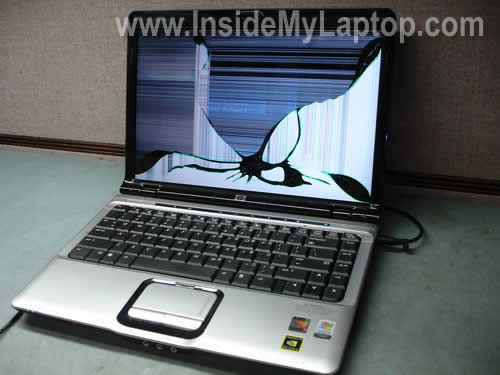
In this guide I explain how to remove and replace damaged screen on a HP Pavilion dv2000 notebook.
This guide should work for all models in Pavilion dv2000 line.
Before you start, please turn off the computer, unplug the power adapter and remove the battery.
STEP 1.
The display bezel is secured to the cover by six screws hidden under six screw seals. I circled these screw seals.
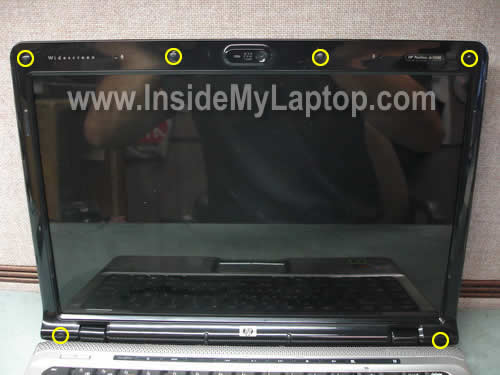
Remove all seals with a sharp object and after that remove all screws found under the seals.
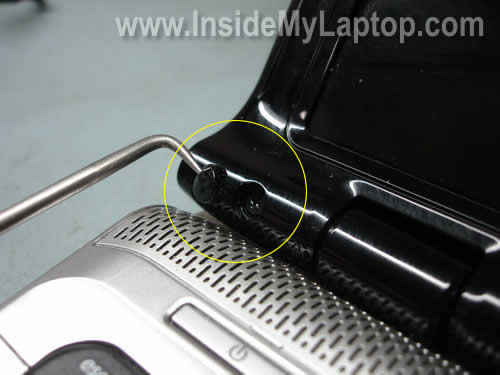
STEP 2.
Start separating the bezel from the display cover on one of the top corners.
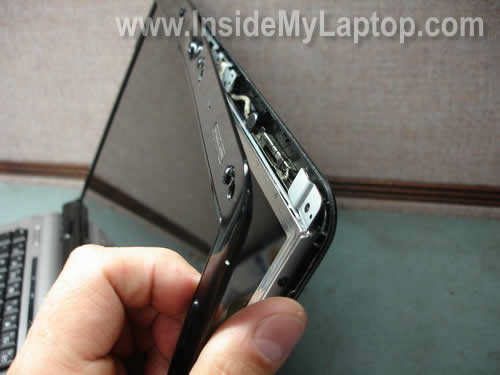
Continue separating the bezel.
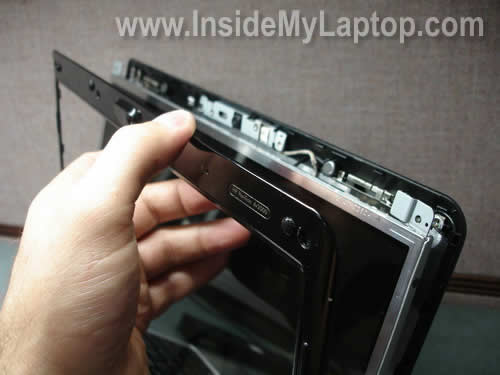
Remove the bezel.
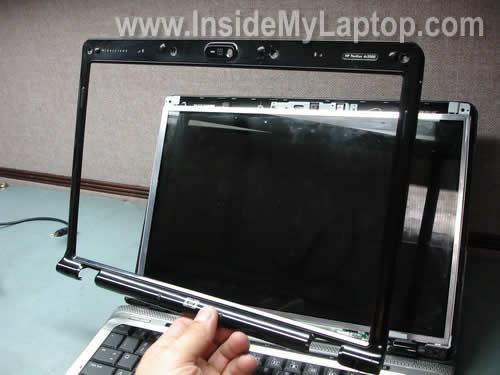
STEP 3.
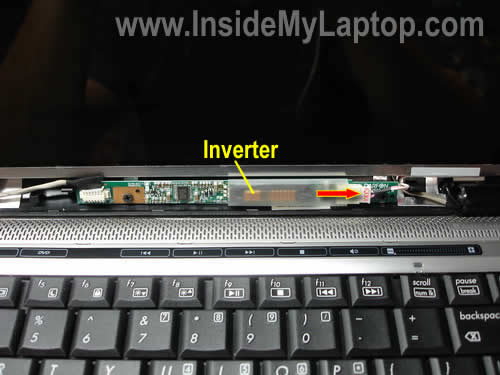
The inverter board works as a power supply for the backlight lamp hidden inside the LCD panel.
It’s mounted on the bottom of the display cover.
Disconnect the backlight cable from the right side of the inverter.
STEP 4.
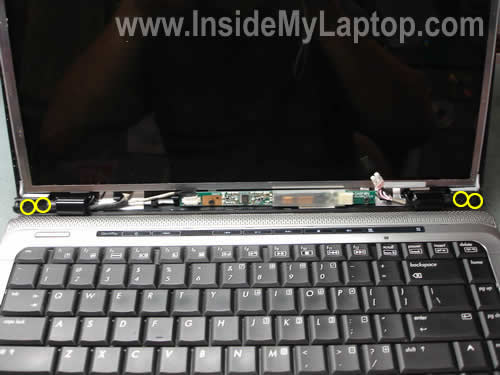
Remove four screws securing the display hinges to the cover.
STEP 5.
Carefully separate the LCD panel from the cover and place it the front side down on the keyboard.
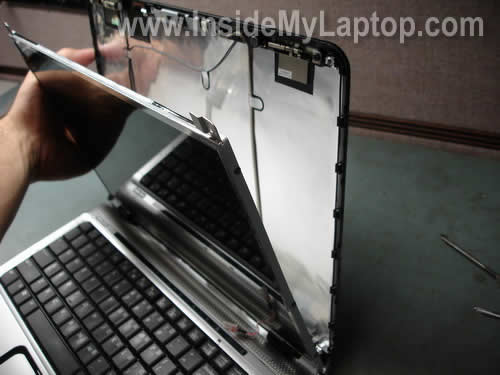
Now you can access the LCD cable (video cable) connector.
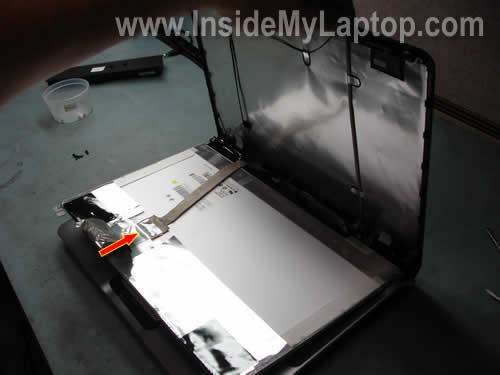
STEP 6.
Unplug the cable from the screen.
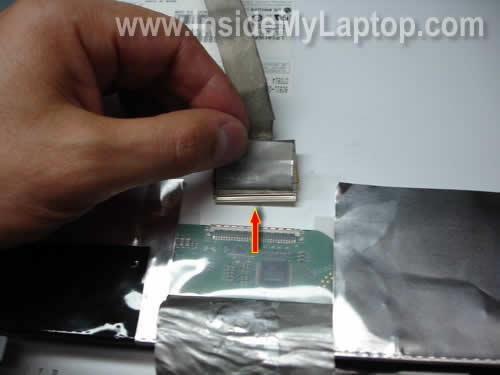
STEP 7.
Remove the LCD panel. As you can see, it still has two mounting brackets attached to the left and right sides.
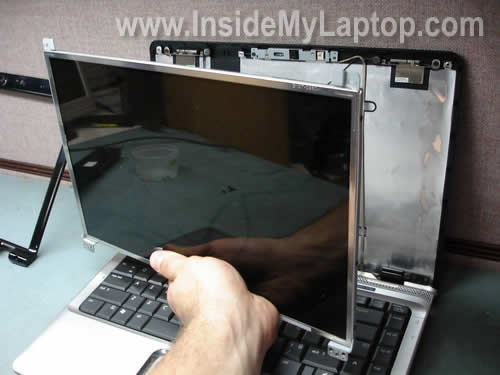
STEP 8.
In order to remove the mounting bracket, simply remove three screws.
Transfer the bracket to the new screen.
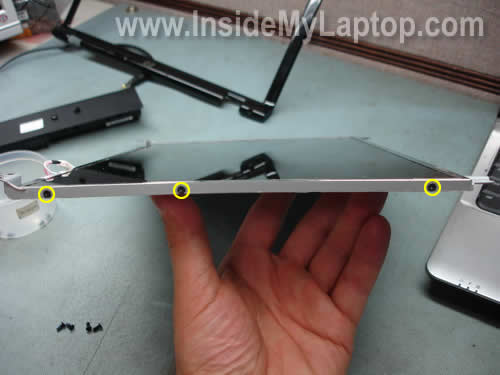
Now you can install the new screen back into the laptop and put everything back together following all disassembly steps in the reverse order.
When you search for a new replacement screen use the model number printed on the back side of the original one.
david
hey do you have a manual on how to change out a power jack on the HP Pavilion dv2000?
i saw your motherboard one but no power jack. i have it all in pieces and i still can not get the power jack out. is it soldered in some where? i can’t tell, and can not get it out
please help
david
IML Tech
david,
In a HP Pavilion dv2000 the power jack is NOT soldered to the motherboard. The power jack is attached to the harness which can be unplugged from the motherboard.
You’ll find instructions in this service manual for HP Pavilion dv2000 notebooks. Go to removal and replacement procedures chapter and then navigate to the power connector cable page. The pdf file is over 8MB and might take some time to download.
Leon
is there any way to get an external monitor to get some files out from it?
i tried VGA using FNC+F4 but it doesnt seems to work
maybe another way to force it to start from the vga monitor?
IML Tech
Leon,
If the laptop works fine, it should start with an external monitor too. Apparently you have a problem with the laptop itself, not the screen.
You can remove the hard drive and install it into an external USB enclosure ($20-30 in a local store). After that you connect this enclosure to another working computer and access the hard drive as a regular drive through My Computer.
TIM
I cannot get the bezel back on. it will not fit right at the hinges. I have been trying to get it to fit for 3 days now SOMEONE PLEASE TELL ME IF THEIR IS A TRICK TO IT!!!
IML Tech
TIM,
Make sure all cables are routed correctly. There is no trick to it.
Niels
Hi,
I’ve had a similar notebook, but the graphic processor chip burned trough. Since I’ve had no warranty, and a spare motherboard was too expensive I decided not to fix this problem.
A few days ago I took the notebook apart, and I was wondering if there was any possible way to reuse this screen (for example as a external monitor).
So my question is: is there a way to make a VGA or DVI connector for the LCD pannel? My notebook was a HP Pavillion DV9285ea.
Thanks!
Billy
Just want to say thanks flawless 10 min installation from a non expert. How much would labor normaly cost?
IML Tech
Billy,
I would say at least $100 at a professional repair shop but it depends on where you take it.
jade
very helpful post, just finished removing my damaged lcd. Do i have to keep the silver sticker on the back side of the old lcd to put it back on the new lcd?
Les
This is great site! I need an advice: I have 5 year old laptop HP pavilion 2000ze and recently noticed that display cover hinges are loose. Is there any way to tighten up the hinges to eliminate wobbling of the display or do I have to replace them?
bruce
hi! i was wondering if anybody can help me please.. my laptop is hp pavilion dv6000 series and my lcd screen is broken.. where can i buy a new lcd? i am currently in the UAE.. much thanks to any help!
Rick
Hi, I replaced the screen per your instructions but when I turned it on, there was a blue line on the left side, that went away when I powered down and redid everything to make sure connections were good. On the right though there is a violet line that won’t go away. This is a replacement screen. What will cause this line to remain? Thanks
Rick
IML Tech
Rick,
Did you have the same problem before?
Sounds like your new screen is defective.
Dumi
Hi There
Just a quick question do you know wheather this screen would fit into the HP Comapq 6910p?
Cheers
Jay
Hi, I’ve replaced broken lcd screen on my hp pavilion dv2000 as per your instruction. But it did not work. I used to use external screen before replacing the screen. now even i am unable to use external screen as well. can you advise what might be the problem. I want to have some answers before return screen to the vendor.
thanks
jay
Alejandro Fernandez
Helpful thanks….
Great work!
Victoria
Hi!…..
I have a dv2610us entertainment notebook pc. I got the lcd repair in May 2009 and the screen have been cracking open at the bottom left screen ever since then, and now its a whole lot worst. Its opening from the swing part ( if thats what its called)…
What can i do to fix it?
john
“I cannot get the bezel back on. it will not fit right at the hinges. I have been trying to get it to fit for 3 days now SOMEONE PLEASE TELL ME IF THEIR IS A TRICK TO IT!!!”
Tim, wondering if you ever solved your problem. I too cannot get the bezel back on. Everything is in place correctly. The bezel snaps on everywhere except for the two bottom corners. I have tried every way to get it on I could think of. Any input would be appreciated.
Geoff
Another Flawless installation. Thanks!
I think taking the Bezel off ws the hardest part!
Sean
I installed the monitor as you said and it worked fine. I then attempted to restore my laptop to the day i purchased it by hitting F11 at the boot screen and following the instructions. It completed the system restore, but now I cant get into windows at all because of some error. It keeps restarting itself before the welcome screen, and says that some newly installed harwear could be the problem. What do I do?
Quizzuz
First of all – thanx for great guide. Really helpful. And I hope a can contribute a bit there about “bezel†problem. Actually, there is small trick to it – without it bezel will never fit on hinges. It is simple – you should assemble notebook back in the correct order. Lid – LCD frame – hinge is the correct order, Lid – hinge – LCD metal frame is the wrong one, and it will render bezel unistallable on hinge corners.
If you look at the picture in the Step 4 you can see yellow circles around screw holes – these are in the _black_ hinges and not in the silvery LCD frame with R and L marks.
Hope it helps and sorry for double post ! 🙂
Demonstro
Hi! Thanks for great tutorials!
I’ve broken the screen on my DV2000 and gotten a replacement screen only to find the inverter video jack being different than on the original. I cannot seem to find much useful information about changing the video cable. Is that trivial, or should I get a new screen?
IML Tech
Demonstro,
Can you return this screen for a replacement? If you can, replace the screen.
If you cannot replace the screen and have nothing to loose, you can cut off cables from the old screen and solder them to the new one. This might work. Most likely the new screen has a similar backlight lamp with different connectors.
Proceed on your own risk.
Demonstro
Thanks for the prompt reply! Returning the screen might be possible, but not ideal.
The jack in question is on the inverter, and is connecting to the laptop. The jacks on both the old inverter and the new one fit the new screen. The question is then whether the old inverter will work on the new screen. Both screens are the type LP141WX1 14.1″ WXGA. The only thing stalling me is that the new screen is fitted with an inverter bracket that do not allow the old inverter. Cutting this bracket off seems a bit crude…
Victor
Hi!
congratulations for this tutorial, is very practical…
i have a cuestion, my lcd screen show a thin vertical blue line, but disappears eventually when i move the lcd (open or close)
note: should be noted that all images look perfect with the exception of the blue line
you know what can be the problem?
I hope can help me please or give me an idea that could be the fault
stereolabe@gmail.com
Thanks!
IML Tech
Victor,
Is it a very thin vertical line running from top to bottom? Sounds like a problem with the LCD screen.
You’ll have to use the laptop as is or replace the screen.
paul
have you considered letting people know to ground themselves via a metal object away from the laptop or with an anti static wrist strap?
IML Tech
paul,
You know what? I think that’s a good idea. I’ve added your suggestion to each disassembly guide. It appears at the end in red color. Thanks.
Victor
That’s right, it is a thin blue line from top to bottom, is more visible in dark tones, but disappears at times when I move the screen a bit, as if a false contact, you think it fails lcd screen ?, there Manra to repair that line? …
Well, a congratulations and thank you very much for responding friend.
Excellent site!
IML Tech
Victor,
Yep, sounds like LCD problem. Apparently there is a faulty joint somewhere on the LCD controller board. Unfortunately, you cannot fix it at home. You’ll have to use it as is or replace the screen.
Here’s a temporary fix you can try (at your own risk of course 🙂 )
Remove the display panel and place something between the display cover and LCD screen, a piece of pen eraser for example. The eraser will push on the LCD controller board temporarily (or permanently) “fixing” the problem. You’ll have to find the right spot though.
jorge
Coworker came to me and stated his girlfriend had dropped her laptop from 2 (two) stores, screen was broken. I looked on line and bought a new one. I also found your instructions on how to replace the broken screen. He decided to install it himself. your instructiopns were right to the tee, he had no problems at all, and was able to do it in about a half hour. We are very thankfull for people like you that are willing to share thier knowledge
Chris
THANK YOU! THANK YOU! THANK YOU! Your photos and description helped tremendously! I have never repaired a laptop before, and your posting really made it simple and assured me in making the fix possible. THANK YOU!
molly
Hi great instructions! I need to replace the LCD cover on my HP DV5000. I am wondering if the steps are the same? Because, the manual talks about removing the mini PCI communications module in order to remove the display screen? It’s not very clear. Do you recommend this step? Thanks!
IML Tech
molly,
Yes, general display disassembly steps will be very similar. Maybe some screw will be located in different places, but very similar.
You can replace the LCD screen without removing the mini PCI communication module (aka wireless card) but you said you want to replace the LCD cover.
Here’s why HP mention removing the wireless card.
The wireless card has two (or three) antenna cables running under the LCD screen. These cables are attached to the LCD cover. If you want to replace the LCD cover, it’s better to disconnect those antenna cables from the wireless card first and separate the display from the laptop base.
Jimmy Lenngren
Hi,
thanx for the info my, dv2000 just cracked!!
Is there any other screen from any other computer that would fit the dv2000??!!!
does the screen from the dv1000 fit the 2000?
Thanx a bunch guys, mail me!!
//jimmy
jimmy lenngren
HI again!!
i found tons of different new screens for my dv2000. but the item number doesnt fit mine!!
does it matter??? are there different kind of screens for the same model?????
please mail me!!!
my art. no is: 410360-001
Thankx!!!!!!!
IML Tech
Jimmy Lenngren,
I believe you can use a different screen as long as it have same resolution. In this case you don’t have to replace the video cable.
Before you purchase a new screen I would suggest contacting the seller and ask if the screen is compatible with your model.
A good seller should have a list of compatible screens and can easily answer your question.
Mary
Where would you consider the best place to buy a new lcd screen for the dv2000?
Marcelo
Hello, thank you for the instructions. My hp dv2130br is displaying some diferent colours. Dark tones is always shown in a red tone. It’s very difficult to see the image properly. I have tested the notebook using a external monitor: in this way the image is perfect!
What could be the trouble? How could I fix it?
Thanks a lot for your help!
Best regards,
Marcelo.
IML Tech
Marcelo,
I think it’s either bad video cable or LCD screen failure. It’s hard to tell without testing the laptop.
Can you get video on the laptop screen back to normal by moving the display?
Here’s what you can try (requires laptop disassembly). Take apart the display panel but do not disconnect the screen. Turn on the laptop and try moving the video cable while the laptop is turned on.
If video starts working properly when you moving the video cable, most likely you have a short inside the cable and it has to be replaced.
If moving the cable doesn’t change video, there could be a problem with the LCD screen.
Also, try reconnecting the video cable on both ends – on the motherboard and back side of the screen. Maybe it’s just loose cable connection.
David
Hi, my HP dv2000 laptop has a strange screen problem. When the laptop has been used for a while, a smoking like thing will show up in the left bottom corner, and then spread out to most of the screen. Sometimes, the screen will show nothing but blue with vertical strings. Adjusting the screen to a certain angle or restarting the computer will solve the problem temporarily. I tried to use a external monitor, it works fine. Which part the problem can be from? Screen, video cable or something else? Thank you!
IML Tech
David,
Sounds like a problem with the LCD screen.
Fidel Fernandez
Good morning and happy new year!
My HP ZD7102 laptop ha a video problem that started with many color lines and no image on LCD. It works fine with an external monitor, so suggestions have been that, because I traveled a lot with it, maybe LCD or cable is the reason of this problem. Any suggestion ?
Matthew Kammerer
I found your instructions to be sufficient to fix my dv2000. I got a screen on ebay for 80 dollars (free shipping) from screenaid. It looks greeat, not a single pixel missing.
I had trouble putting the frame back on…
it turned out that the metal screen brace had to go BEHIND the black hinge plate…
duh… just like in the picture of step 2 and 4
I’m definitely making a donation. You rock
IML Tech
Matthew,
I’m glad that you fixed the laptop. Thank you very much for your donation, I got it.
circleallthatapply
Would this be the same process I would have to follow to tighten the hinges on the screen of my dv2000? It’s a bit loose after moderate use and it drives me nuts. Thanks!
IML Tech
circleallthatapply,
Yea, if you want to tighten screws on hinges inside the display panel.
Another place would be under the power button board cover. As an example you can use this guide for a Pavilion dv6000:
https://www.insidemylaptop.com/disassemble-hp-pavilion-dv6500-dv6600-dv6700-dv6800-notebooks/
Take a look at the step 13. There are more screws under the bezel.
Merdoc
thank you SO much for this article! HP has none on their websites, unless I’m looking in the wrong places for the past two hours! and the pictures are extremely helpful.
I have a question though. antistatic strips? I’ve never heard of them before. where can I get such items?
rolin
hello IML Tech
my girlfriend has one dv2000, i replace small parts ,and i did dust cleaning on this machine.
but now i have a little bit bigger problem now: she dropped this machine almost a year ago like 3-4 feet high, and still works until now. couple of time i can turn on the laptop, but not anymore. now only turn on the main machine( lights on ,i hear start working the hdd, and cd- rom) but the screen not turn on.
what is your suggestion, about this problem?
i feel some wires are not connected well after that drop, or maybe the inverter has some damage
please help me whit your experience, what i should try.
thank you
edric
i have two hp dv2000 laptops and they wont show a picture on the screen and they come on wth the light showing. one of them stop coming on he startd back coming on but stil no picture. I was wondering if the motherboard was bad. And i tried connecting them to a external moniter but nothing happen. please help
Dustin
Wow! Saved me lots of money.
I dropped my HP Pavillion dv2000 on the floor and cracked the LCD. The computer was fine but just the screen was busted. Got on eBay. Bought a screen for $80. Got it. Followed your tutorial to from A to Z and ..Bam.. Everything works perfect.
The screen name on eBay that I bought it from was sunvalleyus. They shipped me a new screen with no dead pixels and a matte finish which was better than the clear glass finish which was factory and put a bad glare on the screen. This screen is way better than factory.
Thanks so much again for your site and posting!
Jim
IML Tech, I having hard time uplugging the two plugs on the inventor any tips i just need to replace the inventor. Anyone.
chana
i have a hp dv2000 laptop that had a cracked screen. Well, I replaced the screen and followed step-by step directions on how to disemble and reasemble the screen. However, when I turn the computer on the screen lights up but a picture does not show up.
Can you please help me. Is it a possibility that the video cord is not connecting right?
R Kelley
Thanks Much!
Perfect directions. Dissasembly and assembly.
Works Great!
jbl1120
Hi, this is in response to post 41 above. I am trying to determine if I should order a new lcd display or if my video cable is bad. After dis-assembly, if I remove the cable and replace it, the screen appears normal for a few seconds, but then it fades/washes out and the garbled display appears (mostly vertical lines and random colors). Display appears fine through an external monitor so I am pretty sure it’s not a motherboard issue.
If I inspect the video cable connection carefully, I can see an area near one of the connection points that appears “dirty” – a bit darker, gray. I can’t seem to get it off, but don’t want to mess with it too much for fear of damaging it if it is not already damaged. This is on the back of the cable connection point, not on the actual contact point. Could this indicate a short in the cable? I’d hate to invest in a new lcd if it is the cable I should be replacing. Other movement of the cable has no effect on the display, only if I disconnect and reconnect it does the display reappear normally.
If it is the video cable, do you have a guide to replacing that as well?
Thank you for this helpful guide. I plan to make a donation once I’m through with this project – beats paying $400 to HP! And my warranty just ran out last month too.
IML Tech
jbl1120,
Sounds like the LCD screen failure to me.
Try to torque the screen a little bit. Try moving the top left and right corners of the screen into the opposite directions. Will it affect video on the screen. If yes, you have a faulty LCD screen.
geno
after replacing the screen, the laptop makes a loud humming noise when i close the laptop. Sounds like when you bring a microphone too close to the speakers. Any ideas on what went wrong?
geno
sorry its probably exactly what it is, my built in mic and my speakers. Doesnt seem to be a problem when laptop is on mute or no volume.
But your tutorial for replacing the screen is flawless. Thanks
Isabella
IML Tech,
My computer is an Hp Pavilion dv6- 1355dx. We have been trying to find out how to replace our lcd screen because it is cracked and our warrenty doesnt cover it. We have looked at many websites that teach us how to do it on similar models but ours is different. The front bezel has no screws and it comes off completely at the top and sides but the bottom seens to be stuck . Please Help
Stephen
I need the metal brackets that connect to the lcd panel – the panel is fine, but the brackets are broken at the hinge point.
Any idea where to get these?
IML Tech
Stephen,
Is it a dv2000 series laptop?
Take a look at the service manual. (9MB pdf file).
It’s possible that the metal brackets come as a part of the display hinge kit.
You can find the part number on the page 3-21 in the manual. It depends on the type of the laptop model.
M. Asmod
Stephen. I had similar problem as yours. Its because the hinge is too tight that put stress to the bracket. What I did is I loosen the hinge a bit and bought a metal bond (epoxy) mix it together and bonded the broken bracket. I let it set overnight, the next day the bond was hard as steel. I am quite happy with the fix so far.
Another option for you, try scouring to a local laptop repair shop they might have some parts. I did that before I applied the fix myself – cost me $2, the salesman was selling the bracket for $33, though could be cheaper in your area.
A. Warden
I just replaced my LCD screen because it was broken. My computer pulled up fine but the screen is soo dim. Tried fixing it by adjusting contrast and brightness but nothing works. Any idea on what the problem is or how to fix it. Thanks.
IML Tech
A. Warden,
How dim is the screen? Does the backligth work at all?
Andy
My dv2000 just recently started showing white hoizontal lines across display. If I gently twist the display, the image is restored. The display then shows the lines when it is not twisted. Could this just be a looses wire or something more serious?
IML Tech
Andy,
Most likely this is the LCD screen failure but there is a chance of bad/loose video cable.
Try reconnecting the video cable connector on the back of the LCD screen. If reconnecting the cable doesn’t help, probably it’s bad screen.
By the way, did you test video on the external monitor? I assume the external video works properly.
A. Warden
I can only see my screen if I tip it just right and even then It is so light I can hardly read anything. If it is on my lap and I’m looking at it, it looks black.
IML Tech
A. Warden,
Sounds like the backlight on the new screen is not working.
You said you replaced the cracked screen. Did the cracked screen light up at all?
Can you install the cracked screen back and see if it still lights up?
Sly
My backlight doesn’t work. Does that mean I should replace the entire LCD screen or is there another way to fix this?
IML Tech
Sly,
In most cases it’s ether bad inverter board (replace the inverter) or backlihgt lamp failure (replace LCD screen). Try replacing the inverter board first, it’s cheaper.
Jon
I successfully replaced my laptop screen because of your write up. Thank you! But I’m curious about the black wires running up along the back of the display cover (four in all). Two are connected to small disks and the other two are connected to a weird metal bracket. What are they?
Briana
Hello,
I just dropped my laptop an HP Pavilion dv2000 . The screen lights up but looks cracked just like the first picture you showed but a bit worse.
Does this mean I only have to change the screen like you did in this article? Also, I have never dealt with fixing computers… is it okay if I do the job myself, with no background knowldge or experience?
Thanks for posting such helpful information by the way.
IML Tech
Briana,
It’s hard to tell without looking at the laptop. If the screen still lights up, most likely it’s just a damaged screen. Replacing just the screen will fix it.
It depends on your technical skills.
samantha
hi.
i have a laptop hp pavilion dv2000 (2700) lcd is cracked and i already ordered the new one to replace… when i opened the laptop lid i accidently broke the bracket holder on the left side and the 2 security screws that display on the hinges cover is also broken with out unscrews it…the security screws are broken from the lid…. i think i’m to rough with them.. what should i do now to unscrews them because now the screws are facing down and it’s to hard to unscrews it… do i neeed to buy a new lid?? the whole things??? thanks
Jack
Thanks for your help. Was able to save $80
Steve
I replaced the inverter board and the backlight lamp and still the backlight lamp will not work. any suggestions?
IML Tech
Steve,
It’s hard to tell. Did you install known good parts?
Gabe
Thank you very much for the help. I dropped my laptop and the lcd screen cracked. I am going to follow your instructions to replace it, but is there any precautions I should take if the laptop has a webcam on it? Also, Do you find that the webcam usually breaks along with the screen when the laptop is dropped?
Thanks again
IML Tech
Gabe,
Not really. The webcam is a separate module, it’s not a part of the screen.
Nope. You have good chances that your webcam is still good.
John
I have a screen from a HP G50-102NR. Can I use it in a DV2000? I go on ebay and see literally hundreds of different screens. Each of the hundreds of HP and Compaq laptops seems to have it’s own number. Are they the same screen? Any help in understanding all the numbers would be appreciated.
IML Tech
John,
If the screen is the same size, resolution and has same type of connector for the video cable, most likely you can use it.
Kevin
Hi IML Tech,
So I been looking to see what happened to my screen for my laptop since I was experiencing all the symptoms mentioned above. However when I open the screen up, I noticed the right metal bracket that is holding the lcd is snapped off right at the corner. Only one side of my laptop actually turns which is the left, and the right side stays in one position. My lcd is perfectly clear without the bezel covering the laptop … it might have something to do with the right mounting bracket that is broken. Do you know where I can purchase one? I looked on ebay and I can’t find one for my model … dv2990nr
syed
brother your information is so helpful. i m quite confident i can follow ur intructions n do it for the first time. i justw ant to know where is the best place to buy it and how much does a normal lcd screen for this laptop cost. waiting for reply thanks bro
IML Tech
syed,
There are many LCD stores online. Just google your screen and you’ll find it.
All screens are different and the price will be different too. What screen you are looking for?
megan
My laptop fell of the bed and now the screen is so dim it is barely visible unless you tip it at a very odd angle. There are no cracks or other visible problems. It functions properly, but is not functional for daily use. In my chat with HP support I was advised that the LCD back light had gone bad and that I should replace the display panel power inverter, however in reading your discussion board many people with backlight problems needed to replace the LCD. So, what is your advice on the issue?
megan
ok, I replaced the inverter circuitboard and it had no effect. I was going to replace the LCD screen ($85+) next, but I am seeing adds on ebay for just the LCD backlight replacement part ($10). Which would I need?
MBY
I just replaced the lcd screen on my wife’s dv2000 laptop with your instructions. It works great except for the bezel does not completely snap close and I had to tape it down. I think it saved me from buying a replacement for another year at least. Thanks for your help!
IML Tech
MBY,
Maybe some cables are not routed correctly?
You can remove the bezel again and make sure that all cables routed as they should.
megan
I’ve now replaced the LCD screen and the inverter board, but have seen no change in the lighting. Is there anything else that could be wrong besides bad replacement parts that could cause the problem I’ve previously desciribed?
Darshan Kamdar
Hello,
I just replaced the lcd with your instruction, its great and working now, thanks a lot
Richard
Hi,
Thank you for the step by step.
The backlight on my screen isn’t working. I can see the monitor under my desk light but the backlight seems to be broken. So i replaced the inverter, but this didn’t fix the problem.. Is there another step that is cheaper than replacing the entire LCD screen?
IML Tech
Richard,
Is it a Pavilion dv2000 notebook? I believe this model has a lid close switch hidden under the right hinge. Make sure the lid close switch is not stuck.
With a stuck lid close switch the laptop “thinks” the display is closed even when it’s opened and because of the the backlight is off.
There is a cable running from the lid close switch to the motherboard. You can try disconnecting this cable and see if it fixes your problem.
If it’s not the lid close switch, probably you have a failed backlight inside the LCD screen.
You have two option here:
1. Replace the screen. Which is relatively easy and fast.
2. Remove the screen and try replacing the backlight lamp.
It’s not easy, but cheaper than replacing the whole LCD screen. There is a good chance you’ll damage the screen while replacing the backlight lamp so be ready for that. 🙂
ins
hi !
my hp dv2000 laptop fell on the floor and now the lcd is cracked..i cant afford to buy a new lcd cz its so expensive and only last year i replaced my entire motherboard coz it there was a graphics problem..can i replace my cracked lcd with an lcd of hp dv6000
thanx
hoping fr a reply soon
IML Tech
ins,
I don’t think you can do that. HP Pavilion dv6000 has a 15.4″ LCD screen and your Pavilion dv2000 needs a 14.1″ screen.
You can find a brand new LCD screen on eBay for about $70-80.
Matt
I have a Pavilion dv2000 i dropped it on the ground and the screen has gone haywire…. I connected a external monitor to it and am using it as we speak… So ordering any DV2000 LCD will work fine? Will I need anything else?
Thank you a million!!
CGnatale
_Applaud_
I simply wanted to say an earnest Thank You.
So many people these days do not take the time to give such wonderful directions such as this without wanting something in return.
I hope to replace my wive’s monitor and this will definately help lower our expenditures as we are fairly lower class and have 4 children.
TY- Christopher
IML Tech
Matt,
If your laptop still works with an external monitor, most likely a new LCD screen will fix the problem.
Gian
Hi IML Tech, many thanks for making this guide, is very helpful.
I have an HP dv2000 laptop with a broken screen, my brother wanted me to reinstall windows on it, but we are not able to see the install process of the OS on the external monitor. Is there anyway to activate the external monitor on startup?
Thank you in advance,
Gian
IML Tech
Gian,
Disconnect the video cable from the motherboard.
After that the laptop should detect the external monitor as soon as you turn on the laptop.
Gian
Thank you, but unfortunately it didn’t work. (I unplugged the gray flat cable)
🙁
fkneg1
Thank you for your instructions. The pictures were particularly useful to help with changing the screen. The new screen is all working nicely now! :o)
Julianna
IML Tech,
I bought a hp pavilion dv2000 about 4 years ago. But my son threw his cup at the screen and cracked it. Is this a easy replacement guide? Im realy good with computers im just afraid to change it. Also What does it mean when you plug the charger into the computer and it does nothing meaning i have to angle it a certain way for the charge port to realise its connected.??
HELP
IML Tech
Julianna,
It’s relatively easy to replace LCD screen on a HP Pavilion dv2000 laptop.
1. Could be damaged cable inside the AC adapter cord. You can test your AC adapter with a voltmeter. When you measure voltage, move/wiggle the power cord. If voltage cuts off, the cord is damaged. In this case replacing the AC adapter should fix the problem.
2. If it’s not the adapter, most likely there is a problem with the DC jack inside the laptop. In this case you’ll have to replace the jack.
shisir
Hello IML Tech,
I am using a HP dv2000 and it is pretty old now (no warranty left). Yesterday, the lid became loose and it cannot stand on its own. The problem had started after it was sent for servicing a few months ago and it gave up completely yesterday. Everything else is in perfect working condition. I would want to do the repairing myself. Kindly help.
– Shisir
IML Tech
shisir,
Apparently, both display hinges are broken and have to be replaced. This is just a guess. I really cannot tell what’s going on without looking at the laptop.
You can remove the screen bezel and take a look at the hinges. If they are broken, you’ll see that.
Hussain
Hi there thanks for your guide! But the problem with my HP DV2700 is a bit different. When I start the notebook, I just get a white blank screen nothing else and it just stays there forever. The display works great on my external monitor. My assumption is that its just the back-light that I am seeing… So what in your opinion may be the problem and can it be solved just by replacing the LCD cable or should I have to replace the whole LCD?
Regards,
Hussain.
Curtis
hi, i BOUGHT a laptop HP PAVILION DV2000 4 years ago and my lil brother was playing with the screen lifting it up and down ,and when i connected my laptop the screen didn’t had no light i rearly could see anything on d LCD screen NO LIGHT AT ALL. CAN U HELP ME PLEASE LIKE ASAP
I’LL APPRECIATE IT
Zippy
Hello. On my dv2000, the screen is completely black. I see blue lights that indiciate the laptop is on, but I can’t see anything! Didn’t drop it, no cracks or anything, just pitch black! I really can’t afford a new one, so any suggestions are greatly appreciated. Thank you in advance.
Orvell
How do I order the entire LCD assembly with the wire and hinges? I would rather replace the whole top half. What part number would I ask for?
Shush319
Anyone have the pinout for the 6pin connector fofr the display inverter? Got a damaged laptop and 4 wires are pulled from this connector, so I need to try to re-pin it or just solder the wires to the board.
Any help will be greatly appreciated.
Thanks,
S
Shaswati
My HP ProBook 6460b’s screen is damaged and requires to be replaced. Can you give me any idea how much this might cost me?
IML Tech
@ Shaswati,
Are you replacing it yourself or taking to the repair shop?
Here’s how to research the screen price:
1. Download maintenance and manual guide for HP ProBook 6460b laptop. The manual also has disassembly instructions.
2. On the page 36 you’ll find list of LCD screens used in this model. Find out which one you have installed.
3. Search a new screen on the internet using HP part number.
Linnell
what if its not the screen but the power wire for the screen? more accurately the jack that goes into the board is broken? how do i repair it??
IML Tech
@ Linnell,
Replace the cable.
BillyBob
Hello all, I have a pavilion dv6500nr v.1.
I opened the lcd case for the backlight is out and we were changing screens when we noticed both
connections are torn. confirmed by dual moitors and the flashlight test.
When I opened it it has torn connections from the metal foil on the underside at the hinge
locations.
1, what is this foil circuit ?
2, is the foil available or is it a new lid/cover ?
Thanks alot man you guys are great.
BillyBob
IML Tech
@ BillyBob,
I’m not sure what you are asking about.
Maybe you’ll be able to point me to the right direction by looking at this dv6000 display disassembly guide?
https://www.insidemylaptop.com/remove-replace-lcd-screen-inverter-hp-pavilion-dv6000-laptop/
The display back cover has aluminum foil inside which has tabs for securing cables and probably works as a shielding but it doesn’t have any circuit on it.
meas
hi, i have a HP pavilion DV2000 and my hinge is broken. so i was wondering if you can show a step by step guide on how to dis- and re-assemble the hinge thats connected to the frame bracket. i removed my broken hinge already but i can’t seem to remember on how to place the hinge to enable the opening, closing and holding the laptop screen together.
Chris
Thank you very much. Following guide gave me confidence to pull off screen bezel. Very easy to read steps too. Greatly speed up my project, and new screen is working great.
Mphybrn
I had a water damage event at home resulting in my Hp pavillion dv 2000 getting dripped on!
The pc itself appears to be working fine but the screen attempts to light up but unsucessfully.
I did hear a bit of sizzling when I arrived home that nite nd of course unplugged,removed the battery etc. Is it worth it to replace the parts..if so any suggestions which ones?
IML Tech
@ Mphubrn,
It’s impossible to tell what is damaged without taking the whole laptop apart.
In a case of liquid spill I always disassemble the laptop for further investigation.
If this is motherboard related failure the laptop not worth fixing.
Hidong
LCD screen of my HP Pavillion dv2000 was broken and replaced once, but since then I see a spot like finger smeared.on the screen. I tried to clean it, but noticed that it was inside the screen. Can I disassemble the screen and clean the smeared spot? I will appreciate if you will email me the answer.
ChrisG
For the HP Pavilion dv2000 (dv2400 in my case), I heard about the flashlight test. Last time I checked, there was a really dim image when I held a flashlight up to screen. Otherwise, it’s always black and I need to use an external monitor via VGA port.
I’d be happy to Donate, because this will save me going to a repair shop. Can you tell me if it’s more likely the inverter or the backlight?
Thanks.
Steve
TIM
June 17, 2009 |
I cannot get the bezel back on. it will not fit right at the hinges. I have been trying to get it to fit for 3 days now SOMEONE PLEASE TELL ME IF THEIR IS A TRICK TO IT!!!
If you are having problems lining up the lower corners of your screen bezel you will need to remove the four lower mounting screws, re-position the LCD mounting brackets behind the hinge and re install you four lower screws. By mounting the lower mounting brackets on the front side of the hinges it will push the spacing out not allowing the bezel to align properly.
Charlotte
Hi, Thanks a lot for this very clear tutorial. I would like to take off completly my screen in order to only use an external monitor. Is this possible on this computer ? What would be the next steps after what you show ? All the best, Charlotte