

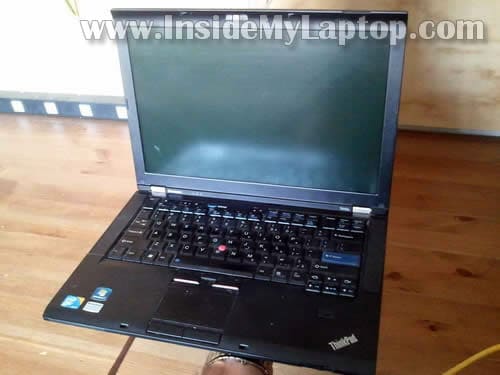
In this guide I explain how to remove and replace keyboard on a Lenovo ThinkPad T410s laptop.
The guide also should work for Lenovo ThinkPad T400s and ThinkPad T410si.
My customer spilled water on it and some keys stopped working.
Make sure the computer is turned off and battery removed before you start taking it apart.
STEP 1.
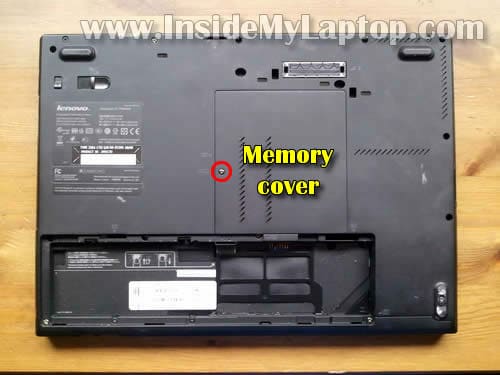
Remove one screw securing the memory cover.
Lift up and remove the cover.
STEP 2.
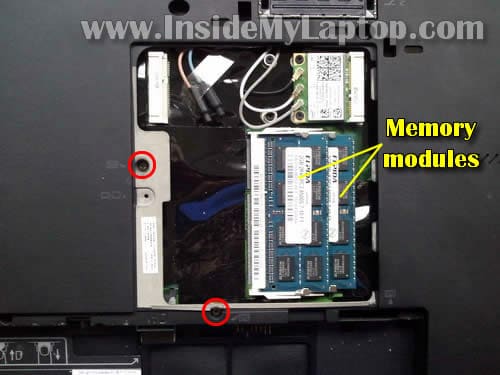
Remove two screws securing the keyboard on the bottom.
By the way, in Lenovo ThinkPad T410s both memory slots are located on the bottom.
STEP 3.
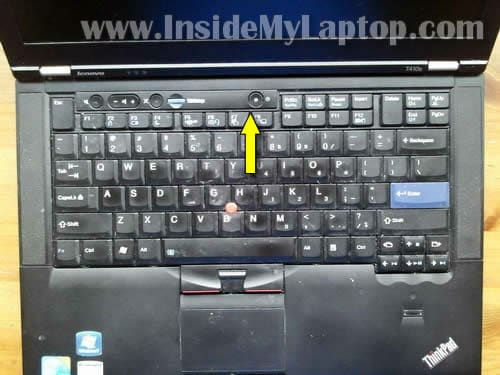
Slide the keyboard about 3 millimeters towards the display.
STEP 4.
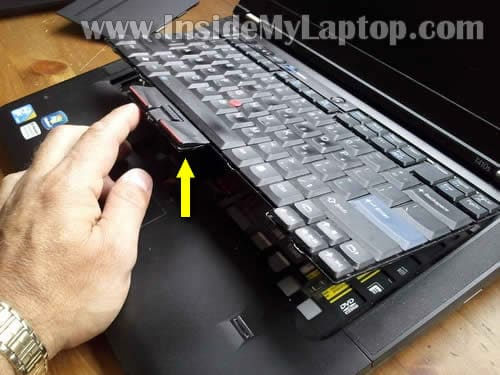
Lift up the bottom part of the keyboard as it shown on the following picture.
STEP 5.
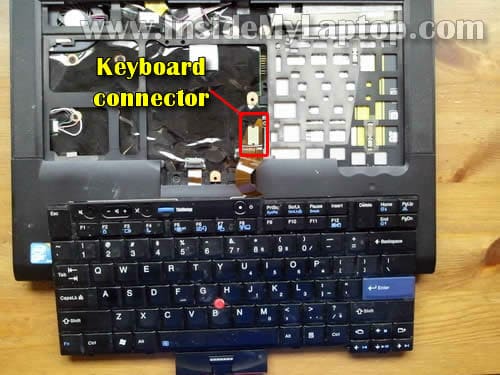
Remove the keyboard and place it on the palmrest.
Be careful, it’s still attached to the motherboard.
Now you can access the cable connector and unplug it from the motherboard.
STEP 6.
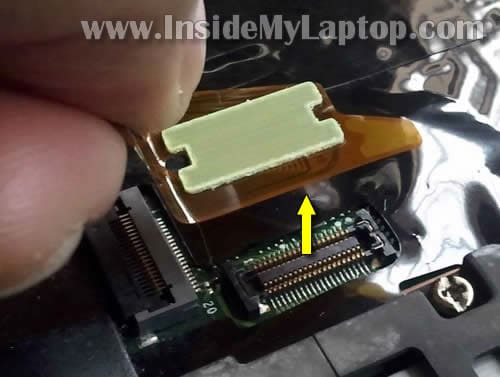
Unplug the connector.
STEP 7.
Remove keyboard from the laptop.
Now you can replace it with a new one and assemble everything back together following steps 7-1.

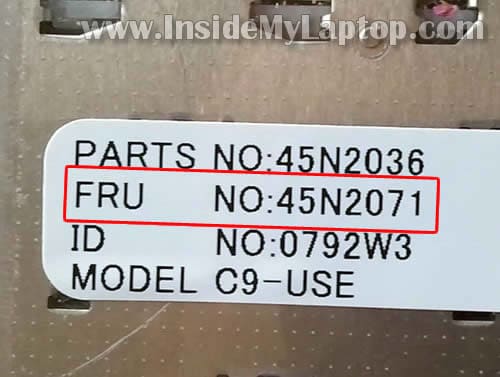
You can find a new replacement keyboard by the Lenovo FRU number (not part number).
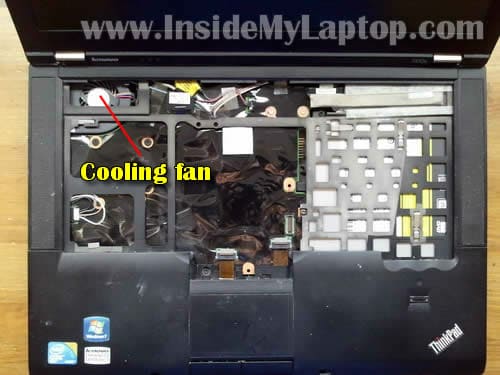
Under the keyboard you’ll get limited access to the cooling fan. It should be enough for cleaning the fan and heatsink.
If your laptop runs very hot and shuts down while running multiple programs, most likely it happens because the cooling module is clogged with dust.
Cleaning the cooling module should fix the overheating problem.
Simply buy a can of compressed air and spray it into the fan until all dust is gone.
urmas
hello
can you do complete dissasambly for ibm thinkpad r31 laptop?
thanks
IML Tech
@ urmas,
Check out this service manual for IBM ThinkPad R31 notebooks.
Disassembly instructions start on the page 107 and 163. Depends on the type of your machine.
Dana
Thanks for the instructions. Replaced keyboard in 10 minutes. Works great.
Tracy
Hi,
Can you show us how to replace the Left mouse button UNDER the mouse pad on this laptop? Thank you.
IML Tech
@ Tracy,
This button is part of the palm rest assembly. If one of the touchpad buttons failed, it’s necessary to replace the palm rest assembly.
You’ll find instructions in the official service manual.
The palm rest removal shown on the page 106.
KKruzito
Thanks 4 all the help. If it wasn’t 4 people like u, we would all be spending money out of our ass. Can u do a complete teardown of a Lenovo Thinkpad T420s? Thank You!
Mae
thank you, very helpful.