


Today I will replace failed keyboard on Acer Aspire 5733 laptop.
I this guide I’m working with Acer Aspire 5733-6650 model.
Before you stat the disassembly process, make sure the computer is turned off and battery removed.
STEP 1.
The keyboard is secured by six spring loaded latches on the top.
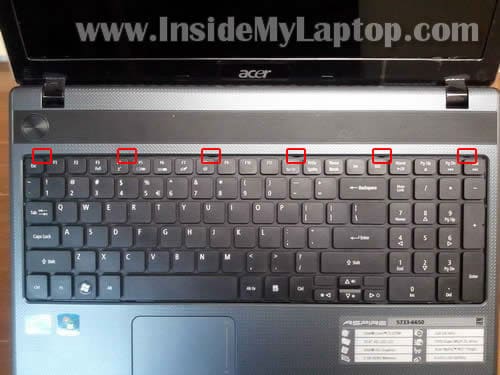
Carefully push the left latch into the case with a screwdriver.
At the same time lift up the left side of the keyboard a little bit.
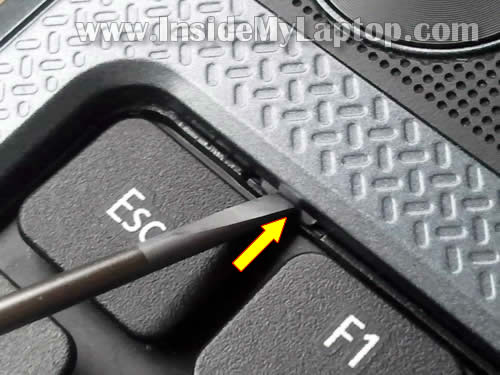
When it’s lifted up, it will not allow the latch to go back into the locked position.
Do the same with the remaining five latches.

STEP 2.
After all six latches released, lift up the top side of the keyboard and turn it upside down on the palmrest.

STEP 3.
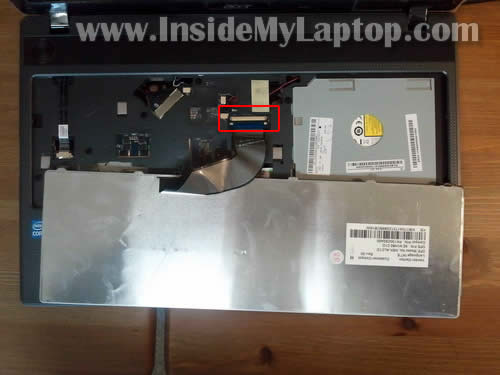
Now you can access the cable which is connected to the motherboard.
You can remove the cable only after the connector is unlocked.
STEP 4.
On the following picture the connector shown in the locked position.
In order to unlock the connector, you’ll have to slide the brown tab about 2-3 millimeters towards the touchpad.
The brown tab must stay attached to the connector. Do not use to much force while moving the tab. Work very gently.

STEP 5.
On the following picture the connector shown in the unlocked position.
As you see, the brown tab still attached to the connector.

STEP 6.
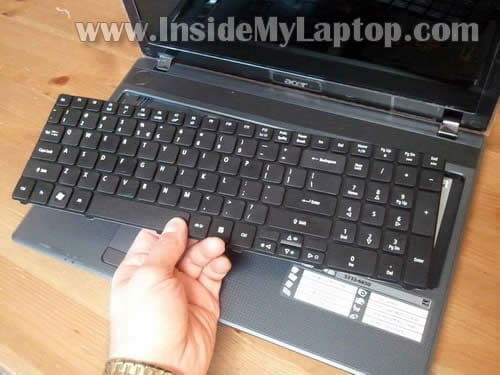
Now you can pull the cable from the connector and remove the keyboard.

STEP 7.
It’s ready for the replacement.
UPDATE: I just published a new guide explaining how to replace broken screen on an Acer Aspire 5733.
chris polhill
We have ACER Aspire 5536 (x2) and 5738ZG laptops. 1 of the 5536 laptops has a strong fan noise like it’s working too hard. I took off the removable covers underside but these didn’t reveal the fan which is under the main underside cover which I could not remove after unscrewing all screws. How cani get the underside cover off please ? I found your reports with photos very clear and simple and easy to understand and follow. A great style of presentation well done ! Looking forward to your email advising that you have solved this problem for me. Am happy to make a donation provided my CC details are secure. Cheers Chris.
IML Tech
@ chris polhill,
First of all, I would try cleaning the cooling fan without laptop disassembly.
Buy a can of compressed air or find air compressor and blow air into the fan grill on the bottom of the laptop.
Be careful if you are using an air compressor, it will spin the fan too fast. Use if from a distance. If you blow air directly into the fan, it will spin like crazy and you can damage the bearing.
Infomais
Verry good !!!
hydro
worked fot our 5247z
Eva
Can I take out only few buttons so i could clean under them? I split some coffee on keyboard and I can’t get to so close under buttons to clean it!
kathleen smyth
I was replacing the keyboard on my acer aspire 5738z and unfortunatly I pulled the tab that is on the connector off. How do I fix it?
IML Tech
@ kathleen smyth,
Insert the cable back into the connector. Push the broken tab back in place the way it was installed originally. Secure connection with sticky tape.
Mary Addams
I am just tryng to clean or replace the fan in this SAME model laptop…. the latches, do not seem to do anything,.. and I cannot get the back off — seems to be still attached to something around the area of the video adapter port and through the center of the laptop
JUAQUIN
this is good, i didn’t know how do it
Shannon
My acer aspire 7741Z laptop keyboard was a mess. It eventually stopped working for me and after doing several computer checks to make sure it wasn’t a software issue I found it was a hardware issue and decided to replace the keyboard with a new one. I’ve always tried to do things myself and working on my computer is no different. I bought the keyboard and set out to find the perfect video to help me with the replacement. Alas, not one video was helpful to my task. Then, I came across your website and low and behold! The actual info I needed was in print and photos not video. After reading this replacement tutorial I removed my old keyboard without a hitch and replaced it with the new. I felt so proud of myself! And I couldn’t have done without this website. Keep up the great work! And thanks a million!
jerome
I have a toshiba which some of its buttons are not working.. How can I fix it?
IML Tech
@ jerome,
Do you mean some keyboard keys not working? Most likely this is keyboard related problem. I think replacing the keyboard will fix this.
Cindy
I didn’t see a reply to Eva’s question regarding removing individual key buttons to clean under them. I’m certainly no wiz on the computer and have no money to replace the keyboard. I got this laptop from my son. My grandchildren played on it and it’s filthy! The screen is as well. I really need help to, HOPEFULLY, clean this mess up. I would greatly appreciate any answers you could give me. THANK YOU in advance.
IML Tech
@ Cindy,
You can use this technique to remove key caps. It’s a Mac tutorial but should give you the idea how to remove keys.
A_Nonny_Mouse
Thank you for the instructions and the wonderful detailed pictures — my PC is old-and-slow, and just can’t handle the YouTube videos.
This is exactly what I needed!!
A_Nonny_Mouse
ajaz
This blog is very useful both ameture and semi professionals…
Keep posting and keep updated.Thanks behind the efforts
Makita
Thanks for great guide. It helps me in my work.
Ahmed raza QureshiÂ
My aspire 5733 is not getting started , when switch on it shows enter f 2 and shuts.how can i fix it.
Donald
My wife spilled coffee on her Acer laptop and four of the keys stopped responding properly. I called a repair shop and they quoted me 40-80 dollars for a new keyboard and $120 to install it.
I looked on the web and bought a new Acer keyboard for $16 and with your sight fixed it in 10 to 15 minutes. I am 76 years old and very happy I read your directions first
hern chen
I was trying to replace Acer Aspire 7560 keyboard. It seems none of youtube video show the critical step 4 to step 5 clear (not zoomin in, hidden by hand or keyboard, …). Finally figure out what I want is pictures not video. Thanks a lot.