

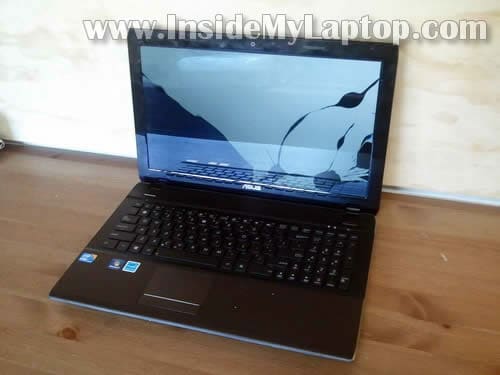
Today I explain how to replace damaged screen in an Asus U52F laptop.
Asus U52F has a LED backlit LCD installed which is relatively cheap these days.
Before you start, make sure the laptop is turned off and battery removed.
STEP 1.
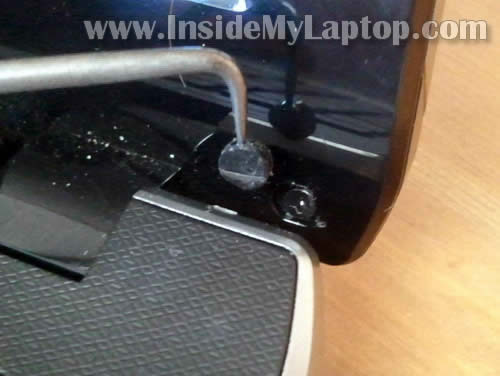
Using a sharp object remove the screw cover located in the lower left corner of the display.
Remove the screw.

STEP 2.
Now remove the second screw cover located in the lower right corner.
Remove the screw.
STEP 3.
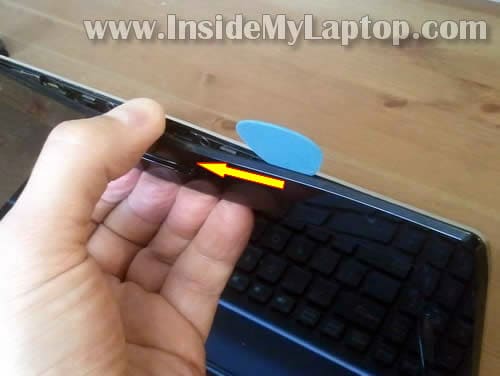
Start separating the display bezel from the display cover.
You can use a guitar pick or any other piece of soft plastic to separate the bezel.
There are many small plastic latches holding the bezel and cover together. Move the bezel left to right, up and down until those latches disengaged.
You’ll feel when they are disengaged.
Be careful, try not to break hidden latches or the bezel.
STEP 4.
Continue separating the bezel.

STEP 5.
On the bottom part of the display the bezel will be glued to the screen with double sticky tape.
Try removing it so the sticky tape stays on the bezel. It can be reused when you assemble the display back together.

STEP 6.
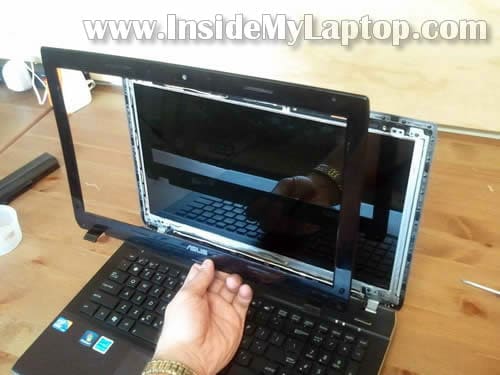
The display bezel has been removed.
STEP 7.
Remove four screws securing the LCD to the display cover.
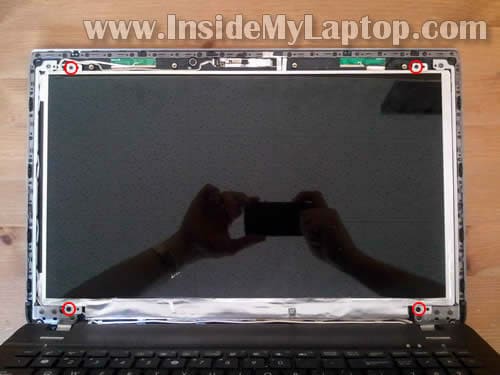
STEP 8.
Carefully separate the LCD from the cover and place it face down on the keyboard.
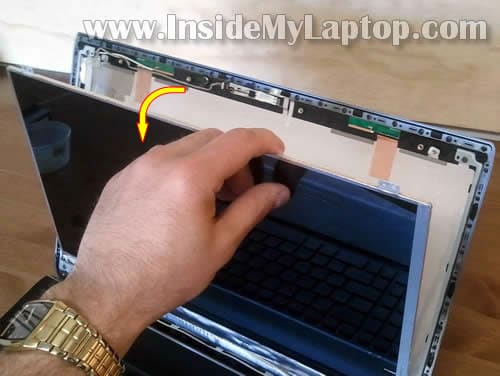
STEP 9.
Now you can access the video cable connector which is located on the back side.

STEP 10.
Remove tape securing the video cable connector.
Unplug the cable.
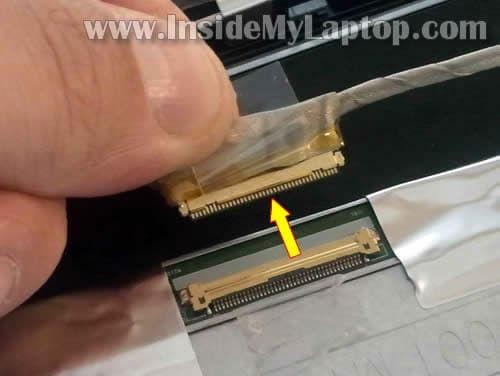
STEP 11.
Now you can remove the damaged screen and replace it with a new one.

You can search for a new replacement LCD screen using the model number printed on the original (cracked) part.
In my case the model number was B156XW04 V.0

Andy B
So lets say if some jerk that rushed and wasn’t thinking and didn’t take the battery out and when unplugging cable saw a tiny tiny spark between connectors…. Then hooked up new screen and gets no backlight…. Can faintly see picture with a light hitting screen but is very dark.. You think this jerk(me) fried the cable or something more serious 🙁 …And of course the cable is hard to find and not cheap…Any help would be great… thanks
stam
This is a really awesome site!
Daniel
I was taking apart my Asus Eee pc 1215T to remove a broken LCD and I found a magnet inside. When I put the new LCD in, does that magnet need to be positioned in a particular place? I’m sorry its not the same type of laptop, but this was the only Asus screen replacement article I could find here.
John
I have bought new screen from custom market for the laptop at cheaper rate.i was not able to get to get it fixed in laptop.
Thanks to you.
Now i can say that i can also get an hand on repairing some major issues in laptops.
kevin young
I had same problem as Andy B. but no spark, screen just dark did i fry the screen
Jeff Edwins
Same problem as Kevin Young. Could problem be inverter and if so where is it located?
sandy
am I the only one in the world that has screws that seem to be cemented in? They will not budge and I don’t want to strip them :/ Every other tutorial or video has them coming out soooo easy…they aren’t.
Brian W
Just curuios I did all of the above and all I get is a bright white screen ad nothing else can anyone or has anyone else had this problem orr if this is an easy fix?
bob
Guys, i think i did the same mistake. I forgot to battery off, now i bought a new lcd, it doesnt have light. I guess i broke the mainboard shit
Frances
Common symptom to fixing the screen is issues with the LCD inverder board…you can see the screen but the back light does not work so it is really hard to see the picture.
Frances
LCD Inverter board…Look up on you tube how to replace, it pretty easy.
IML Tech
@ Frances,
This laptop has a LED backlit LCD screen which doesn’t need the inverter board. If the backlight doesn’t work, it’s either failed screen, failed display cable (less likely) or motherboard issue.
Bob S
I had the same issue as above (dark w barely visible images). In my case, the cable was not seated completely. So I reconnected the cable and taped it in place.