


Today I explain how to remove and replace the broken display hinge in an Acer Extensa 4620z laptop.
This guide might work for some other Acer Extensa models too.
In this particular case I’m replacing the right hinge.
Before you start, turn off the computer and remove the battery.
STEP 1.
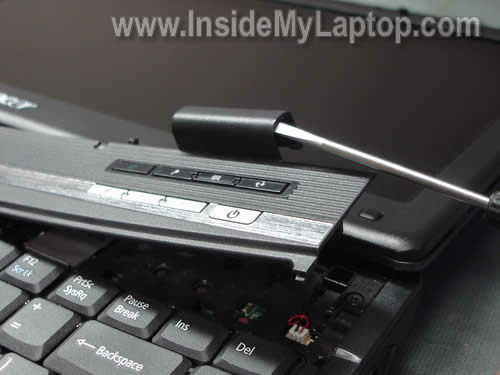
Insert a small flat head screwdriver under the hinge cover and lift it up.
The hinge cover is a part of the keyboard cover.
STEP 2.
Remove the cover.
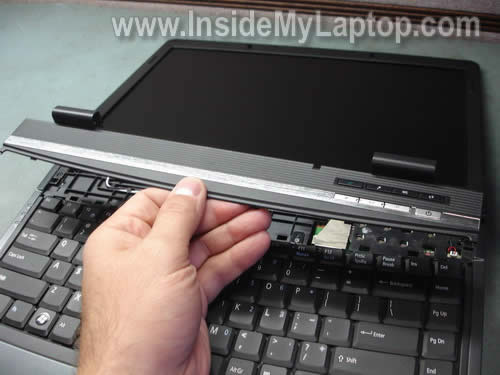
When the cover is removed you can see that the right display hinge is broken.
The bottom part of the broken hinge is still connected to the base assembly and the top part is mounted inside the display.
STEP 3.
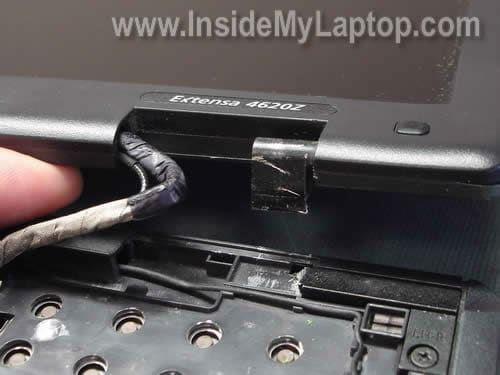
Remove one screw securing the display hinge to the bottom of the laptop.
If you are replacing only one hinge, remove only one screw.

STEP 4.
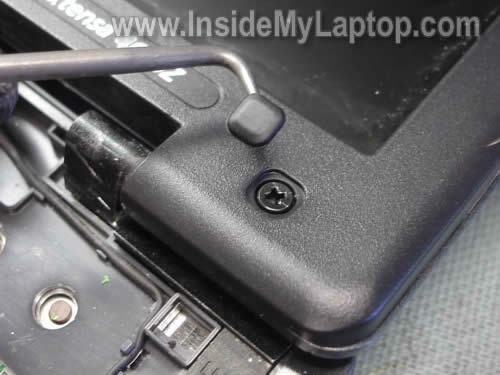
There are six screws securing the screen bezel. All six screws are hidden under rubber covers.
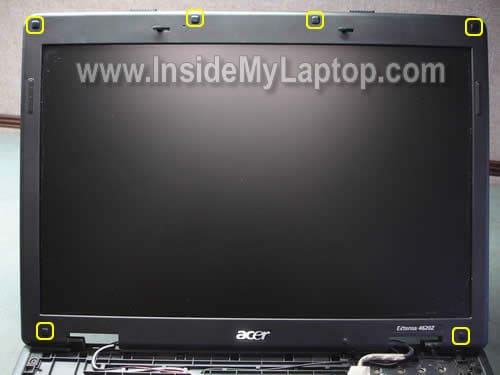
You can remove screw covers with a sharp object. Glue screw covers somewhere on the bezel so you don’t lose them.
STEP 5.
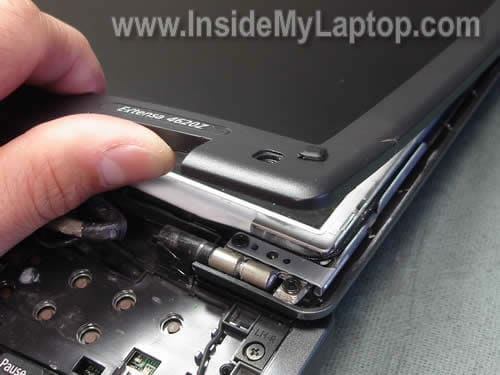
Start separating the bezel from the display cover with your fingers.
STEP 6.
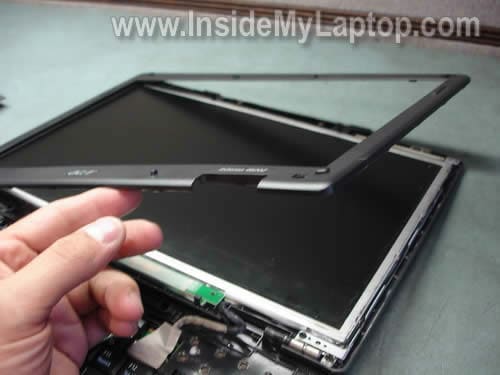
Continue separating the bezel and finally remove it from the display assembly.
STEP 7.
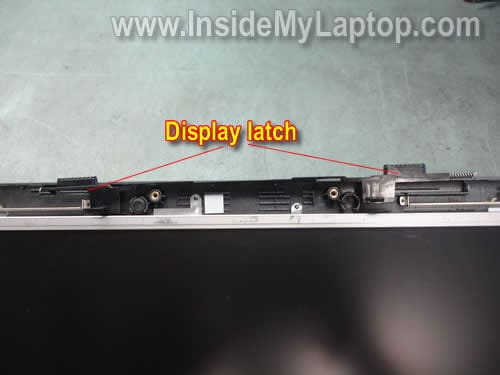
While removing the bezel, I dislocated the display latch. If you did so, put it back in place.
STEP 8.
Remove three screws securing the broken display hinge.
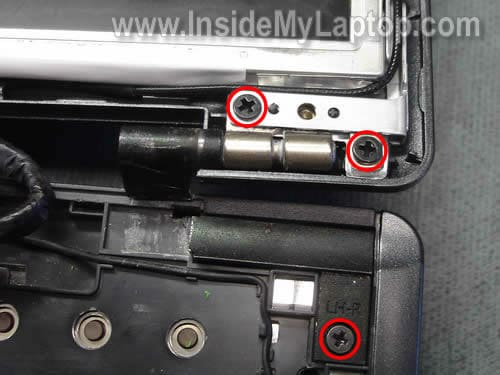
STEP 9.
Remove the bottom part of the broken hinge.
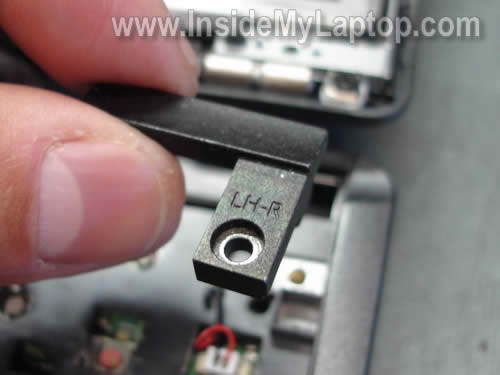
STEP 10.
Remove the top part.
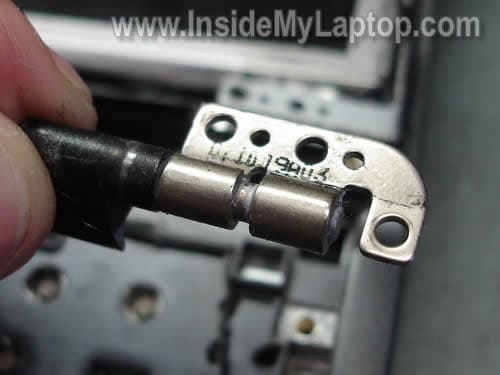
STEP 11.
Install a new hinge into the display and secure it with screws.
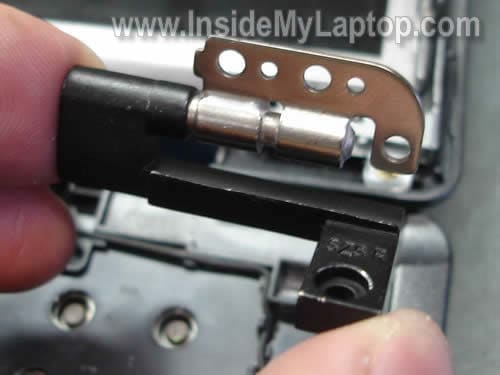
The broken display hinge has been replaced.
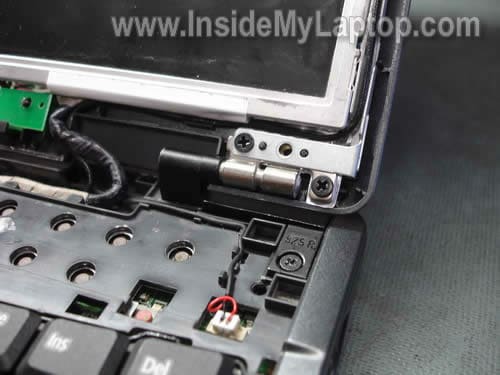
Assemble the laptop back together.
Also, you can use this guide for removing and repolacing laptop screen and inverter board.
Walliot
Yep, it worked for me and my laptop is an Extensa 5420 model.
Thanks man!
Renee
Interesting, honestly I dunno if I would try this or not. I bought 5 laptops. They’re shit!!!
They are Acer Extensa 463oz. Hinges are broken, one pc totally shot… I am pissed!!!
IML Tech
Renee,
Why not? You cannot use them with broken hinges any way. Hinges are not expensive and if you have nothing to lose, you can try replacing them. It will not take more than 30 minutes.
Father Guilo
Thank you for posting these pics and explanation.
I just needed to swap out the keyboard, but I couldn’t find a service manual.
I knew the keyboard hinge cover popped off, but thought I was forcing it and going to break a clip.
Your pics were reassuring, and helped get the job done in 10min with no snapped plastic. 😉
Thanks!
FalconFour
Exactly the same internals as my (non-broken!) Extensa 4420. Glad to have a part cross-reference model number for my PC (4620z)! So this fix should be exactly the same for the 4420 as well. And I know to watch out for that hinge – eek!
Dave
i have a extensa 4420-5963
and i purchased an entire back of screen that had two hinges attached to it for $55 from CDS MICRO SYSTEMS.
then i followed your instructions and it worked like a charm
best buy told me $100 minimum and send out 4 weeks.
Kristy
I have a Dell Inspiron 1525 laptop, and the hinge on the right side is popped out towards me about a centimeter. My father, without telling me, placed a flashdrive near the hinge and I tried closing it. For about five months it seemed to be ok, then it started to pop apart a bit, now it has gotten worse and I can’t close it. I’m not that well educated on the similarities on different laptop models. Would this help for the model I have?
IML Tech
Kristy,
Here’s the service manual for your Dell Inspiron 1525 laptop. http://support.dell.com/support/edocs/systems/ins1525/en/SM/index.htm
You’ll find laptop disassembly instructions in the guide.
alessia
would it be the same for acer aspire 5630
thanks
x
CD Chi
I have a Aspire 9410Z and the screen bezel nears the right side hinge is cracked.
Now I can not close it. The screen bezel separates more and more if I close it.
Need your help!
IML Tech
CD Chi,
Sounds like the right hinge is broken. You’ll have to remove the bezel and take a closer look at the hinge. If the hinge is broken, you’ll have to replace it with a new one.
CD Chi
Can I follow your instruction above for Aspire 9410Z to check the hinge condition?
Where can I find a new hinge for the Aspire 9410Z model?
IML Tech
CD Chi,
Yes, if it looks the same. I’m not familiar with Aspire 9410z model.
Search on google or ebay.
FalconFour
WOW!!! I don’t believe it! Just tonight – just like, 2 minutes ago – as I was closing my laptop for the night, that hinge JUST snapped. No, no smacking or abuse, just closing the screen for the night to set it down by my bed, and CRACK! It just snapped. It was the hinge on the left side of the screen, snapped off at the curve. I was afraid it would be the frame that broke and my mind started whirring away at my warranty coverage – nope, I think that expired in November. So I’m hosed. Sad, too, because I just finished adding a webcam to finish off my maxed-out Extensa 4420.
Fired up the computer again and brought myself back to this page (I commented a little over a month ago, above). Now, off to eBay to find a 4420/4620 hinge!
Cindy
I have a compaq Presario notebook with a left hinge broken. I’m limping along with it, propping it open when using it, but it’s a real pain. Where can a person purchase the replacement hinge?
Clueso
Hi,
I used these instructions to replace a hing for an Acer Travelmate 4152. the hinges and bezel screw locations differe just a bit, but nothing that a good careful look will solve. So thanks a ton for this post!
I am adding this comment in case anyone is searching for info on an Acer Travelmate 4152 hinge replacement.
Martin
Good job, thanks for this details!!!
From my experience IT WORKS FOR ACER EXTENSA 5200 as well.
Martin
nez
i have an extensa 4620z and mine broke. somethings wrong with these computers! >:0
Deep
thank you to upload this picture in this website it is very use ful
LX
i found this and it’s full of pictures and other good information.
Larry
I received a donated laptop with stripped screws on one hinge. The laptop had apparently fallen at least once, putting strain on the hinge. Replacement screws were not available for anything close to a reasonable price, so I went to the local hardware store and found suitable substitutes that were slightly smaller and longer, but came with matching nuts. It doesn’t look pretty, but the laptop works, and I’m not going to complain about cosmetics.
Some problems are dirt-simple to fix, and hinges are among them.
x
I used this tut (step 1) to fix the power button on my acer that was broken and jammed inside the laptop. Thanks…I will donate later.
Jim
I’ve had this problem for a while with an Acer 4720. Battery operation is perfect in every way. However, when you plug in the AC adaptor when operating with battery, the screen goes black. Output voltage from the adaptor is normal and you can use the adaptor to charge the battery perfectly. Any ideas anyone????
stunna
i did what the video showed but i think i have other problems, i replaced the screen, inverter, and cable, and it still wont light up….the bulb is good i checked screen on another cpu, and it worked fine,,,,,,,,,any ideas????????
IML Tech
stunna,
It’s possible there is a problem with the motherboard.
Chetan
Really thanks this tips really work
…………………
one thing that bottom part of the broken hinge is not remove form the laptop…..
i have been remove that screws from that broken hinge but its not open………….
………………
but i have been just remove upper broken hinge & used as normal laptop………
……………
Good work man thanks…..
J6Tuc
Used as a guide to fix both broken hinges on my Travelmate 4654LMI, having found this page (laptop has had broken hinges for over a year, propped up with DVD box set) then went to search for replacement hinges, found them.
Replacement hinges arrived yesterday, just completed the repair, laptop hinges now working perfectly, well done all done in 15 minutes.
Mas
First of all thanks for your tutorial.
It was also helpfull for my Laptop which is an acer Aspire 3055 WXMi.
Specially the part explaining how to remove the Keyboard Cover.
again thanks
JOhn
I have an acer extensa 4620z and it the top plastic casing is complty broken where can i go to get the front and back cover of the lcd casing and i need the screws too…is there any place in particular?
Munsif
I have a question. I have an extensa 4020z and often use to open it and fix it back..
In Step 8 Picture you can see a black color wire. One day i broke that wire by mistake but laptop is working perfectly, what is that wire and what does it do ?
jah
ACER ASPIRE 3690
the back of mine on theleft hand side was cracked open by where the fan is..
can that be fixed or the bottom there replaced or do i have to buy a new laptop altogether…
Angel Blanco
It also works for acer extensa 4630z. Thanks for the guide!!!
Heiko
Thanks so much for all your great Howtos!
Keep on rocking 😉
Greetings from Germany
Joe
A thousand thanks! I saw these pics and found my emachines D620 to be nearly identical. I thought my right hinge was beginning to break. The screen bezel was seperating on that corner and there was lot’s of plastic popping sounds upon open/closure. I didn’t know there were screws under those pads. Turns out the screw just needed to be tightened (it was almost all the way out). The hinge wasn’t the problem at all. But if it wasn’t for your site I would have been calling Gateway or paying someone local to diagnose it. Instead I’ll be sending a donation your way. Thanks again!
Devin Hansen
I have this model, but the screen has a Crystal Eye camera in it. If I buy a replacement screen without the crystal eye camera, will it still work properly? That is, the backlight, resolution, etc. Not the camera obviously. ha. Thank you for great how-to’s.
ownerofbrokenlaptop
i’ve same problem with hinge where it got stuck and cannot be bend over, but it’s too late, it crack open the lcd chasis while trying to open my laptop. how can i fix this? acer aspire 5550
IML Tech
ownerofbrokenlaptop,
Same way I fixed mine. You’ll have to disassemble the display panel and take a closer look at the damage.
Not sure if you have to replace the display cover too, you’ll have to look inside the panel.
Keith Wansbrough
Thanks! Worked great for Acer Extensa 4220!
Acer Victims
Hey all, if your tired of this happening and want to start one big voice against Acer, find us on facebook as Acer Laptop Victims
Andy
the above procedure works for acer extensa 5620-6419.
my question is this: will the entire upper assembly (all conected parts above the hinges-IE, lid,bezel, LCD frame), of an acer 4620 mount to to the hinges of a 5620-6419-using the webcam, mic, and 15.4″ lcd from a 5620-6419?
to clarify:5620-6419 is to be fitted w/ lid, frame, bezel from a 4620.
i noticed the above reference pics of the framework to the 4620 is a HELL OF A LOT better in structural integrity than my short-changed-china-built 5620-6419.
Please send reply to required email address supplied…THANKS in Advance…
IML Tech
Andy,
I don’t think this will work.
If you compare Acer Extensa 5620 hinges with Acer Extensa 4620 hinges, you’ll see they are different.
It means you cannot mount Acer Extensa 4620 display assembly on your Acer Extensa 5620 laptop.
Shiva
hey can help me plz plz plz plz……i am a Acer Extensa 4630z user and i accidentally installed a wrong version of bios version in my laptop recently and now i am not able to boot it up anymore….i believe the only solution to the problem is to remove the CMOS battery from the motherboard for 10minutes OR change the jumper settings…. i am well aware of Desktop PC Hardware but i am not sure if i am qualified enough to open my laptop on my own…it will be a great help if i get a detailed technical support from anyone on how to deal with my problem…plz do reply me as soon as possible coz i am in great need for a solution ………….and plz help me by giving me a guide with pictures……
IML Tech
Shiva,
Unfortunately, I don’t think that removing the CMOS battery will fix the problem. If you reprogrammed the BIOS chip with a wrong version, removing the CMOS battery will not erase it. I guess you’ll have to replace the motherboard.
Dustin Smith
I have an Acer Extenza 4630z, which now has a dead cooling fan, causing the internal temps to rocket and eventually BSOD the laptop. I’d like to replace this fan, but I can’t seem to figure out how to disassemble and access this fan (Furthermore finding a replacement fan…). Do you, or anyone who may view this, have any suggestions/guides? I’d like to gift the laptop for Christmas as I’m getting a new one, but I’d like to resolve the cooling issue to help keep the laptop alive long enough.
Thanks
IML Tech
Dustin Smith,
Take a look at disassembly guides for other Acer laptops. You can find them in Acer category in the right sidebar. Some other Acer laptops could be similar to your laptop.
NS
Hi,
This was a very informative post — exactly what I needed. However, I’m having a hard time finding a replacement hinge. Do you have any recommendations?
IML Tech
NS,
New replacement hinges for about $20-30 on ebay.
Alvaro
Thanks for the pictures, I just repaired an Acer 4630Z. The hinges are different (they are screwed to the lcd. Also, the keyboard cover was screwed to the bottom part (the screws were accesible after removing the battery) I was about to bend it when trying to pry it out. Other than that, they are pretty similar. So thanks!
Emre
Hi, i have an acer aspire 5620 laptop. and i want to replace the display hinge. is aspire 5600 hinge appropriate for my laptop?
sakrajit
acer 4710z screen hinges are broken, what is the price of new hinges , sound drivers are also loose, how to fix it?
IML Tech
sakrajit,
New hinges for Acer Asprire 4710z laptop available on ebay for about $20.
What??? 🙂
ndrson
will a acer aspire 3620 lcd cover fit perfectly to an acer extenza 4620z lcd or vice versa?
Ravinder Singh
Hi!! I Have a emachine D620 laptop, there is a breakage of display frame around the hinges……
so please suggest me a better option to overcome this problem.
would you provide me a body frame or tell me from where i get this.
CS
Hi,
I have an Acer Extenza 4620Z whose cooling fan needs replacing. Do you have a manual to show how to open it up or know of where to find one? Right now I run it on top of an ice brick that sits on top of a broiler pan to catch the sweat and small leaks that the zip locks always spring. That’s getting old now.
Thanks!
michael
Thanks!!
It took about 40 minutes to replace both hinges on my Extensa 4630Z. There are some differences so I will list them here. First, under the battery, there are 7 small screws that hold the keyboard cover in place. Remove these before starting. When removing the rubber covers, only remove the 4 in the corners. The two by the latch assembly do not have screws under them. When removing the hinges, there are two screws under the keyboard cover on each side and two right above the hinge. The third hole for a screw was removed when removing the bezel and keyboard cover. (from underneath) There are 4 small screws along each side of the display and one screw up at the very top that also have to be removed.
Other than that, the steps above work perfectly.
Thanks again.
Rosie
Hi, thanks for the instructions.
I am trying to replace the hinges and I ordered a pair from ebay.
Both of hinges are so tight that do not rotate ( at least by hand). Before I take my laptop apart, I was wondering did I get a defective pair or it is supposed to be like that?
Thanks,
Rosie
Arun
Hi All,
I have a Acer aspire 4710z laptop. I have serious trouble with it. it seems the Hinges are broken along with dc power jack , which i have to replace it with newly bought parts from ebay. local repair shop asked me very high price. Could you pls help me .. Thanking you in anticipationn,
Arun
Pijush
I’m using Acer Extends -4630. Both hinge of my laptop has broken. Is there any way to repair without replacement.
Faizal
Can you please tell me how to replace the hinge for acrer extensa 5620 laptop. Many thanks
Yogesh
Thanks a ton. It give me some confidence that I can do this at home!
I have acer extensa 4620z. There are some cracks on top left edge of the screen casing. Otherwise the laptop works perfectly ok. Recently, I started seeing horizontals bands (mostly white) appearing on the screen. They move up/down and eventually cover entire screen. If I pinch the top left side of the screen casing it goes back to normal. Even if I adjust the screen position sometime it recovers. Now I placed the paper clip to clamp the top-left screen casing edge as a temporary solution.
Could you please tell me what could be issue? Should I try opening the screen casing?
Scott
While taking off the trim around the monitor, a spring came out of the latch area. Where does it belong?
Yogi
Scott:
If you see picture in Step 7, I see there is a spring on either size of the latch. Is that the one you have?
Scott
Ah yes, i overlooked that somehow.
Thanks Yogi,
And thanks to the creator of this page.
Jeff P.
Thanks for the great instructions! I replaced a hinge on my Acer 4630Z, my first ever laptop repair.
For any future 4630Z owners, here are some differences from the 4620Z described in this article:
1. There are many more screws, including four along the side of the screen.
2. Although there are 6 rubber pads on the screen bezel, only the 4 corner ones conceal screws.
3. One of the screws holding the bottom (non-display) side of the hinge is not under the keyboard cover, it’s on the back of the case! (in the corner).
4. The keyboard cover does not come out so easily. Something seems to be holding it in place near the lights and buttons. Maybe I didn’t apply enough force, but it doesn’t matter for the left hinge – you can replace it without entirely removing the keyboard cover.
Beastia
Hi!
Thanks a lot, I have an Extensa 5620Z notebook, but the method is almost the same. I studied your article, the photos were very helpful.
Thanks again, great work!
Bill G
Hey, thanks for the tips – I had dropped my TM7720 (in the aluminum case, fortunately) and the lid started to separate. I put off taking it in for repair, and now thanks to you I don’t have to. All I had to do was remove the little rubber pads and tighten the screws. Now, tight and right!
Thanks again, keep up the good work
nurul
help me please..how to get the spare part for the compenent? i really need it..i went to computer shop but they said they don’t have the spare part..my laptop same as yours..acer extensa 4630x..
thanks a lot..
IML Tech
@ nurul,
Search for spare parts on eBay. A regular computer shop usually doesn’t have spare laptop parts.
JONATHAN
hey faizal, it’s about 99% the same thing i have the 5620z and i have taken apart the laptop before they are practically identical
Jakes
this will work on my Acer Extensa 5220 aswell but unfortunatly its not the hinge thats broken but the catch that keeps the lid closed does not work very well anymore. do you mabey know how to fix that?
sujith
hey can u give the steps to change the lcd back cover of acer extensa 4620……..
DON
Thank you very much for the detailed information of the full deassembling of the laptop it is really helpful for me in order to do myself later next time
cheers
joyce
does it work on extensa 4630?
Cole
This was a real lifesaver. This is now my first stop for all things laptop! Thank you.
dirish
hello,
i badly need your help!
i have an acer 4620z. i need to replace the hinges which i did. the problem is that it is so hard to fold the cover as the hinges are too hard. also, it started to fold the screen bracket.
is there any type of oil, grease which i can put in the hinges.
rgds
IML Tech
@ dirish,
Try applying a drop of regular 3-IN-ONE oil.
pudzrus
Thanks greatly! Happy computer = happy me!
Many months ago, the hinges on my 4420 were getting a little tight, so I put some oil on the hinge pins. That made it worse (the original white gease is better than oil).
Recently, one hinge broke, probably from being too tight as a result of the oil. Before installing new hinges, I bent the “wrap-around” flat steel parts very slightly, to loosen them a bit. This was done with a small screwdriver, placed into the gap at the end of each wrap-around, and then rotated slightly. I think this will help, but I won’t know for a few years.
MEET PATEL
Dear sir,
can you please provide me details from where can i get this hinge..?
MEet Patel