

In this guide I will take apart the display panel on HP Pavilion dv9000 laptop.
You can use my instructions for removing and replacing the LCD panel with inverter board.
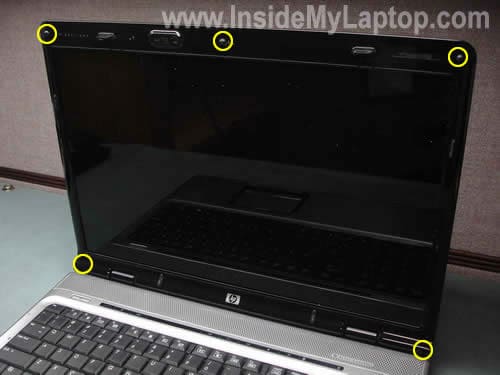
First, remove the battery.
There are five screw seals located on the screen bezel.
Remove all five seals with a sharp object. Remove all five screws found under the seals.
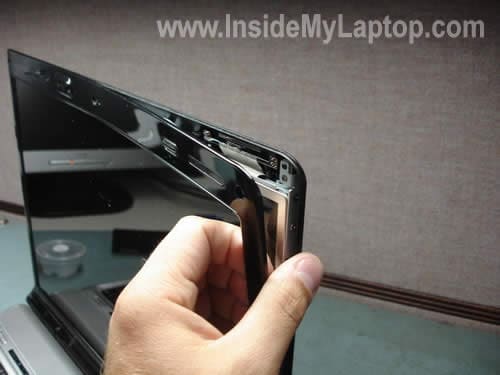
Insert your fingers under the bezel and start separating it from the back cover.
Wiggle the bezel to disengage plastic latches.
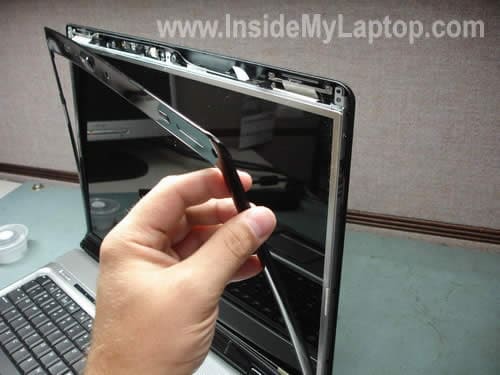
Continue removing the bezel.

LCD bezel has been removed.
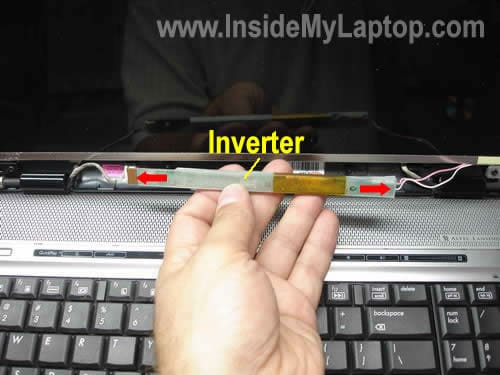
You’ll find the inverter board under the screen.
Carefully unplug cables from both sides of the inverter board. Remove the inverter and replace with a new one if necessary.
NOTE: some HP Pavilion dv9000 models come with dual backlight and require a dual inverter board. Instead of one connector on the right side (as it shown on the picture above) it has two connectors.
In the official service manual for HP Pavilion dv9000 I found the following part numbers:
Display inverters:
For use with Dual Lamp display panels    432959-001
For use with Single Lamp display panels  431391-001
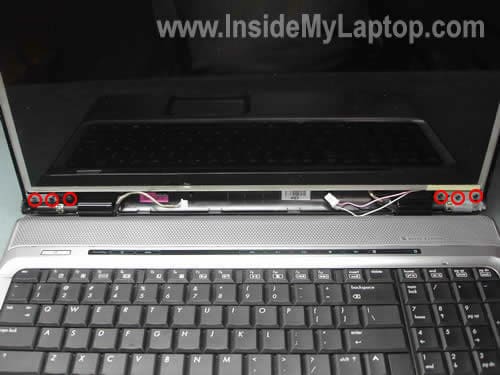
Remove three screws from each side of the screen. These screws securing the hinges to the cover.
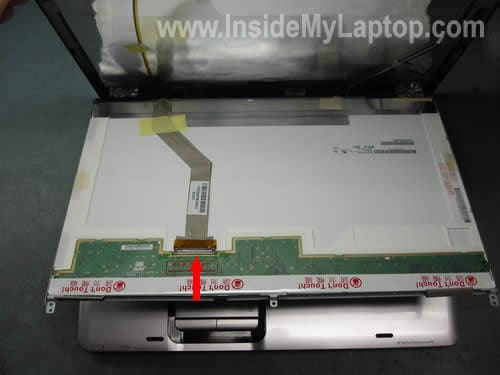
Now you can access the back side of the LCD panel.
Carefully remove the tape securing the video cable. Unplug the video cable from the connector.
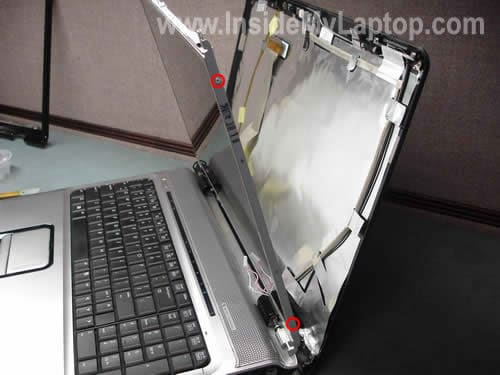
Remove two screws from right side of the mounting bracket.
These screws securing the LCD panel to the hinges.
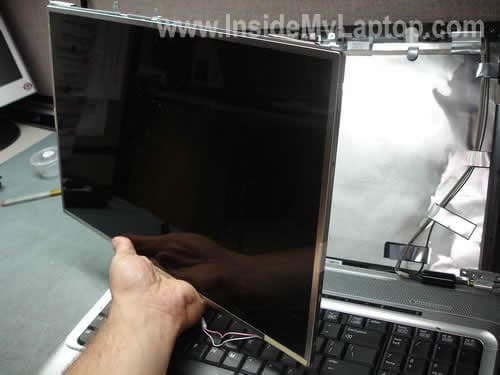
Remove the screen and replace it with a new one if necessary.
Note:Â On the picture above the single backlight lamp LCD is displayed.
The dual backlight LCD has two backlight cables.
In the official service manual for HP Pavilion dv9000 I found the following part numbers for LCD panels:
17.0-inch, WXGA+, TFT Dual Lamp display panel with BrightView 432954-001
17.0-inch, SXGA+, TFT Single Lamp display panel with BrightView 432953-001
17.0-inch, WXGA+, TFT Single Lamp display panel with BrightView 432952-001
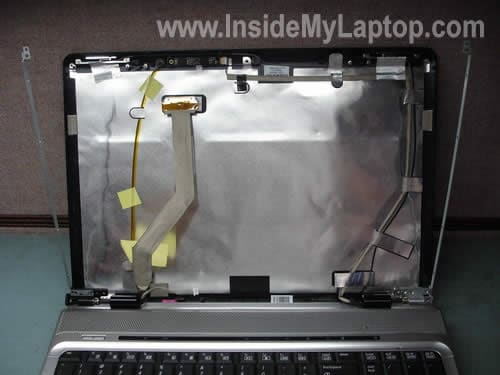
LCD panel, bezel and inverter have been removed.
This model has a known issue – broken left hinge. In the next post I explain how to replace the broken left hinge.
You’ll find instructions for removing the hard drive, memory, wireless card and keyboard in my previous post.
David
Just wondering if you can tell me where the swich that turns the LCD off when you close the lid of the dv9000 is. Mind is stuck and noe working. Thanks
IML Tech
David,
I don’t have this laptop in front of me, but I believe it has magnetic lid close switch. There is a magnet somewhere inside the display panel. When you close the display the magnet activates the lid close switch. Most likely the switch is located on the motherboard but I cannot confirm if this info is 100% correct.
Please correct if I’m wrong.
philip
I can say that there is no magnetic sense at the systemboard.
Stephen
I believe I am having a similar problem. My laptop dropped off the end of my bed and landed upside down from a fall of above two feet. The thing happened to be in sleep mode when it dropped and upon opening it, the resolution was set lower than it should be, even though vista was telling me the resolution hadn’t been changed, and wouldn’t let me set it any higher.
Point is, after I restarted my computer, the screen will not turn on. I plugged it into my TV via a s video cable and it worked just fine there, but the laptop display simply will not turn on.
It sounds like the display shut off may be stuck off… any help?
Johnny
When I turn on my laptop the screen does not turn on and it restarts about every 30 seconds, I also tried to display using a monitor but that didnt work either… Could the problem be in the Graphic card?
Pat Singleton
Many thanks for the instructions on changing the screen. I have an HP Pavilion ZD8228EA and, apart from the fact that there are 5 screws each side, rather than 3, to secure the screen hinges to the cover, the procedure was identical. I found that using a magnetic screwdriver was very useful in locating the screws accurately. Thank you for taking the time to take photographs etc to help novices like me – it really is sincerely appreciated.
IML Tech
Johnny,
Could be bad RAM module. If you have two RAM modules installed, try removing them one by one. Test your laptop with each RAM module separately installed into each slot.
Randy Harper
the magnetic switch is located at the left hinge. I am not currently looking at the switch but I am using the dv9000 to type this e-mail and recall it being rather small less than 1/2 in square or round and if I remember correctly it has wires attached that plug in to the main board maybe 2″ or 3″ in length.
max
hi
do you know how to get the 2 covers off the hinges once lcd bezel etc unscrewed and removed? thanks
IML Tech
Max,
You’ll have to remove the keyboard bezel first as I explained in the previous disassembly guide for a Pavilion dv9000.
After the keyboard bezel is removed, you can unscrew the hinge cover.
Lloyd
I have a DV9000 that has a black screen, no POST display and then reboots about every 30 seconds too… I’ve pulled the wireless, both HDD, both batteries and both RAM modules just to be sure and then tried just one RAM module each and it does the same thing no matter what the configuration from nothing but the battery to just one each of the HDD and RAM to everything… I even tried booting from a MEMtest86+ and still no display or change… Any other ideas??
IML Tech
Lloyd,
Thanks for the link.
Bill
I have a DV9334US laptop. The screen is blank when you boot up, but if an external monitor is attached, you can see the dos boot screen on it, once windows (Vista) loads as long as nothing attempts to switch video modes, the laptop works perfectly.
But, if you run anything which attampts to switch screen resolutions the screen will go black for approx 30 sec then you get an error regarding the video has stopped responding. Then it works as long as you don’t attempt to switch video modes again.
Does this indicate a bad display or a bad motherboard to you?
Bob
I also have the DV9334US laptop and have the same problem was Bill. HP is of no help and the extend service warranty mentioned aboved does not apply to this laptop.
This only started happening after a cross country plane ride (my laptop was in a roller bag) so I’m wondering if something got shook lose?
John
Thanks for the site. I just replaced my Lt hinge on HP dv9000, took about 1 1/2 hours. Instructions were great.
Wiliam
My HP Pavillion DV9600 screen has a discoloration running up both sides getting wider at the top of each side. HP has said it was caused by me and that I had bruised the screen while cleaning. A bold faced LIE.
They are refusing to honer their warranty.
John
Hi I have a HP Pavilion dv9000 and my screen was blinking like it had a bad connection, I found this site and figured I could dissassemble it,disconnect and reconnect the video line, but I didn’t loosen the bottom screws after you take the plastic framing off, and I bent the LCD..its now cracked and I want to know where to buy a new lcd and if I need a new inverter as well…thanks
IML Tech
Bill,
Are you sure the laptop screen is completely blank? Maybe there is a very faint image? Can you look closely at different angles?
Can you see if the LCD screen changes color a little bit when you turn on the laptop? Can you see the backlight at all or the screen is completely black and blank?
If you see a faint image, most likely your problem is related to the inverter board.
I guess your external screen cannot handle different resolution and because of that goes black. It’s normal.
IML Tech
John,
Find the HP part number on the back of the LCD screen and google it. Same with the inverter. The part number will look something like that: 432952-001. Could be a different one but same format.
Stanley
There are a few posts here that sound very similar to my problem. When I power on my dv9500, I get no display on the LCD panel, however, I get video when I connect an external monitor using the VGA port. That got me to thinking, so I went in and changed power settings to do nothing when my display is closed. Now I intermittently get a display, I usually have to restart a couple times, but eventually it comes on. I am fighting with HP right now to cover what I believe to be a faulty display switch module, because it is not covered under the extended warranty enhancement they put out for a lot of dv9000 series laptops, but strangely enough, not for my model. Seeing as this may be a loosing battle for me, I pulled the maintenance manual from HP’s website, and was able to locate the suspected bad module, and will eventually replace it. As stated earlier it is located by the left LCD hinge, and is rather small. If you are experiencing the same display problem I am, and are tech savy, this is a very cheap ($60) fix compared to what HP charges ($300) just for sending a laptop in to be looked at.
Tanya
Stanley et al…My display quit working a couple of days ago, but flicks on and off as I move the lid up and down. Works fine with external monitor, and flickers on boot up.
Can you tell me how to change what it does when the lid is closed? Thanks. HP wants $450 for me to send it in cuz they say its the screen (not!). It’s a connection somewhere otherwise more would be wrong and it wouldn’t change with lid position, right?
Stanley
Tanya, you can change the setting for controlling what you laptop does when the lid is closed by going into power options, and look for the link on the left side of the panel.
Actually, as a follow up to my previous post, my problem was not with my display switch. After extensive troubleshooting, I found that my laptop was actually sensing the LCD panel movement, which made me begin to suspect the LCD panel itself. I didn’t have any issues with the image on the screen when it worked, so my focus changed to the display cable. My cable was severely crimped where it passes under the display bezel, and anyone who works with electronics can tell you that a crimped cable can cause a lot of trouble. Replacing the cable fixed my problem.
Tanya, after reading your post, I suggest that you take a look at your display cable, because it sounds to me like you just have a loose connection. If it is secure, the cable itself is about $50 bought through HP, and is an easy fix.
Carl
How do I get HP to do a “Free out-of-warranty” repair of a Pavillion DV9000 laptop ? I spent over 2 hours on the phone with tech support for which I had to pay $49, only for them to tell me that they would be glad to fix it, for an additional $299 + s/h…. I have had this machine for about 13 months and it is worthless as it sits, I find it hard to swallow that I need to spend what will end up being almost $400 to fix a $750 machine that is just over a year old ….
Asif
Hi, I’m debating taking apart my dv2000t, the 14.1 inch model, and i was wondering if i could find a source for the problem that i have. My screen blurs out completely for most parts…however, if i start playing with the actual monitor, such as gripping each side and somewhat “tilting” the screen, all of a sudden, perfect picture comes up on my laptop. Of course, as soon as i let go, the screen goes back to being blurred all together. Is this a sensitivity issue, such as some ribbon not being secure anymore, and causing this problem..? Or is it a MUCH bigger one…?
Thanks a lot guys
Ben
The screen of my dv9000 no longer works and I cannot afford to get a new one, so I’ve just been using an external monitor. Is it possible to entirely remove the laptop screen and just use it as a very thin desktop with the external monitor?
Thanks
IML Tech
Asif,
That description sounds like a problem with the LCD screen.
IML Tech
Ben,
Yes,it’s possible. You can remove the entire display panel and use the laptop as a very thin desktop, BUT the wireless antenna cables are running inside the display panel and if you remove the display, you’ll loose wireless capability. On the other hand, if you use it only on your desk, you can connect to the Internet via a network cable.
In order to remove the display panel you’ll have to remove the keyboard as I mentioned in my previous disassembly guide for dv9000 series, unplug the video cable, unplug the wireless antenna cables and unscrew display hinges. After that assemble everything back together but without the display panel.
Asif
Thanks IML Tech,
So you’re saying that my only solution is pretty much to replace the LCD screen…? If that is the case, i have a quick question….how much does HP vary when it comes to different models (such as one being Intel, other being AMD) but with SAME sized screens…? The reason I ask is, I have the DV2000T, and I have found a replacement screen, that is ALSO 14.1 inches, for a fairly good price.
For this 14.1 model, the number is DV2313CL…I have found also another one in the DV2000 series, with model numbe DV2035EA.
So in summary…even though these LCD screens aren’t labeled for sale for DV2000T, since they are in the same product line, and same screen size, can these replacement LCDs work with my computer…?
Thanks a lot once again, I appreciate the help thus far.
IML Tech
Asif,
That’s what I think but I could be wrong. 🙂 Based on my experience, it feels like a defective LCD screen.
I don’t know. Different screens might require different wiring (different LCD cables).
Maybe you should search for a new replacement screen using the HP part number from the old screen? That’s would be the best way to go. Just to make sure that you buy a compatible screen.
I just searched through the maintenance and service guide for HP Pavilion dv2313cl notebook and I found that HP lists four different LCDs for that model. It’s not very clear which one you should use. Here’s the list of LCDs I found in the guide:
Display panels:
For use with full-featured computer models    430457-001
For use with defeatured computer models       430458-001
For use with dv2200 models, BV panel            435842-001
For use with dv2200 models, AG panel            435843-001
I guess you’ll have to remove the LCD, find the HP part number from the LCD, and search by that part number.
Dale
Hi all,
I was wondering if you can help me diagnose this.
My DV9008tx is 2 years old and when turned on has only white vertical lines/panels of different shades about an inch wide across the screen.
When hooked to external lcd, t will only boot in safe mode low res and has dotted vertical lines down the panel.
Do you think this is a Motherboard or inverter? I wish to fix it myself and the MB is quite expensive….
Cheers for any advice! Dale.
IML Tech
Dale,
Even though the laptop screen displays only white vertical lines, you still can see them and the LCD is bright, correct? That means the backlight and inverter work properly. It’s not an inverter related problem.
In your case both screens, internal and external, display a garbled image. Most likely you have a problem with the video card.
I’m not sure 100% but I think the video card in this laptop is integrated into the motherboard and cannot be removed or replaced separately. That means you’ll have to replace the whole motherboard.
Did you find a link about free HP repairs for dv9000 laptops? Did you try calling them and find out if your laptop qualifies for a free repair? Try that option first.
Dale
Did you find a link about free HP repairs for dv9000 laptops? Did you try calling them and find out if your laptop qualifies for a free repair? Try that option first.
I am in Australia and my model doesn’t qualify…
Thanks for the fast reply anyway… I will try to get the MB from China as it costs US$550 AUD$800 unfitted here…
Cheers, Dale.
Byron
My dv9500 has just passed 2 months after the warranty expiration. When booting up I have 4 screens shrunken for the display. I can only boot in safe mode, which I still end up with 4 shrunken screens. I think the booting up issue came after the shrunken screens started occuring. I am thinking kids and wife rebooted several times trying to get rid of the wied display. Any ideas?
IML Tech
Byron,
Did you test your laptop with an external monitor attached to the VGA port? Can you see if the external video works properly or it has same 4 shrunken screens?
Also, when you start the laptop there should be HP logo. Does it appear in four screens too or this problem appears only in Windows?
Ben
Thanks a lot for the help, I’ll try it out… is there any way of removing it and still keeping the wireless antenna connected?
Ben
alright well i took the screen off, unscrewed the wireless antenna’s from the back of the screen and left them connected to the wi-fi card and my wireless still works! thanks for the help
Villan
Thanks so much in your INFO about removing the screen as i only wanted to remove the inverter as mine was dark on one side of the screen. I got the part number and order the new part and having installed the old inverter my screen is tops again. The new part is costing $23 AUD and a shop wanted $300 AUD to do the same job. I cant thank you enough.
michelle
hi, I have HP Pavillion series, I had problem with my laptop a month ago, the screen was totally black an blank but its still charging and when i turn it on the lights are on. when i brought it for repair the technician said it was the mother board that was brocken, can it be? how much will it cost me for that board? Please help me…
IML Tech
michelle,
I cannot tell you what is wrong without testing the laptop. Yes, it’s possible that you have a bad motherboard.
Could be connection relate problem, bad memory, bad video cable, bad motherboard, etc…
It depends on the model of your laptop. Could be $100 or could be $500. You didn’t give me enough information.
Peter
Thanks for all the info. I just had my DV9408 motherboard replaced under the extended warranty as it would not start (blue lights would just flash and keep trying to restart). When I got it back, it started up but the screen is dark (like looking through a deep tint). External monitor works fine and when lid is closed, the system goes into standby ok so lid switch is ok (for those looking, the lid switch is located under the speaker cover near the start button and is glued to the heatsink). I am going to try to get HP to cover the screen under the extended warranty but they have said intially that they won’t as there had been a spill (which is true but was minor about 1 year ago and everything had been working fine, including the screen). If they do not cover this, am I safe to presume that it would be the inverter? The HP rep thought it would be the backlight but they really did not seem to know. Again, great site. Thanks for the info.
IML Tech
Peter,
It’s hard to tell. Could be bad backlight lamp or could be bad inverter. The only way to find out is install a known good inverter and test the laptop.
I would try replacing the inverter board first. It’s easy to replace and shouldn’t be very expensive.
Mike
My HP Pavillion 9000 is 17 months old. The left rear lower corner of the cover (as you face it) has cracked, the hinge has virtually frozen up and now the screen cover has cracked. Is this a common occurance on these? I’m handicapped and never take my laptop out of my room and always close it from the center…Thanks
Dave
Hello,
I removed my cracked LCD screen and took out the inverter. There is a set of black and white wires that ran out of the inverter. I broke the white glass tube. Where can I find a replacement and do you have any photos or instructions on where those wires are supposed to go? Thanks!
dfsdf
there actualy is a magnet, its located on the left side of screen about 10% from the botton of the screen.
Mike
Hello,
Would you please give me input on what I should do regarding my previous question (#44) as I’m concerned that it will happen again when repaired. I paid over $900.00 only to have to spend more money 17 mos. later. Thanks
IML Tech
Mike,
Looks like it’s a common problem with HP Pavilion dv9000 laptops.
If you Google for HP dv9000 hinge crack, you’ll see that many other people have the same issue with their dv9000 laptops.
Robby
I have a dv6308nr and the wire that connects the inverter to the motherboard got burnt. It made for some reason contact with the body of the lcd screen. Now I´ve tried a different inverter with a different wire but the laptop stays off. It can´t be turned on. But as soon as I attached an external screen through the vga port it turns on and everything works. My question is: is something not working on the motherboard? Some advice would be very helpful.
Mark
thank you so much for this excellent and easy tutorial; was able to fix a friends laptop in under 60 minutes.
🙂
IML Tech
Robby,
Sounds like a problem with the motherboard, apparently you shorted something.
Indy B
Hey, I have an HP Pavillion dv9000, for a little over a year, and about 5 months after I got it I started having a problem with the LCD. It shows pink and green lines down the screen, and depending on how I tilt the screen, I can see. Well it worked fine for a while, but now i need to tilt it SO MUCH that i can’t even see it properly because of the angle. Help! Everything else is awesome.
IML Tech
Indy,
Why did you wait for so long and didn’t take it to the authorized repair center? I guess it’s not under warranty anymore?
OK, what about these lines? Do they appear on the entire screen or in random places?
cliff
Hi
thanks for a really helpful guide. I think I will be able to adapt it to changing the screen on my HP 510 notebook. One question though – I dropped my laptop and the screen has a number of cracks. It’s still working but I have a number of black lines running along the cracks. Would replacing the screen be the right thing to do?
thanks
IML Tech
cliff,
That’s the only option you have. Or you can use the laptop as is (with a cracked screen) but output image on the external monitor.
Neil
First of all, excellent job on giving these free classes to fix laptops. My DV9330 shows a blank screen and scrambled colors on the video output, it just got a scramble colors screen one day and the next day showed a driver problem, hit safe mode, and no screen output since then. No faint image. I hear HDD working, DVD works, I have tried memories swaping, but still nothing. Out of warranty and not covered by HP. I am not sure if LCD is faulty, but I am thinking on the motherboard. Can you tell me what are the diagnostics for a faulty motherboard? Thanks in advance.
IML Tech
Neil,
For some reason, your description sounds like a problem with the video card which is integrated into the motherboard, so basically it’s a motherboard problem.
When you have a faulty LCD screen, the laptop still should work with an external monitor attached to the VGA port. Test your laptop with an external monitor? Can you make it work this way? If not, most likely it’s bad motherboard.
Neil
Thanks for your prompt answer. I have tried with an external monitor but the output is a scrambled screen of small squares. Can you suggest me a web page to order the motherboard? Is replacing this motherboard too difficult to do it myself?
IML Tech
Neil,
Apparently it’s related to the video card and means the whole motherboard has to be replaced.
I don’t know any I can suggest. Find the motherboard part number (SPS number in the memory stick) and google it. You can find a seller this way.
MasterM
Hi, i have a DV9653CL accidentally i drop my laptopp and the LCD crack, i buy a new one and replace it but now when i turn it on it turn on and the turns off i change the inverter trying to figure it out bu i still have the same problem! what do you think it could be?
IML Tech
MasterM,
What if you install the cracked LCD screen back into the laptop, will it stay on?
If the laptop stays on with the old cracked screen but shuts off when the new screen is installed, apparently the new screen is not compatible with you laptop and maybe requires a different video cable or the new screen is defective.
Before you jump to any conclusion, test the laptop with the old screen.
MasterM
Hey when i remove the Cable that goes to the LCD and the Inverter the laptop contious on! it doesn’t goes OFF. what this sign could be?
MasterM
Hi IML Tech,
The new LCD Screen its brand new! but the Laptop shuts off with the old one and the new one.! when i remove the cable from the motherboard the laptop contiuons ON and i can connect and external monitor and it works perfectlly.! what do you think it could be?
Jason
Thanks for the useful post. Unfortunately, when I followed the instructions using my HP Pavilion DV9000, the inverter looks nothing like the one you have pictured above. Mine is twice as wide and has two plugs on the right hand side. The part I ordered from your link obviously is not compatible, so I have a useless part now. Where can I get the correct part?
Tony
I mistenly left this on the wrong blog previously. My bad. I followed your instructions about replacing the inverter on my hp dv9000 but I still get a screen that can only be displayed by using a flashlight. Any other suggestions?
Ben Clemente
Can I remove the rest of the screen case. The laptop still works with an external minitor but now the screen is just in the way.
Thanks!
Ben
Jim
Is there anything about replacing the fan in a HP Pavillion dv9000.
Thanks Jim
IML Tech
Jim,
You can find these instructions in this service manual for HP Pavilion dv9000 notebook. You’ll find the cooling fan removal instructions in the chapter 5.25
Bob
I have a dv9000 (exact model dv9927cl). Im using it right now to write this using an external monitor as the lcd doesnt work at all. The computer physically is fine only the lcd doesnt work at all. In fact the computer doesnt even see that an lcd exists. I followed your great instructions, thank btw, and checked both ends of the lcd cable, which were fine amd the cable looks fine. any more trouble shooting i can do to find the problem. I will add on thursday I turned it on and had its lcd working and a secondary display thru svideo, i left and returned to find the lcd black. couple power off and on and the lcd returned. next day turned onand found black lcd and has never returned since. ant\y thoughts?
hunterb
What is that yellow tape surrounding the video cable (right by the sticky tape)? I inadvertantly thought that was the sticky tape and removed it as well. Doesn’t look like it will be an issue but I want to confirm that before I put the new screen in.
Thanks for the tutorial…very easy to understand.
Chandy
I have to replace the lCD screen of dv6000 series. I am looking for the cheapest possible solution. what specifications should I look for a screen? Please suggest
IML Tech
Chandy,
Type of the screen and resolution. XGA, WXGA, SXGA, etc… Look at the chart on the bottom here.
jamey
question for ya
My laptop screen is showing a split screen, a top and a bottom with both showing the same image. The screen is somewhat readable but kind of garbled. I can only boot into safe mode, I did full system restore and nothing has changed. Do you think its the motherboard or screen? My warranty is over and I dont qualify for the out of warranty fix 🙁 . any help?
IML Tech
jamey,
Test your laptop with an external monitor. If video on the external monitor looks normal, I think you have a problem with the LCD screen in your laptop.
AMANDA
my hp dv9000 slid off my couch and now if I open it more than 45 degrees what is black on the screen becomes red. After being open only that much for a short time it can be opened slightly further. I was hoping something was loose and by unplugging and replugging it would be fixed. What should I do? My warrenty ran out and I didn’t get the extended warrenty
IML Tech
AMANDA,
It’s possible that the video cable got loose and is not making good contact with the motherboard. I would check connection between the video cable and motherboard and make sure the cable is connected properly.
Adam
Looks like Indy Indy B had mentioned “It shows pink and green lines down the screen, and depending on how I tilt the screen, I can see. Well it worked fine for a while, but now i need to tilt it SO MUCH that i can’t even see it properly because of the angle.” – a do not share his “awesome” view on other HP Pavilion features, nevertheless have experienced just the same issue on my HP.
My question is, before I damage or break anything :-), is it any worth in your opinion to open the screen lid?
Imean do you think that the lines may be a poor connection tape contact /worn out tape, or some other easy-to-fix issue? There is one, sometimes 3 1-pixel thick vertical colour lines across the screen, varies on the screen angle, they would sometimes disappear when you “bend” or “tilt” the screen gently each side in opposite direction.
IML Tech
Adam,
First of all, test your laptop with an external monitor. If external video has same lines, your problem is related to the video card and opening the screen will not help at all.
I’m pretty sure this is a problem with the LCD screen, not the cable or connection. When you get a few vertical 1-pixel lines, it’s bad LCD.
You’ll have to replace the LCD screen.
henro
hi there
this site is very informative. coulkd you take a look at this picture and tell me how i can fix this problem? whether its my lcd or what?
cheers. i’ve got white patches running down the screen. when i plug external monitor in it works fine.
cheers.
jamey
I tried with an external montior. After a full system restore it work for about 2 minutes and then I get the same split screen deal. I’m at a lost. 🙁 I was thinking of just getting a new motherboard.
IML Tech
jamey,
If I understand correctly, you are getting exactly the same problem on both screens, the internal LCD and external monitor.
If the internal and external video fails the same way, your problem must be related to the video card. In most laptops the video card is integrated into the motherboard, so it makes it bad motherboard. That’s my guess.
Lisa
My problem is very similar to AMANDA’s (post and reply below) except mine didn’t take a header and it’s not the black that get’s red. Instead it’s the white or very light portions.
Amanda wrote: my hp dv9000 slid off my couch and now if I open it more than 45 degrees what is black on the screen becomes red. After being open only that much for a short time it can be opened slightly further. I was hoping something was loose and by unplugging and replugging it would be fixed. What should I do?
Tech’s response: It’s possible that the video cable got loose and is not making good contact with the motherboard. I would check connection between the video cable and motherboard and make sure the cable is connected properly.
Could you point me to where I can find help on checking the connection between the video cable and motherboard and make sure the cable is connected properly.
Thanks a million for such a helpful site!!!
IML Tech
Lisa,
Basically, you’ll have to disassemble the laptop to the point where you can access the video cable. The video cable connector can be found under the keyboard cover. I explain how to remove the keyboard cover in this guide.
I don’t know if reconnecting the problem will fix your problem, it was just a suggestions I would try first as a technician.
Travis
I have the HP Pavilion DV9000, and my laptop hit the table pretty hard. Not my screen is gray in color – it has light, but no color or picture. I did plug into a monitor and it showed fine on that screen. I opened the screen and it all looks like it is connected fine. Any other ideas?
Frank
I have HP dv9000 laptop and my screen flickers and then turns off. I can definitely see something is displayed on the screen if I look closely, it just seems that the backlight is not working. If I close the lib and open it again it flickers on and sometimes stays on, but lately if I close and open the lib it just briefly flickers and stays off.
Do you think it’s just a loose connection or do I need to replace the inverter or even replace the entire LCD screen?
Thanks, Frank
Farrell
I had the same problem with the post above me and it was an inverter problem
Right now I’m having an issue with different parts of my screen flickering low, I think its a backlight problem but I don’t know really. Since I replaced the inverter recently i dont think its that but I’m not sure, if it is the backlight I need to find a way to replace the backlight on the screen.
Aaron Mc.
Okay so heres the deal. I dropped a glass of water on my laptop (i was trying to hold it in my mouth while carrying my laptop). I figured out that wasnt such a good idea. XD. I quickly turned it off and cracked it open hoping it would dry out. I started it up a couple days later and it works. Only thing wrong is my keyboard is freaking out (i have a new one coming). Also the screen is VERY dim. I need a flashlight to see anything. Later i took the casing off the lcd and found the inverter was very wet. So i ordered that also. If that doesnt solve my problems is there any way to get new back lights without buying a brand new lcd? that would suck Thx!
-Aaron
William
My Issue is that I accidently sat on my Laptop. My screen now looks like someone through a baseball at it. There is a while section that goes down the middle at the top it looks like cracked glass. The laptop is not cracked but that is what it looks like. What should I do? Thanks Everyone.
yob
Guys my HP Pavilion dv9000 wont start when i press the power button, i put the charger but still wont work, the power led wont light, only the charger led is on…..pls help me guys how to troubleshoot this… tia.
IML Tech
yob,
1. Unplug the charger.
2. Remove the battery.
3. Wait for a few minutes.
4. Plug in the charger and try turning it on.
ed
ill turm the power botton on and it take a few trys and then the lighs stay on but the screen dosent come up at all and then the lighs restart and then turn off after a wile what could be the proble here ay one heard of this problem?
IML Tech
ed,
First of all, test the AC adapter. Maybe the adapter is bad and the battery is completely discharged.
If the adapter is working correctly, there could be a problem with the motherboard. Can you test the adapter?
Remir
please help, here is a story.
I have Pavilion dv9308nr laptop, couple of weeks ago my left hinge broke and Hp wont fix it cause I’m out of warranty. When my hinge broke I was still doing some work on that laptop, then all of a sudden the screen went black, everything gone and I tried to turn it back on, but it turns off and on every 15 sec automatically and nothing on the screen.
I found your website and followed the article on how to replace hinges and back lid, i did ok everything looks like brand new, but still no screen and laptops keeps turning off and on every 15 sec. I did a lot of testing that you were telling us, such as removed a battery in order to get rid of static alec. Still nothing. What i also discovered is that if you keep pressing F10 key when you turning on notebook it will stop turning of by itself, but still no screen.
I ordered one inverter just in case and i’m still waiting for shipping. I will try to replace it and maybe everything going to be alright. Cause if it turns out that my motherboard is dead then this notebook is no longer useful. To much money for replacement motherboard it doesn’t worth it, better to add couple bucks and buy new one.
Questing is… Do you guys have any ideas why notebook keeps turning off and on? Maybe when the hinges were broken and i pulled the video cable which is under left hinge and cut it inside somehow? I just can’t get it. So when it starts to boot bios doesn’t see the screen and shuts it of maybe. Any Idea.
Cameron
I have the “flickering pink” screen problem. When I open up my laptop, the screen turns a fuzzy pink. I have to find the perfect screen angle so that it stays white. Anything I can do at home to remedy this?
Nicholas
Hi I have the same problem as Frank #85. I’m not sure what is the problem, but the screen is on and starts flickering and finally dies. However, upon closing the lid and opening, sometimes it brings the screen back on, but the flicker comes back and the screen dies again. There’s something you can see under light that the background is still there, but with no light.
HP is going to charge a bomb for this, and I tried the connectors which are well connected.
Any ideas?
Thanks
colleen
Hi, I have the exact same problem as Cameron above — the flickering pink screen. What do I do??? Thank you!
Joshua
Hi i was wondering if doing this and then reassembling the screen would fix these vertical pixel lines i get down the left side of my screen
David Francis
Hi IML Tech
Is this site only for the USA? I have three nephews (2 born & USA citizenship!) there. Does this qualify me?
What am I doing wrong? Am I just impatient? Please tell me as I hate to offend!
Regards
Billybean
IML Tech
David Francis,
This site is for anyone who can read. 🙂
I’m not really sure what you are asking about. What is your question?
Billybean
Hi
My original question was – when I disconnect the main power lead from HP Pavilion zd7143ea 17 inch laptop screen goes dead but PC still functions. Any suggestions?
Thanks
Billybean
IML Tech
Billybean,
Not a common failure. Not sure what’s going on.
What if you turn off the laptop, unplug the power adapter and start the laptop from the battery. Does the screen turn on this way?
Check for the BIOS update. If there is a newer version available, try updating the BIOS.
Mindy
Hi IML Tech,
I have a HP DV9000 series laptop and have been experiencing LCD issues (fuzzy display when LCD opened to a certain position). Without going into the boring details, I removed the screen bezel to see if the issue was a loose connector. What I found was a short in the cable/wire (left side of the inverter) which goes through the hinge. Do you think the short is something that I can remedy myself?
Thanks in advance and thanks for hosting an awesome site to help us non-techies!
P.S. will you be using PayPal anytime soon for your donations?
Brian
Hi IML Tech,
Thanks for all the info! My dv9000 was dropped breaking the hinge. Replaced it to solve problem but then left hinge broke (I guess weaker than the new one). Replaced it and have another broken on right!. Will replace both together but main problem is sometimes the computer wont start. I get all sorts of flickering colors, lines, blocks, waves, etc. I get a message to perform start up repair and that usually works but sometimes takes a time or two. I think I may have a short or open in the cable going through one or both of the hinges. Does that make sense? I do have a second identical laptop that I can swap parts with. Any suggestions?
jen
I have an HP Pavillion dv9000, for a little over a year, and about 1 yearafter I got it I started having a problem with the LCD. It shows pink and green lines , and depending on how I tilt the screen, I can see.
whole screen is pink lines…..
u got soultion
i give it to hp repire centre
IML Tech
jen,
That could be bad screen, faulty video cable, poor connection between the video cable and screen.
If the same problem appears on the external monitor, you have a problem with the video card.
Vlad
Hello there IML Tech,
First of all I want to thank you for your awesome job with describing the steps needed to take the lid apart. Here is my problem, sorry for the length but rather give you as much detail as possible:
I have a HP DV9009US here that is out of the free limited warranty repair that has a very faint image on the screen. A few days ago Windows would boot up fine using an external monitor but now right before the splash screen is done loading the monitor goes to sleep. Windows continues to load and you can hear the Windows welcome music from the speakers. The laptop will boot up fine in safe mode using an external monitor and also in VGA mode, but when you change the display settings in VGA mode the monitor then fades to black. Last known good config also does the same thing as booting up normally. I purchased a compatible power inverter and installed it but there still is no image on the screen. I then purchased a new compatible backlight and installed it. I plugged in the LCD cable to the screen but before I put all the screws back in place and even fit the backlight into the screen I wanted to test it to make sure it worked, however, there is no light coming from it. I tried swapping both the old inverter and new one in combination with the new and old backlight but no dice. One thing that I have noticed is that there is a strange oder, which I can’t put my finger on what it smells like, is coming from the laptop at boot up but starts to diminish the longer the laptop stays on. I really don’t know what else to try at this point. Would clearing the CMOS work in this instance? And this couldn’t be a result of a virus, could it? Any help will be grateful.
Thanks tons in advance!
Vlad
Justin Meyer
Hi
I have a compaq C751NR. When i open up the laptop the screen has a blueish red distortion to it. I checked it against another lcd screen and didnt see the same problem. I also took it apart and check the lcd cable. I am not sure what it could be. I almost think it might be inverter. I am not sure what will happen to the display if it is bad.
Bernardo
IML Tech,
I´m having a problem with my left screen hinge. On November(2008) HP launched on their website a 6 month “Limited Service Enhancement” to fix this problem, however by the time I noticed this costless repair given by HP, it had expired the date limit. Since I´m from Brazil and these kind of services given by the local HP retailers are expensive, I would like to know how to try and fix this problem by myself. Thanks and hope to hear from you soon.
– Bernardo
Phil
Hey there, great how too on the screen removal. I dropped my laptop off the bed last night while working and this morning when I booted up I have a pinky/green screen. Is this the Inverter or do you think it is something more serious?
It is for businss so I am in deep if I can’t get this fixed.
Apprecaite your help.
Phil
HP Pavillion DV9000
IML Tech
Phil,
If you can see the screen and it’s bright, it means the backlight/inverter work fine. So it’s not related to the inverter board.
I think it’s either loose connection between the video cable and motherboard/LCD (less likely) or you’ve damaged the LCD screen (more likely).
You can try reseating the video cable just in case. If it doesn’t help, most likely you’ll have to replace the screen.
David Francis
Hi
Tried your suggestions. No change. Wont be available ’til October for further suggestions.
Thanks
Billbean
Chris L
hi i have a hp dv 9000 series laptop, the screen becomes distorted when you move the lcd lid and also there is no sound coming from the speakers, right now the screen works great if i dont move the lid, but sound never works unless i use the audio out jack
Valerie
Thank you! I will be donating to you as soon as I get it fixed. My left hinge broke. Hp will only fix it for $150. I told them I will fix it myself [thanks to you!].
I don’t know if mine is a single or dual lamp. Does it matter? guess i will get the part number off of mine.
Thanks again!!
Simon Garcia
I have a pavilion dv9605ea with a screen problem. My laptops out of warranty and after phoning Hp they want to charge me £280+ to even have a look at it and £15 to actually speak to someone for advice. Im not to sure if this is even a major problem or something I could fix myself. My screen kept freezing with lines and colours and for a while if you moved the screen slightly or supported the screen a little by putting your hand under the left hand side near the join this would fix it but now no matter what you do the screen is just fuzz.I have connected laptop upto external screen and it works fine but kinda makes it useless as a portable laptop. Iv edisconnected and re-attached the video cable and its still the same. By the way is the video cable meant to go under the left hand hinge all crumpled looking? Thanks in advance for any help youre my last chance before throwing this out of the window
billmad
HP DV9000 (Model: HP DV9750ea).
If I open lid all the way and switch on, the screen remains blank but windows boots (i can hear the sound).
If I open lid only 1/2 an inch and switch on, the screen is fine. I wait for windows to FULLY LOAD and then open the lid all the way and everything works perfectly.
I want to find out what is causing this as it must be fixable.
Any ideas?
Great article.
IML Tech
billmad,
This is not a common failure and it’s hard to tell what is causing the problem.
I think it’s related to the video cable somehow. Maybe the video cable is not making good connection with the LCD screen or motherboard. Try reconnecting the cable.
Also, it’s possible there is a short inside the cable and it has to be replaced.
paul
… If I open lid all the way and switch on, the screen remains blank but windows boots (i can hear the sound) …
i have a similar problem since today. my screen just stopped responding. it boot’s on an external screen only if i select VGA it the boot options. Then xp loads. if i don’t choose that vga option, i get the xp splash screen but then my external screen turn off and the boot does not finish. I know it doesn’t because of the sound i’m not getting.
I followed your explenation to open up and check if its a wire problem, fiddled with no success. Should someone find the fix to the problem, i would like to know.
IML Tech
paul,
Do you get anything on the laptop screen at all? Does it change color a little bit on startup? Can you see a very faint image if you look very closely?
Alan
I have a dv9000, the screen comes on great then goes black after a few seconds, if i close the lid and re-open its fine again for a while then goes black again, if i open and close lid ok again, etc etc. Could this be inverter or cable or more likely the screen thats faulty.
Thanks
IML Tech
Alan,
1. This problem is not related to the video cable.
2. Could be either bad inverter or backligth. You cannot tell without testing the laptop with a known good inverter or backlight lamp.
If you have to guess, try replacing the inverter board first. It’s not expensive and takes only 10-15 minutes. You have a good chance to fix the problem.
Caleb
I think my webcam is defective. Would I have to remove the LCD screen to replace it? Or is there something else i would have to do? It’s not being detected by the laptop.
IML Tech
Caled,
You don’t have to remove the LCD screen but you’ll have to remove the front bezel. The webcam is mounted above the screen.
Can you see the webcam entry in the device manager? Try removing the webcam from device manager, restart the laptop and let it re-detect the webcam.
BBOR
I have a HP DV6000 laptop, the screen is faulty.
I would like to try and determine if its the LCD or the inverter or the motherboard.
If i link to external monitor the external image is fine.
The laptop screen flickers and shows the image for a fraction of a second then continuously comes and goes. Any guidance much appreciated.
IML Tech
BBOR,
It’s not very clear from your description if you are experiencing a problem with the backlight or image itself. Which one comes and goes, the backlight or the image?
Most likely the motherboard is OK because the laptop works fine with external monitor.
If the backlight flickers but the image is always on the screen, it’s either bad inverter or backlight lamp inside the screen. I cannot tell which one is bad because both have very similar failure symptoms. I would try replacing the inverter board first. There is a very good chance to fix the problem.
If the image flickers but the backligth is always on the screen, it’s possible that you have a problem with the video cable.
NICK
I have a dv9700. the LCD has no picture, when plugged into external monitor the picture is fine. Replaced LCD and still no picture. Any ideas?
IML Tech
NICK,
Are you sure that there is no image at all? Take a very close look at the screen. Maybe the image is there but it’s very faint?
Does the backlight work?
NICK
No image. it never changes when you power up the laptop. I thought it would b the lcd b/c 1) the image is fine on other monitors 2) no image at all on lcd. but i was wrong and i cant figure out what it could be.
IML Tech
NICK,
I guess you already tried switching video from external to internal mode using Fn+F4 shortcut, right?
1. Could be loose connection between the video cable and motherboard (you’ve already reseated connection on the LCD). Remove the keyboard bezel and try reconnecting the cable.
2. Could be bad video cable. Try replacing the cable.
3. Could be a problem with the motherboard. It’s not likely because you still have image on the external monitor, but it’s possible.
Kevin G
I have a HP dv9000 and when I open the LCD lid to a usable position my screen is fuzzy. If I move the lid, usually closer to the closed position I can get the picture to come in perfect. The laptop has not been dropped, and I don’t know how to tell if the hinge it broken. Please help. Thanks!
FASSP
I have a HP pavilion zd8000 and the monitor has become full of vertical thin lines of different colours. It started with a few , now it has dozens. I plugged the laptop to an extenal monitor and the image was fine. I assume its the monitor that isn´t working well. Can u helpme please?
IML Tech
FASSP,
Yep, sounds like a failing LCD screen. You’ll have to replace the screen.
ALBERT
MY LAPTOP HAD A BROKEN SCREEN I BUY ONE FROM EBAY BUT WHEN I PLUGIN LIGHTS UP BUT DOESN`T DISPLAY THE os
IML Tech
ALBERT,
Check connection between the video cable and LCD screen. Maybe it’s not plugged correctly.
Try installing the cracked screen back into the laptop. You were able to see some image on the undamaged part, right? If the old cracked screen shows image, but the new screen doesn’t, the new screen is defective OR not compatible with your laptop.
Kim Hutton
My HP Pavillion dv9000’s screen is grey. The external monitor only works in safe mode and has a big grey splash in the upper left corner. The computer seems to work fine ie: wireless internet, programs, updates ect. The external monitor’s resolution is 640 x 480 and I cannot change it. (it is also and HP). Is my video card bad? Can this be fixed? My warranty is up.
Thank You,
Kim
IML Tech
Kim Hutton,
Sounds like a problem with the video card. It’s integrated into the motherboard, so the whole motherboard has to be replaced.
If your laptop qualifies, you still can get a free repair from HP.
Audrey
I have a dv9500 the backlight is out but, I’m not sure how to replace it. Is there a tutorial on this?
bob
Will you please you do a step by step on changing the graphics card in a dv9000 series hp laptop? I want to upgrade it but cannot figure out how to get to it inside the computer.
Bjarni
Very happy about this.
Helped me alot.
Now i have my HP working again.
Mike
Help – I have a hp Pavilion DV9810us (dv9000) laptop 5 months out of warranty. Screen goes to near black at certain angles (even at bios screen). You can still see that icons/programs are running. If you move the screen back to about 90 degrees (and other angles), then the screen displays properly. HP will not help unless I send in for $400. Updated bios and video drivers(no effect). Any ideas if this may be related to inverter or other screen problem? thanks
IML Tech
Mike,
I don’t think this is inverter problem because the scree works fine at some angles.
Could be:
1. Bad connection between the video cable and inverter/LCD screen. Try reconnecting the cable.
2. Bac connection between the video cable and motherboard. Try reconnecting the cable.
3. Bad video cable. Try replacing the cable.
Erich
I have very similar problems as mentioned above. I have a HP DV9000 notebook. All I get on the screen is the backlight is on, however other than that it is black. I can however connect an external monitor via VGA port and get somewhat of a picture. I can only boot into safe mode this way though and when it does boot up the resolution is at 4bit color and only 640×480. If I try to boot normally, it says windows has recovered from an error (page fault in a nonpaged area). It does a memeory dump and boots, however only to revert back to this error. I have been having problems recently with the computer not shutting off when closing the lid every once in a while too. Now when the ext. monitor is connected I can shut the lid and it stays running. Does this sound like a bad lid swith module, inverter or possibly motherboard. I refuse to send it back to HP for $400. Thanks for any help.
IML Tech
Erich,
I think you have another dv9000 with the video chip failure. A very common failure for this model and HP even fixing some dv9000 laptop at no charge.
The problem is not related to the lid close switch or inverter. Most likely you have a faulty video chip, so the whole motherboard has to be replaced.
Cindy
hey there,
Boy sounds like Im in the right place! I have a dv9000 series monitor went very dark while using it.. With the lights on n the room I can see shadows of whatever im doing. ( not brightness control checked that first and yes its 31 days out of warranty.
I ordered and recieved an inverter from hp and installed it. made no change at all in the display. Since this happened I have been connected to an external monitor and everything works just fine. (just a paint in the a@#.)
I have ordered a display panel and am going to replace it myself as per your instruction on this site. Anything I should watch out for?
IML Tech
Cindy,
If a know good inverter didn’t fix the problem, it’s very likely that there is a problem with the backlight lamp inside the LCD screen.
It’s really hard to give a good advice to someone who never don it before. Do not hurry. Pay attention to all details.
Mike
Thanks for response to post #140 – Dark/Black screen issue – its not the inverter like you said. I’m focusing on the cable now. I’ll update once i check the connection between motherboard and cable or replace the cable.
Ryan
First off, what an awesome site!
I was wondering if you may be able to diagnose my problem =)
I have an HP DV1000 laptop, just today I started to have problems with the backlight of my LCD screen. When I start it up from standby, it seems to have issues keeping the backlight on. The backlight will stay on for about 5 seconds then it turns off. I press on the switch that’s triggered when the lid is closed on & off a few times and it’ll turn back on for a few moments then shut off again. After a minute or so of doing this the backlight seems to stay on.
Any help or advice would be greatly appreciated, Thanks!
IML Tech
Ryan,
It’s either bad inverter board or faulty backlight lamp inside the LCD screen.
I would definitely try replacing the inverter board first.
Mike
Ref: Post # 140 – Dark/Black screen issue on dv9000 – Issue was fixed by replacing bad video cable. Thanks very much.
Ryan
Ref Post #145 – Thank you so much for your advice! The new inverter board fixed the problem of the backlight turning off. =)
IML Tech
Ryan,
You are welcome! That’s why you replace the inverter first. It’s not a difficult repair and there is a good chance to fix the problem.
cindy
hi IML Tech
I posted earlier about replacing dispay panel. got panel and exchanged it with mine with no problem. Your instructions are awesome. Turned computer on and same problem…. can see only shadows. only differance now is under device manager I have a yellow exclamaition next to the microsoft ISATAP adapter #8. I clicked on in and requested update drivers online. it said most current is installed :copy and paste message below.
This device is not working properly because Windows cannot load the drivers required for this device. (Code 31)
what does this mean and what do I do. I looke it up online but dont understand what its for?
Help please
IML Tech
cindy,
Did you replace just the LCD screen or the entire display assembly (LCD, inverter, cables, plastic parts…)?
If you replaced just the LCD screen but still no backlight, most likely it’s a bad inverter.
I don’t know what this error means.
Robert
I have an HP Pavillion DV9408CA, the screen goes black and occassionally it comes back. Implies lose connection someplace. What would be my best route of action to resolve the off-warranty issue? Rather not plug in to a monitor as this ends the portability. Your assistance is greatly appreciated. My repair experience is limited to desktops but still knowledgable enough. Thank you
IML Tech
Robert,
Can you still see a very faint image on the screen when it goes black? Look very closely.
Lloyd
I have a hp Pavilion DV9605ea (dv9000) laptop about 6 months out of warranty. At certain angles I get green pixelation/fuzziness, but In a more close position the screen displays perfectly. The distorted image appears to effect video files and images most. Otherwise the laptop functions normally.
I have tried with another LCD screen, the second lcd screen displays fine until I boot into my operating system (Ubuntu 9.10) at which point the second lcd screen loses its signal. I suspect that my os, Ubuntu is not set up to support a second display.
Any ideas if this may be related to inverter or something more serious?
P.S. Thanks for the great site – your instructions on dismantling the DV9000 are extremely useful.
IML Tech
Lloyd,
If the laptop works fine with an external monitor, most likely the motherboard/video card is good.
You said the screen works fine at certain angles and most likely this is somehow related to the video cable.
1. The cable could be loose on one end. Try reconnecting the cable on both ends. Reconnect the cable on the motherboard and back of the LCD screen.
2. Could be defective cable. Try replacing it with a new one.
3. There is a chance of bad LCD screen.
This failure is not related to the inverter board. The screen is still bright, so the inverter and backlight lamp work properly.
Lloyd
Dear IML Tech,
Thank you very much for your helpful response and for the great tutorials on your site.
As you suspected the problem appears to be a faulty video cable, the video cable has been damaged where the laptop hinges. I have a replacement cable on order and after re assembling the laptop (with the cable in a slightly different position) my problem appears to be temporarily solved.
Although I will be glad once my new cable has arrived and is in place!
Thanks again,
Lloyd
Kenny R
I just had an experience that makes me believe they are designing them to fail. The LCD screen on my HP Presario C700 became intermittent. I opened it all up and found that there was a small circuit board at the bottom of the screen that had exposed terminals right next to a grounding plate. If they touched, the screen lost backlight power. The only solution was to reboot. There was a small, soft buffer to keep these two parts separate, and it that got compressed, the short would happen. Now here’s the weird thing. The grounding plate that creates the short is INTENTIONALLY there. It seems to have no other purpose than to be in close proximity to the charged circuit board. If you wanted to design something that would go out in a few years of use (but beyond the warranty policy), this would be a good way to design it!
Courtney
Well i have a HP Pavilion dv1000 and for about 6 months now (way past warranty) ive been dealing with colors showing up all over the screen. My situation is very similar to Indy B’s. I also see pink and green but more in fuzzy dots all over. I also see a light blue and red. The light blue shows up where the color is lighter and red is the opposite. I went to get it fixed but the guy only fixed it so when i have it sitting on a flat surface and do not move the screen, does it stay normal. Luckily i only payed 35$. I have no idea why my computer does this or how to fix it completely this time.
IML Tech
Courtney,
You’ll have to test the laptop with video output on the external monitor.
If video on the external monitor works fine and the problem appears only on the laptop screen, most likely it’s either bad video cable or LCD screen failure.
From your description I think it’s related to the video cable but not sure 100%. I would try replacing the video cable first and if it doesn’t help, move to the LCD.
I assume that the guy who “fixed” your laptop tried reseating the video cable connector on the motherboard. If not, try it. It’s possible the video cable is not making good connection with the motherboard.
Hunter J
HP is horrible when it comes to the extended warranty on labtops that are discovered to be defective or lemons after being released on the market. You’d think they do some dogfooding before releasing these lemons.
I called them to see if they would repair/replace my system board for free because my DV9000 was getting a dead display screen on boot and they told me the warranty that had extended because of that known issue had expired 3 months ago. F@%$ing sucks.
Ryan
Dear IML Tech,
I recently replaced my inverter board (Ref. Post #145) as you suggested. The inverter board does work and keeps the backlight on. I am having a pretty big issue though, my battery barely holds a charge and when I transport my laptop, the back light no longer works. It does work again when I unplug the inverter board and plug it back in. Basically it seems to work fine unless the computer’s power is completely drained and attempted to turn on again.
I was curious if you had any suggestions or helpful information. I’d also like to note that when connected to an external monitor, the screen goes black every now and then for short periods of time, sometimes over and over for a minute or so.
Ryan
This is an update to my post directly below, the back light just shut off on me without draining the battery. I plugged it back in and it’ll work for a while. Any help is greatly appreciated, Thanks -Ryan
Phil
Hello,
I have a DV9000 series laptop with screen issues, which I believe is caused from the inverter. The first time, I had my laptop screen replaced by HP (they said they replaced the inverter) but I got a whole new screen. Now a little over a year later, i am getting the same problem. Its been flickering over the past few weeks and going completely black over the past few days. Sometimes it works when i reboot, sometimes it doesn’t. It still turns on (I can see my mouse move with a flashlight held to it).
I called HP and they want to charge 400 bucks for a replacement and 45 bucks for diagnostics (ca-chink ca-chink). The HP guy said inverters have a few year life span, and said it is very rare to get one bad inverter (yet alone two). Do you have any advice what else the problem could be? Is something loose or am I just unlucky?
Thanks in advance!
Ranger W
Howdy. I’m having a display issue with my GF’s Presario R3000(intel).
The computer posts and boots windows XP fine with no unexpected shutdowns. When the problem is occuring, it is present at all stages of operation (POST, BIOS screen, windows, safe mode, startup and shutdown).
The problem is this: white colors are replaced with cyan and black areas are partially replaced with diagonal red static patterns. Other colors seem to be affected as well, but are harder to pin down. The cyan/white replacement shows blockiness where white is supposed to be shading into another color.
Tilting and jiggling the monitor has sometimes fixed the problem entirely, and always appears to affect the red/black static. A secondary monitor runs without problems, and sometimes just plugging it in fixes the laptop’s display.
The computer was dropped 2 feet onto carpet while open and running recently, and according to my GF has been dropped in the past. There is no visible damage to the screen or case.
Any ideas what this would be? I’m hoping it’s a problem with the cable to the LCD.
IML Tech
Ranger W,
1. Try reseating the video cable connectors on the back of the LCD screen and motherboard. Maybe one of the connectors got loose.
2. If reseating the cable doesn’t help, most likely you’ll have to replace the LCD screen.
dingledinglepop
drear IML Tech i was wondering where do i get a replacement screen for my hp pavilion
dv 9000 17″wide screen
IML Tech
dingledinglepop,
There are many different suppliers on the Internet. Just search by the screen part number or laptop model name. Where to get it? It’s up to you.
Ranger W
Thanks for the response. I’ll give it a try.
Jabroni Fever
Hi everyone, i seem to have a problem with my laptop… I was playing World of Warcraft last night and all of a sudden while playing, the colors of the game changed purple greenish, and 2 minutes later, the screen turned black, i manually shut the computer down and restarted it, this time there was no image appearing on the screen, but only a faded black image dimm image of the loading screen of windows vista, but that only lasted 2 seconds, then it went back to the black screen. Everytime i restart my laptop, the screen appears to work for like 1.5 seconds, then it dims back to grey then black. I also see grey lines, dots, greyish black everywhere,. Anyone know what this could be?
Jabroni Fever
My Laptop is a: HP DV9894CA TL-68
AMD Turion X2-Dualcore 2.1Ghz, Windows Vista 64bit, Geforce 8400M GS, 17inch Widescreen, 4GB Ram, 325gb Hard drive, bought it for 899.99 plus 3 year warranty from future shop.
I cant believe that HP sux at laptops, i guess i should have done more homework before buying a laptop. next time i will go for mac…this is totally oblivious.
I bought it 1.2 years ago, so warranty expired by manufacturer. thats 1 year and 2 months and im having problems already.
Josh
Hey.
i’ve got a Toshiba satellite 4225 and the laptops’ display works for less than one second when i turn it on.Is there some lose connection or anything that i will be able to fix??
Fred Blaylock
I just wanted all of you to know, I just had to replace my 17 inch screen on my hp and they wanted almost 500$ for it. I went to screentekinc.com and with the no glare upgrade and COD delivery was $186. I love it and it came with instructions. good luck.
jajaja
how do u fix the blank black screen?
IML Tech
jajaja,
There is no simple answer. Does your laptop start at all? Can you get image on the external monitor?
If the laptop turns on and makes normal noise, but there is no image on external and internal screens, check the memory module first. One of the memory modules could be bad. Try removing memory one by one. Test the laptop with only one memory module installed.
yoyoyo
The Irony is that i bought my laptop for 900 dollars about 1.2 years ago, and problem occured right after HP warranty expired!!!!!!!
Mat
Dearest IML Tech:
Are there two separate lights on Pavillion 9000 ?
The left side of the screen is darker on mine, but the right side is well lit.
are the lights replaceable or is a whole new screen needed?
Thanks
IML Tech
Mat,
According to the service manual for HP Pavilion dv9000 notebooks, some LCD screens come with dual backlight lamp. Chapter 5.14 here: http://h10032.www1.hp.com/ctg/Manual/c01311536.pdf
The backlight lamp is mounted INSIDE the LCD screen and it’s very hard to remove and replace the faulty lamp. If you’ve never done it before, I would suggest replacing the whole screen.
From your description is sounds like the screen has to be replaced.
jajaja
Well, i was on the internet the other day and all of a sudden color’s on the screen started to change from purple to green, then i got a blank black screen. Tried restarting and the screen re appeared however i can hear the PC start up normally in the back. I restarted roughly 3-4 times and i was able to see a dim image of Microsoft Windows Vista loading in the back but after 1.2 seconds it turned back to greyish lines dots, and black screen again
jajaja
i dont know what u mean by memory module. Is that the RAM or the HDrive? why would the memory be a problem, looked like a graphical video card error.
IML Tech
jajaja,
I mean the memory module.
Because in one of the previous comments you asked how to fix the blank black screen. You didn’t mention any graying lines dots.
First of all, you’ll have to test your laptop with an external monitor. Can you get the external video to work even though the laptop screen is blank black? Can you get normal image on the external monitor?
If the external video works fine most likely your problem is not related to the memory (RAM) or video card failure. It could be bad video cable or faulty LCD screen.
Let me know if you can get normal image on the external monitor.
Willis
I have the same series laptop here. My problem is when i go to adjust the lid of my laptop to a different angle. When i adjust the lid, all this green stuff flashes through my screen. I don’t know what the problem is.
http://www.youtube.com/watch?v=8a_WjyOYbGQ
IML Tech
Willis,
I think it’s either LCD screen failure or bad video cable.
Most likely bad LCD and less likely bad cable.
Joe
My laptop has a completely black screen. It is not dimmed like others where you can see desktop items with direct light from a flashlight or something. Would a new inverter board fix this problem? Or is it a problem with the LCD or GPU? Thanks so much!
IML Tech
Joe,
If there is no image at all, a new inverter board will not fix the problem. Just make sure that the screen has no image because on some screens it’s very hard to see.
Can you get video on the external monitor connected to the VGA port?
If not, try reconnecting memory modules. Remove them one by one and test the laptop with each module separately. This could be memory related problem. Maybe one of the modules has failed.
David
I have the same problem as Joe, (black screen with no sign of light) and when plugging into vga port with another monitor that monitor is also all black. I tried testing each memory module one at a time and still all black screen. The laptop (hp dv9000) when only one module is inside during the testing seems to try and restart (or tries too). The blue lights turn off then come back on. They stay on but only for about 30 seconds then turn off and on again. When both modules are in the lights stay on but with black screen. Is the screen bad or the cable inside? Thanks for listening.
Chris
I have a broken laptop similar to above and removed the intact lcd screen, ribbon, and inverter and was wondering if I can turn it into a desktop monitor with a vga cable connection somehow?
IML Tech
Chris,
Do you mean connecting the laptop LCD screen to a desktop computer? No, you cannot do that.
Chris
So is there any use for the parts mentioned without a controller?
Steve Hawkins
i am trying to lubricate or replace the fan on a HP Pavillion dv9700….. any hope or help out there?
Malyambare,isaack
I have my LG notebook pc, which have problem of occurance of horizontal coloured line when i tilt or bent the lid of lcd screen the line disappear can you help me what is the problem of my pc?
Wim
Hi,
my pavilion dv9000 works fine if I don’t open the screen any further than about 60 degrees. Beyond that the screen becomes a mess. Still working but all scramled up. On an external screen the laptop works fine. So it is a screen problem. I already opened it to see if there where any loose connections but i didn’t find any. Anybody any idea which part to blame, replace or how to fix it?
Pedro
I have the same series laptop here, and it doesn’t start, it just shows a black screen, with some lines and gray dots.
When I disconect the lcd`s cable it starts with a external monitor, normaly.
but when I connect the LCD it does not starts.
Should it be a LCD problem or video board problem??
Thank you
Valdo
Hi, I am trying to replace the video cable (dv9000. The part dealing with the LCD screen is well documented but what I am mising is how (where) to disconnect the cable from the mother board. Can you help?
Thanks in advance.
Valdo
Dave N
Hi
I have a HP DV9000 the screen cable to the motherboard is loose and the pins have got damaged so there is no pictures on screen unless I wobble the connector, it works fine connected to an external monitor. I have tryed to get it fixed put they all say to much hassle to get at the socket on the motherboard, is there any where I can send it or buy a new socket to fit it myself.
Anyone any ideas or help please, I hate the HP DV 9000 but want to fix it to sell it.
IML Tech
Dave N,
Maybe you should try replacing the video cable first. It’s possible that connector on the motherboard is good.
Doug
Wonderful, detailed instructions.
I had the same issue as a few others where my dv9410 (2.1 yrs old and out of ext warranty) lcd screen would show vericles lines and blankout after I opened the lid past 60 degrees or so.
I followed the directions to removing the bezel and switch cover, and found that the VIDEO CABLE WAS GOING BAD at the bend under the left hinge. I bought some time with the cable by removing the 3 screws INFRONT
Doug
OK- I dunno what happened, but my comments just got sent somewhere before I finished…
GREAT INSTRUCTIONS – PERFECT FOR MY REPAIR…
I had the SAME ISSUE as a few others posted here, where my dv9410us LCD SCREEN would show VERTICLE LINES AND BLANKOUT if I opened the lid more than 60 degrees.
I followed these instructions to remove the bezel and switch cover to discover that the VIDEO CABLE WAS GOING BAD at the bend under the left hinge. I bought some more time with this cable by removing the 3 screws INFRONT of the hinge, slightly tilting the lid clockwise, and pulling the cable up a few millimeters past the bad bend. Since the cable works well bent, but breaks open (?) when straightening, I kept the bad spot bent and secured the cable under the hinge a few mm down on a new sopt. The screen NOW WORKS PERFECTLY AT ALL ANGLES!
I could have bought a new video cable for $50 or $60, but I suppose that could wearout in a couple of years, too. We’ll see how long my repair holds up.
Dave N
Thanks for your reply, it;s definatley the socket on the motherboard as it has been in for repair and a New screen did not work and the socket on the motherboard has bent pins, Is it possible to replace just the socket, the screen works but faint if I wiggle the cable it shows up fine for a short time. Is there a way to find out how much HP will charge as I can not find a local shop that can fix it, any help will be appreciated.
spencer
Thanks for the instructions =] inverter came loose :S poor build quality I guess or maybe me dropping it on the floor…….
carole
I have HP Pavillion dv9000 and when I switch on the screen is bright green. Also flickering and everything, including text, is shadowed with red lines and dots.. My pics are green with lines and tiny white and red pin pricks …. fed up
IML Tech
carole,
You’ll have to test your laptop with video on the external monitor.
If video on the external monitor doesn’t work properly either, most likely there is a problem with the video card (which is integrated into the motherboard).
VIKI
HI, i have HP PAVILION DV-9700/ VISTA wind/ When i turn laptop on , this is what pops up on the top left corner : “PRESS F1 to continue or F10 TO SETUP”???
This is driving me nuts, how can I remove this F1 ERROR?Every time when I want to go online I HAVE TO CLICK THAT F1 ERROR FIRST? PLEASE HELP
Lucy
Hi everyone!
I have a problem with my LCD, there is a little hair (2 inches long) on the screen, but cannot be removed because it’s between the LCD and a protective layer (I guess) can anyone help me?
Thanks
lulu
hi, i have a dv9267 laptop but im having problems with it, there seems to be something wrong with the screen or maybe something associated with it, when i turn on the laptop the back light of the screen works but it doesn’t display anything, its just blank/black. ive tried using an external monitor and that works fine, the only thing i notice on the external monitor is that the laptop only starts in safe mode and not normal mode if i try starting it in normal mode it turns off, im not sure if this is related to the screen problem or is a separate issue. i don’t think there is a fault with the screen itself as on the off occasion it does start up and display everything as it should be, but then again i could be wrong.
could you help please!!!
thanks
mike
I just got a crack in my hp dv9000 screen top right hand corner that create a bunch of vertical and horizontal lines. The crack is growing and adding more lines. So I’ll have to replace the LCD. Outside the 1 year warranty, are there any service places where I could get the new screen installed relatively quickly and inexpensively?
Nick Shwaery
wow! Very helpful tutorial. Thank you very much. I am a web developer, so I’m great once you turn the computer on, but I’m not so technical on the hardware side of things!
This was very easy to follow and I got it all done within about 10 min.
Thanks!
Nick Shwaery
I wonder, is there anyway I can sell my old LCD screen for my HP DV9000??
It is damaged, it has black ink on the top left, but it technically still works.
Anywhere I can sell this???
IML Tech
Nick Shwaery,
If the LCD screen has a crack, it cannot be repaired. I really doubt that you can get a lot for this screen. I guess someone can buy it for a few bucks if your damaged screen has a good working backlight lamp. Maybe someone needs a new backlight lamp.
Perfect Storm
This helped me out a lot. Thanks for publishing this very easy to follow how to.
Matt Bondy
I have an HP dv9000 series laptop. It is functional but lately I have noticed a slight distortion when I change the angle of the lid/screen. Is this indicative of a specific problem?
Thanks,
– Matthew Bondy
IML Tech
Matt Bondy,
You’ll have to test your laptop with video on the external monitor.
Connect the monitor and set the laptop to display video externally. Do you get same distortion on the external monitor when you move the laptop lid/screen?
ShayleeKoren
I have this same laptop (HP dv9000 series) . The gpu just fried cause the laptop kept over heating really bad. I wanna know if i can use the lcd from this laptop and find away to use it as an lcd for my psp. what i wanna do is build the lcd and psp into the headboards for my daughters bed, and hard wire a ps2 (which i know how to do that at least) controller, this way my two girls can watch anymovie they want and play any game they want with out fighting over the tv or game systems. i think its a pretty good idea, and i will prolly have to find away to connect the laptop lcd screen to an external power supply, cause i am sure that the psp wont handle the requirements powerwise of the new lcd but it should be able to handle the bigger screen since it is able to be played through the computer with certain software mods and through the tv with other connections. but the goal for me is to rebuild the whole system bigger and better into the headboards of my childrens beds, well footboards anyway. this is my idea and i hope it doesnt get stolen and my name is Crystal Stophlet and the date is 2-17-10.
IML Tech
ShayleeKoren,
You cannot do that.
Dustin
I’m having a weird problem that I’m not positive how to fix. I can’t find someone that has dealt with the same problem specifically. I have a DV9000 and when I move the monitor back the screen goes black, move it forward and it comes on again. It seems to only like certain positions, really favoring the “closed” end of things. Best I can figure is that it is a pinched display cable but i’m not positive. If this is the problem i’m really not sure of the part number I need to order. 432962-001 seems like the right one but I don’t really want to pay 80 bucks for the wrong part. Can you help me out?
Thanks!
IML Tech
Dustin,
It’s possible that the cable is damaged.
HP Pavilion dv9000 notebooks are known for a problem with the left hinge, that’s where the cable is running.
Take a look at this guide:
https://www.insidemylaptop.com/how-to-replace-broken-left-hinge-in-hp-pavilion-dv9000/
In a case like that, I would remove the screen bezel and keyboard cover. After that turn on the laptop and try moving the cable while the laptop is still running. If moving the cable affects video on the screen, it’s likely the cable is damaged and has to be replaced.
Proceed at your own risk. This is not for beginners. 🙂
Kieran Vella
Thanks for the great guide! I’ve started having an issue where half the screen was flicking (Dual lamp Inverter model I’m guessing). Now its just not lighting up at all. I pulled it all apart, gave it a few nudges here and there and it worked again! Problem is I have to do this all the time now. I tried nudging all the cables while its running and can’t get it to flicker so I’m thinking its the lid switch going awry, can you tell me where it is so I can have a look at that, I can’t find it!
Thanks heaps again!
Serge
Hi, Thanks for the Great job and a great help you give so many of us. I have a HP ZD81200cl, I have read all the past post on panel problems, mine seam to fit in to many of the discriptions listed. Narrow verticle lines, a line that is vertical and about 2 inches wide that is white on the left side of screen, but after it has been on for a few minutes, slowly disapears and screen is back to normal. I pluged in another monitor (flat panel) I had as you sugest to do, and everything looks great. no lines or white spot.
My question is, My panel is a 17″ LG Philips LCD LP171WX2 (A4) (K1), 1440X900, I am having trouble finding a panel like this but there are many that are LP171WX2 but have a higher resolution. Will the higher resolution work on my computer? My external panel is much phigher resolution than my laptop and it works with no problem, so I take it from that that my video card should have no problem handeling the higher res. Or am I missing something?
Greatly would appreciate your input.
Thanks Serge
Melissa
Hello,
I just changed my LCD Screen on my HP Pavillion DV5-1225ca. When I turn on my laptop now
the screen will light up white and then slowly fade to black. What did I miss???
Thanks
Mikhail
Hi, I have an HP Pavilion dv9000 about 2.5 year, and for now the story is not what i like.))
1) The mous pad doesn`t work in about 6-8 monthes, it reacts strangely or it move so sharp and stack or no any moves, what I`ll have to do with that ??
2) First it did fall flat to the ground from 0.5 m, the screen is when laptop is boot up Windows XP, looks burgundy in color the whole screen, after it if I`ll use it for to watch pictures, fotos, the parts of the screen looks burgundy and saturated , and it has a greenish tiny vertical strips at the whole screen.
I went to chek it to computer store when they plug it in to regular monitor it shows the screen working well like a brand new, so please tell me do I`ll really have to replace to the new screen ???!!!
Thanks
Drew
Hi, I have a similar connector to that in picture five (5) above (the one with the inverter)
Am I to understand that the picture indicates a 1 CCFL screen type?
Thanks!
Dale
I have a hp compaq presario cq60-420us and I am looking to replace the lcd screen, however the laptop does not appear to screws on the bezel. How do I remove the bezel to replace the screen?
IML Tech
Dale,
Take a look at this guide for HP G50/G60/G70 notebooks:
https://www.insidemylaptop.com/remove-replace-damaged-lcd-screen-hp-g50-g60-g70-notebook/
Should be the same for Compaq Presario CQ50, Presario CQ60 and Presario CQ70.
Marc
Just wondering if you can help me on my dv9000?
When I start-up as normal, the HP logo appears and then the Microsoft Cop loading bar appears and it looks like its loading,THEN THE SCREEN GOES BLACK!! and then it does nothing…
just sites there with a black screen??
I can start it up in safe mode and disable the Geforce 8600M GS driver and then restart it and its starts-up find with VgaSave driver at 1440 by 900 pix in 32bit colour?
I have tried updating all drivers, uninstalling those and reinstalling with no joy 🙁
What could be wrong with me dv9689ea!? Its been a very good laptop until now.
Please help//// thanks
IML Tech
Marc,
First of all, this could be software related failure. Try reimaging the hard drive back to factory defaults. Run the recovery disc and reinstall everything back to factory defaults.
If the problem still exists, most likely this is the graphics card failure. It’s a known issue with HP Pavilion dv6000 series notebooks.
Roger
My girlfriend’s acer laptop’s hinge broke sometime ago and she has been using my external monitor. Since the laptop screen was not working she cut the wires connecting the screen (near the hinge) to separate it all together. Its a stupid thing to do but now though the computer works fine with the external monitor the wireless capability is lost. I read in your above post that the wireless antenna cables run inside the display panel and that obviously is now severed.
Since the laptop runs fine, I don’t mind it sitting at the desk like a thin desktop as you said, buts it no good without the wireless capability. Is there any chance the wireless could be restored using an external wireless card or something else. I was even considering opening the dismantling the screen step by step and looking for the lost component and trying to rewire it back to where it was cut off from. Its will be interesting if I can make it work again. I am no geek, so it will be gr8 if you could possibly explain in detail… appreciate ur help.
Ged
Hi,
My brother’s HP dv9000, (9022ea to be exact) was dropped and the front bezel and cover were damaged. The screen seems to work fine, in fact the computer seems fine apart from the damage to the screen bezel and the top cover.
1. How can I tell if I require bezel with dual or single lamp.
2. Is it worth while replacing both hinges while I’m at it?
3. My brother ruined a few screws trying to get them out, (wrong screwdriver), can I buy a set of screws for the screen only?
Thanks,
-Ged
Eric
I have a HP G71-345CL and need to replace the screen. Where are the screws located to remove bezel. I can’t find them.
Louise
I have a HP Pavilion DV2000, when it is switched on the screen lights up white and then slowly fades to black. The machine is booting up but no image. When connected to an old VGA monitor the image is not clear and hard to make out. Do you think this is a screen problem or a motherboard problem?
Any advice would be appreciated.
IML Tech
Louise,
The image is not clear on the external monitor?
Can you test the laptop with another external monitor? Maybe your monitor is not good.
This description sounds more like LCD screen failure.
Dave
Thanks for a bit of help. I did follow your website and had similar problems as Matt Bondy. However , it was a bit of blue tint to my screen at certain angles. I used your informative page to open my display. Would like to submit to you photo of the culprit. The problem , after referencing the HP service manual parts manual, would suggest an engineering oversight, rather than, an assembly defect. Once you see photo , I am sure you may agree. A simple bushing for cable could have worked. Thanks for your website, keep up the great work, saved me $$
Best Regards,
Dave
How can I share photo and finding?
Going down this week to HP and having them replace harness for free, I am sure!
Melissa Sosa
I have an HP pavilion Entertainment PC DV2000 and I am having problems with my laptop. When I turn it on it lights up with the HP logo then turns completely black. If I move the angle of the laptop I can barely see the screen. I was told I had to replace the LCD inverter so I did but it still does not light up the screen. Do you have any advice on what I can do? Thanks
JZ
I have a dv9700. I’m having issues with my screen but I don’t think it’s the inverter or the backlight. I get a display on the monitor but it’s all artifacty (is that a word) and faded. But there is color and if you manuever the screen back and worth sometimes you can get a clear picture. Connecting to an external display you get a perfect picture.
I removed the screen bezel to check out the inverter. I noticed that it looks like it’s pinching the cables near the left hinge. I had the computer on at the time and notice that if i moved the wires away from the hinge i got a perfect picture.
Any ideas on what to do to resolve this. I’m going to try and investigate further this evening to see if the wires are damaged at all.
Dominick
Hey there,
I have a DV9000 with the dual backlight. I have a screen that would stay on for a few seconds and then go black. I can see the the image faint so at first I thought it was the inverter. I put a new one in and it still has the same problem. If I remove the feed cable from the inverter and put it back in the screen comes on for a few seconds then shuts off. I then started to think maybe the cable but moving the cable around by the hinge or by the inverter board does not do anything. I had a single backlight inverter lying around and tried that. The screen stays on with it. I tried the other backlight feed but it does not come on. It seems that only one bulb is working. Could one bad bulb be causing it not to stay on with the dual inverter installed? I hope I am explaining this right. Right now I have it working with the single backlight inverter connected with the blue wire harness. The red wire harness connected does not light up. Could the new dual inverter be bad? Should I get the light if I connect the Blue and Red backlight wires one at a time with the single inverter? Any other ideas?
Thanks for your help.
IML Tech
Dominick,
I think it’s possible. Maybe the inverter has to be loaded by two lamps in order to operate properly.
Could be.
I think so. These two backlight lamps should be similar and if both lamps are good they should work with the single inverter.
I think one of the lamp is bad and it’s screwing the dual inverter.
Sorry, I cannot give you better advice. Most dv9000 I fix have LCDs with one backlight lamp. Please let me know if you find the solution.
Dominick
Thanks for the reply. I think the 2 bulbs is what they use for there Bright view screen but to be honest I can’t tell the difference with just the one bulb plugged in. It is plenty bright. I think the other bulb is bad because it doesn’t light up as bright on the left side and bottom of the screen of the screen. I am going to leave it with the single inverter and plugged into the one bulb for now. I will get another inverter to try and see if the other was faulty.
Thanks, again
naretir
@ JZ
should be the video cables going up through the hinges. i had the exate same problems. the cable had been tearede from opening and closing the screen trough the time. no problem to change…
Jesus
can you make a video doing this. I feel that making a video will make it more easier to follow. I have the same laptop on the pic ur using and my lcd is not working. I know its my lcd because well it can’t be my inverter or my video cable because when i hook it up to another external monitor. It looks perfectly fine. My screen just looks very pixelated and i can bearly read the text. It use to flicker white and yellow but lately it hasn’t , but its still pixelated. Ima buy a lcd from ebay, do you think its the lcd?
plzz reply when u can,
-thanks
IML Tech
Jesus,
You are correct, it’s not the inverter board problem. If you can see the screen (even with garbled video) it means the backlight and inverter work properly.
You said the laptop works fine with external monitor, so it’s not the video card/motherboard failure.
Most likely it’s either bad video cable or LCD screen failure. I cannot tell which one is causing the problem without testing the laptop.
You can disassemble the display panel and try moving the video cable while the laptop is turned on. If moving the cable affects image on the screen, probably it’s bad video cable. If video not affected and stays bad all the time, most likely you have a bad screen.
Mtran
I have a hp dv9000 that works fine but the external monitor VGA out doesn’t work properly. This issue just happened yesterday. When hooked the VGA out the image is dim and kinda greenish. I changed vga cables. hook to a diff monitor still have the same problem. Any sugeestion is greatly appreciated
Gian V
Hi. I have a dv9000 with the same problem as some people have. You cant see anything on the screen without a flashlight, so I know the problem is with the backlight not turning on. I followed your guide and replaced the inverter but I still have the same problem. The backlight turns on for just a few seconds then it turns off, there is still image but is very dim. Also, now that i changed the inverter I notice that it makes a buzzing noise in the little time when the backlight is on, then the noise goes away as the backlight turns off, so I guess it must be related. What do you think the problem with my laptop is?? Will I fix it changing the LCD entirely or is it an electrical, maybe a grounding problem?? Thank you in advance
Steve D
Hi – I have an HP DV9260 Laptop, when I open up the screen for use, it is fine up to a point and then once it goes beyond that point the display goes haywire. The point is slightly less than 90 degrees open, and once it goes past that, the display turns magenta color and it looks like there is a short or something. Is it possible to remove the screen at the hinges to see if there is a short or perhaps maybe there is some dust./dirt inside? This problem just occurred recently. Thank you for your help.
Alfredo
Hi, I have a Pavilion dv9000, I have a problem with green pixels. When the screen is 90 degrees position everything is ok, but if I move a little the screen the black pixels turn green. I look like there is a problem with the Display Cable Kit or something like that, please I need help. How can I solve this?.
Thank you!
IML Tech
Alfredo,
This is possible LCD cable failure.
Here’s what you can try.
First of all, test your laptop with an external monitor. If you get same green pixels on the external video, this is the video card failure.
If external video works fine, try the following:
1. Remove the keyboard/power button cover so you can access a part of the video cable. It’s plugged into the motherboard close to the left hinge.
2. Try moving the cable while the laptop is turned on. If moving the cable affects video on the laptop screen and green pixels go away (or appear), most likely this is video cable failure. Replace the cable.
Alfredo
Hi, my messages don’t appear anymore, I did what you told me and the problem is the cable, please which cable do I need to buy?.
Thank you!
Pieter
I’m having the same problem as Alfredo. I followed the instructions and the problem is situated in the cable connecting the LCD screen to the moderboard. My laptop is an HP Pavilion dv9530eb but I don’t have a clue where to find a new cable.. any help?
Thanks!
Alfredo
Pieter you can find the cable on ebay.
Gian V
Hi, sorry to bring this up again. Im still having the inverter buzzing problem. Also, i was using my laptop today and for the first time in a long time, the laptop’s backlight stayed on for a long time. I haven’t done anything to it and it is the original inverter that came with the laptop, but there seem to be a problem with it. The inverter is getting pretty hot, which is also heating up the entire lower part of the bezel and now that i look at the screen, i see that the lcd looks like burnt on the lower left corner. Do you know why is the inverter heating up so much?? is it an inverter problem or something else?? please help, thank you in advance
casey
How can I tell if my screen is WXGA+, SXGA+, or WXGA+ ?
IML Tech
casey,
Usually it’s written on the LCD screen sticker (on the back).
Also, you can google the screen model number and find screen specifications.
Bblossom
I have a DV 9000 that is pretty much shot. my friend has a hp pavilion dv7 1245dx.
his screen is shot. Were can I go to figure out if my screen will work on his hp? I plan on just giving it to him if it is compatible… otherwise I may try to sell on ebay i guess.
Thanks for any advice.
IML Tech
Bdlossom,
If you screen has same size, resolution and connector type, most likely it will work on his laptop.
TengoSakah
Hi, I have a dv9700. So I bought a $20 inverter from ebay plugged it in and everything, yet there is no light. However, when my brother and I switched it to an external monitor, it works fine. He said that it might be the graphic card that is wrong with it???
David P
It’s your LCD Lamp and they are a pain to change, but with patience I have done it before. It’s a very long and thin flouresent lamp below the display.
Mohamad
Hi, the fittings for the screws which hold the screen hinges are broken, how do I go about fixing them?
IML Tech
Mohamad,
You’ll have to replace the whole display cover.
luis ch
hi. i have a problem with the cover of the lcd.. when opening the laptop.. it seems that from the left side a screw that make pressure to maintain the cover to the lcd.. was broken and now is VERY difficult to open and when opened it make a separation to the whole cover how can i fix it?
IML Tech
luis ch,
You’ll have to replace the whole cover.
The screw anchors are permanently attached to the cover and once they got pulled from the cover, they cannot be reattached.
Take a look at this guide: How to replace broken left hinge in HP Pavilion dv9000
You will see what happened to your cover and also find some tip to find a new replacement cover.
TROY
hi i have a compaq presario f700, it boot up but the LCD SCREEN IS BLACK AT ALL TIMES, CAN I CHANGE THE VIDEO CARD!!!
IML Tech
TROY,
I covered Compaq Presario F700 notebook disassembly in this guide.
Unfortunately, you cannot remove or replace the video card because it’s integrated into the motherboard.
Why do you think this is the video card failure?
Have you tested your laptop with an external monitor?
Take a very close look at the laptop screen when it’s on. Can you see a faint image of the desktop?
Chaye
Hi, I have a DV6700 laptop and the left hinge broke even though I didn’t do anything. Can I repair it my self, and if so, how??? Please help!
IML Tech
Shaye,
I covered the left hinge repair in this guide for HP Pavilion dv9000 notebooks.
Good luck!
Eugene
I have an HP dv9700 and something is wrong with the monitor – I can see image but the entire image is somewhat blurred, covered with pinkish horizontal lines with pixels running left to right, also there is a shadow image. The image works fine on external monitor. What is the likelyhood that this is caused by the LCD cable or by the monitor itself? How can I check?
IML Tech
Eugene,
It’s hard to tell without taking it apart.
Here’s what I do in cases like that.
I disassemble the display panel and try moving the video cable while the laptop is turned on.
If moving the cable affects image on the screen and the image changes somehow, most likely the video cable is bad.
If moving the cable doesn’t affect image on the screen at all, probably it’s bad LCD screen.
By the way, can you temporarily fix the image if you torque the display? If yes, probably it’s bad LCD.
Anna
Hello,
I have to make this quick while my screen is still light.
My laptop is a HP Pavilion dv2000, and I believe I need an screen inverter, because the screen
will black out, and I would need a light to see the screen.
Should I replace the LCD too?
Andrew
i have a dv9000, when the screen is open fully, all the black has very thin vertical blue lines through it (there sometimes is 1 thicker one about and inch in from the right side) however, when the laptop screen is moved to about a 45 degree angle, everything is fine. is it my video cable?
IML Tech
Andrew,
Did you test your laptop with an external monitor?
If external video works fine and lines appear only on the laptop screen, it’s possible your problem is related to the video cable.
1. Could be loose cable. Try reconnecting it on both ends.
2. If reconnecting the cable doesn’t help, probably the cable is bad. Try replacing it with a new one.
Sean Roach
I just ordered an inverter for my dv9000, However, I’ve been getting intermittent success getting the backlight to turn on, (and sometimes stay on,) by torquing the screen while opening it, or holding it to one side, or for a while opening it, and pinning the screen back with the power cable, so the hinge stayed under tension. This made me doubt the backlight inverter. My first assumption was a broken wire inside the insulator at the connector, but I’ve found that evidently I can’t just UNPLUG the white and pink wire from the bottom edge of the LCD like I thought.
Do you have any thoughts on this? IS my inverter probably at fault? Have I just been getting lucky, (less so as time goes on,) and WHAT I did didn’t matter so much as random chance? Am I in the market for a new tube and just don’t know it yet?
IML Tech
Sean Roach,
This could be video cable failure, maybe it has a pinched wire inside.
Here’s what you can try.
Remove the hinge cover and try moving the video cable while the laptop is on. The video cable running though the left hinge.
If moving the cable affects backlight and it turns on and off, probably the cable is bad. Try replacing it.
mrtopcat
hi , im currently have a HPDV9605EA ,my screen went black but could see a very faint image ,i sourced the problem to the backlight and replaced the screen ,then still the same ,ive tried different inverter and video cable of ebay and still the same,it works via external monitor ,if i move the video cable about the screen flickers also tested to see if motherboard is sending power to inverter, any ideas has this is doing my head in
IML Tech
mrtopcat,
If you move the video cable the backlight flickers???
Sounds like a problem with the cable.
Did you try installing the original video cable back in place? Does the screen flicker if you move the original cable?
If the screen flickers with BOTH cables, it’s possible you have faulty connector on the motherboard.
terry cooke
thanks for the reply ,the original cable broke(bare wires) ,i think it shorted and blew the backlight .thats why i replaced the screen and cable and inverter ,ive had a muli meter on the vga cable connector to the inverter and its registering voltage ,
Yury
Hi,
My 2 year old dv9000’s screen is starting to get darker and yellower. I compared it with the 15″ version of the same laptop and the screen there is definitely brighter and has no yellow cast.
What can be the reason? I am prepared to replace parts but have no idea which one is failing.
Thanks,
Yury
IML Tech
Yury,
I think it’s failing LCD screen.
Yury
Thanks for your reply.
So I guess I should be looking at getting new screen. Speaking of which, when I browse ebay offerings I see glossy and matte screens for dv9000. Are they interchangeable? Mine is glossy, but I would prefer matte.
Anything else I need to check or any screen listed as “for dv9000” would do?
IML Tech
Yory,
Most likely they are interchangeable.
You should ask this question the seller.
I think if the screen has same size, resolution, and compatible with dv9000, there shouldn’t be any problem.
Sean Roach
Thank you.
Clubba_Gubba
I recently received a dv9000 as a hand-me-down from a relative. It looks like it has seen some abuse, but I think the biggest problem is the screen. The hinges seem a little loose, but the screen is totally black- no backlight. If I angle it just right, I can sort of see what is going on, but it is very faint. My question is: should I simply replace the screen, or do I need to do the inverter part, too? Also, will the loose hinges affect anything?
I am prepared to spend a little bit of money, seeing as how the laptop was free for me 🙂 but I have looked at the rates to repair laptops and I don’t think I can afford them!! Plus, if the laptop is already kind of iffy, I’m not sure it woud be worth it. These instructions are great, and I’m really not tech-savvy at all. Thanks for the help!
Steve Hannigan
hello…in your article on removing the HP LCD screen you described the Inverter and its connectors. I am confused!
Let me please quote what u said in your article…(Instead of one connector on the right side (as it shown on the picture above), the dual inverter has two connectors)
The picture you show has 2 connectors??? Does this mean there should not be a connector on the left and right if it is a single backlight??? Or…do you mean the right side has dual connectors???
Thank You
sorry for being stupid
IML Tech
Steve Hannigan,
In my guide I show inverter board for a screen with single backlight.
johnson
i have an hp pavillion dv200 i recently upgraded it to win 7 it was fine until the screen flickered twice an went blank. i has not worked since. i tried taking the battery out, ram out and holding start button for 30 sec. so far nothing is working. all the other lights com on but no screen thanks
Alex
Hi, thanks for presenting all these solutions.
I got a HP Pavilion dv9780 and it has a weird problem. The screen stays black when I start the laptop with the screen open to 90° to the keyboard, basically a right angle.
It starts with a normal screen when the angle is bigger, means the screen is pushed more open.
When the screen stays black, the latop is booting and all perfectly and can be used with an external screen. And now the interesting part. I tried to push fn + f4 while being in 90°. Nothing happened. When I open the black screen to a wider angle, nothing happens, when I push in a wider angle the buttons fn + f4 the screen suddenly appears with the booted laptop and I can use it, when i move the screen back to 90°, it stays on.
I opened the laptop and also the screen to see if there is a obvious problem with the cable or connection that gets stretched or whatsoever while being in 90°, I also unplugged and plugged back the inverter. Anyway, I couldnt see any problem there and after closing it all, the problem still remains. Couldn’t find any forum entry or so for this problem. No warranty of course anymore.
Hope to find a solution here 🙂
IML Tech
Alex,
This could be video cable related problem. It’s possible there is a pinched wire inside the video harness and because of that the screen works only at some angles.
I would try replacing the video cable first.
Jay-Cdude
my dv9000 keeps on flickering what is happening?
IML Tech
Jay-Cdude,
How it’s flickering?
If the image stays on the screen and only backlight flickering, this could be failing inverter or backlight lamp.
If both, backlight and image flickering, this could be loose video cable or bad video cable.
tomh
hello 🙂 yesterday i did windows update on my hp pavilion dv9933cl laptop after my laptop automatically restarted it came back with just a black screen…so after waiting for about 10 min with the black screen i manually shut off my computer with the power button. after waiting 2 min i started my laptop again and there was just a black screen. the led lights turn and i can hear the fan too. I also plugged my laptop into an external monitor to see if it just something with the screen and the laptop seemed to be working just fine on the external monitor…do you think that my inverter is broken???
Dominick
Hello again,
DV9000, I had a problem with the LCD not staying on ( The dual backlite LCD ). I remedied it for a while with using an inverter for a single backlite. It just stopped again. I had another LCD with the dual backlite so I changed it out but still the same problem. It seems that there is not enough power for the inverter. I tried many different inverters. I have not tested the input power to the inverter but I am guessing this because if I attach one lead of the LCD to one side of the dual inverter the LCD will power on for a second and then go black. I have tested this with some floresent bulbs as well. I can get the LCD to stay lit if I use a single backlite inverter but it starts up pink first and then warms up an looks normal. I have a feeling that I am going to lose the screen again soon so I would like to know what is causing this? Any Ideas? Is there a regulator on the mainboard that feeds the video cable or would I need to replace the whole mainboard? Could the cable be the fault? Any help would be welcome.
Thanks, Dominick
Jess
My HP compaq 6820s has a weird thing with the lower two thirds of the screen, the whole of the lower two thirds is a paler colour, which isn’t that noticeable, but every time i move the screen or just randomly, white horizontal lines will appear across the screen. It used to be single lines, but now they are turning into wide block lines, which make parts of the screen stick or freeze, so nothing moves in that part.
Is that a cable inside or the LCD itself? Help!
blake
i have a hp pavillion dv6000 I recently changed the lcd because it was cracked all cables are connected to the inverter and to the back of the lcd. when i boot it up i can see the screen but i can barely see the screen in a pitch black room. Suggestions are appreciated.
Terry
I would like to remove the complete screen assembly from an old HP Pavilion ZT3000 and use it with an external monitor. Does anyone know where I can find a good instruction set for that?
Thanks,
Terry
IML Tech
Terry,
Download this manual for HP Pavilion zt3000. Go to removal and replacement procedures.
Chris H
Sir,
My wife has a DV9000 laptop that had been dropped by a 5yo. The hinge appeared to be broken and as open up the unit to prepare it for new parts I inadvertantly broke the display. The video still works, though I do not care to continue using the display as it is cracked all the way across. I am not sure of the exact model number as I am overseas and have been watching prices for DV9000 screens.
I have recently come across a new display on Ebay that is identified as a DV9000 display, but the part number is different. Are these displays interchangeable between the 9000 series laptops? I don’t want to waste the money for a display that I can’t use.
Debra
Only my screen is damaged. Must I order a replacement with the webcam and mic or can I just replace the LCD?
Thanks!
IML Tech
Debra,
You can replace just the LCD screen. The webcam and mic are not part of the screen.
Chuck
I have a rather odd issue with my HP Pavillion DV9000 screen I’d love your advice on.
At the end of December (in the last week of my warranty period), I returned my DV9000 to HP for warranty service to replace my screen due to three areas of dead pixels. I received my laptop back, and from the somewhat limited information I can gather (from the checklist on the accompanying paperwork), they replaced: system board, display, lcd cover, top case and the display printed circuit assembly.
Now, the system has no dead pixels BUT I see three pretty serious problems with the display:
– Luminance diminished. Even at full brightness via software controls, my hardware calibrator (i1 Display 2) measures the new display at 60 cd/m^2, where the old display regularly measured at 100 cd/m^2. The difference is quite obvious. Both displays were single-bulb panels.
– Severe green color shift. Uncalibrated, the new display has a very sickly green tint. After hardware calibration, viewing the icc profile, the green curve is obviously aggressively adjusted down, and by pulling out so much green, the perceived screen brightness drops even more.
– Exteme off-axis color shift, almost as if there is a strong polarizing lens in front of the monitor. It’s so extreme, in fact, that you cannot view the entire monitor at one time without noticing color shift on one side or the other (you move to the left of the monitor and the right side shifts, move to the right and the left side shifts, etc). There is also a noticable diagonal dark band across the display which follows your position relative to the viewing angle (wherever you view the monitor straight-on, the monitor has a dark diagonal band across the display — if you move left and right, the band follows your position — almost as if you were rotating or tilting a polarized lens).
So, my question is — what should I do?
I really doubt I’ll have any luck getting anyone on the phone at HP to actually understand what any of my analysis means, and if I just tell them “it looks really green” I expect they’ll try to talk me through countless scripts dealing with software adjustments, etc.
I don’t know if now that I’m outside the warranty they will take the unit back for repair (assuming I can even get someone to agree there is something to repair), and if they do take it back, I have no idea they would have the equipment to actually test the luminance output or color shift to really troubleshoot the issue.
I almost think it would be easier to just start replacing things on my own. What would cause such a radical drop in luminance and extreme color shift? The panel itself? The inverter? The system board itself?
The apparent polarization issue makes me think at least *that* issue is with the panel itself — I wonder if I just got a lemon? (Or I guess it would be a lime in this case…. ’cause… it’s… green…. yeah, okay that was funnier in my head…)
Thanks for your great article here. Any ideas or suggestions would be appreciated.
– Chuck
jimmy
Hello
i have an dv9000 ,i have a problem with the LCD Cable and when i change it its seems work good for 4 or 5 days and then i have no any result only white screen with thin vertical line and if you wait you will see its comes black bit part then part and in the end come all black ,when i try to connect it with external TV i get no result only if i plug out the LCD cable then i can see an colored
screen Horizontal green line or all sharp line and with one day of trying i get it again and then when i reset it i get the same problem back ,its really weird i can do any thing for it now ,any body have some Advice ?
please give me any Advice if that can help .
Best Regards
jimmy danoun
IML Tech
jimmy,
If I understand correctly, you have two following complaints:
1. Laptop screen display solid white color with thin vertical line. After a while the white background fades to black.
2. When you test your laptop with an external monitor (while internal unplugged), you see lines on the external screen.
So, both the internal screen and external monitor show bad image. This description sounds like a problem with the graphics card. There is not much you can do besides replacing the motherboard.
Geoff
Thank you very much for posting this page. I have an HP 9000 laptop and the monitor went dead. I had a computer fix-it friend look at it and he thought maybe the backlight was wrong, maybe the video card was bad (looked weird when using external monitor – no red colors).
Was looking into new laptop but gave this one more chance. Found your site by accident when googling the laptop problem. Saw your “how to” on opening the monitor panel. When I got it open, the inverter was simply unplugged. Works pretty well now that I plugged it back in!
Anyway, thank you very much for your detailed “how to”. I can only hope that someone else can find such an easy solution by using your directions!
Steve
Hello, First I would like to thank you for taking your time to publish this information; hou are providing a great service (I plan to thank you monetarily as well if this info helps me fix my notebook!)
I believe I have a cable issue with my dv9700… Recently when I open/move the screen on my notebook the screen distorts, becomes unreadable and freezes (ie, cursor will not react/move etc). If i carefully position the screen just right everything is fine, but it is becoming harder to find that sweet spot where it works.
Does this sound like a cable problem to you??
Also, I do not see in your procedure, how to access the other end of the cable; do you have to disassemble the lower case to access the main board to replace the cable or is it accessible with only the screen/bezel removed?
thank you in advance for your help!! its greatly appreciated (and will be rewarded)
Steve
Chris
Hi there,
Firstly thanks for posting this guide, hopefully you can help! I have a DV9565 (DV9000) and have some flickering horizontal lines on the screen as if the images (HP Logo etc.) are being stretched (streaks). I have read all the posts and plugged the laptop into an external screen and it works fine so i think it may be a bad LCD/ Video Cable. It has been dropped and there is a crack in the top right corner of the LCD lid.
Occasionally (with the power lead plugged in) the laptop will start fine with no issues at all so maybe the LCD screen is actually OK but when I take out the power cable and run the laptop on the battery (fully charged), the screen reverts back to the horizontal lines again and seems to darken a bit. Plug the power lead back in and the lines go away again!
My question is do I have a bad battery too? Is it not dispensing enough power? I purchased this laptop 2nd hand so i don’t know how old the battery is. I don’t want to throw money at this thing as it will kind of be uneconomical but don’t want to throw away a laptop that has a good motherboard/video card either.
Eric Goines
I’m looking for a video JAK_LCD Cable DC02000IA00 REV:1.0 HIGH TEK (L35) 08/08/28
BAR CODE DC02000IA00 HTKK OA O88S
Its for my HP Laptop screen
Please contact me if you have one.
Thanks!
Ray
Mike A
Amazing stuff man. THANK YOU!
john H
Thanks for the guide, came in quite handy. And, FWIW, I put a 17 inch screen salvaged from a Dell Inspiron 6300 into the hp dv9000, using the hp inverter. Everything fit. John
pat
I have a HP dv 9000 with a broken screen I would like to order to correct replacement part but not sure if i need a single or dual lamp, do I have to take it apart to find this out or is there another way?
IML Tech
pat,
You should be able to see the inverter board if you carefully separate the bottom part of the bezel from the screen.
Looks at the right side of the inverter. If it has only one connector, your LCD screen has single lamp.
robbie
someone gave me a hp pavilion9000 it turns on and everythn but the screen doesnt turn on at all it just stays black the keyboard lights up and the fan runs here and there any suggestions
IML Tech
robbie,
First, try removing memory modules. Test laptop with only one memory module installed.
If it doesn’t help, there is a good chance that your laptop has faulty GPU chip. This is a known issue with HP Pavilion dv2000/dv6000/dv9000 series.
It’s possible to fix the failed GPU chip at home.
Andi
First off, awesome website that addresses all technical issues in laptops!
I have a 2-year old, well-kept pavilion dv9000. Today, I tried turning it on. It turns on ok, but the screen on start up gets flickering dots then it does completely black.
I tried hooking up an external monitor, same result. So, both the internal screen and external monitor show bad image.
I hooked up the hard drive externally to my desktop, the drive works fine and no crashes.
Do you think this is a cable problem, or a GPU chip? Or something else.
Many thanks in advance for your assistance.
Andi
Andi
i ve just come across an excellent step-by-step video tutorial on fixing the screen on the DV9000 as well as most screens that i wanted to share with everyone:
http://www.youtube.com/watch?v=bnkQNmKauEc
IML Tech
Andi,
This tutorial is not for fixing the screen. The tutorial explains how to fix failed graphics chip.
dotnetr
Greetings,
Does anybody know if I can upgrade the stock screen on the dv9000 to a higher resolution? I am a developer so I like a lot of desktop space. It appears the part numbers in this article(below) only support a maximum of 1440×900. I of course want full HD 1920×1200 but would settle for somewhere in between.
17.0-inch, WXGA+, TFT Dual Lamp display panel with BrightView 432954-001
17.0-inch, SXGA+, TFT Single Lamp display panel with BrightView 432953-001
17.0-inch, WXGA+, TFT Single Lamp display panel with BrightView 432952-001
IML Tech
dotnetr,
After a quick search I found two different high resolution LCD screens for dv9000 notebook:
17″ WSXGA LCD screen (resolution 1680X1050) and 17″ WUXGA LCD screen (resolution 1920 x 1200).
But I don’t know if you can upgrade the LCD screen without replacing the video cable and if it’s possible at all.
I guess you can do some research but high resolution screens are available.
david
Hi
I was looking at your replacement of the screen for a DV9000 as mine has a crack. I noticed that there are 3 possible screens, 2 with single backlights. How would I find out which one to use?
Thanks, David
leif magnuson
Amazing tutorial! Keep it up. It is greatly appreciated.
Robert Therio
Hello, I have an HP DV9000 with a LCD issue, no video. I thought it was the GPU & I have replaced the inverter, cleaned out the heat sink, and replaced the motherboard. I had it working for about 30 minutes and the screen went black again. I can hook it up to an external monitor & that works fine. If it does work when you start the laptop, the screen has a reddish hue. When you get to the desktop and it is working properly, the screen on the LCD will start jittering & I get small horizontal lines dancing on the screen & then the screen goes black. If you shine a bright light at an angle on the LCD you can see the desktop but no backlighting. Could this be a bad backlighting and/or LCD cable or LCD screen? Thanks for any suggestions, Bob
IML Tech
Robert Therio,
I think your problem could be related to the backlight failure.
The only thing I don’t like that you get small horizontal lines dancing on the screen & then the screen goes black.
This might indicate a problem with the video cable.
Here’s something to try. You can disassemble the display panel and try moving/wiggling the LCD cable while the laptop is turned on. Does it affect image on the screen? If moving the cable affects image on the laptop screen somehow, this could be bad video cable. Try replacing the cable.
If moving the cable doesn’t affect image at all, this could be backlight failure. Try replacing the screen.
I cannot tell what is causing the problem without testing the laptop with another known good screen.
Robert Therio
ps, I updated the NVidia GForce Go 7600 drivers to the latest and that’s when the LCD worked for about 30 minutes then quit.
Martin
Hi, I own a Pavilion dv9730ef. When it boots up the LCD monitor is black. I hear the Windows welcome sound, and wait until no more disk activity, still no picture. If I plug in an external monitor I get a picture on that. fn + F4 does not swith to the LCD screen. The only way to get the LCD screen to work is to shutdown windows improperly (power button) or battery removal. Now the laptop starts with LCD monitor switched on (and I get the option to start windows in recovery mode etc.) Is it BIOS deciding which monitor is being used? Can I permanently disable the external monitor port? (I have no need for it.) I had the problem under Vista 32 bit and now have the same problem under Windows 7 64 bit. Thank you for your time & advise.
tosha
hi,
I replaced my LCd screen but i gives me sometimes good and sometimes really bad image? can u plz suggest wt should i do? i m student and cant afford to buy a new laptop my laptop is dv pavilion 4 1227 us. i got screen from amazon for dv4 1200 is that a problem??? plz help needed
s
Just wanted to say thanks so much for taking the time to put all this stuff up. Smashed my screen the other day and I just wanted to remove it so I can use an external one. Followed your instructions and it worked like a dream.
Jason
I need the front & back plastic thing for the screen – the LCD is fine just plastic things broke off the hinge.. screen is just hanging by wires!!
Tried searching but not having much luck.
Seen some from a US site but $200??? then theres delivery on that..
Im in UK!
Please help!
Tom M
Thank you so much for posting this guide, thanks to you I have been easily able to swap out my broken screen for a fully functioning 2nd hand one with minimal effort and stress.
Daris Hopkins
I have an HP Pavillion dv9233 laptop. When I turn it on, the screen doesn’t turn on at all, the fans and lights turn on, and I get a beep code: 1 long followed by 2 short. I’ve tried plugging in an external monitor and still nothing. Can you help me out?
IML Tech
@ Daris Hopkins,
Possible memory failure maybe?
You have two memory modules installed, right? Try removing them one by one and test the laptop with each modules individually.
Try installing each memory module into different slots.
If one of the modules is bad, the laptop should start properly when you remove it.
Galamba
Hello, I have one Hp DV9880 with WXGA secreen (1400×900). And this is broken. I know some pc of this series come with WUXGA secreen (1920×1080) full hd. Anyone know if is possible to apply this to my pc? And what i need to replace to full function.
My graphic card is GeForce 8600gs.
Thank you.
John
I have a dv9000 and when you turn it on, occasionally will work.Other times it will just stay blank, the buttons blink. Other times it will come up with the HP logo, and just stay there. Any suggestions? I am at a loss.
Jonny B
Hello, I am wondering if after the screen has been removed as shown, can some wiring yield a stand alone monitor? Could I export video from an hdmi or vga and convert it to an input this screen could use?
IML Tech
@ Jonny B,
I don’t think so. You cannot use laptop screen as a stand alone monitor.
Alfred Zandvliet
Hi I have a HP Pavilion 9000 . The screeen went completely White I hooked up an external monitor and that works perfect. Do I have to replace the screen or is there another fix.
Thanks a lot.
Alfred
IML Tech
@ Alfred Zandvliet,
It’s hard to tell what is causing the problem.
If external monitor still works fine I guess the motherobard/graphics card function properly.
The white screen means there is no data signal coming to the screen from the motherboard. This could be related to one of the following:
1. Loose connecting between the video cable and LCD screen or motherboard. Try reseating connections.
2. Failed video cable. Try replacing the screen.
3. Failed LCD screen.
4. Motherboard failure.
Shaun M
I have a HP Pavilion ZE4900 with a dim display, i have replaced the inverter and the back light ( by replacing the entire screen). It still has a dim display, i am at a loss, i don’t want to keep throwing money at it, any ideas?
JJ
Hi.
Suddenly,mMy HP DV9700 dual-lamp started going red hue-ish when I moved the lid back and forth. Eventually, it all became flashing reddish. As you described, I ordered the correct inverter and just replaced it, ensuring the connections were tight (thank you very much for the how-to process and photos.) However, it still flickers the red hue quickly when I move the lid, but much less than before. The movement of the lid causes it. The wires to the inverter look cramped when I opened it. Have the wires been crimped/damaged by the lid movement and need to be replaced (I am leery of doing that myself!) or is it something else I need to inspect and replace? Other wise it is much better.
Thank you
Hunter
Thanks for the fantastic page.
I replaced the LCD on my 9700 today and it fixed most of the screen flashing problem. But when I use black color as background, I can still see the screen flashing and there are 2 vertical lines on the left and right side of the screen.
So do I need to replace the video cable?
PS, the display on an external LCD is good.
Thanks again.
Teddy
I am a Lenovo certified tech and was helping a buddy. I figured replacing the LCD would be as easy as a T410S, T60, etc… but searched and this came up. YES it is that easy and your instructions helped me with the “obvious” hidden screws. Thanks my friend
Agus
Thanks for detail information, I also want to ask about my laptop that always display white screens, I have tried to use other monitor using com port but still problem go on.
i bought 1 year ago… would you please help me…
Phil L
I have a HP pavillion dv9500 (dv9562ea) and recently the screen started to flick randomly between its normal operating appearance and one which appears to be made up of lots of vertical lines (i have an image i can email if necessary). It is now however constantly showing these lines which makes the content of the screen very difficult to read. Is this something you’ve experienced before?
I’ve checked a standard screen works via the side monitor plug and it does but are you able to tell me if its the entire screen that is faulty or just perhaps the connection at the hinge – or perhaps the inverter board only so that i might attempt a repair?
thanks. Phil
Zach Attack
I have a dv9540us which took a good knock from a rogue doggie toy recently and now the screen acts quite peculiar. When first turned on it is black, black slowly goes to white but it’s spotty with different size circles and its not all at one time. This white eventually goes back to a black screen. I can shut the computer back down with alt+F4 and I’m pretty sure that if I hooked up to another monitor that it would display fine. The computer was powered off and closed when hit by the toy. Is this likely a bad inverter, or something as simple as a loose connection? I need this sucker fixed so any more comments would help.
Thanks
Dave
Just wondering. I recently purchased a touch screen (very thin but glass) to convert my DV9000t laptop screen into a touch screen with USB interface.
I can’t see the glass overlay working very well for the laptop as is so I think I may try and put it on top of the bezel but I want to remove the top or mount it on a swivel like a tablet.
The problem isn’t the mechanics its the video cable. Do you know if and where I can get/manufacture an extension so I can essentially free the two parts of the laptop and make a giant version of the Blackberry Torch – LOL. (e.g. Keyboard slides out from under the screen when I need it vs. touch function.)
Any suggestions would be welcome. Thanks in advance.
Cam M
This is awesome information mate!
Was just wondering what might be wrong with my dv9000 screen. i am running currently off a secondary monitor but when ever i restart or log back in the laptop screen will flash on for 1-2 seconds then go black again. When i shine a bright light on the screen i can see everything but it is virtually impossible to see anything without the light.
I am a wee bit noob on computer DIY but if it is something simple that can be change like an inverter, bulb or screen i would give it a go.
Cheers
Jay Barnette
i have a Pavilion G71 that starts up with a Bad pixelation of Green. Then when i get into windows its all pixelated to hell i have a screenshot if anyone can point me in the right direction if its either the graphics card or the monitor – Also when i hook up an external Display she is fine i am leaning towards a new screen
Mazyar
Hi ,
I have a big problem !
my laptop HP dv9000 has a problem with lcd cable, I change it with your tutorial, I bought a new cable, but I would show anything !
i found a special condition , firstly I plug old cable, monitor goes on (but has noise) , then i change the cable with new one , it works well , but if turn off my laptop and turn it on with new cable, it doesn’t work !
what’s wrong with it? any suggestion ?
WillofLa
My daughter gave me her old HP dv9000 to see if I could fix it. I’ve worked on laptops before when I found out how easy it was. This one has the broken left hinge, black screen, but all the lights come on when powered up with either batt. or external power, so I think the motherboard might be okay. But maybe when the hinge broke it may have stressed the wires, plugs to display, or the inverter has gone out, since she said that was the original problem, “The screen is not showing anything.”
This is the only site I could find that actually showed the difference between the single and dual backlight since I couldn’t find anything about the 17″ wxga, and 17″ swxga on the HP site. Thanks for the great photo’s you have here. The disassymbly instructions didn’t show you could take the display bazel off without removing it from the body of the laptop. I thought it did what you showed but wasn’t going to take that chance a hidden screw somewhere might break the plastic, then I’d be up the creek because HP doesn’t have that replacement part, but does have the inverter, but not the lamps.
Thanks.
Doug
I have removed the monitor in my HP DV9500, I still have the inverter and cable to the mother board………How can I solder, modify, adapter……to allow me to plug it in to my VGA plug on my new lap top….I find sites that say you can but no details how?
IML Tech
@ Daug,
What??? What are you trying to achieve? I don’t really understand what you are trying to do.
Angel
My Laptop has pink vertical lines on the white parts of the screen, it could be? LCD cable or inverter?
IML Tech
@ Angel,
Not the inverter, that’s for sure.
You’ll have to test your laptop with an external monitor. Can you see same lines on the external video?
Angel
I put it on an external display and it looks good, had used the EuroCheck and said that the LCD Cable Failed
IML Tech
@ Angel,
If external video works properly, most likely there is no problem with the graphics card.
Most likely it’s one of the following:
1. Failed LCD cable.
2. LCD screen problem.
Here’s what you can try if you feel comfortable with taking it apart. Take apart the display panel and try moving the video cable while the laptop is turned on. If moving the video cable affects image on the screen and it get’s better or worse, most likely it’s bad cable.
Aj Marin
hello I have a Dv9000 with a black screen problem i know its not the motherboard because i can still get video on an external monitor and i know its not the inverter because i just replaced it also im not sure if it is a bulb problem because the backlight comes on when i power the laptop if you could plz help me out i would really appreciate it
IML Tech
@ Aj Marin,
Let’s see what could be wrong with your laptop.
1. The video still appears on the external monitor. It means that most likely the motherboard still works fine.
2. You’ve tried replacing the inverter. It means it’s not inverter related issue.
3. The screen backlight still works, it means inverter/backlight work properly.
From all above mentioned I can guess that your problem could be with the following:
1. Poor connection between the video cable and motherboard or LCD screen. Try reseating the video cable on both ends.
2. Faulty video cable. Try replacing the cable.
3. Possible LCD screen failure. Cannot confirm without testing the laptop with another working screen.
Gerry H
I am replacing a display enclosure for a HP dv9000 (dv9620us) laptop. The used part does not have glue to secure some of the retention tabs on the silver material. What is the best type of adhesive to use to secure them? Do I have to worry about any negative effect from using the wrong type of adhesive? Thanks for your help!!!
IML Tech
@ Gerry H,
I think you can use just regular clear scotch tape. There shouldn’t be any negative effect.
Angel
I changed the LCD cable, screen, but continues to be striped
Angel
I changed the LCD cable, screen, but continues to be striped.
Also when I move and fold the screen attached to the lid of the laptop (which has no cover) is made, but when I let go, he turns to see the stripes, which may be?
IML Tech
@ Angel,
Your second sentence is not very clear. Can you find the right position for the screen when stripes go away?
Angel
The image is not up when I move back or forward
IML Tech
@ Angel,
As you said earlier
Did you test the laptop with the external display for a long time? Try using it for a while. Does it run fine? Not freezing, no garbled image?
I start suspecting the graphics card failure. HP Pavilion dv9000 has a known issue with the GPU failure.
Dave
Hello, working on a hp dv7t-2200, screen flickers, cuts in and out.
Have traced it to the m/b to screen cable.
The one removed is pt #DD0UT5LC004 ZYEDDC00443AED464.
When i use the HP part surfer and give the product # FV280AV it says to replace it with 516307-001
Can you tell me the difference in these two parts and which one should be used?
Thank you
IML Tech
@ Dave,
If HP part surfer suggests using 516307-001, just use this cable.
This is not HP part number. Could be manufacturer’s part number but HP uses only XXXXXX-001 format.
dv9000 user
I have an HP dv9000 with a broken right hinge (instead of left mentioned above).
My problem is the LCD screen/lid has gotten difficult to open/close and certain colors of the LCD screen now have bluish-green or red vertical lines. I used to be able to wiggle the lid open/closed to find a happy spot where the lines were not there. But now I cannot find that happy spot and the vertical lines are always present for certain colors.
Would you know if I need to replace the LCD or does it have something to do with a loose connection somewhere (hinge?), since I used to be able to just wiggle the lid to fix it? Thanks
IML Tech
@ dv9000 user,
It’s hard to tell what is cosing the problem. Most likely it’s either failed LCD screen or failed video cable.
Here’s what you can try.
Take apart the display panel and try moving the video cable while the laptop running. If moving the video cable affects image on the screen, probably you have defective cable. If moving the cable doesn’t change anything, probably this is LCD screen problem.
scarlett
got a display issue with screen having shadows and fuzzy also display has a green default resolution at times… like a vga issue .. replaced lcd same issue…. is it the video chip problem do you think ? i tried an external monitorand display looks perfect…
IML Tech
@ scarlett,
If there is no problem on the external monitor most likely it’s not the video chip problem.
Sounds more like the video cable failure. I would try replacing the video cable next.
dv9000 user
Thanks Tech! The red vertical lines do go away when I move the video cable near the location where the video cable and inverter cable meet the hinge. The bluish-green lines remain. So if this is a problem where I need a new cable, the cable part number is FOXDD0AT9LC0011A and the video display is 447992-001. When I search for the FOX cable part, I get several sites and products saying theirs is compatible with other display parts like 447986-001. Do you have any suggestions or think that the replacement FOX cable will work on mine anyways? Thanks.
IML Tech
@ dv9000 user,
You should be able to find correct part number for the video cable in the service manual.
What is your laptop full model name? HP Pavilion dv9-XXXXX?
dv9000 user
update. confirmed. I removed the hinge. was able to pull display cable out more. the display picture went back to normal with no vertical lines. and there is a pinch in the cable where it was located under the hinge. bad. so thanks. just need to find where to get a matching cable now.
Nick
Hello IML Tech!Im wery happy I found you maby you can help me.So I have HP DV9500 (9689ea version) and there are some problems with my monitor,it doesnt display fresh white color in windows nomore,like when you enter my computer background is bright fresh white,mine is not,right now it looks like you would need to put a lamp on another side of monitor for it to bright the heck out of the screen,such feeling like it would be receiving only half power just to show but dont bright the crap outta screen like it supposed to at full power.Whole white background is replaced with non shinning white color which kind a looks more like grey than white,or like white dull,and where before was supposed to be a slighty grey,like when you press right mouse button and menu pops out,its even more grayer now.So I tried looking alot on google,tried bright t max in power settings,nothing its at max,fn + f8 bright up is at its max too,connected external monitor which is wery old but it was still showing everything perfectly so i ended up with conclusion its hardware problem not software.After seeing few articles i read about that inventer thingie and realised it should be my problem because it is connected somehow with backlight or something,and thats what im missing BRIGHT GOOD WORKING BACKLIGHT.So here im at your forum and considering you were dealing with same laptop im wery happy I found you.So have you experienced such problems like me and how do you think can it be that inverter problem?
Jack
Hello do you still check these boards I need help with my DV
scarlett
Techguy thanks for your response much appreciated,
however ive now replaced the video cable and it has made no difference if anything slightly worse ,,, to be honest im a bit reluctant now to do any more due to costs and i said id do it as a favour for someone… ive taken ages to try to rectify it and at a loss… think i might just ditch the laptop or try to sell it as a faulty system… any last suggestions…..?????? :o(
Richard
Hi,my hp dv2750ei laptop recently fell off my desk and now fails to load windows.it takes me to the startup repair interface and displays ‘windows was unable to the errors automatically’
what might be the problem
zachary
Hey my screen is basically destroyed. if you want a picture just email me with subject as computer screen.
Vishal
Hey, my dv9933cl recently when dark. No light or image at startup. Works fine when connected to an external monitor so I don’t think it’s the chip. Any way to know if the problem is with the LCD, the inverter or something else?
IML Tech
@ Vishal,
Take a closer look at the screen. If you see a very faint image, this could be the inverter failure. Try replacing the inverter.
If there is NO IMAGE at all and NO BACKLIGHT, this could be the video cable failure.
It’s hard to tell what is failing without testing the laptop with spare parts.
Jon
Hi I saw this and have a question
Recently My DV 9628nr (DV9000 series) makes the entire LCD screen full of red verticle lines. When i Open the screen (over 90 degress-normal viewing) It makes red verticl lines, when I close it goes back to original color. My guess its some loose connector. When I startup laptop, it shows red lines if I have my panel at regular viewing angle. So do you think I have to fix the video chip or just the LCD screen(or something like the invertor you had mentioned). Connects fine via external VGA.
Stephanie
we changed the cable to our HP Pavilion laptop but now have no video display (does have one when hooked up to an external monitor). It does not seem to sense it’s own video card. Help.
IML Tech
@ Stephanie,
First of all, why did you replace the video cable? What was wrong?
If the laptop video appears to work fine on the external monitor, most likely the motherobard/video card work properly. It’s possible you didn’t connect the new video cable correctly. I guess you’ll have to try reconnecting it on both ends.
Stephanie
My husband replaced the cable because there were red lines across the screen. He had everything working but did not remove the battery or power the laptop off when he was testing something and lost the picture when he was replacing the keyboard. Now the laptop will not sense its own monitor.
John
My screen is simply black. Closed the lid one night, went to open it and the screen has not worked since. Inverter perhaps?
Raj
The backlight for my screen is very finicky… the light will go out when you adjust the angle, and will only come back on when I put pressure on the left hinge, and work the screen back and forth. Then I have to leave the screen at that angle, or it will simply go out again.
I had the hinges replaced under the recall a couple of years ago. is there a switch that may need replacing, or would it be the inverter?
Thanks
Raj
KC
RE: Blank Screen. My dv9000 serires works fine with external monitor. Backlight, Inverter, cable, or video card problem? Who knows?
Brenda
Hi,
My laptop screen is fine but the bottom screws (the area where the screws go) and cover broke is that replaceable ?
della allen
hey my daughter broke the left hinge years ago (screen stopped working) and after using it connected to the tv for the past yr and a half the other hinge has snapped so i have disconnected the screen and taken the entire panel of, only the screen is salvageable i will have to buy the whole plastic cover and refit them, would the removal or the back screen stop my net from working? i have such poor signal its hard to get connected also would the snapped hinge have stopped the screen from working or will i need to replace all cables too?
Chelsea
My laptop was working fine last night and when I opened it this morning, it was very dark but could see a faint image so I grabbed my phone and turn the flashlight on i could see pretty much everything on it. What do you think is wrong? The inverter or the backlight? Need help! Everywhere wants at least $100 to diagnose the problem… then an extra $300 just to send it out to get it fixed…Help please
IML Tech
@ Chelsea,
You cannot tell if this is the inverter or backlight failure just by looking at it. Both have the same failure symptom – no backlight.
I would try replacing the inverter board first, it’s not very difficult and the inverter is cheap.
If it doesn’t fix the problem most likely this is backlight lamp related problem. In this case you’ll have to replace the screen.
virtruvious
good job, my brain my be fried, but i get to it tonight!
Neal
Your instructions are great! Before I change the screen may I ask you some diagnostic questions? There are 2 symptons: 1. either the screen dims intermittantly or 2. completely shuts off. When we hook up a remote monitor everything is good and steady. What could be the problem? Do you sell parts?
Thanks again for your help.
Neal
Chris
Thank you for this, with these instructions I have done a great DIY video on this on YouTube Sreach TipsNNtricks and you’ll see the very detailed video DIY on this. Thanks again
Jackie
I have a dv9700. How can I tell if I have a single or dual backlight display?
IML Tech
@ Jackie,
Carefully separate the front bezel from the screen and look at the inverter.
If your laptop has dual backlight, the inverter will have two white connectors plugged into the left side and two more connectors plugged into the right side.
If your laptop has single backlight, the inverter will have one connector on the left side and one on the right.
Miranda
I have just recently received a DV9200. The backlight turns on, but the screen remains blank. When it’s plugged into an external monitor via VGA, the boot screen is visible.
What might the issue be?
(previously commented, but accidentally wrote “dx9200” instead of DV9200)
Keriana
Hello,
Before I get started I think you are doing a wonderful service:)
OK. I have a hp pavilion dv9000 and an issue with the screen. When I turn it on, the bottom half of the screen is black and the top half is made of vertical lines with a white background. I can sometimes push ctrl+alt+delete and the computer and screen will work. Most of the times it does not.
Can you please help me!
wally
Question Have a HP Pavilion dv 9000
When the screen is fully open for normal viewing, the pic is fuzzy with thin vertical lines.
When close the screen a little, like straight up and down, the pic is normal.
Close screen, beyond perpendicular, gets fuzzy again.
When plug into TV via S-video cable, all good.
Does this tell you what the cause might be?
Bad screen, inverter, wire, plug loose connection, something else?
Don’t mind changing a failed part, just want to make an educated guess.
Went into Generic PnP Monitor Properties. Says updates are current, device is functioning properly Weird
Would appreciate your input.
Wally
IML Tech
@ Wally,
Definitely not inverter related problem.
Also, it sounds the motherboard is OK because external video works fine.
This sounds more like connection/cable relate failure.
1. Try reconnecting the cable on the motherboard. It’s located under the cover.
2. If reconnecting the cable doesn’t help, try replacing the cable.
Here’s how you can troubleshoot. Disassemble the display panel but do not disconnect the screen. Turn on the laptop and try moving the video cable a little bit. If moving the cable affects image on the screen, most likely it’s bad cable. If moving the cable doesn’t affect video at all BUT moving the display itself does, there is a chance the LCD screen is failing.
Hugh
I have a dv9000 with a Nvidia Go 7600 video chip that was given to me because it had a broken hinge, broken top cover, broken bezel, overheating problems, and some video problems. I repair computers for a living but have not experienced this type of video problem before, so I am hoping you can help out.
I have already addressed the overheating issue by disassembling the laptop, removing and chemically cleaning the heat sink, and replacing the thermal paste. The laptop runs nice and cool and the fan never spools up above an idle. I am not going to address the hinge and plastics until I can make sure the laptop is worth fixing the video issues.
Here is where I run into problems:
When I power on the laptop and it is going through its POST routine there are faint red dashes from top to bottom on the screen, then they change to white exclamation symbols. If I enter CMOS, the screen looks fine. There are no characters on the screen and the colors are fine. This is repeatable with an external monitor also. The video is crisp everywhere, and the keyboard has no sticky keys either. I have tried loading both Windows Vista and Windows 7. When Windows runs, the screen looks fine. The video driver in use is the Standard VGA driver. I have tried loading the Microsoft driver and the Nvidia driver in both operating systems. Both cause blue screens of death. The only video driver I can get to work is the Standard VGA driver. This would be ok, except the max resolution I can get is 1024×768. It looks really weird on a 17″ display.
Could the problem have originated from overheating issues I have already solved? If so, do you think reflowing the video chip might fix the problem?
If you are going to recommend I change the system board due to a motherboard issue, I will ask another couple of questions so I can hopefully get all my answers in one shot.
I have a T5500 1.67 processor. Is there a better board I can put in this laptop that might have a dual core duo processor support and better video chipset? Also, what would be involved in converting to a dual lamp display since the plastics and hinges have to be changed anyway? Is it a simple matter of ordering a new LCD and invertor and cable? From what I read in reviews, the dual lamp display is much better than the single lamp.
Right now my investment in this laptop is zero (except for a bit of electronic cleaner spray, some rubbing alcohol, a couple of Q-tips, and a dab of thermal paste.) If it helps you in your advice, the model number of the laptop is a dv9339us.
Thank you in advance for your help and response,
Hugh
IML Tech
@ Hugh,
If the same problem appear on both, the internal and external screens, most likely this it graphics card failure. HP Pavilion dv9000 laptops have this issue in common. A while ago HP even had a recall for this model.
I don’t think this laptop is worth motherboard replacement but you can try fixing it by reflowing the graphics chip. Will it work? I don’t know.
Toni
Hello I hope you can still help. I have an hp pavilion dv9700 that in the screen nothing shows up when I turn it on, but the screen lights/brightness turns on it just doesn’t show nothing. I check everything else (the hard drive, cpu, etc.) works fine, even the keyboard lights turns on and they work fine. Also sometimes the screen (I let it rest for months/1year and without the battery, completely turn off) the first or second turn on doesn’t work but then I turn it on again and the screen works fine but after some hours of used the screen stops working but the lights/brightness is always there, then I let it rest for months/1year, because the screen will not work again no matter how many times I turn it on and off. Today I wanted to use it again, it had already rest, well I turn it on and off like 5 times and the 6 sixth time I decided to smack (not hard btw) the screen (it was off) and when I turn it on the screen started to work again but it started with few lines but at windows startup those lines were gone. But the screen stopped working after some hours of used, instead of letting rest for months/1year I needed to use it again so I turn it on again, and again … The 10th time I decided to smack it again but nothing. The next time I decided to smack it more and a little more harder, but this time when I turn it on the screen lights/brightness didn’t show, the screen now was all black after a low light flash. Everything else was working fine, the keyboard lights, the hard drive, etc. THE SCREEN IS THE PROBLEM BUT I DON’T KNOW WHAT IS CAUSING IT (SPECIFIC PROBLEM) AND I DON’T KNOW HOW TO FIX IT. (By the way, when I CAPS I don’t use it for screaming, I used it like if it was a marker to highlight).
So can you help me what could be the problem? please. Well, thats all. Thank your for your time, knowledge, and attention. I hope you reply and help. My hp is 5-8 years old btw (can’t remember the exact date.
Sincerely,
Toni
IML Tech
@ Toni,
First of all, you’ll have to test the laptop with an external monitor attached to the VGA port.
If external video works properly, most likely you have a failed screen in the laptop. In this case you’ll have to replace the screen.
Sumon
hp pavilion dv9700 laptop problem lcd. i have another one hp pavilion dv9500 but when i replace it in dv9700 its not working!! why???