

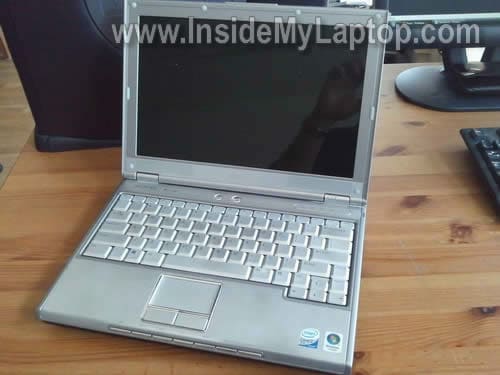
In the following guide I explain how to remove the keyboard in a Dell XPS M1210 laptop.
I am removing it in order to access the internal memory slot.
This model has two slots. One of them can be easily access through the service door on the bottom, but the second memory slot is hidden under the keyboard.
A Dell XPS M1210 can take up to 4GB RAM total. You can install up to 2GB stick into each slot.
You can use DDR2-533 PC2-4200 or DDR2-667 PC2-5300 modules.
Before you start, do not forget to turn it off and remove the battery.
STEP 1.
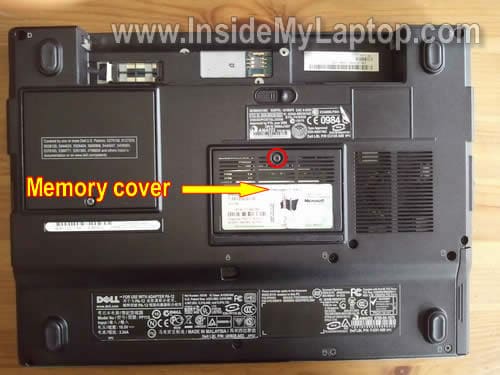
Remove one screw securing the service cover on the bottom. Remove the cover.
STEP 2.
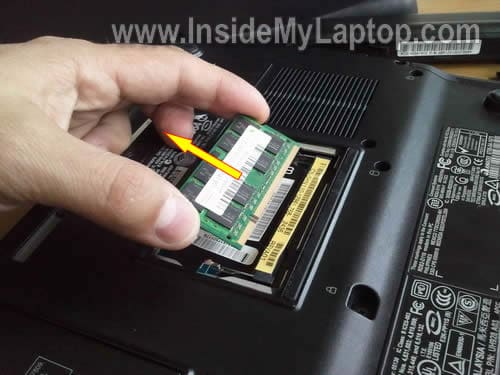
Spread latches on both sides of the memory slot. After the RAM module pops up at a 30 degree angle, carefully remove from the slot by the edges.
STEP 3.
In the following few steps we’ll be removing the keyboard.
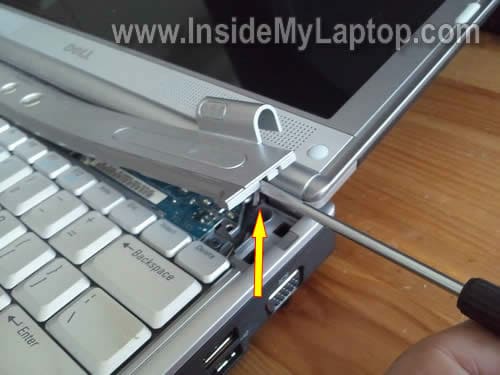
Lift up the right side of the power button cover with a small screwdriver.
Continue removing the cover with your fingers.
STEP 4.
Remove the power button cover.

STEP 5.
Remove three screws securing the keyboard.
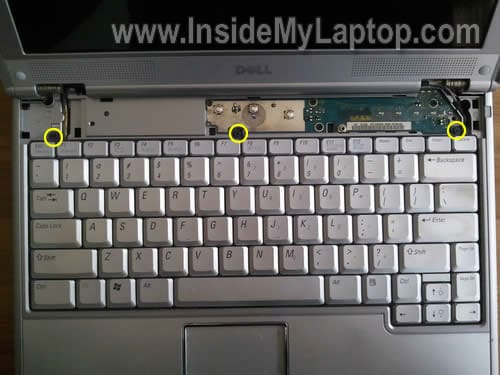
STEP 6.
Lift up the keyboard as it shown on the following picture and move it towards the display.
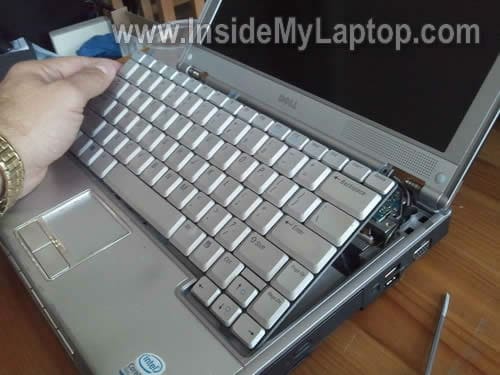
STEP 7.
If you want to replace the keyboard you’ll have to disconnect the cable from the motherboard.
You can access the internal RAM slot without disconnecting the keyboard. Simply turn it upside down and place on the palm rest.
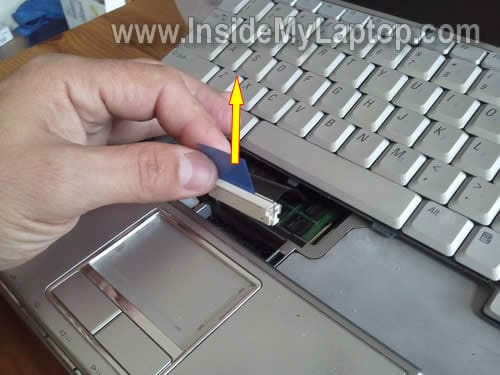
Under the keyboard you’ll find the internal RAM module.
Also you can access the CMOS battery and get some limited access to the cooling fan.
If the fan looks dusty, blow it off with compressed air.
Cleaning the cooling fan once in a while will prevent the laptop from overheating.

STEP 8.
Spread latches on both sides of the slot and carefully pull the memory module by the edges.

By the way, you don’t have to change any settings in the BIOS after RAM upgrade. New memory should be detected and configured automatically.
Matt
Just wondering if you can tell me WHERE the CMOS battery is on a Compaq V5207NR Laptop.
I know it’s on the motherboard but does the board have to come completely OUT of the case?
I was looking for exploded viewes of this laptop online and can’t find one anywhere! I just replaced a CMOS battery on a Dell Inspiron 1526 and that battery was on the opposite side of the motherboard, requiring the complete removal of the motherboard just to change that bat.
Crazy designs! But, that’s what us computer repair technicians get paid for right? : )
Thanks!!
atmoises
Hi Friend,
If i have a XPS M1210 with only 1gb RAM (slot hidden under the keyboard.) without Memory in the expansion Slot and i bought a module with 2 gb RAM, ¿in which slot should I install it?
IML Tech
atmoises,
You can install it into either slot. There will be no difference.
You can have 2GB memory in the slot under the keyboard and 1GB in the bottom slot or vice versa.
Alicia
Hi,
I have 2 (2GB) ram on the front and the back set up (they’re the correct ram from crucial), but once everything is installed, the num lock and cap lock lights blinks 45 times or 45 secs, the hard drive runs but the comp isn’t on. The BIOS have been updated from A01 to A03. Is there anything I’m missing?
Thank you!
– AS
IML Tech
Alicia,
What is your laptop model? Sounds like compatibility issue.
Have you tried those memory sticks one by one in your laptop?
Andrew
Thanks for this. It was useful. Just upgraded my M1210 and … it still works!! I didn’t break it! 🙂
Thanks again.
Gregory
Unfortunately I dropped my xpsm1210 breaking the top cover where the touchpad goes and also the bottom,black part at the back near to slot for the kensington lock and modem jack. In addition to what was shown in this post what else will I have to do to replace these parts. I already have the parts in question but I´m a bit hesitant to attempt it without a guide. Thanks in advance.
Richard
Thanks for the awesome guide! Very helpful.
Just in case any one else had the same problem, after adding RAM I got the following message after boot.
The amount of system memory has changed.
If you did not change your memory…
To resolve this issue, try to reseat the memory
The solution was to be patient. After a minute or so it will beep twice and let you enter setup or continue.
Howard
Thanks for taking the time to put this up. You’re a champion!! 🙂