

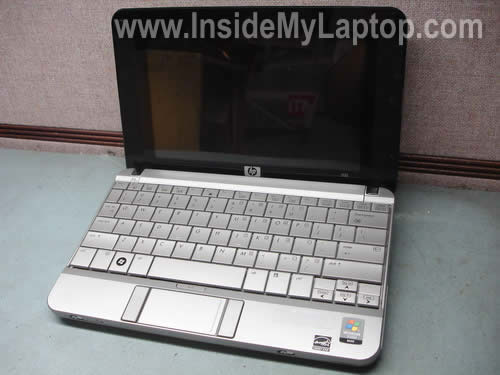
In this guide I disassemble a HP 2133 Mini-Note PC.
I will explain how to remove the keyboard, replace memory module and access hard drive. Fortunately all these three components can be removed without taking the whole thing apart.
Also, you should be able this guide for taking apart a HP 2140 Mini-Note PC which has the same body.
Before you start do not forget to turn off the computer and remove the main battery.
STEP 1.
REMOVING THE KEYBOARD.
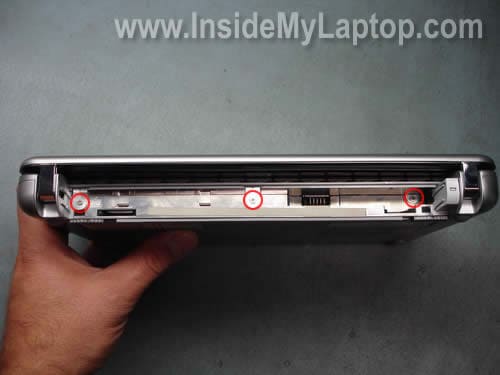
In the battery compartment you’ll find three screws securing the keyboard to the case.
Remove all three screws.
Carefully lift up the top side of the keyboard as it shown on the picture below.
There are small plastic latches securing the keyboard on both side.
Do not lift up the keyboard too much, it’s still connected to the motherboard.
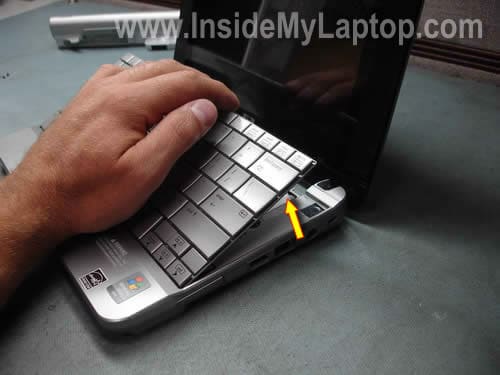
Move it towards the display so you can access the cable connector underneath.
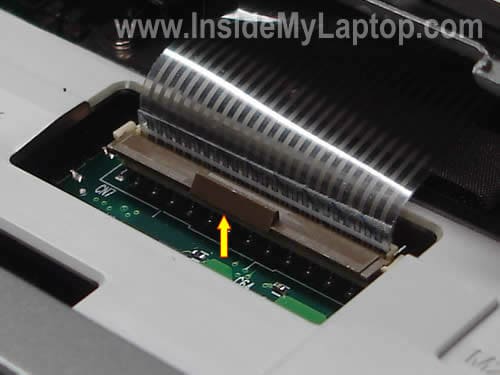
You’ll have to unlock the connector before you can release the cable.
WARNING! Be very careful with the connector. The connector is permanently attached to the motherboard. If it’s broken, the whole motherboard has to be replaced.
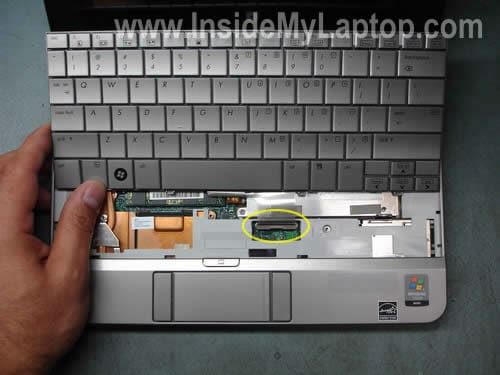
In order to unlock the connector, lift up the brown locking clip.
On the picture below you see the same connector in the unlocked state.
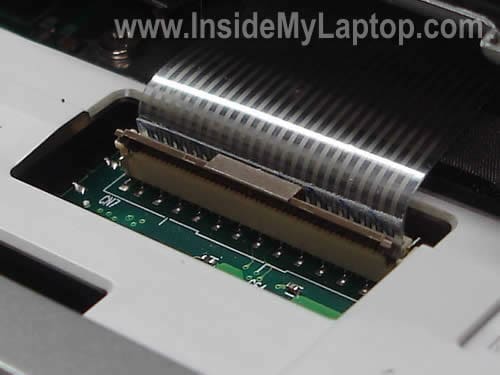
Now you can release the cable and remove the keyboard.
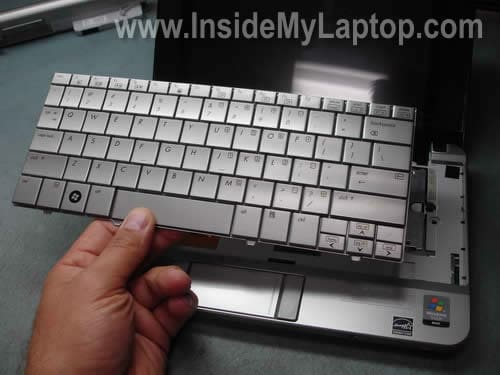
Here’s the back side of the keyboard.
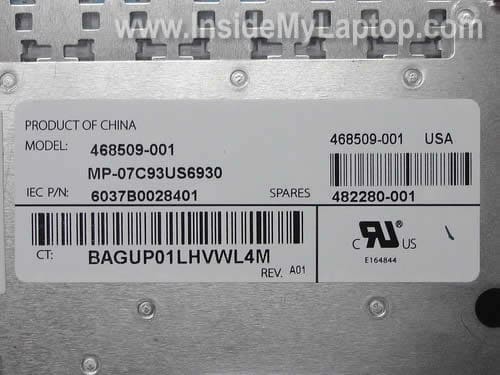
The part number is printed on the back. In my case it is: 482280-001.
The keyboard is not expensive and can be purchased for less than $25.
STEP 2.
REMOVING THE MEMORY MODULE.
HP 2133 Mini-Note PC has only one memory slot and it’s located under the keyboard.
You’ll find the memory module between the cooling fan and hard drive.
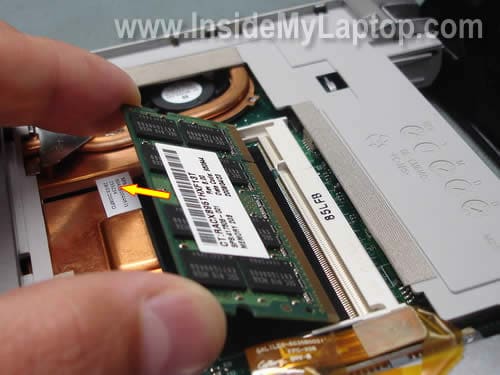
In order to remove the memory module, carefully spread latches on both sides of the slot.
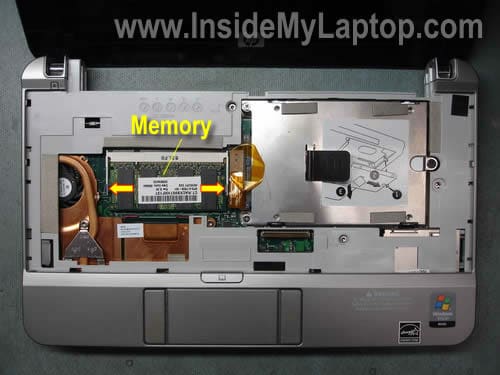
The memory module will pop up at a 20-30 degree angle and you can pull it from the slot by the edges.
HP 2133 Mini-Note PC will take up to 2GB memory module.
You should use DDR2 PC2-5300 or faster DDR2 SODIMM module.
STEP 3.
REMOVING THE HARD DRIVE.
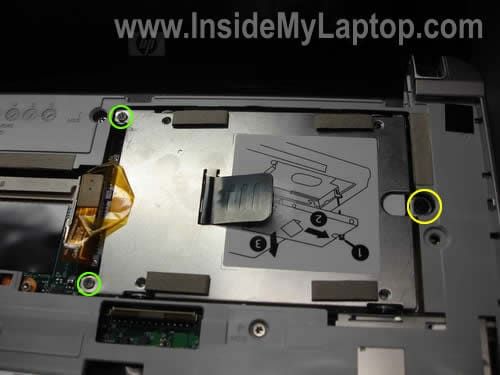
Remove two screws (green) and loosen one screw (yellow) securing the hard drive assembly.
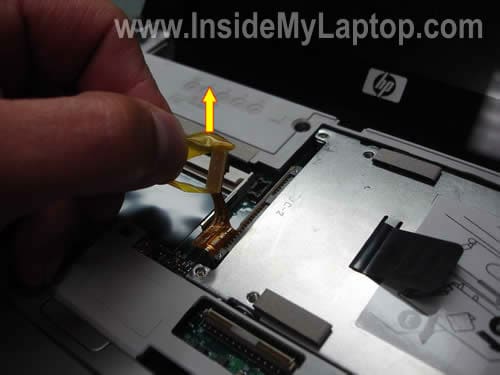
Pull the hard drive cable up and disconnect it from the motherboard.
Remove the hard drive assembly from the laptop.
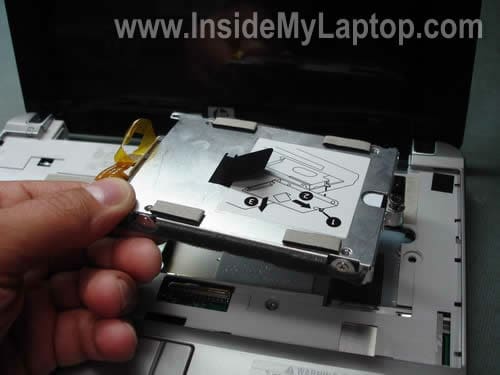
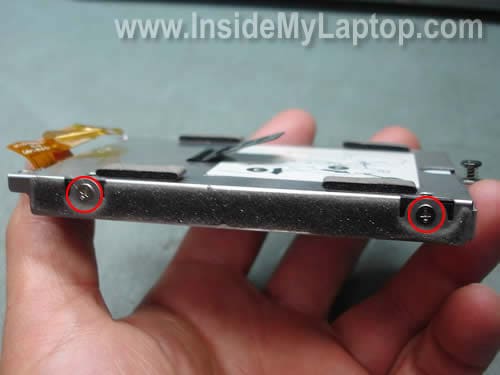
Remove two screws from each side of the hard drive assembly.
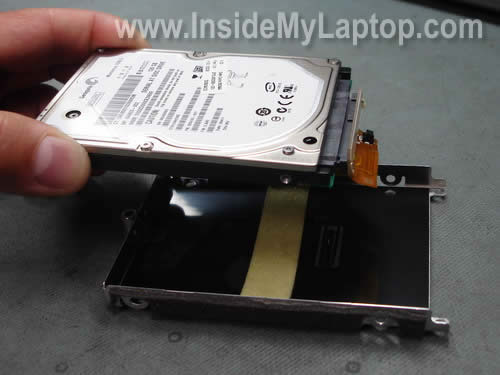
Remove the hard drive from the caddy.
Disconnect the hard drive connector.
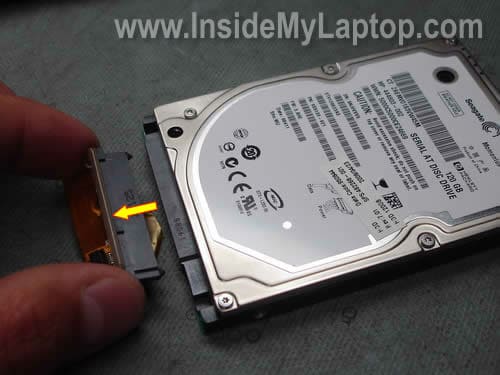
Now you can replace the hard drive with a new one. In my laptop I had a 120GB 7200RPM HDD installed.
You can replace it with a larger drive without any problem. Make sure then new HDD also works at 7200RPMs.
CLEANING THE COOLING FAN.
If your laptop overheats, most likely it happens because the cooling module got clogged with dust.
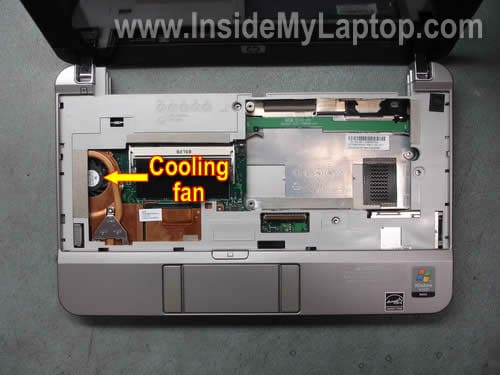
When you remove the keyboard you can get some limited access to the cooling fan. It would be enough for cleaning  it.
Use canned air of find an air compressor. Spray compressed air into the fan until all dust is gone.
Block the fan with your finger so it doesn’t spin when you spray air inside the cooling module. Hi RPMs can kill the fan bearing.
By the way, the display panel disassembly instructions (LCD screen, inverter board removal, etc…) are posted in the chapter 11 (Recycling) on the page 112.
John
Thank you very much!
I spille some soda on the keyboard and three keys stopped working. With this guide I can fix it myself. Already order the keyboard on ebay.
Sent you donation.
John
Chris2.0
Hi there!
Thanks for the guide! I want to open a friend’s 2133 and see if the LCD screen is compatible with my Dell Mini 9’s – do you have any experience doing this?
IML Tech
Chris2.0,
I haven’t replace the LCD screen on a HP 2133 PC yet, but I can give you some directions.
1. Remove the display panel as it explained the the maintenance and service guide for HP 2133 and HP 2140 laptops. It’s on the page 72.
2. After the display assembly is removed you can remove the display bezel and access the LCD. The bezel is secured to the back cover by four screws hidden under screw seals in four corners of the display.
Remove screws seals, remove four screws, separate the bezel from the cover with a piece of plastic. Now you can access the LCD.
leo alba
sir can you please teach me how to remove the plastic of the display. I just remove the two screw and the plastic snap from the speaker (bottom and both side but the top portion I cannot remove. Please help.
IML Tech
leo alba,
I didn’t disassemble the display panel on this unit myself and cannot give you a good advice.
It might be necessary to remove the display panel from the laptop before you can take it apart. The display removal instructions can be found in the official service manual on the page 72.
Also, look for hidden screws in the top left and right corners of the display bezel. Can you find any? In most laptops screws are hidden under rubber/plastic seals.
fabrice
i took a friend laptop and i need to replace the processor and i do not now how to go about this .Do you have any experience on this.if u do please email this address
mark
Hi so like some other posts on here i am trying to remove the lcd screen from the hp 2140. I already dissasembled the machine in order to remove the display from the rest of the computer. My biggest problem is removing the bezel from the display. I already unscrewed the two top screws and the bottom has no screws. I am able to pop most of the bezel off except from the top of the display where the microphone and webcam is located. It appears to be glued or something because it does not come off easily. PPPlease help me with this. I think i am going to have to call hp also and see if one of there techs can help me out.
IML Tech
mark,
Don’t call HP. Most likely you will not get any help, at least for free. 🙂
Download this service manual for HP 2133 Mini-Note.
It’s a 4.32MB pdf file and might take some time to download.
Go to the chapter 11 (Recycling) page 112. You’ll find the LCD screen removal instructions in there.
I don’t know why HP posted these instructions in the recycling chapter. 🙂
mark
Thanks IML Tech but the service manual did not help. The computer used to demonstrate how to remove the bezel is noth the same therefore does not have the same issue i am having. I have replaced many screens in the past but this one just isn’t coming off. I was told by the support group that the bezel is not intended to be removed as it holds the microphone and webcam in place. The solution is to replace the display entirely which runs around 270 bucks.
IML Tech
mark,
This is strange. You said you have an HP 2140 notebook and the service manual says it’s for HP 2133 Mini-Note PC and HP 2140 Mini-Note PCs.
I’m not sure why it’s different.
JT
DO ALL HP 2133 COME WITH HARD DRIVE? MY HP NEVER WORKED RIGHT HAD IT IN FOR AT LEAST 6 TIME TO HP – I GAVE UP – AFTER 6 MTD I THOUGHT I WOULD TRY TO REPAIR. OPENED IT UP NO HARD DRIVE. A CIRCUT BOARD NO HARD DRIVE – SHOULD IT HAVE ONE
Robert Szabo
Hello, find your directions very helpful. Can you tell me how to access the wires leading from the base unit to the screen? I have a black screen that just flickers when you hold the ‘off’ slider for a few seconds to power it down. I think there may be a chafed wire. I have tried all the instant remedies so far regarding black screens…
-deplete static charge by removing battery & holding ‘on’ button for 60 seconds
-freeze the unit to re-set the thermal switch
-reseat the memory
Anything I haven’t tried to get the black screen alive again?
Many thanks,
Robert
IML Tech
Robert Szabo,
You’ll find step-by-step disassembly instructions on this service manual for HP 2133 Mini-Note PC and HP 2140 Mini-Note PCs.
The display removal instructions starts at the page 36.
The display disassembly instructions are on the page 112, in the recycling section.
PC
Alex
Would anyone know a solution for the usual motherboard heat problem on all 2133? I was thinking on using a 2140 motherboard (with an ATOM CPU). Does anyone know it’s possible? Does it match the form and size?
Ayan
DEAR SIR I WANT TO DISASSEMBLE MY HP MINI 2133 BATTERY(3 CELL) TO CHANGE THE INTERIOR CELL BECAZ IT IS NOT CHARGING N I DONT WANT TO DISCARD IT PLZ GUID MY IS THIS POSSIBLE TO CHANGE THE CELLS INSIDE THE LAPTOP BATTERY?
Victor
Tank’s a lot!
TMoore
I have a good ac power adapter but th female end within my HP Mini 2140 i beleive is faulty. The power light comes on breifly but will no stay on. Is there a way I can replace the dc jack receiver within my HP Mini 2140?
Ossi
>> “Thanks IML Tech but the service manual did not help. The computer used to demonstrate how to remove the bezel is noth the same therefore does not have the same issue i am having. I have replaced many screens in the past but this one just isn’t coming off. I was told by the support group that the bezel is not intended to be removed as it holds the microphone and webcam in place. The solution is to replace the display entirely which runs around 270 bucks.”
I am not so sure about this – I was able to snap also the top part off – needed to use sharp knife and use just a bit more force. It snapped off nicely. I have HP Mini 2140. BUT: so far I have not been able to remove the botton part of the bezel, as it is obstructed by the hinges. I have been trying to remove the hinges, but it seems to require a 5mm wrench, which I don’t have. So need to go to hardware shop tomorrow. I am quite positive the screen can be removed, even though it is VERY difficult.
MP
I have my friend’s HP Mini 2133 and it’s getting on (the blue light is coming but no activity happening on screen) can you provide me the detail screen shots how and what to check?
IML Tech
MP,
Could be failed memory module. I would try replacing it with a known good memory module first.
Andy
hi,
really good step by step guide!but a quick newbie question…if i have 160gb 5200rpm hard drive will i have an issue upgrading to a 320gb or 500gb 7200 rpm hard drive?
thanks,
Andy
Nino
Hi, thumb up for excellent work u’re doing. Heres my issue. My 2133 stopped working a while ago, overheating/motherboard issue. Since I live in Europe outside of an area where I can get HP servicing, my question is, if I order motherboard from ebay or similar, will I be able/is it possible to change motherboard manually (i.e. myself)??
Thank you very much!
IML Tech
Nino,
Sure, just download service manual for HP Mini 2100 Notebook series and follow disassembly instructions.
Tiiki
Hello,
Thank you for step guide is really good!
1. My HP Mini 2133 was overheating and fan really noisy. I try to removed and cleaning all over fan, heatsink with a little drop of Arctic Silver 5, then i replace everything back.
2. I started up, everything work fine just for 20 minutes! After that my little fan started to moaning and again overheating!
3. I have done the same as (1) again, and try to do a little more as i have been reading somewhere on internet. I removed the black tape (sorry i really dont know how to call the name) what was wrapped over the Motherboard that i thought might be helpful (i was wrong).
So now extreme hot! I mean almost 100 degree! I know i was wrong to removed the black wrapped…Please help me!
Questions
* Can i run my notebook without black wrapped? If not, can i buy it somewhere and replace it myself?
* How to make the fan less noise and less hot..etc.
Thank you very much for advice!
IML Tech
Tiiki,
If the cooling fan makes noise even after cleaning, I guess it’s time to replace the fan with a new one.
Apparently the original fan doesn’t work properly and has to be replaced.
Salloo
The hp mini 2140 is bit different from inside as fan can not be seen after removing keyboard what one can do to replace or clean the fan?
Richard Salvatierra
Thank you so much!
Very interesting your detailed process I’m technician and I really need this information! Greentings from South America!
Pat
All but 5 of the keys work on my keyboard. The clip and the ‘tape’ got seperated – but we were able to use a small piece of tape to put them back in place. Hate to buy a new motherboard for 5 keys. Ideas?
Aprajita
hi…
i have a 2140 hp mini laptop. it has started showing black screen on start up and does not proceed. can u pls help?
IML Tech
Aprajita,
First, try reseating memory modules. Try replacing memory.
Steven
One of the hinges of my 2133 hp mini came off, how do i fix it? Its the part of the laptop that allows it to open and close. I don’t know what to do, and i would really appreciate your help please.
IML Tech
@ Steven,
You can find replacement hinges for HP Mini 2133 on ebay.
Complete laptop disassembly instructions shown in the service manual.
Hope it helps.
Solomon
My hard drive connector got spoilt can it be replaced and if it can where can I go to find it