

In this guide I explain how to remove and upgrade memory in a Toshiba Satellite M100 or Satellite M105 laptop. I will upgrade it from 512MB (default size) to 2GB. This model has two RAM slots. One of the RAM slots can be easily accessed from the bottom but another one is hidden under the keyboard.
Let’s start with the hidden internal RAM slot. In order to access this slot we’ll have to remove the keyboard.
Make sure the computer is turned off and the battery is removed.
STEP 1.
Insert a small flat head screwdriver between the speaker cover and laptop base.
Lift up and remove the speaker cover.

STEP 2.
Remove two screws securing the keyboard. Release the latch located above the key F8 and lift up the keyboard.

STEP 3.
It is not necessary to disconnect the keyboard while accessing the internal RAM slot. Simply turn the keyboard upside down and place it on the palm rest.
The internal slot is hidden under a metal cover. Remove two screws and remove the cover.
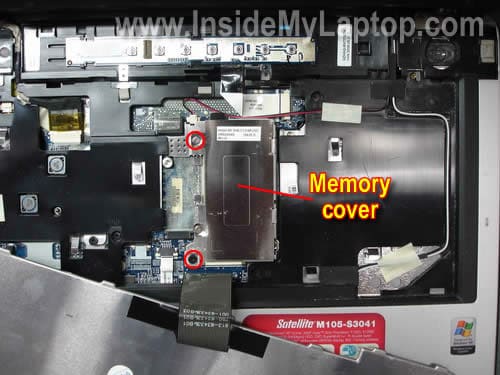
STEP 4.
Remove the original memory module installed into the internal slot. In my case I had a 512MB module installed.
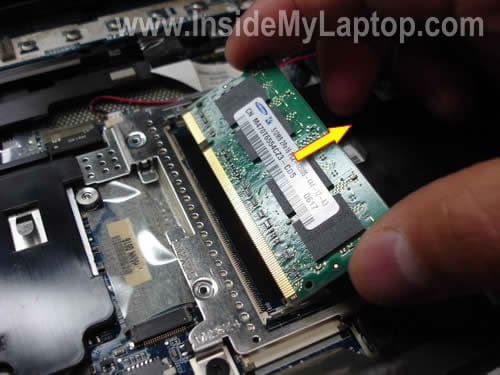
STEP 4.
Install a new 1GB module into the internal slot.
Install the metal cover, keyboard and speaker cover.
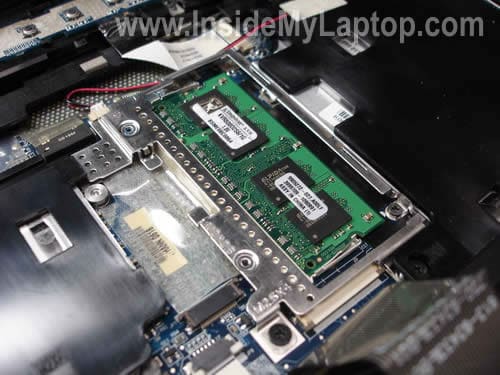
Now we’ll move to the second slot located on the bottom.
STEP 5.
Remove one screw securing the cover. Remove the cover.
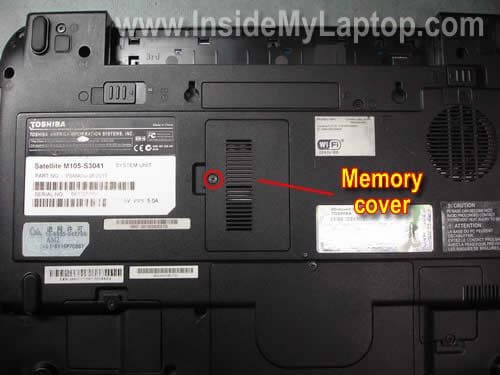
STEP 6.
In my laptop this memory slot was not occupied.
Install another 1GB module into the bottom slot.
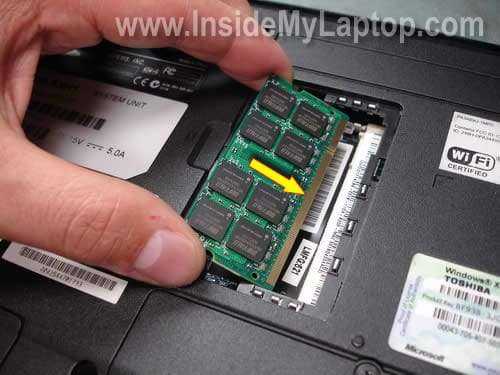
That’s it!
Both RAM modules should be detected and configured automatically as soon as you turn on the laptop.
You can check memory size in the BIOS setup menu or System Properties.
Toshiba Satellite M100/M105 will take up to 2GB RAM total. You can install up to 1GB RAM module into each slot.
Use DDR2 PC-5300 SODIMM. You can install faster memory, for example DDR2 PC-6400 but it will slow down and run at PC-5300 speed.
UPDATE: I checked some RAM sellers recently and they say that Satellite M100/M105 can handle up to 4GB.
Have you been able to install 4GB into your Satellite M100/M105?
MJA
thanks alot good person……..that hidden slot just wasnt user friendly to find………made my day…PEACE
Wiktor
Thanks Man!
alt0160
Thanks for sharing this info. I’ve never taken apart my M100 and wanted to know how it was done.
Very informative.
BM
Thanks a lot…wasn’t possible without your help
Andrew
Great thanks! Bought ram for my girlfriends dad thinking they both in the ram slot underneath on top of eachother (like my laptop). Realised one goes under keyboard and couldnt work it out. Used your guide and works great! thanks
Geraldo Leal
Does anyone know how to change the Processor?
anil
Hi, Thanks a lot. It was really tricky to know about the hidden second one under key board. This post is very helpful. Thanks again.
Igor Bukanov
Thanks a lot for the very helpful instructions!
I have a localized version of M100 for Russian market, Toshiba Sattelite M100-L222. I have put there 2x2GB of RAM. The BIOS reports that. But Linux can only access 3GB.
IML Tech
Igor Bukanov,
I’m not sure if Linux can handle only 3GB but you can use 64-bit Windows.
You shouldn’t have any problem with getting a 64-bit version of Windows in Russia. 🙂 Удачи!
orrcha
why after i follow the instruction and replace the memory my laptop bios beeping and the laptop wont start… is there any bios changes that i have to change?
thanks
orrcha
sorry my bad, i put the memory not appropriately.. 😀
thanks again
Sebastian Fleiter
Hi there,
you can even install 2 GB into the bottom slot.
It will be recognized.
But ONLY 2 GBs.
Next trying to upgrade to a t 5200 or similar CPU 😉
Joe G
A couple notes.
After removing the battery, you can push the speaker cover tabs from the bottom making it easier to pop off. And there are also 2 plastic tabs at each end holding down the cover.
You can’t just slide the 512 KB memory card out. You have to first move the 2 spring leafs out away from the card, allowing the card to spring up. Then you can pull it out.
TC Lai
Hi,
Thanks v much for the information above.
My problem is a torn speaker cone (due to aging, I suppose). How do I remove/replace it?
(Am referring to Satellite M100 model).
I’ve managed to remove the cover as above. But, how to remove the right speaker?
Let me know.
Thanks again in advance!
TC
IML Tech
TC Lai,
In order to remove the speaker, you’ll have to remove the top cover first.
manivannan
is it possible to toshiba satellite M100???
burhan
Very good information,
Thanks for sharing this information.
Alex
Does somebody know where the cmos (rtc) battery of my Tecra A6 is located
I ve been doing research but all I found outis that it seems to be solderd to the MB
but where? Thx
IML Tech
Alex,
The CMOS battery soldered to the motherboard. It’s located on the bottom, between the PC slot and Intel chip. Looks like a small blue coin.
You’ll have to remove the laptop top cover in order to access and replace the CMOS battery.
John Harper
Can I insert a 2GB stick in the memory slot underneath the keyboard?
Asim
Hi-
Thank you for your instructions. My questions is:
Can I add 1GB Ram (in the bottom slot) in addition to my currently existing 512 RAM to make it 1GB+512?
IML Tech
Asim,
Yes, you can.
IML Tech
John Harper,
Some sources claim that you can install 2GB RAM into each slot. I haven’t tried it myself.
Tony
Thanks a lot, great job !!
Chris
I have installed 4 GB of DDR2 in my M105. Works great…need a 64-bit operating system to recognize more than 2.99 GB, though.
Ron
I was going to open up the entire bottom cover until I read this. Thanks for the info.
@Chris. You won’t be able to install a 64bit OS on this laptop. The processor doesn’t support it.
Francisco N
Thanks a lot for the directions! I managed to upgrade my M105-S3004 to 4GB (2x2GB). There is a 3.6GB boundary even with Linux.
Next step: Replacing the 100GB HDD with a 500GB with smaller latency 🙂
Regards
Jay Herm
I have 512mb onboard memory and added another 512mb to the second slot on the bottom of the case. When I booted up, i checked the bios and it shows 640MB plus 384 extended memorty for a total of 1GB. However when I boot up in Windows and run Task Manager, Windows only shows 512KB under Performance. Is there a way to may Windows XP see that other 512KB the bios sees?
JR
Sir i assumed that the stock memory is 512MB DDR2 PC-533, i bought 2GB DDR2 PC-800. i was unable to uninstall the stock, and i installed the 2GB at the expansion slot at the bottom, so its running with both memory. will this affect the speed of my lappy..? pls advice…
yes, i checked the system memory overall is 2550 MB of RAM..
IML Tech
@ JR,
Your laptop motherboard has 667MHz FSB.
The original memory you have installed is DDR2-533 PC2-4200 which runs at 533MHz – a little bit slower than laptop can handle.
If you install new 2GB DDR2 PC-800 with original 512MB DDR2 PC-533, the whole system will run at 533MHz.
If you remove the original 512MB DDR2 PC-533 module and install just new 2GB DDR2 PC-800, the laptop will run at 667MHz, which is a little bit faster.
I don’t think you will see any noticeable difference between 2.5GB RAM running at 533MHz and 2GB RAM running at 667MHz.
Trudy
Hi – I have an M105 with only 512 mb of memory. Is it true what the fellow said up above about needed a 64 bit operating system to recognize more than 2.99 gb of ram? I have windows xp (which I think is only 32 bit) – could i install a 1gb card and a 2gb card – would that be better?
Thanks!
Trudy
IML Tech
@ Trudy,
According to Microsoft, Windows XP 32-bit supports up to 4GB RAM.
From my experience, Windows XP 32-bit OS will not show more than 2.99GB in system properties.
It’s up to you. You can use 1GB+2GB or 2GB+2GB. There will be no difference.
3GB RAM is plenty for Windows XP.
Felipe
Thanks a lot men, I were troubled to find the hidden slot…
Thnak You !!!
Jon
When I installed the memory and revolted the machine beeped a few times but the screen did not come back on. Any ideas?
Susie
I have the same problem as John in response #35. I installed the memory, turned on the laptop and heard a few beeps but screen didn’t come back on. What do I need to do? Thanks.
Paul K
In my M100-JG2, I put in 2 (two) sticks of 2Gbyte ddr2 pc2-6400 ram. Bios sees all 4Gb of it, memory check only counts about 3072 Mb. System reports 2.99GBytes. Overall, system seems faster. I believe the rest (about 1 GB) may be used for the gma 945 video but is not available for programs. Or is the extra ram just wasted? Thanks.
IML Tech
@ Paul K,
Are you running a 32-bit OS? It has some limitations and cannot see all 4GB or RAM.
Hamish
I see a few people have had beeps on start up and a black screen, as did I.
I’m running a M105-S1021. The motherboard has a max of 2Gb, seems they were wrong.
I received a Black screen (all lights, no start up)when I removed the 512mb stick and installed 2x 1Gb sticks.
I received a Black screen and beeps (again all lights, no start up) when I had just one 1GB stick installed under keyboard.
The computer would start with the 512mb under the keyboard installed again along with 1GB underneath; however My System properties only shows 896mb ram with 1.5gb installed.
Does anyone have an explanation for the beeps and black screens?
Hamish
**Update** Ive managed to solve the issue of the black screen and beeps. You will need to update your BIOS. Look on the Toshiba website for downloads. Put in your model, and look for the latest BIOS updates. Download and install, I ran the update within Windows, no extra drive required. Pretty simple as long as you follow the directions. Now my System Information shows 1.87GB (2Gb installed). Thank you Inside My Laptop for the simple install instructions, and to all the people who left their input.
Phil
If I install either 512mb, 1GB, or 2GB memory in the expansion slot and leave the memory under the keyboard as is will it speed up my laptop? My operating system is Windows XP.
IML Tech
Phil,
Yes, it should speed up the laptop.
Santosa
My Laptop is Toshiba Satellite M100 and my operating system is Windows XP HOME Edition, Ver. 2002, Service Pack 3. If I install 2GB memory in the expansion slot and leave the memory which is 512MB under the keyboard, will it work on my laptop?
Thank you.
IML Tech
@ Santosa,
It should work. I believe this model can support up to 4GB RAM total.
You can install different size memory modules in different slots. 512MB+2GB combination should work.
mendel samuel
i changed the processor to a dual core 2.00 ghz ..i got it from a laptop i had which had no screen and it fitted in the socket perfect and now am using 3gb of RAM i dont know it it can go to 4gb yet cause i dont have another 🙂
mendel samuel
sorry but i dont have xp anynore i have it running on win 7 pro and somehow it got 1343mb graphic memory xD 🙂
IML Tech
@ Mendel Samuel,
Is it Satellite M100/M105 laptop?
According to Crucial site this laptop will support 4GB RAM. Just make sure you are running a 64-bit OS.
karthik
my system shows no display when i checked memory led is not glowing but when i start up no beed sound is coming any body help me with this issue
wales
For those people complaining about the not displaying issue when u insert a new ram, its not a big deal just insert one of the 512mb on one end and the other on the order end. E.g 512mb beneath d keyboard 1gb or 2gb at the button. It works for me
Alan
Thank you! It’s helpful 🙂