


In this guide I explain how to disassemble a HP Pavilion tx2000 Tablet PC and remove the motherboard. I’m removing the motherboard in order to repair failed NVIDIA chip.
Before you start, make sure the laptop is turned off and battery removed.
STEP 1.
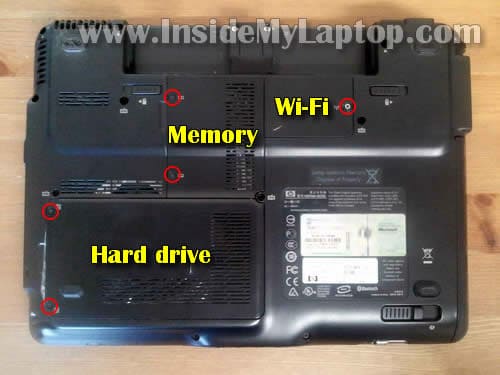
Loosen five screws securing hard drive, memory and wireless card covers.
Remove all three covers.
STEP 2.
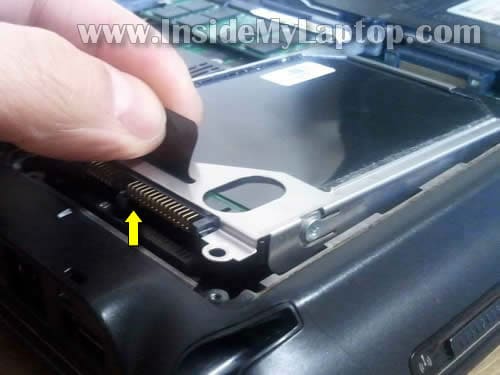
Lift up one side of the hard drive by the black tab to disconnect it from the motherboard.
STEP 3.
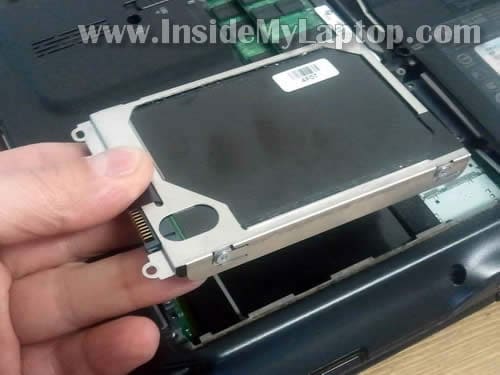
Remove the hard drive assembly.
By the way, it’s a regular 2.5″ notebook SATA hard drive. There is an adapter connected to the hard drive. That’s why the hard drive connector doesn’t look like a regular SATA connector.
STEP 4.
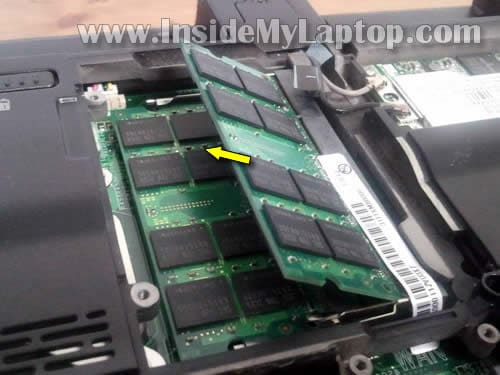
Both memory modules can be accessed though a door on the bottom.
Remove both memory modules.
STEP 5.
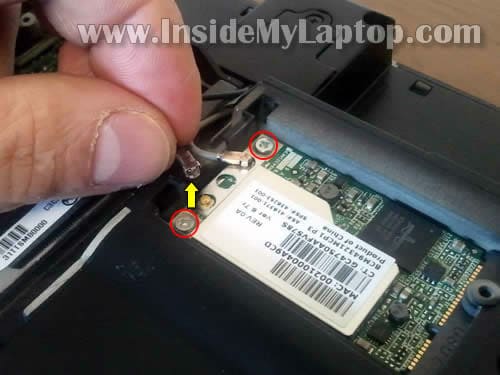
Disconnect two antenna cables from the wireless card.
Remove two screws securing the wireless card.
STEP 6.
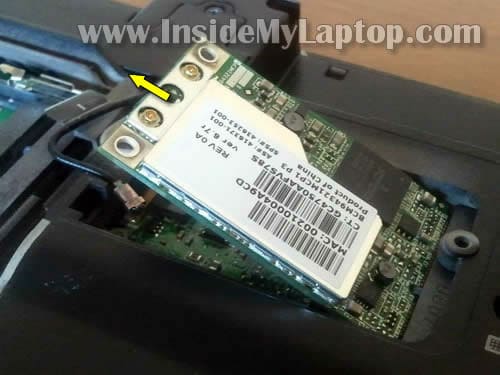
Pull the wireless card from the slot.
STEP 7.
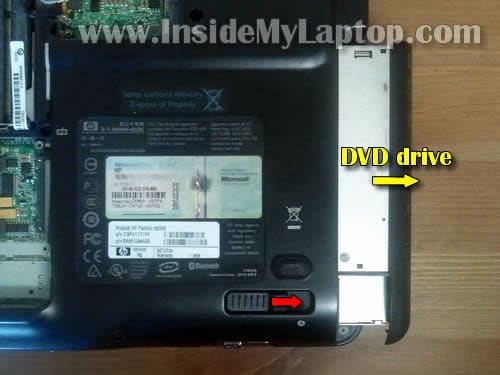
Unlock the DVD drive and remove it.
STEP 8.
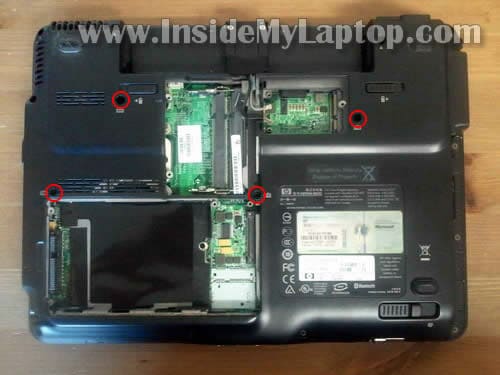
Remove four screws securing laptop keyboard on the bottom.
STEP 9.
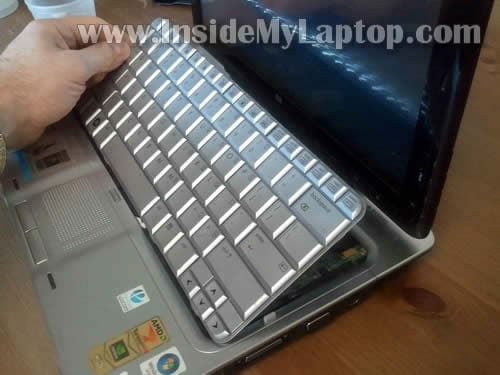
Carefully lift up the keyboard from the top case.
STEP 10.
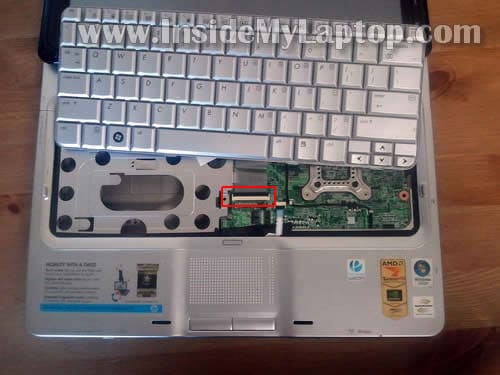
Now you can access the keyboard cable connector which is located underneath the keyboard.
STEP 11.
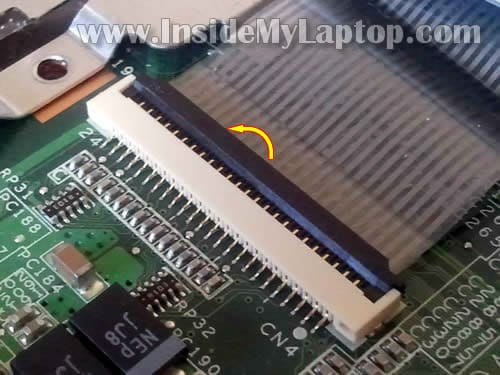
Before you can remove the keyboard cable, you’ll have to unlock the connector.
On the following picture the connector shown in the locked position.
In order to unlock the connector, lift up the right side of the brown clip at a 90 degree angle.
STEP 12.
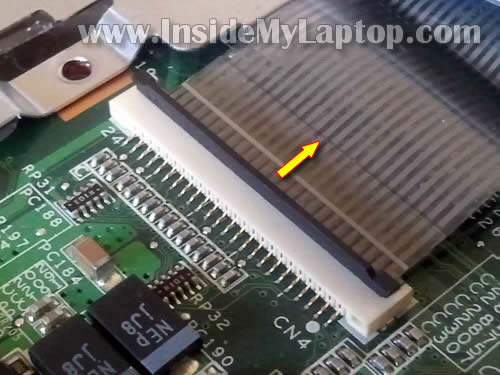
On the following picture the connector is shown in the unlocked position.
Now you can pull the keyboard cable from the connector.
STEP 13.
Remove the keyboard.
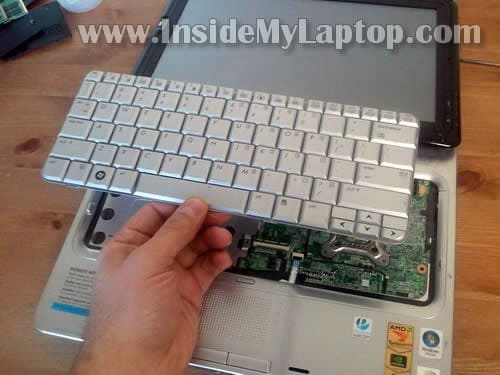
STEP 14.
Remove four (red) screws securing the hinge cover.
Remove three (yellow) screws securing the display hinge and cable cover.
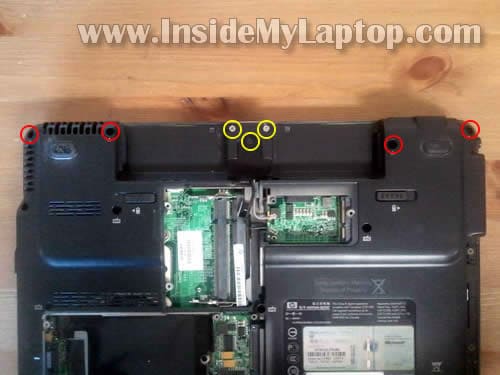
STEP 15.
Under the cover you’ll find two display cables.
Disconnect both cables from the motherboard.
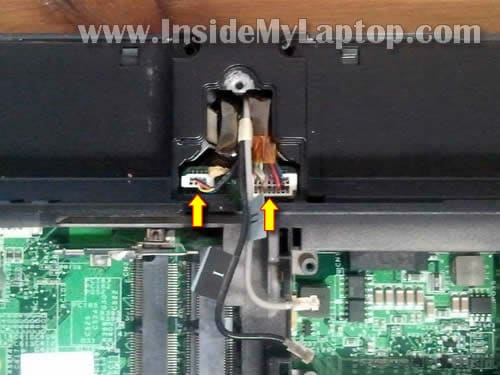
STEP 16.
Turn the laptop display and start removing the hinge cover.
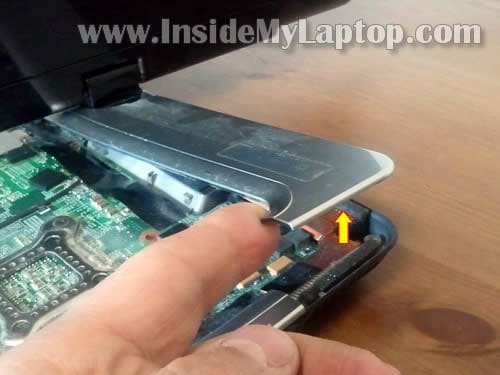
STEP 17.
The hinge cover removed.
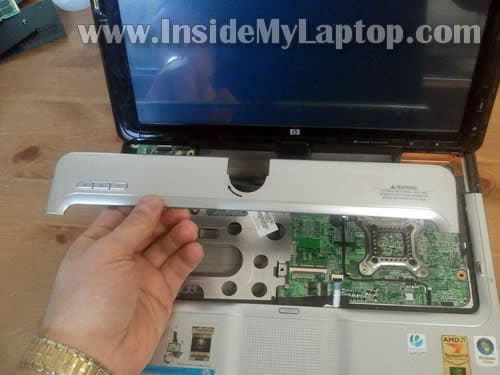
STEP 18.
Disconnect LCD cable from the motherboard.
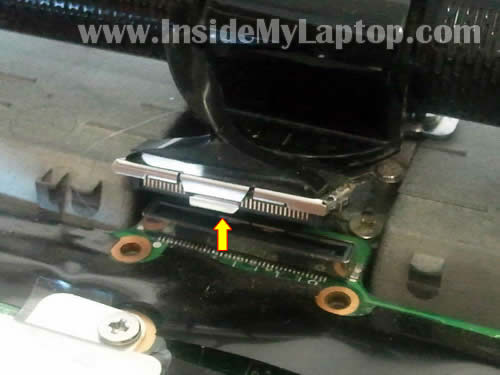
STEP 19.
Remove two screws securing the display hinge.
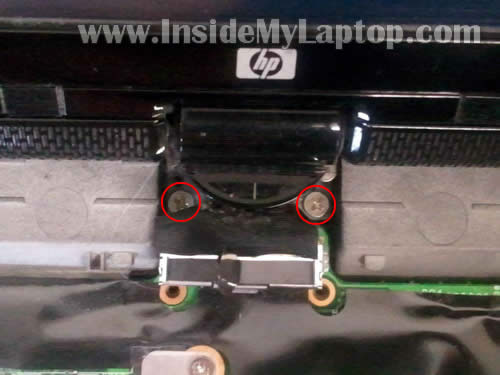
STEP 20.
Lift up and remove the display assembly.
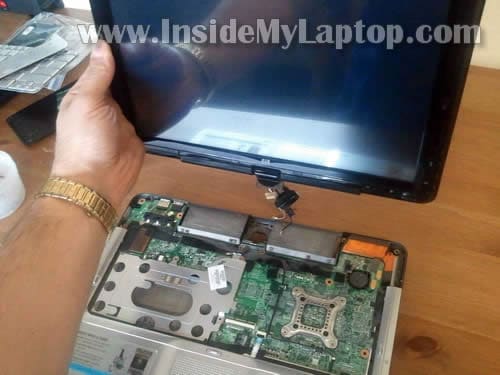
STEP 22.
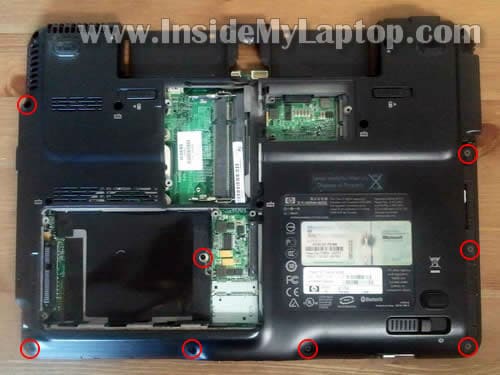
Remove screws from the bottom.
STEP 23.
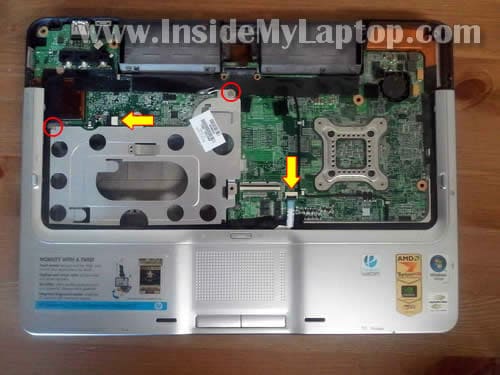
Remove two screws securing the top cover.
Disconnect two cables from the motherboard.
STEP 24.
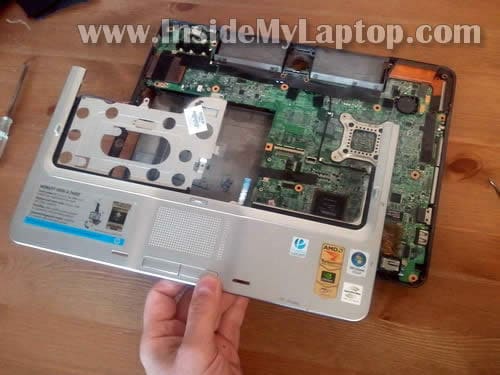
Remove the top cover assembly.
STEP 25.
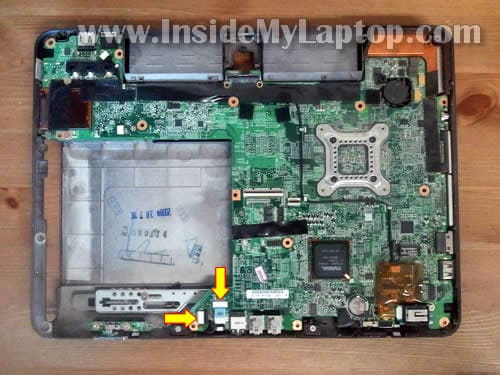
Disconnect two cables from the motherboard.
STEP 26.
Make sure the Express Card slot cover removed.
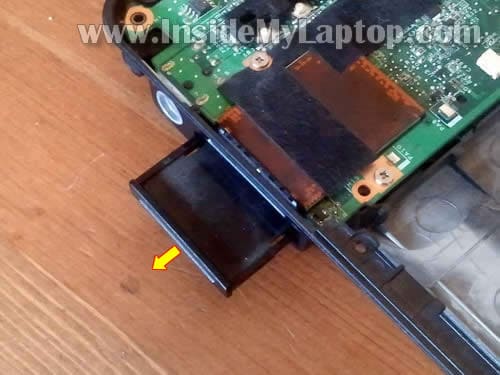
STEP 27.
Carefully lift up the left side of the motherboard.
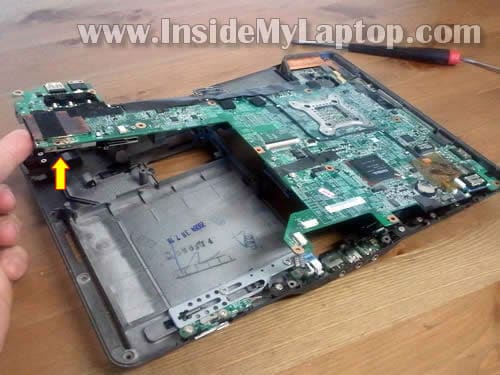
STEP 28.
Remove motherboard from the laptop base.
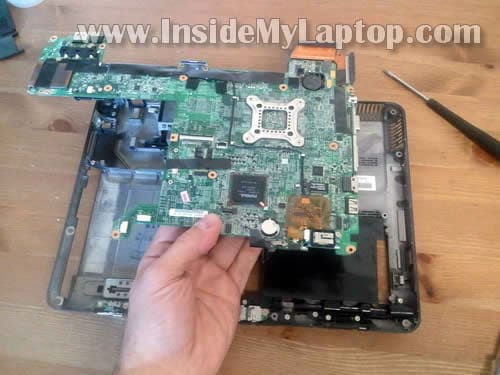
STEP 29.
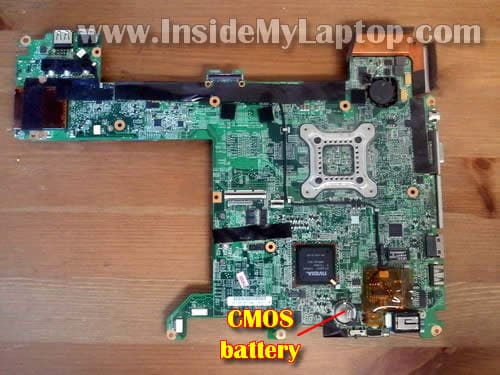
The motherboard has been removed.
On this side of the motherboard you can access the CMOS battery.
STEP 30.
On the other side of the motherboard you can access and remove the cooling module (heatsink with fan).
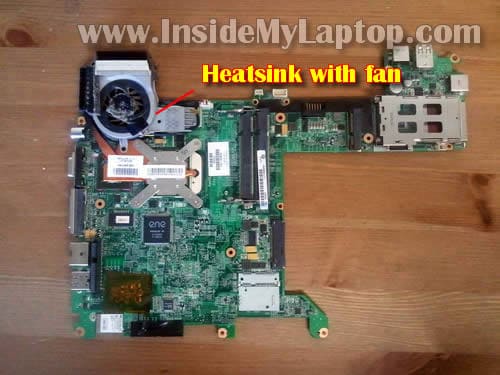
STEP 31.
Remove four screws securing the heatsink assembly.
Disconnect fan cable from the motherboard.
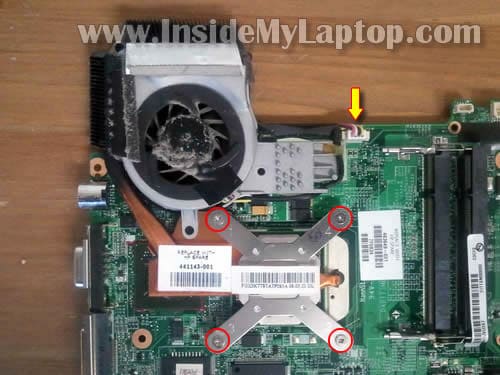
STEP 32.
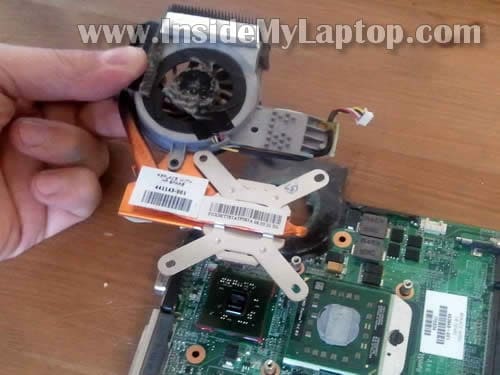
Carefully lift up and remove the cooling module.
If the heatsink is clogged with dust, you can blow it off using compressed air.
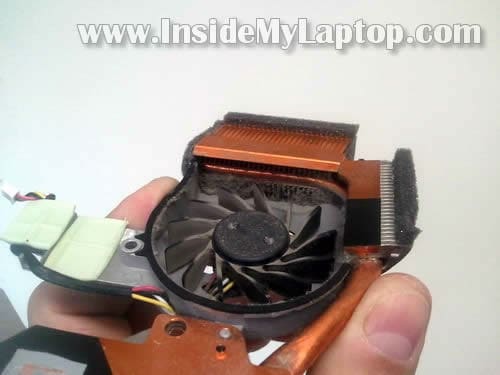
STEP 33.
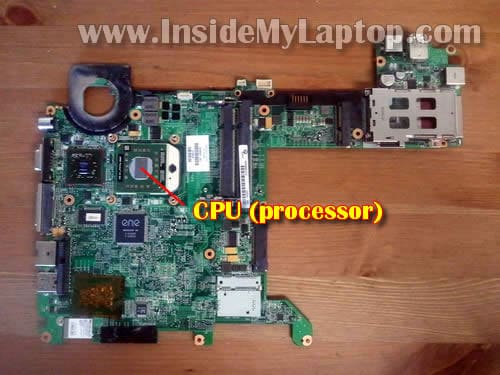
After the cooling module is removed, you can access and remove the CPU (processor).
Will
I have a toshiba L355 laptop wirh loose power jack pin, it does not look like the plastic inside is
broke or moving just pin. Is their anything I can do to just the pin?
Thanks Will
IML Tech
Will,
No, you cannot replace just the pin. You’ll have to replace the jack.
You can replace stock DC jack with a generic one. I explained this modification here:
https://www.insidemylaptop.com/repair-damaged-power-jack-toshiba-satellite-l305-l355-laptops/
Alvin
Great guide; I have an issue though: I followed your instructions disassembling my HP tx 2000 tablet laptop (to clean up the fan dust), but after I assembled back the tuchpad just couldn’t work.
The keyboard and the mouse pad are working though; only the touchpad (touch screen with the pen) just can’t have any response; my OS is Windows 7 and I downloaded the TouchPad update and installed it but still without any luck. Please advise, thanks a lot!
Larks
hello, I have a tx2000 and the touchpad(mouse) is not working at all, yet the blue light is on. I reinstalled the drivers and fixed a failed gpu chip in order to fix the wifi. Is there a way to fix the touchpad or should I buy a new ribbon or entire touchpad. Thank you for your time.
IML Tech
Larks,
I cannot tell if the problem is software or hardware related without testing the laptop.
Is it possible the touch pad is disabled in the BIOS? Did you check all touch pad settings in the control panel?
Francis
What do I do if I removed my heatsink and replace it but the system shuts off very quickly?
IML Tech
Francis,
Didn’t you forget to plug in the cooling fan?
Did you apply thermal grease on the CPU?
Did you install thermal pad back on the graphics chip?
angeli
Hello
My HP tx pavillion have the same problem, a guy told me that I need to change the graphic card which is ATI, so I have to buy a new motherboard or just the ATI graphics what can I do to fix my computer.
I really appreciate if you can help me. 😉
IML Tech
angeli,
As far as I know, HP Pavilion TX series notebook has a built-in video card. It means, if the video card goes bad the whole motherboard has to be replaced.
mohan
i have hp tx2009 au laptop
once while using it display went , then i showed to service center and they said have to replace motherboard and whole display and given quotation of 40k
please tell me what i should do
Gerald
dear IML Tech, i have disassemble my laptop according to your tutorial. i have clean my heat sink and everything else but when i put it back together, it shuts off automatically during start up…there is a error message but i didnt get the chance to look at the warning as it tend to shut down directly…should i apply thermal paste to the processor? what is the cause of the problem? looking forward for your help man. tks in advance
IML Tech
Gerald,
Probably overheating. Didn’t you forget to plug in the cooling fan?
Definitely! Without thermal paste the CPU will overheat.
Gerald
thanks for the help…1more thing thou, do i need to apply the paste and pad together or 1 of it is enough?
IML Tech
@ Gerald,
You apply thermal grease only on the CPU chip (which doesn’t have thermal pad).
For all other chips covered by thermal pad. You do not apply thermal grease on thermal pad.
Paul
Thank you for the wonderful tutorial! I have completed the above to clean out my fan and have dropped my GPU temperature by 20 degree C! I have everything reassembled now having issues with my Webcam, it isn’t being recognized….I verified the cables in step 15 are secured do you have any suggestions? Thank you again for this tool!
IML Tech
Paul,
Take a look inside the connectors in the step 15. Maybe you accidentally damaged one of the pins?
You said the webcam is not recognized. Does it appear in the device manager at all? If it does (but has an error), right click on the webcam and uninstall it. Now reboot the laptop and let it redetect the webcam.
Paul
It doesn’t appear that either connector has any damage and wires are in good condition. The webcam is not showing in the device manager. Have you taken the display apart before? I am looking at replacing the internal webcam. Thanks again for your response and suggestions.
IML Tech
@ Paul,
I have. You’ll find instructions in the service manual. For some reason it’s in recycling chapter on the page 109.
Before replacing the webcam, try reconnecting the cable. Maybe it’s just bad connection.
Al Lenore
I need to replace my keyboard after a juice spill. I cannot seem to figure out how to remove my keyboard. Do you have any video, instruction sheet or any clear instructions to help me. My laptop is the emachines e725.
Thanks
Al Lenore
jordi torra
Hi, I do not speak your language, I used a translator. I have a black screen. I do not work with another monitor. I trer hard drive and I mount again, verifying that fit well. Like I did with the memory card. I think it must be the trageta graphics. Do you know if integrated into the motherboard? If so I can buy on the market? In your opinion correct in my diagnosis and I think my problem lies elsewhere and if so, what would you say to me? Thanks. Best Regards
amy
adaptor is charging battery but no power supply to motherboard when switch on this.problem maybe cause of fuse or power circuit [smell burn] how to fix this [tx1115au]
Claes Sundström
Used your tutorial to get at the heatsink and fan. Would havet been a major headache without it. Now it was just a bit scary. =) Thanks!
Ziggy
Wow great step by step, found it very useful, I have one with video issue, Laptops lights all the blue buttons lights and seems to be reciving power ok but main LCD is black, once everything open and mother board is out how do you resolve video issue do you replace mother board?
rd950
Help!! On step 15 I plugged out the cabble on the left and it pulled the whole thing out eve the cap thing its soppuse to go inside of, I bassically dmged all the pind on the left. When I turn on the computer it beeps 3 times the buttons on the screen light up but the monitor doesn’t. I tried connecting an external monitor to the computer and it doesn’t work either. HELP!!
jb
I kicked in $10 for the help. I can only suggest that you give a little more detail on removing the hinge cover and then the LCD cable. The hinge cover didn’t come off easily and I thought it would snap; the LCD cable has a pull-tab at the top that makes it much less stressful to extract. Anyway, I agree with above poster that this walkthrough helped lower my overall stress. Too bad cleaning my fan n heatsink didn’t really help too much… I might need a new fan I guess.
jorge
It´s an excellent video
thank so much!
greetings from México
Mark
Fantastic and very generous tutorial. Thank you so much. I, Like many posters above have been helped greatly by your generosity.
Again, thank you!!
Mark
Jesse Carroll
OK, I’ve restored my video with a hair dryer.
But LOST my WiFi, which has been working.
NOT a Broadcam card issue, I put in a second one to no avail.
Also my tx2000 will not boot past the GRUB, on Battery power.
Boots fine from AC.
This machine was only $22 ( with power brick) in the thrift store a couple weeks ago.
Missing HDD and caddy.. and one stick of RAM.
Now have $41 in it…
Help!
IML Tech
@ Jesse Carroll,
I’m not sure if you can fix the internal wireless card. From my experience, when the video chip starts failing, the internal wireless also fails.
Probably you can use an external USB wireless card, it’s not very expensive.
юрий
подÑкажите что делать еÑли комп летом на плÑже перегрелÑÑ Ð¸ не заÑвечиваетьÑÑ Ð¼Ð¾Ð½Ð¸Ñ‚Ð¾Ñ€ а Ñам работает
Hien
I lost my cmos battery do you know what the model of the battery is?
IML Tech
@ Hien,
I believe this laptop has a coin type battery (CR2032) and Maxell ML1220 should work.
mario
como posso entrar no setup do hp pavilion tx 2000