


In this guide I will disassemble a HP Compaq 8510p notebook PC and remove all main parts.
According to the HP specifications, my disassembly guide should work for a HP Compaq 8510w mobile workstation.
If it works for any other model, I would appreciate if you mention the model name in the following comments.
Before you start, you should turn off the notebook and unplug the power adapter.
STEP 1
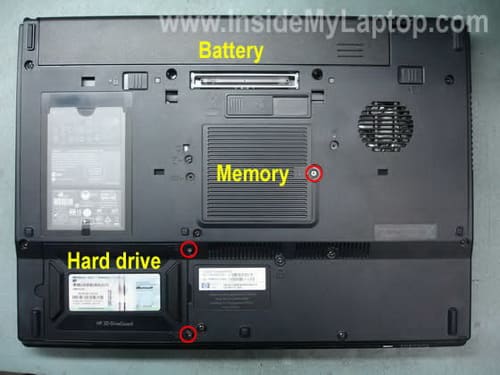
Remove the battery.
Remove the hard drive and memory covers.
STEP 2
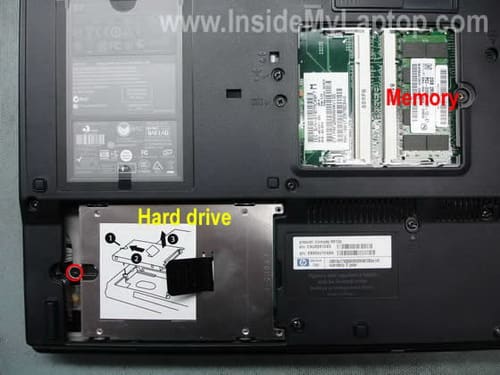
Remove the memory module.
Remove the hard drive as it shown on the sticker.
Simply remove one screw securing the hard drive, slide it to the left and remove it from the case.
STEP 3
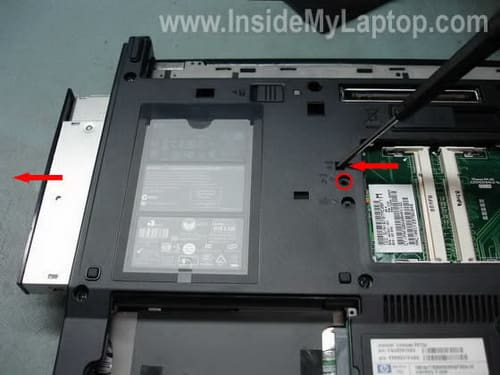
Remove one screw securing the optical drive (CD/DVD drive).
Push the drive from the case with a screwdriver. Remove the drive.
STEP 4
Loosen two screws securing the keyboard. Both screws will stay attached to the laptop bottom.

STEP 5
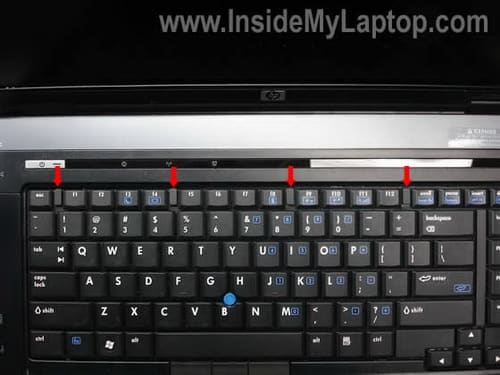
Slide four latches securing the keyboard to the direction pointed by red arrows.
STEP 6
Lift up the keyboard with a sharp object, you can use a small flathead screwdriver.
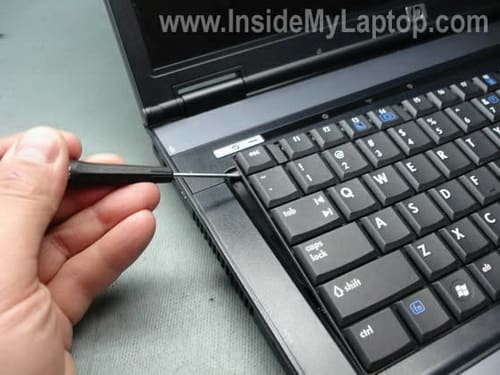
STEP 7
Continue removing the keyboard. Place it upside down on the palm rest.
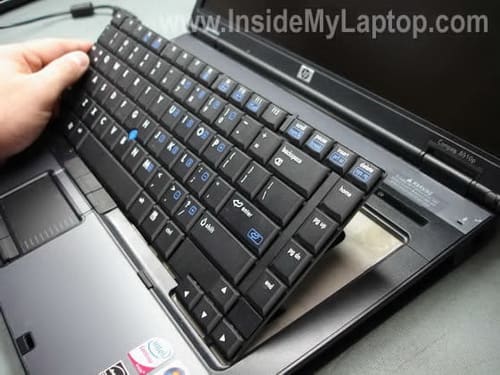
STEP 8
It is connected to the motherboard via two flat ribbon cables.
Unlock both connectors by lifting the locking tab about 2-3 millimeters up with your fingernails. Be very careful with the connectors.

On the picture below you can see both connectors unlocked and cables removed.
The locking tab must stay attached to the connector base.

STEP 9
Remove two screws securing the cooling fan. Unplug the fan cable from the motherboard.
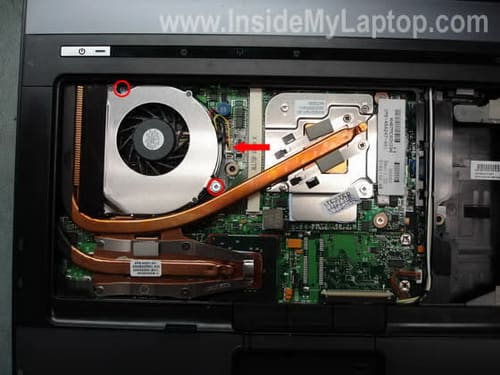
Remove the fan.

STEP 10
Remove six screws securing the video card (VGA board) and processor (CPU) heat sinks.

Remove the heat sink.
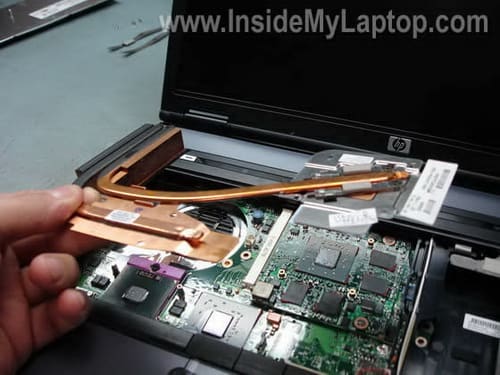
STEP 11
Remove two screws securing the video card.
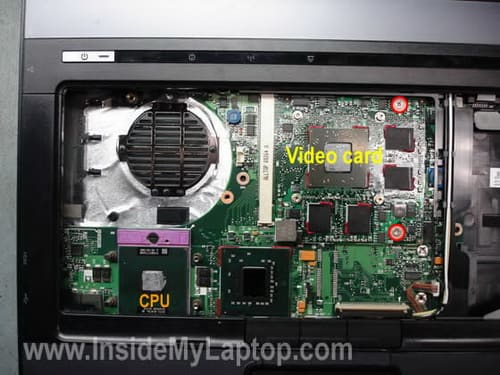
The video card will pop up at a 15-20 degree angle. Carefully pull the video card from the slot by the edges.

STEP 12
Now I’m going to remove the top cover assembly.
Remove all screws from the bottom case. The orange screw securing the touch pad. There are two more screws (marked with green squares) hidden under rubber seals.
As you see, you can access the Bluetooth card through the hard drive compartment.

STEP 13
Lift up the touch pad assembly as it shown on the picture below.
Place the touch pad upside down on the palm rest.
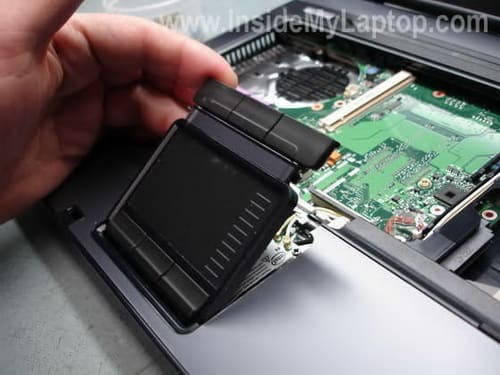
Disconnect the touch pad cable from the motherboard. Remove the touch pad.
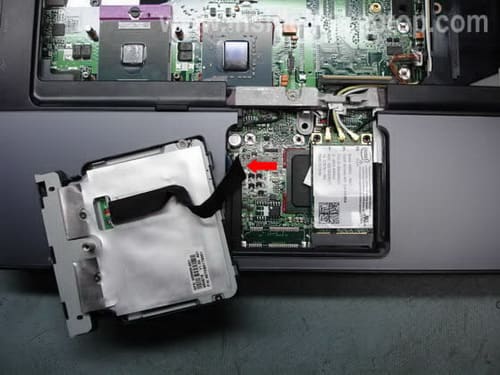
STEP 14
Start removing the keyboard bezel with a small screwdriver.
Do not forget to disconnect the cable the same way as you disconnected the keyboard cables.
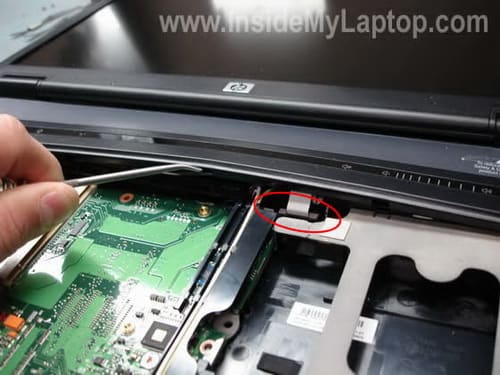
Continue separating the bezel with your fingers and remove it.

STEP 15
Unplug the LCD cable from the motherboard.
Unsnap three wireless card antenna cables from the wireless card.
Unroute the wireless card antenna cables.
Remove five screws securing the display hinges (two from the left hinge and three from the right hinge).

STEP 16
Remove four screws securing the display hinges on the back.

STEP 17
Remove the LCD screen (display) assembly.

In the next guide I’ll explain how to open up the display panel.
STEP 18
Remove six screws securing the top cover assembly.
Unplug the CMOS (RTC) battery cable from the motherboard.
Unplug the finger scanning device cable from the motherboard.
If you wish, you can remove the wireless card here. I’ll do it later.
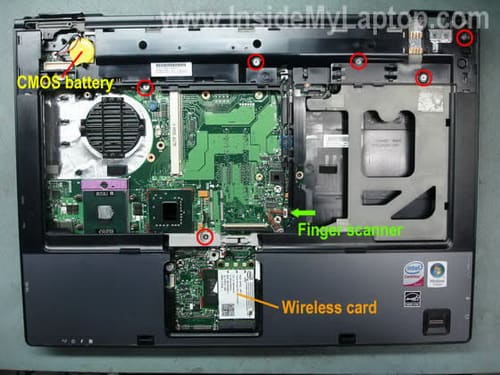
STEP 19
Start removing the top cover assembly. It can be a challenge.

The top cover is still attached to the bottom with a cable pointed with the red arrow.
Unplug this cable. By the way, you can access the Bluetooth module from here too.
Remove the top cover assembly.

On the picture below you can see the finger scanning device attached to the top cover.

STEP 20
Remove two screws securing the speaker assembly to the motherboard (I don’t remember if I had to remove three screws).
Unplug the speaker cable.
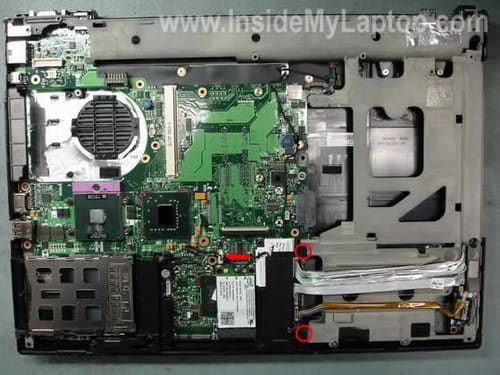
Lift up and remove the speaker assembly.

STEP 21
Remove two screws securing the wireless card. Remove the wireless card from the motherboard.
Remove two screws securing the modem card. Unplug the modem card cable from the motherboard. Remove the modem card.
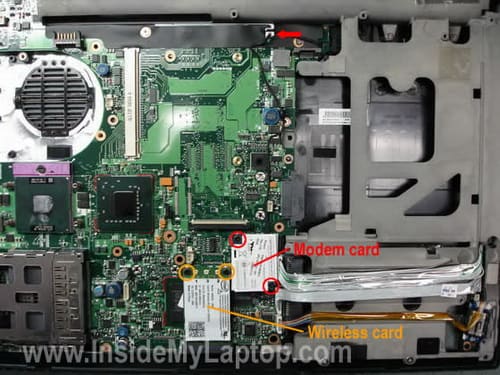
STEP 22
Remove two hex studs from the VGA port (two orange arrows on the top).
Unplug cables pointed with red arrows.
Remove five screws securing the motherboard.

STEP 23
Start removing the motherboard from the bottom case.
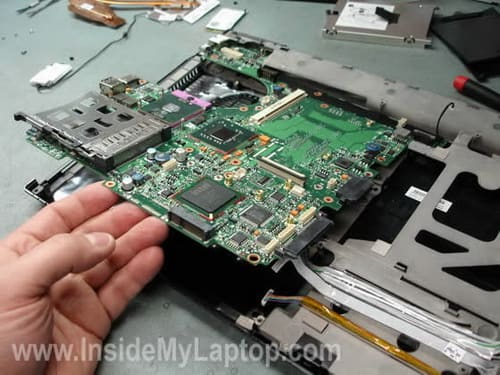
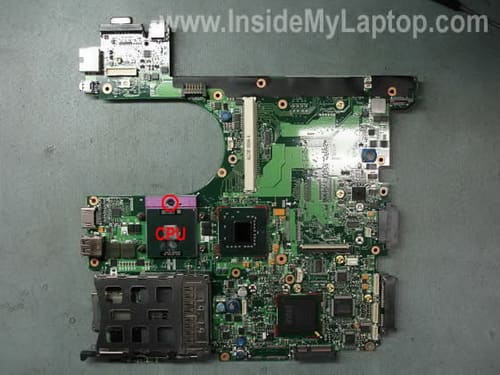
The motherboard has been removed. If you are replacing the motherboard, transfer the processor (CPU) to the new board.
etia86
hello… can you show me how to open motherboard for Compact Presario B19000
IML Tech
etia86,
What do you mean “to open motherboard”? Are you sure Presario B19000 is the right model name?
emwede
Theres 8510P models with a WWAN module. Even on those where theres no WWAN module the SIM-Card Slot exists on the left side under the original akku-pack but is just filled up with rubber.
Can you tell me if the WWAN module is just another Version of the wireless card or if the second connector for Mini-PCI Cards below the Trackpad (which is oviously not eqiped with a Mini-PCI Connector in the model you took your photos from) is assembeled on those machines and equiped with a HP un 24000?
just curious if it would be possible to upgrade those machines or if HP left away that connector intentionaly to stop people from upgrading to a WWAN capable Version of the machine.
dee
In step 22 there is a cable at the bottom right of the laptop that has an orange sleeve on it, I have taken my pc apart but can not find where this plugs into on the right end.
Do you know what this goes to?
Great site by the way. I was able to replace my motherboard easily…..well, until I came upon this cable. 😉
IML Tech
dee,
This cable plugs into the Bluethooth module. It’s possible that you have no Bluetooth module installed. Leave the cable unplugged.
Jim Erskine
Hi I have an Airis laptop made by Infinity Systems and the on/off power switch is faulty.
Have tried to get the back off by removing all the visible screws but still wont budge.
Any suggestions please.
Many thanks Jim
jusain
how can i bypass the bios password for hp 8510p
please help
Alessia
Hey, thanks a lot for this useful guide!!!
I used it to change my hinges on my Compaq nx7400.
Andres
I love you man! Thanks for showing everything step by step. You are the man! I’ve been a little scared about touching and removing the video card, but you just showed me how to so I’m going to get a new and powerful video card.
Dan
This guide rocks I just used it to swap out the mobo on my 8510w. So nice to have my laptop back and this guide helped a lot.
Paul
This is an awesome guide.
I’ve been having a problem with my 8510w that I hope you can help me with.
I stuck a memory stick duo adapter into the SD slot, thinking it would work. It not only didn’t read the memory stick, now it won’t read my SanDisk card that I use with my digital computer (and which used to work fine.) I’ve tested the SanDisk card itself, and it is ok. I’m concerned that I damaged the SD card reader when I pushed in the Memory Stick Duo Adapter. Is there a way of testing whether the card reader is damaged? If so, how do I replace it? Is it attached to the motherboard, meaning I have to replace the whole motherboard? Where could I buy a new motherboard?
Many thanks for your help.
IML Tech
Paul,
Apparently you’ve damaged pins inside the memory card reader.
Take a look inside the card reader under bright light. Can you see damaged/bent pins?
Unfortunately, in most laptops the card reader is soldered to the motherboard and cannot be replaced.
Instead of buying an expensive motherboard, you can buy an external USB card reader. When you want to access your card, simply plug the reader into the USB port and it’s ready!
I wouldn’t replace the motherboard because of that.
Maddy
Where is the PLL clock generator chip located? Could you point it on the last image?
May be you know, what is the PLL chip exact name for the 8510p/w?
Dave
Replacement of A/C power jack –
Is it soldered on? Is that something you can replace without removing the motherboard? I’m still under warranty but sending the computer in for service is a pain.
Thanks.
By the way, this site is awesome.
Danny
Hi
I have a quick question,
I had a wxga 1680×1050 screen and it cracked. I purchased the wuga 1920×1200 screen cause i wanted teh upgrade. Now the cable from the screen to the inverter does not fit. it is too short…is there anything i can do? Do i need to buy a separate inverter to go up to 1920×1200? Any help would be appreciated.
Thanks
David
What an amazing site! I have a Gateway M-2626u laptop I got from HSN Dec. 08. The warranty expires next month. At that time I want to make some upgrades(i.e. 500GB HDD, Bluetooth module). My laptop didn’t come with bluetooth, although the manual mentions it was an option and there is a labeled keyboard shortcut to turn it off and on. Searching the Gateway site, I managed to find out that my M-26xx series support a Bluetooth 2.0 module and the drivers are for Broadcom module. Could you give me some guidance on the exact model # of the module I would need and how to install it?
IML Tech
David,
I cannot tell where to install the Bluetooth module. I’ve created a couple of different guide for a Gateway M-series laptops, you can find them in the Gateway Laptops category on the right side of the website, but I’ve never taken it apart completely.
David
Thanks for your prompt reply! Here’s what I’ve been able to dig up:
——————————–
GATEWAY M-2626u BLUETOOTH MODULE – BROADCOM BCM 92045
Part numbers for the card: BCM2045, BCM92045, 2528449R, 6008074R
Features include:
Fully supports the bluetooth 1.1, 1.2, and 2.0 standards. Including 1Mbps, 2Mbps, and 3Mbps EDR operation
Lowest current consumption in all modes of operation
Supports class 1, 2, and 3 designs
Automatic calibration and frequency detection of crystal frequency
PLEASE NOTE: Cable connecting the Bluetooth module to motherboard is not included.
——————————————–
If I find more info I’ll post it here. I just might get the nerve to try and install the module after my warranty expires. I’ll study your Gateway M-Series guides in the meantime. Thanks for providing this resource.
Joakim
I need to replace a burnt component on the motherboard. I need to know the markings on the component. The component is a 8legged integrated circuit, located behind the plastic around the docking plug. It is marked with U606 on the board.
Kyle Guthrie
Hello I just found your site AND I LOVE IT!! Quick question for you tho! Can you install a bluetooth connetor on to a HP DV9000?
Roy
I also have a question: have you found any upgrades for the videocard of the 8510p? because i want to upgrade this to something higher then the radeon HD2600.
could you give us some pointers maybe?
Greetz and respect for your guides.
Roy
Chris
Hi there i was wandering where abouts is the cmos battery located???i need to reset my bios.
Thanks
IML Tech
Chris,
Take a look at the step 18. It shows the location of the CMOS battery.
Even though, I doubt that disconnecting the battery will clear the password. But you can try.
Alex
Excellent article! Thanks a lot!!!!!!!!!!!!!!!!!!!!!!!!!!!!!!!!!!!!!!!!!!!!!!!!!!!!!!!!!!!!
Alan
I fixed my computer fan thanks to you.
kerry
Hi, I have 1 problem 1 question, i hope you can help or advise.
problem, screen flickers then goes into standby, comes out of standby into windows, working, then just flickers again for 20sec then standby. Strange.
If i remove the heat sink for the cpu and the video and clear out any dust (i hope thats all) do i need paste (i have read thermal glue??) when i reattach.
Thanks for your assist.
Guido
Want to open a laptop and this will be very helpfull. Thx a lot.
My laptop is connected to a power source in stead of the normal power supply. The guy that did this switched + and – So he blew the power supply or a fuse. Anybody experience with this?
Christo
Super…. thanx a lot…..
Erich
Hi,
I’m trying to get the WWAN working but I do find a slot for the SIM card but there is no cradle or something to hold the card. The WWAN antenna stuff is all in there but the slot next to the battery seems to be empty.
Any idea how to put in the SIM card?
Thanks a lot, great docu so far 🙂
olsi
Can I replace graphic card to my compaq presario cq60-220ev
putting on it Nvidia for ex?
Ram:2Gb DDR2
PROCESOR:DUAL CORE @2.16-2.16
pls I need an answer
thnx 😉
IML Tech
olsi,
I have published Compaq Presario CQ60 laptop disassembly here: https://www.insidemylaptop.com/remove-motherboard-from-compaq-presario-cq50-cq60-cq70-laptop/
As you can see, this model doesn’t have external video card. The video card integrated into the motherboard and cannot be removed/replaced/upgraded.
You are stuck with what you have.
Maddy
Excellent article!
Do you know what is the PLL chip for this laptop? Or where is it located on the motherboard?
Marcus
I have an HP 8510p and replaced the standard ATI Video card with the Nvidia Video Card for the 8510w. The Nvidia card I installed was the 512mb version. They also make a 256mg version. Worth the upgrade if your a gamer although not worth the upgrade for Video play back or normal evryday tasks unless you can find it at a cheap price. If anyone is looking for the original ATI card for the 8510p let me know.
jackieboy
Very good!
Is there a chance you could point out the BIOS chip? It is probably an 8-pin surface-mount serial jobbie. Might be under the CPU? NOT talking CMOS, here. I have an 8510 that was corrupted during a BIOS update. Lots of 8-pin chips on the board, but nothing jumps out – no version label, etc., like in the past. Figured it was worth trying to swap out or reprogram.
Thankx!
Roland
Thank you for the detailed photos and easy to follow steps! This is a great resource.
Lawrence
Can I replace the graphics card for my HP Compaq 2230s?
Thx.
IML Tech
Lawrence,
I don’t think so. In the HP Compaq 2230s laptop specifications I found the following: Intel Mobile Chipset Family with integrated graphics
It means the video card integrated into the motherboard and cannot be removed or replaced.
zubair
thank you for brief help about ass and d/ass of laptop with photos and step by step explaining it good help of us
zubair
hi..! i m associate engineer of computer hardware and now a days searching for the guide line about laptop repair stuff which will help me to solve my laptop common problems.
plz guide and suggest some good site or ebook on web to help me thanks
Farhan
please upload pics of disassembling compaq nc6220, and tell me if i can change video card of it,
Steven
Looking for a way to reset the BIOS password. I’ve already removed the CMOS battery for 5 minutes or so, put the laptop back together and still asks for password. My predecesor set it up so that it wouldnt boot from CD, he didnt use our typical admin password and now im trying to reload the machine.
LucidLuniz
Just wanted to say thanks for this, it came in handy as I was trying to clean out a user’s laptop.
Heureaux
Hi,
First I want to thank you for this article. The explanation is crystal clear and flawless.
Also I want to ask you if the 8510w (RM259UT) is upgradeable from a T7500 to a T9300.
I have not been able to find the socket that my laptop have in it.
Thank you.
Wayne
I’m about to upgrade the CPU, and this tutorial is, no doubt, going to save me hours and hours of grief and head-scratching. I sincerely thank you for taking the time and effort to make it all simple for so many of us.
A big thumbs up!!!
rik
i have to replace the battery charger board on my hp compaq 6910p,can anyone tell me how to do it myself please
Jason
Hi! Nice tutorial. I am wondering if I can change the ATI HD 2600XT video card to HD 3870 and HD 6950. Thanks.
wasim
HI,
how can i replace keyboard keys laptop hp compaq 8510p?
IML Tech
@ wasim,
Why would you replace individual keys? The whole new keyboard is about $15-20 on eBay. Just replace the keyboard.
wasim
hi,
I try to open the screw under the battery the switch cover(keyboard bezel) screw spins freely but i can’t get it out what should i do to open it?
thanks
IML Tech
@ wasim,
Apparently the screw anchor separated from the cover and rotates freely with the screw.
Here are a couple of things to try:
1. Apply some pressure with your thumb on the switch cover right above the spot where problematic screw is located. At the same time try unscrewing it.
2. Drill the screw until the head is gone.
wasim
Thank u very much
IML Tech
ravindra
where is cmos battery in this laptop i want to remove and reinstall the coms battery
IML Tech
@ ravindra,
You can see the CMOS battery in the step 18. It’s in the upper left corner.
Javi
Could you say me the Q8 chipname. Its near CA conector.I Have tochange it and i can´t see it. Thanks
Jasper
Hi there
Is there a fuse in the laptop?, i can not power on my laptop after AC problems :S
IML Tech
@ Jasper,
Did you check the AC adapter.
Yes, there are fuses located on the laptop motherboard but they are soldered to the motherboard.
The power fuse located somewhere close to the DC jack.
mudeer
Hi there
i am confused about one thing in hp 8510p laptop if you see down the screen there is a big hp write. on the left side of hp there is a glass hole present.
what is this? and what its uses
plz tell me about it.
IML Tech
@ mudeer,
Probably this is screen auto-brightness sensor. It dims the screen in a dark environment and brightens it when you are in an area with lots of light.
mudeer
THANKS
Laptop Teach.
Dominc
I have a HP compaq nx6325 laptop which is almost identical to this. I was wondering if it was possible to change the 128mb graphics for a 256mb card or would there be some sort of compatibility or power issues?
IML Tech
@ Dominc,
I don’t thin you can replace the video card at all.
I believe the video card is part of the motherboard.
If you looks at the HP Compaq nx6325 specs, you’ll see it’s using shared video memory.
mr_frustrated
Hi,
I am having some graphics problems with my laptop (compaq 8710w), these comprise rectangluar artifacts across the screen, intermittant flickering and frequent screen freeze and crash. It’s all very frustrating as you can imagine; in your experience do these symptons sound familiar to anyone?
I’m assuming that these issies are graphics card related and therefore plan to take a look to see if there is anything obviously wrong, your guide provides an excellent step by step precedure which I shall be following soon.
finally, are replacement graphics adaptors readily available?
much appreciated,
.
IML Tech
mr_frustrated,
This could be the graphics card failure. I assume you having the same issue with video on the external screen?
They are available but not cheap. When you remove the keyboard, you should see the graphics card. There should be a label with the part number.
Something like 451377-001 (could be different). Search for a new replacement card using HP part number.
mr_frustrated
Thank you Tech Guy for your prompt response.
You are correct with respect to the graphics output to a external monitor, it corrupts in the same manor.
I’ll look for the specific part number, but my cursory search confirms your suspicion regarding the price of the cards..
Thanks again for your advice.
Best Regards.
Steven
Hi Tech Guy,
First of all, thanks for the clear step-by-step manual. I’ll make good use out of it when I’ll try to repair my laptop.
I have a question. My lcd screen has some issues. It’s kind of hard to explain, so I made a video of it.
http://www.youtube.com/watch?v=wHbIi9orCmo&feature=youtu.be
As you can see in the video, when I apply pressure, the screen is ok. Sometimes when I remove the pressure afterwards the screen stays ok, but mosty after a while it starts acting funny again.
I saw a LCD cable on ebay. Could that part maybe fix my laptop or must I replace the entire LCD screen?
Thanks so far!
IML Tech
@ Steven,
It looks like you might have a problem with one of the following:
1. Bad connection between the video cable and motherboard or LCD screen.
2. Failed video cable.
3. Failed LCD screen.
For some reason I think this is failing LCD screen. Here’s what you can try.
1. Disassemble the display panel and try moving the video cable while the laptop is running. If moving the cable affects image on the screen somehow, probably it’s cable related issue. You can try reseating cable connectors on both ends or try replacing the cable.
2. If moving the cable (without moving the screen) doesn’t affect image at all. But when you start moving the screen itself the video changes, probably it’s bad screen.
Adam
Hi,
I was wondering, if you’re able to detached the video card off from your HP laptop, would my Compaq Presario CQ40-103TU model able to did so? I decided to upgrade my video card (currently it’s a Mobile Intel(R) 4 Series Express Chipset Family) and I’ve never tried to take off my laptop since I’m not good in doing that, so I don’t have the picture of the real hardwares assemble. Plus, what would be the best or better video card for my laptop. I’m currently using Windows 7 Home Premium 32-bits.
I’ll appreciate any feedback from you. Thank you.
Brenton
Hi
Great article. My 8510p keeps rebooting, even before it completes the POST. I removed the heatsink and fan and replaced the thermal paste. The manufacturer had used bucket loads; it was in everything so I cleaned it out. Howver, this didn’t fix the problem. Any ideas?
Bradley
Thank you VERY much for this instruction. I’m worried that I already know the answer to my question but it never hurts to ask.
I’m reasonably certain, after testing the adapter cord and plug that the short I have (intermittant reminders that I’m on battery power) is a disconnected solder pad on the pcb mounted DC power receptacle.
Reading the downloadable service manual and following your tutorial above, it appears as if this part of the board is inaccessible without an almost complete tear down of the computer. Is this true? Is there any easier way to get to this point on the board?
Thanks again for the tutorial.
IML Tech
Bradley,
You are correct. The whole laptop disassembly required, there is no easier way.
Ehsan
Hello,
I have checked every where to find speakers in side the lapy i have no idea where are the speakers?
Thank you in advance.
Mac
i have tried so much of time to remove keyboard bezel. but it was so hard..i want to remove my bios password..
Janelle
These instructions were fantastic thanks heaps
ANROPOL
I have this computer and will not start, I’m trying to repair the motherboard, but I find the faulty component.
I changed the power connector and nothing.
What could be the problem?
HASNAIN
my hp compaq 8510 laptop charger pin broken in side the jack plz help me.
IML Tech
@ HASNAIN,
If you cannot remove the broken piece from the DC jack and it stuck permanently, it’s necessary to replace the DC jack.
In order to replace the jack you’ll have to buy a new DC jack, remove motherboard from the notebook, and replace the DC jack.
maco1
Dakujem za tuto stranku a informacie ktore su velmi uzitocne.Este raz vdaka.
Kolma
Could you please tell me where is LCD backlight power supply? I guess not in LCD connector where those thin wires are? Problem is that my computer was spilled with water on back side when off and now when I turn it on I see the picture but totally dimmed.
And sometimes LCD is normal for few moments, co I think it is something wrong with contact.
Regards,
Kolma
Kenji Vang
Has anybody tried replacing the b/g wifi card with a n wifi card?
jack
I have an 8510p I need to replace the lcd screen I boot up and it turns white, is there a video or steps to do that?
IML Tech
@ jack,
Take a look at this guide:
https://www.insidemylaptop.com/open-display-replace-inverter-board-hp-compaq-8510p-8510w-notebooks/
It explains how to remove the screen bezel and inverter. You can use that for replacing the screen.
Also, take check out the service manual. LCD screen removal shown on the page 81.
It’s not necessary to separate the display assembly from the laptop base in order to replace the screen.
Oliver Yüzer
Thank you so much!
Helped me changing the preinstalled Intel Core2Duo T7500 with a Intel Core2Duo T9300. Now the Notbook runs faster and cooler.
Michel
Thanks a lot, I’m always amazed when after reassembling all parts it’s still working. Had to replace the DC jack which is not easy having only a welding iron…
In case someone needs to, do not believe unwelding those 9 pins at once neither removing the weld using an old wire by capilarity. Cut the 6 pins on both sides between the jack and the circuit, heat the 3 pins together at the back and pull the jack out, then clean the holes, heat them from behind and blow strongly through them. Good luck, and weld it on the right side.
If one day someone wants to make a tuto about that…
Raja
hp laptop 8510p keyboard problem but when attached USB mouse its working fine how to solve this error.
Ali
Hello, you can see this and reply. I have a laptop named Hp Comqaq 6510b, it has the same design, it also has a slot, can a graphics card be installed in this slot as in the pictures?