


In this guide I explain how to disassemble a HP Compaq 6730s 6735s notebook.
I’m taking it apart in order to remove the cooling fan which is mounted under the motherboard. Basically I will take the whole unit apart and remove all internal components one by one.
Let’s start taking it apart.
STEP 1.
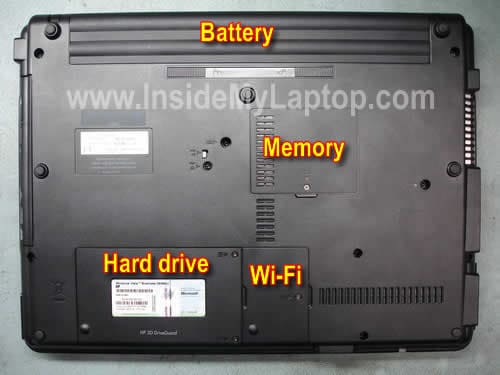
Remove the battery.
Remove covers from the hard drive, wireless card and memory.
STEP 2.
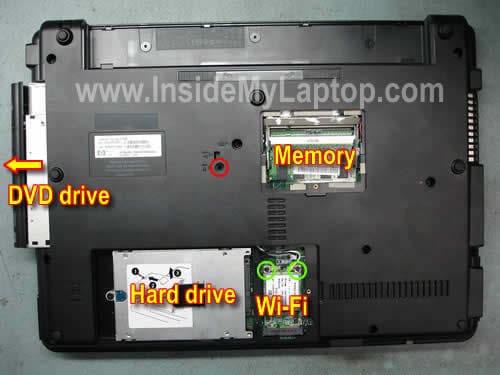
Remove one screw securing the DVD drive (red circle) and pull the drive out.
Remove the memory modules (in my laptop I had only one module installed).
Remove the hard drive, you’ll find details instruction on the sticker glued to the hard drive caddy.
Unsnap two antenna cables from the wireless card. Remove two screws securing the wireless card (green circles).
Remove the wireless card.
STEP 3.
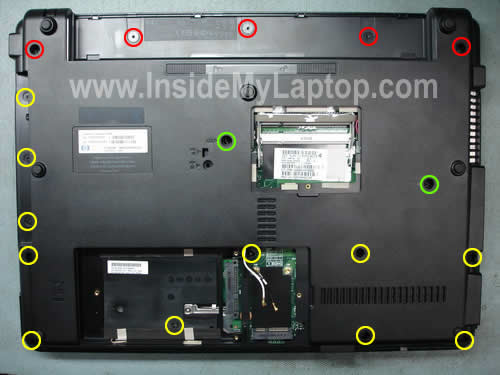
Remove five screws securing the switch board cover (red circles).
Remove two screws securing the keyboard (green circles).
Remove eleven screws securing the bottom cover (yellow circles).
STEP 4.
Lift up the switch board cover. You can separate the switch board cover from the bottom cover with a piece of soft plastic. I’m using a guitar pick.
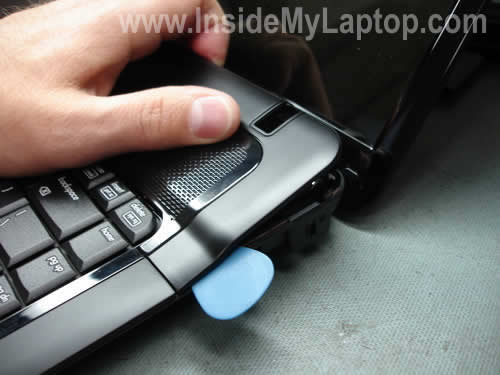
Be careful, the switch board cover is attached to the motherboard. Do not pull the cable from the connector yet.
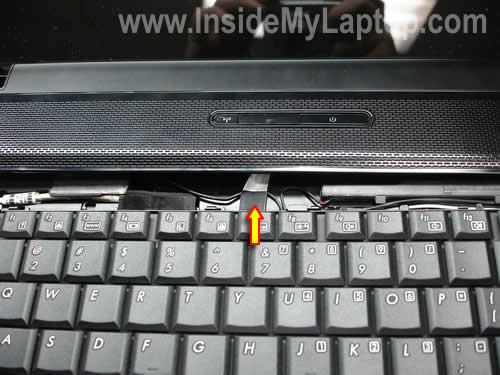
STEP 5.
Lift up the keyboard and place it on the switch board cover so you can access the cable connector.
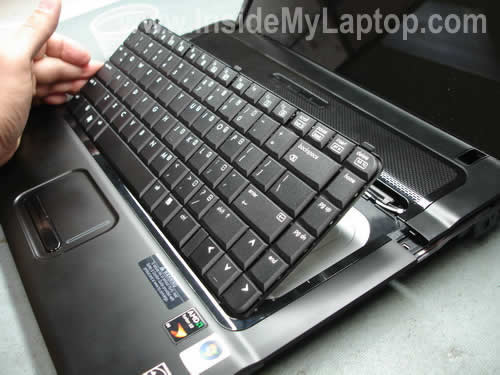
The keyboard is connected to the motherboard via a flat ribbon cable.
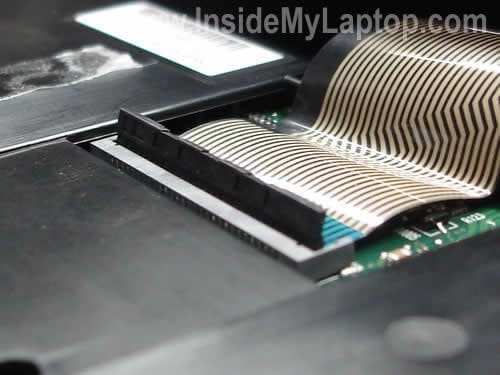
Before you pull the cable out, you’ll have to unlock the connector.
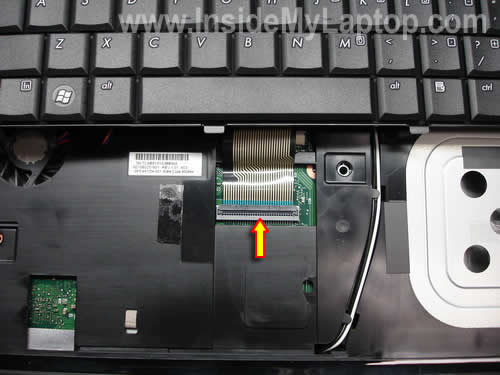
On the picture below you can see the connector unlocked.
Pull the cable and remove the keyboard.
STEP 6.
After the keyboard has been removed, you can release the switch board cable and remove the cover.
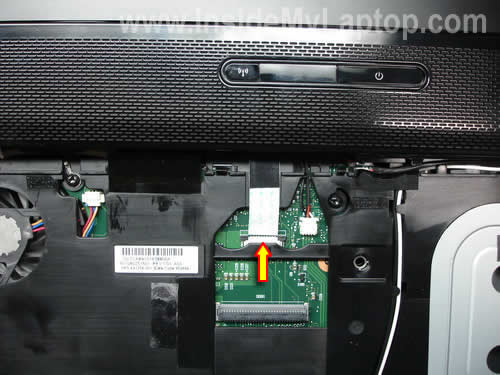
STEP 7.
Remove four screws securing the speakers.
Unplug the speaker cable from the motherboard.
Remove both speakers.
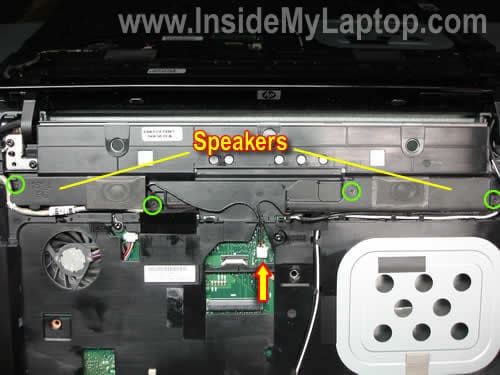
STEP 8.
Release the wireless card antenna cables.
Unplug the webcam cable from the motherboard.
Remove four screws securing the display hinges (red circles) and one screw grounding the video cable (green circle).
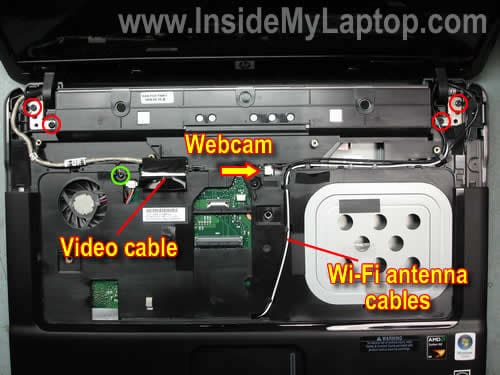
STEP 9.
Lift up and remove the display panel assembly.
In the next guide I’ll explain how to get inside the display panel and remove the web camera module.
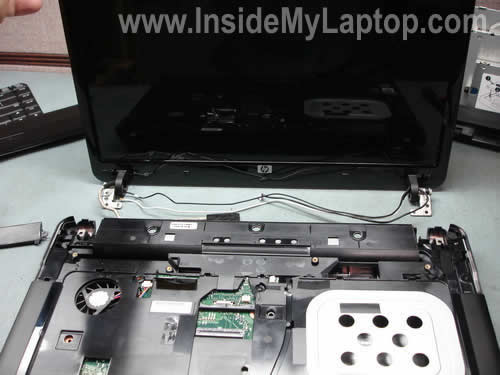
STEP 10.
Remove two screws securing the top cover assembly.
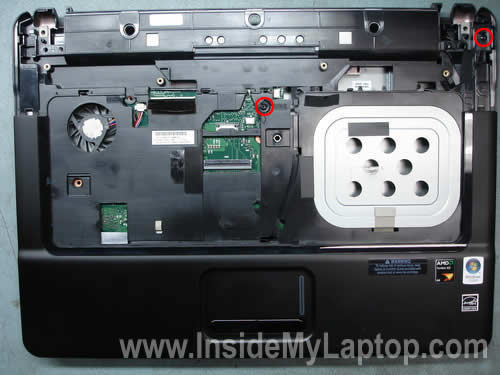
STEP 11.
Carefully lift up the top cover assembly.
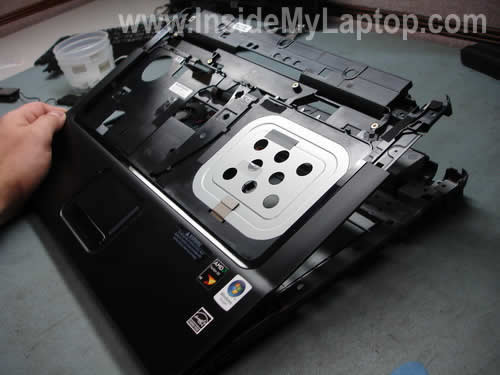
Be careful, the touch pad cable is still attached to the motherboard.
Release the touch pad cable and remove the top cover assembly.
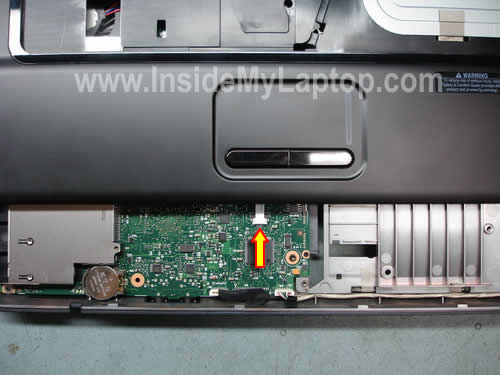
STEP 12.
Now we can access the motherboard.
Unplug three cables pointed with arrows.
Remove three screws securing the motherboard.
Lift up and release the RJ11 (modem) jack.
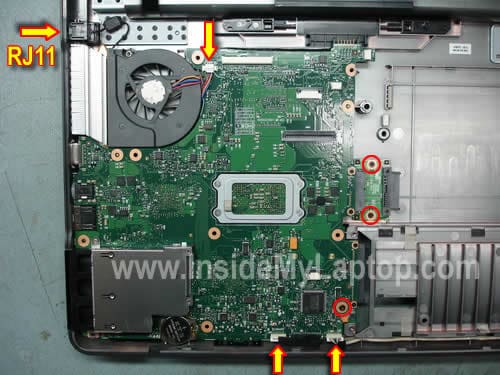
STEP 13.
Start removing the motherboard from the notebook case.
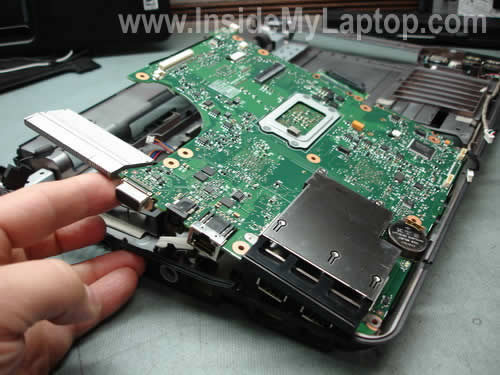
The motherboard has been removed.
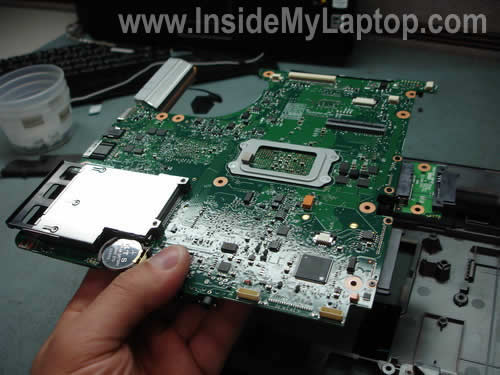
STEP 14.
Finally, you can access and replace the cooling fan.
Simply remove one screw securing the cooling fan to the notebook base and replace it with a new one if needed.
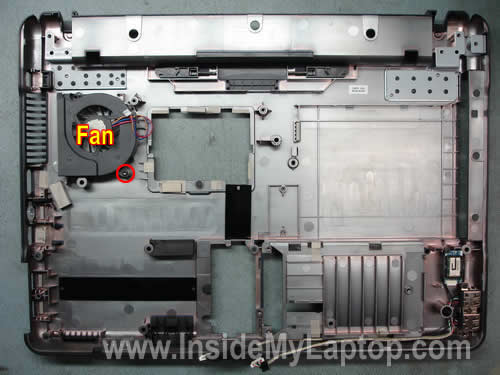
If you are replacing the motherboard you’ll have to transfer some parts to the new board.
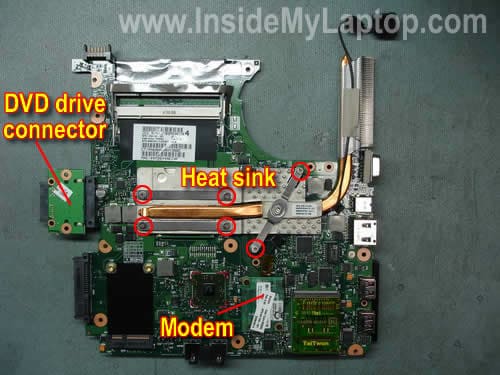
Transfer the DVD drive connector, modem card, heat sink, processor and modem cable.
winsucker
Tnx guys!
Had some problems with that one.
Sammy
Nice writeup. The photos are excellent.
Ryan
I want to replace a cracked LCD. When I get to step 9 how do I go about removing just the LCD screen from the display case?
Thanks
IML Tech
Ryan,
The LCD screen removal steps are very similar for most laptops. Basically you’ll have to remove the screen bezel, unplug the screen and replace it.
Check out the “LCD screen” category, you’ll find a lot of guides for HP laptops.
Sean
hello i haver the compaq presario CQ60 with the side keypad and i have a small screw in my fan. is there a easy way i can push it out?
IML Tech
Sean,
Can you pull the screw out using a magnetized screwdriver?
alford
hi I spilled ice tea on my laptop keyboard and everything turn off, i took it to bestbuy they they said i fried the mother board. is that true,and if i did what else would i have to replace to get working or eat my loses and another one. can’t afford to buy a new. AL
Tom
I have recently got one of these laptops and I’m looking to upgrade the memory. I have you used Sandra and CPUZ and it shows two memory slots. Slot 0 & 1 and the memory is in the slot 1 where you can easily replace. Is the other slot somewhere under the keyboard?
Yolanda
Great guide. The fan in my Presario A900 stopped working while blowing canned air into it. Thought maybe it was damaged and needed replacing. I just took the laptop apart and see a huge mound of dust (as well as more dust all around it) trapped inside the fan. Maybe this stopped the fan from working? Is there a way to test the fan (first) other than putting the whole thing back together and finding out that it is broken. Don’t want to disassemble this thing again.
IML Tech
Yolanda,
Spray compressed air into the fan, it has to rotate very easily. If it doesn’t, the fan has to be replaced.
Joe
Can you upgrade the CPU to a more powerful one? What is the procedure to removing the CPU from the motherboard? Thanks.
IML Tech
Joe,
Most likely you can but I’m not sure which one you can use. I don’t think that upgrading the CPU will boost the laptop performance a lot, you might never see any improvement at all. Instead of a very expensive CPU upgrade, max your RAM and install a faster (7200RPM) hard drive.
1. Remove the heat sink shown on the last picture.
2. Unlock the CPU socket by turning the screw into “Open” position.
3. Lift up the CPU from the socket and replace it with a new one.
Cheri
Any suggestions? I’m about to throw my notebook out over what should be a small problem!
My dv6256us buzzes. HP’s had it three times & replaced the hard drive, sink fan, mother board, then the fan again (supposedly). The buzz shifted from annoying to a new pitch that’s more diffuse & intolerable.
Now that I finally found these great pictures! I can tell, it’s loudest in the sink fan area. On the underside, under the f & g keys. I was considering taking it apart to see where it’s loudest, but – that’s the spot.
Curiously, the buzz stops when scrolling using touchpad or arrow keys, only using Internet Explorer (not Word or a file list window.)
Before replacing the fan, the louder fan came on every 1-2 secs for 1-2 secs. Now it has the lower fan on constantly from start up, eve blowing cold air at times.
What could be going on? If I can point HP to right spot, maybe there is hope. Or repair it myself, if I go very slowly? I’m at wits end. I don’t want to throw this out & buy another computer.
(The other problem if it’s related, is a dead spot in the left touchpad mouse that started up & they can’t seem to fix.)
Thank you!!
IML Tech
Cheri,
There could be a problem with one of the components on the motherboard. Is the laptop still under warranty? Send it for repair!
Cheri
PS I’m a programmer & I’ve built desktops. Notebooks are outside my league.
Cheri
PPS
Are there ways to adjust how often the fan comes on? It’s blowing cold air, but almost always on. Add the noise of the HD fan (which is loud with the new HD) & it’s always noisy. Does Vista or Bios have settings that effect this?
It’s always on the lower speed. Often on the higher speed.
(Sorry to keep PS-ing. Can you tell I’m very frustrated? )
Joe
Thanks for the response. The reason I asked is because I have an HP 6735s with the AMD Sempron SI-40, which is a “budget” CPU.
Katemana
thanks guys i had the some problem it has help me to solve it
Malin
Hi
I have the extact laptop and was wondering if i could change the VGA. I am not sure if it is built into main board or can fit a external mobile graphics chipset. Currently it says Intel mobile(r) 4 graphics chipset. So would i be able to upgrade graphics card.
Thanks
Malin
Malin
Hi
Is it possible to upgrade the VGA card in this model (6730s) ?
Thanks
Malin
Cheri
“There could be a problem with one of the components on the motherboard. Is
the laptop still under warranty? Send it for repair!”
The motherboard was replaced on the 2nd trip in. It’s not the motherboard. It’s coming home now from it’s 4th trip where senior techs went over it. This time replaced the HD again as failing (the new one).
They claim well maybe the HD caused the touchpad mouse dead spot (somewhat intermittent). Does that even sound possible? I’m very curious.
I’m hoping they live up to their word that they’d replace the unit if I’m not satisfied. I so wanted just to fix this one. I’ve done software development, including testing. I’m not impressed with the tech support at all. They don’t even list the problems for themselves & go over each one. They just hit one & stop.
Fab
Hi Mr IML Tech!
And many thanks for all for this great tutorial.
Actually, I’ve just bought a HP 6730s but I am very disappointed by the noise periodically produced by the fan, my previous laptops were really much regular and quiet…
So this tutorial is exactly what I need if I want to replace the fan. So, I have two questions. If other readers can also help me, they are welcome!
1) Is the noise really due to the installed fan in this model? Dust cannot be the problem since the laptop is new! Maybe this is due to the BIOS configuration (anyway, there is no configuration possible for the fan in BIOS)?
2) If another fan model can solve the problem, where could I buy one and which one could you advise?
Thanks!
PS: sorry for my english!
Thomas
Thanks a lot for this great tutorial !
I exchanged my CPU from an Athlon 64 X2 QL-60 to a Turion 64 X2 Ultra ZM-87.
The only difference was that I had a few more screws on my Board than the one in this tut…
6of1
I want to replace the power supply socket on the motherboard. Where can I buy the socket and how do I replace it I have the socket. It’s a HP 6720s, I have it stripped down and I live in the UK.
Thanks
IML Tech
6of1,
I believe in HP 6720s notebook the power socket is soldered to the motherboard. If the socket is bad, you’ll have to unsolder the broken/defective socket and solder a new one.
Martin
There’s a video of how to do? Regards!
KM
Great resource. However, I have an issue after disassembling my laptop – it won’t start. When press the power button fan starts working, but the hard disk drive doesn’t, so my monitor doesn’t light. It justs “hangs” at some starting point… Is it possible this to be big problem, or it is something that is easy fix?
susu
Hi!
Thanks a lot!
I replaced the paste between the heatsink and proc (and hd3200 chip).
Before this operation my proc’s (AMD Athlon X2 1.9GHz) temperature was around 70-80celsius, and now, its over 47-53 celsius.
It was exciting, also 🙂
Thx, again!
—
susu
Joel
Thanx guys, that was a good stuff. I have a problem i have the same laptop hp 6735s its powering on but no display and a sound in the dvd drive with some light.
what could be the problem.
regard
joel
IML Tech
Joel,
I would suspect the memory failure first. Do you have two memory modules installed in the laptop? Remove them one by one. Test the laptop with each one separately.
Alx
I tried to disassemble the 6735s
I take the 3 2 screw back the cover I took off the top of the front.
But when I try to remove the keyboard does not come off.
While I see in the video that comes off without force.
And ‘as if there was a life behind the Ram to hold it steady.
And’ I miss that or something?
IML Tech
Alx,
Take a look at the step 3. You’ll have to remove five red screws first and then remove the keyboard cover. After that you remove two green screws and remove the keyboard.
Alx
I mistyped.
I have removed five red screws first and then removed the keyboard cover. After i have removed two green screws.
But when I try to remove the keyboard does not come off.
While I see in the video that comes off without force.
And ‘as if there was a life behind the Ram to hold it steady.
And’ I miss that or something?
IML Tech
Alx,
Not sure why you experiencing this problem. Maybe the keyboard is glued to the cover with sticky tape?
Here’s another guide for removing the keyboard. In this case this is official HP service guide for HP Compaq 6735s notebooks (follow the link). The keyboard removal instructions start on the page 61.
Alx
I know official HP service guide but this is better.
But I have this mysterious problem with both of the guides.
Primmus
At my hp6735s was keyboard also glued on two places, so i need some force to put it out, but first of all be sure your remove all the screws and don’t pull to much, becouse of keyboard cable 🙂
Mark
They put me a miniSD into SD card reader that has swallowed and does not want to thrown back out.
How can I do to extract?!?
IML Tech
Mark,
I usually use a dental pick. Be careful with the pins inside the slot. Use a flashlight.
Mark T
Does the HP 6735s have one or two ram slots. Websites etc list it as having two but mine seems to only have one, which is occupied. I Cannot see a spare one???
IML Tech
Mark T,
There should be 2 memory slots on the bottom, as it shown on the 3rd picture.
taiwo
please can you help me with my HP 6735s laptop
i switched on the laptop and when start up all the light will be on but it won’t just start up and the screen will be blank… and the DVD light will be blinking continuously
Aleksandar
Hello,
I have problem with my 6735s, he overheats very often…
Do I need to replace the fan, or can I just clean it sometimes?
My cleanin until now was vacuming the fan from the outside, and it really helped, but i assume that there is more dirk underneath it…
Is it nececery to do all these steps to just clean the fan, or can I go near him in a simpler way?
Thank you!
IML Tech
Aleksandar,
If the fan still works and doesn’t make noise, do not replace it. Just cleaning should be enough.
You can remove the keyboard and blow compressed air into the fan. This will remove most dust from the cooling module. I wouldn’t disassemble the laptop just for cleaning.
Aleksandar
Dear tech support,
thank you for your precise and also very fast answer…
I will try to do that, but I have never removed keyboard, so I will do this veru carefull, cause I don;t know what can go wrong.
Thank you, once again…
tediket
Dear Laptop Teach.
First off compliments for this “How to”. I found this, while I was writing something on my Blog about my experience with this Laptop. The problem of “overheats” comes by the fact that there isn’t a door for the cooling fan, as you said, and that there are 2 stickers (you can see them on the penultimate picture ) that block the 2 cracks in the back. I’m so sorry, because this is a good laptop and cheap at the same time, but I will never understand the absence of the cooling door and the presence of those stickers. My solution was to do some holes close to the fan. I know this isn’t a solution but this is mine solution, I did this only because my guarantee was over.. I was lucky.. Best regards and compliments again !!!
P:S Sorry for my English 😀
Jason
Help…
Have replaced LCD and inverter board and video cable. Now backlight does not work. can see dim image on screen. According to HP Service guide there is a internal display switch could
this be stopping the backlight from working?
Michel
Create tutorial
i had huge problems with cooling.
some new thermal paste en cleaning fixed the job…
thx
nela
Hello. I need some advice. My hp compaq 6735s laptop does not switch on. I press the on button and it turns blue and then goes again. I sent it to the IT guys of the shop where I bought the notebook and they told me there is a problem with the board, and it costs around 300 Euro to replace it. The problem is my guarantee expired in December, and I have only used the laptop for 1 year. I’ve had problems with it since the very first months. To cut it short, I just wanted to know, is that normal for a motherboard to die for 1 year??? And does it really cost that much 300 euro? (I bought the new laptop for 370 euro).
I would really appreciate your help.. thnxxxx.
IML Tech
nela,
It’s not normal but possible. I’ve seen many laptops like that.
I think you can find it cheaper if buy yourself. The service center has to increase the price in order to cover shipping expenses, research time, warranty, time involved, etc…
Most likely the replacement motherboard will not be brand new and come with a very short warranty period (probably 30 days). Instead of replacing the motherboard, I would use the money for a new laptop.
GordonB
Hi there… 3 questions:
1. Upgrading the HD. I’m planning on installing a fresh Win7 h.p. on the 6735, so as a back out I want to get say a 250gb HD to build on. Are there any issues I need to be aware of?
2. Are the standard drivers in Win7 up to running this Laptop or do I have to overlay the HP ones…
3. This machine is still having overheating issues even when the BIOS has been set to keep the fan on when on mains. Is a BIOS upgrade going to help sort this out.
The machine is just out of warrenty ;-(
Thanks in advance.
IML Tech
GordonB,
There shouldn’t be any problem. The new hard drive should be detected by the laptop and operating system automatically.
You install Windows 7 first and after that look in the device manager. Download and install all missing drivers from HP website.
Have you tried cleaning the cooling module? Maybe the heat sink is clogged with dust and the laptop overheats because of that.
nemorensis
Thank you so very much for this walkthrough!
Didn’t open up my laptop yet, going to do it tomorrow.
Thank you again.
Greetings from Croatia!
Brian
IML Tech,
I have a 6735s and it just wont boot, that is it did until i removed the battery, the reason i removed the battery was the bios was reporting at top left hand corner “invalid serial number.” and i thought that there might be a possibility that the battery might not be genuine hp, so in removing the battery after powering off and re-inserting it i notice the power jack light is solid white (well i think its white) with a fashing orange light with 1 second intervals, i take it that the motherboard has had a short?
Have you seen this before?
OmO
Thank you very much my friend! Good luck and goodbye
Becky
Hey could you please help me?
I’ve had a HP 6735 laptop for over a year, I was using it for a few hours everyday,
Overtime the cable became frayed near the laptop port and signs used to flash up that the AC was not providing the right output, then partly because I am lazy and also because I was waiting to a replacement charger I continued to use the frayed and sparking charger.
When I then used my friends charger, who has a similar laptop the battery would completely cut out without warning, not immediately but after some time, when I took the AC away to run the battery by itself.
Then one day when using the frayed charger, my laptop overheated starting up (the fan was going crazy) and something made a loud ‘Click’ noise, then after it has ceased to boot or even show any LEDs around the AC port.
The new charger does not start it.
I’ve heard something inside has burnt out, a component, maybe the motherboard? Is it really that severe? Could there be any way of telling, maybe by opening it?
Thanks.
IML Tech
Becky,
Not sure what’s going on. It’s necessary to disassemble the laptop and take a closer look at the motherboard.
It’s possible you have a blown capacitor on the motherboard.
Mike
Hy!
I have old version of HP6735b, and it is starting to overheat, but when i put my baby fan next to it, the temp is back to 50 so I think its the fan and dust in it. Now I wanted to clean it, but the screws are strange, I ahve no idea what to use to unscrew them (they not cross, or oval, just weird). Can you tell same basics and what to do if I just want to clean the fan?
But not like youre talking to an smart person, think “ape” level of knowledge regarding laptops. Speak/write slowly 🙂
Thanks!
imran
i have hp 6735s laptop, its not powering on. when i plug in my power adapter in jack, light is stabel for few seconds but after few seconds charger light goes off. n its not powering on.whats the happened with it.
SteVader
Superb guide! Thanks a lot for putting it together, it’s just helped me out a whole lot. Shame the fan is the last thing you can possibly get to in the case.
adi89
Thanks a lot…I save money with this because I didn’t take my laptop to a service to clean my cooler. It’s very useful, you can make this at home.
But be very carrefully!
Jim
Hi, I have new 6730s, with motherbord failure , pls tell me if I can find motherboard part number without tearing apart whole laptop
IML Tech
Jim,
Usually you can find the motherboard part number on a sticker in the memory compartment.
Remove memory modules and search for a white sticker.
The motherboard part number looks something like this: SPS: XXXXXX-001
Find the part number and google it.
Solar
Thank You for this great guide. I used it to fix the overheating problem which this laptop has.
Regards,
Tom
ZAndy
Hi! Thank you very much for this nice tutorial. Everything worked like described. Without this tutorial this job would have been a lot more difficult. Thank you!
Proof
Man, it’s great! You really helped me! CUz I had the overheating problem with my 6735s!!! Greets from Ukraine!
Phill
Good walkthrough there nice easy steps.
Just wondering if anyone else has had a similar problem on my 6735s has just started to act up. When attempting to boot up the screen is blank, Hard drive light shows oragne and the light by the caps lock flashed 5 times which according to HP means General system board failure.
Anyone got a fix or is this a replacement job.
Cheer
IML Tech
Phill,
Just in case try reconnecting memory modules. Remove memory modules one by one and test the laptop with each module separately.
If you have the same problem with only one module installed (either one), most likely this is motherboard failure.
You’ll have to replace the motherboard OR replace the laptop.
jeff
I am unable to get past the BIOS admin password.
I have removed the CMOS battery (over 30 mins) re-inserted but still asks for the password.
Are there jumpers on the motherboard to clear the CMOS please?
Niall
Whilst following this guide and reached removing the top cover assembly, it feels as if the top cover assembly itself feels as though it is stuck/ connected, below where the keyboard would be. Is the panel itself quite stiff, or could I have missed a section? When attempting to ease it up the panel feels like it could snap.
Thanks, Niall
Patrick
Your easy to follow instructions were of tremendous help to me. My wife’s 6735s was noisy and running hot and would sometimes shutdown. I was able to open it up and clean the fan and associated parts with my vacuum cleaner. It is now as silent as when it was new and running at a normal temperature. Many thanks for your help.
joe
Caution. Do not forget the 2 screws at the corners of the bottom case, coverd in rubber mounts. You can not remove the top case if these are not removed in step 11.
kingsley
thanks for this message
although my problem is not with the fan but with the charging port/power jack
can it be changed or do i have to change the entire motherboard
please i need your advice as this is urgent thanks
cro
Is there dust in heat sink?
Aaron
This worked a charm. I had fan constantly on at full power, so loud, and overheating problems. Now fan is on a lot less, loads quieter, and no overheating problems. Thanks a lot for the guide! Much appreciated. I was left with one screw after reassembly though. Why is there always one screw left! Every time! Haha. Aaron
Dejan Cakic
Very helpful instruction. Can anyone advice me on this problem: 6735s Screen gets black (shuts off and everything else is running). It happens without any reason. Sometimes goes black after 5 mins, sometimes after whole day. I thought some contact is failing. I tried to open/close LCD screen thinking that there was problem, but with no luck.
Can it be connected with battery failing recently?
Even if I remove battery and hook it to AC power, problem still exist.
Also, Laptop was warm all the time in region left to the touch pad.
Any answer is highly appreciated.
GARDEA
great help . you save me a lot of money
richard
Hi Guys . My Fan is making a horrible sound (like a vacuum cleaner or a motorbike) – i removed the case and I think the bearing must have gone or something – any idea how i can replace the fan with a new one? I contacted HP and they quoted me over $150 for a new fan which i find too much.. How can i find the fan on say ebay or know which replacement to buy from the shops
Thanks for the great walkthough – could not have done it without your help
IML Tech
richard,
What is your laptop model?
Richard
Hi
Sorry its a HP 6735s – AMD Sempron SI-40 Model
Ive been looking online for spare fans and cant find any – even on ebay etc . . are their other models fans which will fit? Ive found fans for 6720 model but not the 6735s model
Regards,
Richard
IML Tech
Richard,
The CPU fan part number listed in the service and maintenance guide on the page 22.
Here’s the part number: 491621-001 (For use only with HP Compaq 6735s Notebook PC models).
If you google the part number, you’ll find the fan. It looks like SparePartsWarehouse has this fan for $26.99+shipping. This is the original replacement fan shipped directly from HP.
Chris
Hi. I have a 6730s and the f12 key has fell off.
Any idea on how I get it back on?
Thanks
Chris
Hi, thanks for the reply. On that page is shows 2 clips to fit the key back on, myn only has 1. Also it says to fit it to the 4 points, on this laptop there is only 3.
This may come across as dumb but im not good with laptops.
thanks again
IML Tech
Chris,
Take a look at this page. It shows spare keys for HP Compaq 6730 laptop.
Find your key type and compare to your key.
Debs
Hi,
Thanks for the comprehensive guide.
Quick question… I need to buy a copper shim for the top of the graphics chip to keep it from overheating but have done a search on the web and ebay and can’t find an answer to what thickness I will require. Can you advise?
Cheers,
Debs
Flonka
Thanks alot for the guide and info. My girlfriends computer (HP 6735s) ran at an idling temperature of about 90 degrees celcius. So I ventured to the heart of the computer finding not only a clog of dust in the fan, but also that the thermal paste on the processor was almost completely gone and burnt into dust. Even though the laptop was bought only one and a half year ago….
But but…. just by cleaning the fan and replacing the thermal paste the laptops’ temperature is, as I’m writing this, at a stable 54 degrees celcius.
The only thing that I wasn’t sure about in this guide was whether I would dare disconnect the WLAN chip’s cables since I didn’t know if I would be able to reconnect them…. But the disassembly could be done without removing them… only a bit “finickier”.
Thanks again for the tutorial!
dino
I come to step 8,how to dissconect wi-fi antena cable from motherboard and how to lift up top cover…top cover is attached on something and i can’t lift up…
Stuart Home
How do i get the webcam to work on my 6735s laptop? Coz i can’t fathom out how to use the webcam!! Thus how gb is the hard drive on these laptops?
Esor
My sons HP 6735s has a power fault.
When connected to the mains electric and the power switch pushed on – it lights for a couple of seconds and then goes dead.
Also, he told me he had problems getting the battery to charge and an eror message about the battert came up. This was before total power failur.
Could this be a faulty power chip?
Thanks
IML Tech
Esor,
First of all, I would test the AC adapter.
It’s possible the AC adapter is bad and the laptop will not turn on because the battery is discharged.
The battery still has some charge enough to light up the power LED for a moment but not enough to start the laptop.
Test your AC adapter with a voltmeter. If there is no voltage, replace the AC adapter.
Will
Used this to take apart my computer to clear out the fan. There is a known issue with a piece of tape covering part of the fan and catching dirt and dust, causing the fan to sound like an airplane as soon as the comp is turned on.
Tape is pulled off, dirt cleared out, and I write this on a very quiet HP!
Many many thanks for this.
Kevin
Hey,
This is an amazing guide. It was damn useful to me as i had got tired of my laptop cuz of the fan. But tihs assembly helped a lot.
Thanks a lot.
Leo
Hey great guide! I’m using it to clear out my fan as it’s not working properly :/
the thing is at step 3 I can’t get the two switch-board screws at each end to budge! what screw-driver should I use? cheers.
IML Tech
Leo,
Is it clogged with dust? You don’t have to disassemble the laptop completely in order to clean the cooling fan.
Just remove the keyboard.
1. Remove two keyboard screws in the step 3.
2. Remove keyboard in steps 3-5. Do not disconnect the keyboard cable from the motherboard. Simply flip the keyboard over on the palm rest.
Under the keyboard you’ll see the fan (shown in step 7). Just blow air into the fan and clean it.
I don’t understand this part of your question.
Leo
Never mind, I didn’t phrase the question right but it’s not important now! I knew the dust could be cleaned simply by blowing air in at the stage you mentioned but also wanted to remove the bit of electrical tape that someone else mentioned, as they said once removed it is far quieter and performs better!
Thankyou so much for replying quickly all the same, as well as getting this EXTREMELY helpful website together in the first place!
Neil Miller
Another satisfied customer. The same story: Fan running all the time, laptop hot to the touch.
With the help of this guide I was able to take the laptop apart and saw that the vent through which the fan tries to expel the hot air was blocked with solidified dust and fibres.
I have a photo of what this looks like (remove spaces from the website below):
http://img834.imageshack.us/i/hp6735sdustpile.jpg
Notice the dust falling off the grills on the lower half, and also caked into the grills on the upper half of the grill.
I think it is a design fault of HP to manufacture it with such narrow grills, and at an angle such that you can’t see in to identify and clear the dust without taking the laptop apart.
Without this guide there is no way I would have tried tackling the job on my own.
$8 donated, and well worth it.
Thanks
charles
my hp 6735s keyboard is typing wrongly
please what can i do to corect it? thankyou
IML Tech
charles,
What do you mean it’s typing wrongly? More details please.
By the way, if it’s typing 4,5,6,1,2,3 instead of letters U,I,O,J,K,L, disable NumLock function.
Steve
Having trouble getting the switchboard back on :s
malcolm
hi,you can find the charging port/power jack sockets on ebay a chinese guy is selling them for around £5.00 each,got one arrive in the post today,but will need carefull soldering onto the motherboard,also the ac adapter cable fails just behind the power plug near compuer plug and can cause problems,has to be cut,good cable found and resoldered, and don’t bother buying the cheap replacements of ebay as they fail in no time,its better to repair the damaged cable on the original hp adapter,but wind lots of tape around it after you have finished to support the cable unless it will happen again.
Ester
My Hp 6735S, it does not start ..it just shows the bios prompt and hungs….is there any locking situation? how can I make it start again?
Davidov
I have trouble with the assemble part. The RJ cabble doesn’t allow me to close the top cover assembly.
Shabir
This guy is a legend! thanks for your help. your a superstar 😉
lukas
Hello, thank you very much for taking the time to take pictures and write all down here 😉 helped a lot
Dave
First of all thanks very much for the above guide, it has been hugely valuable to me. Now to my problem…
Has anyone successfully bought and fitted the correct DC jack for the 6735s? I’m tearing my hair out trying to find the correct one.
I purchased one from ebay in the UK by searching for 6735s and when it arrived it looked like the correct one, so I went ahead and soldered it in place with no difficulty. When I put the motherboard back in the case I realised that the fit of the new jack sat too low to line up with the cut out in the case for it.
The pins that come out of the side of the jack, exit approximately 1mm higher than on the one originally in the laptop. I’ve looked everywhere and all auctions and pictures seem to show the pins exiting at the wrong height of the jack compared to the jack I need.
Can anyone help or point me in the right direction? Ebay sellers has been less than helpful.
Anything would be very much appreciated.
Ronin
Thank You veryyyyyyy much!!! You are in my bookmarks allready!!!
Guido
My 6730s will not turn on …The power supply is definitely OK … The battery is definitely OK!
It makes no light by pressing the power button!It may be the internal fuse????Where is it located???
Help me please!
Arshi
Hi, I have a compaq laptop and its fans were making noise so i opened my laptop according as u suggested, cleaned the fans and placed back the laptop. but now when i start the laptop i can see the start lights but nothing on the screen and no startup sound.
can u help me with what must have gone wrong with.
Colin
Fantastic tutorial on the dismantling of the HP / Compaq 6375s, many thanks indeed.
Although having thought I had the solution to a problem I have replaced the part suggested with no result.
The Problem:
My HP 6375s when booted displays multiple split screens as if the horizontal hold on a tv has malfunctioned. Checked your site and consulted with a couple of colleagues, we came to the conclusion that the LCD ribbon was defective. I replaced same with no effect. I can only assume it is the motherboard unless you have any further suggestions.
When dismantled I cleaned the complete unit inside and out (lots of fluffy stuff in there),can’t hear the fan now, although it is working. I digress, from the main subject the flickering screen, if wired to an external monitor the screen is fine on the external unit but continus to flicker on the laptop. Have checked the screen settings they appear to be OK.
At a bit of a loss now ?
Colin
Sorry it is a 6735s NOT 6375s, heads gone.
Husam
It’s really a wonderfull and great instruction, thank you very mush.
My laptop seems to be quiet after cleaning the fan. I’m so happy.
Best regards from Germany
Husam
Kerry
My laptop which is a HP compaq 6730B was being stored in its case on the its end and got half submerged. The half that got submerged was the fan and screen end. It got submerged in flood water and I need to know how to pull it apart completely. I have followed you instructions to the speakers but I need to be able to take the whole computer apart.
Thanks
IML Tech
Kerry,
You can download HP service manual on HP website. The service manual explains how to disassemble the whole thing.
Romain
Thank you very much, your tutorial helped me so much.
Thank you, thank you, thank you.
issam
hi i have a HP Compaq 6730s :
the DVD drive read enly the (DVD+) disque bat the (DVD-)he can’t what i can do?
IML Tech
isaam,
You are talking about reading, not writing, right?
Try cleaning the optical lens inside the drive. Clean it with cotton swab and 99% alcohol.
If it doesn’t help, you might have a failing DVD drive.
issam
think you
Marcus G
IML Tech. Wanted to say well done and thankyou for a well written and informative Site. I’ll have to get my screwdrivers out now and give my fan a clean. Fingers crossed it works again when it goes back together.
alesoc
Used also service manual with this site, but it was VERY helpful! My display works OK now.
bozec
thanks a lot!
big hello from Serbia!
🙂
frankeinstein
Fantastic guide, used it to swap out a fried mobo, replacement mobo bios needs administrator password so I can flash bios to F0E, I know the password cannot be cleared by cmos RTC battery, Any help would be truly appreciated HP support suggest a new mobo from them, but that sort of defeats the object.
Once again thank you very much for the guide.
Harry Potts
Fantastic guide, thank you very much!
Had to clean my one and a half year old 6735s today to get back normal cooling.
Shame on HP for building such a hidden fan inside. Wrote them an email, no response, so this will be my last HP!
But with your help I could save some lifetime of this laptop. An advice to others, who follow this guide, my keyboard was also attached with some tape, so be careful, if you remove it.
Good luck and
greetings from Germany…
observer
Nice and simple guide. Good luck and ty.
Danny
I just replaced the fan in my HP (the exact pc that is used in the DIY above. All I can say is thanks for the excellent job, pictures, and descriptions. New fan is working great (quietly for the first time ever) and pc is back together working as it should.
Thanks again, dk
David
The laptop was sufferring from noisy fan and excess heat when in use. Stripped down and found a layer of compacted dust between the fan and motherboard. Took under 1.5 hours.
Now. Almost no noise and no heat! Result.
Many thanks for great instructions.
D
D
Hi – just donated $7 – thanks for all the detail.
Kind regards
D
jacque
excelent guide, few hours well spent but be careful as when u unscrew the screenit will fall off, this hasnt been mentioned on the guide. laptop works great now. thanks
Nick
Firstly, I would like to say thanks for uploading this it has helped loads.
The reason I’m stripping it down in the first place is because my son set a password on the HP Protect Tools software and has forgotten it so we can’t login to it. He has also set and forgotten the bios password!
We replaced the hard drive thinking that would get rid of the problem but it seems that this software is embedded. Having done several Google searches I found info saying that on some laptops this is on a chip on a daughter board but having stripped it down I can’t find any evidence of one. I’ve also removed the battery in the hope of losing all the info in the bios and any other chips but after leaving it out for over an hour and then putting everything back together I still get this software coming up asking for a password. I’m getting frustrated with this now any ideas please?
IML Tech
Nick,
I’m afraid you’ll have to send this laptop to HP. I doubt you can clear the BIOS password at home.
I’ve been fixing laptops for over 6 years and I’m a HP certified tech but… I don’t know how to clear the BIOS password on a HP motherboard. They keep it secret. Maybe I’m just a bad tech. 🙂
Boris
Very good instructions, very helpful !
Now the laptop like new, no noise and not heated )))
Big thanks to Mr IML Tech !!
Steve P
Many thanks for this awesome review. I just donated because I followed it and it was perfect. Fan and cooling fins on MB were totally plugged up. Maybe you can help me with another problem. For 2 years I have had no battery charging. HP sent a battery and charger and that didn’t do it. They say its a part inside that failed, but now its off warranty and I don’t want to lose it for a week. Any idea what that would be and can a handy man fix it ? Thanks again.
IML Tech
Steve P,
Sounds like motherboard failure. If the laptop is still under warranty, I would strongly advise sending to HP for repair.
You don’t want to go out of warranty with failing motherboard.
SPIRYT
Hi can anyone help please. I think my internal battery is dying . I have to keep resetting the clock. Does anyone know what battery it is and how much they are
IML Tech
SPIRYT,
The CMOS battery located under the palmrest. You can see the battery in the step 11 (second picture). It’s below the PC slot.
HP part number for this battery is 449137-001.
I believe it’s just a regular 3V CR2330 type battery you can buy in any store.
SPIRYT
Hi again sorry forgot to mention the model its a hp 6735s
Dunk
I have inherited a 6735s from work as we have upgraded – the problem is the power supply is dead and the battery is now totally flat (but just enough juice to get thro post (low battery warning shows) and halfway thro loading Windows).
I have a supply from another laptop but with a different end fitting – so – I cut and bared the wires of the defunct supply and stuck one wire in the hole of the working supply’s tip and held the other to the outside of the barrel – no power was being transmitted..!! (tested with in-line light-bulb)
I then swapped the wires round for a split second and it overloaded my working supply like it had short-circuited – I took the battery out but it still shorted when tested again.
My question would be, is this right? Did the original supply blow up cos of this? Could it be a short on the motherboard ?
IML Tech
Dunk,
I cannot tell if this is a good test because I have no idea how you connecting the wires.
You should have bought a new replacement AC adapter for this laptop.
There are some cheap adapter out there, for example you can buy a new AC adapter for HP 6735s laptop for $7-10 on ebay. I don’t really trust these generic AC adapters and usually don’t recommend them, but it should be sufficient for testing the laptop.
If the laptop works with this generic AC adapter, it would be a good idea to buy original factory replacement adapter.
Cannot tell until you test the laptop with a known good AC adapter.
Ohana
thank you a lot, realy usefull
Planinec
Awesome work man….very helpful, but you must have firgt tools for the work, i used 3 screwdrivers 🙂
Only problem were those sticky tapes – frst was below the left side of keyboard. Second was below the plastic frame, just before motherboard. And moterboard was sticked with 3-4 this glued tapes, and all that was glued allaround memory slots area. So that looked like pain in the ass, and i didn’t removed motherboard. I blown away al the dust with compressed air, and now in general, machine runs quieter.
I don’t know for this crazy tapes, maybe this depends on the region, but, be aware. And don’t forget ALL the screws 🙂
Btw. i have no screws left, so conclusion is,that te work is well done 🙂
Mourad
I have problem on my laptop HP6730S, some times when i move or I touch the key board, laptop shut down by himself
IML Tech
Mourad,
I cannot tell what is going on without taking it apart. It’s possible there is a short somewhere under the keyboard. Maybe some wires not routed correctly.
It’s necessary to remove the keyboard and take a closer look.
bobssy
Strange is that stuped ingeniers from hp dont make any hole for air near to the ventilation…
solution is to meke few this will alow fresh air to go inside and cold the system
Chaz
Thank you very much for making this guide, as it has proved very useful. I would just like to add that I have also experienced the problem Maurad was getting – the laptop sometimes spontaneously turns off when moved. I suspect a loose screw somewhere shorting the board, as this has been reported before on other websites, but this has caused me much grief (and money) trying to fix this.
Also there are indeed some very annoying sticky tapes around, strong enough to make you think you might snap the keyboard, so I suggest making a little note at that point, a long object such as a ruler was useful for removing them.
Thanks again for all your effort!
Patrik
Thank you very much for your effort! My fan was clogged after 1.5 years and I had to go all the way down to step 14. The only difficulties I met was getting off the switchboard cover and taking out the motherboard (kind of jammed at the VGA). When assembling it was the motherboard again posing the biggest problem – you have to get in the audio first, then it’s easy. Interestingly I couldn’t fix the two “long” screws of the switchboard cover, even though the holes were good they got no grip. Will try it with longer screws. Greetings from Austria/Europe!
INCREDIBLE
Hi,
I have problem on my HP 6735s. When i playing game laptop turning off. Plese help me…
IML Tech
@ INCREDIBLE,
Sounds like overheating.
1. Make sure the cooling fan starts spinning when the laptop is hot. If not, probably the fan is bad.
2. Check the cooling module. If it’s clogged with dust, clean it up.
juro
hi, i got one problem. in step 12 when i try unplug three cables i “destroy” upper part of connector. can i just put cabels back in connector and connect it to the motherboard becouse three cabels can be put it rest of connector and what is the order of three cables (by color). here is link to the picture of connector http://www.mediafire.com/imgbnc.php/75685fb7f8136b72167b903f4e2e22e238fa9efa7106b5868665a49d482addf66g.jpg
thanks
IML Tech
@ juro,
I think you can plug cables back into the connector even though the upper part is destroyed.
Order:
Red – closest cable to the fan.
Blue – in the middle.
Yellow – closest cable to the keyboard connector.
rudra
skilful n amazing for me!!
Zaxx
Thanks very much!
Good manual. I used it for fan cleaning. Good work !
mohamed dafa3
i like to replace my screen with another new, can i please remove it without removing switch board and keyboard?
SpoR
Hi, could use some advice/help?Opened,cleaned and put some new thermal grease.Reasembled , started of good and a lot quieter.But then could not input the pasword correctly, keybord problem?
Well then by mistake kicked the AC adabter, the power went out (no battery), plugged it on and then screen wont go on 🙂 And now when the screen wont go on the fan is a back to how it was, noisy…??Dont know where to start..big thx for guide and hope if I could get some advice..
Cwurley
This was a very clear an concise guide to accessing the suspect noisy fan.
It took only about 1½ hours from start to finish, and even with the limited previous experience of this kind of thing, I have been successful.
So far, the fan has been purring quietly, but it’s early yet. Let’s hope it continues to be nice and quiet.
Thanks again
Flavius
Thank you very much for this piece of information. It helped me a lot. But after doing this I have a problem with my wireless module, which is not working anymore. From the software point of view all seems alright, the wireless driver is there and I can enable and disable the wireless. But it shows me the unplugged icon for the network and doesn’t find any wireless networks. What could I do wrong when I disassembled my laptop?
I want to say that before doing this, the wireless module worked as I used it for connecting to internet in the last months. Please help!
David
Flavius
I guess you have the antenna connectors for the wireless card either on incorrectly or not at all – white and black cables – be careful pressing them on. depending on the card there are two cables but three sockets.
Good luck
Dave
Kuta
followed tha step all the way cleaned the fan assenmble it back, turning it on fan and motherbord turns on but my screen remain off 🙁 dismanle and arrenage again but still on progress plse help
Olli
Kuta
I had the same problem but was caused by me inserting the memory module in the wrong slot as I have only one memory module. Once I put it into the upper slot, things worked.
Based on these instructions now my laptop is working nicely and quite. Thanks a ton!!!!
Junior Kuta
tnx Mr ollli…….:D worked!!!
Murph
The manuel is very great!! Thank you, very much!! 🙂
I used it for fun cleaning and renew the paste on the cpu.
Tao
Excellent manual! Probably saved my laptop from breaking during my attempt to clean the fan.
Thank you!
🙂
patrick
thank you!!
this is very great.
i used it to try and reset my bios password. (did not work, waited about 20 minutes before placing the battery back)
but this manual saved my laptop from breaking 🙂
Neil
Is it necessary to follow all of the procedure to step 11 if I just want to replace the CMOS battery?
Laptop Down
This was a lifesaver! Thanks for your effort, it has really helped.
marcil
please i want you to show me hp 6735s charging ic
Chonny
Muchas gracias por la guia!!! Manos a la obra 🙂
Tony Field
Some of the screws on mine are Torq so poeple need not only normal screw drivers but torq as well.
Apart from that, this is brilliant
Neil C
Is the procedure the same for the 6730b?
IML Tech
@ Neil C,
You can compare yourself.
Here’s service manual for HP Compaq 6730b notebooks. Disassembly instructions start on the page 45.
Pinja
My laptop has been making noise for the past two years (started 6 months after the purchase) and I don’t have the courage to do this procedure on my own because I’m afraid I won’t be able to assemble everything back right. How hard is it to put everything on its right place afterwards so that I don’t have to take my laptop to the repair or buy a new one?
IML Tech
@ Pinja,
Depends on your tech skills. Easy for some people and impossible for others.
Josefin
Thank you so much for your efforts! Now I can watch my Dirty Dancing dvd again without my computer shutting off half way through in an attempt to stop from overheating ^^
Silax
Thank you for this guide, im happy i find this.
Before i start disassembling my laptop i would like to know if it’s difficult to attach the screen without problems when reassembling, it is easy ?
IML Tech
@ Silax,
No, it’s not difficult. Just regular laptop connectors. Work slowly and pay attention to details.
Silax
Thank you for your answer !
I need to disassemble my laptop to clean the fan but i didn’t find a can of compressed air for buying near from me, so i would like to know if it’s possible to open the fan and clean it with a brush or a duster without damaging it. Or why not just blowing into it with a bycycle pump (easiest)?
Sorry for these questions and thank you again for the help !!
IML Tech
@ Silax,
Sure you can do that.
Peter B
Apart from noisy fan – which I hope this fantastic guide will help me sort out – I also have a problem of an XD card inserted the wrong way round & stuck in the card reader.
I saw the suggestion of trying a dental pick – this didn’t work! At which stage in the tutorial would I be getting access to the card reader to extract the XD card?
Thanks for the great & clear advice on so many things on this site!
IML Tech
@ Peter B,
The stuck card has to be removed from outside. Taking apart the laptop will not help.
The memory slot is covered and you will not be able to access the XD card.
Mitch
I tried hard to lift up the keyboard but it was strongly attached from bottom, i tried several times and i stopped because i felt something was going to break.
I removed all the screws, all was ok until step 4, please can you help me in doing this, i have 6730S.
thank you !!
Akhlaque
Thanks for this post, an awesome guide.. it saved my life.
@Mitch:
I was also stuck on the same point where u are right now, and it turned out that the keyboard is fixed by a very strong sticker. So I used the back side of screwdriver and tried to lift up the keyboard, and it did the trick very well.
There is nothing risky here, just push with something on the side of keyboard where u think it is fixed, and push it little bit….
Best of luck 🙂
Akhlaque
Rob
Hiyya,
Fantastic guide so far! I’m up to step 6, I’ve removed the keyboard but can’t quite figure out how to release the switchboard cable :’) Please help? 🙂
Thankyouuu
IML Tech
@ Rob,
This connector has white base and brown locking tab. The cable jammed between the base and locking tab.
In order to unlock the connector you’ll have to move the brown locking tab about 2 millimeters towards the LCD screen. It must stay attached to the base. Do you see the locking tab still attached to the connector on the step 7?
After that the cable will be released and you should be able to pull it from the connector.
Mitch
@Akhlaque : Thank you for your help, it’s very strong sticker but now i removed the keyboard successfuly 🙂
I reached the step 12, i released RJ11 and removed 3 screws fixing the motherboard but i could not remove it, it seems like the motherboard is still attached from the left side near USB ports, what should i do please ?
thank you!
Rob
@ IML Tech,
Thankss! That worked brilliantly, ahh I’m so relieved that it finally came off without breaking haha + Thanks for the website with additional piccies, they gave me peace of mind that I hadn’t unclipped the wifi cables wrongly 🙂 Thankss again!!
Mitch
I did it now, thank you for this guide, it realy helped me a lot 🙂
i ended it with damage, 2 keys were removed from keyboard and i failed trying to fix it again :s
IML Tech
@ Mitch,
There are lots of key installation tutorials on the internet. Search for it.
Mitch
Thank you IML Tech for the link !
i still can’t fix the key on the keyboard, i can just attach the key cap in 2 upper locking clips, but it can not be connected from bottom, see pictures:
first pic, my keyboard without key cap but with retainer attached :
http://i41.tinypic.com/2ylntvk.jpg
second one with the key in but can not be totaly attached with retainer
http://i44.tinypic.com/sbsi1g.jpg
If you have any idea please tell me how to do it, thanks !!
IML Tech
@ Mitch,
The picture is not very good but I think the lower retainer is missing the left tip.
Look at the first picture. The right tip (closer to key “5”) is still there. But the left one (closer to key “3”) is gone or almost gone.
I guess you’ll have to buy a new key with both retainers and replace them all together.
Mitch
@IML Tech:
I verified this but the left tip is still there, the picture was not good but the left tip and all the retainer are ok, i think keys of my keyboard are a bit different because it’s impossible to simply put the key cap and push it to take place, i removed another key and i am also getting problems fixing it omg!!
IML Tech
@ Mitch,
Not sure why you having this issue. I believe your keyboard has regular keys like many other keyboards. You should be able to unsnap the key cap and push it back in place without any problem (unless you have something damaged on the key).
As a last resort, you can replace the entire keyboard. I think you can find a new one on eBay for about $15.
Csaba
Okay, IML Tech please help me. I made it to step 12, removed everything as said but I am still unable to take the motherboard out. It stays in the laptop casing, at the left USB ports and also at the audio jacks. (I just can not imagine how those can come out from their places, since they are mounted into Thege casing itself.)
I have read that Mitch had the same problem, and even fixed it, but I can not find the solution itself on this forum. Am I missing something? All screws are out, to be sure.
Thanks in advance,
Csaba
Mitch
@Csaba :
I had the same problem as you, while you are taking out the motherboard, the vga port and usb ports which are parts of the motherboard are a bit pinned within the left side of the box, try to bring them out in the same time when you remove the motherboard and be careful !
Csaba
Mitch, the top part of the motherboard is quite lose at this point, and that is it.
I’m pulling the motherboard at the top part, while inserting a bank card at the bottom, as hard as I can, and the only thing I happening is that he motherboards is bending like hell, and stays in place.
IML Tech
@ Csaba,
First of all doublecheck if all screws securing the motherboard are removed.
You start motherboard from the part which is closer to the screen.
Lift up the motherboard a little bit and at the same time apply some pressure on the laptop case in the VGA port area. You’ll have to release the VGA port as it shown on the step 13.
After the top side of the motherboard lifted up, move the motherboard towards the display a little bit to relase audio jacks.
Finally, lift up and remove the motherboard.
It’s hard to explain how to remove the motherboard, you have to feel it.
Csaba
So, are you totaly sure? I feel like I’m just brakeing the stuff here.
Also, what’s up with the audio jacks? Aren’t they are mounted in as well? Is the black plasctic part, which you can see from the outside as well, is going to come out?
Cshaba
It is out. Sorry for whining.
Next question, can I take of that litle part of tape, which is on the side of the fan’s air intake?
IML Tech
@ Cshaba,
Not sure what tape you are asking about.
Mitch
@Csaba:
Do not pull hard at this point, what you should do is pulling the motherboard at the top and in the same time you try to recover it from left side, just do some efforts because the vga port is a bit out of laptop bottom cover and it make this a bit strong to remove , before this lift the heat sink unit out and it will be easy!
You pull at top part and in same time you push it in its left side, that’s all ! and especially don’t bend the motherboard too much !!
Tony
Hello,
I have an HP 6730S,
And wenn i plugin the power i get an half blue and orange light.
And then it stays orange.
Can somebody tell me what needs to be fixt?
Graphic chip dead? i can get a refurb mainboard at 150euro.
But i don’t know if its worth it.
Any help is welcome.
Thank you
IML Tech
@ Tony,
Does it start on the battery power?
Are you using the original HP AC adapter?
Did you test if your adapter output correct voltage?
Amir
PLEASE HELP!!!!!!
I open my HP6735s laptop 6 months ago with small difficulty but nothing big and cleaned everything and put everything back just like on pictures and when I press power button it didn’t won’t to start windows (it was black screen) and led lights wasn’t like usual (caps lock led was blinking like it’s countdowning something and stop and led for hard drive was orange).I opened again until step 10 and put back everything and it started windows.Now when I take laptop to move around screen just go black and I must hold power button to turn him off and when I power it on everything is OK, but it’s not always.Sometimes past few days or 2 weeks to not go black (with hard touches and throwing on bed) and sometimes it’s go black 5 times in one day (with gentle moving around).I’m afraid to open again completely.I was not using thermal paste if that has anything with this for heat sink.Search on google everywhere and nothing help.Don’t now what to do anymore.I’m going crazy because of that.ONCE MORE PLEASE HELP!!!
IML Tech
@ Amir,
It’s hard to tell what is causing the problem because it’s intermittent.
1. It’s possible you didn’t assemble the laptop properly and the screen goes dark because of grounding.
2. Could be motherboard failure.
When I have to troubleshoot a laptop with similar problem, I do the following. Disassemble the laptop as much as I can. Basically I strip it down to bare bone system and start testing with an external monitor. If it works fine, I start adding parts and test after each step. This technique helps me to find out which component is failing.
There is no simple answer to your question.
Gui
Hey,
(Sorry about my english)
I have some troubles with my HP 6730s, since two days, when i move my pc shut it down. I think there is a faulty connection somewhere. Do you know this issue? And do you have something to fix it?
Thanks
IML Tech
@ Gui,
Try reconnecting memory modules. Maybe one of the modules got loose.
Nigel
I have a HP 6735s laptop. The screen has gone blank with multiple thin coloured lines down the middle covering about two thirds of the screen. I tried hooking the laptop to a monitor to see if it was a screen problem but the monitor doen’t work. (I hooked up monotor to another laptop and it worked as expected).
Does anyone know what the problem is? Is it the screen or something else?
IML Tech
@ Nigel,
On some laptops you can switch video to the external monitor only after you booted Windows OS (or laptop screen disconnected).
Here’s what you can try.
1. Disconnect video cable from the motherboard. It’s shown in the step 8.
2. Connect the external monitor and test the laptop again.
Can you get external image this way?
If not, this could be motherboard related issue.
Do you see the hard drive light flashing after the laptop is turned on? Does it look like the laptop booting Windows OS even though there is no image on the screen?
Gui
Hello,
Sorry for my english.
I fixed my computer, for information it wasn’t the ram module. I disassembled the computer and there were 2 free screws, i think it’s the reason for faulty connection when i moved the computer.
But thanks for How to disassembling. 😉
James
Hello,
I seem to having a similar problem as Tony. My Hp 6730s wont start up and when i plug in the HP AC adapter i get the half blue & orange blinking lights and it just continues like this. I think the battery is dead or almost dead. I keep playing around wtith the power button and sometimes i get a short flash of the power lights and thats it. I tried taking out the battery to start from ac power and same result. However I have electrical tape wrapped around the plug of the adapter as it broke a few months ago, could this be the cause my problem? It worked with the tape on before.
Any help is much appreciated!
Thanks.
IML Tech
@ James,
I think this is motherboard related failure but there is a chance of loose connection somewhere inside.
Unfortunately it’s not easy to troubleshoot connection related issues. The entire laptop has to be disassembled and connectors reseated.
When I troubleshoot laptops like that I take it apart to barebone system and test.
Mike
Hello,
I have problem with HP Compaq 6735s. After start notebok didn´t run, but button Capslock shine blue, led HDD shine orange and wi-fi led shine orange too. Can help me anybody? Thanks
IML Tech
@ Mike,
It’s hard to tell what’s going on without testing the laptop.
Try removing memory modules one by one. Maybe this is memory related failure.
Mike
Memory modelu is good. I try another one and problem staying. Can U tell me anoteher tips.
Thank U very much.
nst
can i use hp 6730s main board on 6737s frame?
IML Tech
@ nst,
I’m not sure 100% but probably yes.
HP mentions both models in one service manual. I guess both models are identical just have different specs.
Rulo
Hi, exelent “How to”. (excuse my english).
I have a problem with heat. the case under side, feel hot at power.
what part should i clean? or that part is wrong?
IML Tech
@ Rulo,
Most likely the heat sink is clogged with dust and has to be cleaned up.
You can lift up the keyboard as it shown in the step 5. Don’t disconnect it from the motherboard, just place upside down on the palmrest.
Under the keyboard you’ll see the cooling fan opening. Blow air into the fan until all dust is gone. This should be enough to clean the fan and heat sink.
Bob
Thankyou x1000000!!! I first found this article a year or so ago when my 6735s started overheating, but I wasn’t brave enough to have a go at fixing it.
Well yesterday I spilt a drink in the keyboard of my 6735s (don’t do it kids!) It “died” the screen went crazy, on rebooting the capslock was flashing system board failure code… (not good)
So thinking I had nothing to loose I followed your guide to dismantle the laptop, cleaned the remains of the drink and of course all the dust. Powered back on… Memory failure. Yep the drink had fried one of the SODIMMs so it seems – replaced that and the laptop fired right up. Now it runs quiet and cool too, so I’m kinda glad I spilt that drink because it made me brave enough to try fixing it.
Great guide, thanks again 🙂
6735s User
I have a 6735s. I disassembled it and cleaned it . I had no problems. However, as I was connecting the switch board cable, my hand slip and I broke off one of the surface mount devices from the motherboard, next to the switch board connector. That thing is so small I can’t tell if it’s a resistor or a capacitor.
I put my laptop together and amazingly it works fine. For how long, who knows?
Is there a diagram somewhere that I can see to determine what the surface mount device is and what it does? I’m using the laptop until it stops working. Bummer.
DEE
Have problem with heat and a noisy fan, tried to disasemble as above and the keyboard seems to be attached in the centre and I cannot get it out of the way to go any further to get to the fan to clean it. Any ideas ?
IML Tech
@ DEE,
Did you remove keyboard screws shown in the step 3?
ronron
hello people..
i want to make upgrade for the ram of my 6730s,
i just wanna ask if their is a 2gig ram, i will try to make it 4 gb if it will make it much faster?..
ty!.
IML Tech
@ ronron,
Upgrading RAM should make any laptop faster. I don’t know what you mean by “much faster”. Also, I assume all laptop hardware works properly and OS runs without any problem.
If you try upgrading RAM on a laptop with failing hard drive or poorly running OS, most likely you will not see any difference.
Anthony
Hi,
I just wondered if I swap a faulty motherboard from a 6735s with one from exactly the same model, is it just a case of swapping them over as per the steps above, switch it on and thats it, or would there be more involved?
Cheers!
IML Tech
@ Anthony,
If it’s EXACTLY the same motherboard, you just replace it and switch on the laptop.
If not, it might be necessary to reinstall the OS.
Anthony
I’m pretty sure it is, I semi dismantled the first laptop today but there’s a few screws that need a precision screwdriver I didn’t have to hand so will do the rest tomorrow.
It exactly the same model and looks the same as the photos do should be all good, the person I got it off said I might have to update the bios when it’s all swapped over, will it run that automatically?
Cheers!
IML Tech
@ Anthony,
Yes, it should run as soon as you replace it. It’s not even necessary to update the BIOS for that.
Here’s my advice.
Do not assemble the laptop unless you test the motherboard outside the case.
Get your new motherboard and assemble the laptop outside the case. You’ll need motherboard, CPU (with heatsink) and memory in order to start it with an external monitor. If the laptop starts in this basic configuration start assembling it and test after each step.
Anthony
All done and working fine! Didn’t have to test the motherboard as the replacement laptop was working fine, it had a faulty fan and a pretty damaged screen so was bought cheap purely for the motherboard and DVD drive. They’ve gone into the original laptop so it’s all good!
Literally would have been lost without this site, although I am pretty much a beginner I can follow instructions like a pro! 🙂
I just have one third and final question (then we can both get on with our lives) but it may be more relevant to your HP 6735s webcam post: if I wanted to change the cover / bezel around the screen will I have to separate the whole display unit from the laptop or can it be done by undoing the screws at the top either side of the webcam only?
Have a strong suspicion the answer is that I have to remove it all haha
Cheers again ya lifesaver!
IML Tech
@ Anthony,
If you can remove bottom screws without separating the display panel (on some models it’s not possible) from the laptop base, you should be able to replace the front bezel while it’s still attached to the base. Same idea as it this guide: https://www.insidemylaptop.com/replace-ccfl-lcd-screen-hp-pavilion-dv4-laptop/
Nigel
Does anyone know where the magnetic actuator switch to sense when the laptop is closed on 6730s, as I believe mine is faulty and would like to disconnect if possible. I think the laptop doesnt think the lid is open. I have searched all over for it and I cant find one?
Lee
@ DEE
If your laptop keyboard is like mine it will be stuck down pretty good with like a double-sided tape. I had to pull it fairly hard but it came up with no damage – just try and control the pressure when pulling.
Lee
Dear IML Tech,
I partly disassembled my 6735s a while ago thanks to your instructions, stopping short of removing the top cover assembly as I could get at the fan to clean it a little. Surprise surprise it improved for a while, but then reverted to getting pretty hot + constant fan noise. So now after another dissambly as far as the motherboard I’ve managed to snap off one of the little transistor/chip looking things from the motherboard!!!! Help please
I could stick it back on ensuring the contacts meet but I’m guessing it might need more than that – good time to upgrade the motherboard?!?
Peter Gee
Hi When trying to unplug the fan from the MB the plastic plug disintetgrated and I can’t seem to find away of removing the plug from the MB socket, short of replacing the MB, any idea’s?
erik
Hello guys I need your help. I need replace the dc power jack for same laptop like this 6735s but I don’t know which is god for this pc cause I don’t know which wil be same like the old one so please guys can you send me some links in ebay plsss
Bjorn
Hi there!
I am going to upgrade the CPU on my HP6730s.
Do I need to remove the harddrive, wifi, screen,dvd-drive?
Someone please answer.
Bjorn
I just upgraded my 6730s to 2.53 GHz. The keyboard is attached with superglue so use some force to take it off.
The motherboard was the hardest thing to get off.
Vince
Un très grand merci !
Darrell
Following the above directions, I replaced my fan. Upon reassembly, the computer boots up, but no display. I searched the comments and found another similar situation. Tried booting with only one of two memory’s. Tried both and still no display. Any suggestions?
Thanks,
Bjorn
Anyone tried Intel 2 Dual Core 2.80 – 3.06 ghz in 6730s do they work?
Ortese Brian Tilex
Mine 6735 power switch is having a partial contact. twist before its; on. again no display, I check the battery, ram, and clean the board to no avail. what am I to do now.?
asteroid
hi. I dissamble my laptop many time because the rad in full by dust regulary. Last time I dissamble it, I do not notice which wire go on which switch on the wifi card. On which side white and black wire goes please ? Can you give a better resolution of the https://www.insidemylaptop.com/images/HP-Compaq-6730s-6735s/disassemble-notebook-03.jpg please ? thx
IML Tech
@asteroid,
Black on the left and white on the right.
Neil
Hi,
My HP 6735s has died. It will power up, but it won’t get to the BIOS screen.The caps lock light flashes five times and the DVD drive clicks. I took it to a laptop repair shop and they told me that various components had failed, possibly due to a power surge, and to repair it would cost too much. When I asked them if it was worth me putting in a reconditioned motherboard they told me it wasn’t worth it and to steer well clear of any repair attempts. I’m sure replacing the motherboard will work, but would like more opinions before I attempt the replacement.
Thanks,
Neil.
Mark
I have a 6735s. I updated the BIOS from version F.0E to version F.20. Now I’m getting a BIOS corruption error. I contacted an HP technician and he said that the firmware is corrupted. The only way to fix the problem is to replaced the whole system board. Anyone knows of another solution?
IML Tech
@ Mark,
Unfortunately, if the BIOS got corrupted you’ll have to replace the motherboard.
Mark
Thank you for the response. HP wants more than $300 for a new motherboard. I think HP should cover at least part of the cost. I seems to me that HP released a flawed BIOS. Other people are having the same problem. After updating the BIOS to version F.20, it becomes corrupt. Now HP wants us to pay for a new motherboard. It’s ridiculous!
IML Tech
@ Mark,
You can find a replacement motherboard for your HP laptop on eBay.
guy stobart
hi got hp 6735s try to reload windows on but after 1st restart nout more happend so iv tryed again but now its saying canit acsess the drive it shows the mb but carnt select it so it tryed the bios and done the test and saying hard drive not insalled do you have to load any drivers in after the hard drive been removed and replaced thankyou for any help out there.
IML Tech
@ guy stobart,
When you replace the hard drive it should be detected by the BIOS without loading any drivers.
Here’s what you can try:
1. Try reconnecting the drive. Make sure it’s properly connected to the motherboard.
2. Enter the BIOS setup menu and load default settings. Safe, reboot and check if the drive appears on the BIOS after the reboot.
Andreas
Thanks a lot for this nice documentation. But somehow my fan had 2 screws instead of one.
kamal
your this article is very helpful sir but my problem is that in my laptop 6735shp
when i power on laptop only power switch on and caps lock light blinking some time but nothing appear in screen can u help me please
Shereen
Hello
I want to say thanks for that really helpful article.
I have question and I hope you can help me, I only need to disassemble the fan only as my laptop becoming very hot quickly so I want to clean the fan.I wander if their is much easier way to disassemble the fan without removing all the other things.
thanks,
IML Tech
@ Shereen,
Remove the keyboard. After that you’ll get an access to the fan. Blow air into the fan until all dust is gone. This should be enough.
Hakan
Anyone knows if it’s possible to assign more RAM to the Shared Video Graphic System. Can’t find any option in the BIOS.
Cheers
IML Tech
@ Hakan,
No, there is no such option.
Bjorn
Just to let you guys know that the T9600 processor works for HP6730s. 🙂
adrian
hi there i have the 6735s laptop and i am looking to upgrade my cpu, i currently have a AMD athlon x2 dualcore QL-64 2.10Ghz and i was wondering if anyone knew what sort of processor is compatible with this motherboard
i would like something fairly good, i dont know much about processors but i would love an intel i5 or i7 in there running about 2.8ghz 6m cache if i need to replace the motherboard to thats fine? but nothing that would be majorly hard, im quite good at these sort of things so wouldnt say im a complete novice… any ideas people?
thanks. oh currently have 4mb ram would love 6-8mb, i dont know just a thought.
i have upgraded to OCZ Vertex 4 Series 128 GB Internal SSD Serial ATA-600 2.5″ so i sopose a motherboard upgrade to take advantage of SATA 3 would be good to get the most out of this SSD
rivage
I have problems on step 12 with that 2 srews on dvd drive connector. Can not unscrew them. Which screwdriver i should use or maybe some special technique?
rivage
nwm. I just buy Wiha PH #00 screwdriver (thanks your Laptop Repair Tools guide) in retail market, and got that ph 2 x 4 mm screws easily.
Alexander
I can´t donate 🙁 But you get a huge THANKS from ME!!!!!
Abdul Mannan
Thanks for great knowledge … mine laptop main mother board is out of order and only wish to know relaible resource to purchaze one….
wimvdw
Hello,
Temperatures were too high and led to frequent crash dumps.
Thanks to your clear instructions I was able to disassemble the lot and clean the fan and ‘radiator’ which were completely blocked. Could this be the Achilles heel of laptops/notebooks?
Anyway, your help was appreciated very much!
IML Tech
@ wimvdw,
This is a very common laptop problem.
hpuser
Hi!
I came to the step 11.
Something inside is blocking me to remove the top cover.checked for screws but none of them showing
Horst
Terrific advise, worked perfectly! Thanks so much!
Blu
I would thank you so much for these instructions, I’ve used it to disassemble an HP6370s to clean the CPU fan.
Shibu
followed ur steps to replace the lcd screen now the powe is not coming to the screen. system seems working fine.
any help will greatly appreciated
thanks
shibu
xfirebg
Thanks a lot!
Steve
What is the trick for getting the fan power supply connector back in ? Been struggling for an hour now
Bjorn
Hi Steve,
It is just to plug it back in simple… Done it many times… If it doesnt work , try with a new fan, there are many seller who sells them cheap at ebay.
Andreas
T9900 Processor is recognized in Hp6730s. I wonder if the Intel Extreme are recognized also?
Clive Lloyd-Jones
Only thing I would mention is that you don’t need to remove the speakers when taking the case off to access the MB / fan (unless you need to change the speakers that is!)
Very well put together and informative post though. Well done! 😀
Redouan
Thank you!! very helpfull.
kings
kindly help me with steps in correcting the VGA problems that leads to No display when powered ON.
IML Tech
@ kings,
First, I would check memory modules. Could be failed memory.
Do you have two memory modules installed in your laptop? Try removing them one by one. It’s possible the laptop will start properly when the failed module removed.
Nikolay Stamenov BG
It was vey useful for me. Thank you, guyz!
Mike
Thanks very halpful……
prasselpikachu
Thank you very much! This helped us reset the BIOS password.
Shehaab
Could you please tell me what screwdrivers i need for the screws on my Hp 6720s. I have a phillips head which works on the screws securing the HD, Wireless and the memory. But i can’t find any driver that’ll work for the other screws.
Seb
Great job ! thanks
mutiu
My 6735s wouldn’t just display after I powered it on. I changed the ram and it keep repeating same thing. the technician says its the vga. kindly help me with steps in correcting the VGA problems that leads to No
display when powered ON.
IML Tech
@ mutlu,
Unfortunately, the video chip integrated into the motherboard. If the video chip failed, the entire motherboard has to be replaced.
I would say the laptop not worth fixing.
Dr.K
It,s very useful for me. thank you very much.
JTP
Thank you very many, my 6735S was really loud cooling noise. I cleaned everything under the cover, fan and also installed new thermal compound kit. Now it´s very quiet and stable.
Jasmin Parrott
Hello!
The picture to step 12 shows 3 red circles for the screws. The single bottom screw I cannot unscrew since I don’t have the right screwdriver. Do you know what it is called, so I can look for the right tool?
Thanks for your help.
IML Tech
@ Jasmin Parrott,
Not sure why this screw is different. I though they all are regular Phillips screws.
Vern
About which kinds of screwdriver to use – many of the screws are Torx screws – the 6-pointed star things.
Get a nice little kit that has straight, Phillips, and Torx, and you should be good to go – I have one with maybe 14 different kinds and sizes.
The HP 6730S service manual has a chapter called Screw Listing – it tells you all the screws used and where they are used. Here is the first paragraph there – “This chapter provides specification and reference information for the screws and screw locks used in the computer. All screws listed in this section are available in the Screw Kit, spare part numbers 491276-001 (for use only with HP Compaq 6730s Notebook PC models) and 491617-001 (for use only with HP Compaq 6735s Notebook PC models).
The Torx size listed is T8 – the 3 screws under the battery are braod-head versions of this – even though someone messed these up with trying to use a Phillips on a 6730S I’m working on, the Torx still worked.
Michelle
Thank you!
Have used this to access the RTC battery.
Kuba
Thanks!
Mateusz
Thanks, this guide helped me a lot!!!
Douglas
Hi IML Tech
Many thanks for publishing this guide – I’ve referred to it a few times. Looking for a little more help now.
My internal display has become faulty and needs replaced (I know it’s not the motherboard as I am able to connect an external display).
Are you able to advise on the correct replacement part to buy? I have model no GW694AV from about 2008. My current screen part number is 3110T-0244a
Hope you (or one of the other visitors) can give me some guidance
IML Tech
@ Douglas,
Search for LTN part number on the original screen. It will looks something like that: LP154WX4(TL)(AB)
After that search for this part number on eBay.
Fra
HI IML Tech, I’d like to thank you for the beautiful work you did with this guide 🙂
Now I’m in need to use it, but unfortunately the images are gone and understanding without them is not so easy.
Can you replace them please? It would be awesome, I need to clean the fan and maybe make some holes for a little bit more air 🙂
Bye,
Fra
IML Tech
@ Fra,
I didn’t remove any images. All images should be in the guide. Try refreshing the page.
John
personal good does anyone know how to change the word passes from bios (can not remember). or to reset bios to be able to get into it thanks guys hopefully help me
hugs
IML Tech
@ John,
Try the solution posted on the page 47 in this service manual.
Zoidberg
Thx a lot…everything was as described ^_^
Yusuf
I want to heat up the CPU n south pole gpu on my motherboard how will I identify these
JeremyT
Hi D,
Thanks for your great work. It helped a treat.
Thanks again
Jeremy
Dave
Hi that CMOS Battery password os a real problem, any help would be much appreciated, 6735s
Aj
So basically my charger stopped working one day just after I finished college I went for a holiday came back at which point it was completely dead got a brand new charger wouldn’t charge then I got another brand new charger still no charge. I then got an old battery that still had charge and the laptop switched on I was happy, but it didn’t charge. I think maybe the ac jack is broken somehow? How do I fix it? What is your advice on my next step?
Model: hp6735s with amd turionx2
Jari
Thanks, this was very helpful for upgrading this ancient thing with new Turion zm-86 (5$+ shipping 10$) and ssd (29€)….installed win10pro and all is working well and (lightning) fast, compared to how it was before.