

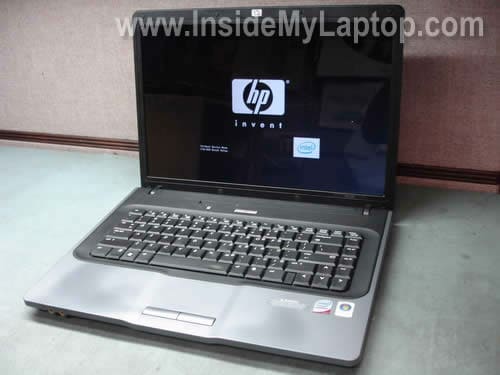
In this guide I will disassemble a HP 530 Notebook PC and remove the top cover assembly. I’m replacing the top cover because one of the touch pad buttons is broken. When you press on the button it feels loose and sometimes will not click. The button is a part of the top cover.
In order to replace it I will have to disassemble the whole computer. I’ll be removing all internal parts including hard drive, keyboard, motherboard, cooling fan and other key components.
It’s possible that my guide will work for some other HP models. If it works for you, please mention the model in the comments below and help other people.
First of all, turn off the computer and remove the battery.
STEP 1.
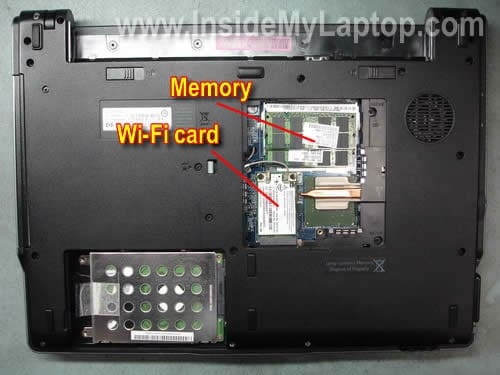
Remove the memory and hard drive covers from the bottom.

You will find the wireless card under the memory cover.
STEP 2.
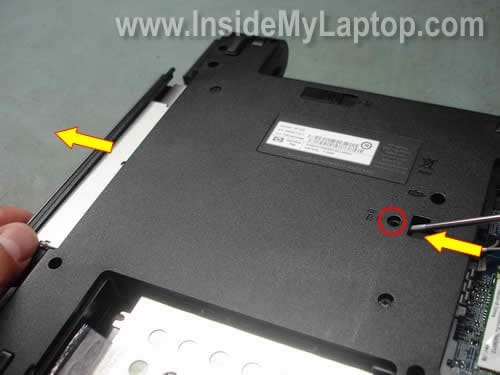
Remove one screw securing the CD/DVD optical drive.
Push the drive our of the case with a small screwdriver. Remove the optical drive.
STEP 3.
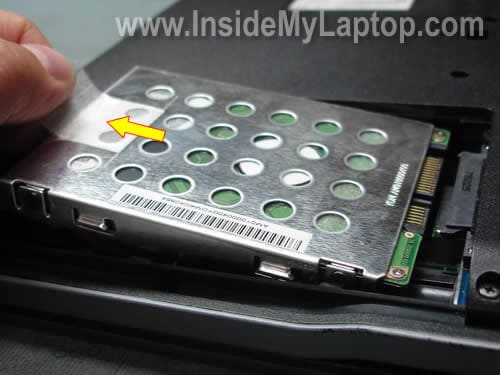
Pull the hard drive assembly to the left to disconnect it from the motherboard. Remove the hard drive assembly.
STEP 4.
When you replace the top cover, you don’t have to remove memory modules and wireless card, but it’s necessary to disconnect the wireless card antenna cables from the card.
Disconnect both Wi-Fi antennas from the wireless card.
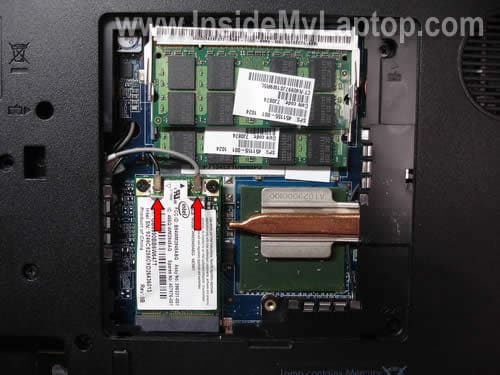
STEP 5.
Remove eleven (yellow) screws from the bottom. These screws are securing the switch cover (power button cover).
Remove two (red) screws securing the display panel assembly.
Remove two (orange) screws securing the keyboard.
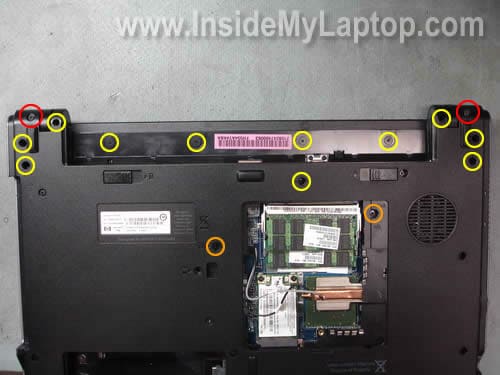
STEP 6.
Turn the laptop over and start removing the switch cover. If you cannot separate the cover from the base, you can use a piece of plastic (I’m using a guitar pick).
Insert the guitar pick between the switch cover and base and carefully lift up the cover. Continue removing the cover with your fingers.
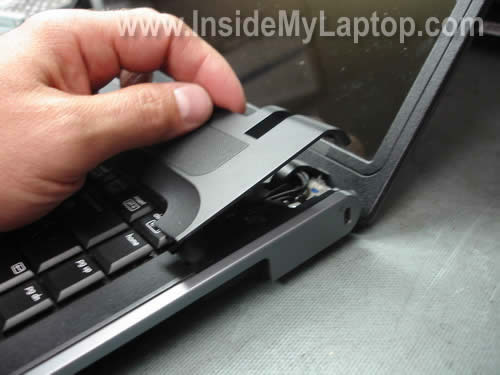
The switch cover has been removed.
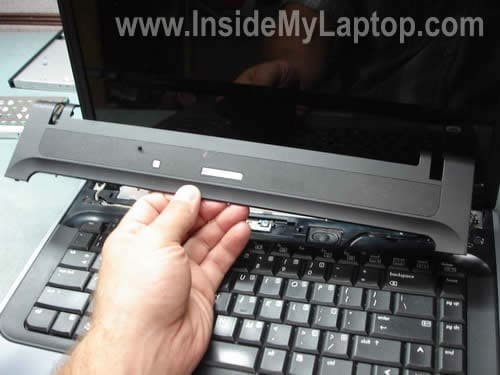
STEP 7.
You removed two screws securing the keyboard in the step 5. Now you can lift up the keyboard from the base.
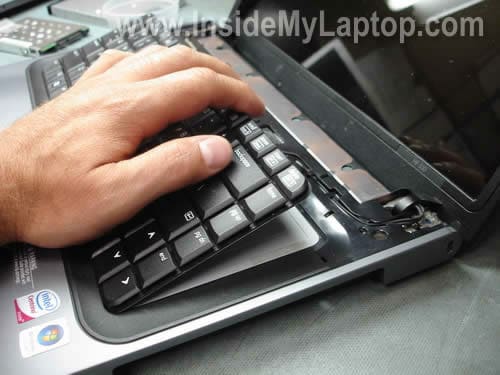
Move it towards the display so you can access the cable connector underneath.
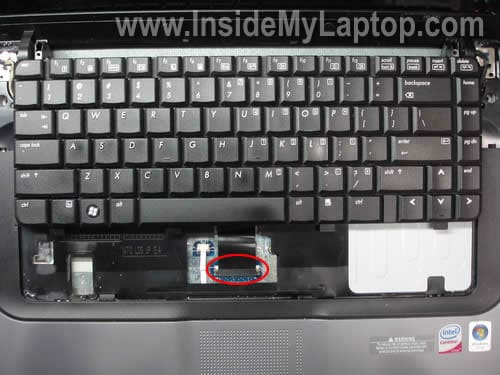
In order to unlock the connector, you’ll have to move the brown locking clip towards the display panel. Move it about 2-3 millimeters, not more. The locking clip must stay attached to the connector base.
Now you can release the cable and remove the keyboard.
WARNING! If you break the connector, you’ll have to replace the motherboard.

STEP 8.
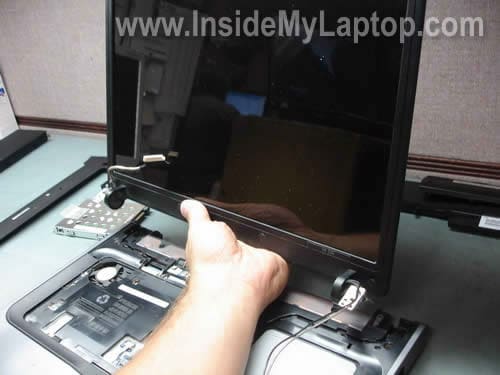
Disconnect the video cable from the motherboard.
Pull the wireless antenna cable through the hole in the motherboard. You disconnected these cables from the wireless card in the step 4.
Remove two screw securing the display panel hinges. You removed two more screws securing the display panel in the step 5.

Remove the display panel assembly from the bottom case.
STEP 9.
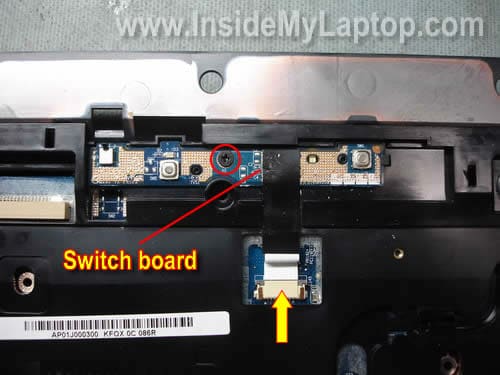
Disconnect the switch board cable from the motherboard. Unlock the connector the same way as you unlocked the keyboard connector in the step 7.
Remove one screw securing the switch board.
Remove the switch board.
STEP 10.
Remove all remaining screws from the bottom.
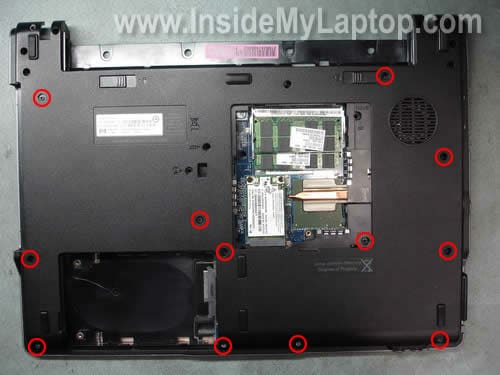
STEP 11.
Disconnect the touch pad cable from the motherboard.
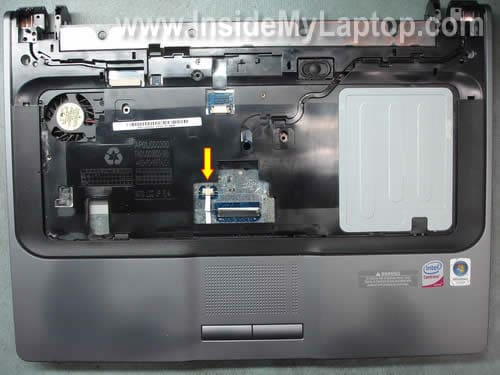
STEP 12.
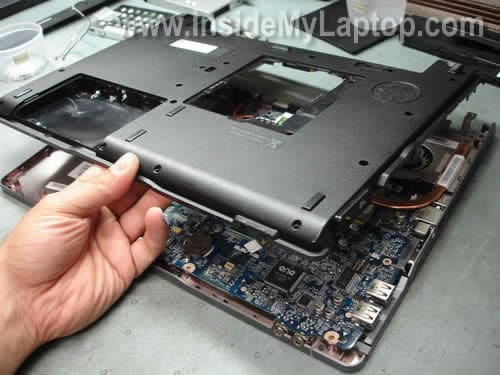
Start separating the top cover from the notebook base.
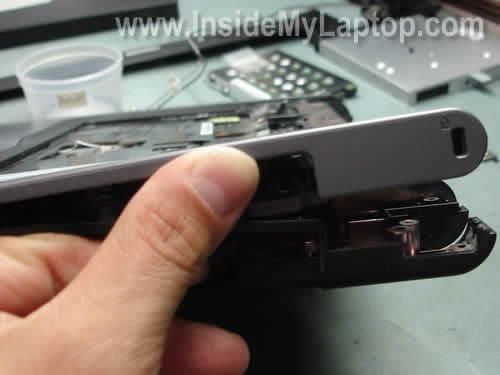
Continue separating the top cover from the base.
By the way, in a HP 530 notebook PC the motherboard is attached to the top cover, not to the base assembly as a most other notebooks.
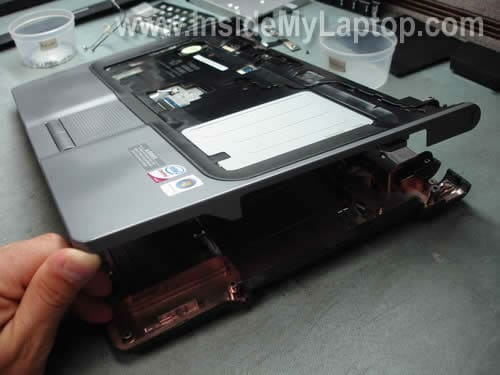
Remove the base cover.
STEP 13.
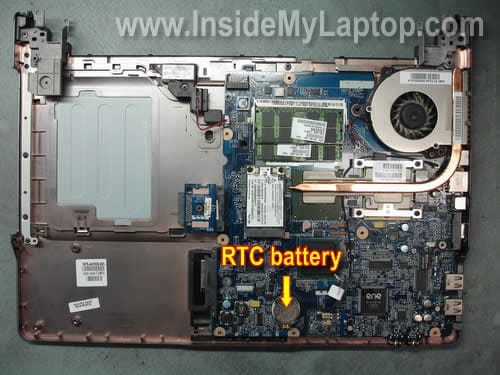
Now you can access and replace the RTC (CMOS) battery if needed.
STEP 14.
Remove one screw securing the cooling fan.
Disconnect the cooling fan cable from the motherboard.
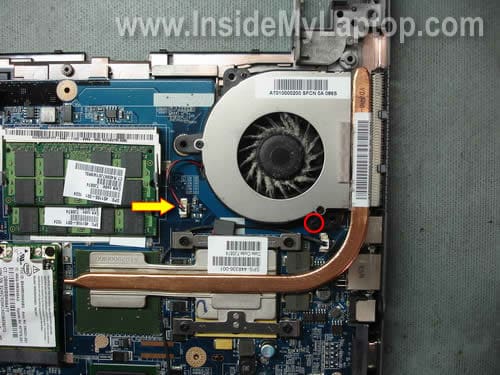
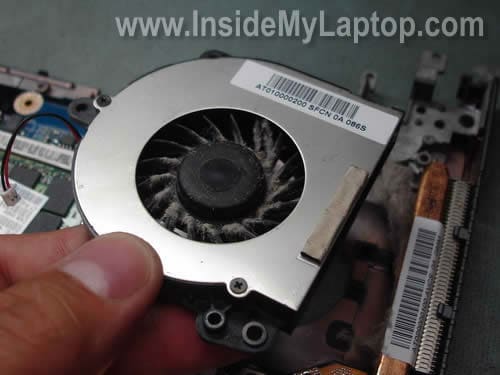
Remove the cooling fan.
STEP 15.
Loosen four screws securing the heat sink.
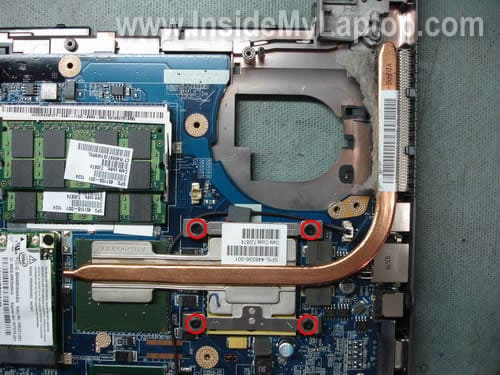
Remove the heat sink.
In my laptop the heat sink was clogged with dust and needed a good cleaning.
After the heat sink is removed, you can access and remove the processor (CPU) if needed. I’ll leave the processor attached to the motherboard.

STEP 16.
Disconnect the speaker cable.
Remove one screw securing the motherboard to the top cover.
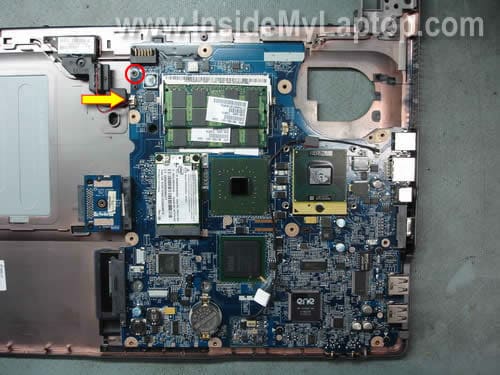
Start removing the motherboard from the top cover.
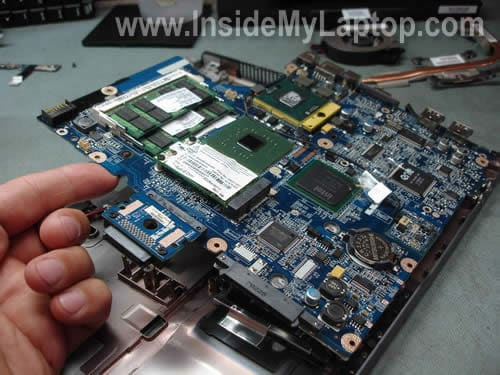
The motherboard has been removed.
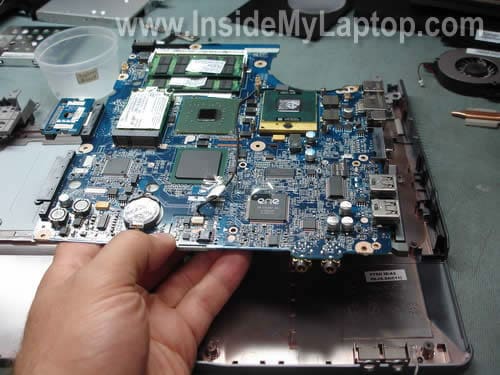
STEP 17.
The touch pad is attached to the top cover and secured by a metal bracket. I’m not removing the touch pad because when you buy a new top cover it comes with the cover.
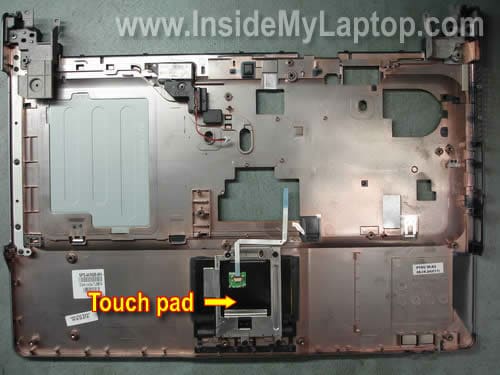
Now you can replace the top cover assembly with a new one.
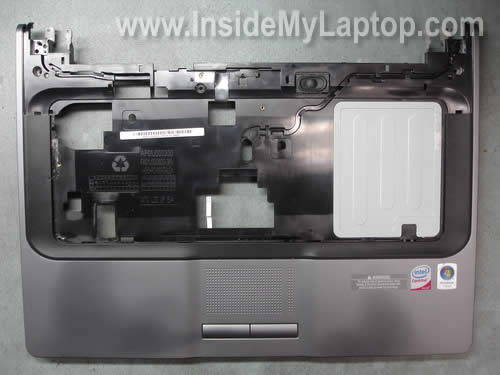
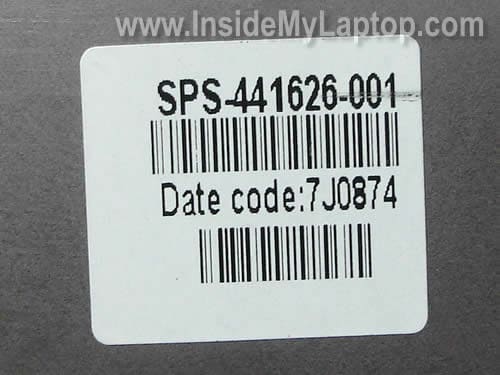
You can find a new top cover assembly (with touch pad) using the HP spare number. In my case it was 441626-001.
I think you can use the same top cover for all HP 530 Notebook PCs.
AndrewM
Very clear instructions! 5 keys on my keyboad failed about 3 months ago and I’ve been using my laptop with an external keyboard since then. It’s such a pain! Now I can replace the keyboard and it’s not as expensive as I thought. Ordering a new keybord tonight. Thanks for this guide!
kR105
wow.. very clear instructions!!
Thank you!
Dinesh
Many many thanks to you b,coz i want this particular model’s disassembly.It is in detail and easy to understand
zed
Is it possible to remove/replace CPU on this model or is it soldered?
Bam
Aweasome! I have one of this.
Thx
Shaheer
Thankx a million for the great guide! 😀
I tried cleaning my cooling fan and it got jammed.
I followed your disassembling guide and removed the cooling fan. The dust balls had jammed the propellers, I cleaned it up, replaced it back, followed the guide backwards to put everything into place. Turned my laptop on, and voila!
Thankx again for the great and simple guide! 😉
Joe
Zed, the CPU is in a socket. All you should have to do is turn the lock with a flat blade screw driver and it will pop right out. Replacing my fan tomorrow and probably ordering a keyboard soon.
Abner castañeda
I need to change the screen it(he,she) unites hp 530 since they left her to fall down and one broke only that in Internet I find a standard screen and the plastic part not to be disarmed to see if it is the same type of screen if you could help me I am grateful for it to you. He(she) forgives if he(she) does not understand himself(herself) very much but I speak Spanish and am using a translator in line.
IML Tech
Abner castañeda,
I guess you need to change the LCD screen?
Follow instructions in this service manual for HP 530 notebook. Take a look at the page 49.
ale
wow.. very clear instructions!!
Thank you!
Stas'
Thanks a lot Dude!
I managed to get to the cooler fan, clean and grease it.
I also replaced the heat conductor between the processor and the heatsink.
Thanks to your instructions it took me a little over half an hour
Thanks a million!
Omabla
Andrew, could you please help me to know where to order a replacement keyboard for the HP530. I do have the same problem than your but haven’t been able to find the keyboard. Thank you.
AndrewM
To Omable (comment 11).
I bought a new keyboard through the link in the step 7. Still works great!
Andy W
I have an HP510 and the left touchpad button no longer works. It does not feel like the button is broken like your description as it still ‘clicks’ when you press it but nothing happens. Will replacing the top cover resolve this issue in your optinion or is the problem elsewhere?
Duane F
Hey, thanks for posting this! I used it to replace my HP 530’s screen and upgrade the processor from a Celeron 520 to a T5300 (533FSB / Intel 945GME chipset, bios v.06). It’s loads faster!
glrnn
Thanks
This was very helpfull
Glenn
Netherlands
Harry
A great detailled manual. I used it for dismantling my HP510 and for 99% usefull!!!
For those who use this manual for their HP510 please remove 2 small screws at the position of the cd-drive to remove the cover.
Removing the motherboard also an extra screw has to be removed located at the corner between the usb connectors and microfoon/headphone connectors.
This manual is a perfect guide.
With great compliments and thanks for all the clear pictures.
Goran
I have some power problems. I am not shure is it a conector in lap top or a cable nere the conector… Now i need to finde a specific position wen i put a charging cable in to a lap top… Plese HELP ME……. Goran
Fido
This has been very helpful and I’m grateful for the resource. I would lyk 2 know how 2 reset the setup password on a hp 530 I’m working on. I’m referring to the motherboard setup that is accessed by hitting f10 during startup. I’v tried removing the rtc battery but the system’s stil demanding for a password. Pls I need help on this urgently & would b thankful for any assistance with this problem.
J A Trein
Great, very helpful. Thank you!!!
MisterP
very useful information, thank you…
M4niac
Very very useful information!
Cleaning the Laptop has become a piece of cake! Thanks!!
Martin
Thnx a lot dude!
Simon
Many many thanks. a very useful guide.
Andrés
Really helpful man, nice work and thanks! : )
rik
Trying to find help with this issue…. have hp 530 … the screen doesnt look damaged… 5/6ths of the screen work… yet there is a blank space to the very right. just unused… tried all hp support/ updated drivers .. etc… but still this exists.. when looking at buying a new screen I noticed that the guide said you may not need to replace… im really confused on this please help if you can????
IML Tech
rik,
Can you provide a better description?
Does the image look compressed and you can see the entire desktop on the working part of the screen, or the black stripe covers part of the image?
This problem appears only in Windows you you get it even in the BIOS menu?
Ganesh
Hi
Really you done a great job here. All the instructions are crystal. I have some problem with my laptop (HP 530).
Problem is Ctrl & fn key in left side, switched their functionality itself. For an example, if i want to copy any text, now im using fn+c instead of ctrl+c.
Could you please provide me a good solution.
Many thanks in advance.
IML Tech
Ganesh,
Unfortunately, I think this is problem with the keyboard. Apparently traces inside the keyboard got shorted somehow. I think replacing the keyboard is the only solution.
Please correct me if I’m wrong.
Mark
Hi this works for the hp 510 great!
Although since repacing the screen i cant get the wireless to connect to a network, it see them but doesnt connect even with the security keys…
Also the sound no longer works any ideas where the speaker connect ?
IML Tech
Mark,
Did you connect Wi-Fi card antenna cables shown in the step 4?
I pointed to the speaker cable in the step 16. Take a look at the yellow arrow.
Benjamin
Hi there,
Thank you for the very informative guide, my HP 530 gave up living a while ago and I fear I cannot fix it.
I tried having a look inside with the help of your guide but now I have it open and don’t know where the problem lies.
It starts here: one day during normal usage of my laptop it just cut out, turned itself off for no reason. Power was still plugged in etc. When I turned it on the charge light came on and it worked fine for a minute or two then powered down again.
A few tries after that showed a charge light but it only lasted for short bursts before dying again.
Now there is no charge light and not a sogn of life out of it at all, when inspecting the insides I found the fan to be a little clogged and cleared it, will this simple process have resovled the issue or could I be dealing with something else?
Thanks for your time and input,
Ben.
IML Tech
Benjamin,
Maybe the AC power adapter died while the laptop was working? The laptop worked until the battery discharged and turned off.
Can you test the AC adapter?
DjKraid
Hi!
I have a hp530, it’s almost the same as the one u have…
but I have a little problem, the god damn laptop won’t start. The “power” / “battery charging” light just blinks 8 times. Can anyone help me?
IML Tech
DjDraid,
It’s hard to tell what this error message means. Could be memory failure, video card failure, motherboard failure.
Try memory first. Do you have two memory modules installed? Remove them one by one. Test the laptop with each module in either slot.
Alex
Hi, thank you for taking the time to make this informative post. I took apart my 530 for cleaning (surprising how much gunk there was on the fan and the vent) thanks to your guide.
I must have rushed the reassembly though, as I ended up with two tiny screws left (different from all the others) :-S No idea where they belong. (I didn’t take the computer all the way apart like you did, either.) Everything seems to be working nonetheless, so I’ll stow them aside.
Cheers.
George
Hi, thanks for the fantastic guide. My problem is my HP530 has no sound from the headphone socket. It had a broken off headphone plug in it when I purchased it from a friend, and he had tried to pick it out, and damaged the old socket in the process. After my first attempt I ended up with no more speaker sound at all but left side headphone working. I took the motherboard to a local tech who replaced the socket for me, but still no sound from headphones, but now speakers work again on laptop. I need headphones working on both sides. I’m wondering if a microscopic resistor or cap has been lost during the socket change-over.
Could someone please post or email me a macro close up of the motherboard in the sound socket area so I can compare the layout of the micro components. This might be very helpful…thanks. George S.
IML Tech
George,
Here’s the best image I have.
https://www.insidemylaptop.com/images/HP-530-Notebook-PC/mobo.jpg
George S
Hi again,
my laptop had the same power fault as Ben’s. The solder-through plate from the power in socket -pin had fractured right through at the base where it goes into the motherboard.
It was not hard to repair. I just removed the old broken off end of the plate by de-soldering it, pulling it out, and then bridged the back of the plate to the motherboard with the wire.
Now, if I could just get my headphone sound working.
Cheers…George S.
Bojan
Hi, I have a question, I have a bluetooth that I removed from my friend’s hp6720s. Can i put it in my hp530 T2400? Is there a place for that in my hp base?
guy
hi,
Thanks for this tutorial; it came in extremely handy when I had to fit a replacement keyboard to my girlfriends Hp530. Which also may have saved me having to buy a replacement laptop.
Thanks again!
ps
I didn’t remove the wireless connections as I didn’t see how it would affect keyboard removal. Having tested it just now everything seems ok.
Mike Moorcroft
My wife has an Hp530 which has just started to overheat and powerdown. The machine is 2 years old and we live in a very dust enviroment in southern Spain; is there an easy way to clean the fan and filters? I am technically competent but the disassembly process seems daunting and if I were to bugger it up my life wouldn’t be worth a sou. Thanks in anticipation
IML Tech
Mike Moorcroft,
Yes, there is an easy way.
Find an air compressor and blow air into the fan grill on the bottom of the laptop until all dust gone.
Bob
This article helped me remove a jammed CD on my HP 550 laptop, by showing me how to remove the DVD drive. Unfortunately, it appears it is the drive itself that has the problem.
Everth
hi, do u know where I can buy H530 casing? also LCD replacement part. Thank you
Jose Jeria
Hello, I have this exact model and I plan to upgrade CPU. Do you know the compatibility of this motherboard? Can you send me high def picture of cpu, so I can check version?
Thanks!
Mitch
Please de F1 key from my hp550 fell off the keyboard i have 2 pieces of plastic but dont know how to put it back, need to know which pieces are connected to the key and into the keyboard, please please help me with this..
Jay
Hi I uprgaded this laptop’s memory and now the screen won’t turn on 🙁 Even when I switched back to the 512 the screen stayed blank. Basically the fan in turning on, but nothing else is. Is there anything I can do?
IML Tech
Jay,
Make sure the memory modules are seated properly. Most likely you just didn’t install them correctly.
DomokunOo
I have the Hp530 and the laptop fan started to make noise. I was kind of afraid to do the whole process of taking the cooling fan out but i managed to take the keyboard out and from there I just used a brush and cleaned it out a little. After that I put it back together and vacuumed the cooling fan from the bottom of the laptop. After starting the laptop after half an hour, I noticed that the fan wasn’t spinning.
I was wondering if I should just replace it or is there a way to fix it?
butterfree
@Alex #29
remove the dvd drive and you should see where those two little screws go
butterfree
@ganesh #28
there’s a bios option that switches the fn and ctl keys. press f10 while booting
Asish
I have HP 530 Laptop. From few days back I am experiencing a thin white colored vertical line on right hand side of my laptop screen…. I have tried to re-installing video driver and also cleaned up the screen very well but the line has still remain there….I dont know what should I do now. Please suggest me any solution and also an idea of replacing cost of the screen. I am from New Delhi. Waiting for your valuable response….
IML Tech
Asish,
Most likely this is LCD screen failure. You’ll have to replace the screen.
Javier
Thank you very much for your help
I have a hp 530 and by following your indications I could clean the fan (which was really dearty) and now the computer is not making noise (silent at long last!)
Thanks very much
Gobble
I really can’t thank you enough. you are the man. I disassembled my notebook to clean clogged fan, and it was exactly as you mentioned. I got a problem though which is not related to the disassembling procedure, I have two banks of memory , one of them is not working anymore, do you have a clue what might be happening ?? is it a bad memory bank or what? to fix it, Do i need to replace the mother bored ? thanks
brian
Hi there, great tutorial. Quick question. I took out the touchpad with the intention of wiring it to a ps/2 cable to use it as a modded touchpad for a desktop pc. I removed the touchpad from the top cover (it was glued or something) Does the glue serve a function with regards to proper functioning of the touchpad or is it just to hold it in place? Will i be able to go ahead with my mod? because all i see on the toufhpad now is the green board with criss-cross wires on the surface. Thanks a million.
Ed in PA
Hello…
Do you have to removed all the screws and the display section just to remove the back cover to get to the fan ?? I cannot get the back cover off… please help !!
Your site is an excellent resource !
Thank you
Ed
Ed in PA
Well…
I got the whole computer apart and the fan and heatsink cleaned out… the processor popped out attached to the heatsink so I left it attached and re-installed the heatsink and fan.
got everything back together no problem and powered it up… no display, not beep, power light on and a amber/orange charge light…. the Wifi blue light would not stay on either. I really screwed up…
Can you offer any advice on what to check before I take it to a repair center? I dis-assembled the whole thing again and checked the LCD connector and still the same problem.
A friend said I may have installed the processor wrong, but it just fit easily by lining up the heatsink screws, so I thought this would be ok. Also, I did not clean off any of the compound for the heatsink from the video processor or the CPU.
Please let me know what I can do next to trouble shoot/…. thank you
Ed
Dries
Hi There.
I have a funny one. My HP 530 had a power supply on it that delivered 27 volts. The unit worked and charged and ran off the battery. Now it does not respond at all. I am sure that it should work at 19.9 volt. After getting a decent psu running at 19.9 volt the charger does not function and the unit does not run off the psu. I am a electronics tech. Where should I start looking for the faulty charge unit/regulator. I am able to replace the faulty chip or whatever it is that failed. Are you able to assist?
Thanking you in advance.
IML Tech
Dries,
Sorry, cannot help. I don’t fix motherboards on component level.
Is your laptop completely dead? Maybe this failure is not related to the AC adapter at all? Have you tried replacing/reconnecting memory modules?
Ed in PA
Hello Again,
I have the computer back to working order (somewhat)… figured out the CPU was not seated right from when I removed the heatsink, I just needed to twist the CPU a little after taking the heatsink off and it came loose easy enough.
Cleaned the heatsink and video processor with alcohol, correctly installed the CPU and everything came on line.
Worked for a while and then started shutting off like the way Ben described his problem, removed the battery thinking this was defective and it seemed to work for day or so without the battery installed and only hooked up to the adapter, then the computer started shutting off again after 10 minutes or so for no reason. The fan is running fine, not too much heat noticed, so I believe it is not overheating.
Would replacing the AC adapter be a solution? I fear it may be a broken socket like George S mentioned…. is this an easy and inexpensive fix for a good tech?
Thanks again for any help and or advice !
Ed
IML Tech
Ed in PA,
The heat sink covers two chips, CPU and GPU. When you install the heat sink back in place, you have to make sure that there is thermal compound (thermal grease) on the CPU and thermal pad on the GPU. Do you have thermal grease and thermal pad on CPU and GPU? Maybe you accidentally removed thermal pad from the GPU? It looks like a blue square piece of chewing gum. Without thermal grease and thermal pad the laptop will shut down because of overheating.
suman
thank you for this pages.
video4shared
thanks so much.
i have a HP 530. I bought it 3 years ago. I feel it very hot, It over 80oC. I removed all to clean. and resetup my laptop. 🙂 It’s not running. Screen not display. I found more and more info for fix it. And I fixed it success. My slot Ram is damage. I’m running one Ram Slot.
Thanks for post this page.
Amrit
I Have a HP530 Laptop recently it has started giving me a problem of sudden shutdown, and gets heated very much seems its fan is not working any suggestions?
IML Tech
Amrit,
1. Try cleaning the cooling module with compressed air. Blow air into the fan intake/grill until it’s clean. Sometimes dust can block the fan so it stops spinning.
2. If cleaning it with compressed air doesn’t help and the fan still dead, I guess you’ll have to try replacing the fan.
-[Sok]â„¢
Hi, i have a HP 530, and i was using it at my window cill, it started to rain, and i forgot about it, and went to go get the washing in from the line, when i came back, i carried on working on my laptop, and about 10-15mins later it just shut down, i let my mams friend take a look at it, as i thought it had shortened out the motherboard or somthing, however he thinks it is just the battery that had been hit with the water. could this be possible? if so, do you have any suggestions to fix it?
It will not turn on, although when i plug the charger in, the charging light comes on, and when i press the power button, the charging light flashes, as it would if it were out of battery, but i have left it on charge for about 1hour, and it still does the same thing.
Please help :D.
IML Tech
[Sok],
I really cannot tell what is wrong without looking at the laptop.
First of all, unplug the AC adapter, remove battery and let the laptop dry for a few days. This might help.
I don’t think this is just the battery problem. Most likely the water wend down to the motherboard and shorted it.
There is not much you can do besides taking it apart and let it dry.
Max
can help my?
i need referency for audio jack
for Motherboard HP 530
IML Tech
Max,
What exactly do you need? The audio jack is soldered directly to the motherboard.
Trio
Hi, thanks for your article.
I have a problem with my Hp 530, and for about two months ago my pc started to overheat and shut down, so I bought an external fan base that solved the problem by now, but now he began to make more noise than it did before, without the cpu being necessarily working harder.
I wanted to open the pc to clean the dust, but I don’t know if it would solve, somebody can help me?
IML Tech
Trio,
Cleaning the cooling fan might help but… do not disassemble the laptop for that.
Find an air compressor or use your home vacuum in air blower mode.
Blow air inside the fan grill on the bottom of the laptop until it’s clean.
Test the laptop.
Now it works way better, isn’t it?
dope
my laptop does not charge with its on bt when its off its charge
Collin
Hi Mate,
I tried cleaning my fan exactly in this way, i reasembled the laptop but it won’t start anymore. More precisely the fan is not starting and i think that stops other proceses. Can you give me an idea regarding this? (i tried openig it up again to check my steps but it’s the same)
Collin
Hello!
I disassembled my laptop exactly like this to clean the fan which was making a lot of noise. After assembling it back it won’t start anymore. To be more precise after i press the Power button i can hear the hard drive and optical unit turning on, but the display won’t start. I also noticed that the fan starts for a second exactly after i push the button but after that it’s stopping. Do you have any advice regarding this? I’m not sure if the fan is not starting because the overheated procesor or the procesor is not working because the fan won’t start
Andrei Tosea
I followed your tutorial and it was verry useful, for disassembling and assambling my laptop.
I did an upgrade to the CPU, from Intel M430 to Intel Core Duo T2450, works very fine and cuts the battery consumption, optaining 2h 30min at full charge. To optian this, RAM, Cipset and CPU runs at 533MHz front bus speed.
!!! For this upgrade, must be disabled the Core Duo bios support, otherwise the laptop will not boot.
augusto
Thank you very much indeed! This website has helped me in what I needed.
Niladri
Hello,
I disassembled the whole laptop like u said but i also opened the processor. After setting all back when I am starting the laptop, the sound from the DVD Drive happens TWICE and the laptop shows no display.
However the keyboard is working and the wi-fi signal is glowing during boot.
I tried opening DVD drive but problem still persists
What may be the problem?
IML Tech
Niladri,
It’s hard to tell. Could be connection related issue.
Did you seat the CPU properly? Did you lock the CPU socket after removing the CPU? Did you check if memory seated correctly?
Niladri
I am having the exact problem that Collins have.
BTW the sound is from DVD drive and not Hard drive. And it happens TWICE instead of once.
Thanks
Nathan Reeves
Hello and thanks for the walkthrough..I have expericne in laptop disamembly but its always nice to have a guide to walk you through all the screw locations with pictures…KUDOS!
My question:
Does anyone have a source of the laptops bottom plate screws? This was given to me by a friend to repair (its got intermittent power) and I think it might be the fact that the screws are almost all missing from the bottom of the laptop (grounding issue?) The DC jack doesn’t look corroded /oxidation or loose…..
I would like to get hold of all the screws…
I have all the ones that cover the parts and the 4 flat ones that lie beneath the battery…
so i guess the other 8 if they are available….I dont have the power supply for this unit either my friend is supposed to look for it but does anyone have one available in case we cannot located it?
If we cant find I am interest in selling the unit for parts rather than on fleabay…
Everything works fine save for the power is intermittent (could even be the power supply he was using like I said i don’t have it so i can measure the volts its spitting out)
Besides the screws, has anyone have this same issue with this laptop? Any advice on what else to check while I have it here?
Cheers & again thanks for the information any advice is greatly appreciated!
IML Tech
Nathan Reeves,
I think you can buy them on ebay.
nate
Anyone need parts from the HP 530?
I have LCD, display bezels (front and back), hinges, keyboard, top and bottom case, battery, motherboard, DVD ROM drive, hard drive, etc etc.
I can provide shipping information and pictures upon request…
Thanks!
nate
funny i found that on their website but they said they were out of stock!
i guess they are out of stock cause its up on ebay….
they should put a link to their ebay store on the website! LOL
thanks for the link!
think of just parting out
HP 510 530 SCREEN 15.4″ 440716-00 what is a fair price for the lcd with the inverter?
anyone need the front or back display bezels?
SmithA
Hello…
PLEASE HELP ME!!
I have a Hp 530 and today i want to upgrade the bios version from f07 to f08 after i`ve made the upgrade the laptop is starting but i don`t have a image or something….i`ve disambled an take out the rpc battery but no sign for display…..
how can i reset the bios factory or what should i do….please help!
IML Tech
SmithA,
If the BIOS was corrupted while upgrading there is not much you can do.
I’m afraid you’ll have to replace the motherboard. Probably the laptop not worth fixing.
Just in case, try the following. Unplug the AC adapter, disconnect the main battery AND CMOS battery. Leave the laptop this way overnight, let all capacitors to discharge completely. Next day try turning it on again.
Nathan Reeves
I will sell you my motherboard…
What is your model # and serial?
Or if you wish can I get the 12 screws for the bottom from you? Where are you located?
Sorry to post here I wish there was a PM option or publish email option (not my website though!)
Esko
Hi,
My HP 530 does not take power from side connector; any other possibilities except new mother board?
An idea was to use the pc only as to connected to the mains:
so I tried to connect the power supply to the far ends of battery: this did not work either
any good ideas? (except to buy a new one…)
IML Tech
Esko,
Did you test the AC adapter? Could be bad adapter.
Also, there is a chance of bad DC jack.
Abhishek
Hi do know how can I get a spare top cover. The service center guys asking for 4000 rupees. I think he’s bluffing. Do you have any idea what the real cost of this part is and where can I get it?
IML Tech
Abhishek,
In the service manual find part number for the top cover. Google the part number and you’ll find how much it is and where to buy it.
Esko
HP 530
I have tested the AC-adapter, it is o.k.
The light in side of PC does not lit either with an other full condition HP 530´s adapter.
My unit did work fine with full battery.
The battery was charged well in another full condition HP530.
There is no connection between + input on dc input connector and battery connector.
That is why I tried to connect adapter directly to battery poles, but solution does not work, why?
Abhishek
Hi
Thanks for the link. Although I had already downloaded the file because you given a link to the same file in he article also 😉
Anyways thanks a lot for the useful guide and assistance..
Esko
I think my HP530 CND8114SOW motherboard and battery are dead.
Anyone needs the rest without the hard disk?
This unit is in Espoo, Finland
javier
I Have a HP530 Laptop recently it has started giving me a problem of sudden shutdown, and gets heated very much seems its fan is not working any suggestions?
HOLA, TENGO UNA HP 530 AL MOMENTO DE CONECTARLA A LA ENERGIA ELETRICA PRENDE Y LUEGO DESPUES DE 3 SEGUNTOS SE APAGA, QUE PUEDE SER…ME DICEN QUE ES COOLER O QUE EL VENTILADOR ESTA SUCIO…ME PUEDEN DAR ALGUN CONSEJO
IML Tech
javier,
Take a closer look at the fan. Does it start spinning at all before the laptop shuts down? Maybe the fan is bad.
If the fan works, try cleaning the heat sink using canned air. There is a chance that your heat sink is clogged with dust and the laptop shuts down because of overheating. Cleaning the cooling module from dust should fix it.
Catman4
Hello,
I would like to know what is the maximum HDD I can put in my HP 530?
I have the one with the Celeron processor.
@Esko and @ nate
I could do with the screens back cover as mine is cracked and the CD/DVD writer.
You can contact me through my link,
Thnak you all in advance and have a great New Year!
IML Tech
Catman4,
This is a SATA hard drive. I believe any large hard drive will work fine in this laptop.
TONY
Hi I have a HP 530 WANT TO KNOW IF YOU CAN USE A HARD DRIVE WITH MORE SPACE My hard drive is 80 GB And also I WANT TO KNOW IF I CAN PUT A BETTER BATTERY CAPACITY TELL ME WHERE CAN I GET THESE PARTS
IML Tech
TONY,
This laptop has a SATA hard drive inside. You should be able to use any large 2.5″ SATA hard drive with this model.
160GB, 320GB, 500GB, etc… any of these drives should work fine.
I believe the default battery in a HP 530 notebook is this one: 4-cell, 2.2-Ah, 32-Wh battery (HP part number: 440704-001).
There are 8 cells 4400mAh batteries available on the market.
Don Sherman
Hey thanks very much i just read all this and tore my whole laptop down to clean it it’s running much better and the keys are not so sticky thank you so much it seems nice to have my laptop running fast again and proper thanks again
Desaint
Hello everybody, first of all thanks to the knowledge you provide on this site.
I bought a replacement LCD screen my HP 530 laptop and it so happened that it’s failing most of the time and whenever it fails I have to hold the top left cover very tight to get a stable display and sometimes it completely doesn’t stabilize.
Is there anyone with the solution?
If the solution is buying which is the cheapest store you suggest or does anybody have one for sell. Thank you
IML Tech
Desaint,
Sounds like you got a defective screen. You’ll have to replace the screen again. Try returning it under warranty.
Ali
Hi,
Thank you for detailed explanation
Evan
This article was exactly what I needed! Big ball of dust came out of my laptop after taking apart everything… no wonder my computer overheated and crashed.
gray fox
thank you
very helpful article
Richard
After doing this and reassembling it My hp530 wont turn back on any tips on what it might be
IML Tech
Richard,
It depends on how far you disassembled the laptop.
Here are most common mistakes people do:
– memory module not seated correctly.
– if you removed the CPU, you forgot to lock the socket. Or the CPU not seated correctly.
watomx
Thanks for this, yesterday I disassembled and get to clean the fan (which had been doing too much noise) and the heat sink from a huge dust ball, just a note, as @Harry #17 said, there are two small screws on the dvd side, other than that your instructions were perfect. Now my laptop runs smooth as new, this weekend im going to install windows 7 on it.
Çağrı
I just cleaned up my old hp 530 laptop. Thank you so much
keller
Vei super manha… valeu foi muito util!!! pois a saida do meu encaiche de HD tinha queimado entao tive que efetuar o reparo do despositivo. MUITO BOM
Champ
Very good….. Thanks for the explanation.
Only 1 think i add to this explanation. On STEP 12, you need to unscrew 2 screw, below the top coverage, inside the CD/DVD lecture.
Anyway, tanhks
Ankit Upadhyay
i have HP 550 laptop and my mouse pad is broken and i want to change top cover. is it possible
and can i change it safely. for whom i contact for that change. replay me plz.
i am living in Ahmedabad,Gujarat ,India
So plz tell me
IML Tech
Ankit Upadhyay,
Yes, it is possible to change the top cover assembly.
Can you change is safely? I don’t know. Depends on your technical skills.
Take a look at this service manual for HP 550 notebook PC. The manual has notebook disassembly instructions.
The top cover removal instructions published on the page 62 in chapter 4.
tarik
thank you that was so helpful 🙂 i cleaned my computer myself 🙂
Dan
Thank you for the guide. Do I need do diassemble the laptop completely like you did to replace CPU? Or can I do it without taking off the screen, only unscrewing the back panel?
Intel Core 2 Duo T7200 667MHz 2GHz seems to be fitting well according to specs. No 800-MHz processors will work, am I right?
Thanks
Karoline
Hello IML Tech
Thanks ever so much for the above, this is very useful. I was wondering if you were able to advise on the model of the RTC/CMOS battery. All I know from some HP maintenance guide is that the part number is 438556-001. Mine needs replacing and I tried to dismantle my laptop last weekend, however some of the screws were so tight, I failed to go beyond step 5. I shall give it another go this weekend, however wanted to buy the battery in the meantime. I was wondering if there is a particular model that I need to buy or if my machine will work with the one of the standard RTC batteries from Philips or so.
Thanks very much for your time, have a good eve.
Kind regards
Karoline
IML Tech
Karoline,
The RTC battery part number should be mentioned in the HP maintenance guide. I cannot tell which battery you need because I don’t know your laptop model number. Check out the maintenance guide, find HP part number for the RTC battery and buy it.
Mauricio
Hi I was wondering dose any one know where i can get a bios chip for this laptop ?
my laptop dosent have the bios battery. thank you.
Bipul
Thanks for the guidence. Resolved the fan complain by cleaning step by step in my HP530.
Jordan
I am looking for a cheap replacement Harddrive, as the one in mine crashed. I just need a cheap one to run linux on so I was wondering what the original one was since I had recently taken mine out and cannot find it. Thanks
Bill
Question regarding step 15 and step 1.
Once I remove the memory and wifi cover I can see the tip of the heatsink. As my laptop is overheating I wonder if it is possible to give this a blast of compressed air to ‘reverse’ clear any dust that has accumulated. I know I will have no control over where the dust goes, but I wonder if just trying this as a quick fix might help before I go the whole hog and strip the whole thing down?
ALaBabala
Hi!
My laptop had died from overheating.
Following your tutorial, I’ve been able to open, clean the fan and close it again. So far it works, thank you very much! 🙂
PD: Note that was the first time I opened a computer 😀
seeker_mg
Thx alot!
William
Hi! i´m william from argentina, thanks man!! this in great, i´ve disamble my entire computer and i cleaned.. but, still broken haha !! thanks anyway.. you´re a genious…
brc
excelent, …
love is a dog from hell
thank you very much for this useful piece of information!
Osvaldo
Hello!
Thank you for this guide. I disassembled my hp 530 yesterday, and I would not have done it without your help. Thank you again!
Maxi
This has been very helpful and I’m grateful for the resource. I would lyk 2 know how 2 reset the setup password on a hp 530 I’m working on. I’m referring to the motherboard setup that is accessed by hitting f10 during startup. I’v tried removing the rtc battery but the system’s stil demanding for a password. Pls I need help on this urgently & would b thankful for any assistance with this problem.
Attilius
Excuseme, an information:
I must to change the RTC battery, someone knows the specific name of the RTC battery? (..like CR2032 or similar)
IML Tech
@ Attilius,
It looks like HP 530 notebook has a regular 3V CR2032 CMOS battery.
Attilius
Thank you!
wetu
The procedure is very precise that it has enabled me to repair this laptop in one hour. God bless all those who have contributed to make this article available.
Kees Lameijer
Great It was very helpful for me. thank you very much
Hans-Peter
Thanks for this usefule site. I guess my HP 530 has a memory fault, after starting windows I get a memory fault at 0x000000000 with the instruction 0x73cc989e.
I already removed the memory card, but there is a built in 1 GB chip. How can I find it.?
Thanks
hans-peter vienna
IML Tech
@ Hans-Peter,
HP 530 laptop doesn’t have built-in memory. Both slots located on the bottom of the laptop.
Do you have two slots on the bottom?
Bill
Replaced a fan on this and now the laptop does NOTHING when I press the power button. All connectors are connected. Tried w/ and w/o battery installed. Tried with a different power cord. Still just does nothing. When I press and hold power button for 5+ seconds, still nothing. Help please!
IML Tech
@ Bill,
Check if you forgot to connect the power switch board cable shown in the step 9.
If it’s connected, make sure the cable plugged in correctly.
sam
Hi!
Ive recently given in my laptop for repair as it was not powering up. Not with AC Adapter, not with battery. Nothing.
The repair guys that are checking it out say that the “power card” is busted and needs to replaced. But they cannot find the part. Which leaves me no choice but to replace the motherboard.
Is there a “power card” in this laptop? I mean I hope im not gettng scammed! Is there someplace I could buy it online?
Thanks in advance!
IML Tech
@ sam,
I don’t know what the “power card” is.
Maybe they said “power button board” which is shown in the step 9? Ask them.
By the way, it’s not a part of the motherboard and you can find one on eBay very cheap.
Nikola
Does I need to do ALL STEPS from 1 to 15 just to clean the fan and the heat sink? After that I just screw everything back?
IML Tech
@ Nikola,
You can remove the keyboard as it shown in steps 5-8. After that you’ll see the cooling fan.
Blow air into the fan until all dust is gone. This should be enough.
Nikola
Yes, but I heard that just blowing air isn’t cleaning the main places where the dust is hidden. Can I also unscrew the fan with just steps 5-8?
Nikola2
Yes, but I heard that just blowing air isn’t cleaning the main places where the dust is hidden. Can I also unscrew the fan with just steps 5-8 and than clean it?
ted
i have a hp 530 with what i think is a dodgy dc jack. Fortunately i have a spare HP 530 which is dead (just powers up ad fan runs constantly) could i de-solder the jack on the spare machine and solder it into the good machine?
Berret
Thanks a lot for this post and it has helped me a lot in repairing my laptop HP 530 .
@Sam – I got similar problem with my laptop and it got resolved by replacing just one Power IC and that is available easily . Else you can use any other power IC used in other HP laptop’s .
People from HP will ask you to replace motherboard which is much costly . I would prefer to get in to the root cause on mother board . Most of things on Motherboard are repairable 🙂
Vlad
Very useful post! I just cleaned my laptop fan and now is working. Also i think u forgot about the 2 screws above cd-rom unit. Thank you!
Debby
Thank you for this “how to…”
I have absolutely no knowledge of computerrepairs, but with your step-by-step guide I succeded in replacing my fan. Now it’s working again!
William
Thank you so much! Awesome guide!
@ Nikola2 – I followed all the steps up to 15 to properly clean out the fan – blowing doesn’t remove the big clumps of hair and dust.
rory
Hi,
I have this model and thank you very much for your excellent dis-assembly guide. My issue is that there are no lights illuminated on my laptop. no charge light, no lights, completely lifeless.
I hav now plugged in the ps unit and can confirm that 19.3V dc is reaching the motherboard…
Any suggestions as to where i go from here much appreciated…..thanks
IML Tech
@ rory,
It sounds like you have a problem with the motherboard. Sorry cannot help here. I don’t fix motherboards on the component level.
Pylyp
just amazing!
THX! 😉
used for removing (forgotten) bios pass by removing batt
Dorian
Thanks mate! You helped me a lot!
Joey
thanks and just to let you know, when following the instructions I discovered two more screws you forgot to mention in step5 – these are smaller ones holding the cover above the dvd tray.
Rajasekar
My laptop can’t turn on, when I press the power button (the charger is on, the battery is inside the laptop), sometimes it begins to turn on, and then in a few seconds simply turns off. The power LED then flashes like it used to when the battery is low. And sometimes the power button doesn’t react at all.
At the other hand, sometimes I manage to turn the laptop on and it works perfectly, also the battery is full, not charging.
Could it be charger?
IML Tech
@ Rajasekar,
It’s hard to tell but yes, I would definitely test the laptop with another AC adapter.
I’ve seen some failing AC adapters causing very strange problems. It’s possible the AC adapter is not working properly under load and because of that the laptop will not start.
Test the laptop with another AC adapter.
Alejandro
great man !!! Tks a lot…!!! I went to step 13th withut problem, now let’s see now if I remember the long screws and short screws placement !!!
jani
hi there
this is best site ihave seen.thanx very much to teach
Haseeb
This web-site is no doubt the best & self-explainatory
Rathore sunil
My laptop can’t turn on, when I press the power button (the charger is on, the battery is inside the laptop), sometimes it begins to turn on, and then in a few seconds simply turns off. The power LED then flashes like it used to when the battery is low. And sometimes the power button doesn’t react at all.
At the other hand, sometimes I manage to turn the laptop on and it works perfectly, also the battery is full, not charging.
Could it be charger?
maik tsapman
thanks…….very usefull information…..and detailed also.
Fixed in one hour my laptop…
Atb
Very useful information. The laptop is fantastic.. you know why.. you can use lifelong .. im using my company laptop and i m the third person using the same lap and around 6 year old, i think.
be honest.. i hav lots issue with this laptop as mentioned like Mr.Rathore sunil but this will work.
i am running w7 in this machine.. 🙂
some issues i m facing:
1. Over heating ( i don care about this)
2. laptop will not start some time ( I would remove the battery, let it cool some times and start again)
3. Power off without any warning/notice (can’t beat me, i will start again after 10 minutes)
4. recent issue- not charging, if i pull up the key board base in 45 degree, it will show charging, some time charge in any direction and if i moved then it stop charging.. very disgusting and i was tired of this problem. what i did is i replaced my charger and battery//.. cool its working now but……. now its charging but there is no light. if i shut down.. the orenge light start keep on blinking.. i would remove the battery and put it back :).. etc etc …. but i wont ask my company to change this one.. im good with this peace ….
teodor
Hi, i managed to dissasembly my hp 530 , and replaced the thermal grease. Problem is , it doesn’t make any difference, the temps are still: 100-104 C in full load (aida64 stress test), and about 70 C in idile, as well , when i play a 720p youtube video, at 50% cpu load, the temps still rises at 100-104C, should i replace the whole cooling system or what?
ps: what temps you (hp 530 users) have in full load and idle?
pps: sorry for my bad english
Kevan
Hi. Firstly thank you for an excellent and detailed strip down of this laptop. I started to strip this model down so that my wife could use it after it was discarded by my daughter. I hit some snags but then found this website. It was like the sun came out and parted the obscuring clouds 🙂
So, I have the laptop all stripped down and cleaned up, lots and lots of dust and fluff inside 🙁
Can you tell me how I go about removing the single stick of RAM memory please? I want to upgrade the RAM but don’t want to force this original one out. Any ideas please?
Thank you.
Kevan
Kevan
It’s ok, I looked up the workshop manual linked in other posts and it details how to remove the RAM modules on there 🙂
Cheers.
Sorin
Thanks was very usefull.
diT.eras
Asom steps mate, very usefull i was geting stuck in a few things like to remowe the video and stuff with out breaking it 😛
J.A.ODOOM
I have an HP 530 NOTEBOOK with a broken cover which houses the LCD screen. i want to purchase a new case for the entire machine , please kindly link me to the source and the amount to pay for. thank you.
maximiliano
Thanks, muchas gracias
Arthur
Works also for the HP 510. Thanks!
Mario
From Guatemala, Thank’s friends
Larry Wiliams
I have never disassembled and fixed a laptop before.
This site made it easy and clear. I’LL never use another. Keep up the great work and Thanks!
Abid Naeem
Great site, helped me a lot in repair of my laptop. Thanks for good work and support for everyone. Stay blessed.
IML Tech
@ Abid Naeem,
You are very welcome. I’m glad that my guides are useful and help people.
Marly Marl
Stripped down my 530 and put it back up, need to buy a board as the machined overheated and the processor seems to have burnt out…Can I just change the processor????
Blessed Imeh
Thanks for that support
lobito
I disassembled my ntb first time after 6 years, and there was no dust in fan or heat sink. So where you use your ntb? In factory hall? Desert? Mine?
Burnaby
HI, i can find nothing on HP G5000( how to dis assemable) help please david
IML Tech
@ Burnaby,
I cannot find it either. 🙁
It’s strange. Usually HP publish maintenance and service guides on the website.
Norbert
Is it known if the power input socket is susceptible to intermittant contact? Thanks.
Jim
Hi.
A great guide – just what I needed.
I do not know whether laptops differ, but in step 10 as well as removing the remaining circled screws in the base I also had two screws on the lip of the optical drive enclosure. This was a little frustrating when trying to split the body until I spooted them!.
Thanks again.
feardha
what if I just want to replace the CMOS?
can I unscrew those on the step 10 and release the bottom cover?
I don’t want to mess up too much, dad’s property 😀
IML Tech
@ feardha,
No you cannot do that. You’ll have to go though all disassembly steps 1-13. Only after that you’ll be able to access and replace the CMOS battery.
yuvraj
I want to change screen of my HP530 laptop. Where can I buy that and for how much cost? Also suggest which guide book to use to replace it by myself. I live in India.
benjamin
how can i replace my sound card an where can i find it on the laptop’s motherboard`
comp model hp 510
IML Tech
@ benjamin,
The sound card built into the motherboard. You cannot replace it.
Joe Dunn
Hi. Hope everyone had a enjoyable & safe holiday season!
Great detailed instructions. Is it possible to replace the plastic left side & right side mousepad button caps. My pad works fine – button below the plastic caps work fine. Both caps are beginning to split – can see hair line cracks beginning to spread with more use.
I’ve replaced numerous key caps and retainer clips over the past couple of years – would like to do this for these 2 button caps.
Danke!
akash
sir my HP 530 laptop is just broken in outside of folding.. and then I start my laptop but screen is not view… pls help
Alenson
Hp510 casing broken @ hinges, how can i fix it.
Maluwa
Awesome, i was frustrated with my display inches was broken iand i did not know how to open front cover bot with your tutorial, i have made it.
Thanks
Sendman
Absolutely great!
I followed your steps to clean my notebook including the fan after 10 years. Now all works perfectly.
Only one tip before you start!
Prepare something where you can put in all the tiny screws for every step. I used 16 caps from water bottles, glued them on a card and numbered them from 1-16.
So every screw gets back on the right place.
Hope this is useful for you
Greetings Sendman